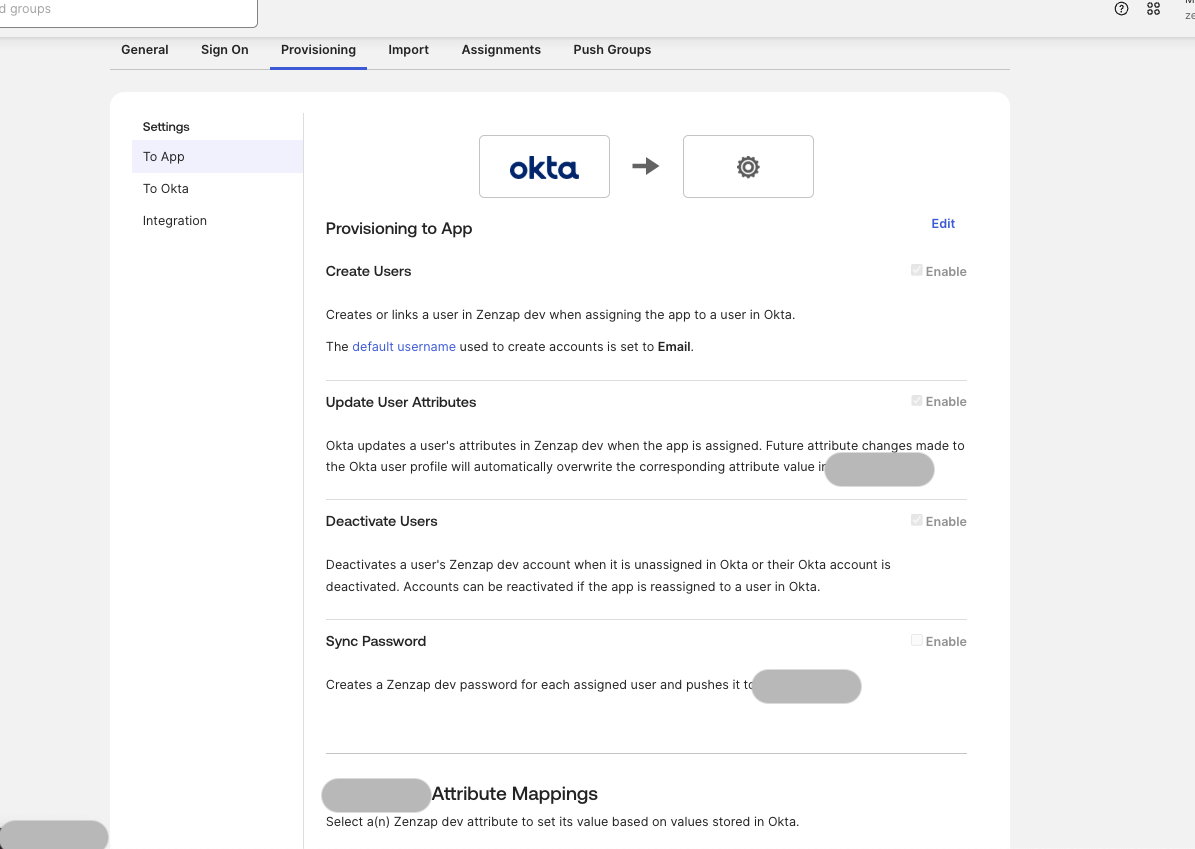
- Microsoft Entra ID
- Okta
Setup SCIM with Microsoft Entra ID (Azure AD)
Automate user provisioning and deprovisioning between Entra ID and Zenzap.- In your enterprise app, click Provision User Accounts
-
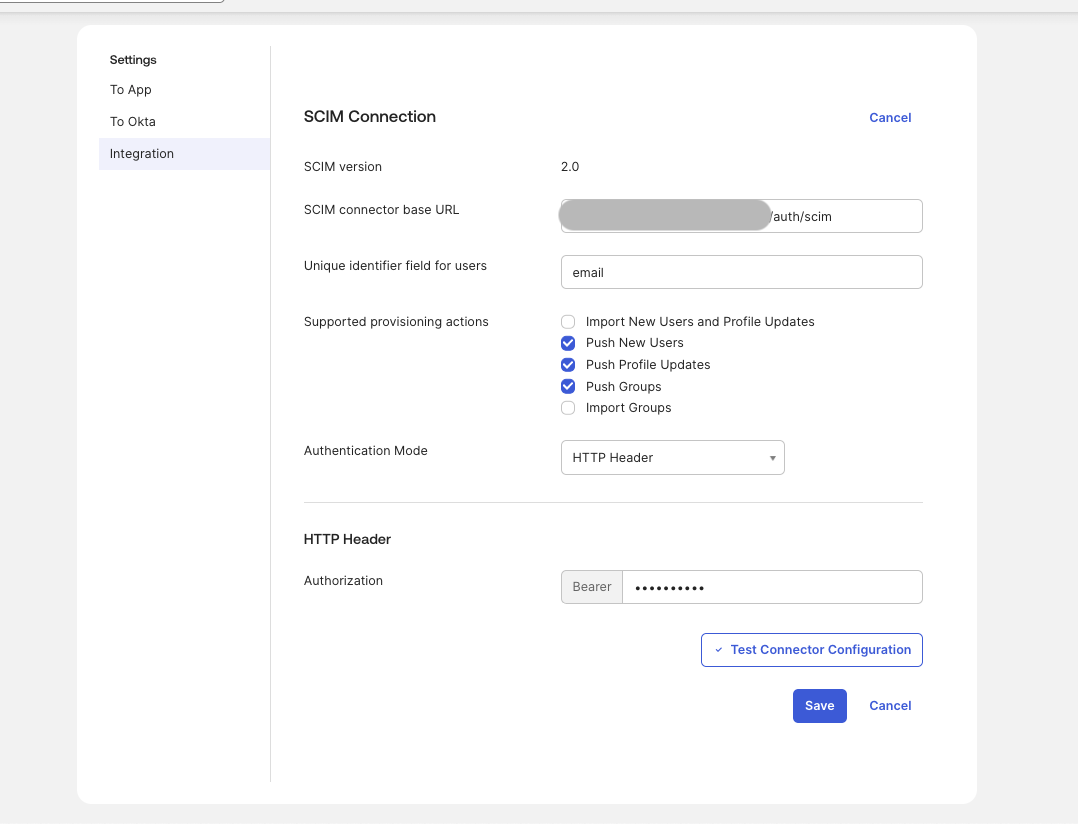
Use the url
https://prod-api.zenzap.co/auth/scimand the key provided by your CS representative.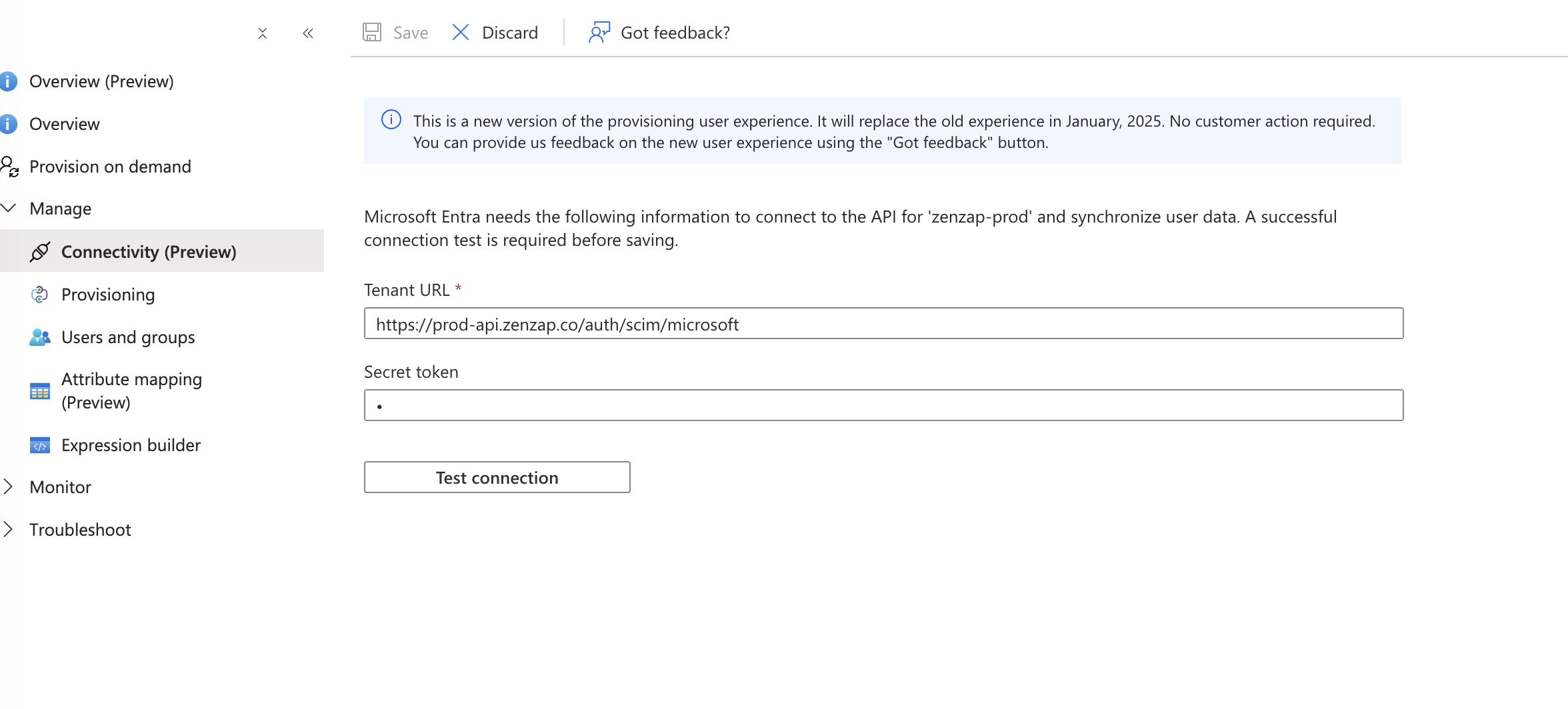
-
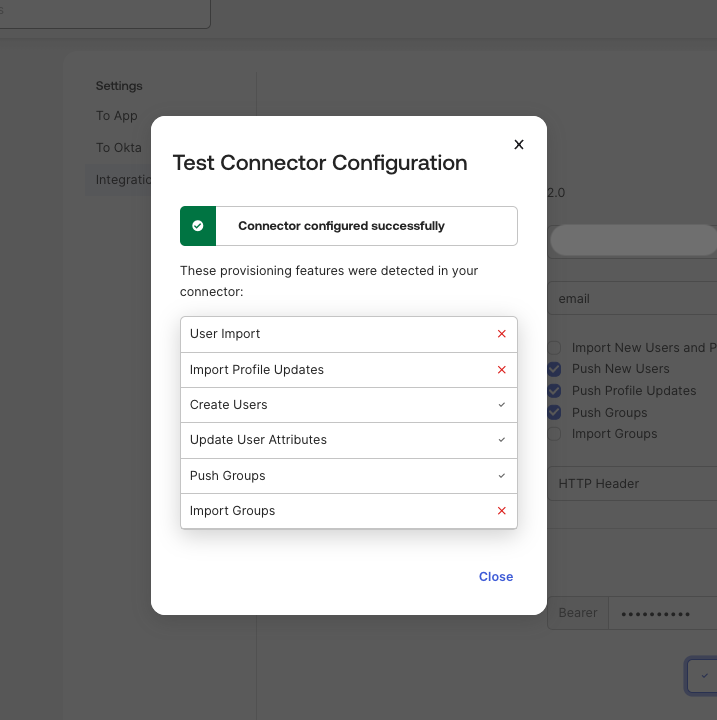
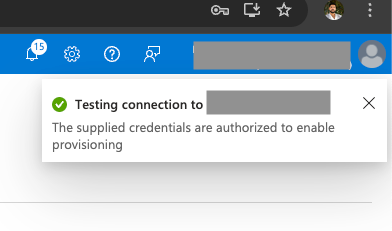
Test Connection and verify the connection is successful.
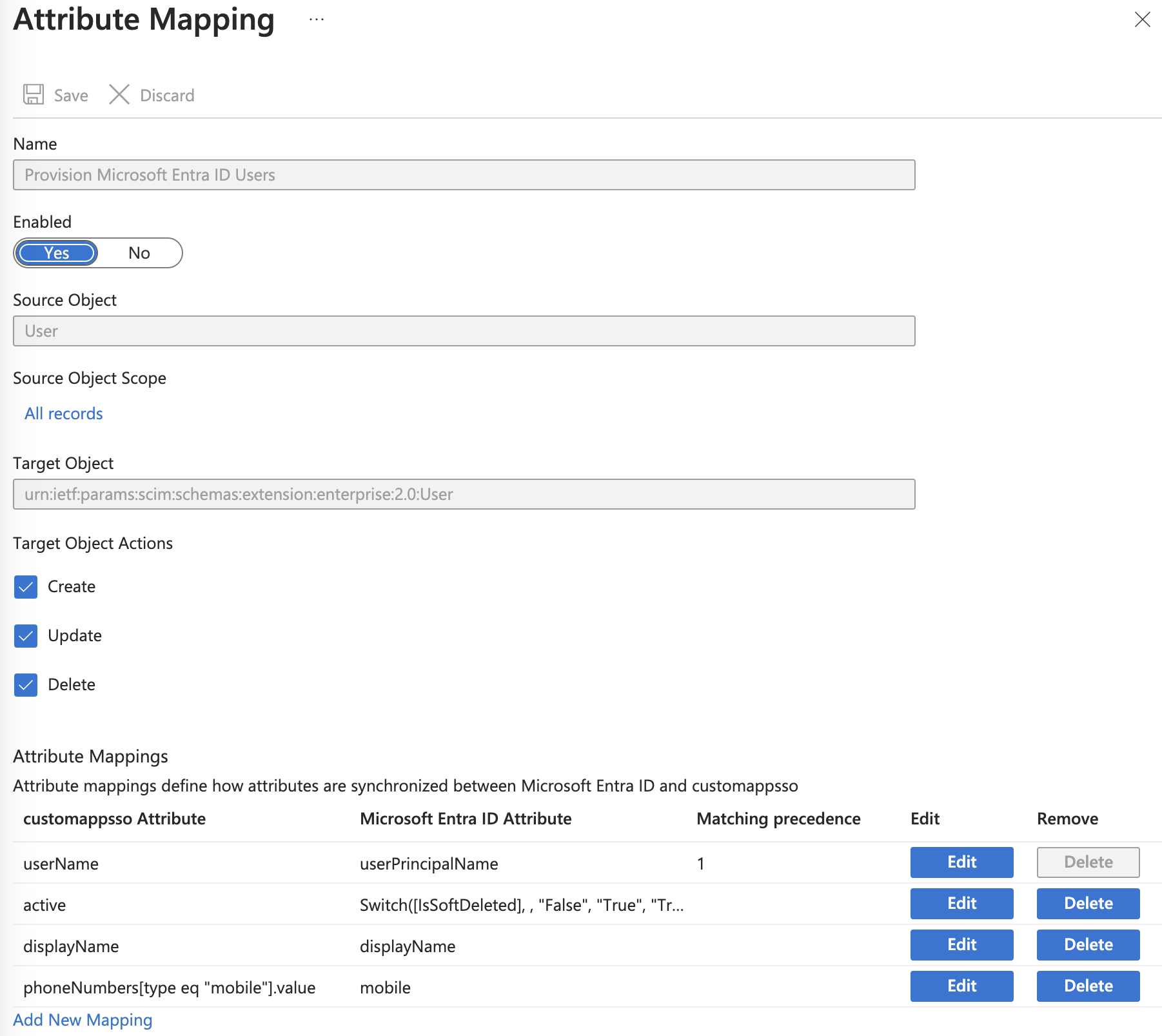
- Map the user attributes to the correct fields in Zenzap:
-
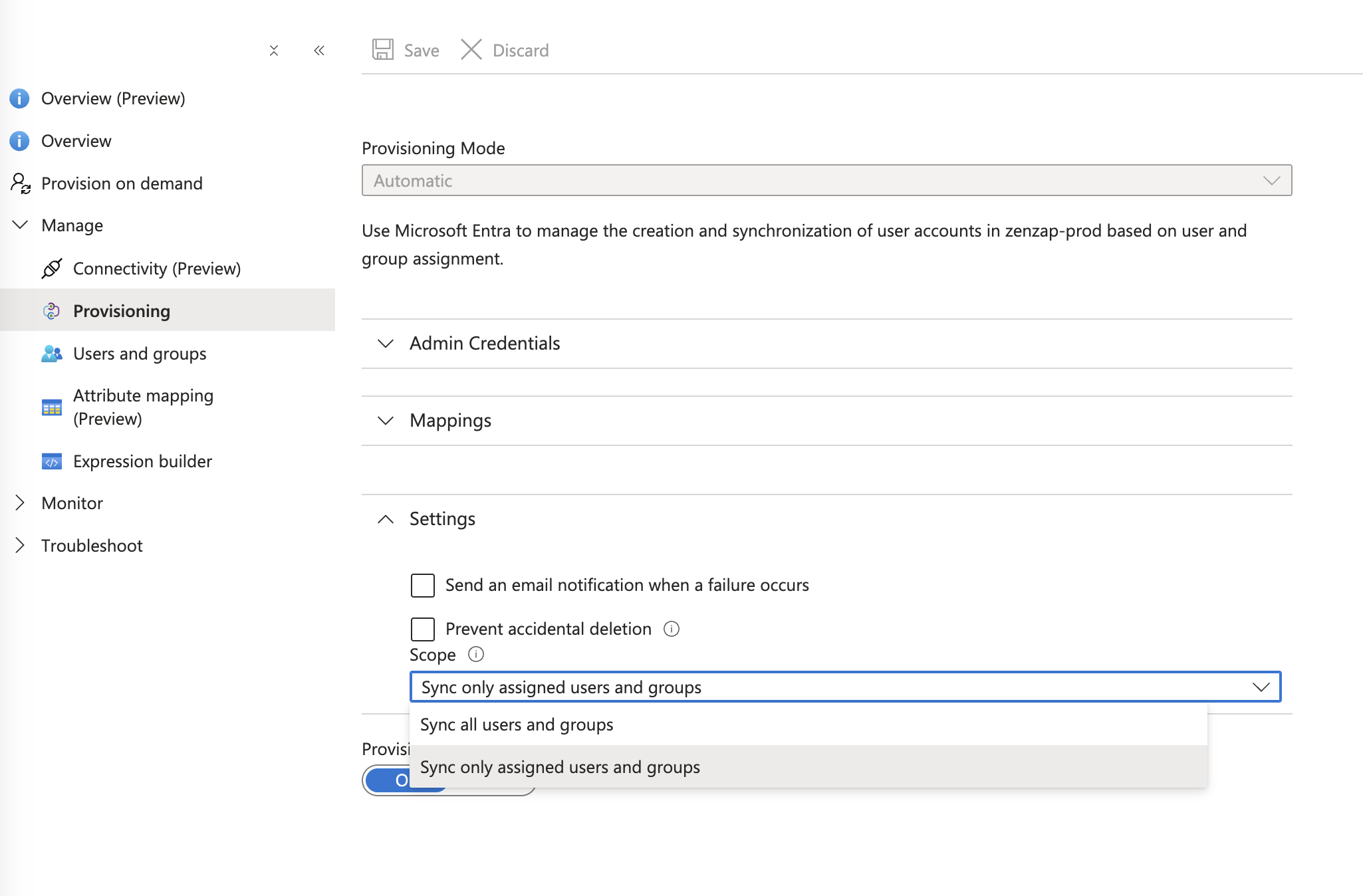
Set “Sync only assigned users and groups” and click Save
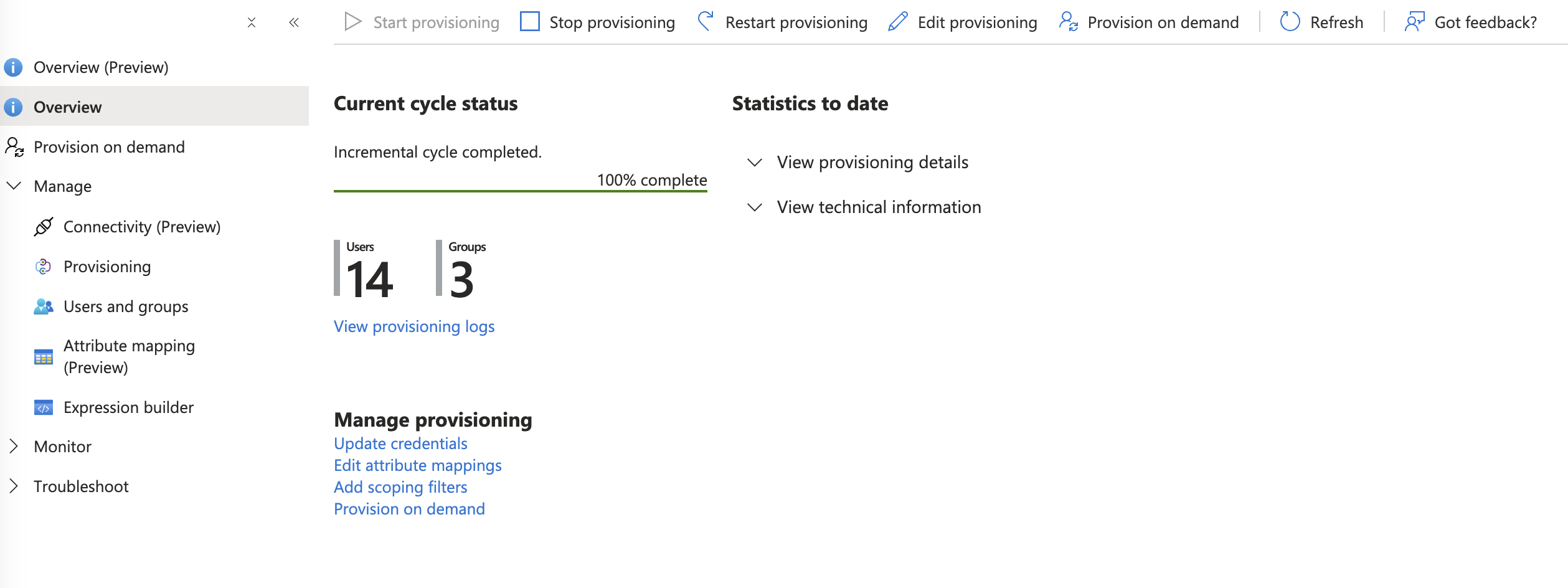
- Press start provisioning. This process typically takes up to 40 minutes.
-
Check the provision overview for any errors.
-
Users will appear in the Zenzap admin screen under the Organization section.