
On Mobile (iOS)
-
Tap the “Settings” icon in the top-right corner of the “Home” tab.
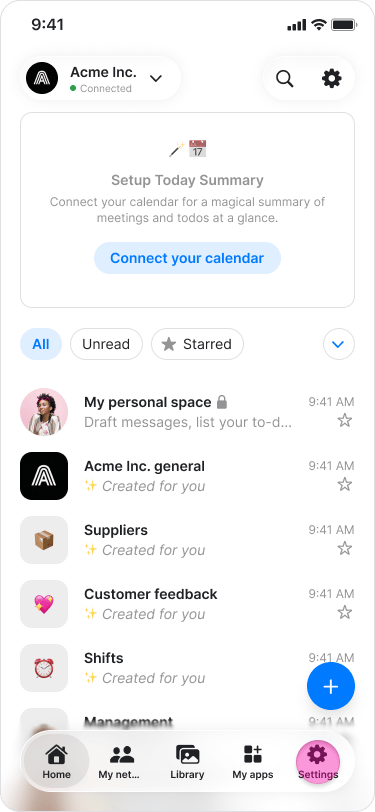
- Tap “Font Size”.
-
Drag the slider to adjust the font size.
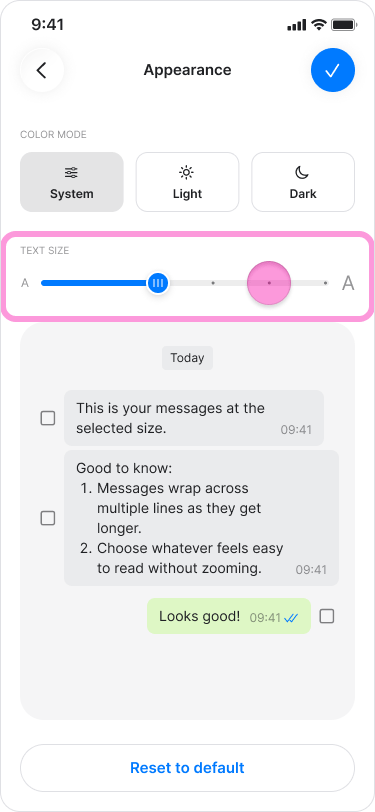
-
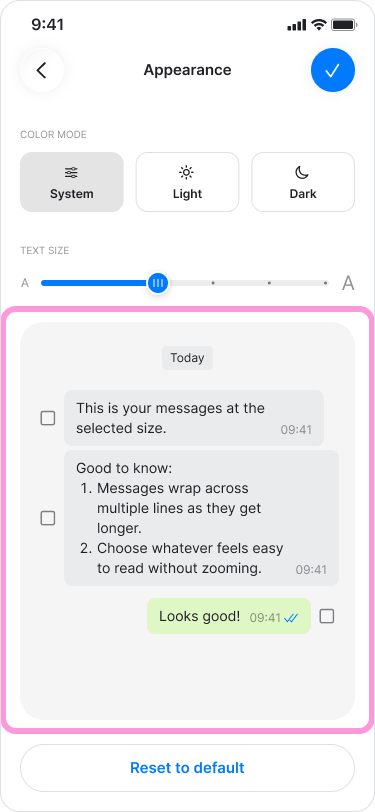
Review the message preview.
-
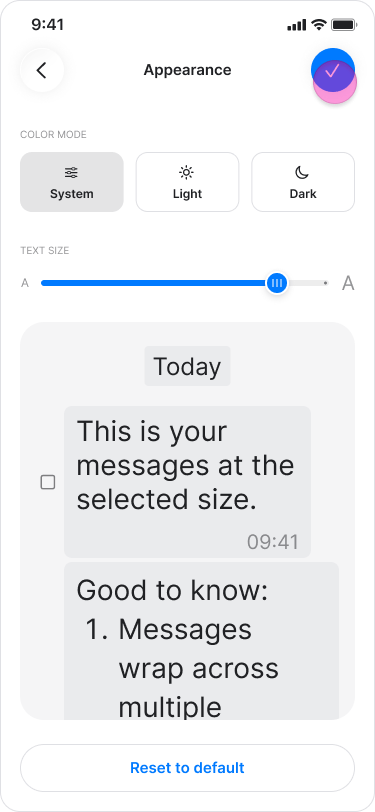
Tap “Done”.
On Desktop (Windows & macOS)
-
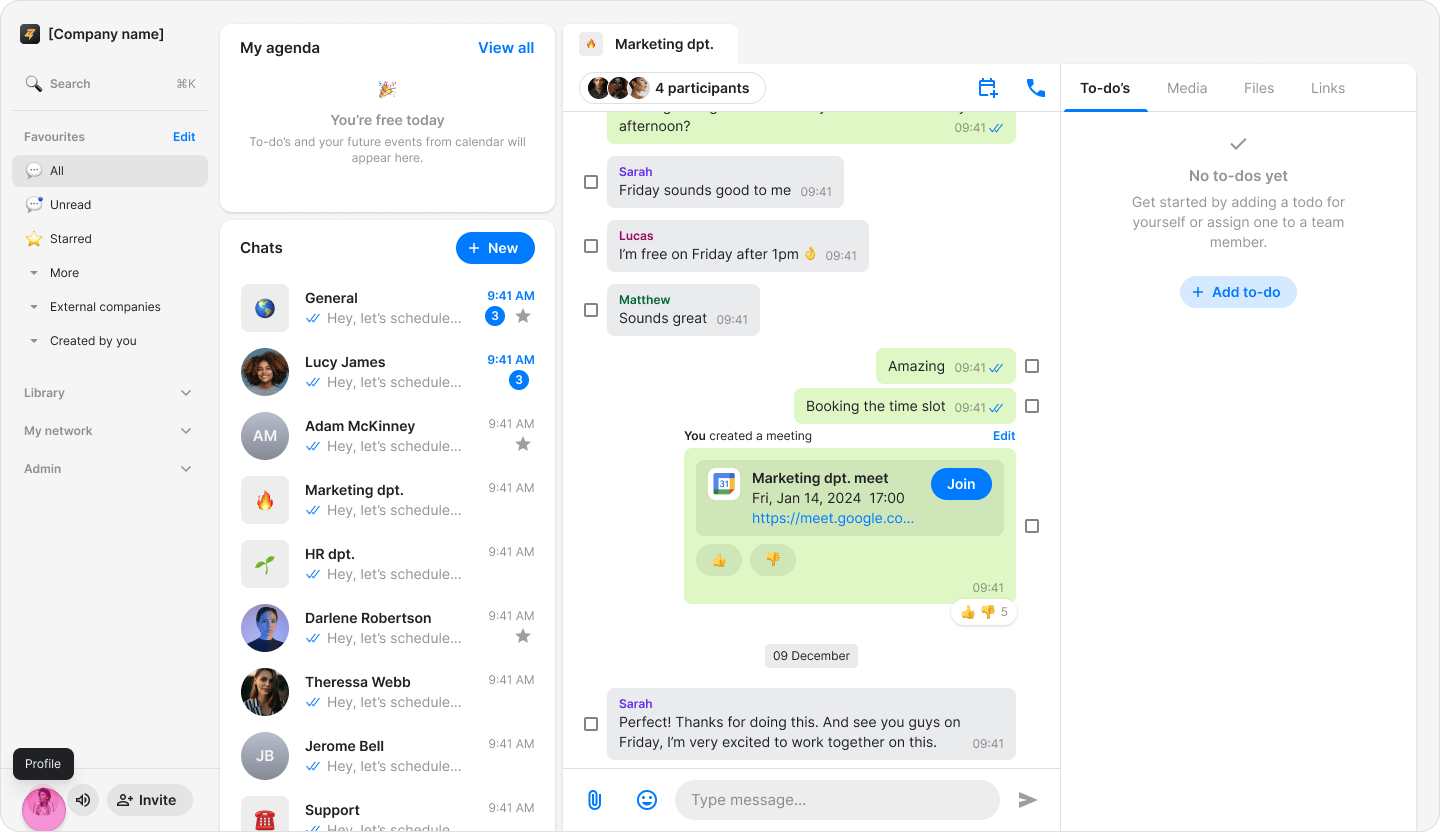
Click your profile picture.
-
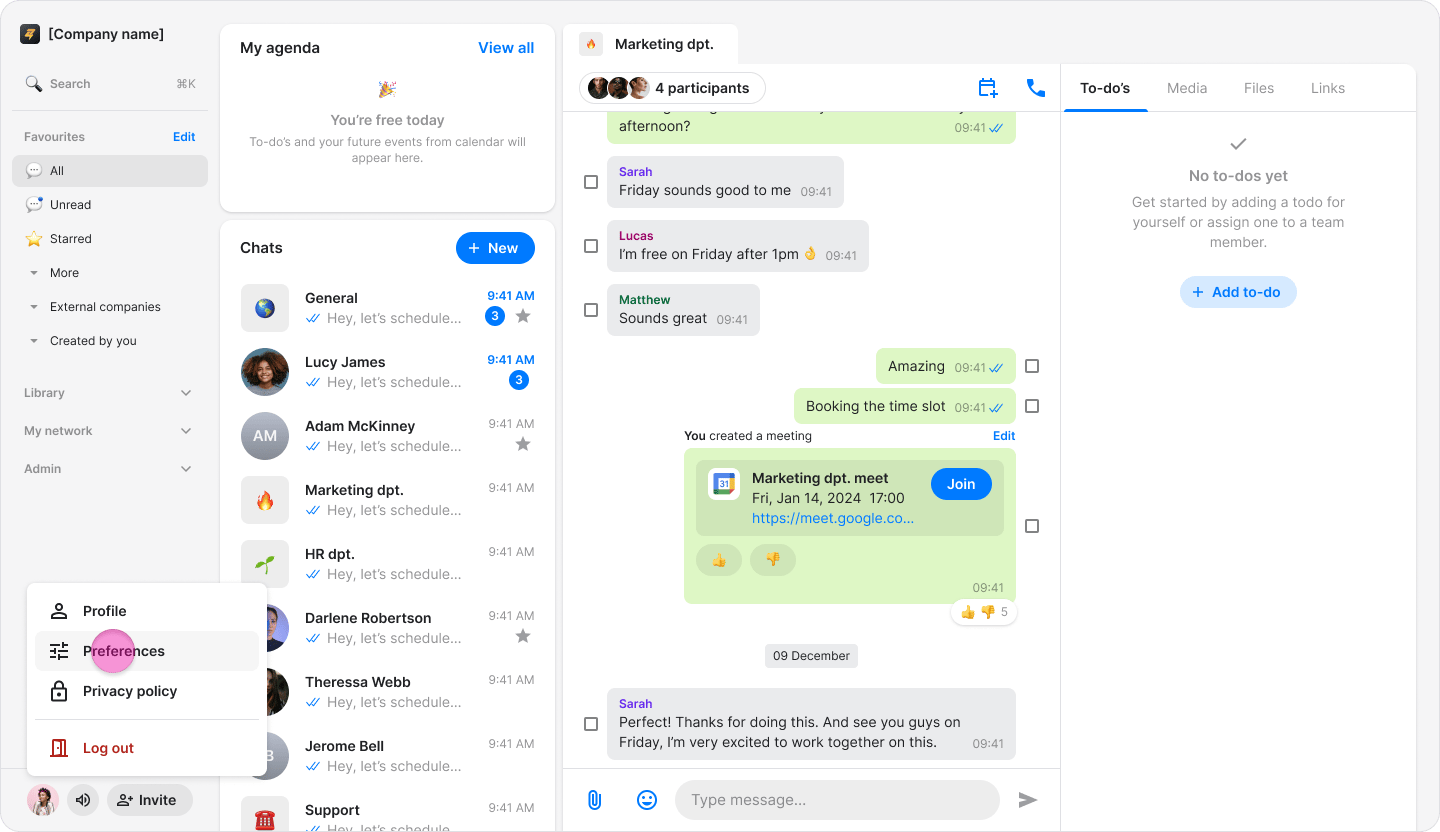
Click “Preferences”.
-
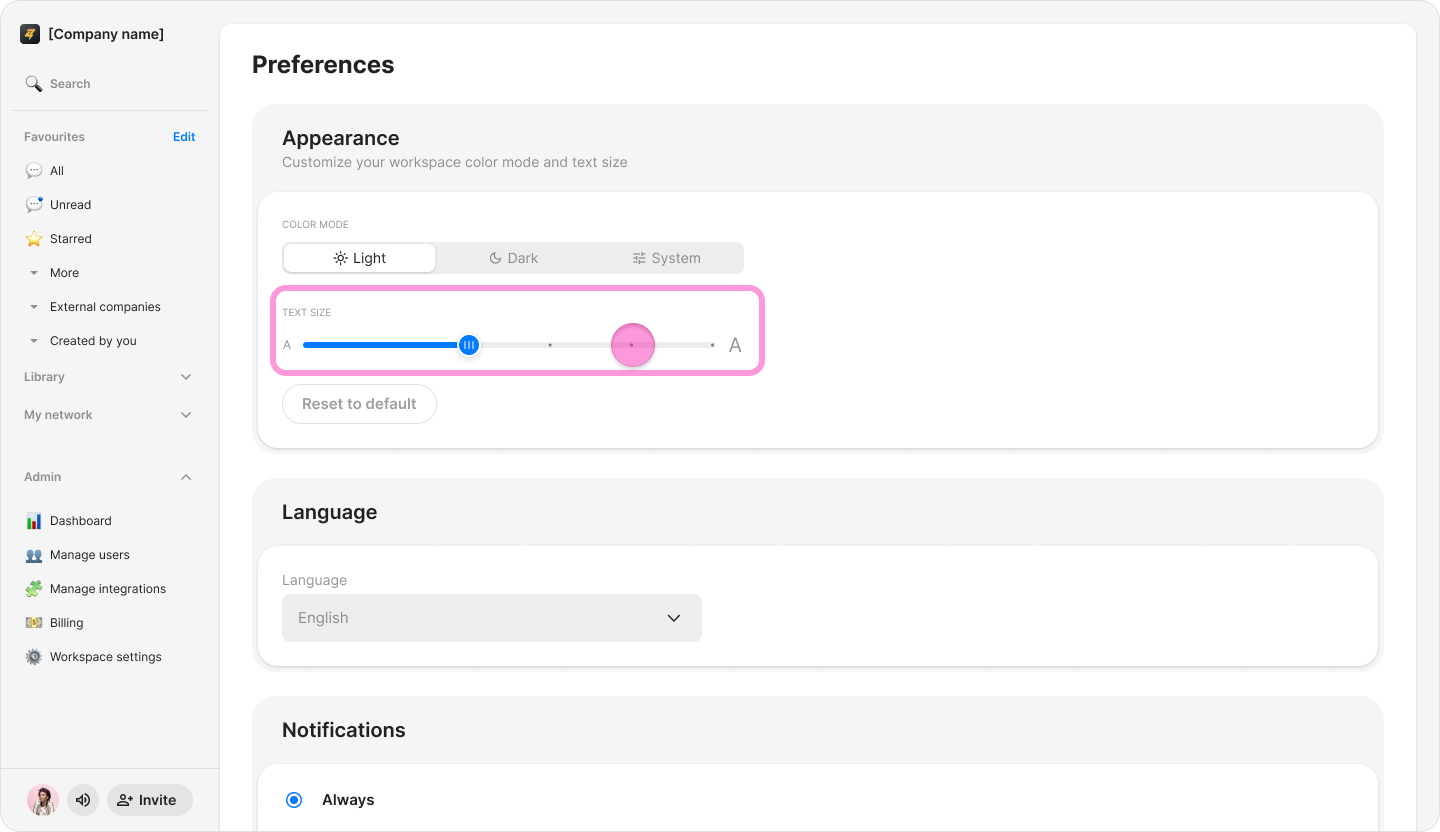
Find the “Font Size” section.
-
Drag the slider to adjust the font size.
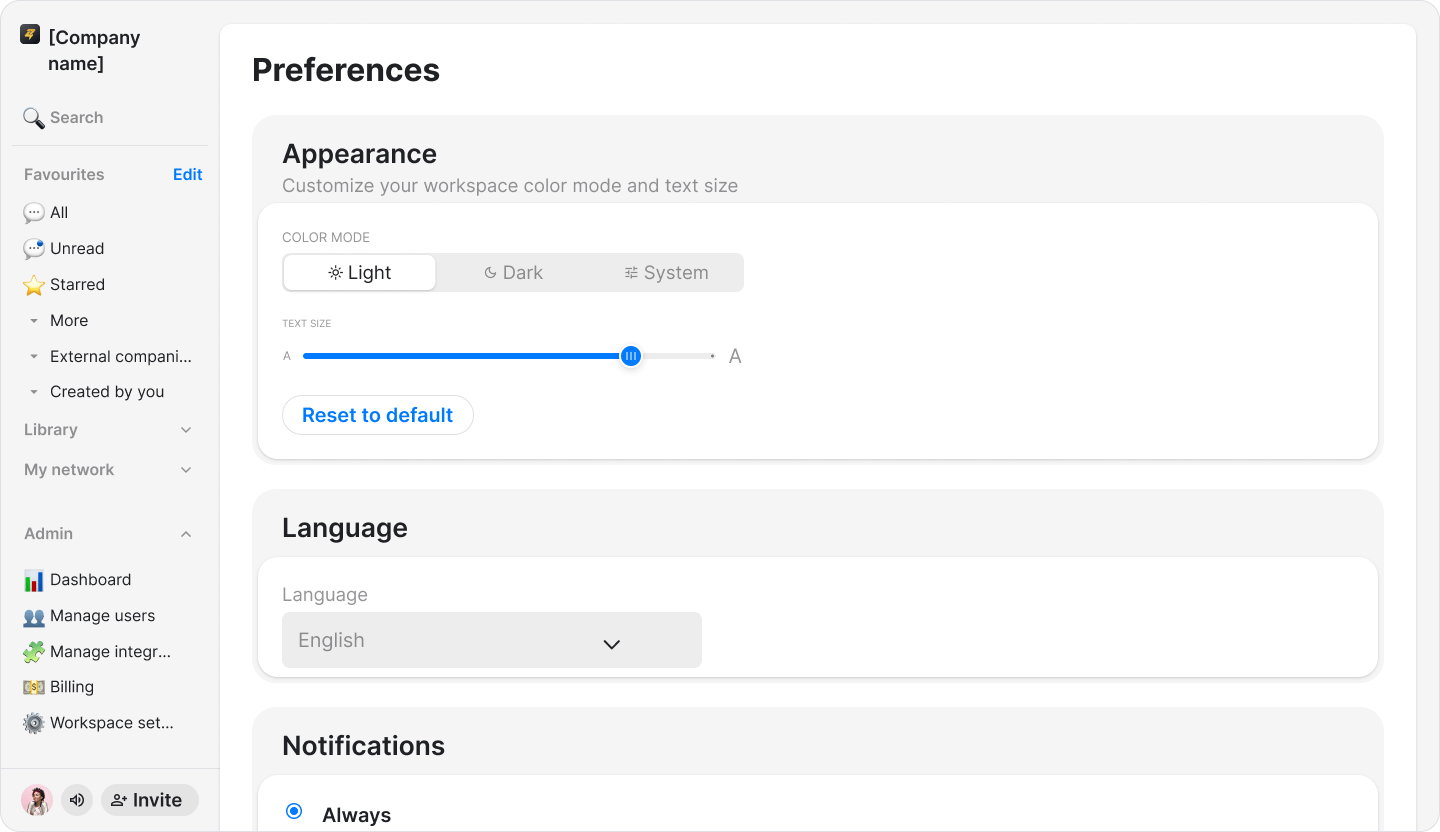
- For quick resizing, press Ctrl +/- on Windows or Cmd +/- on macOS.
- The selected font size applies throughout the Zenzap app. Turn on “Use default text size” to return to your device’s default setting.