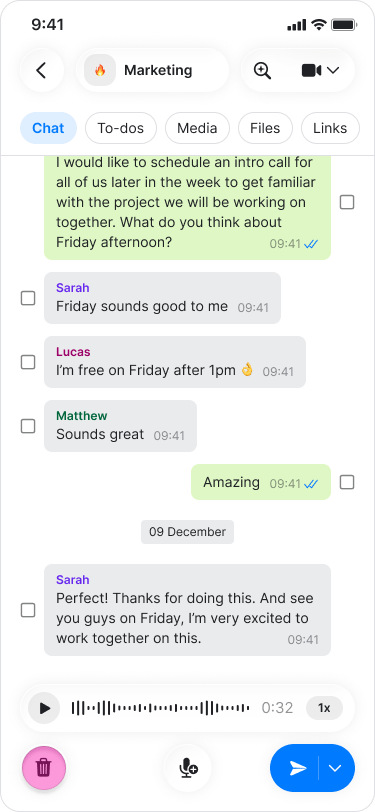
On Mobile (iOS & Android)
- Open a chat.
- Tap and hold the “Microphone” icon in the bottom right corner of the message field.
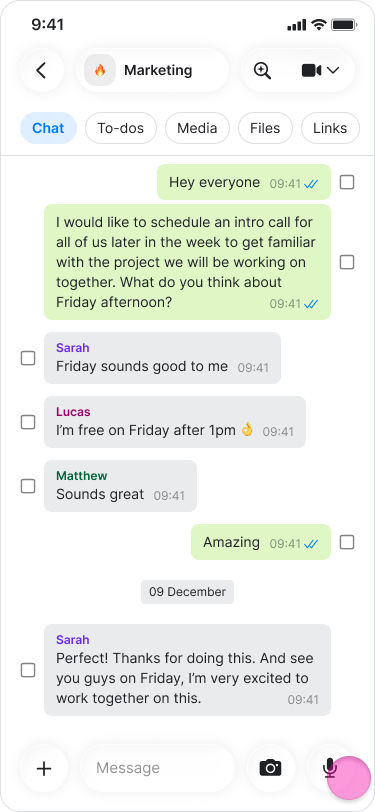
- Speak your message.
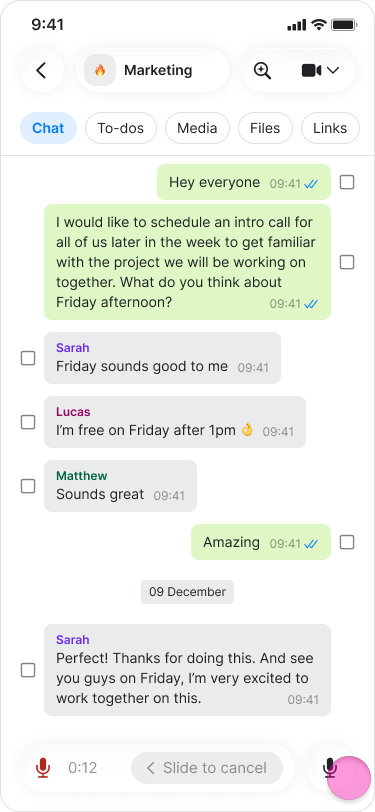
- Release the “Microphone” icon to send the recording
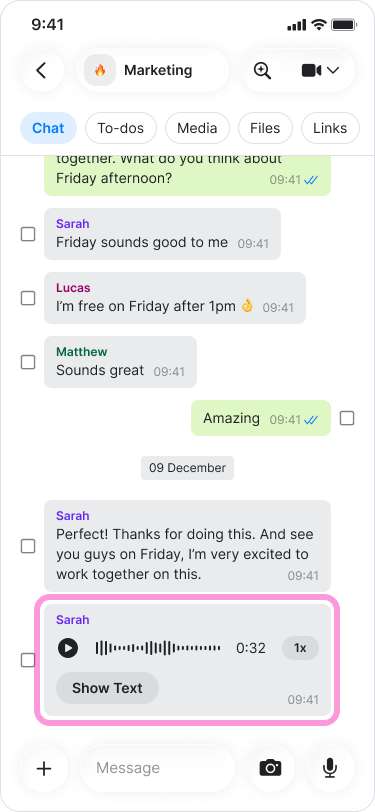
Lock recording mode
This allows you to record longer messages hands-free.- Open a chat.
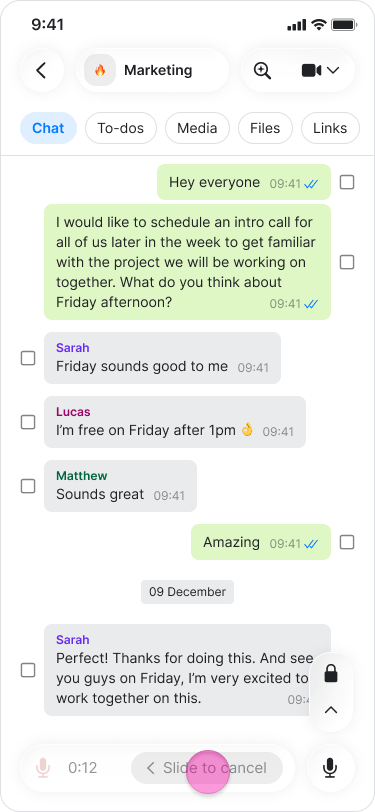
- Long-press the “Microphone” icon.
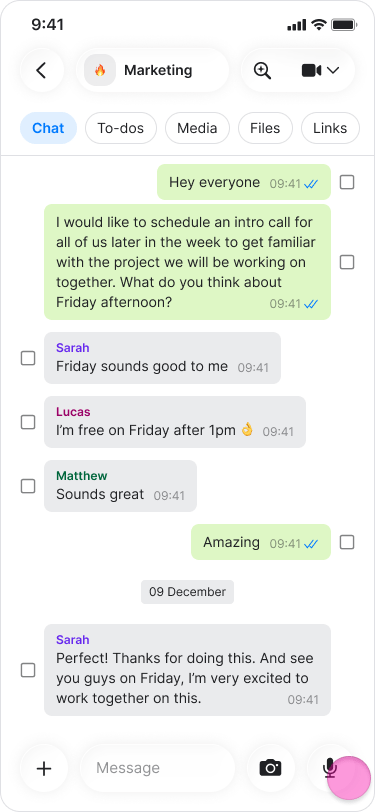
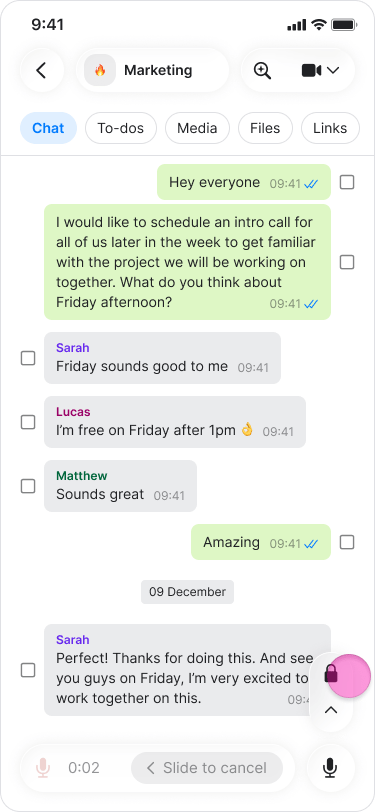
- Swipe up to lock the recording.
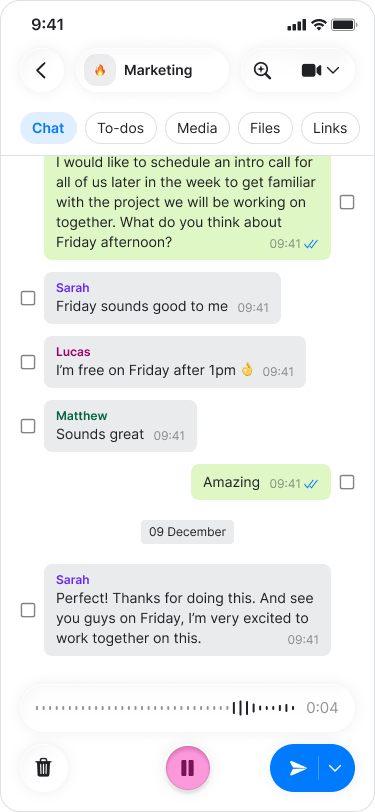
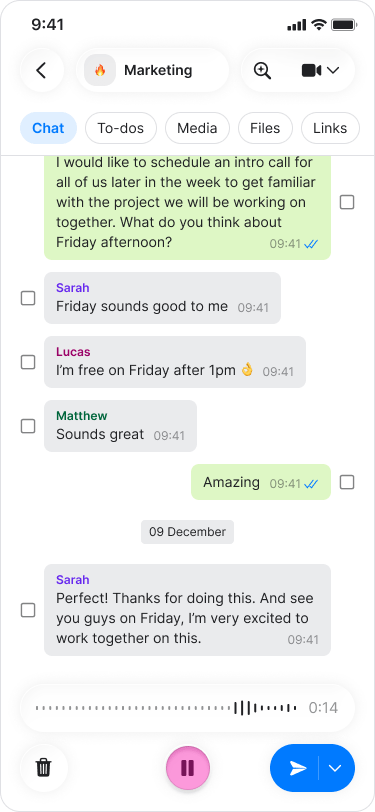
- Tap on “Pause” to stop recording.
- Tap the “Microphone” icon to continue recording.
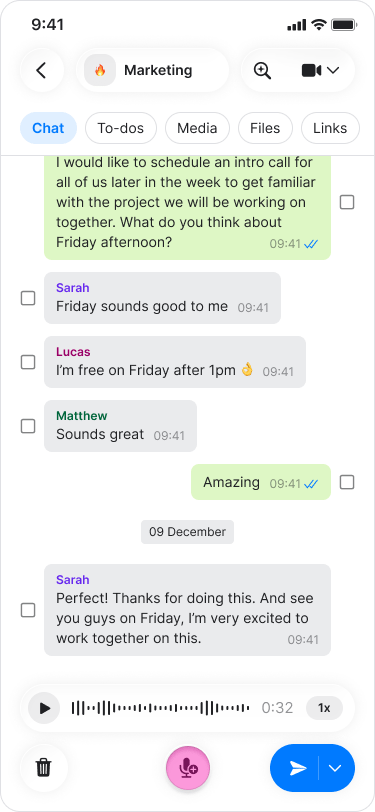
- Tap the “Arrow” button to send your recording.
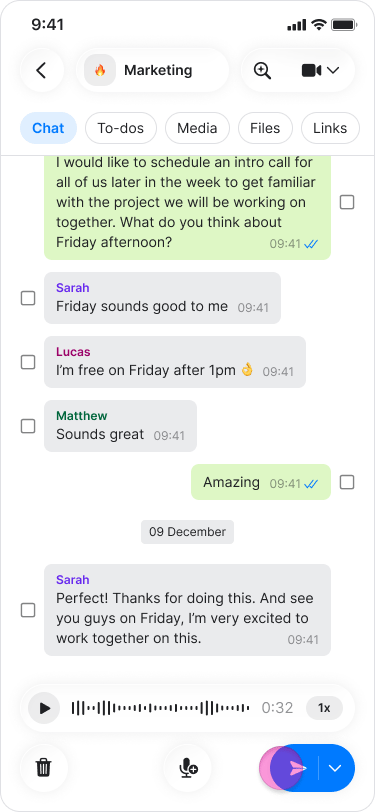
- While recording, slide your finger to the left to discard the message.
- To preview a recording before sending, tap “Pause” and then tap “Play”.
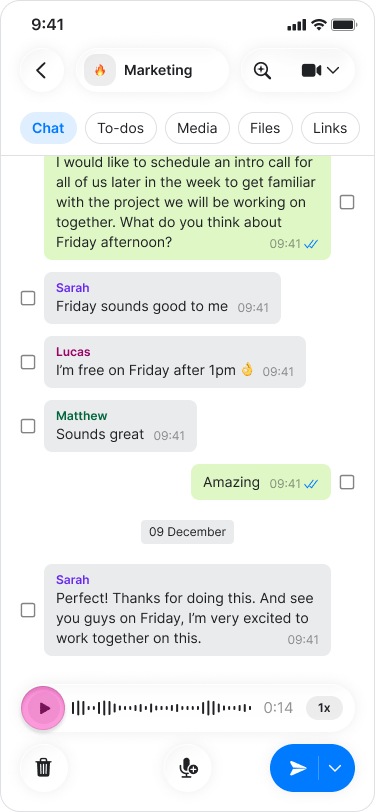
- To delete a recording before sending, tap the “Trash can” icon.