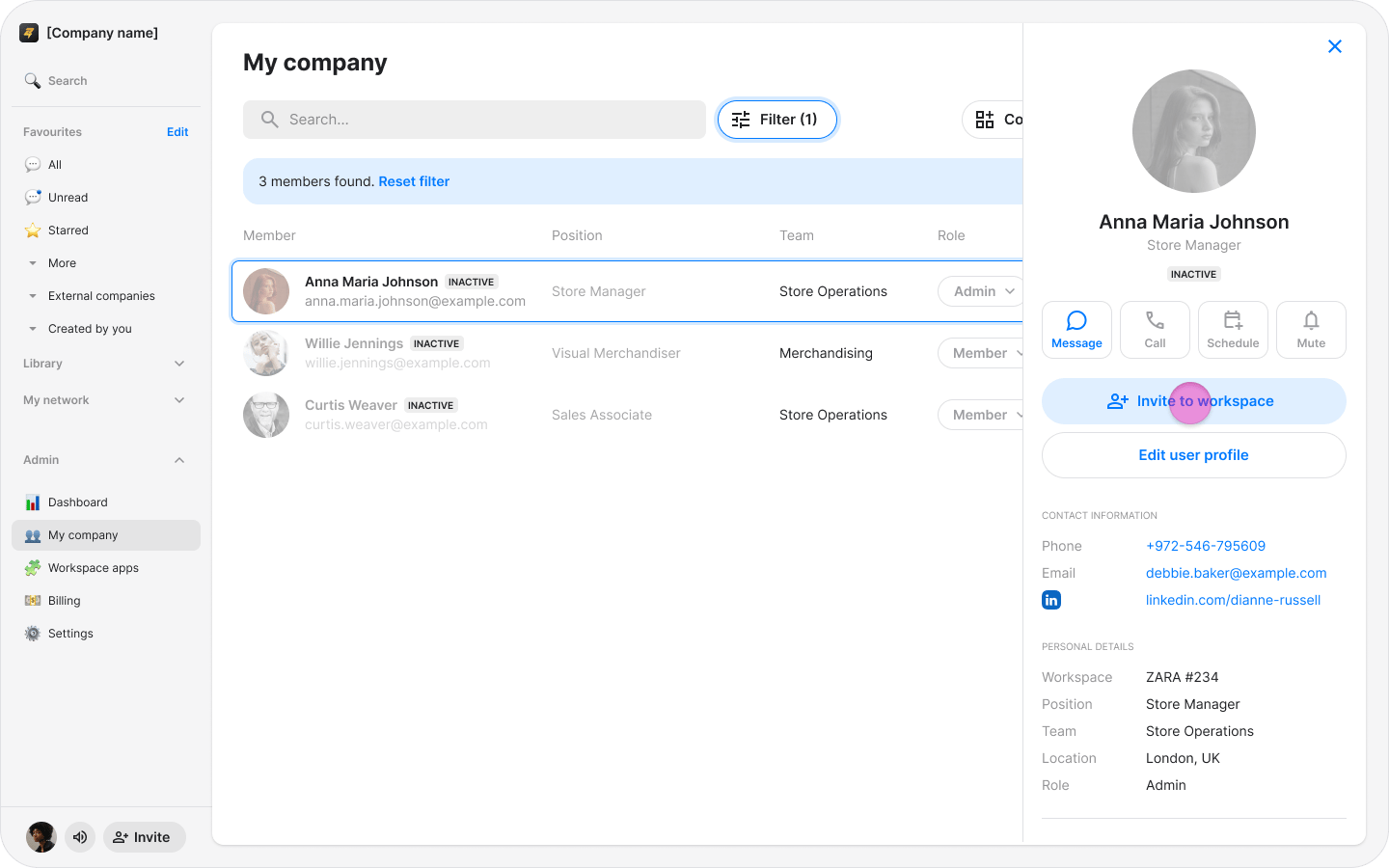
Access: Workspace Admins

On Mobile (iOS & Android)

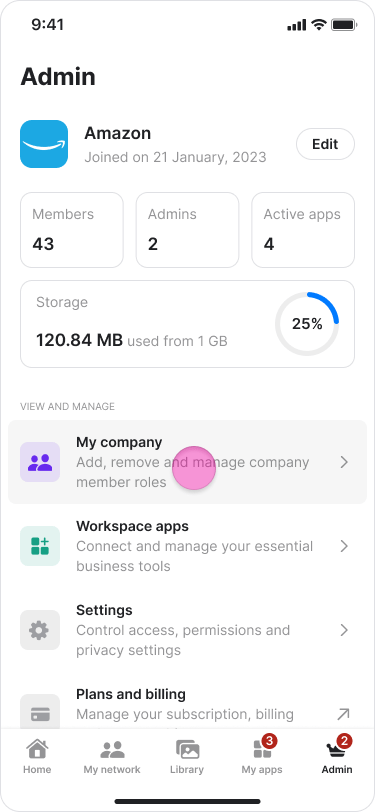
  1. Tap the “Admin” tab at the bottom of the screen. Re-Invite Team Members screenshot 1
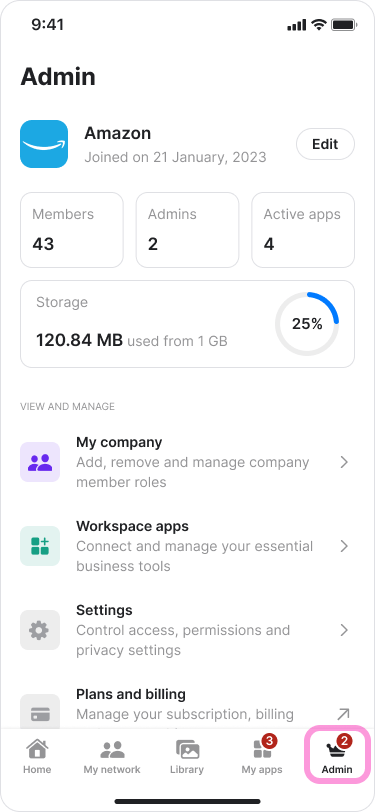
  2. Tap “My Company”. Re-Invite Team Members screenshot 2
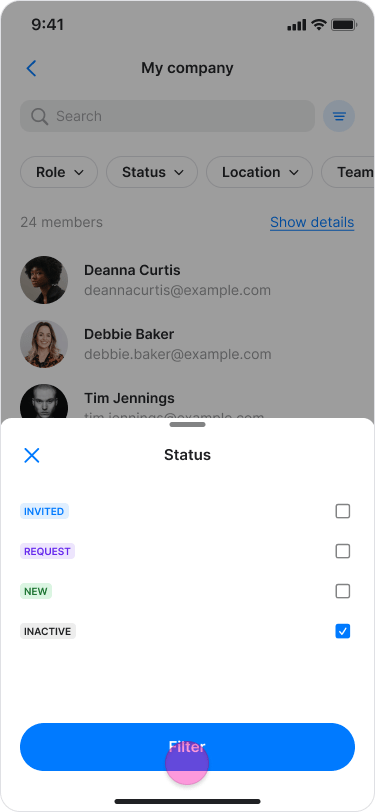
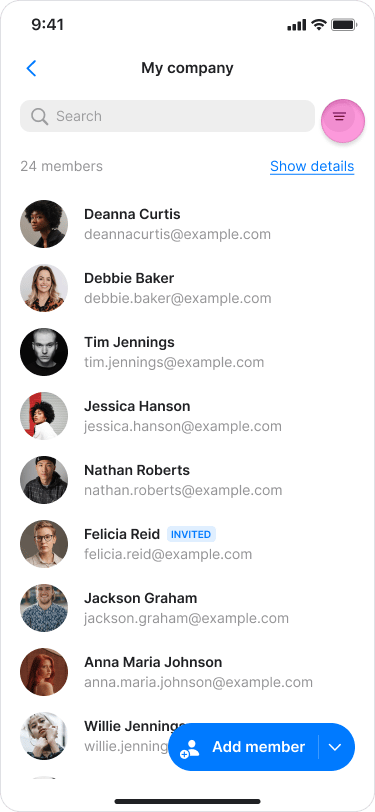
  3. Tap the filter icon on the right side of the search bar. Re-Invite Team Members screenshot 3
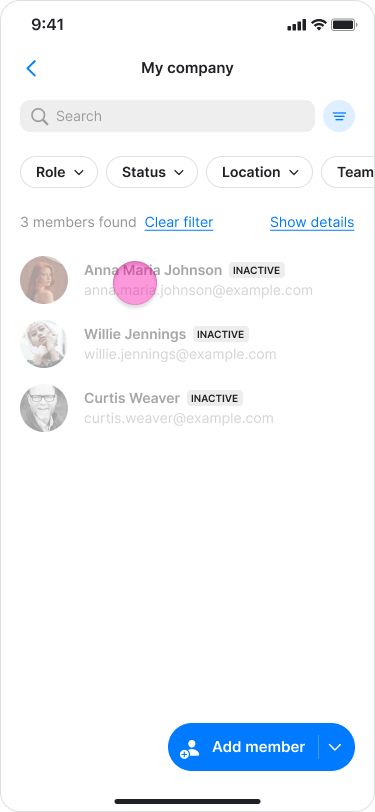
  4. Select “Inactive” under “Status”. Re-Invite Team Members screenshot 4
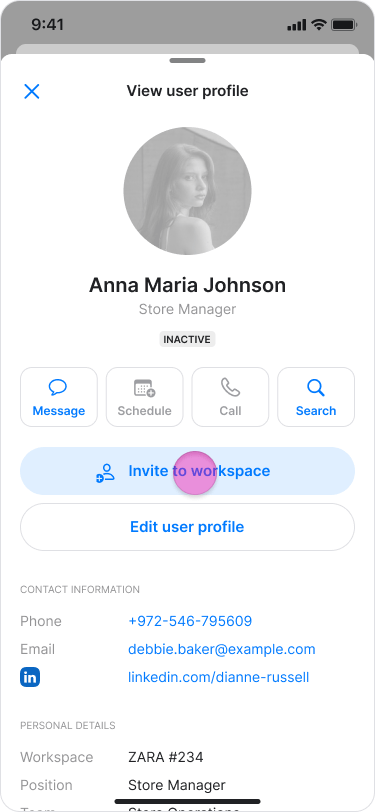
  5. Select the member you want to re-invite. Re-Invite Team Members screenshot 5
  6. Tap “Invite to workspace”. Re-Invite Team Members screenshot 6
Note: You can view a user’s timeline to see their complete history, including when they were invited and removed from the organization.

On Desktop (Windows, macOS, & Web App)

  1. Click “Zenzap admin” in the left sidebar. On macOS, click “My Company”. Re-Invite Team Members screenshot 7
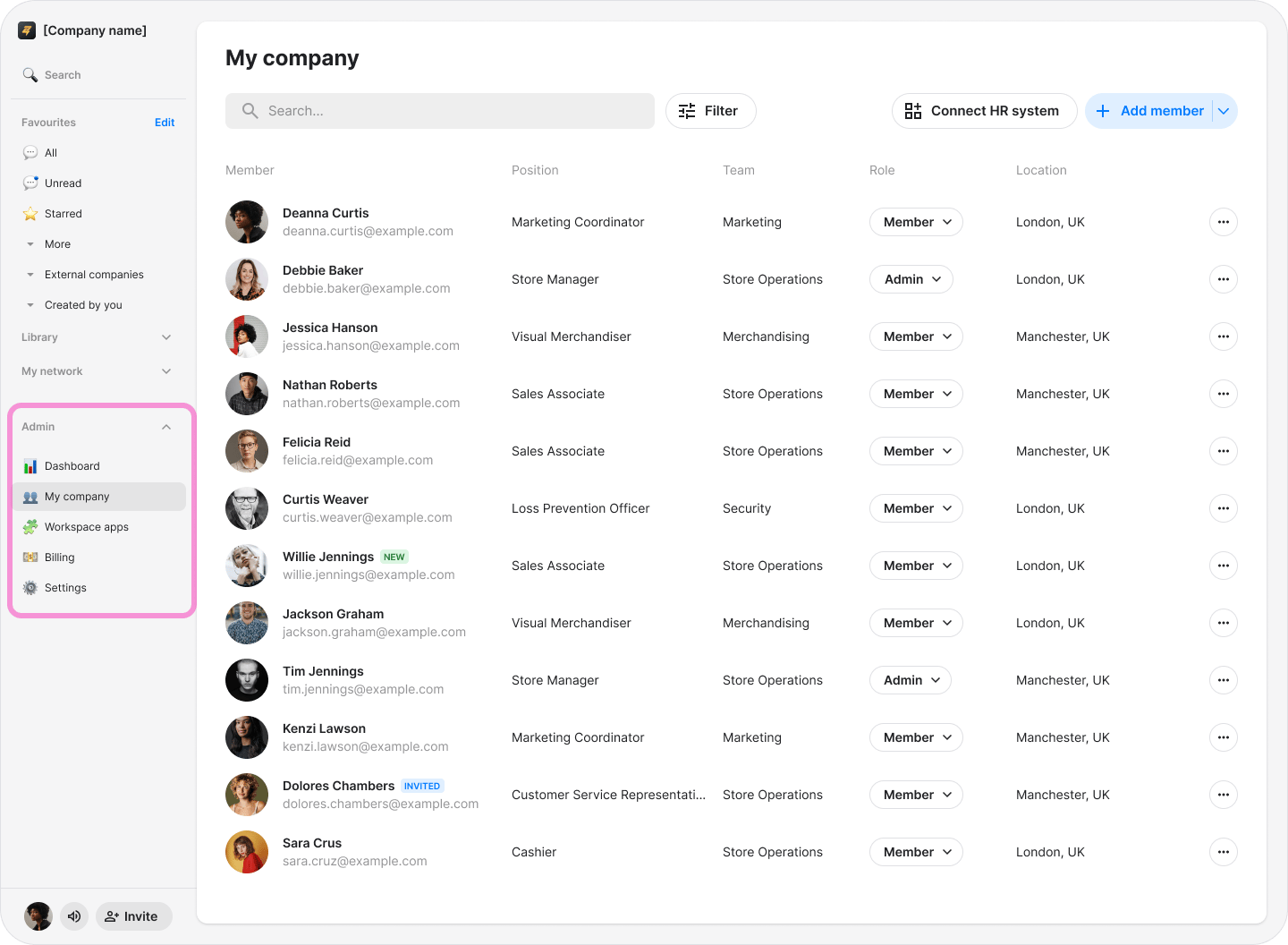
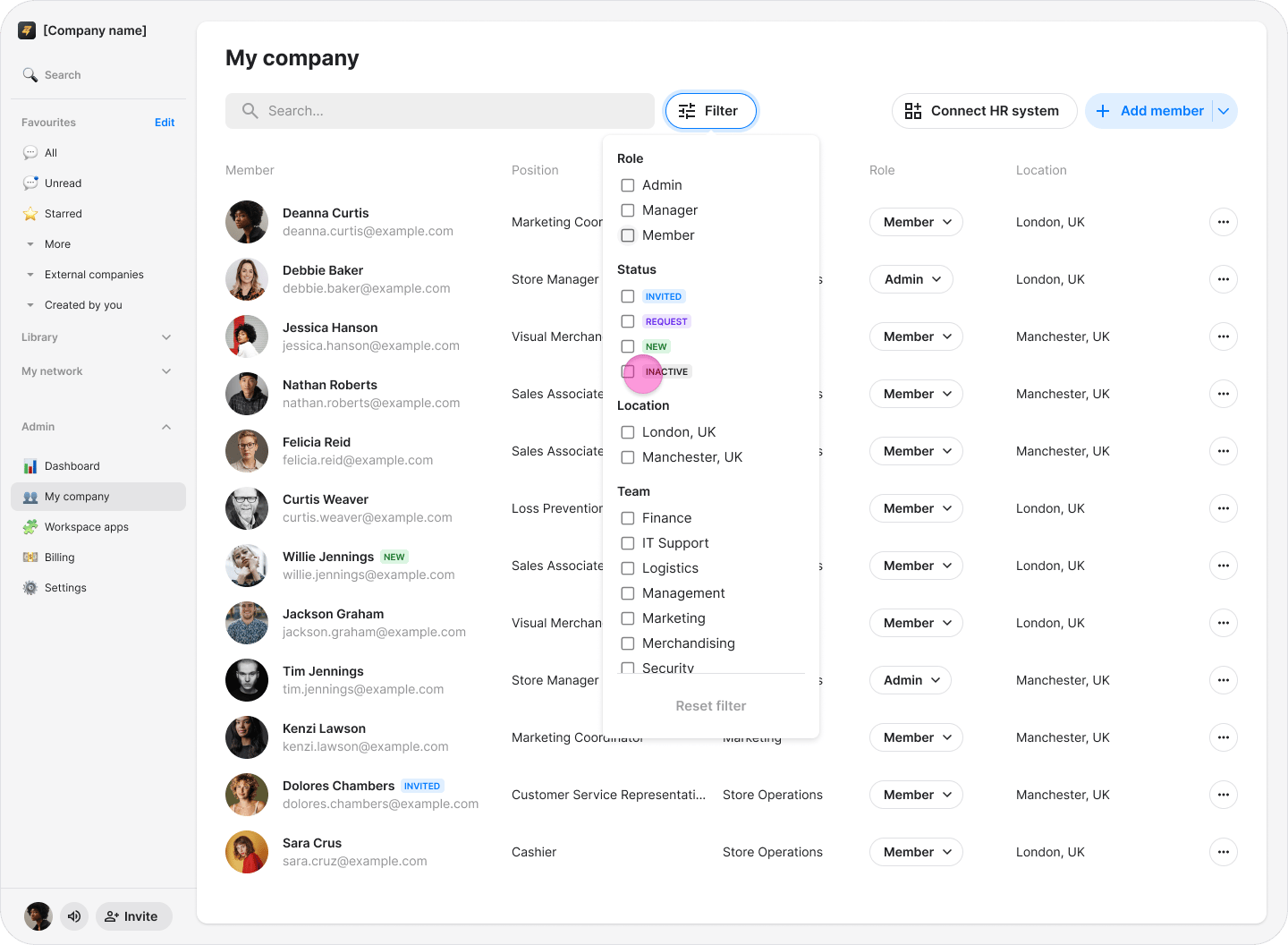
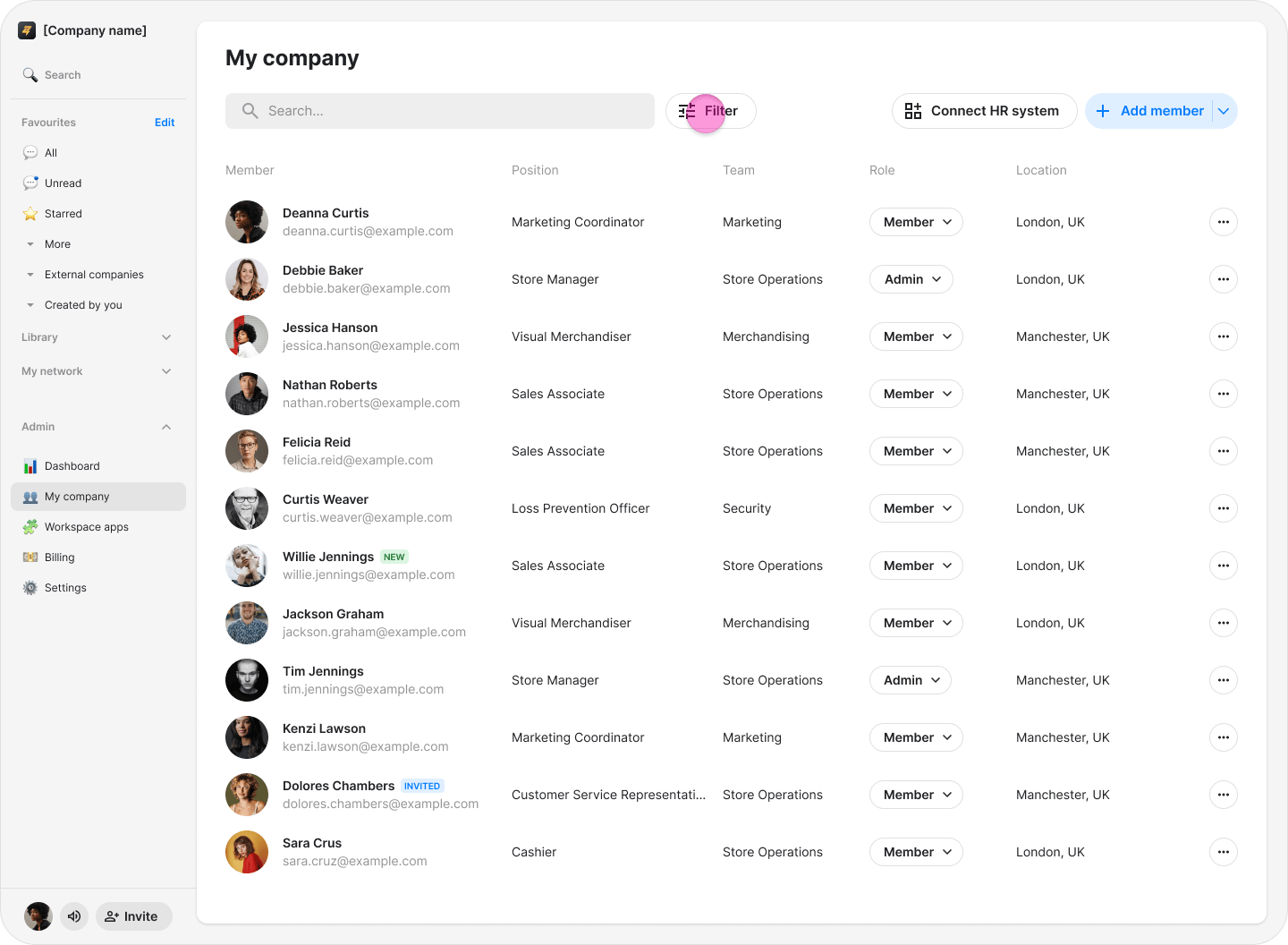
  2. Click the filter icon on the right side of the search bar. Re-Invite Team Members screenshot 8
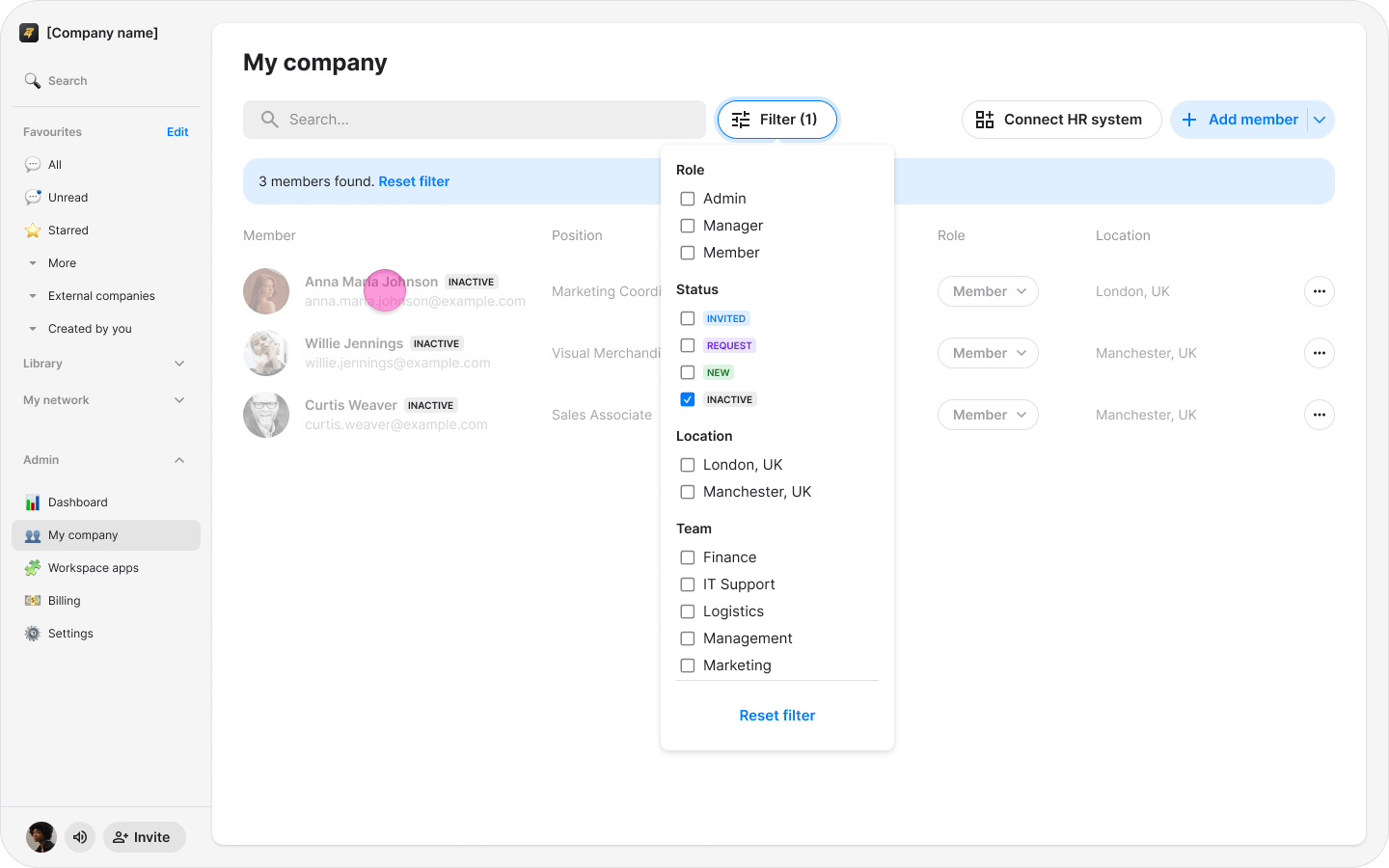
  3. Select “Inactive”. Re-Invite Team Members screenshot 9
  4. Select the member you want to re-invite. Re-Invite Team Members screenshot 10
  5. Click “Invite to workspace”. Re-Invite Team Members screenshot 11
Note: You can view a user’s timeline to see their complete history, including when they were invited and removed from the organization.