
On Mobile (iOS & Android)
- Find the message you want to react to in your chat.
-
Long press on the message until the menu appears.

-
At the top of the menu, you’ll see a row of common emoji reactions.
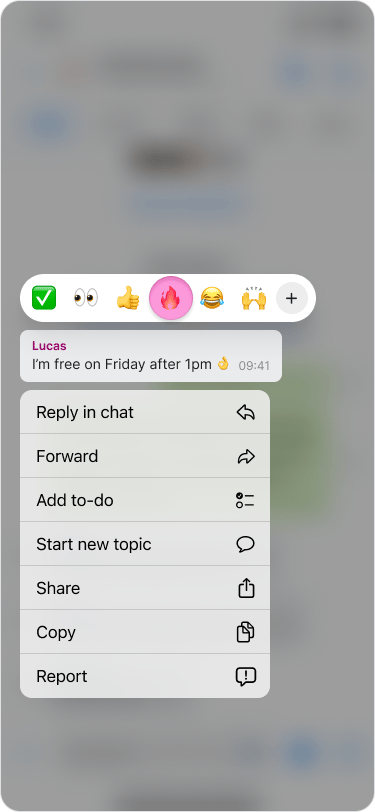
- Tap on any of these emojis to add your reaction to the message or press the “+” icon to choose a different one.
- You can add multiple reactions and react to your own messages.
- Your reaction will appear at the bottom of the message.
- You can view all reactions to a message by tapping the emoji reactions below the message.
- To remove your reaction, tap the reaction emoji and then tap on your name.
On Desktop (Windows, macOS, & Web App)
- Find the message you want to react to in your chat.
- Click on the “emoji icon” next to the message.

- You’ll see a row of common emoji reactions.

- Click on any of these emojis to add your reaction to the message or click the “+” icon to choose a different one.
- You can add multiple reactions and react to your own messages.
- Your reaction will appear at the bottom of the message.
- You can view all reactions to a message by tapping the emoji reactions below the message.
- To remove your reaction, tap the reaction emoji and then tap on your name.