
On Mobile (iOS & Android)
- Open the chat or topic where you want to enable disappearing messages.
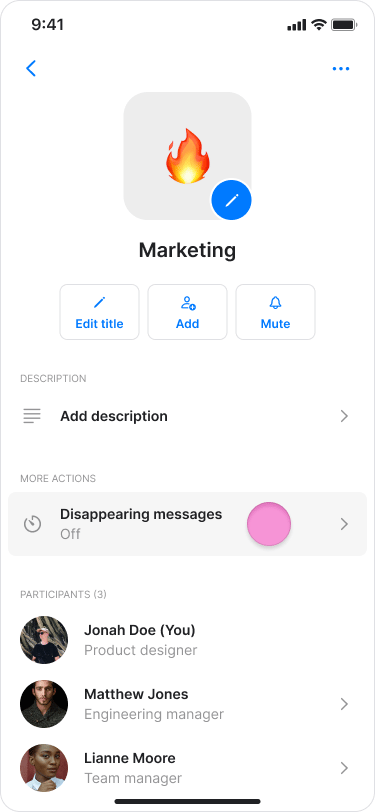
- Tap the topic or chat name at the top.

- Tap “Disappearing messages”.
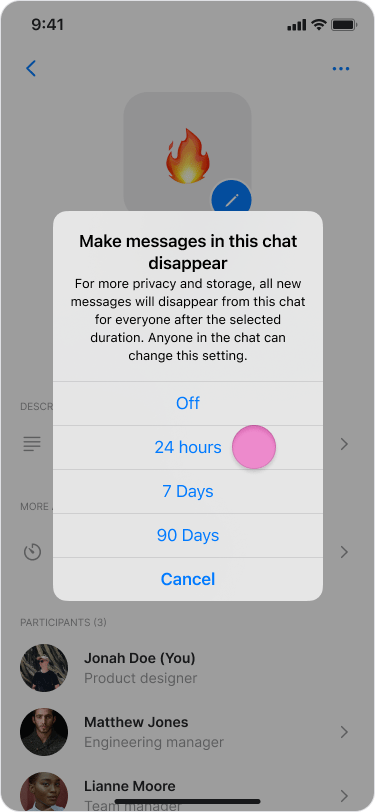
- Select a duration for how long messages remain visible:
- Off (messages won’t disappear)
- 24 Hours
- 7 days
- 90 days
- Tap “Confirm” (Android only).
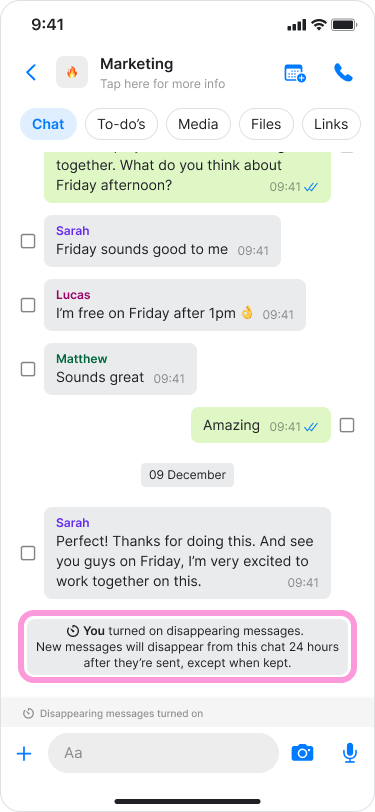
- An automatic message will be sent in the chat showing who enabled the feature and the selected duration.
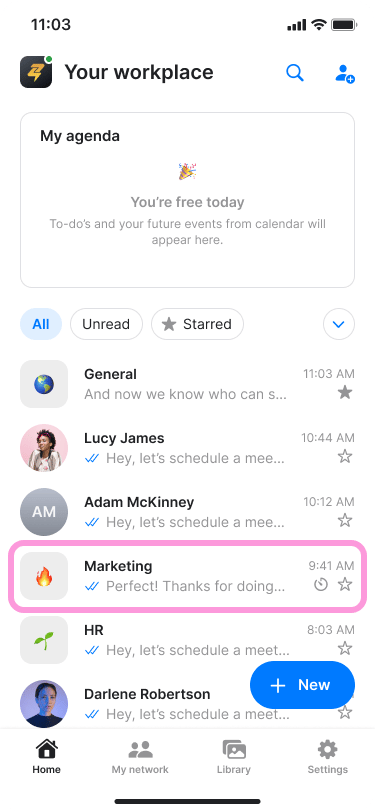
- Chats with this feature active will display a clock icon on the home screen.
- You can change or turn “Off” the disappearing message at any time by following the same steps.
On Desktop (Windows, macOS, & Web App)
- Open the chat or topic where you want to enable disappearing messages.
- Click “Profile” at the top.
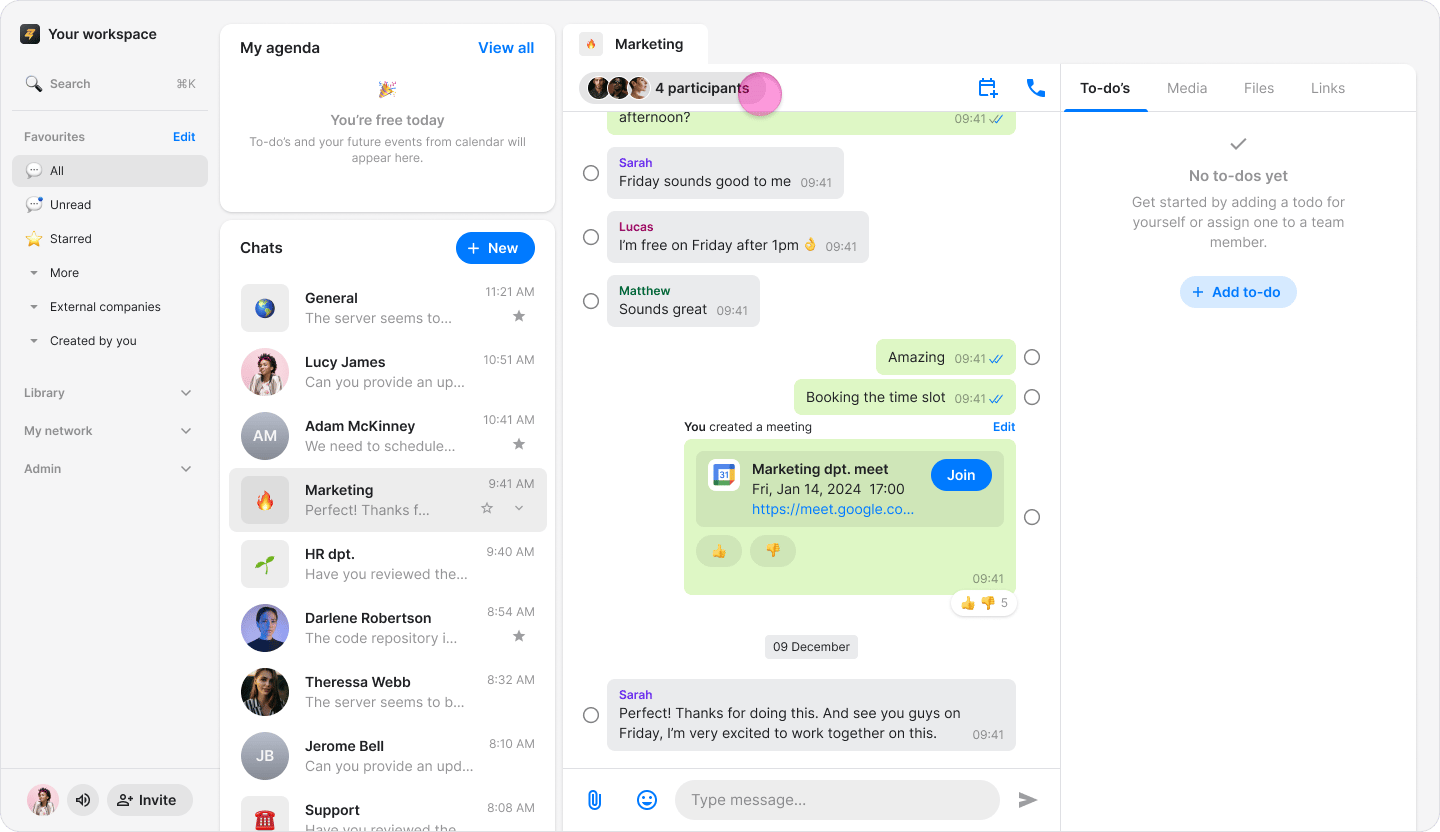
- Click “Disappearing messages” in the tab on the right.
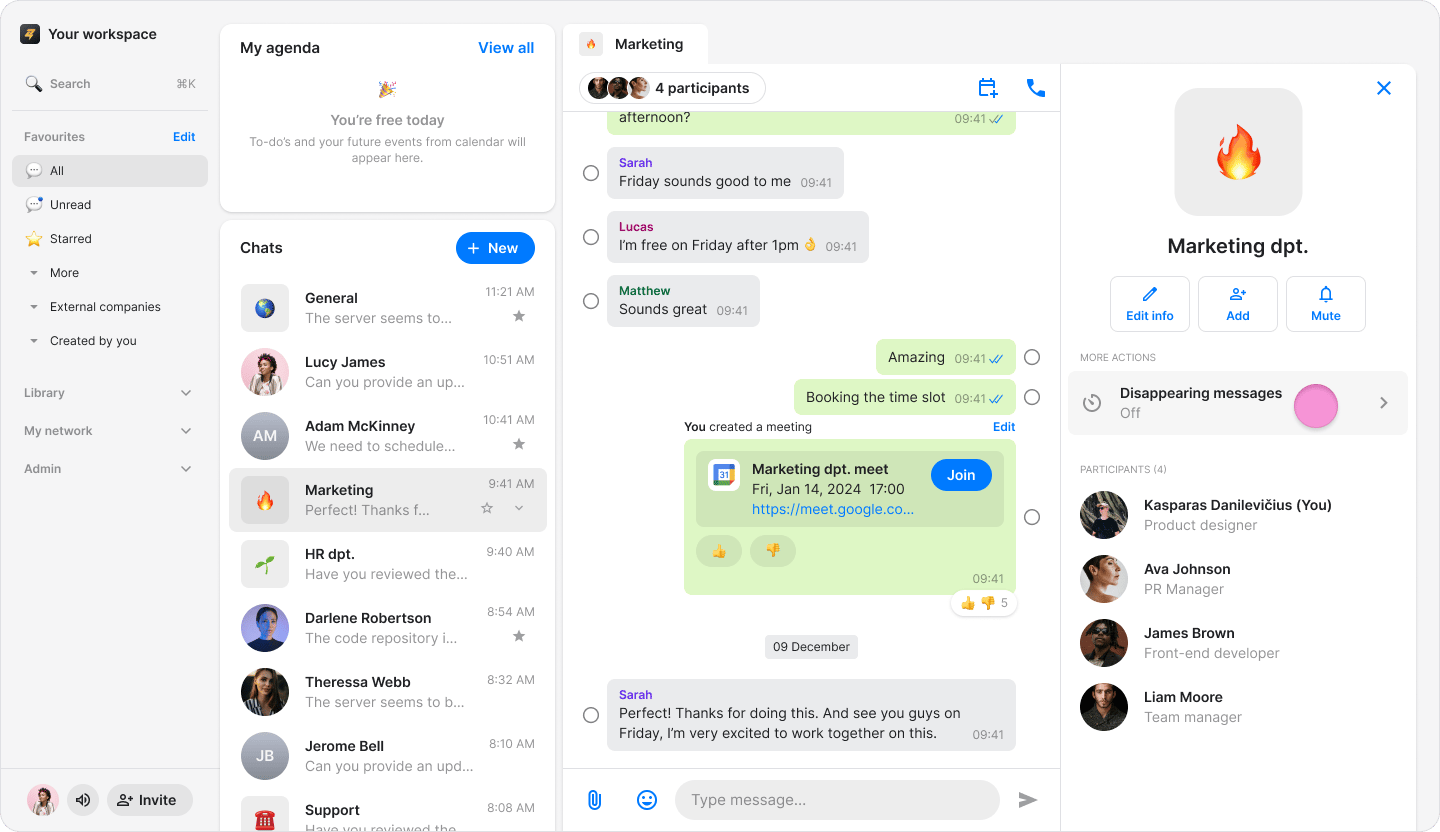
- Select a duration for how long messages remain visible:
- Off (messages won’t disappear)
- 24 Hours
- 7 days
- 90 days
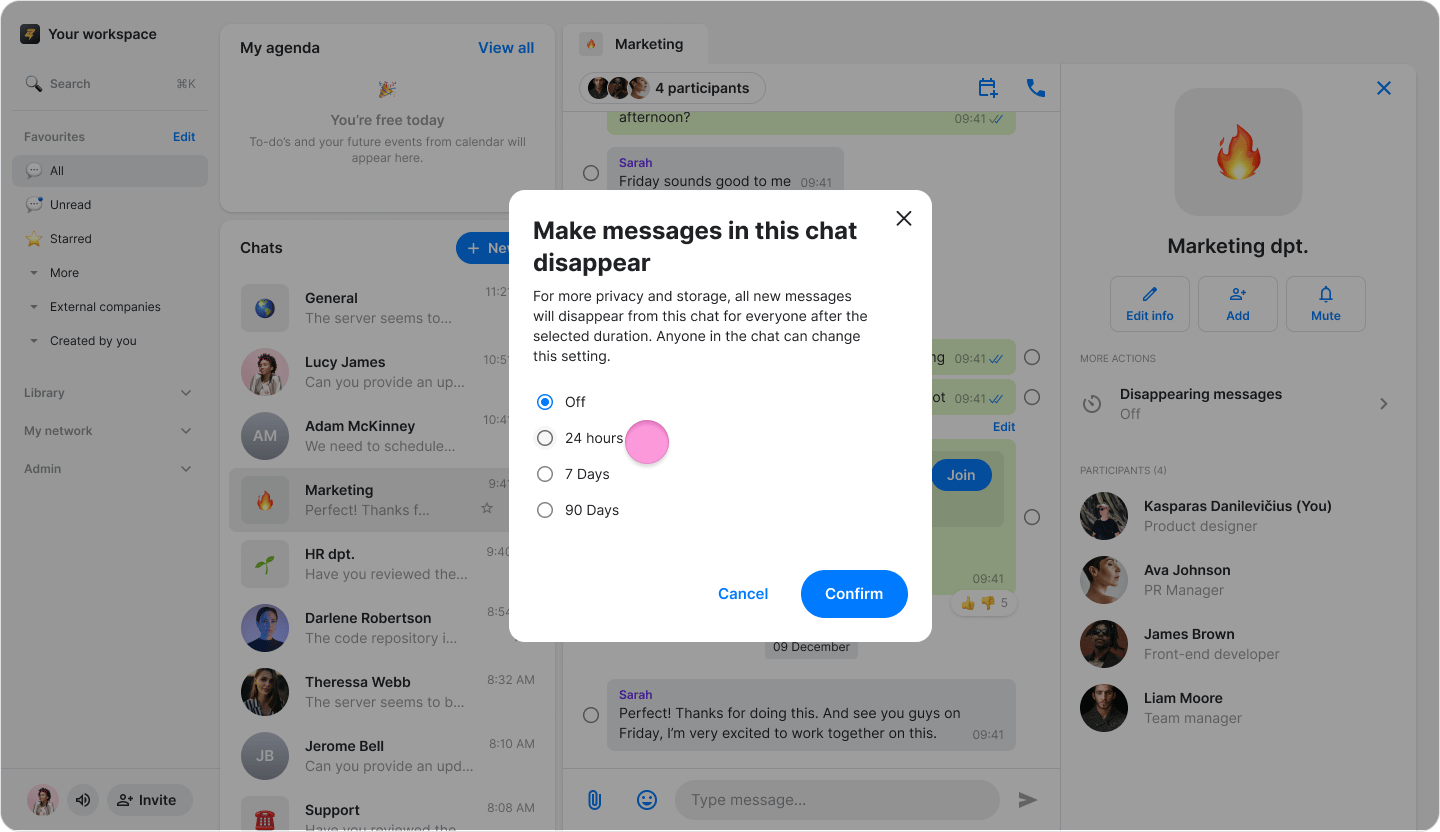
- Click “Confirm” (Windows & Web App only)
- An automatic message will be sent in the chat showing who enabled the feature and the selected duration.
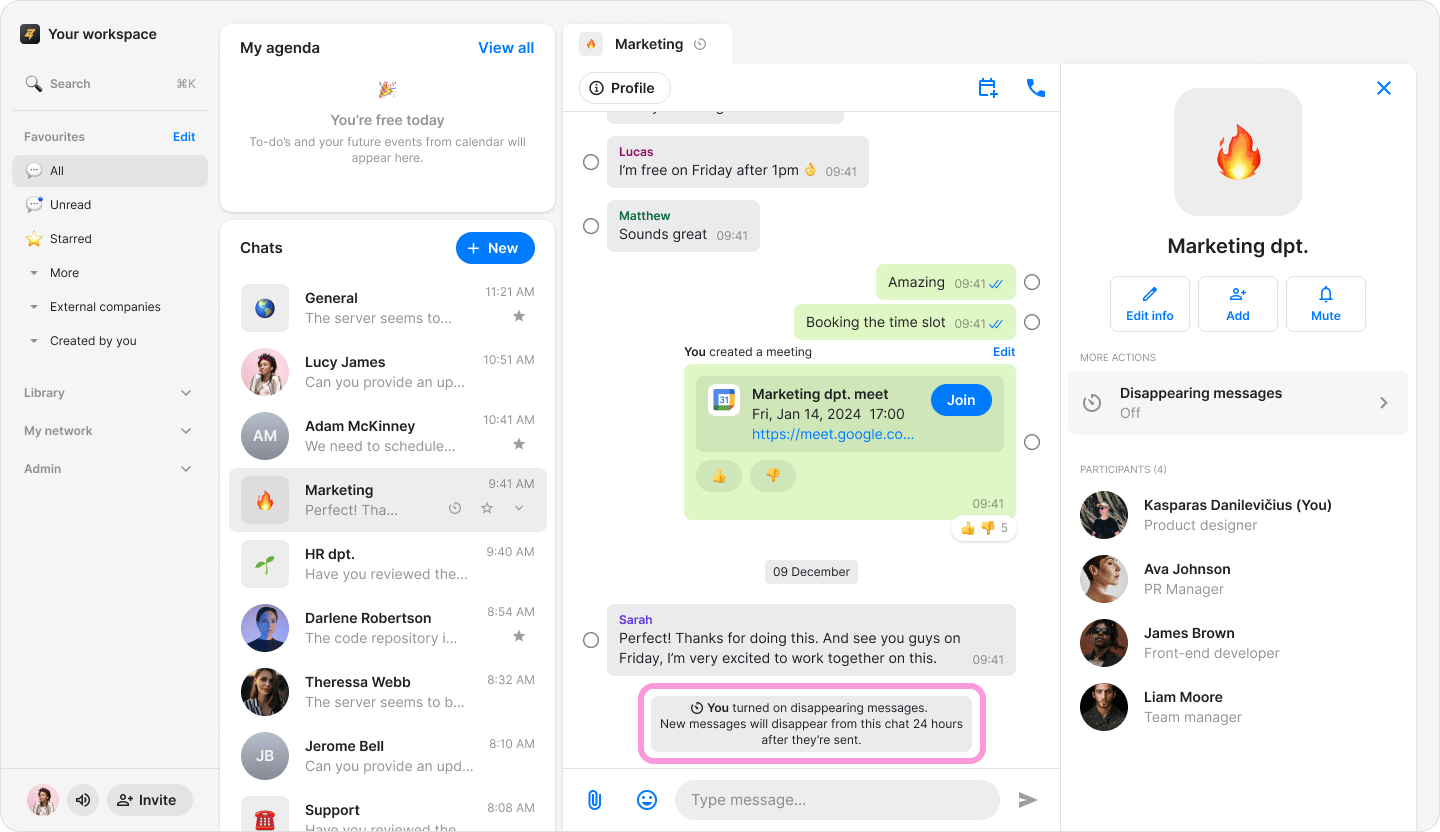
- Chats with this feature active will display a clock icon on the home screen.
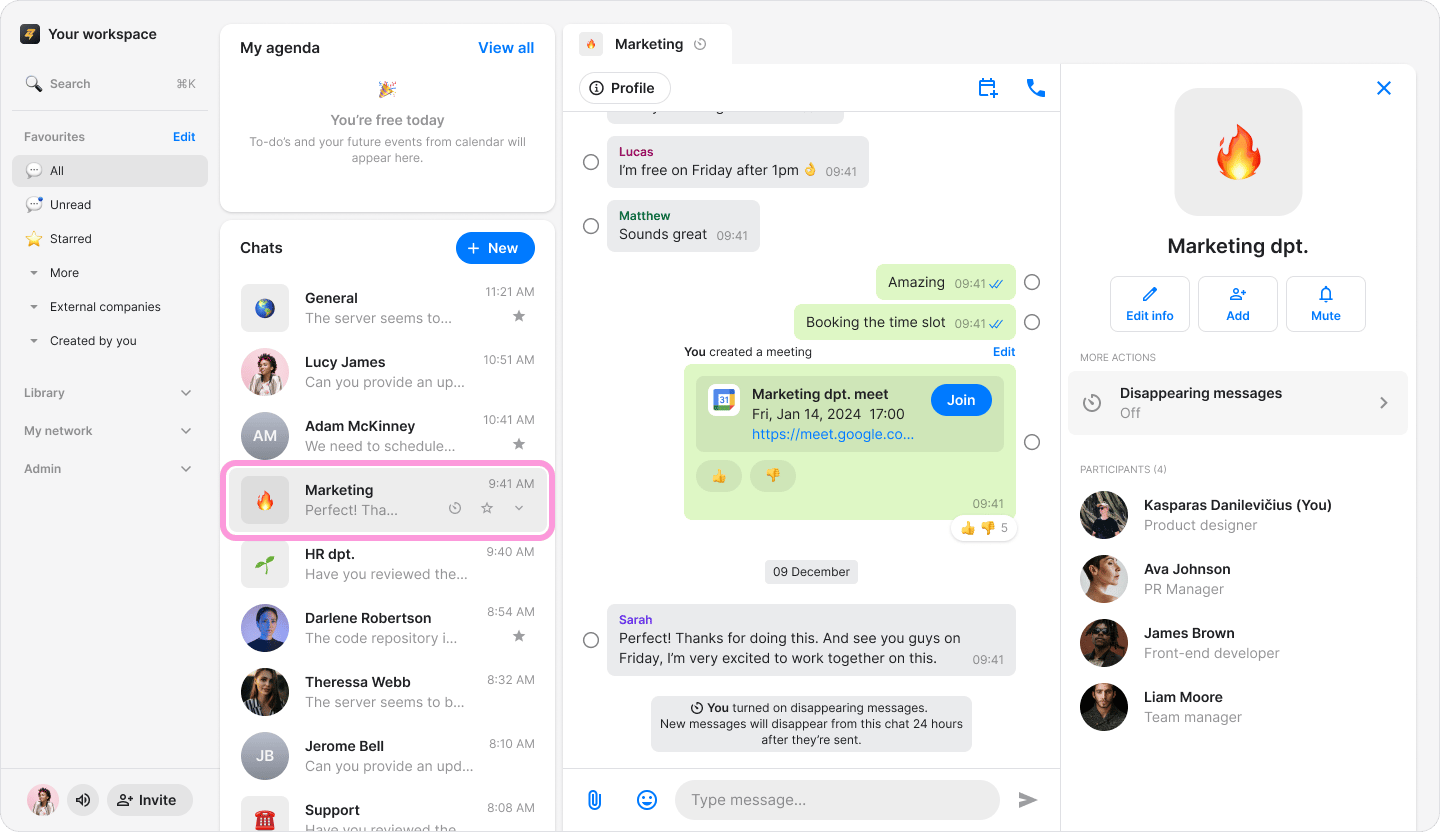
- You can change or turn “Off” the disappearing message at any time by following the same steps.