On Mobile (iOS & Android)
Follow these steps to create and manage to-do lists using the Zenzap mobile app.Create a To-Do List
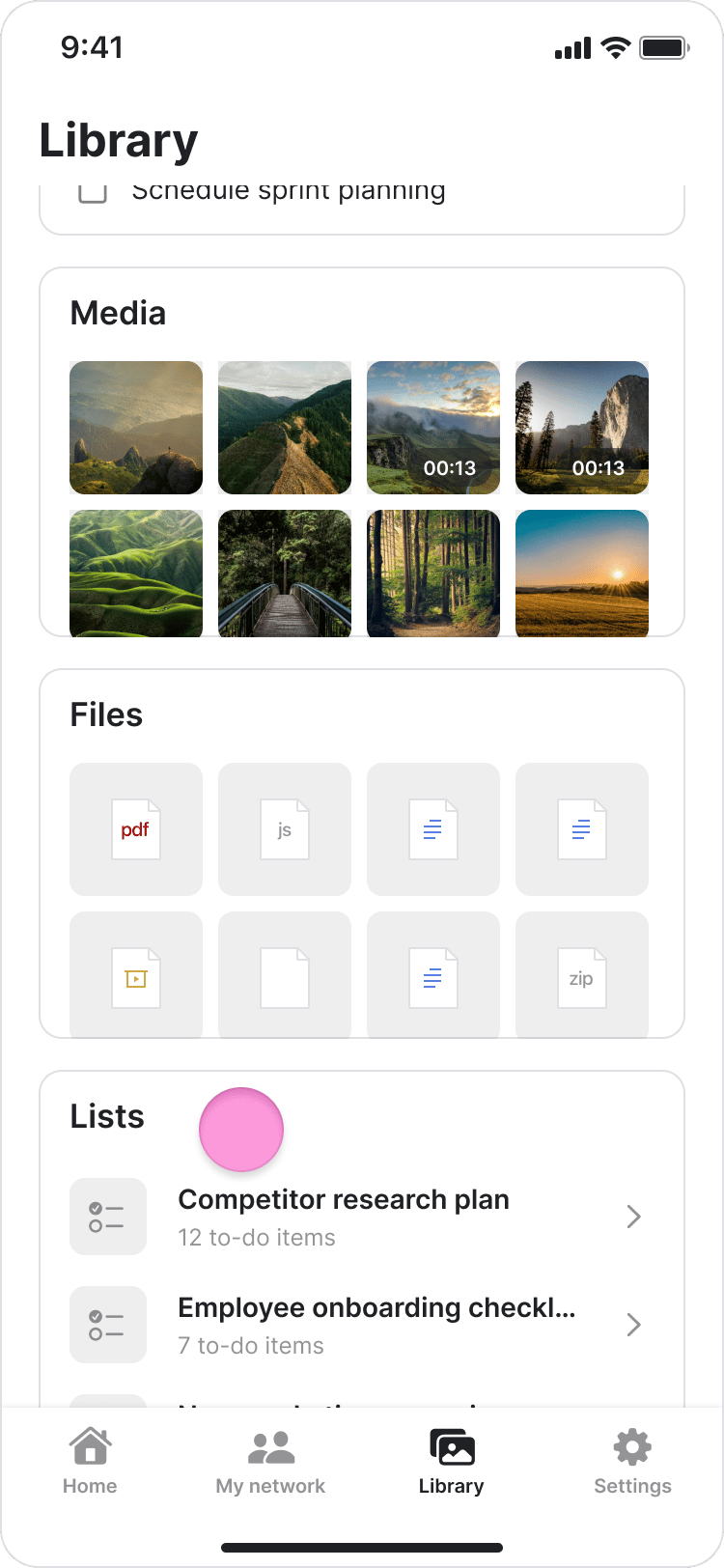
Build a new reusable checklist from scratch.- Tap “Library” on the bottom bar.
- Tap “Lists” card (you may need to scroll down to the bottom).
- Tap ”+ New List”.
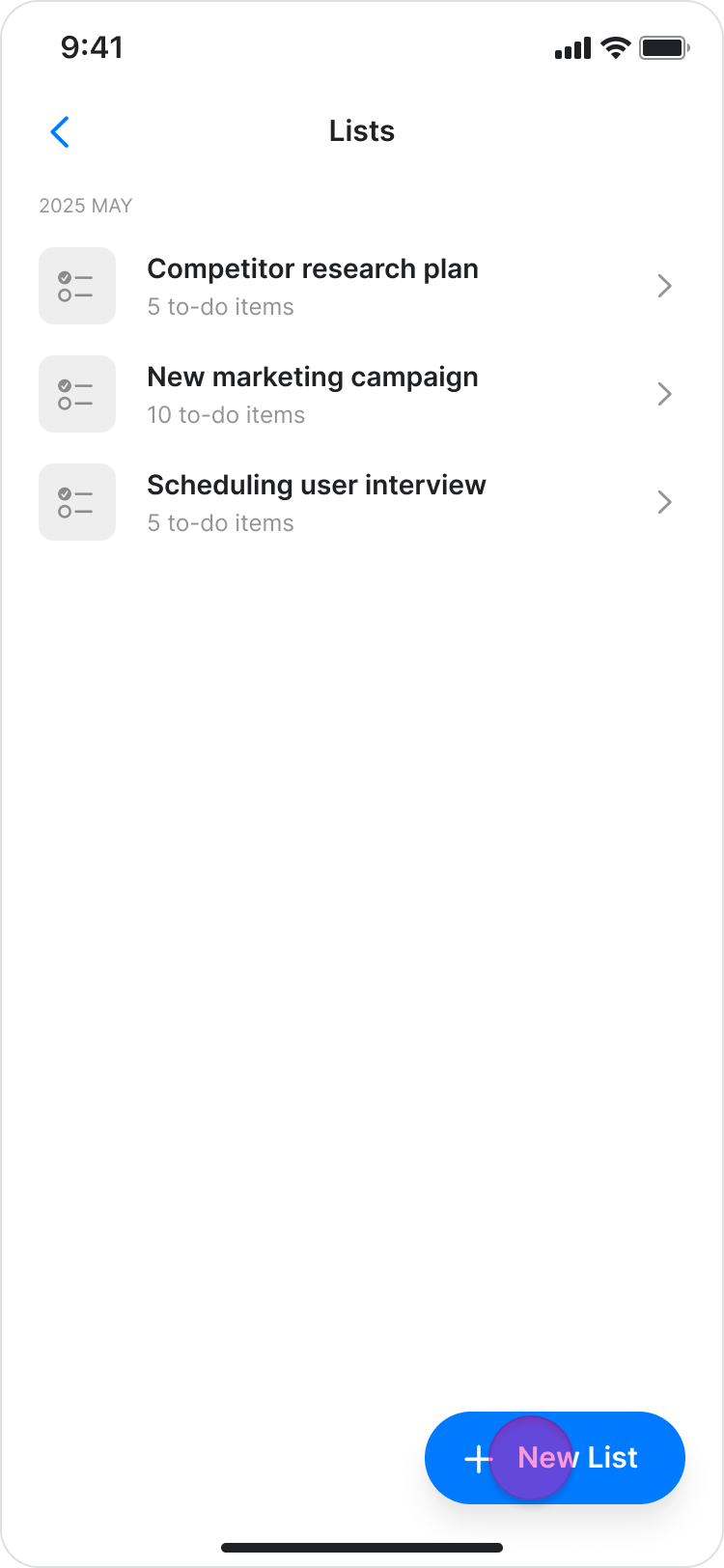
- Enter a name for the list.
- Tap ”+ Add item” to begin adding tasks.
- Enter the task name and add a description or sub-items if needed.
Add a To-Do List to a Chat
Add a saved to-do list to a group chat. You can add a list to a chat from two different places: From the Library:- Tap “Library” on the bottom bar and select the list you want to send.
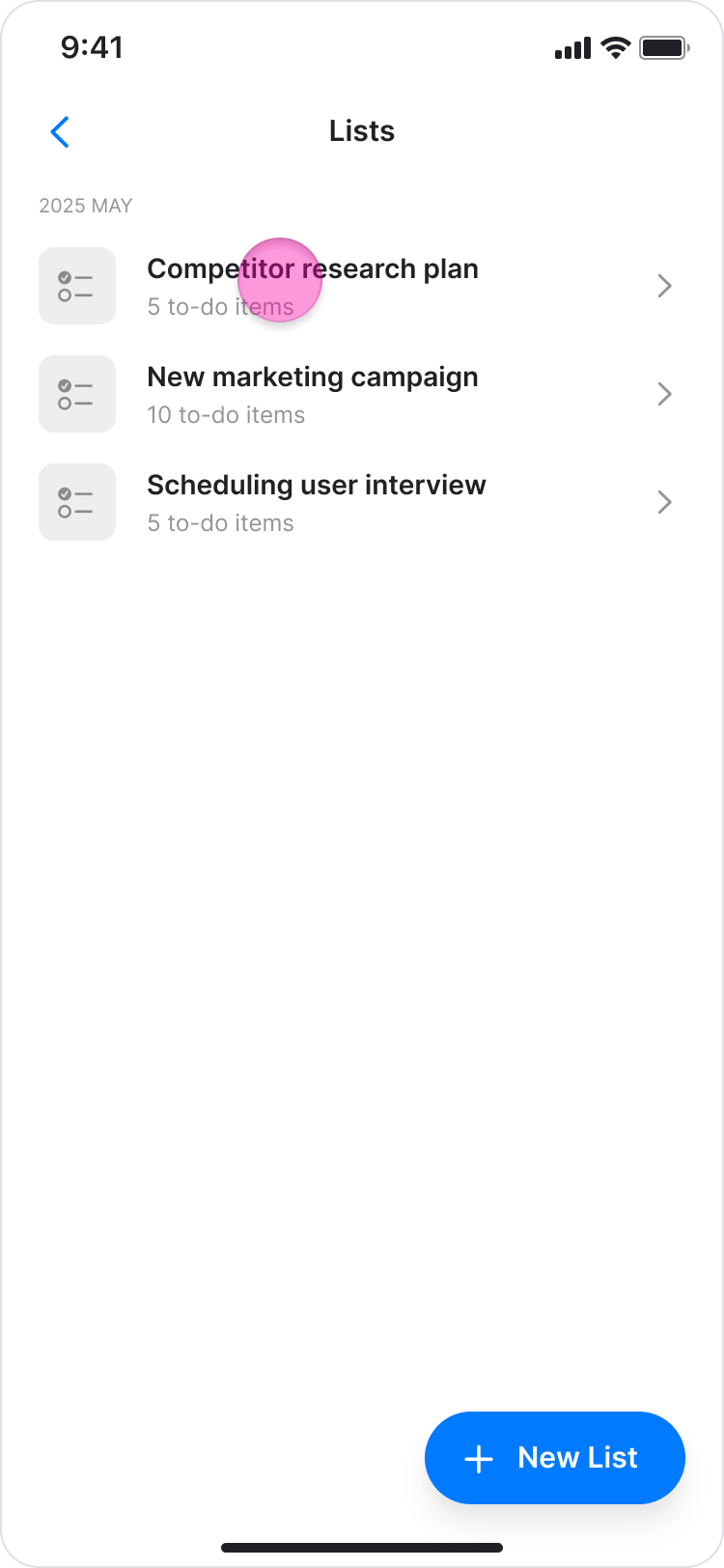
- Tap the “Send” button in the top-right corner.
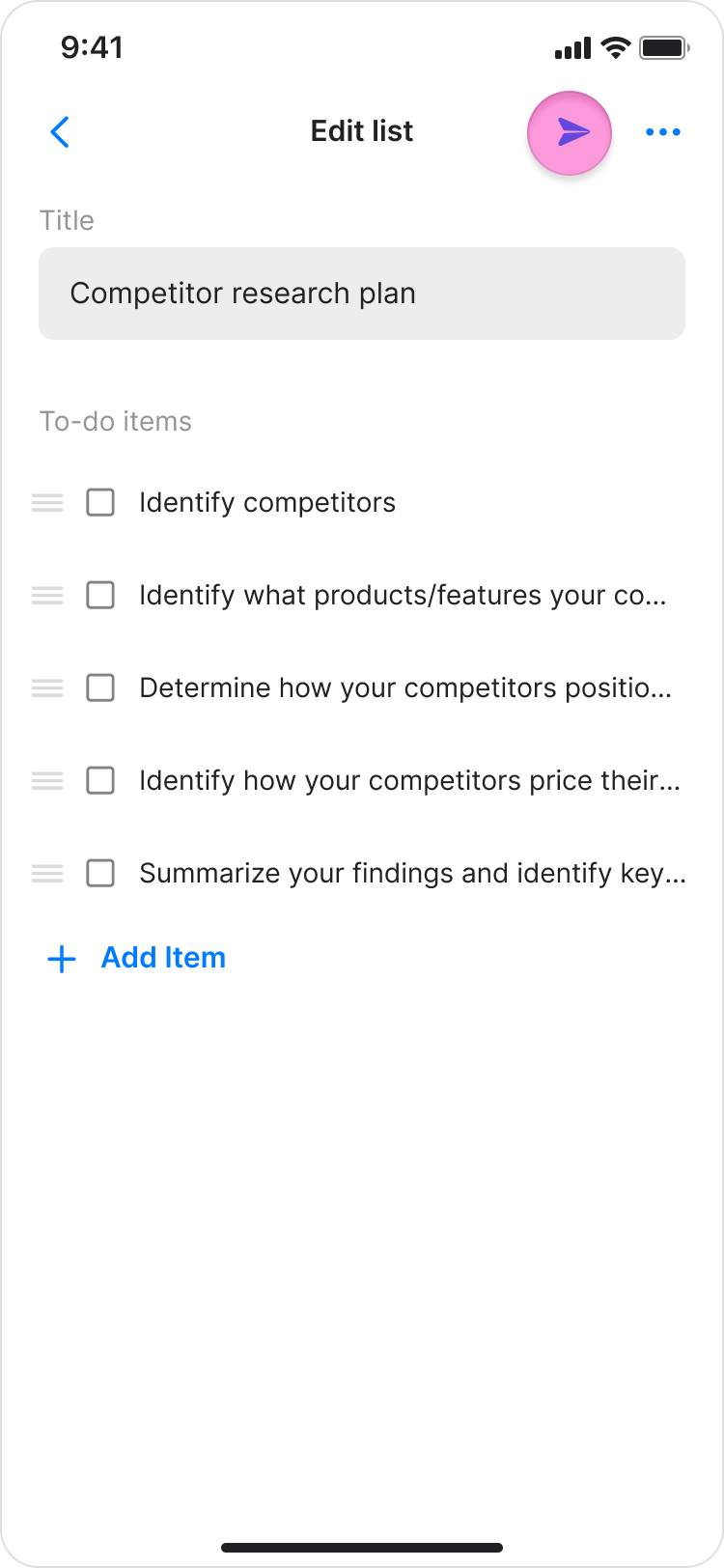
- Select the chat and tap “Send”.
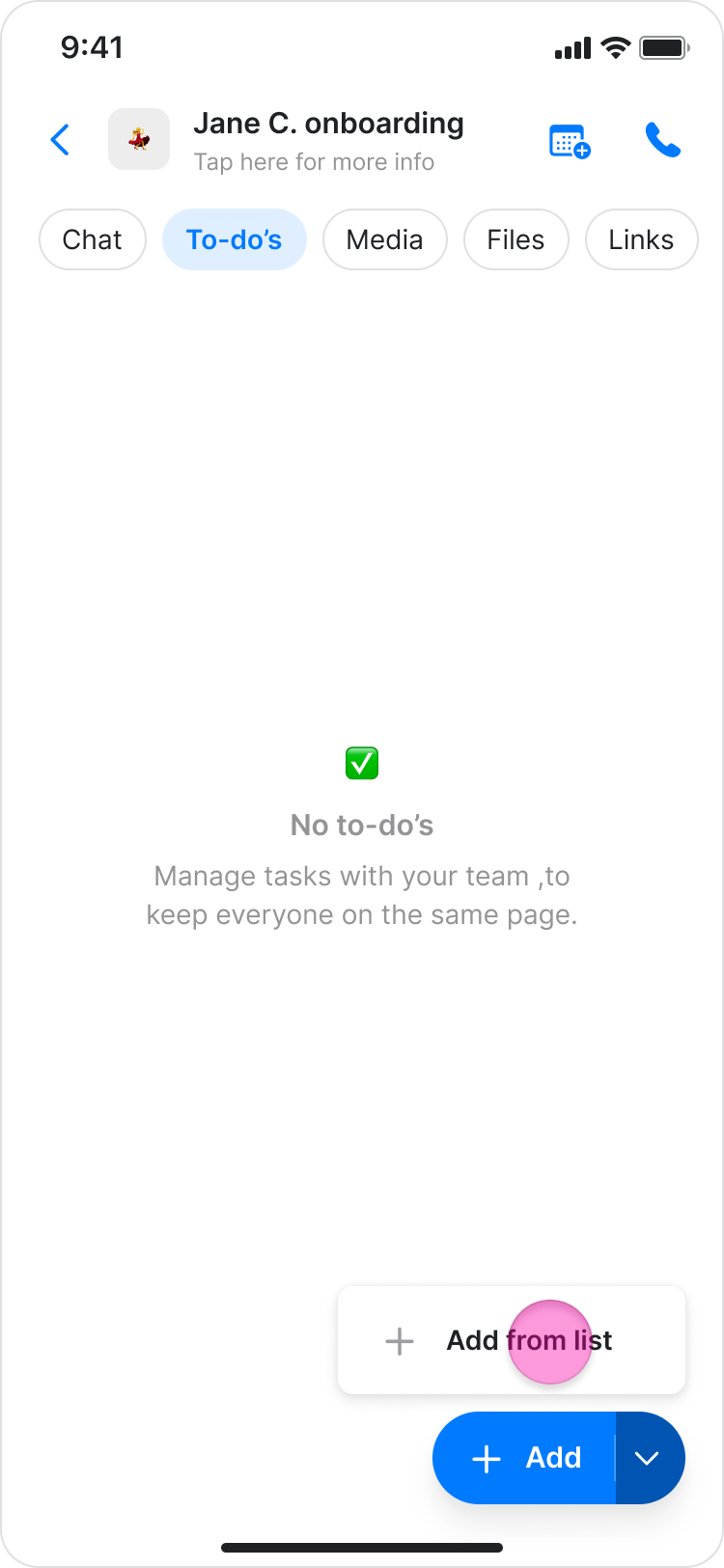
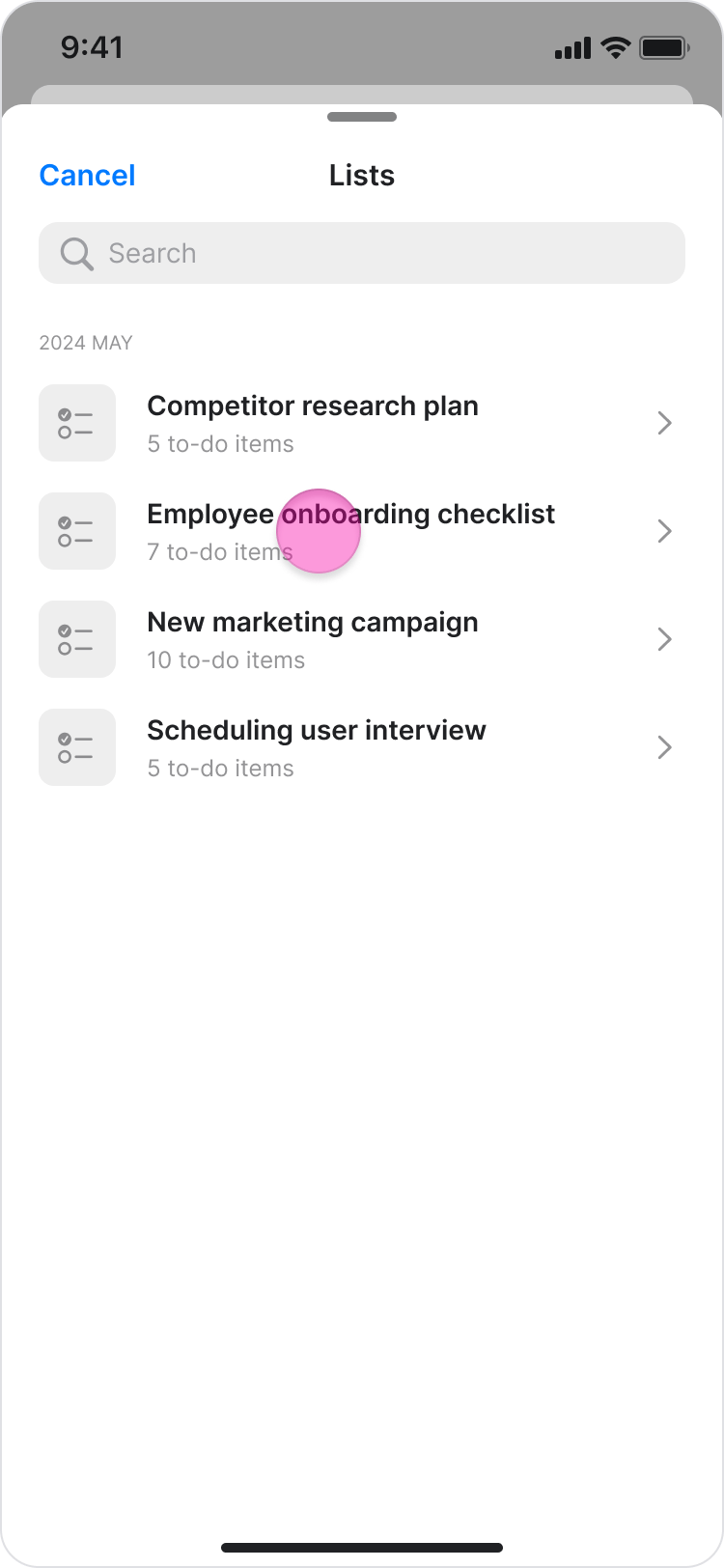
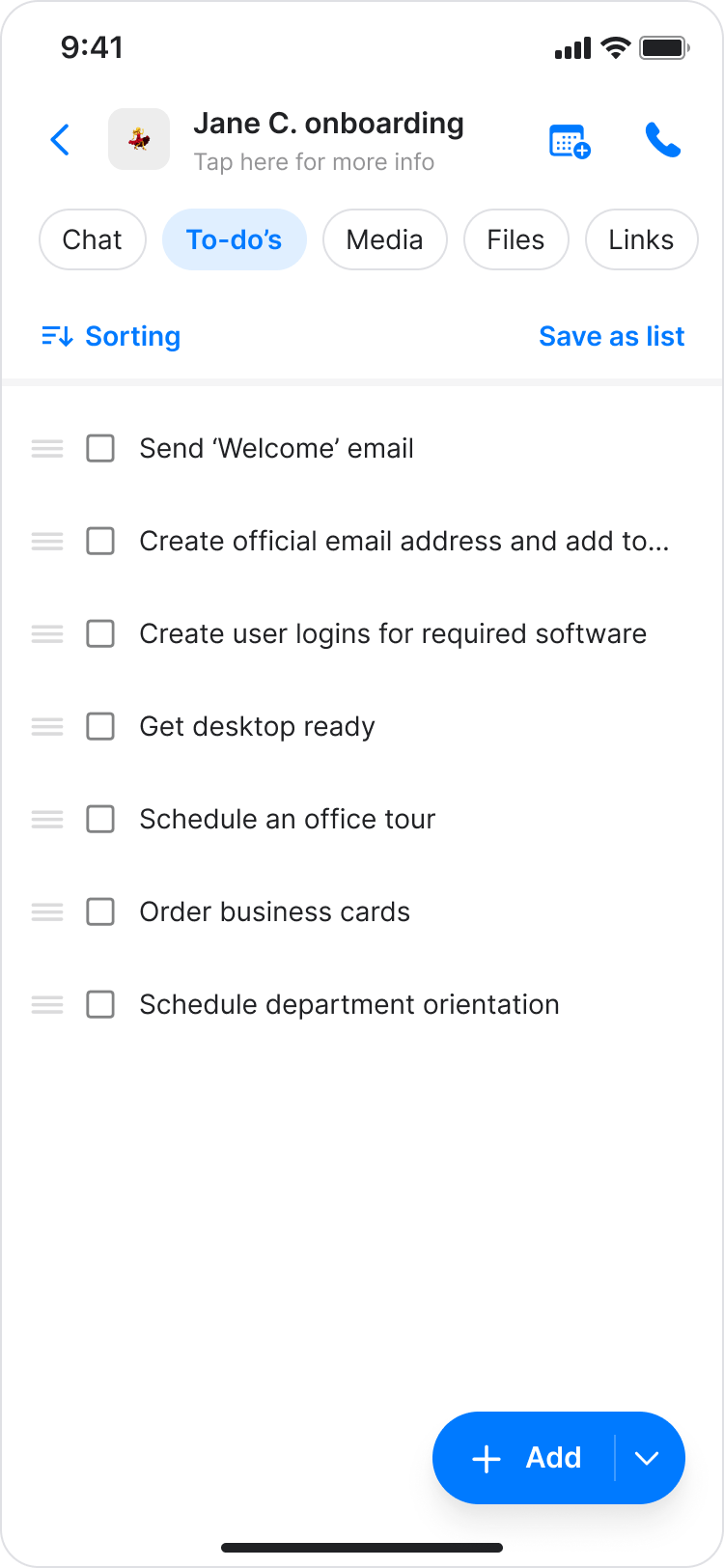
- In the “To-dos” tab of a chat, tap the dropdown arrow in the ”+ Add” button.
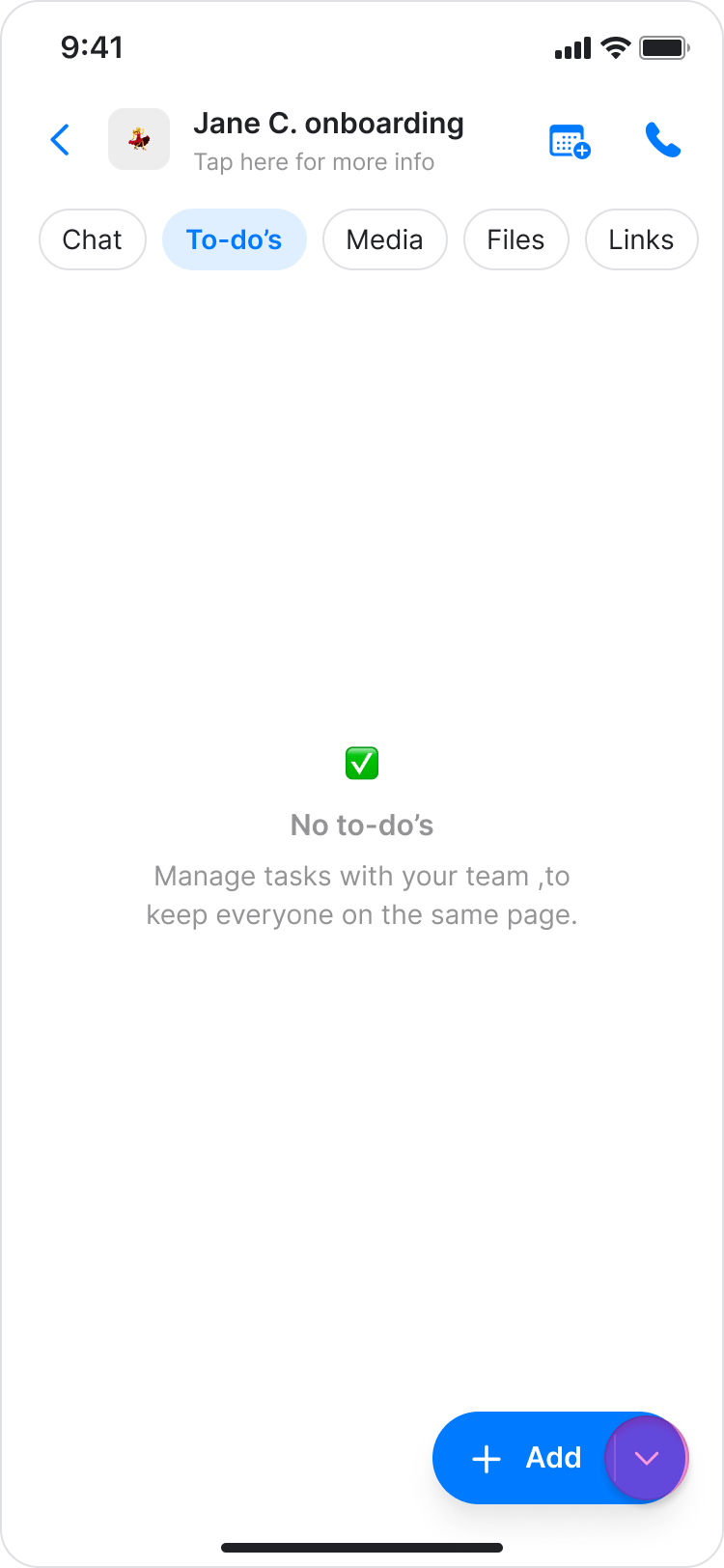
- Tap ”+ Add from list”.
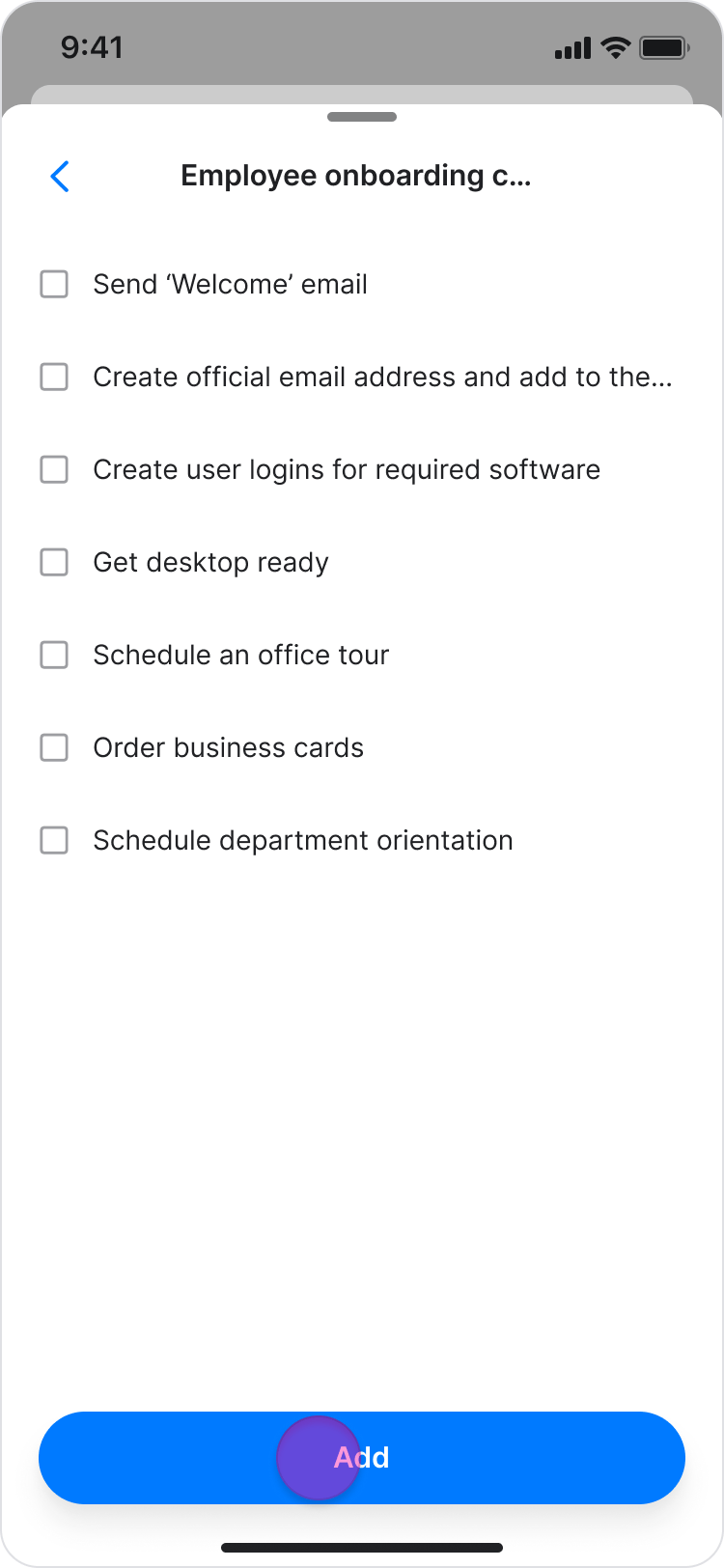
- Select the list you want to add.
- Tap “Add” .
On Desktop (Windows, macOS, & Web App)
Follow these steps to create and manage to-do lists using the Zenzap desktop or web app.Create a To-Do List
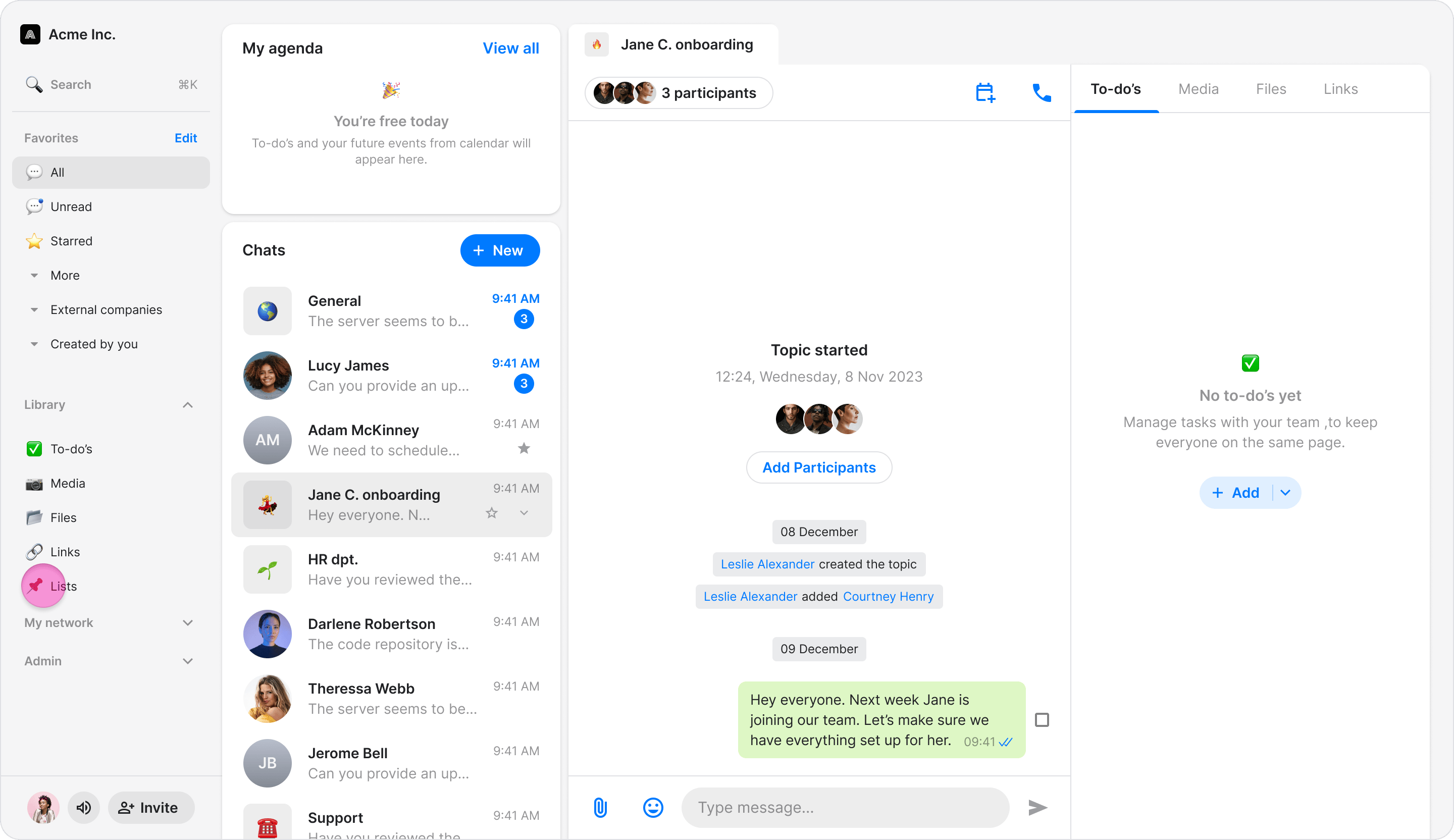
Build a new reusable checklist from scratch.- Click “All to-do lists” in the left sidebar.
- Click ”+ New List”.
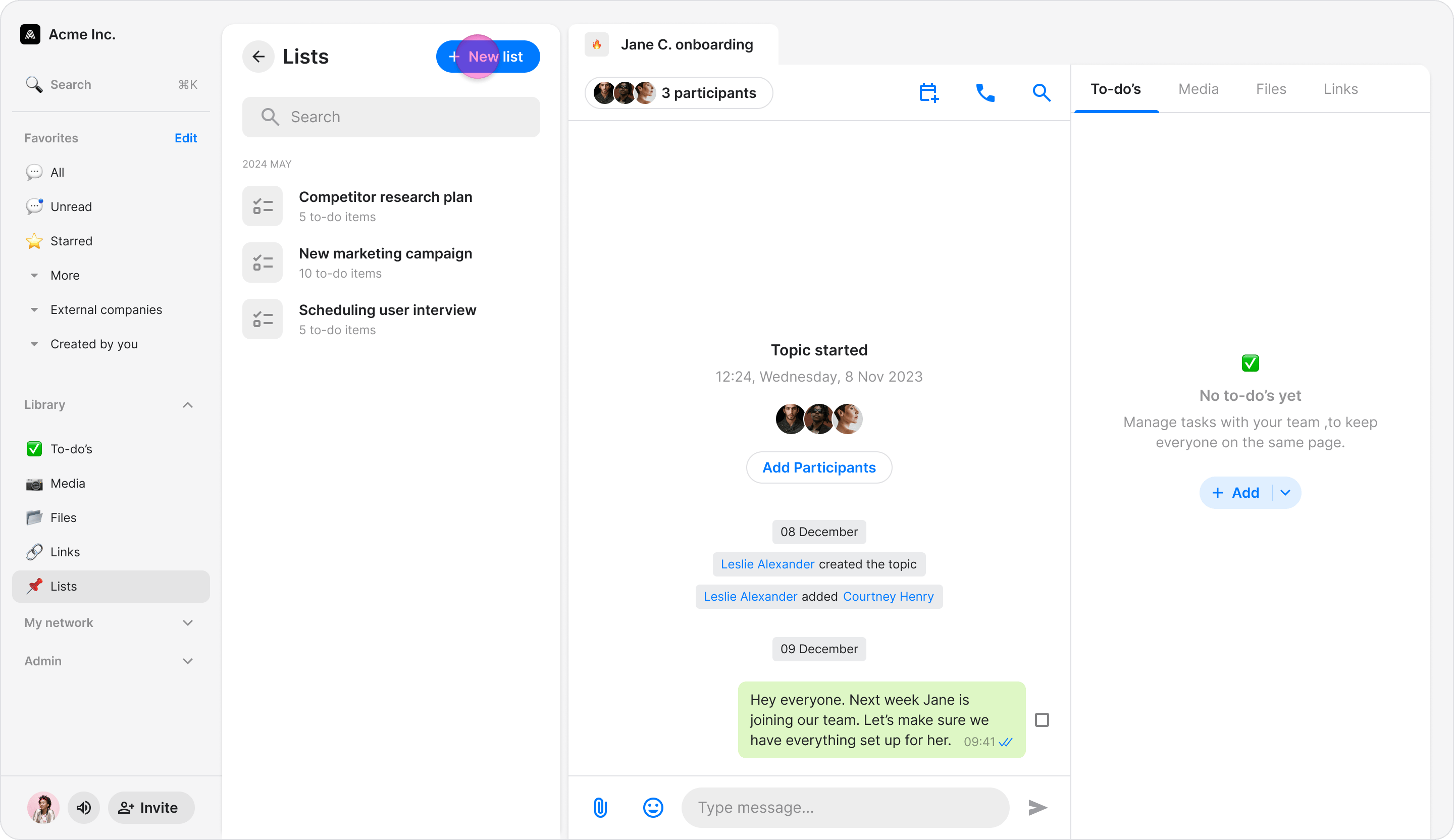
- Enter a name for the list.
- Click ”+ Add item” to begin adding tasks.
- Enter the task name and add a description or sub-items if needed.
Add a To-Do List to a Chat
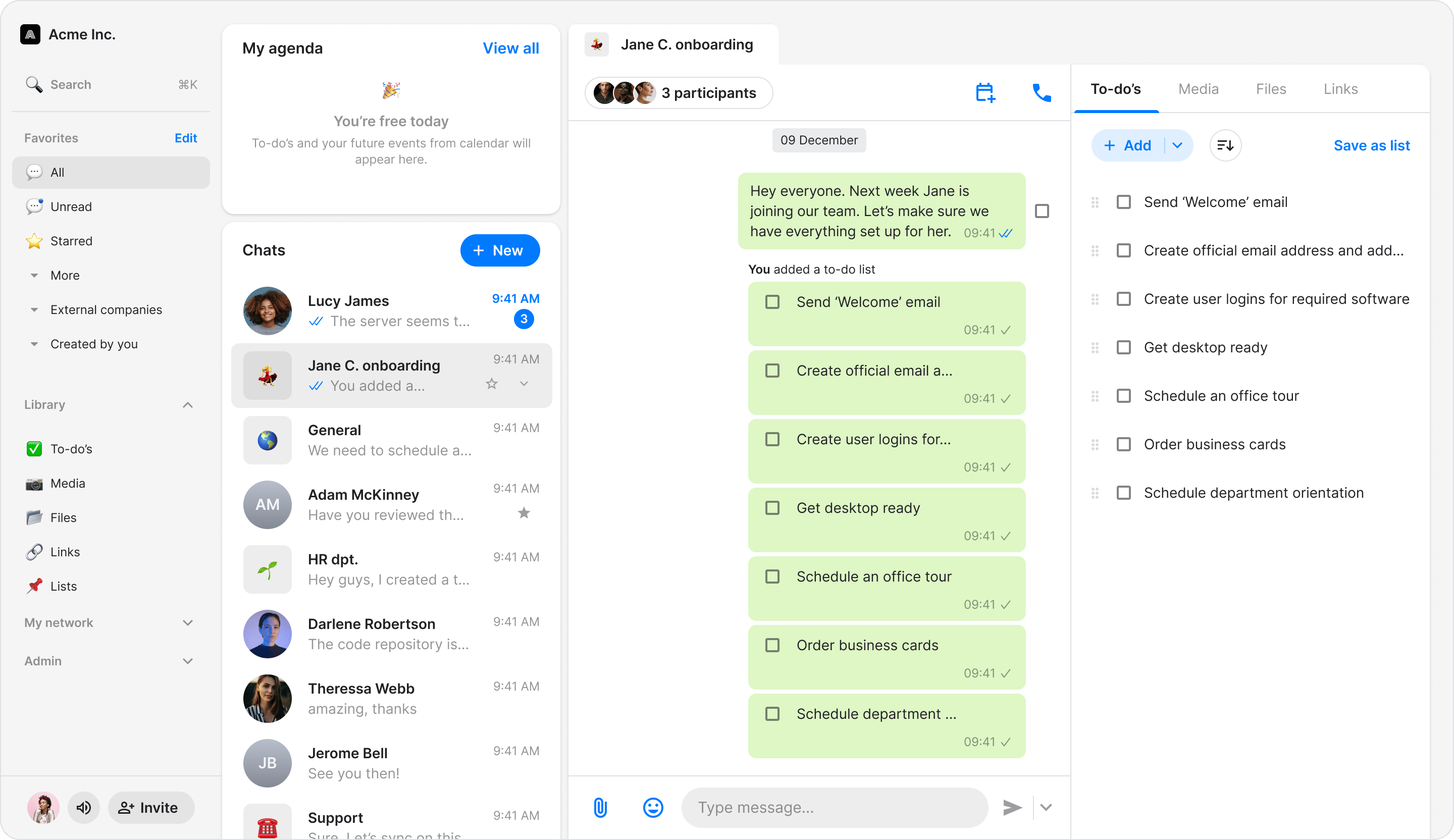
Add a saved to-do list to a group chat. You can add a list to a chat from two different places: From the To-Do Lists Section:- Click “All to-do lists” in the left sidebar and select the list you want to send.
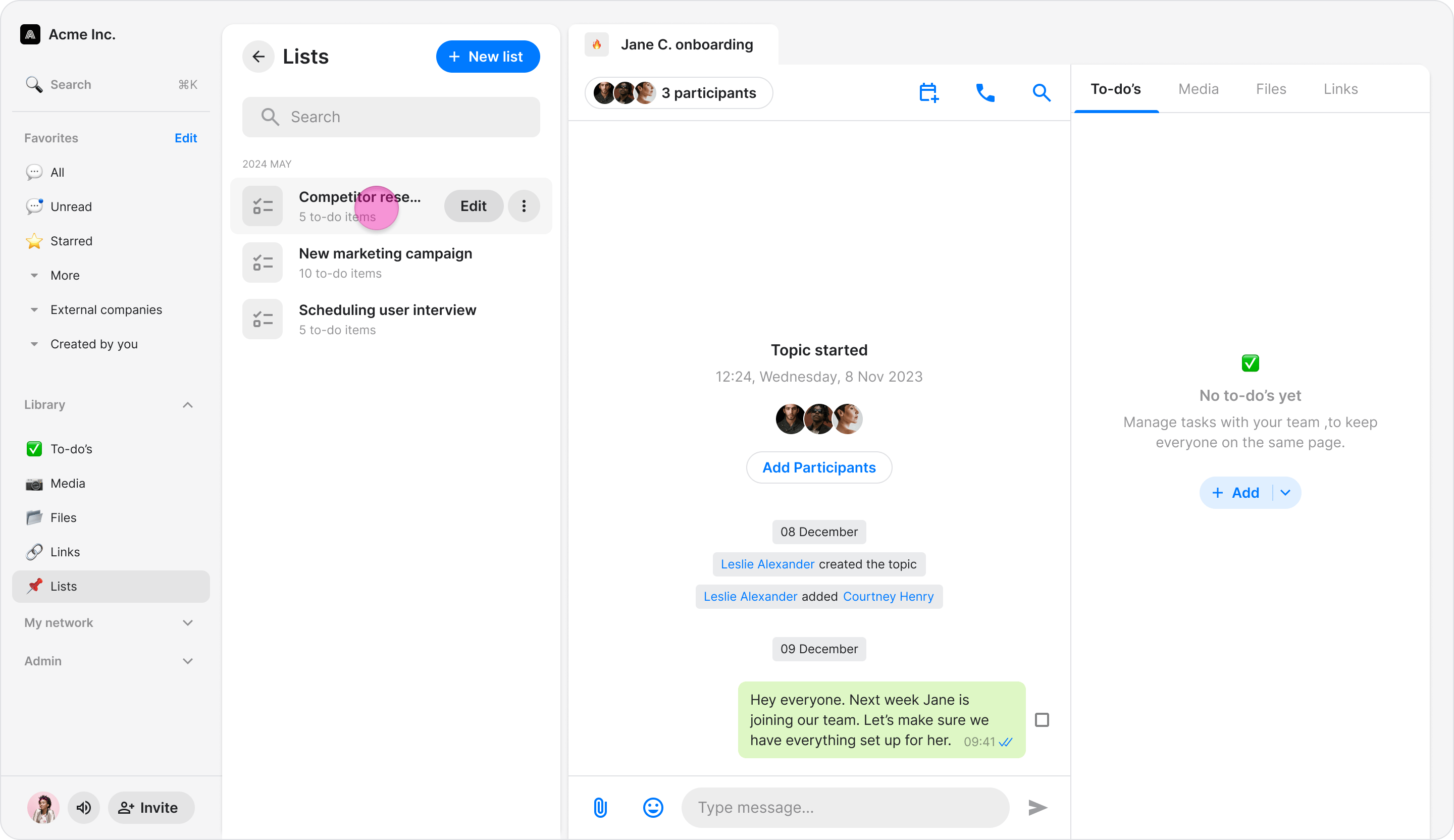
- Click the “Send to topic” button.
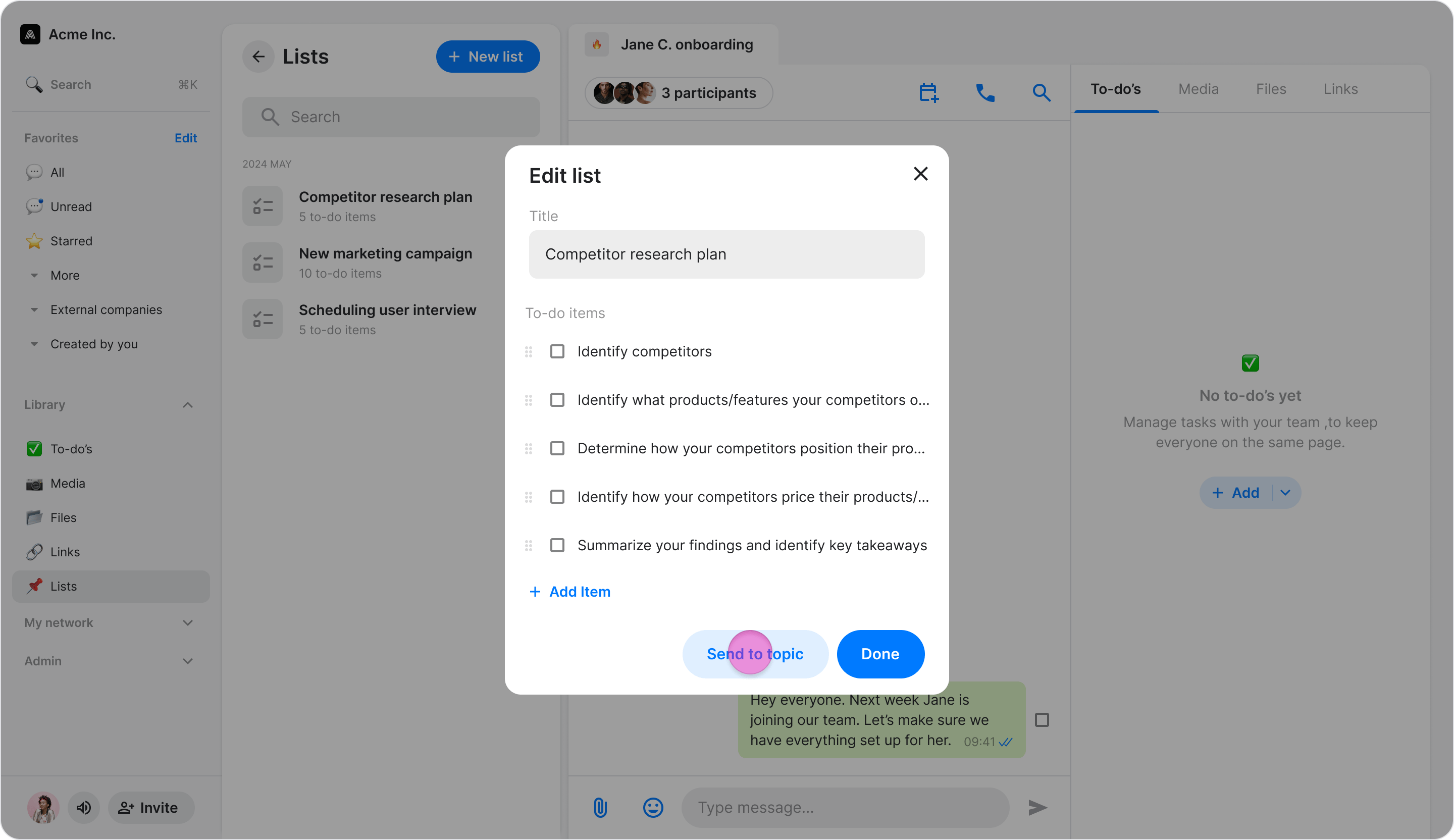
- Select the chat you want to send it to and click “Send”.
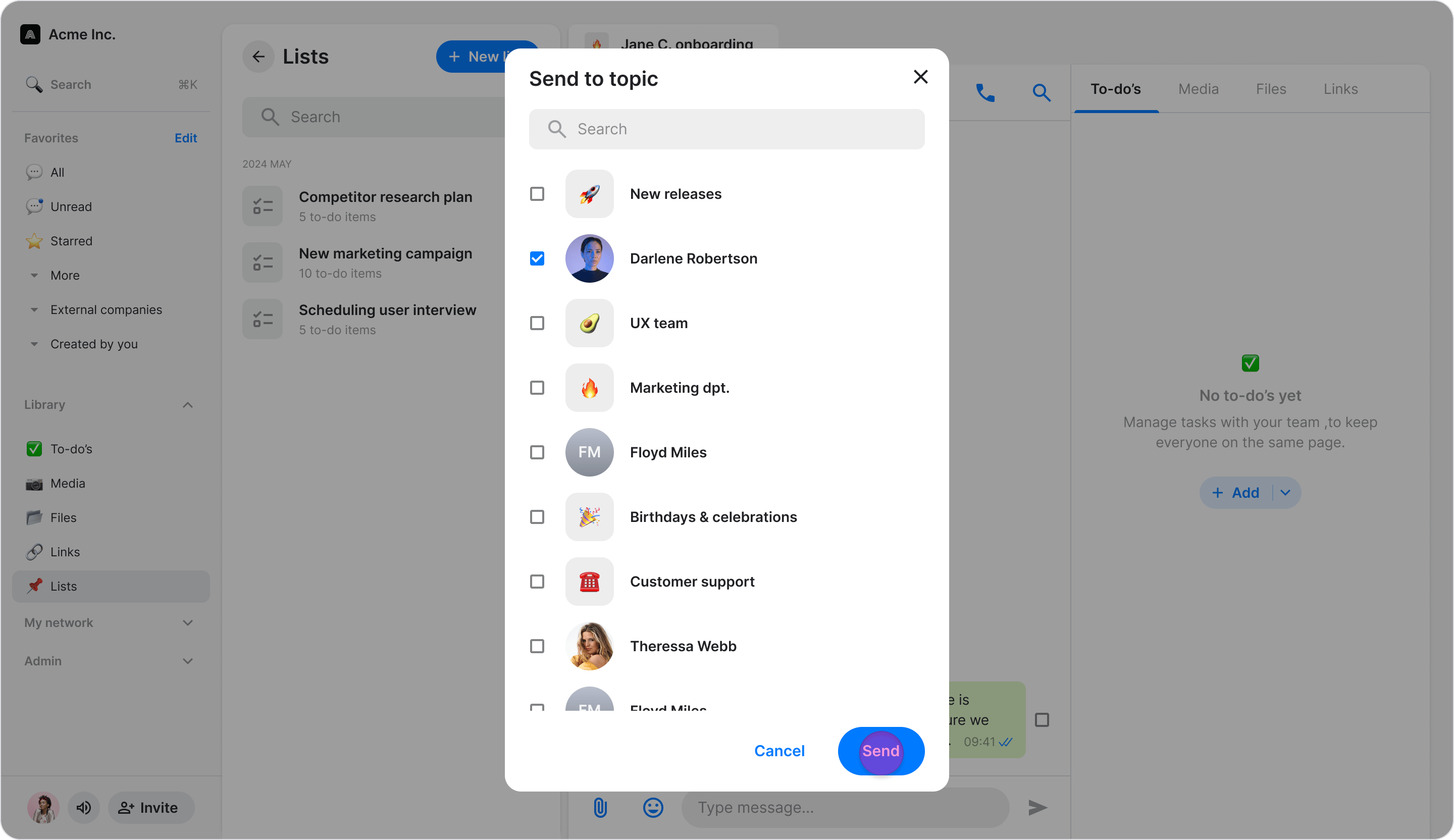
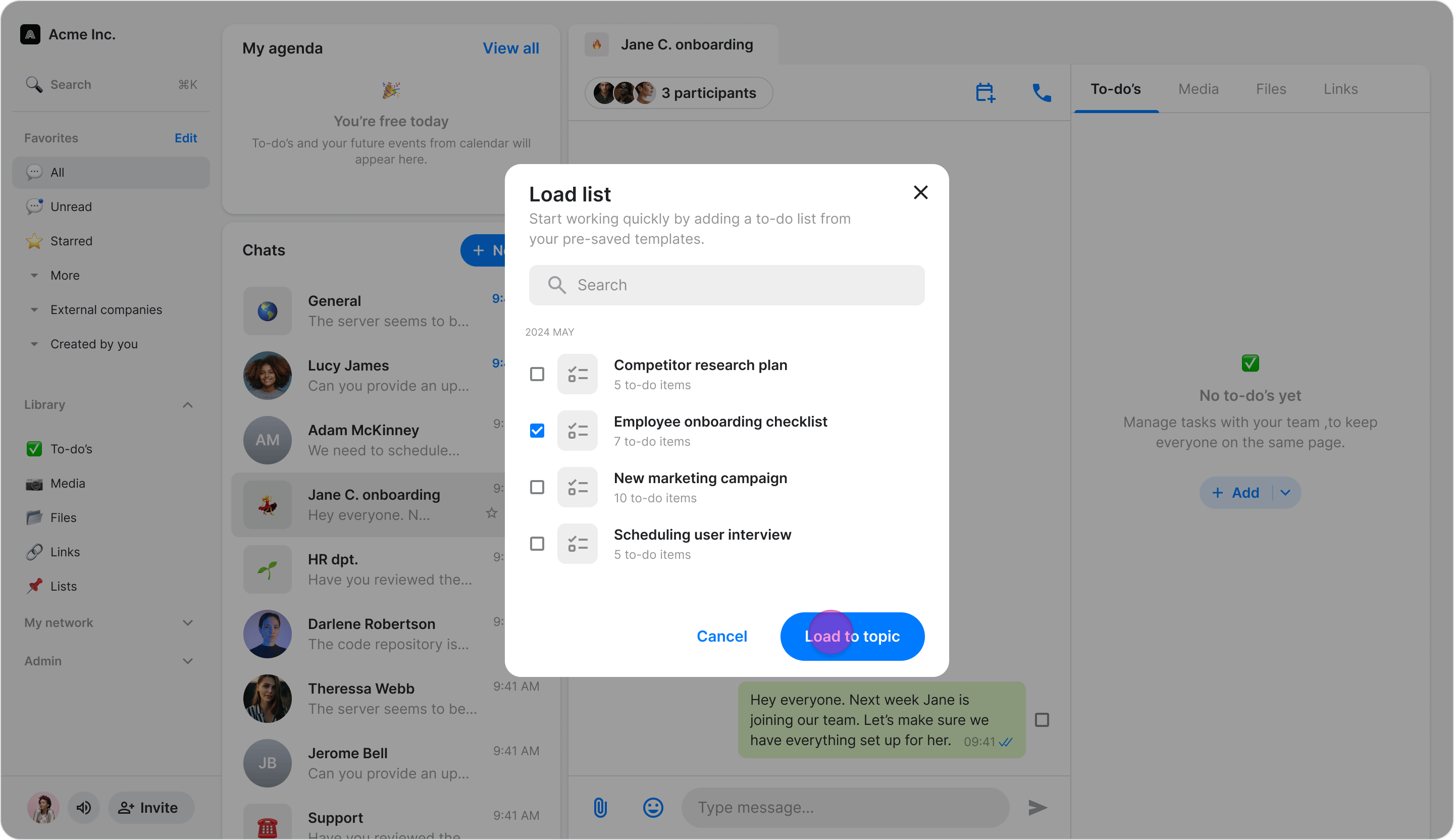
- In the “To-dos” tab of a chat, click the dropdown arrow in the ”+ Add” button.
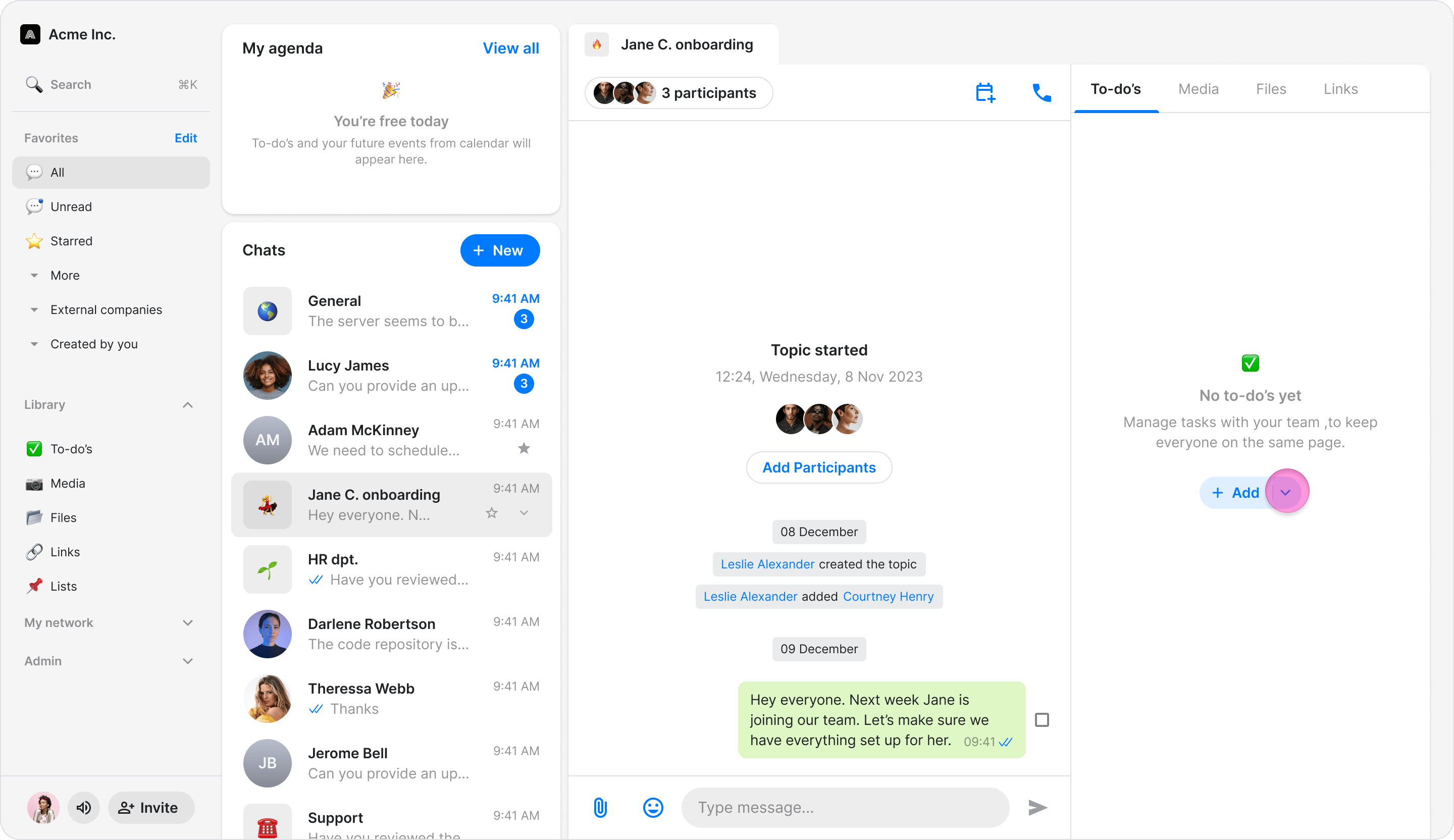
- Click ”+ Load list”.
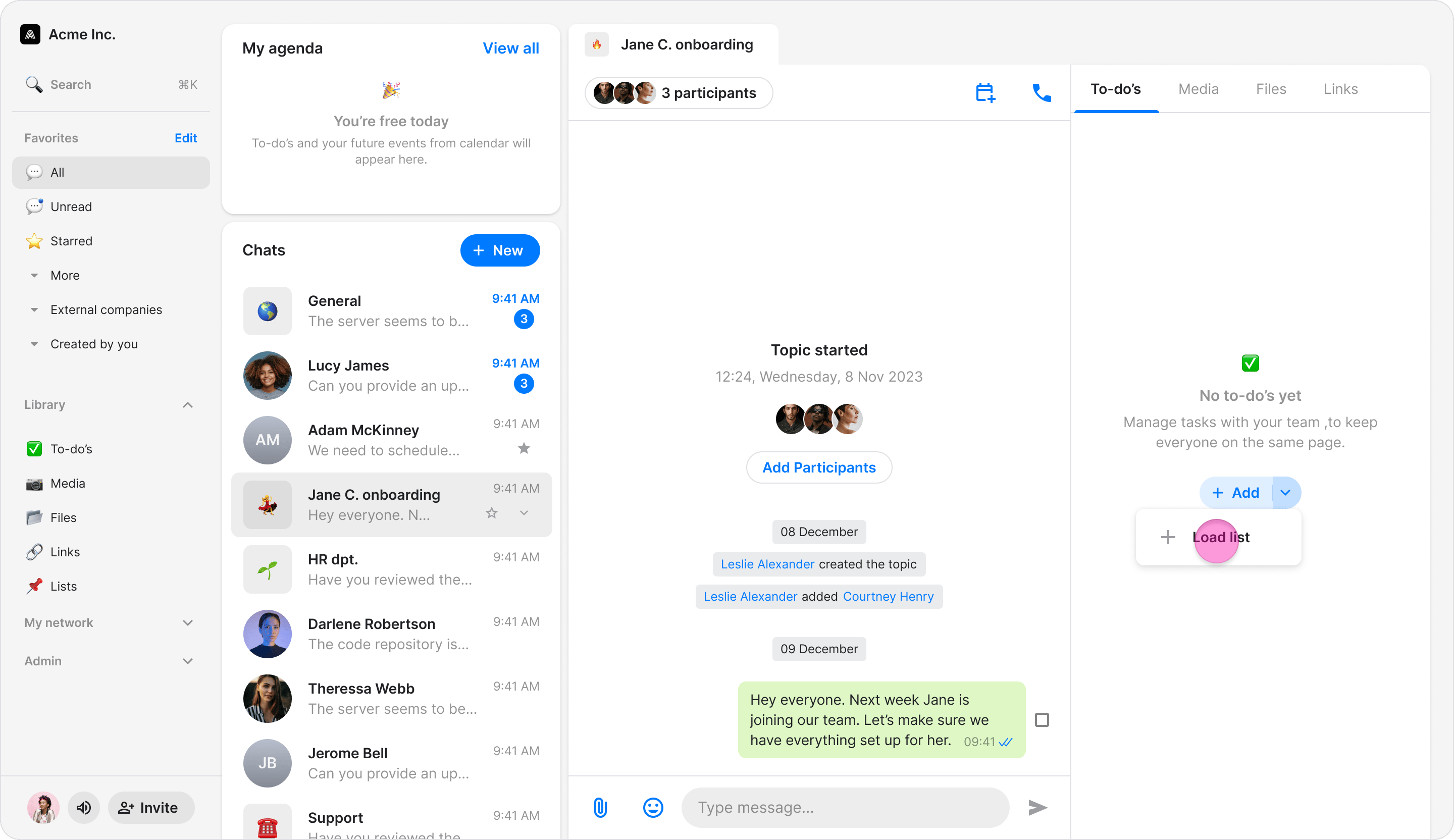
- Select the list you want to add.
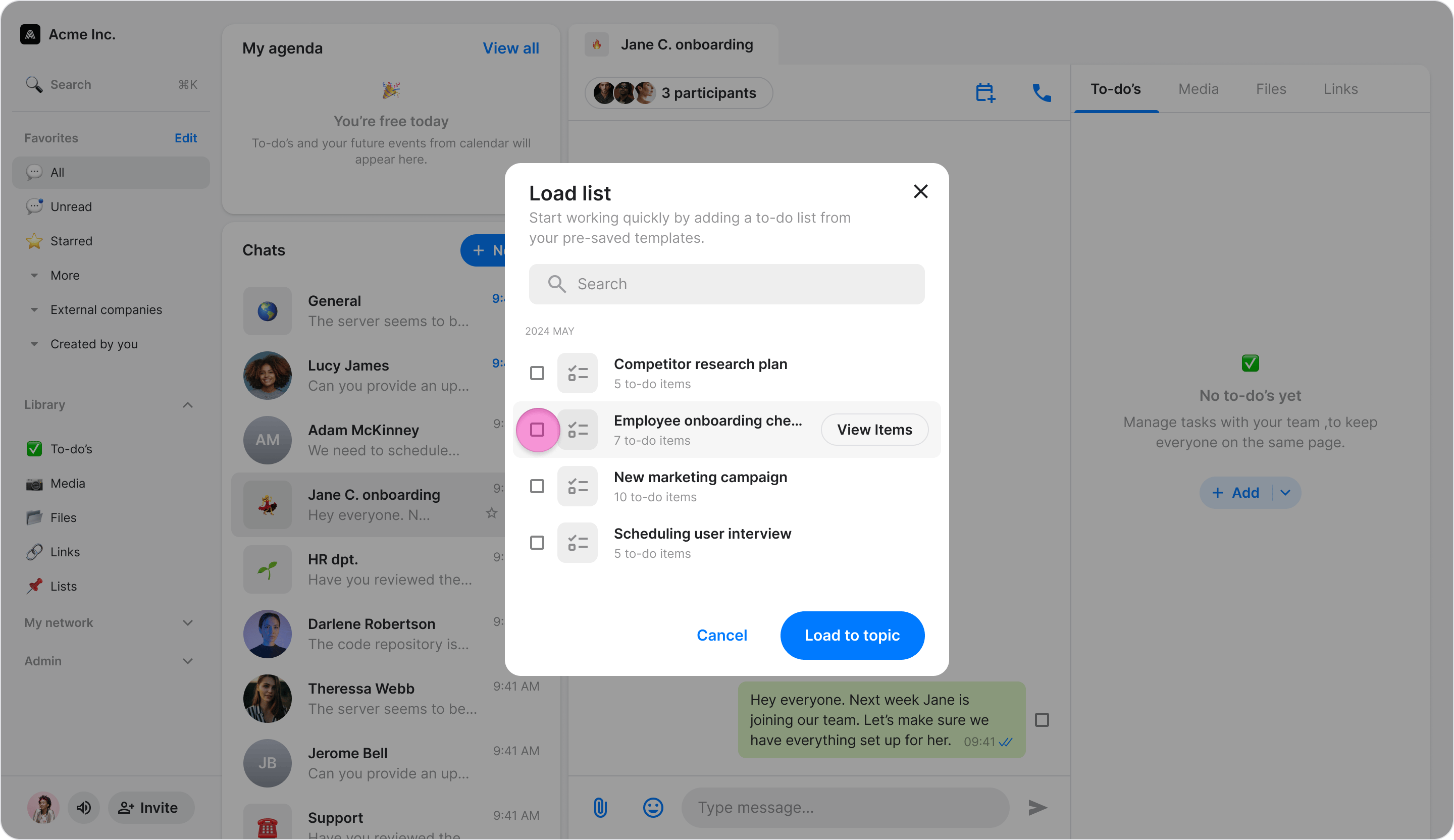
- Click “Load to topic” .