
On Mobile (iOS & Android)
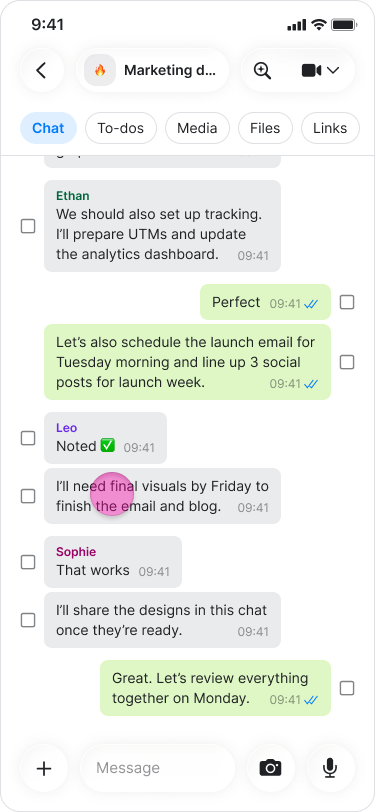
- Find the message you want to use for the new topic.
-
Long press on the message.
-
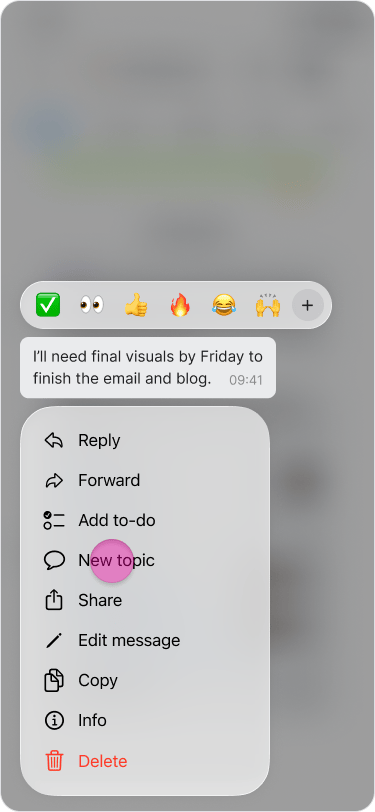
Tap “New topic”.
-
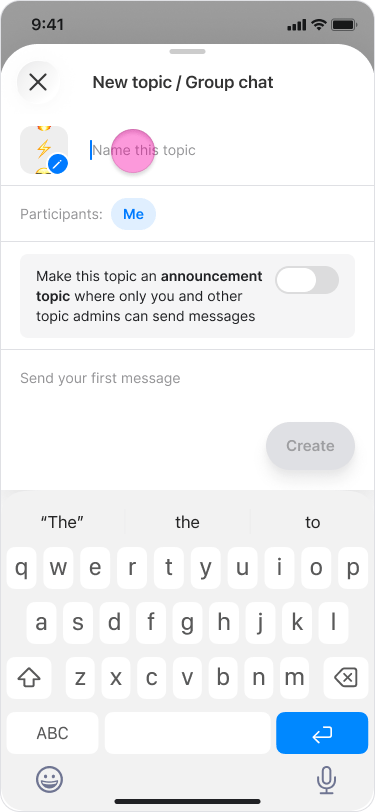
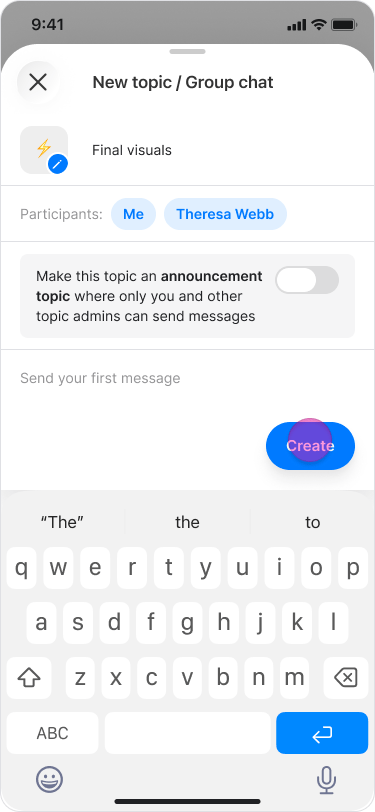
Write a name for the topic.
-
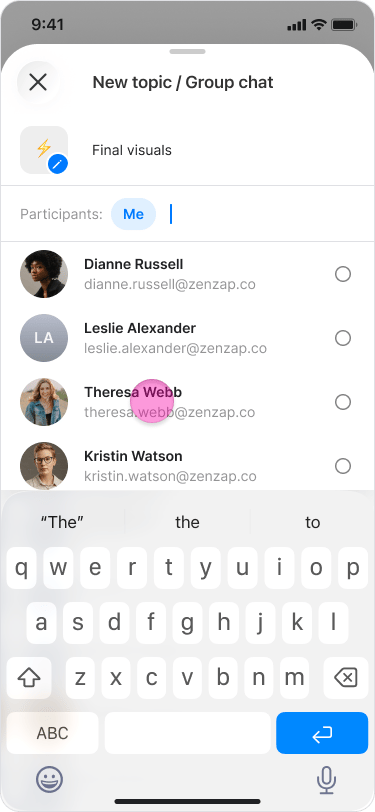
Tap “Participants” to select the members you want to add.
- Tap “Done”.
-
Tap “Create” and you will be directed to the new topic.
- The selected message will appear as the first message in the new topic with “Forwarded” written above them.
- You can select multiple messages at once to start a new topic.
- You can set the new topic as an announcement topic (more about announcement topics here).
On Desktop (Windows & macOS)
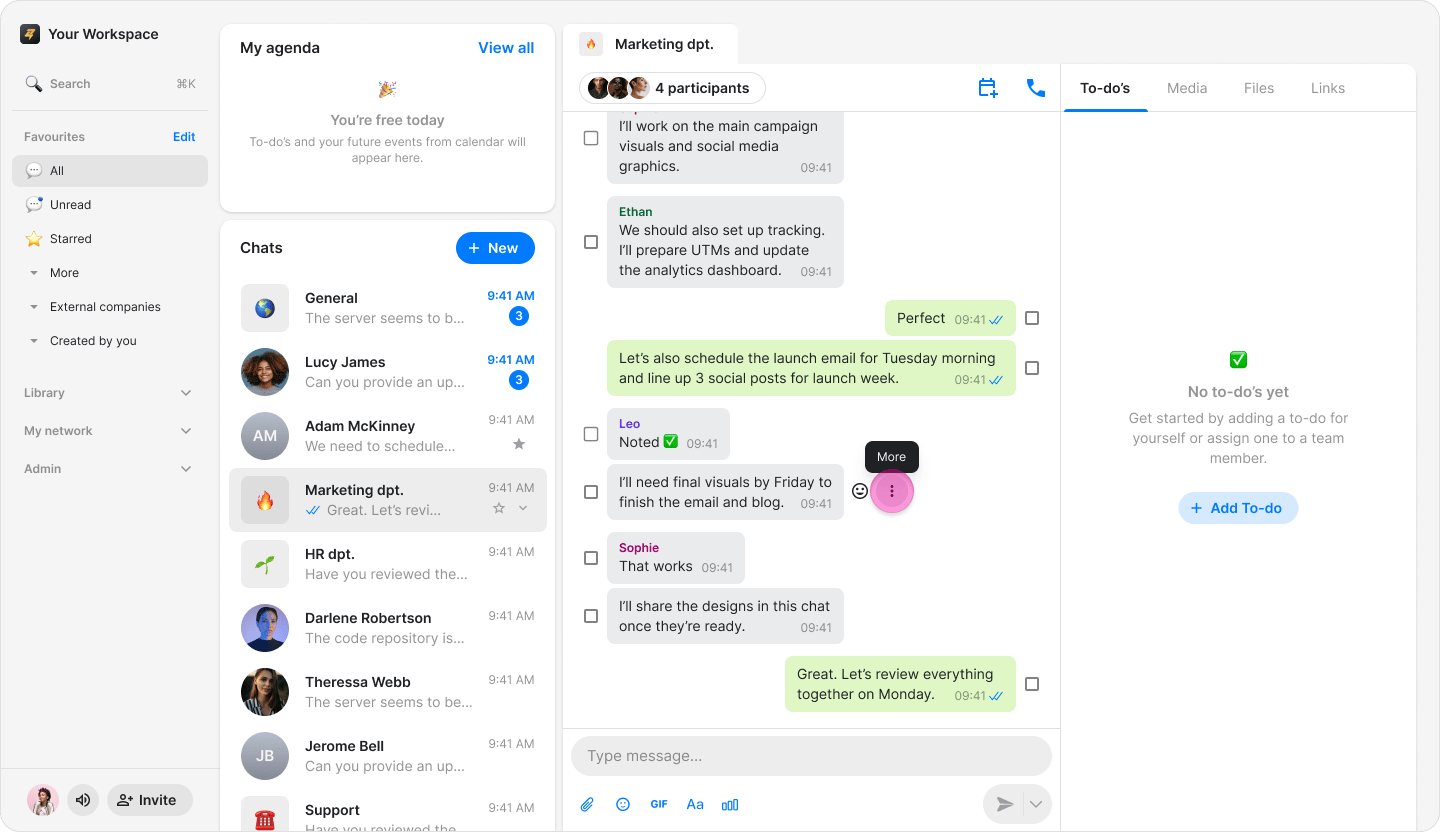
- Hover over the message you want to use for the new topic.
- Click the “Three dots” icon.
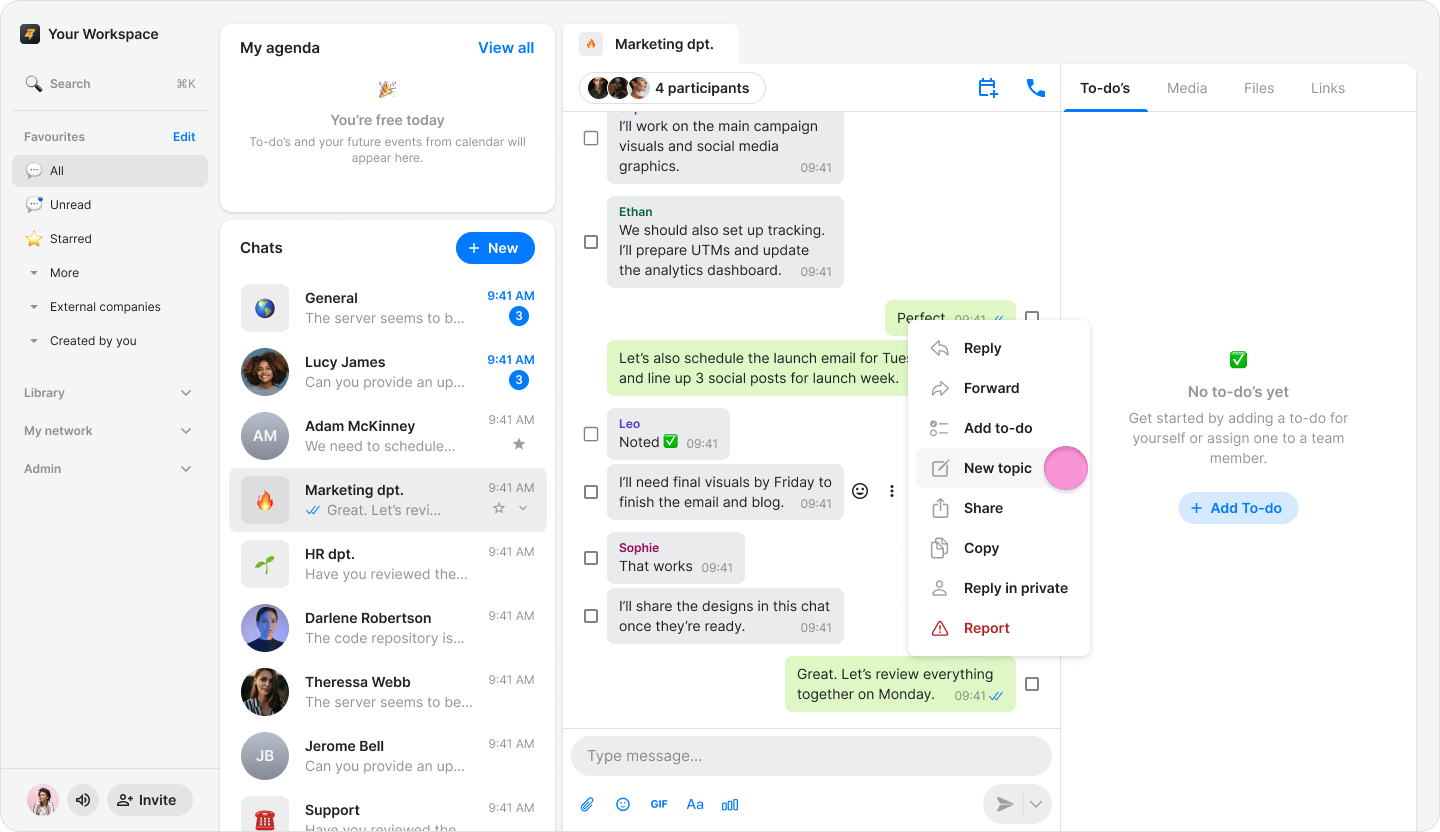
- Click “New topic”.
- Write a name for the topic.
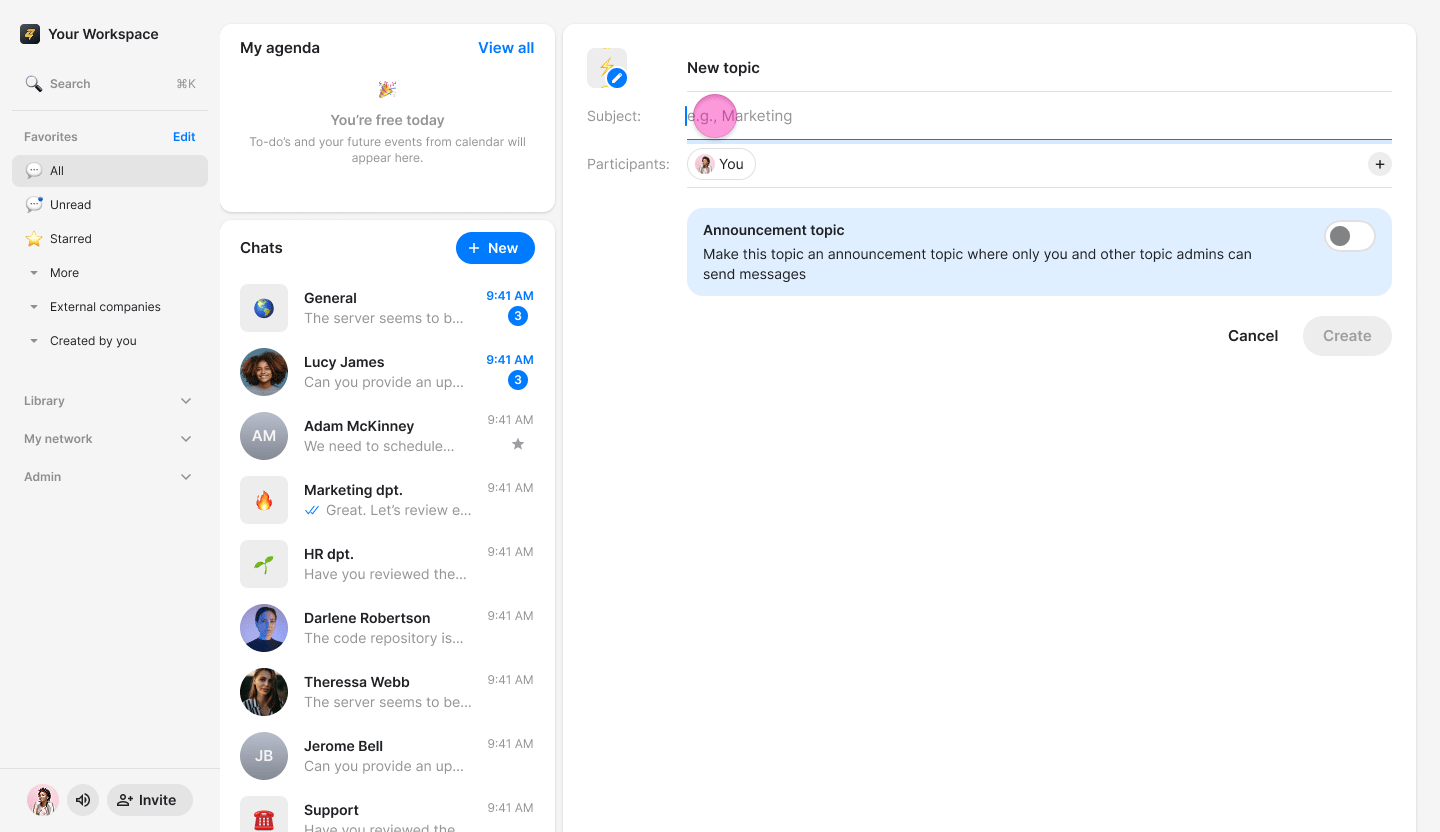
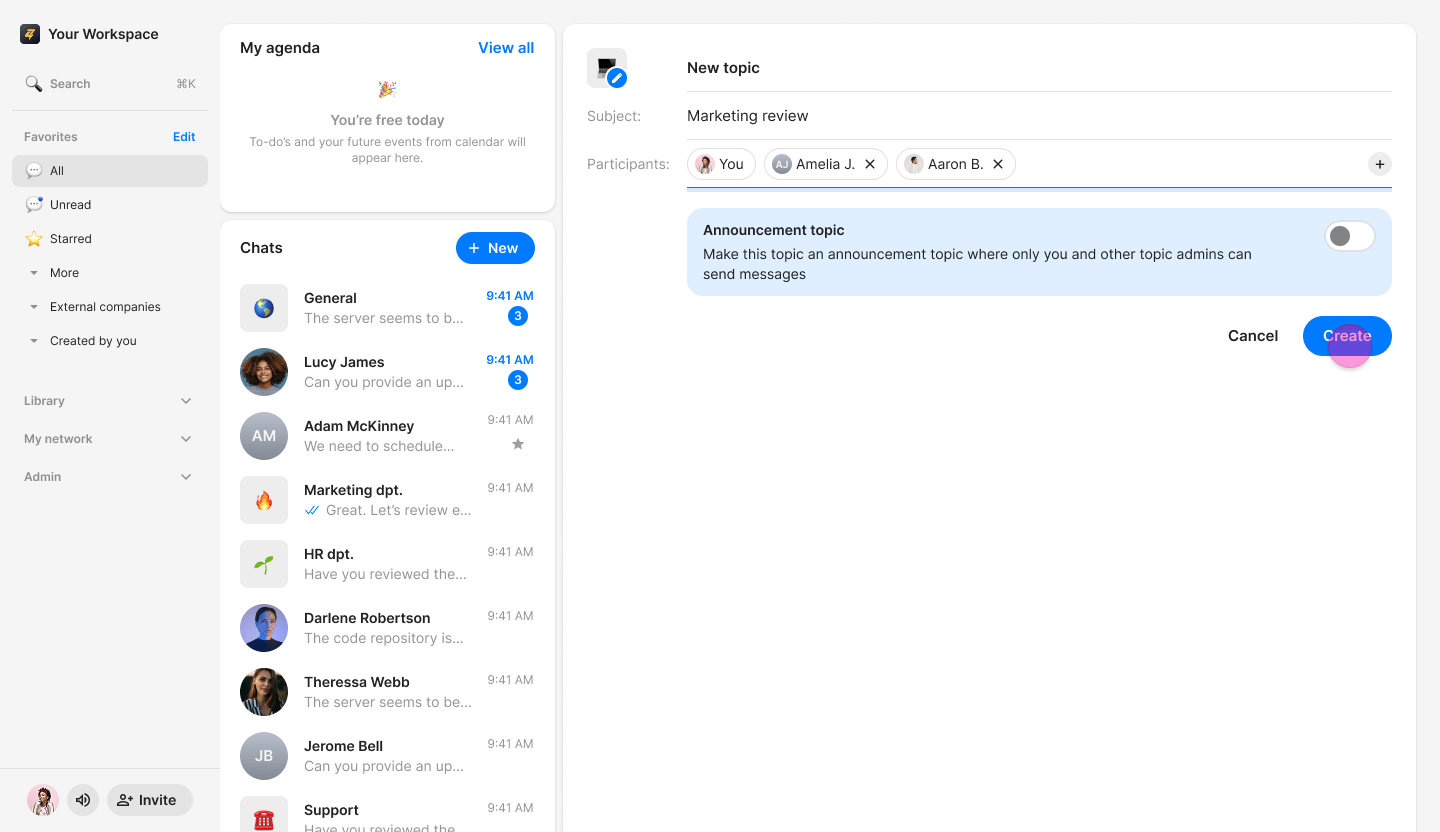
- Click “Participants” to select the members you want to add.
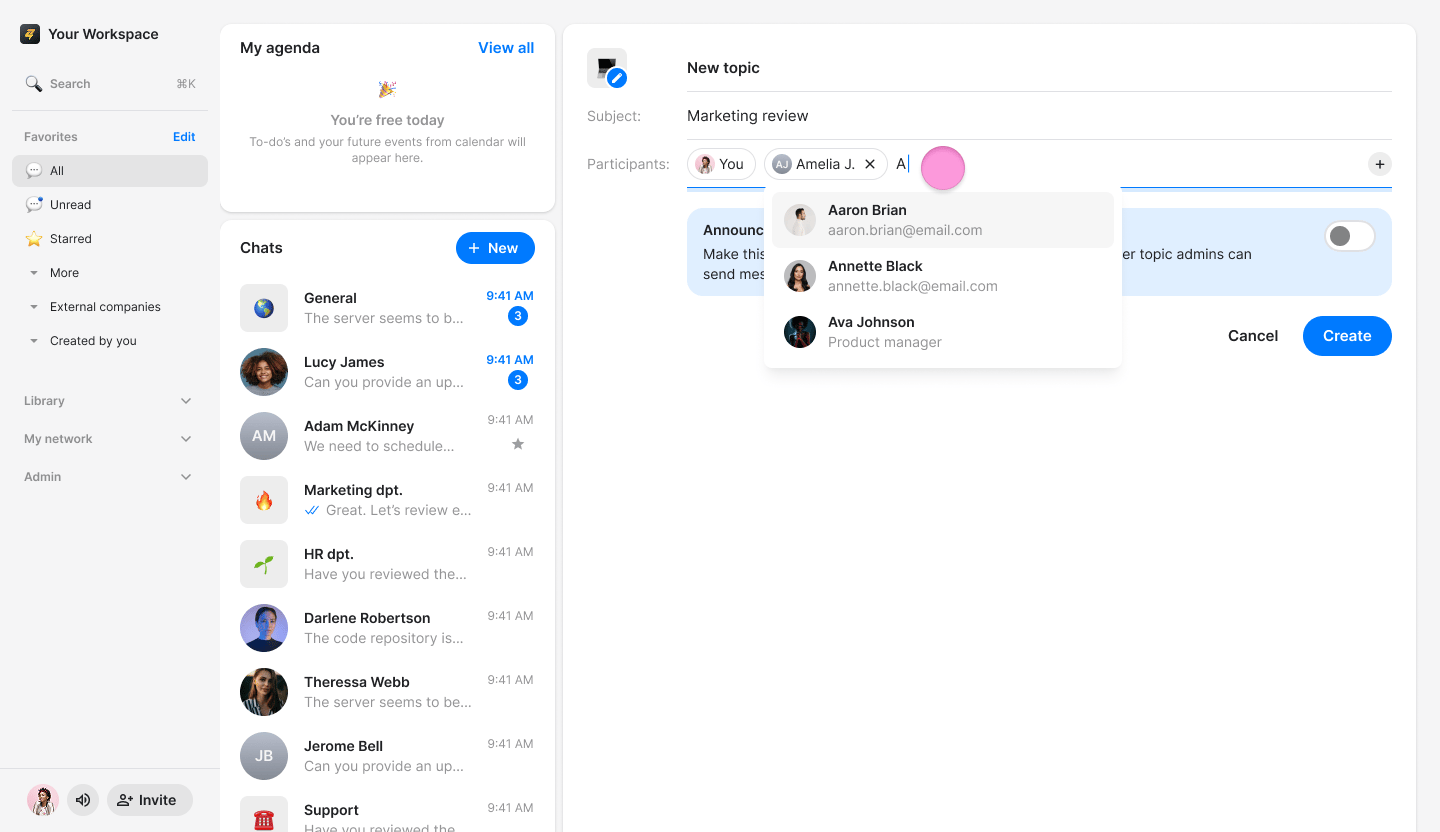
- Click “Create” and you will be directed to the new topic.
- The selected message will appear as the first message in the new topic with “Forwarded” written above them.
- You can select multiple messages at once to start a new topic.
- You can set the new topic as an announcement topic (more about announcement topics here).