
On Mobile (iOS & Android)
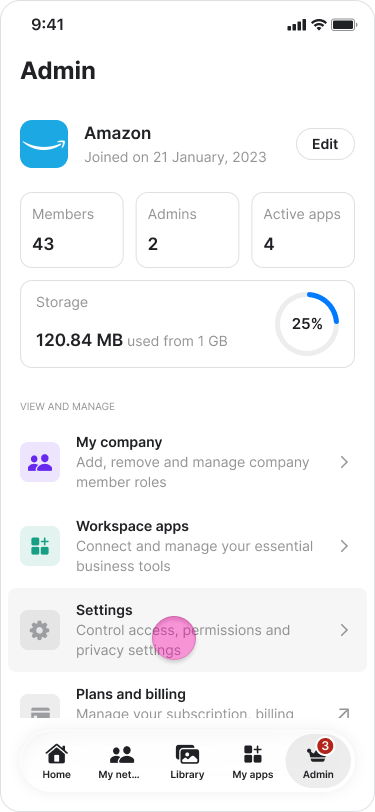
- Tap the “Admin” tab at the bottom of the screen.
-
Tap “Settings” on iOS, or “Workspace settings” on Android.
-
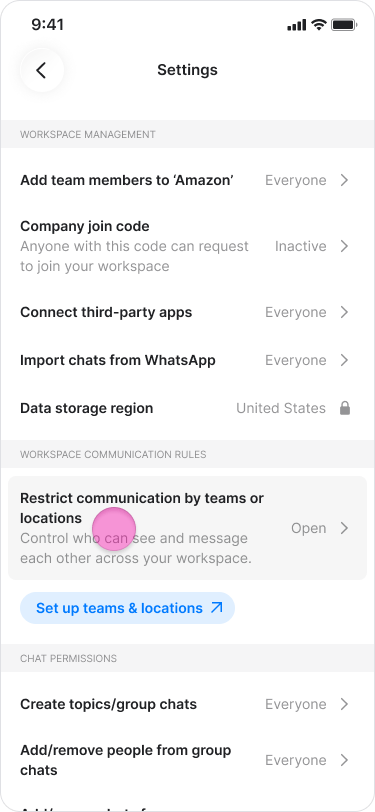
Tap on “Restrict communications by teams or locations”
-
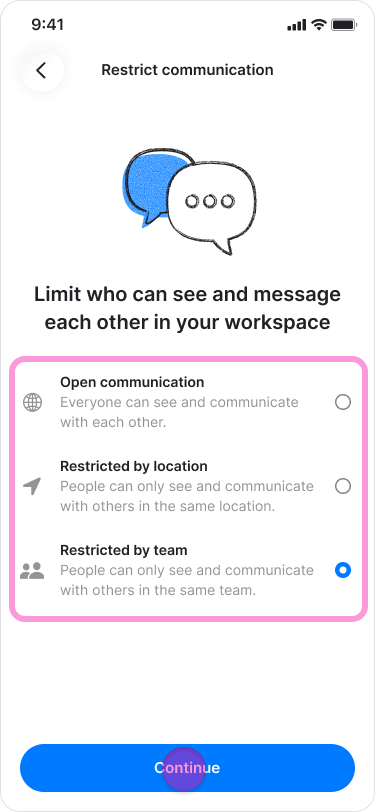
Select your preferred restriction level:
- “Open communication”: All members can communicate with one another.
- “Restricted by location”: Members can only message others within their same location.
- “Restricted by team”: Members can only message others within their same team.
-
Tap “Continue”.
-
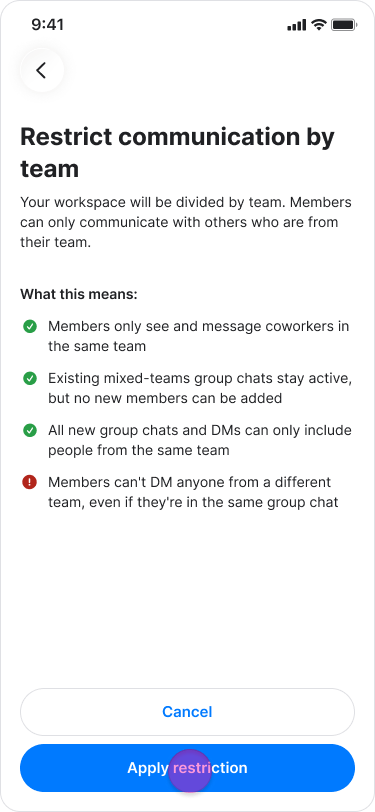
Tap “Apply restriction” to confirm.
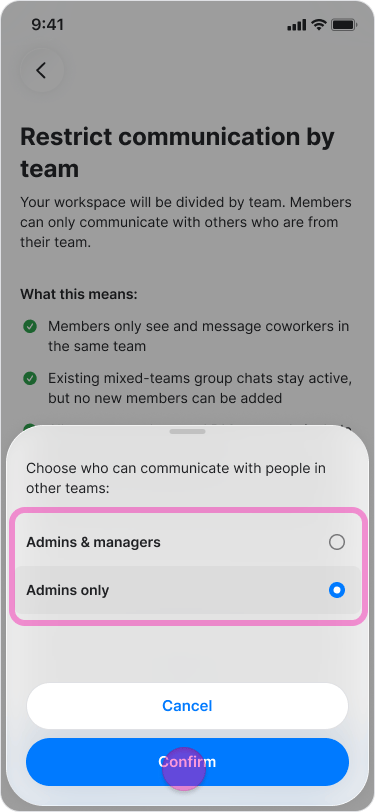
- Choose if “Admins” or “Admins & Managers” will be allowed to communicate with people across different teams.
-
Tap “Confirm”.
On Desktop (Windows, macOS, & Web App)
- Click on “[workspace’s name] admin” in the side menu on Windows and Web, or click “My company” under the “Admin” section on macOS.
- Click “Teams & Locations” at the top.
- Click “Edit settings” under the “Communication boundaries” banner.
-
Select your preferred restriction level:
- “Open communication”: All members can communicate with one another.
- “Restricted by location”: Members can only message others within their same location.
- “Restricted by team”: Members can only message others within their same team.
- Click “Continue”
- Click “Apply restriction” to confirm.
- Choose if “Admins” or “Admins & Managers” will be allowed to communicate with people across different teams.
- Click “Confirm”.