
- The agent stops responding in all chats and can no longer complete tasks or run workflows.
- The agent appears as “Inactive” in the member’s chat list.
- Chat history is preserved, so the member can still view past conversations.
- Connected apps, workflows, and memory are no longer accessible.
- The disconnection is permanent. To use an AI agent again, the member must set up a new one.
On Mobile (iOS & Android)
- Open the “Admin” tab.
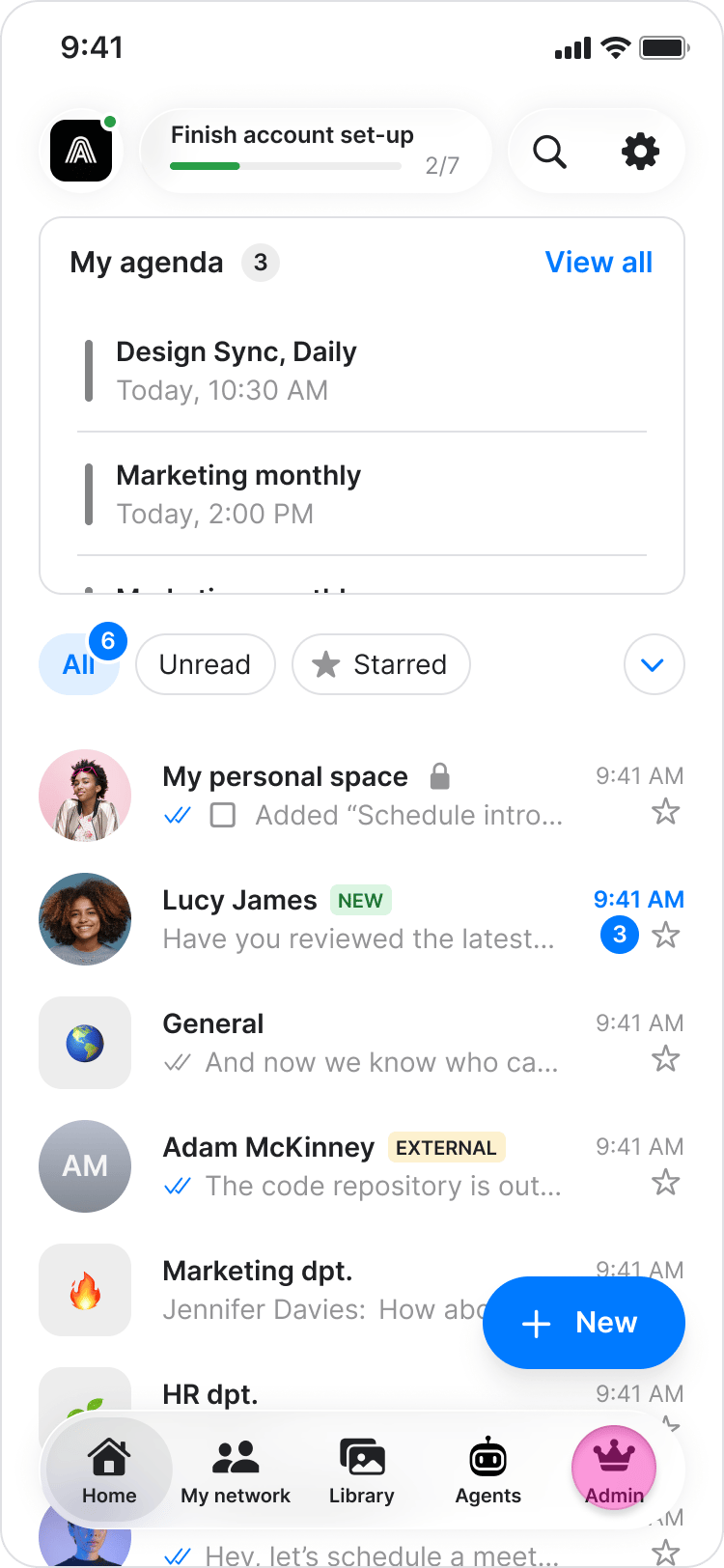
- Tap “Agents” to view all workspace agents.
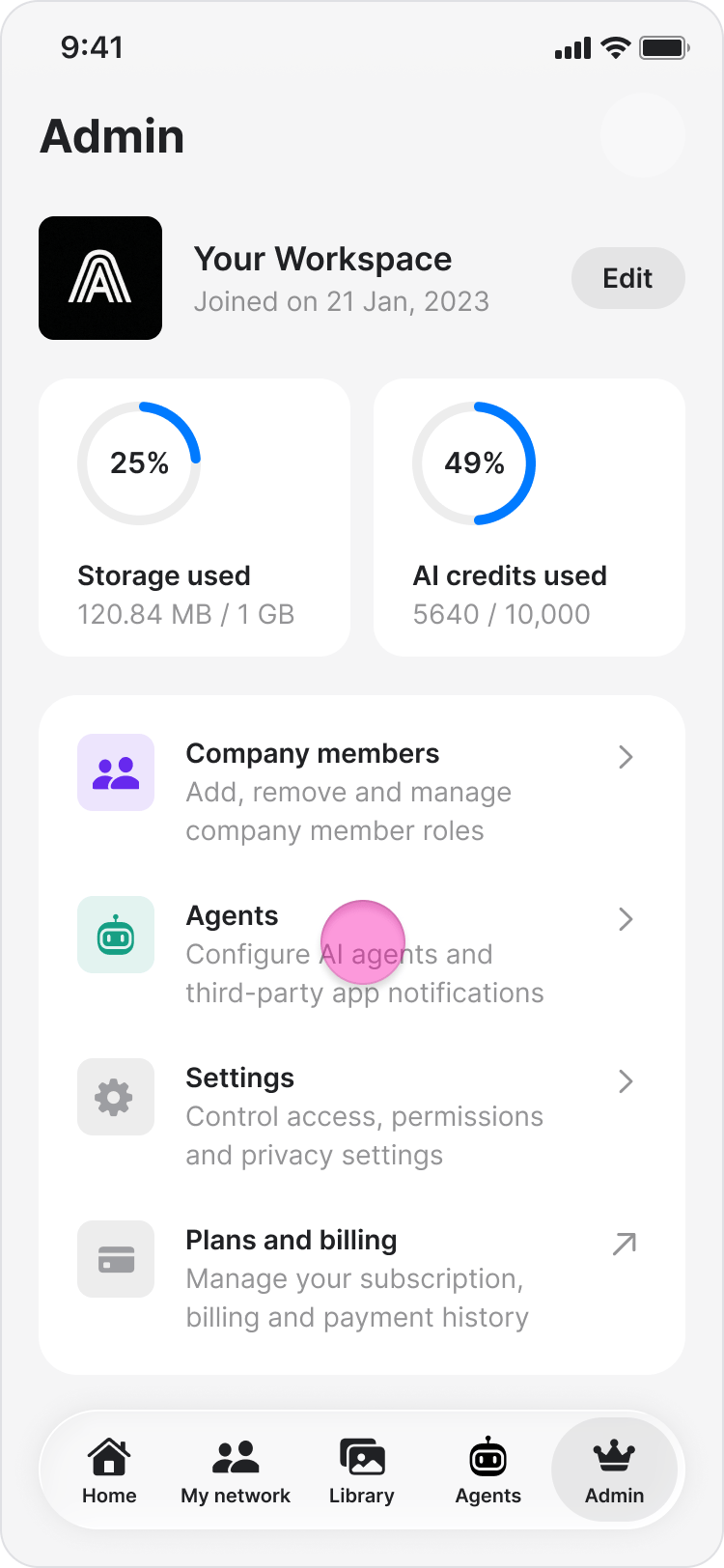
- Tap on the agent you want to disconnect.
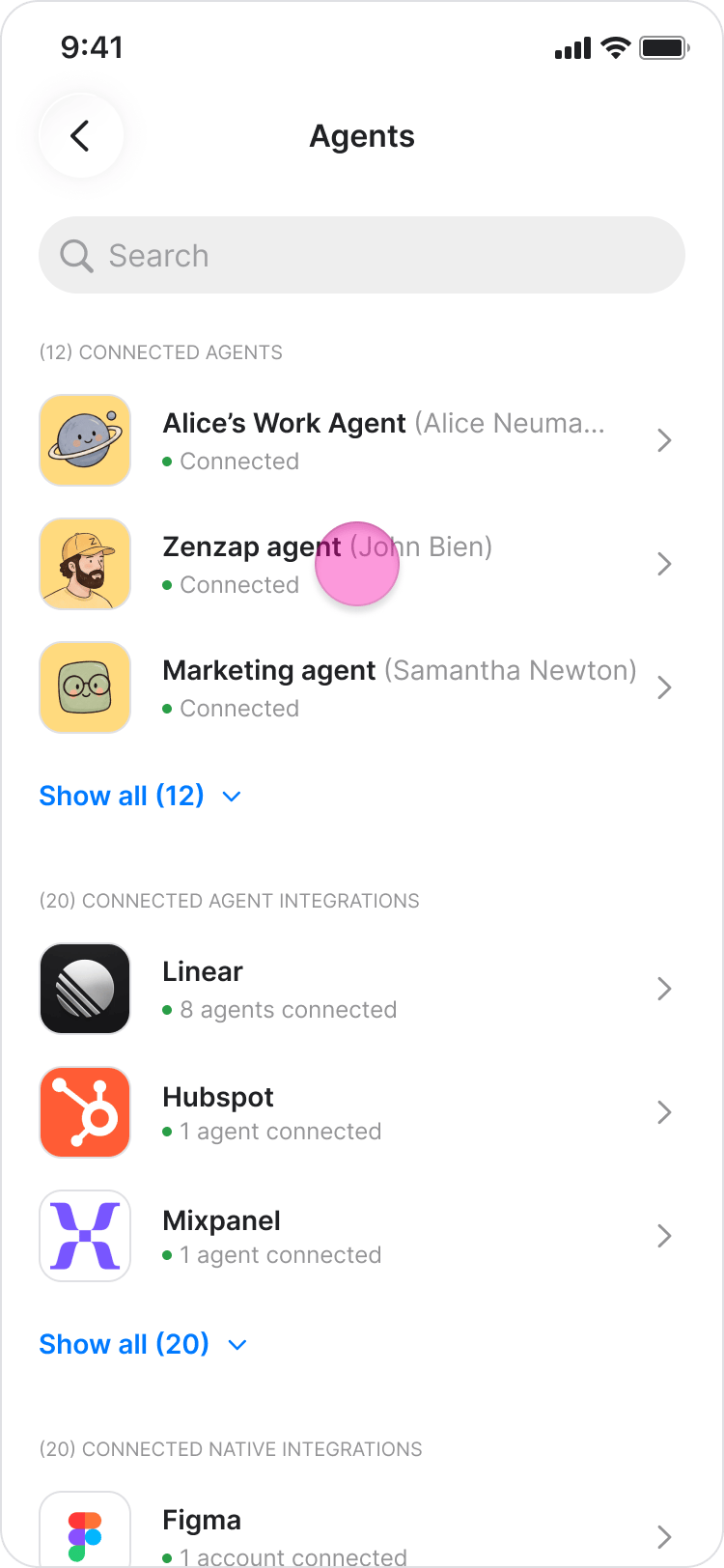
- Tap the three-dot menu in the top-right corner.
- Tap “Disconnect”.
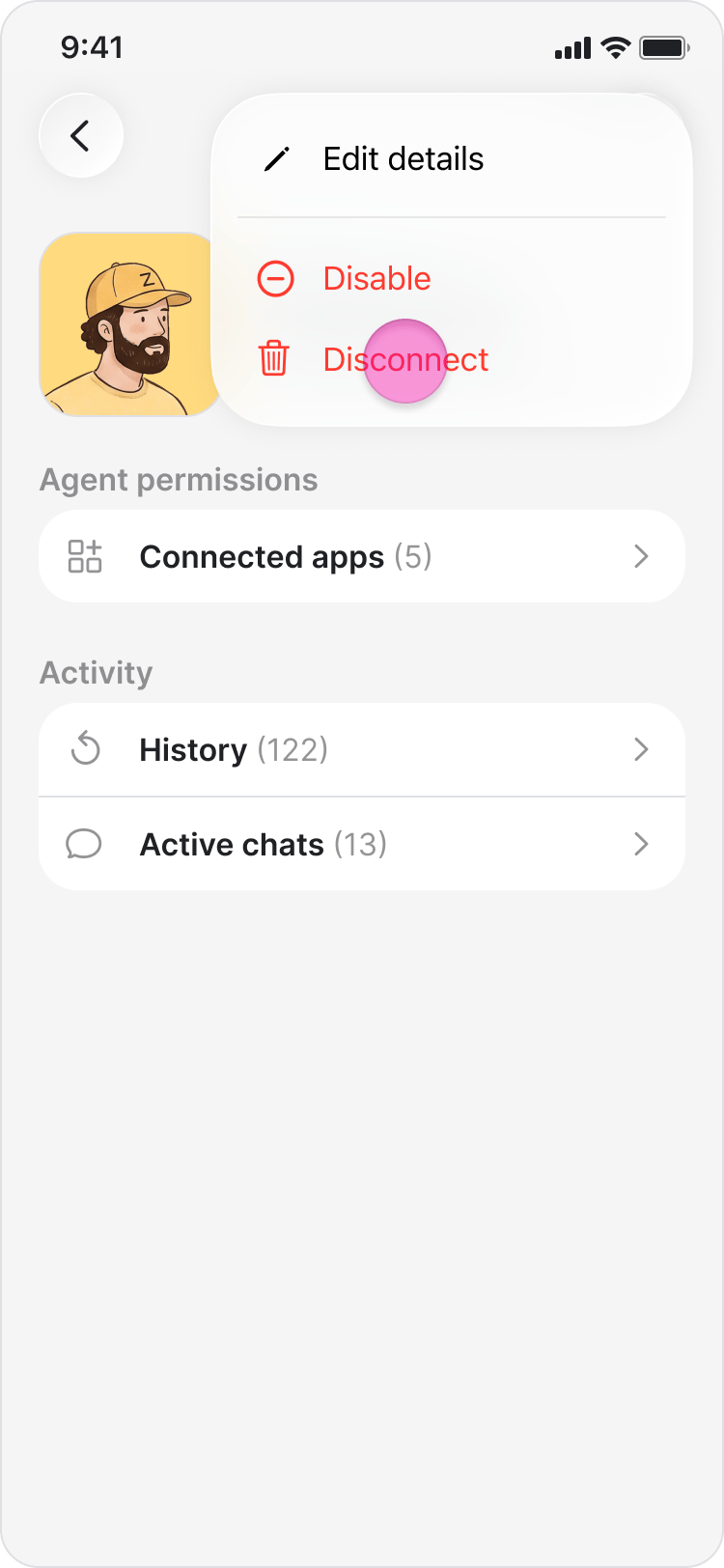
- Tap “Disconnect” again to confirm.
- Tap “Show all” to see the full list of agents. The “Workspace Agents” page shows each agent’s name, owner, and status.
- The agent’s status changes to “Inactive”. The member sees the following banner in the chat: “[Agent name] has left Zenzap. Therefore, further chat is disabled, but you can view the history.”
- Regular users can view their own agent, but only workspace admins can disconnect agents.
On Desktop (Windows & Web App)
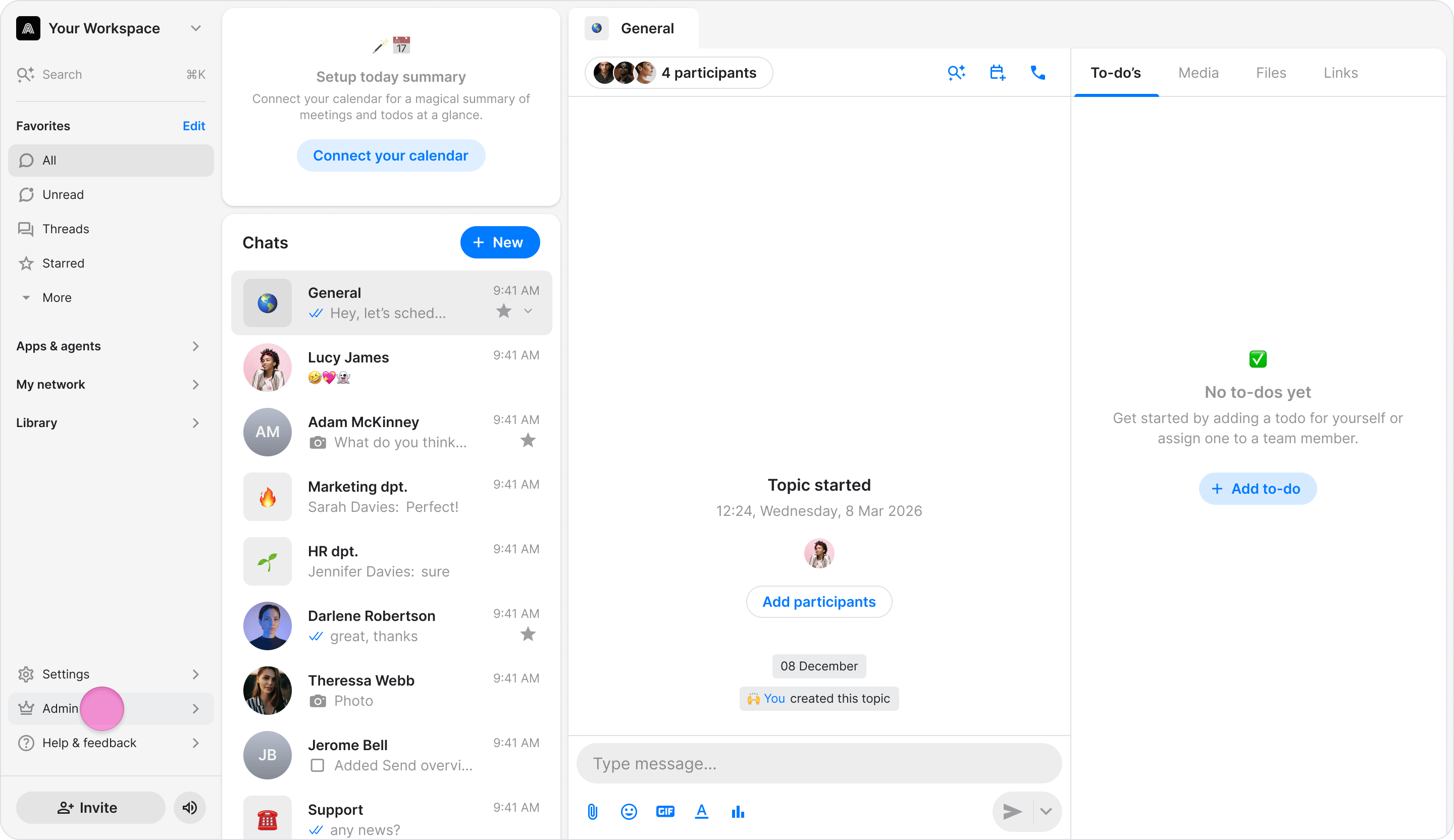
- In the sidebar menu, under the “Admin” tab, select “Agents”.
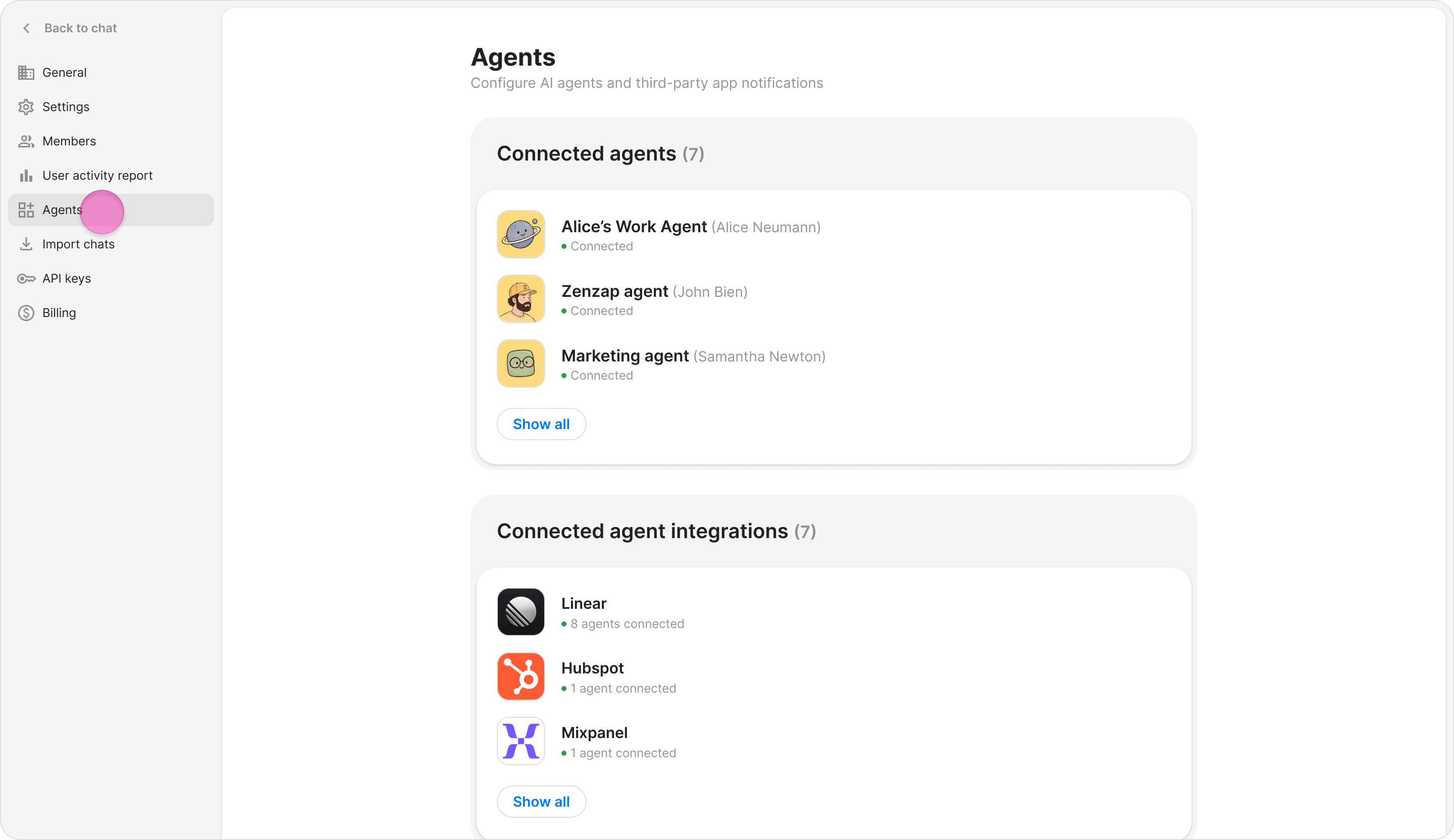
- Find the agent you want to disconnect. Use the search bar to filter by name if needed.
- Click “Manage” on the agent’s card.
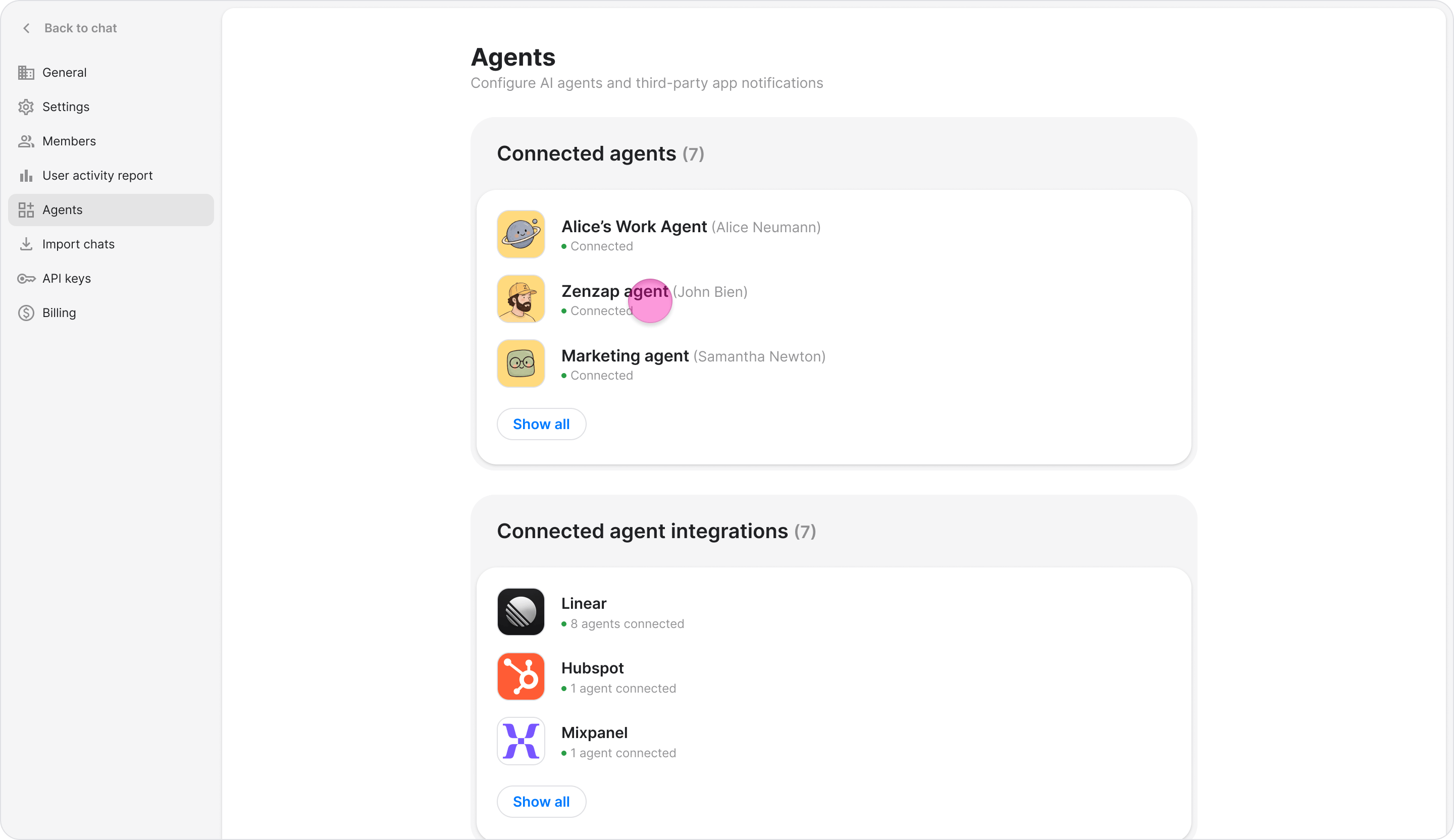
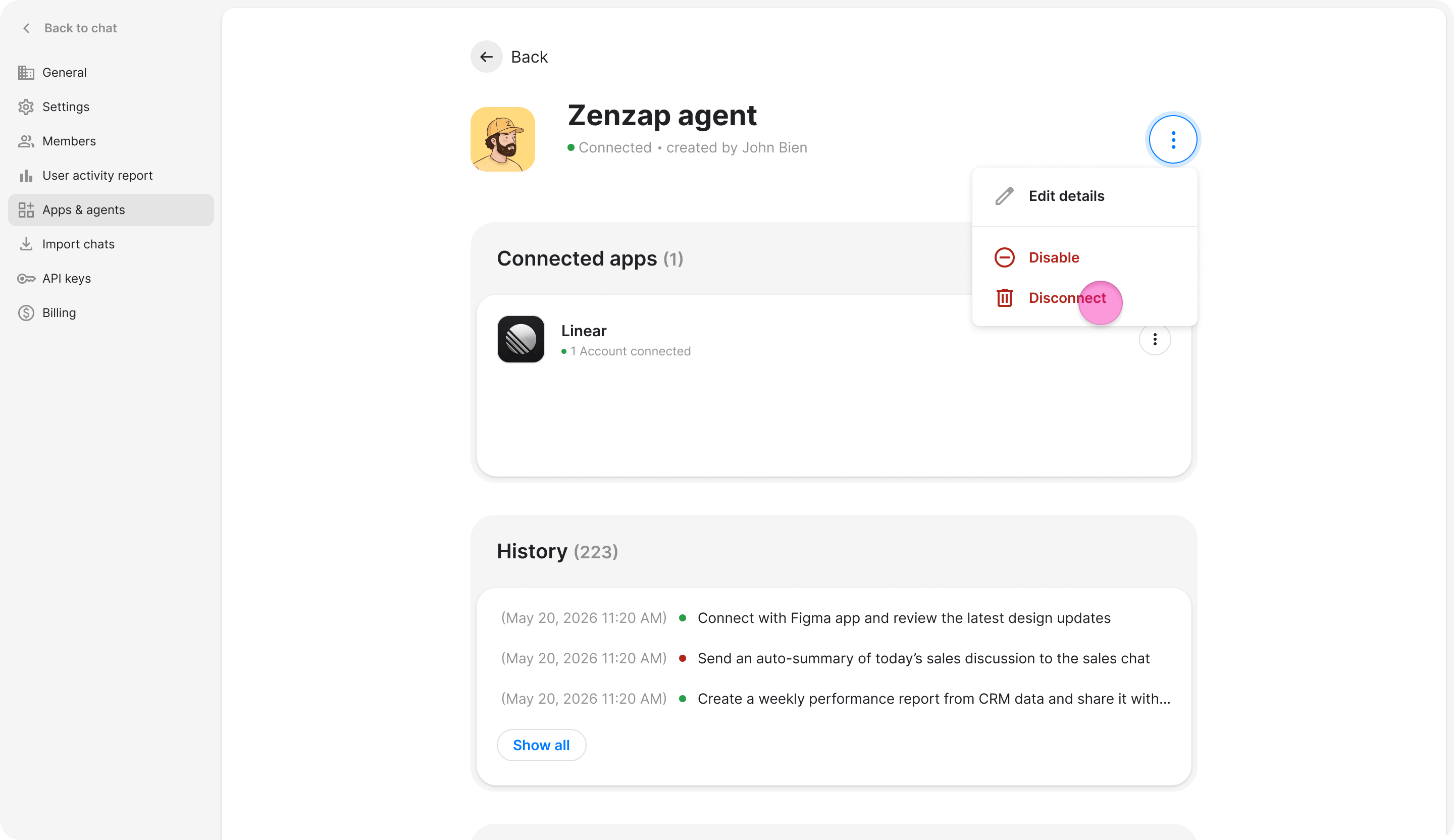
- Click the three-dot menu.
- Select “Disconnect”.
- In the confirmation dialog, click “Disconnect” to confirm or “Cancel” to go back.
- The “Workspace Agents” page lists all agents in the workspace, including each agent’s name, owner, and status.
- The agent’s status changes to “Inactive”. The member sees the following banner in the chat: “[Agent name] has left Zenzap. Therefore, further chat is disabled, but you can view the history.”
- Regular users can view their own agent, but only workspace admins can disconnect agents.