On Mobile (iOS & Android)
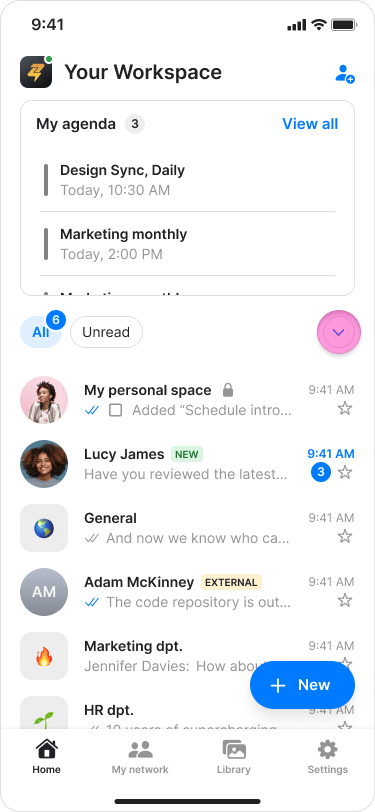
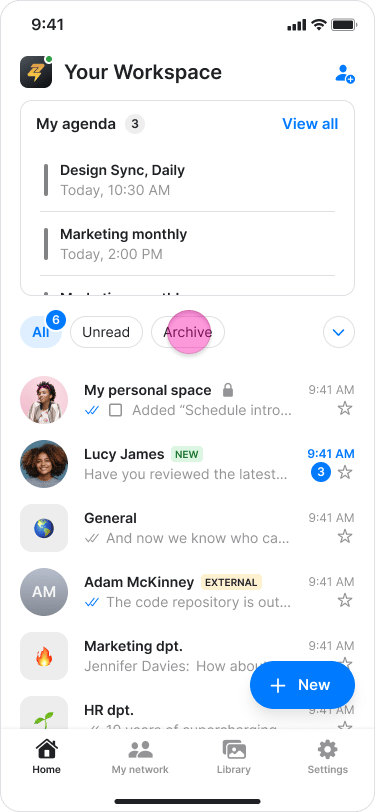
- Find the list of folders (e.g., “Chats”, “Unread”, “DMs”) on the “Home” screen.
- Tap the “down arrow” icon next to the folders.
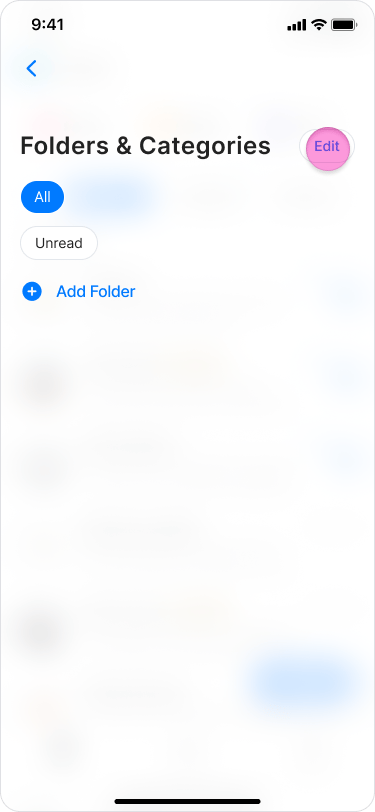
- Tap “Edit” at the top right.
- Under the “Hidden folders & categories” section, tap the circle next to the “Archive” folder.
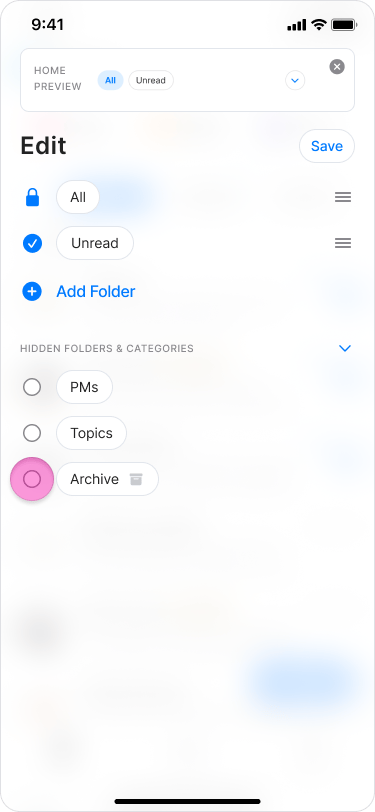
- Tap “Save” at the top right.
- Return to “Home” to see the “Archive” folder.
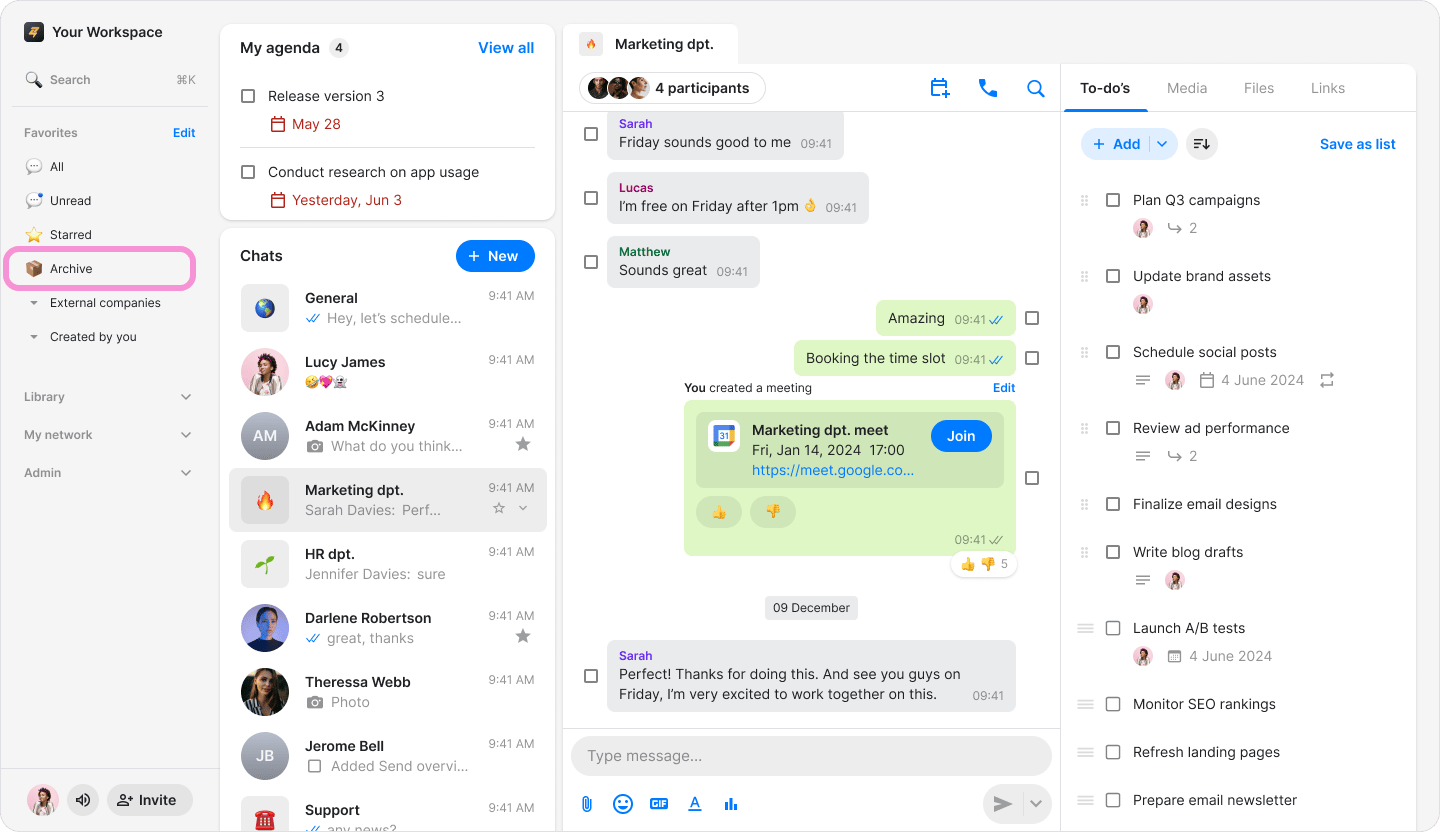
On Desktop (Windows & Web App)
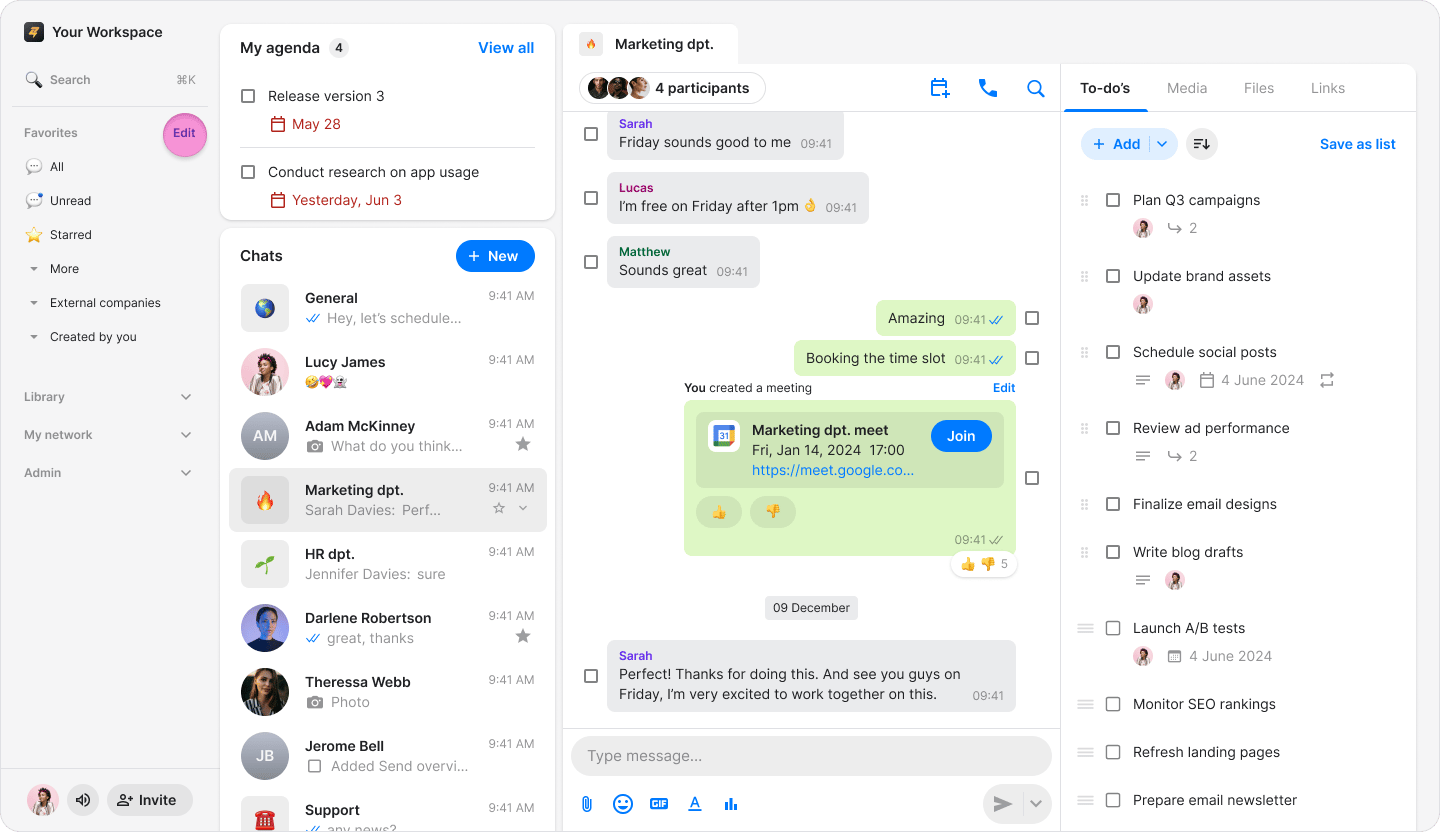
- Click “Edit” next to “Favorites” in the sidebar menu.
- In the pop-up window, select the “Archive” folder by clicking the checkbox.
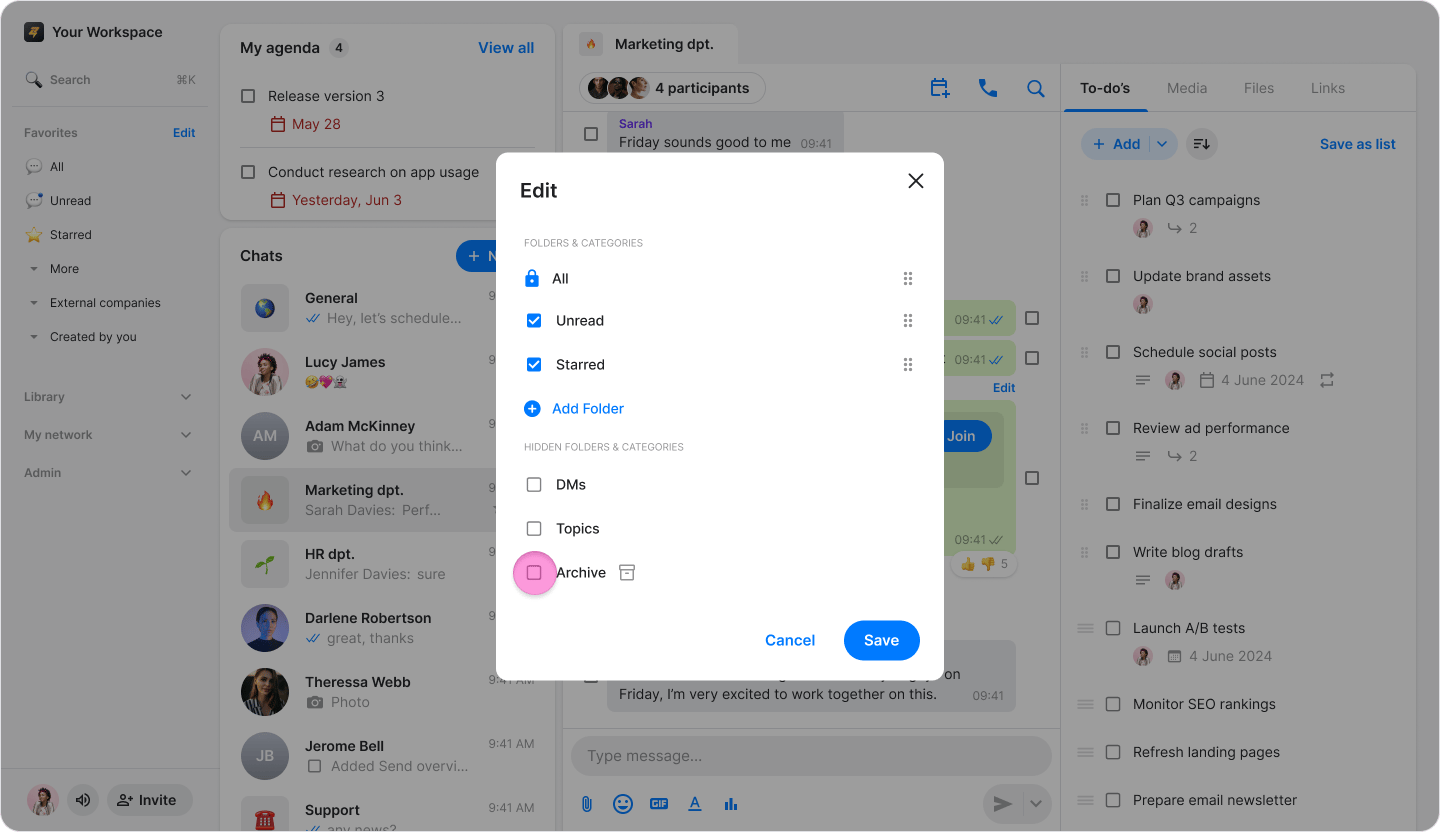
- Click “Save” at the bottom right.
- The “Archive” folder will now appear under “Favorites” alongside your other folders.