
On Mobile (iOS & Android)
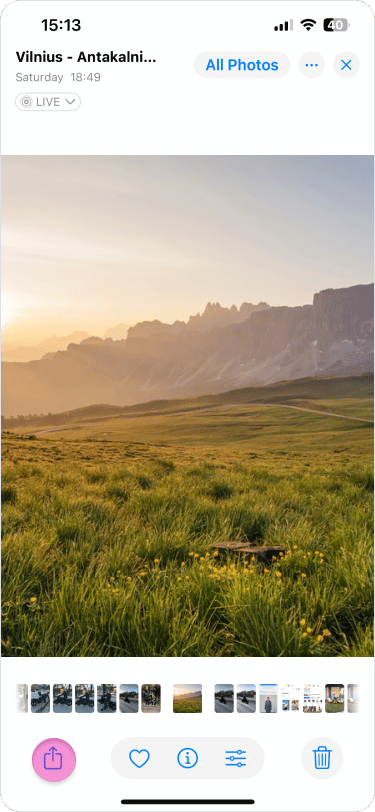
- Open the photos folder on your phone.
- Select one or multiple images.
- Tap the “Share” icon.
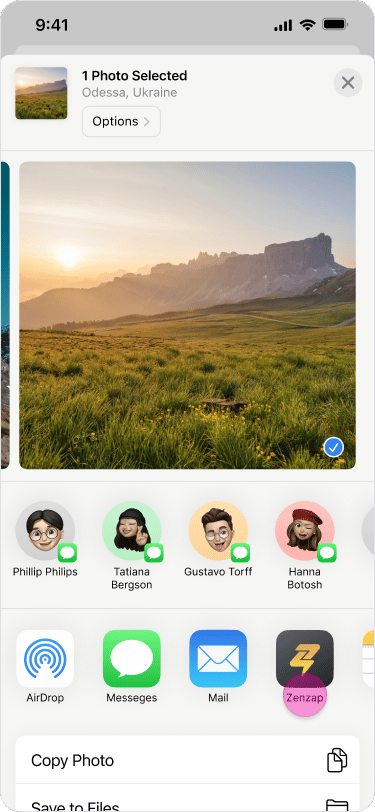
- Select the “Zenzap” app.
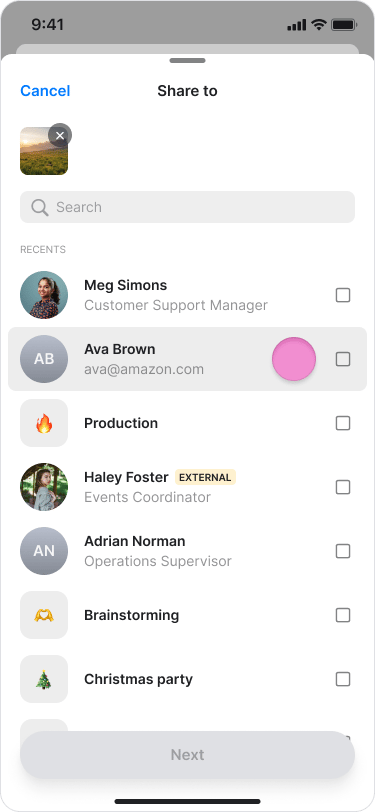
- Select a chat or multiple chats.
- Tap “Next”.
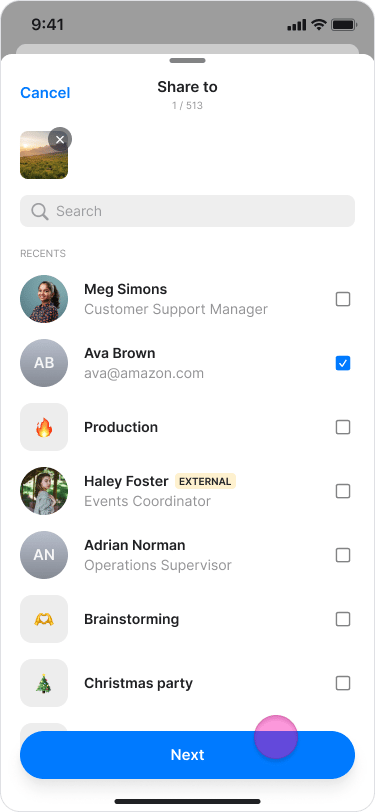
- Tap the “Send” icon.
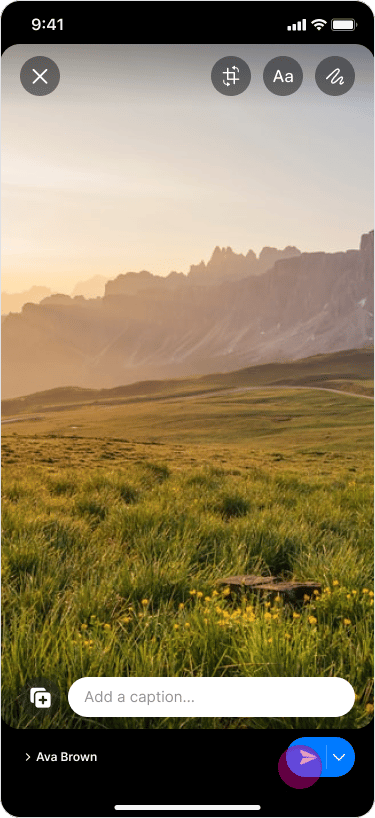
Share photos with your teammates directly from your device’s gallery to Zenzap.