
On Mobile (iOS & Android)
- Open the group chat you want to leave.
-
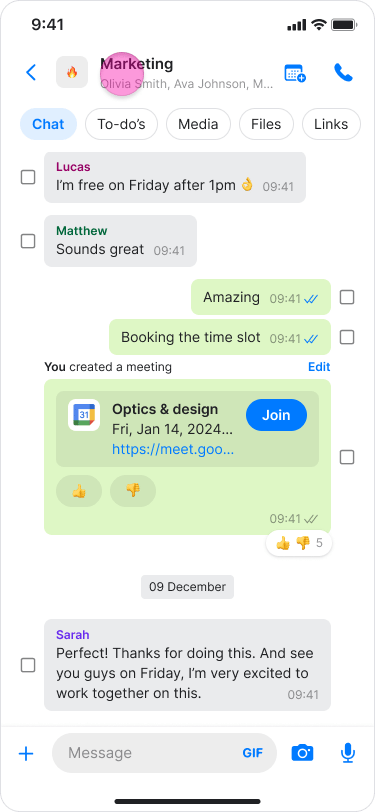
Tap the group’s name at the top of the screen.
-
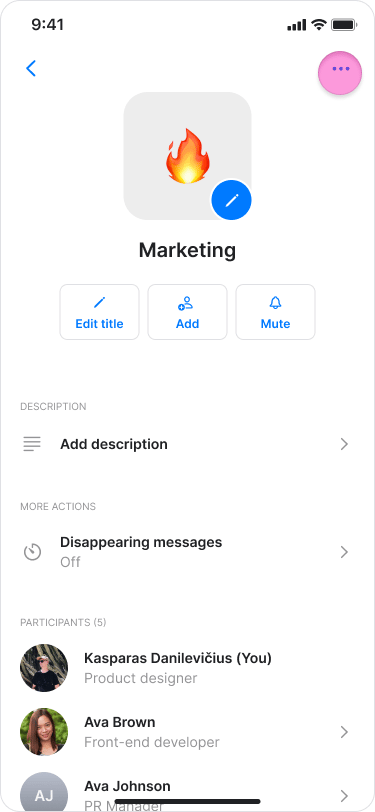
Tap the “Three dots” icon on the top right.
-
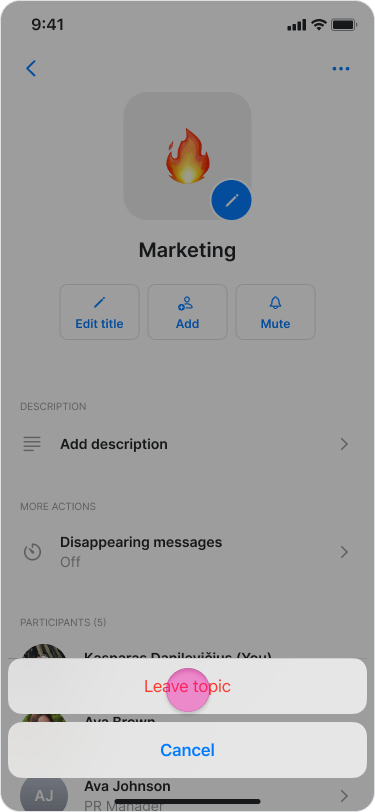
Tap “Leave topic”.
-
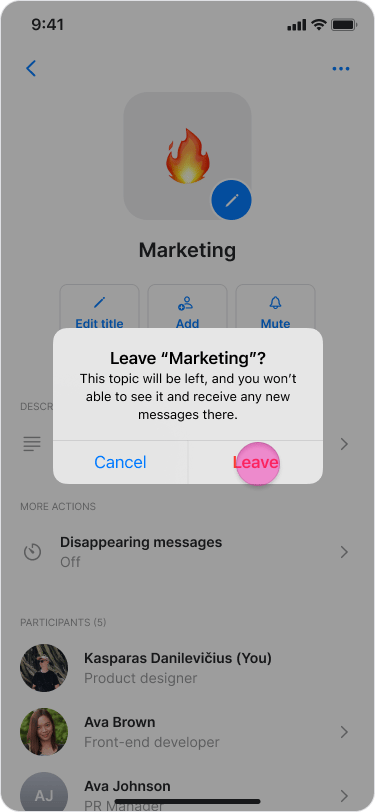
Select an option:
- Tap “Leave” to confirm.
- Tap “Cancel” to stay in the topic.
- In your message list, you can slide a chat left and tap “Leave topic” or long-press the chat and select “Leave the topic”.
- Once you leave a group, you will stop receiving new messages and lose access to the message history and media.
- Your previous messages remain visible to others.
- An automatic message is sent to the chat to notify others that you have left.
- To rejoin a topic, a current member must add you back.
On Desktop (Windows, macOS, & Web App)
- Open the group chat you want to leave.
- Click the participants list under the name of the topic.
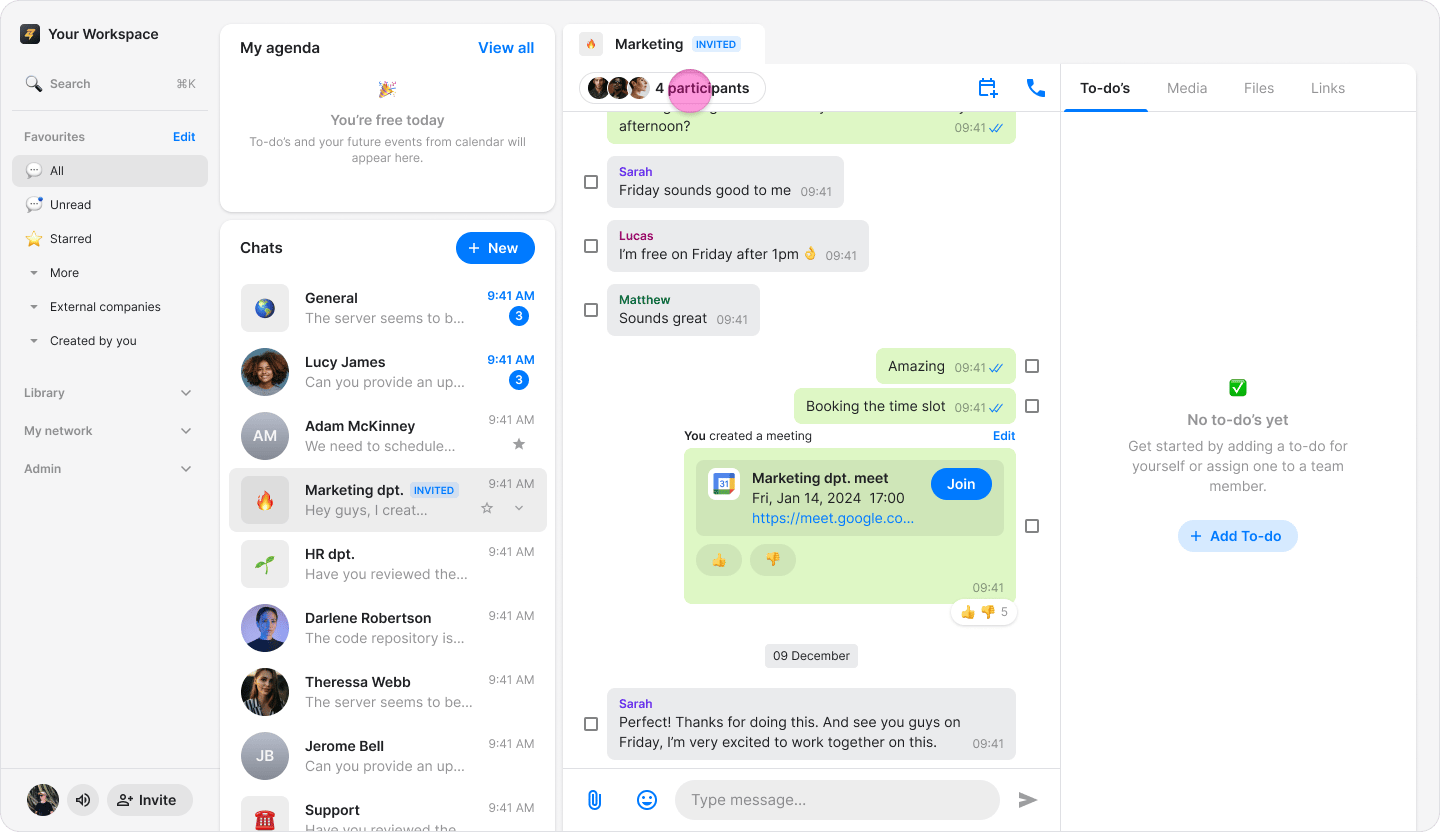
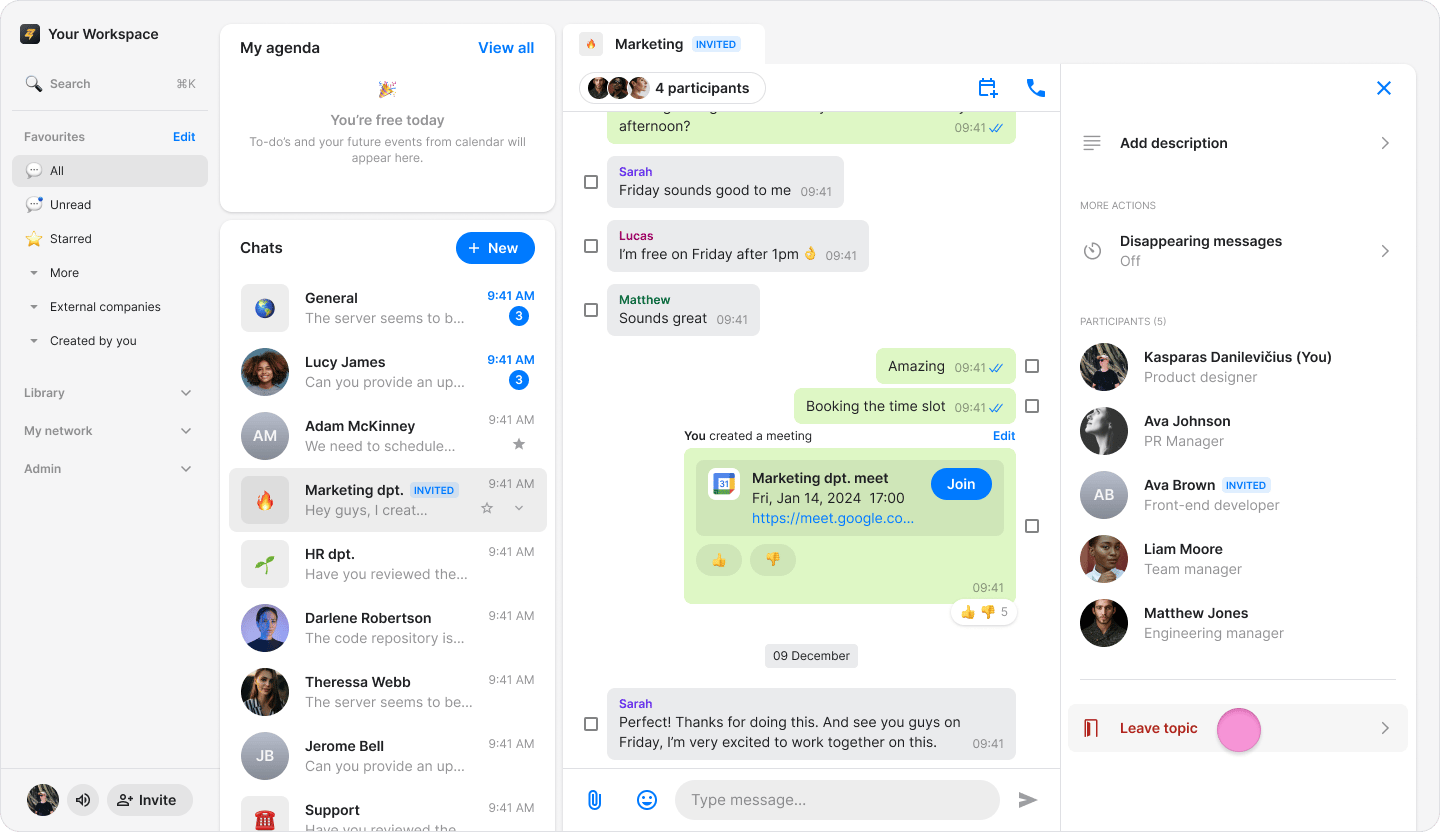
- Scroll down to the end of participants list (On Windows &Web), or click the “Three dots” icon on the top right (On macOS).
- Click “Leave topic”.
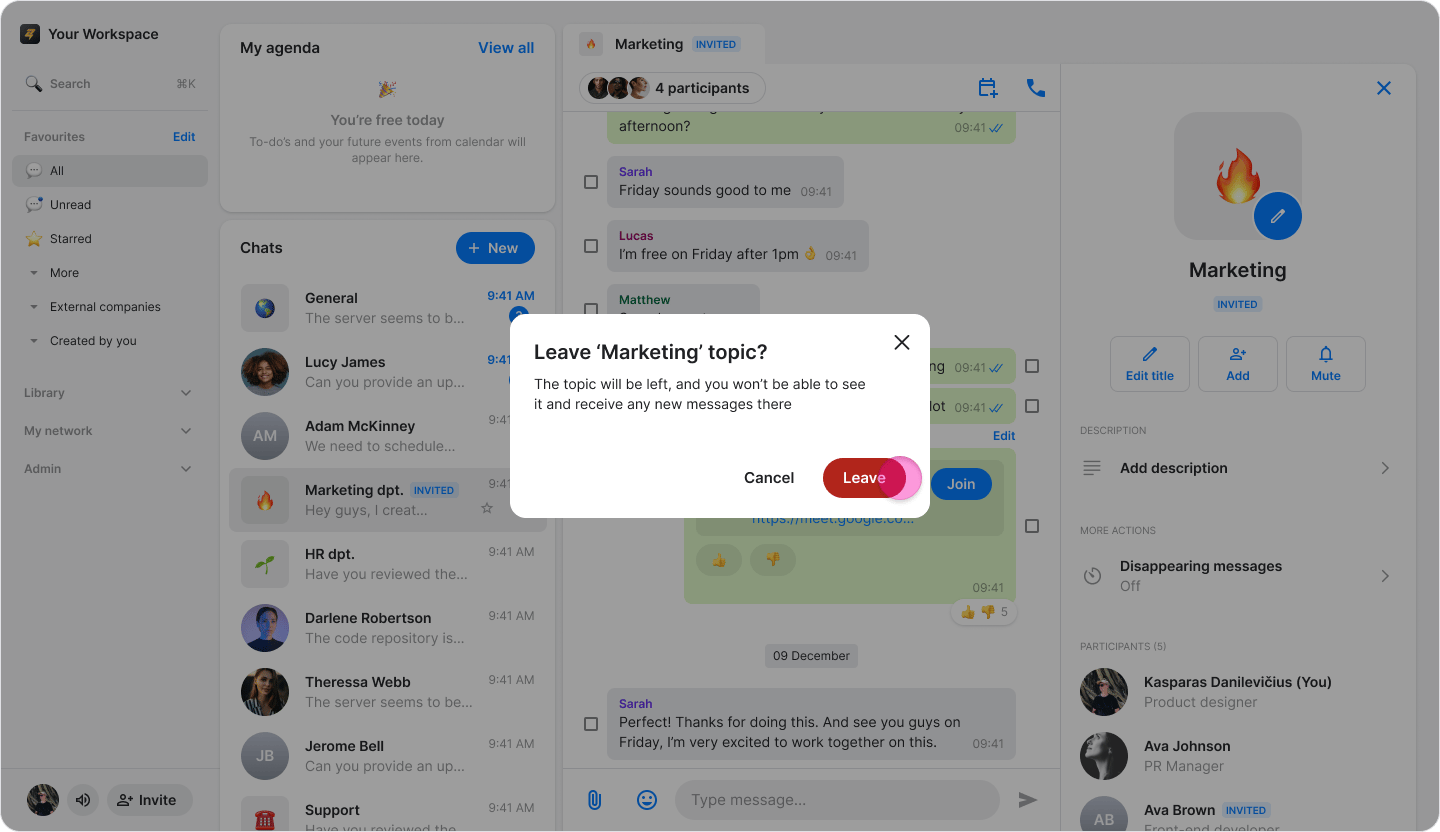
- Select an option:
- Click “Leave” to confirm.
- Click “Cancel” to stay in the topic.
- You can also click the down arrow next to the chat and click “Leave topic”.
- Once you leave a group, you will stop receiving new messages and lose access to the message history and media.
- Your previous messages remain visible to others.
- Participants receive an automatic notification when you leave the chat.
- To rejoin a topic, a current member must add you back.