On Mobile (iOS & Android)
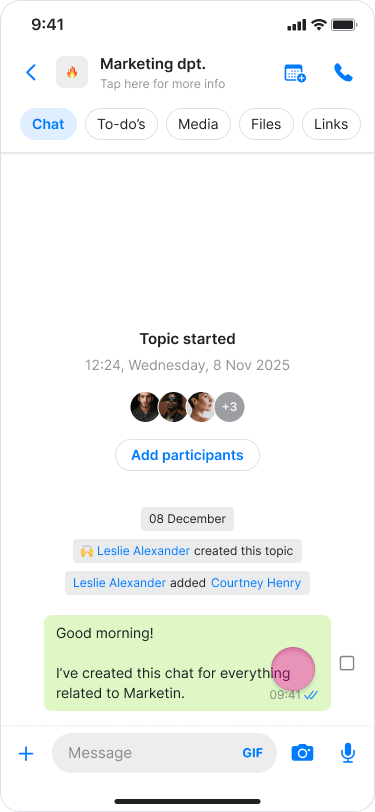
- Long-press the message you want to edit.
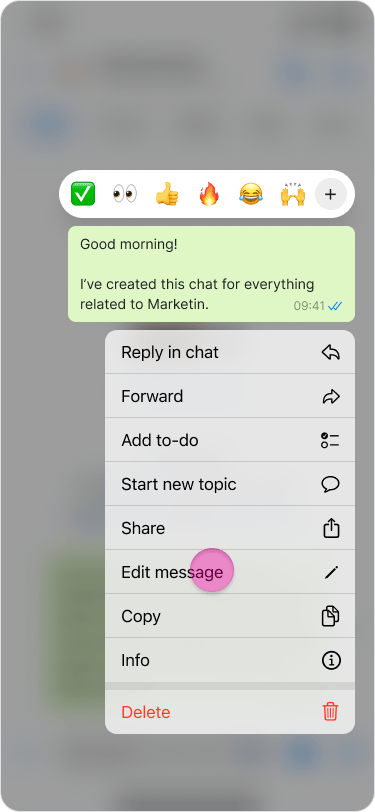
- Tap “Edit” from the menu.
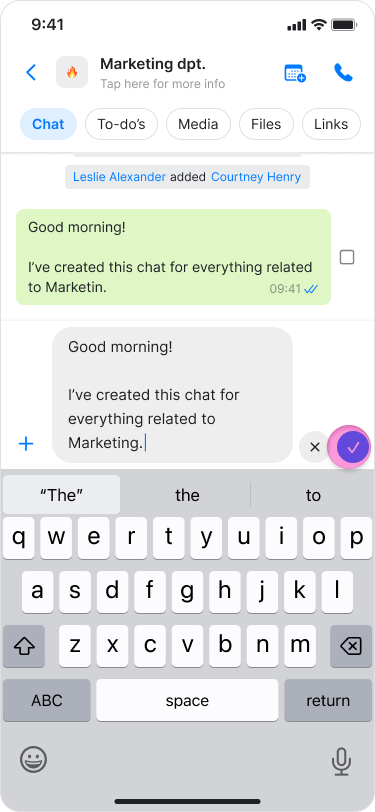
- In the text box, make changes to the text.
- Tap “Checkmark” to save your changes or “X” to revert to the original message.
- You can edit any message you have written, regardless of how old it is, as many times as you like.
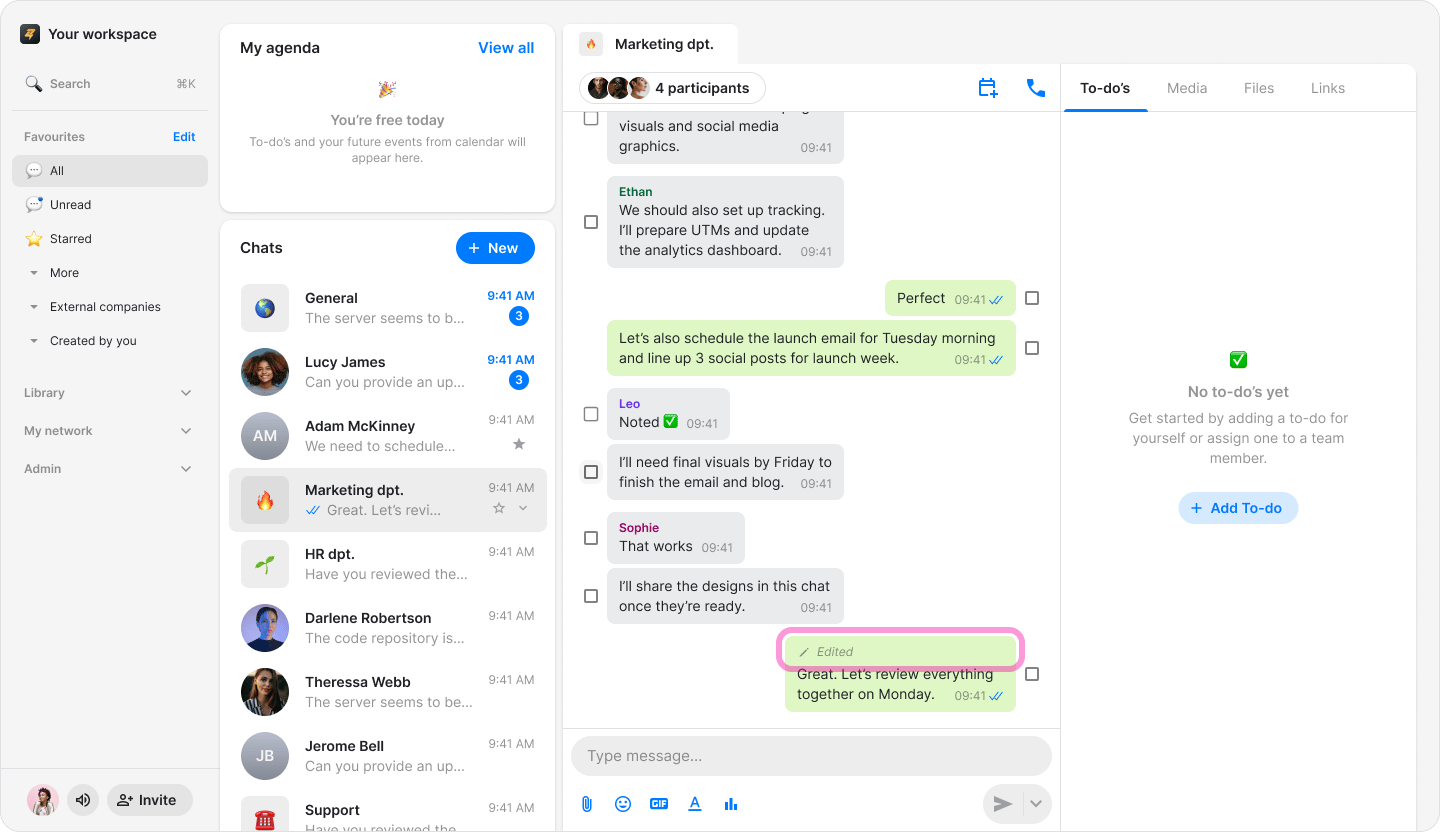
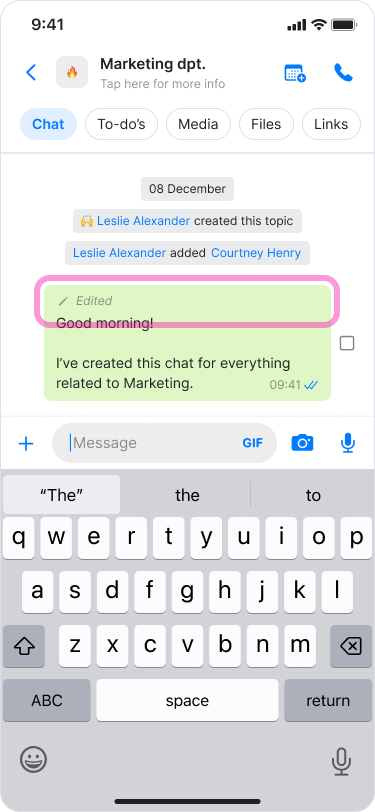
- Edited messages will display an “Edited” label with a “Pencil” icon above them.
On Desktop (Windows, macOS, & Web App)
- Hover your mouse over the message you want to edit.
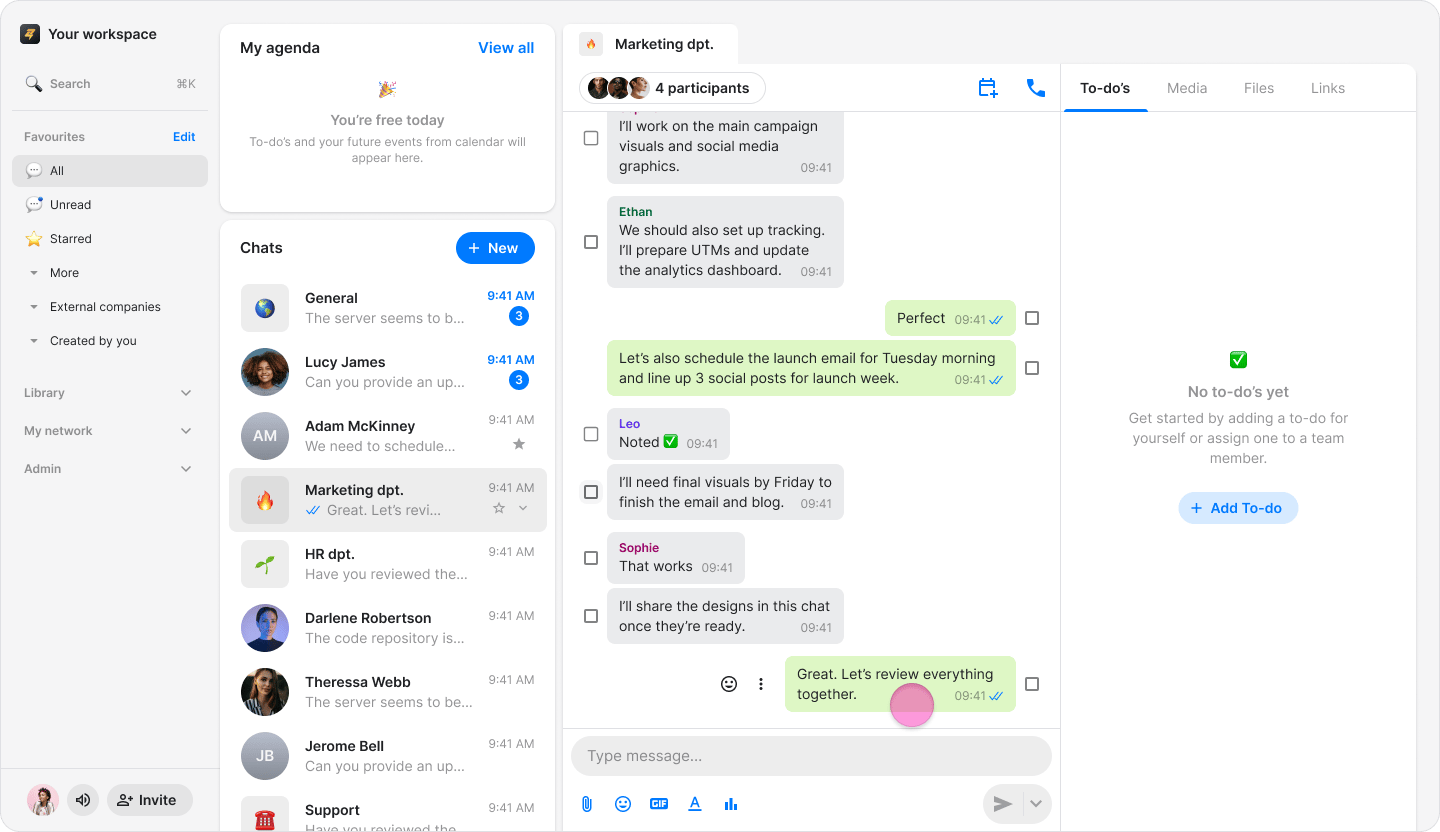
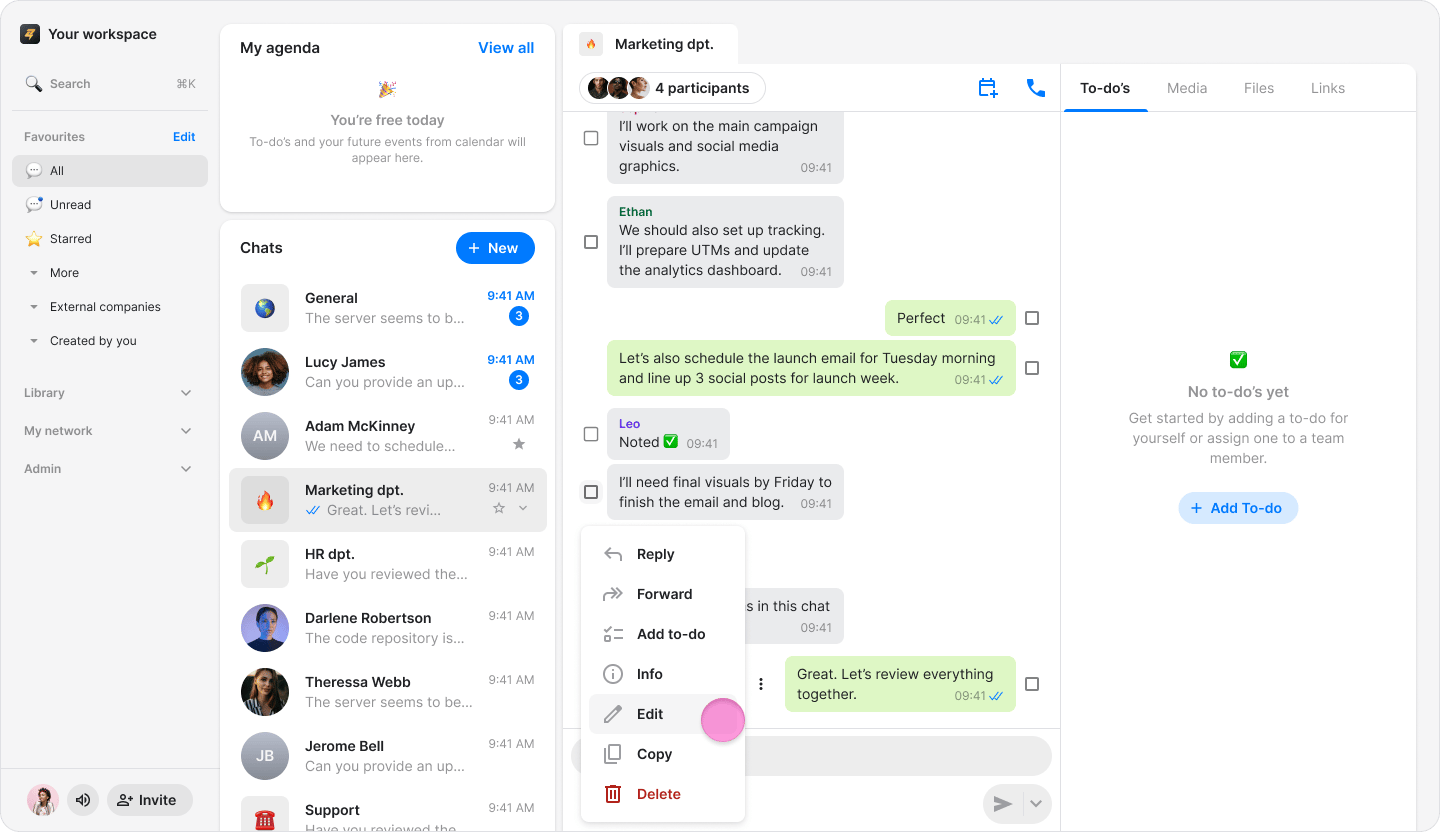
- Click the “Three dots” icon to the left of the message.

- Choose “Edit” from the drop-down menu.
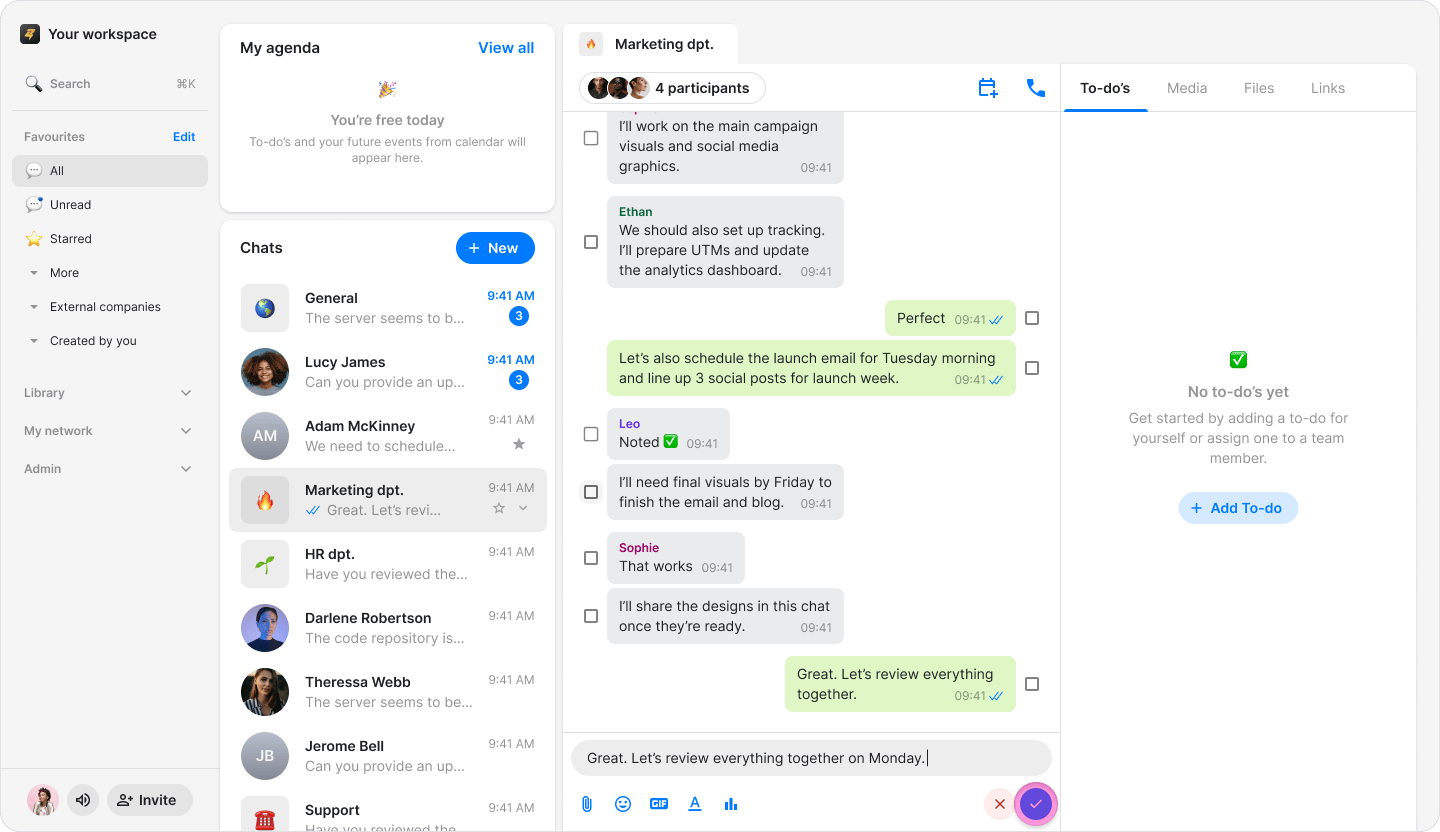
- Click the “Checkmark” to save or the “X” to revert to the original message.
- You can edit any message you have written, regardless of how old it is, as many times as you like.
- Edited messages will display an “Edited” label with a “Pencil” icon above them.