
On Mobile (iOS & Android)
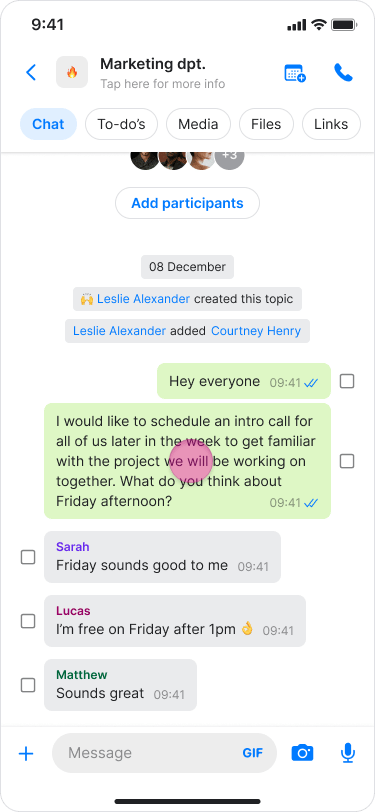
- Find the message that you want to forward.
- Long-press the message.
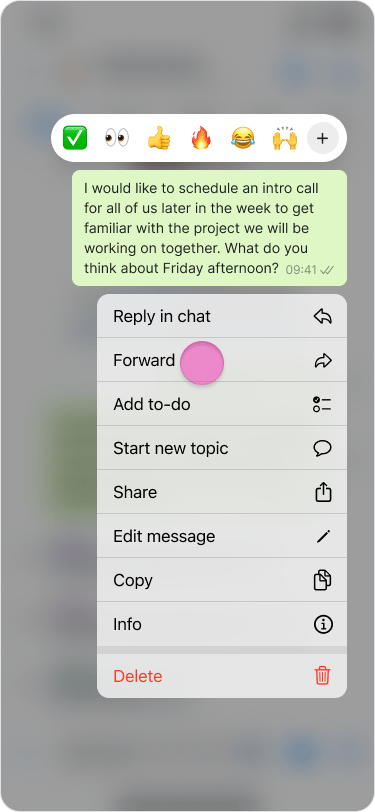
- Tap “Forward”.
- Select the desired chat or search for it.
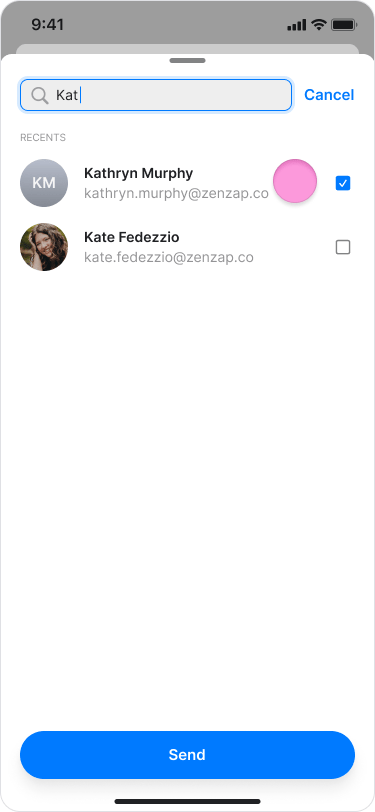
- Tap “Send”.
- Forwarded messages include a “Forwarded” label to clarify if a message was written by the sender or shared from another conversation.
- You can also forward photos, videos, files, locations, and contacts.
On Desktop (Windows, macOS, & Web App)
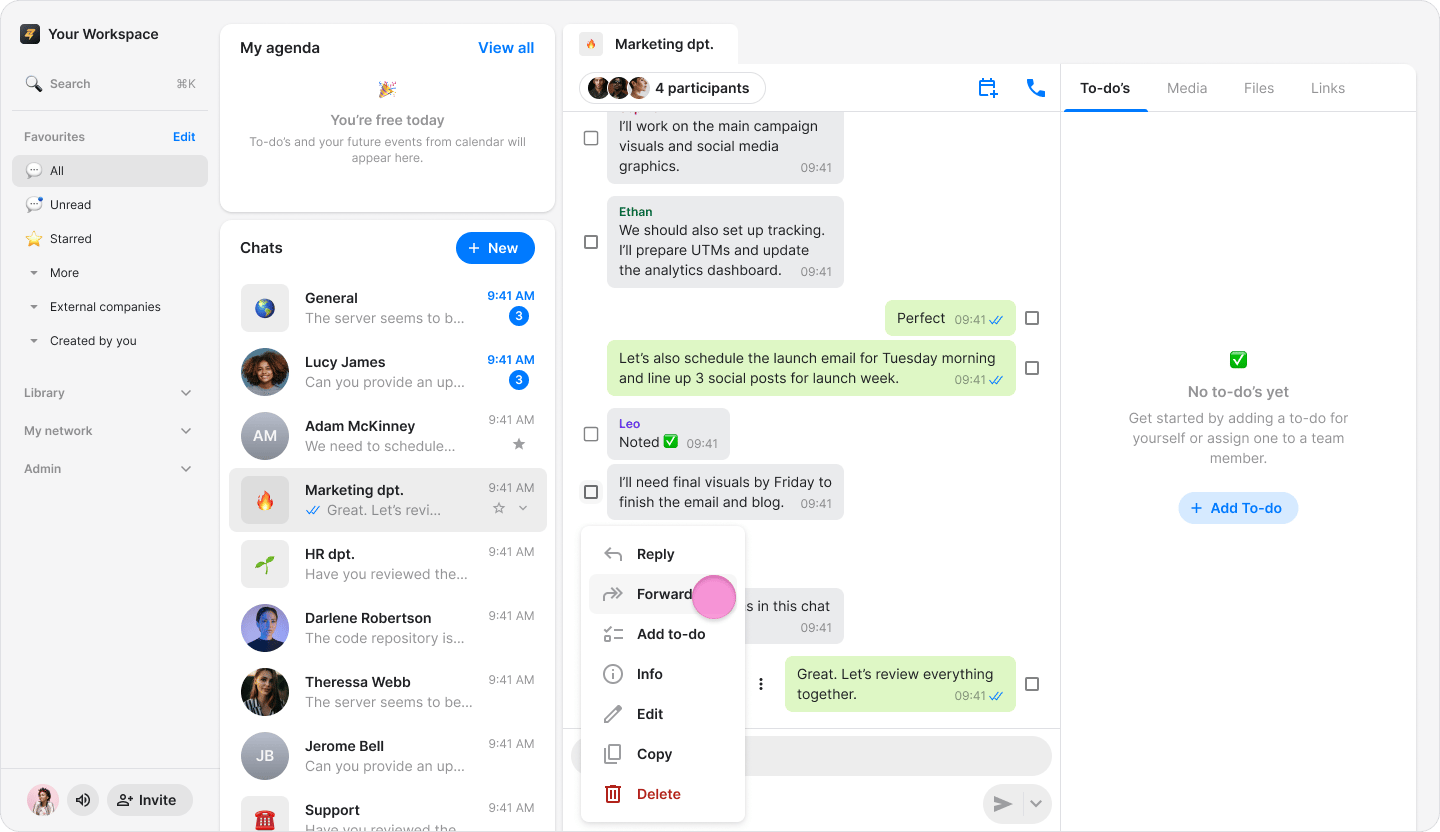
- Hover over the message you want to forward.
- Click the “Three dots” icon.
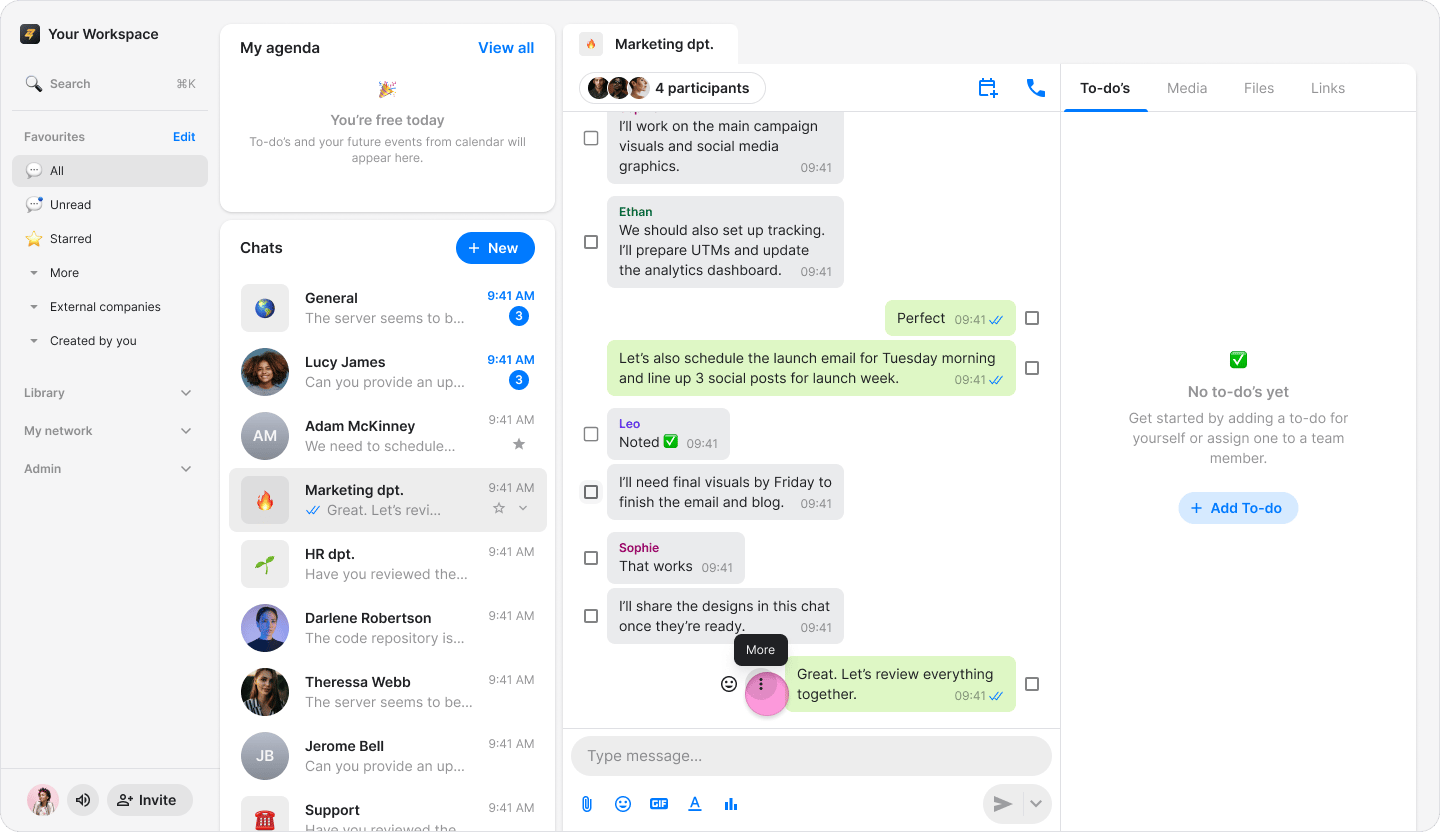
- Select “Forward”.
- Select the desired chat or search for it.
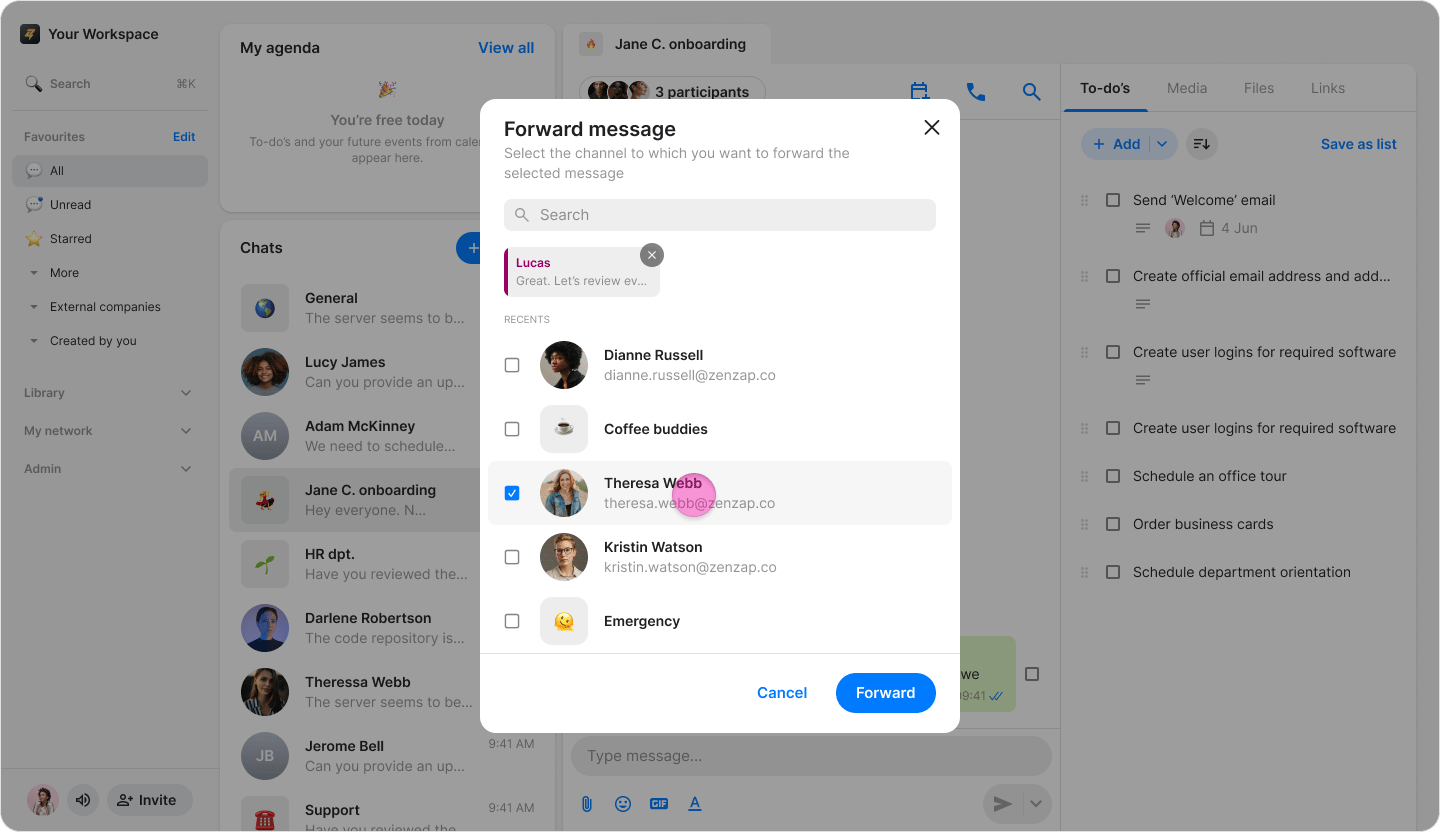
- Click “Send” (on macOS) or “Forward” (on Windows & Web App).
- Forwarded messages include a “Forwarded” label to clarify if a message was written by the sender or shared from another conversation.
- You can also forward photos, videos, files, locations, and contacts.