On Mobile (iOS & Android)
-
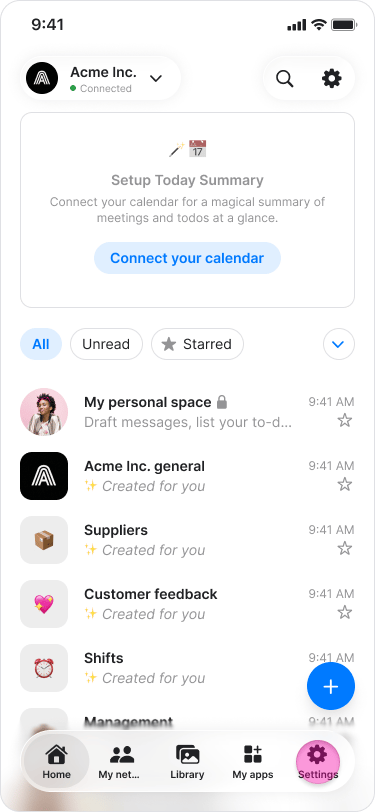
Tap the “Settings” icon in the top-right corner of the “Home” tab.
-
Tap “Chat theme”.
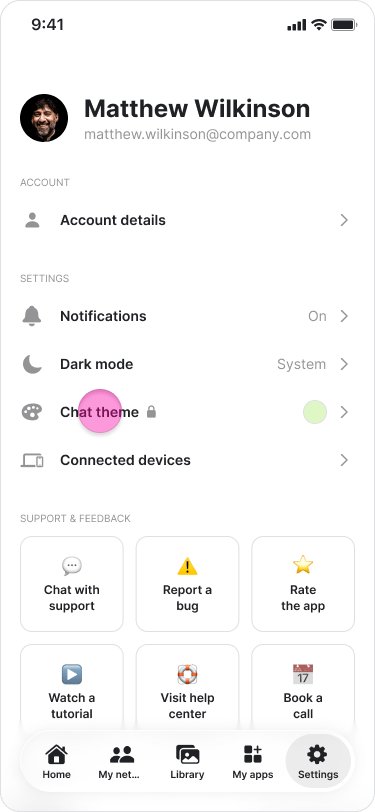
- Tap the locked chat theme you want to use.
-
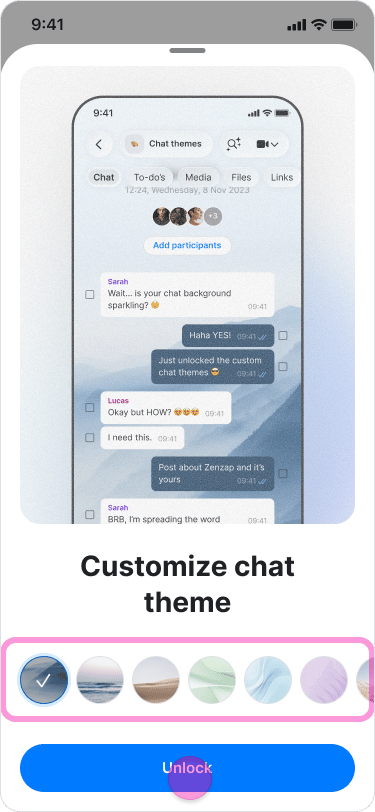
Tap “Unlock”.
-
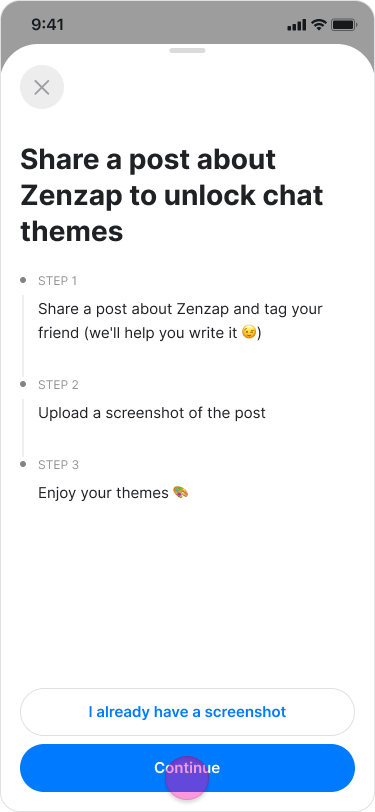
Follow the instructions in the pop-up.
-
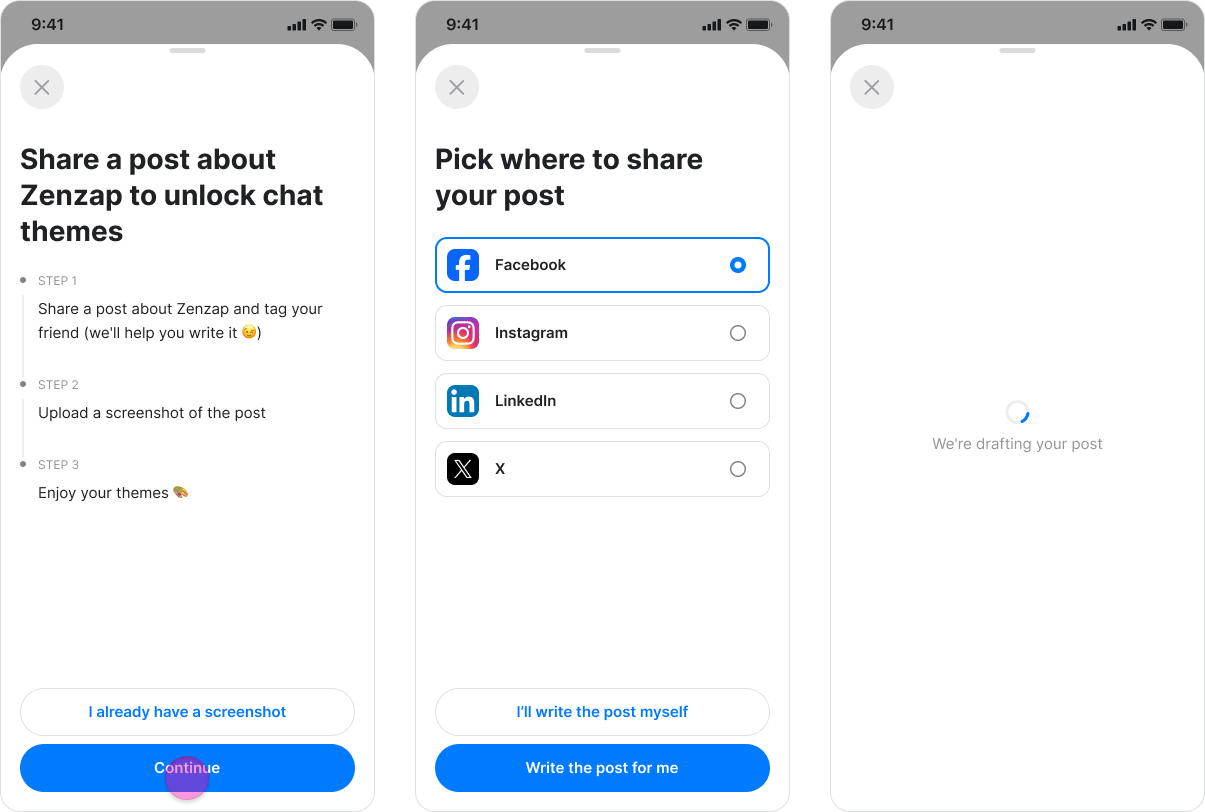
Share a post about Zenzap.
-
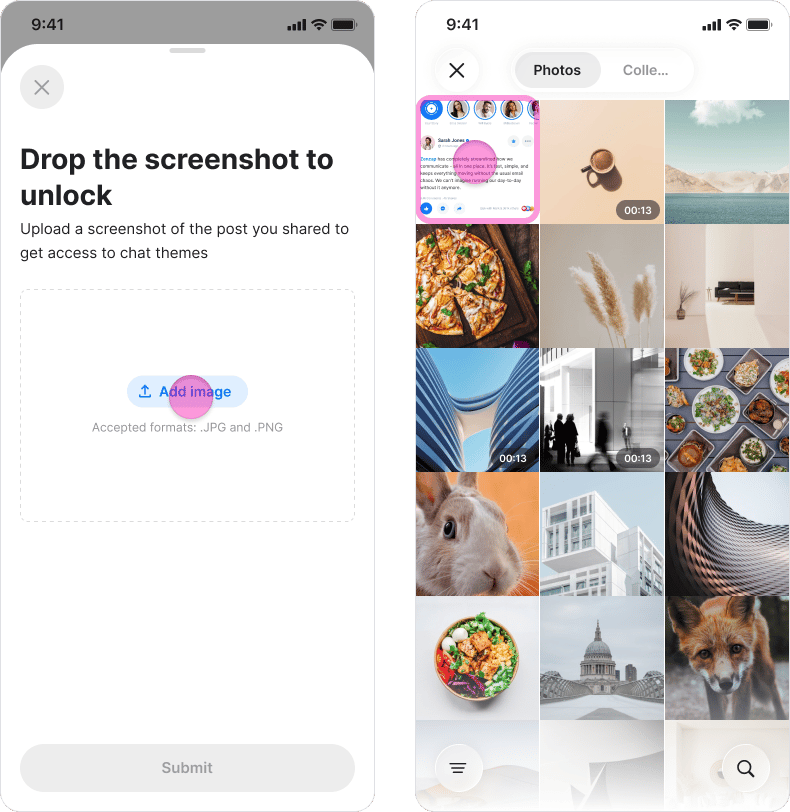
Upload a screenshot showing that you shared the post.
-
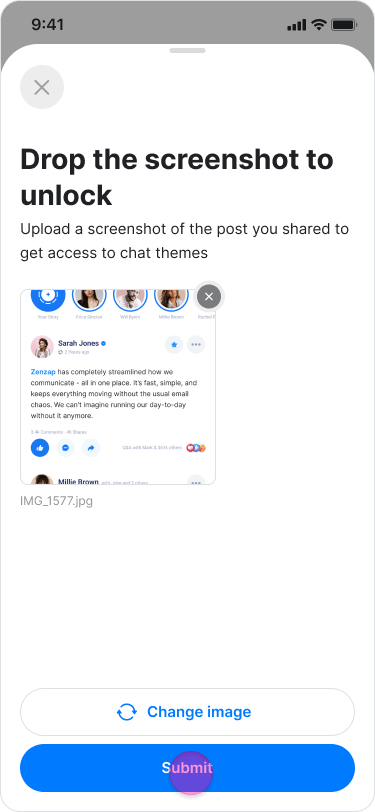
Tap “Submit” to make the themes available.
-
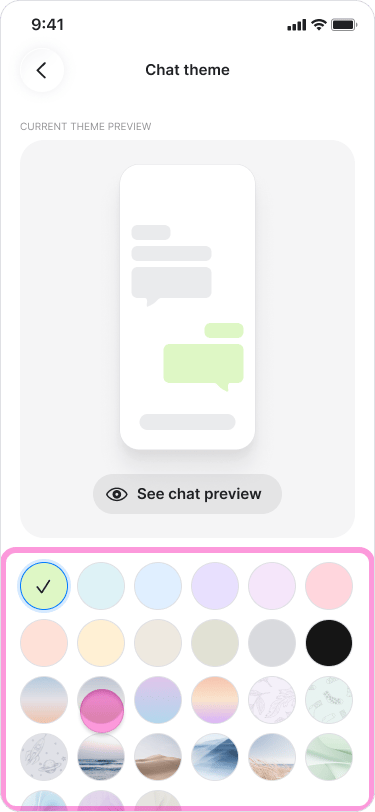
Choose a theme or upload a background image.
-
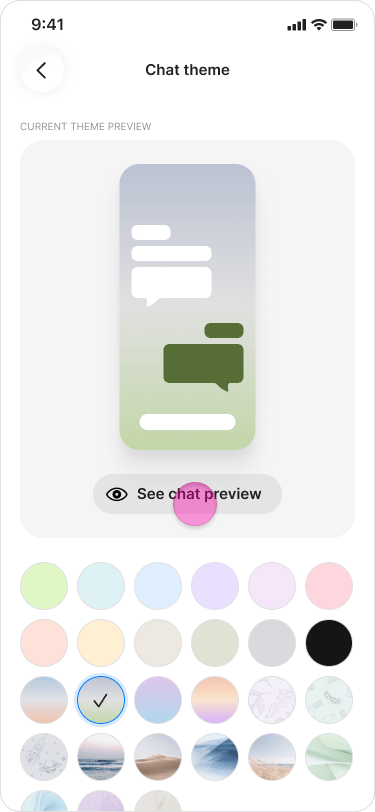
Adjust the background brightness or select a color for the message bubbles.
-
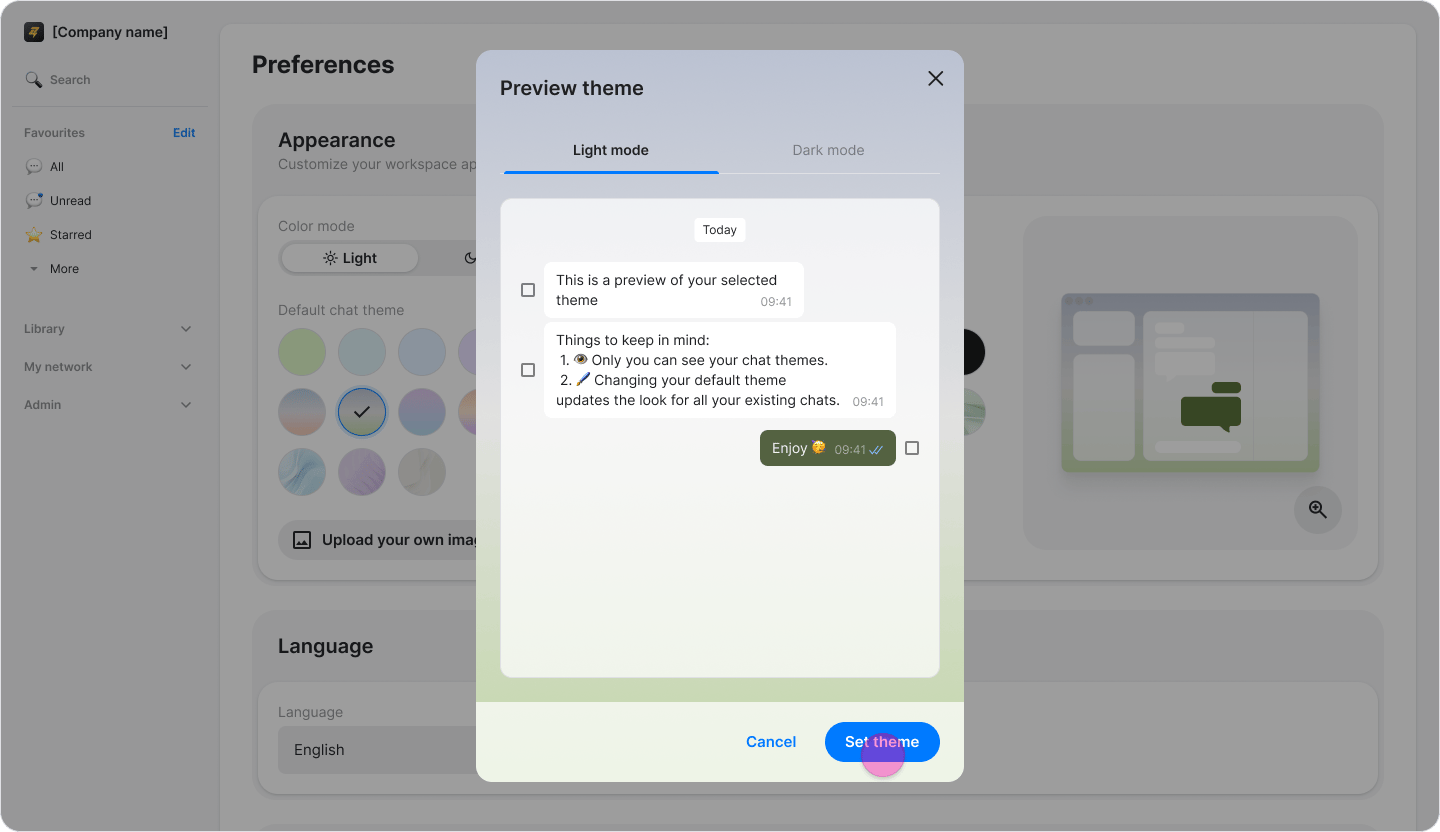
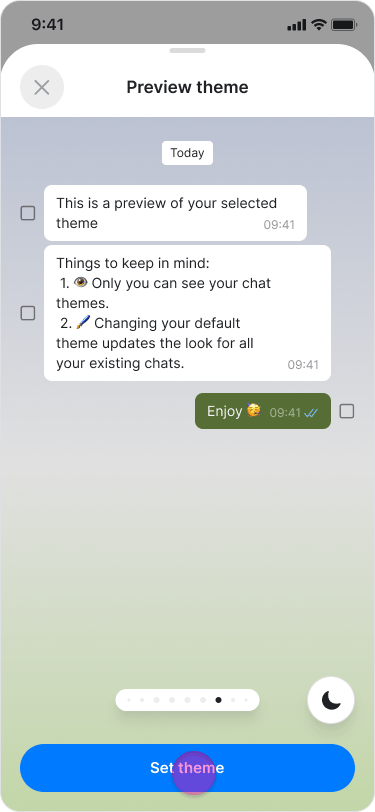
Tap “Set theme”.
On Desktop (Windows, macOS, & Web App)
-
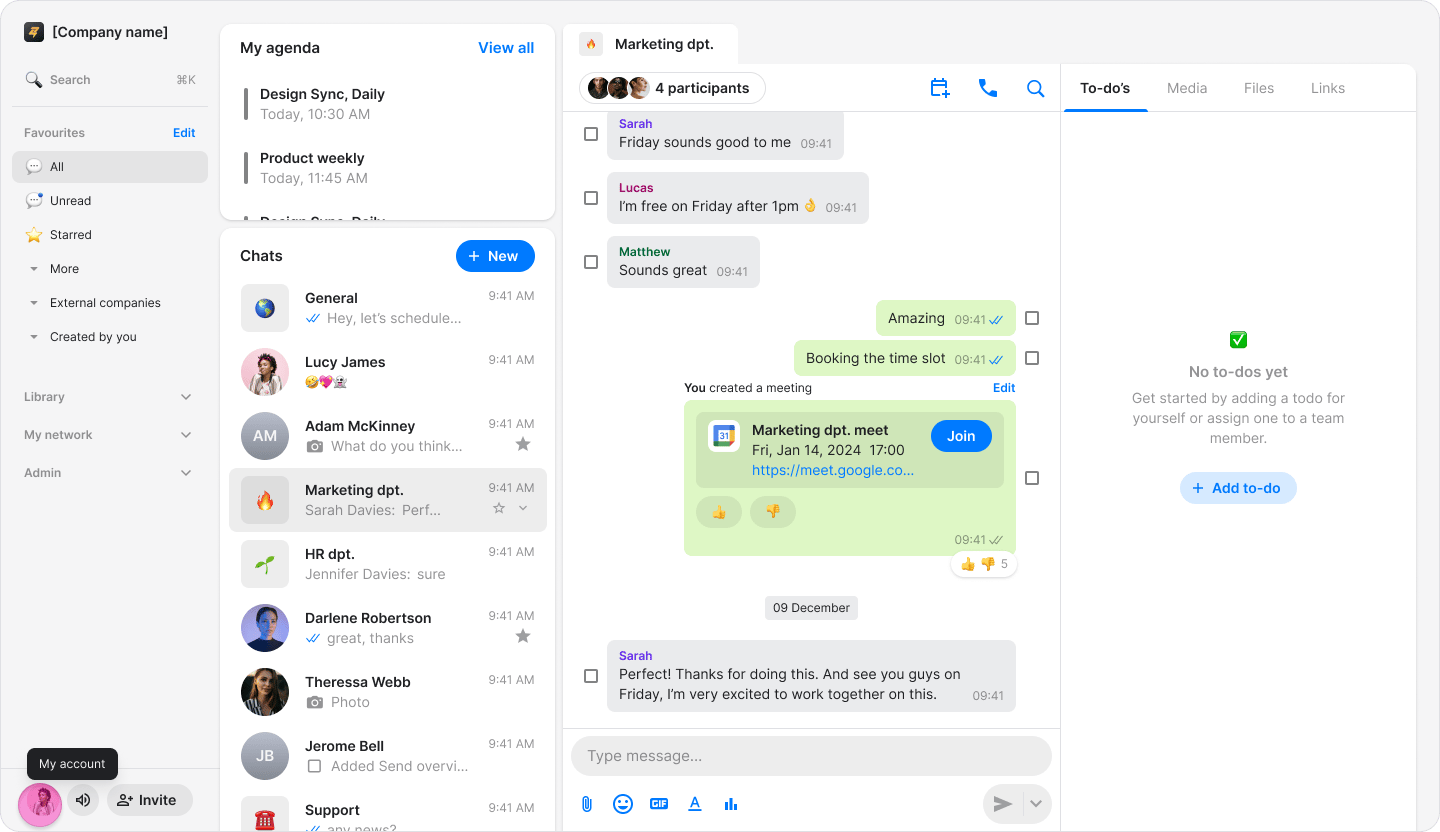
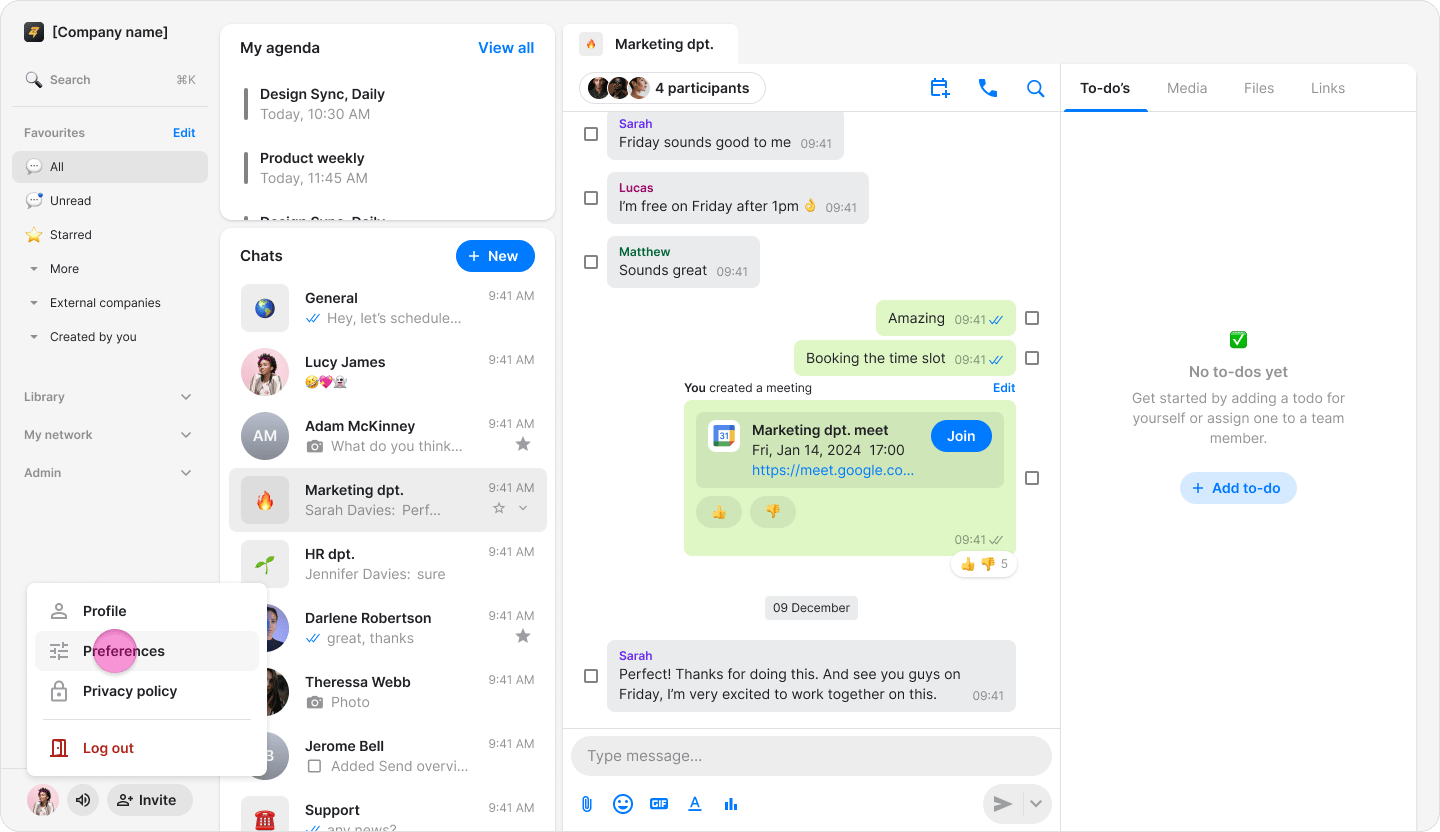
Click your profile picture.
-
Click “Preferences”.
-
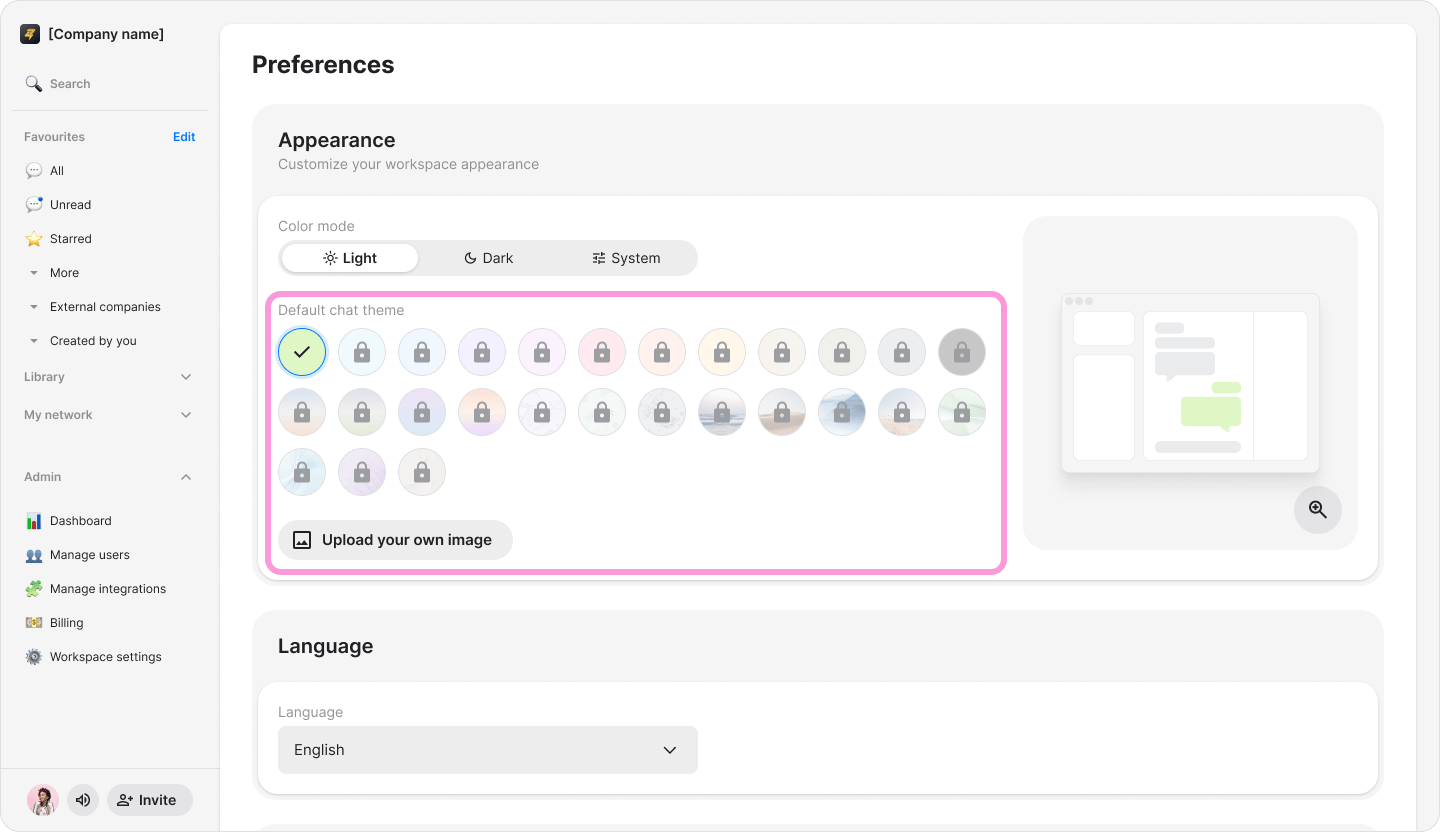
Under “Appearance”, click the locked chat theme you want to use.
-
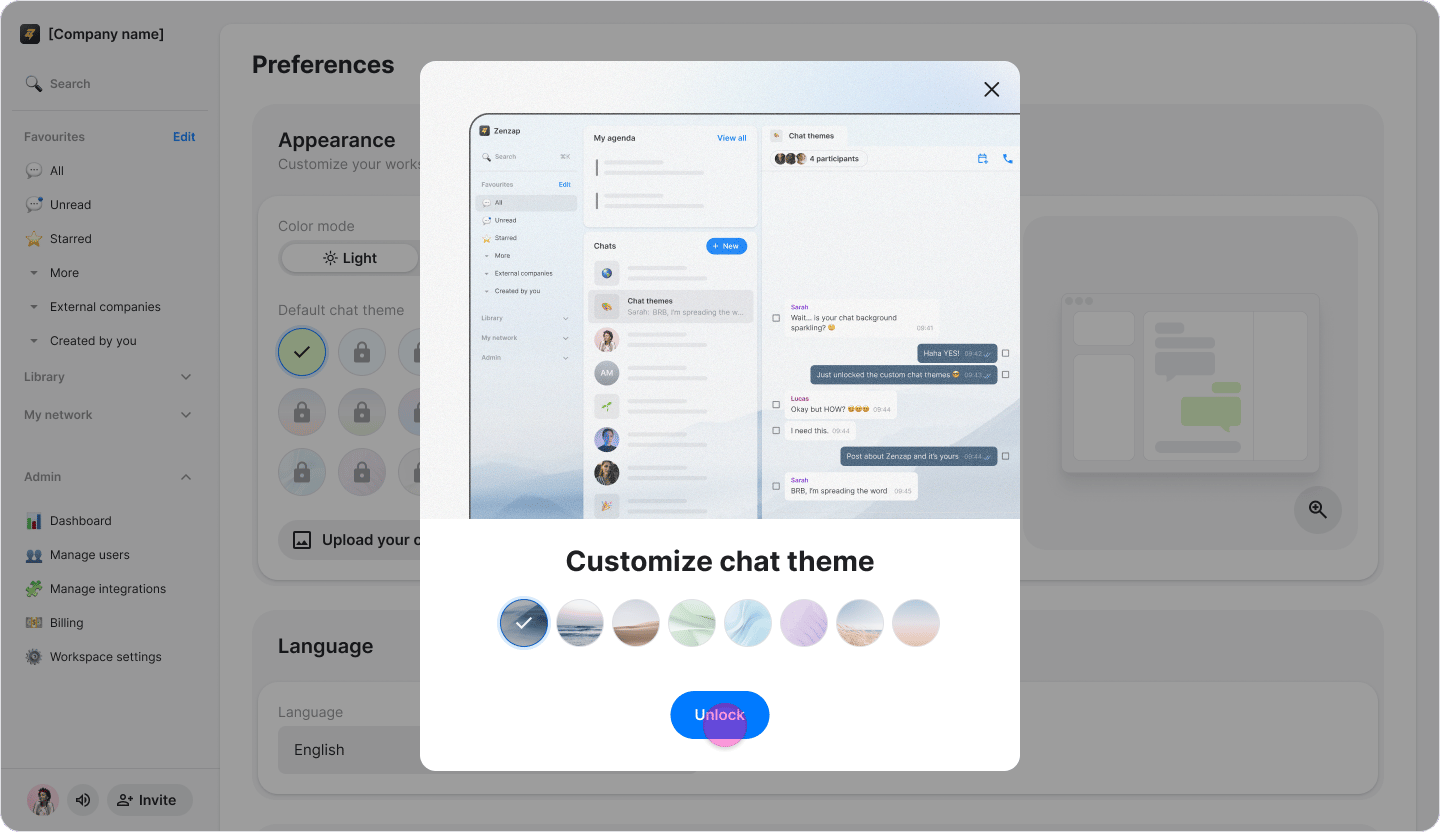
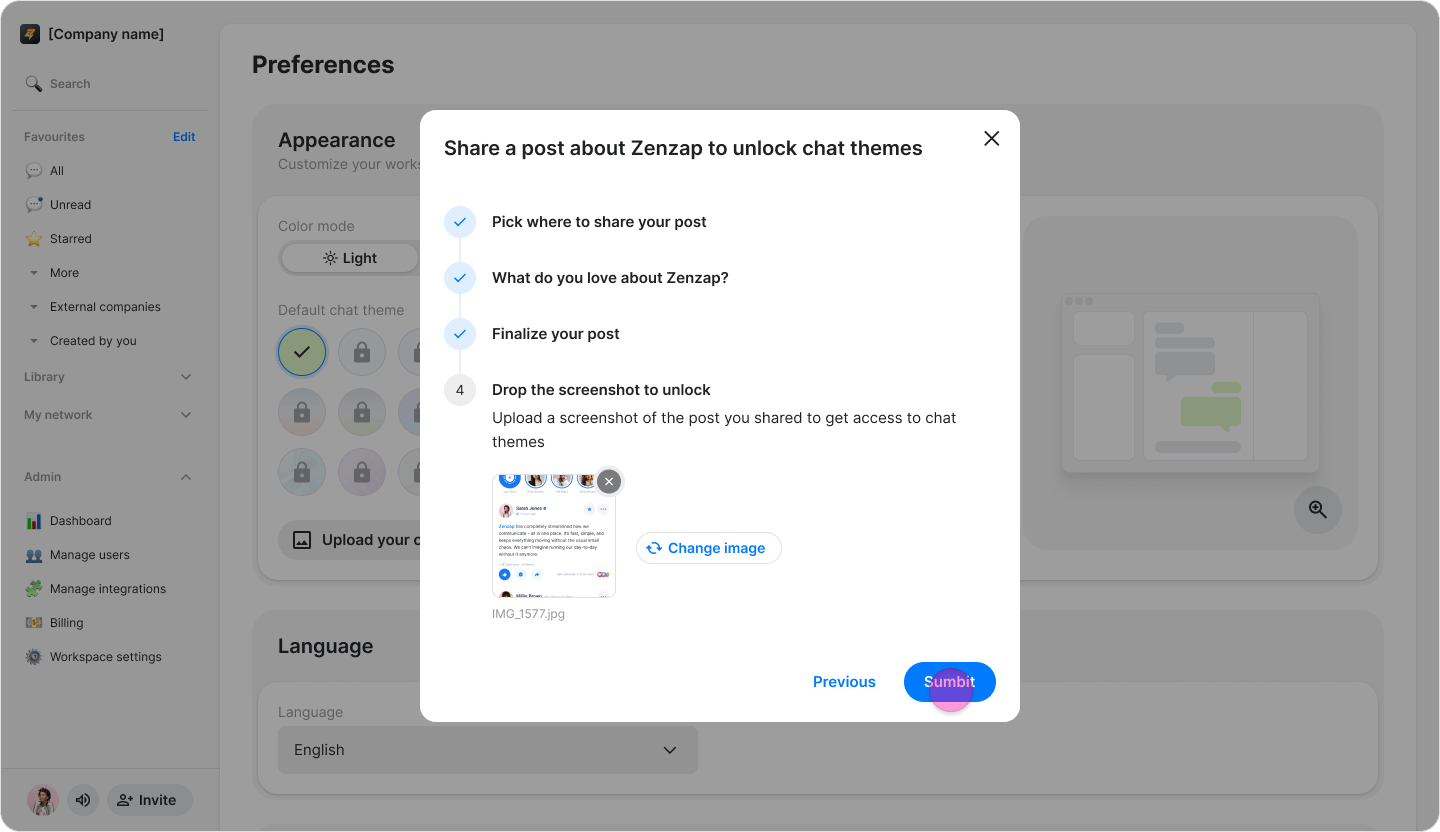
Follow the instructions in the pop-up.
-
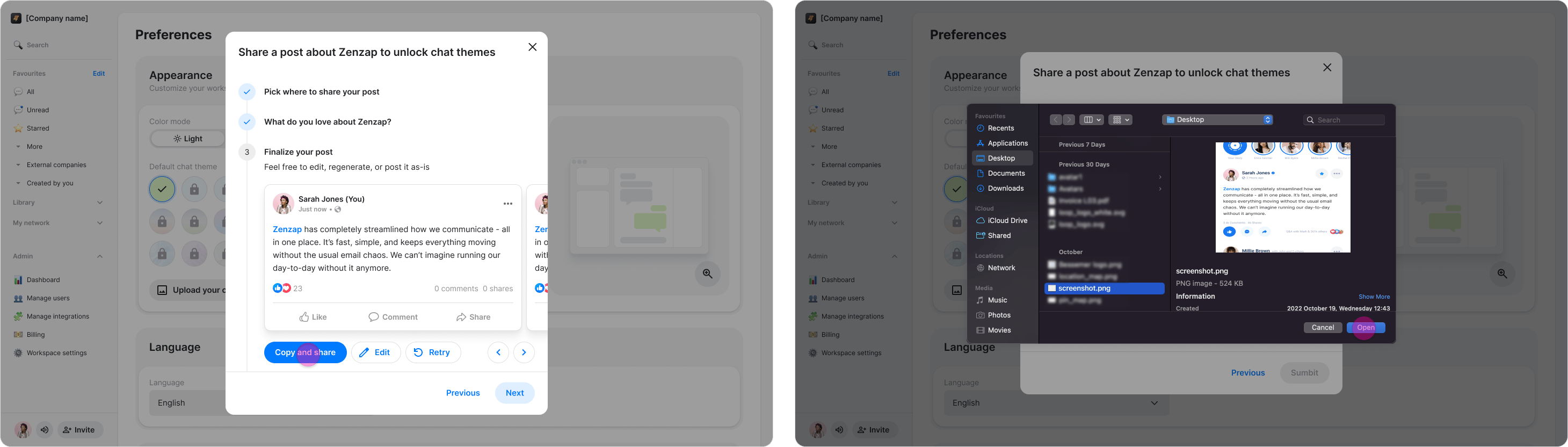
Share a post about Zenzap.

-
Upload a screenshot showing that you shared the post.
-
Click “Submit” to make the themes available.
-
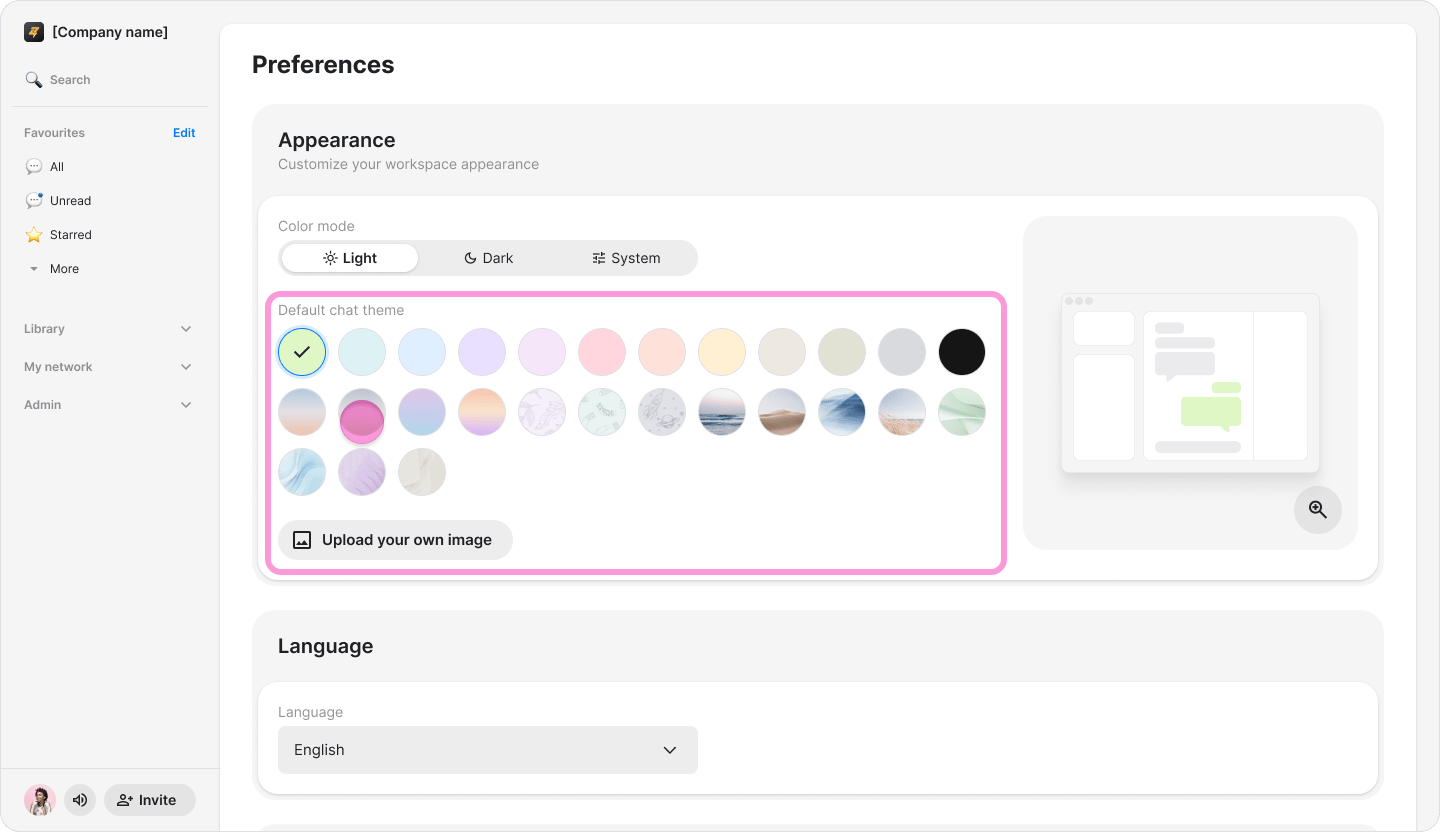
Choose a theme or upload a background image.
-
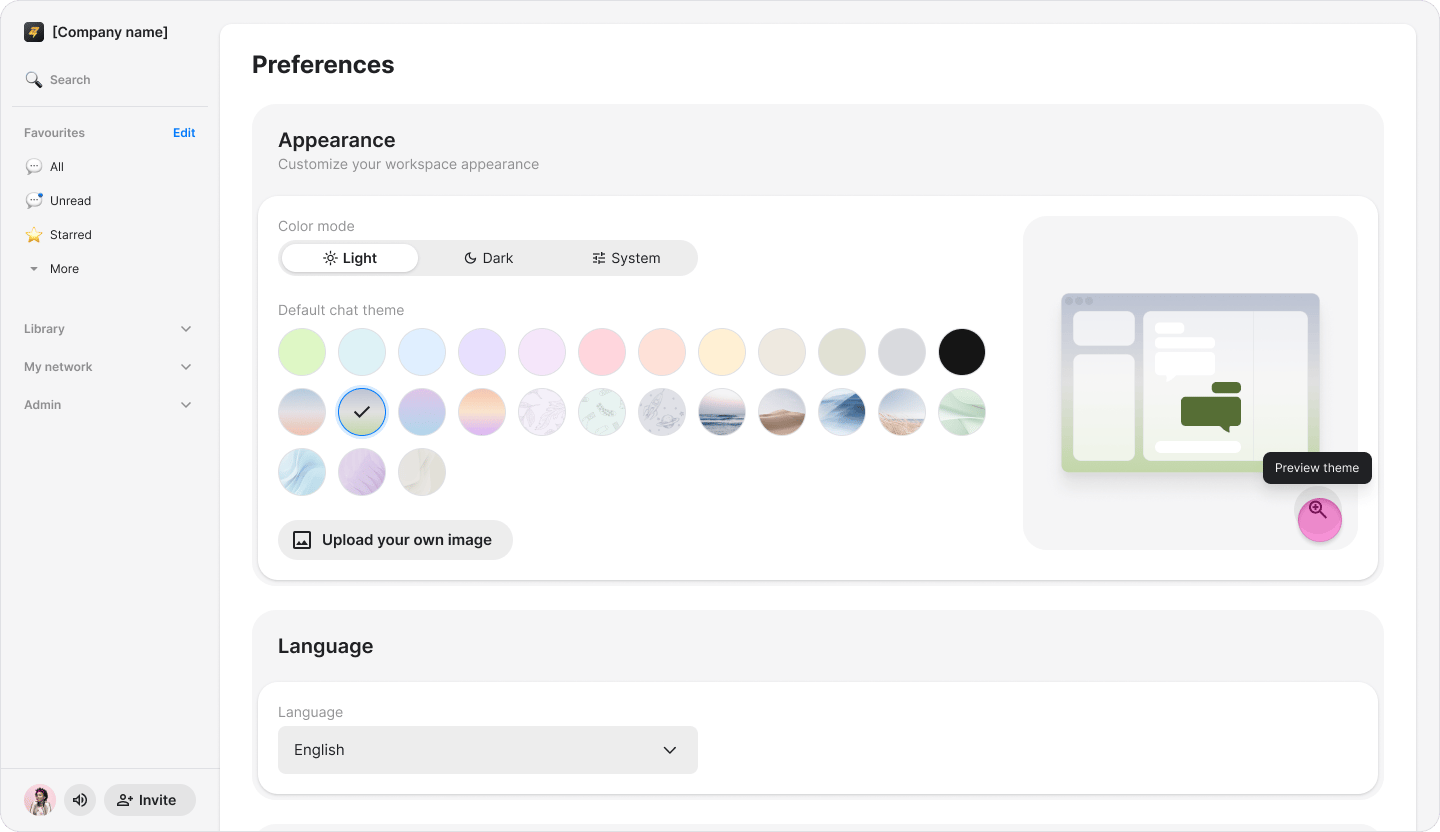
Adjust the background brightness or select a color for the message bubbles.
-
Click “Set theme”.