
What Is a Workflow?
A workflow is a task your AI agent performs automatically based on instructions you provide in plain language. You can schedule a workflow to run repeatedly or ask your agent to run it at any time, for example by saying, “Run it now.” Examples:- “Every weekday at 9 AM, summarize yesterday’s open assignments.” (Scheduled)
- “Every Monday at 10 AM, pull all new leads from CRM created last week and post a summary with their status.” (Scheduled, connected app)
- “Every 15 minutes, check Gmail for new emails from support@ and summarize them.” (Scheduled, email)
On Mobile (iOS & Android)
To create a workflow, choose the chat where you want it to run. This can be your direct chat with the agent or any group chat where the agent is a participant.- Open the chat with your agent where you want to create the workflow.
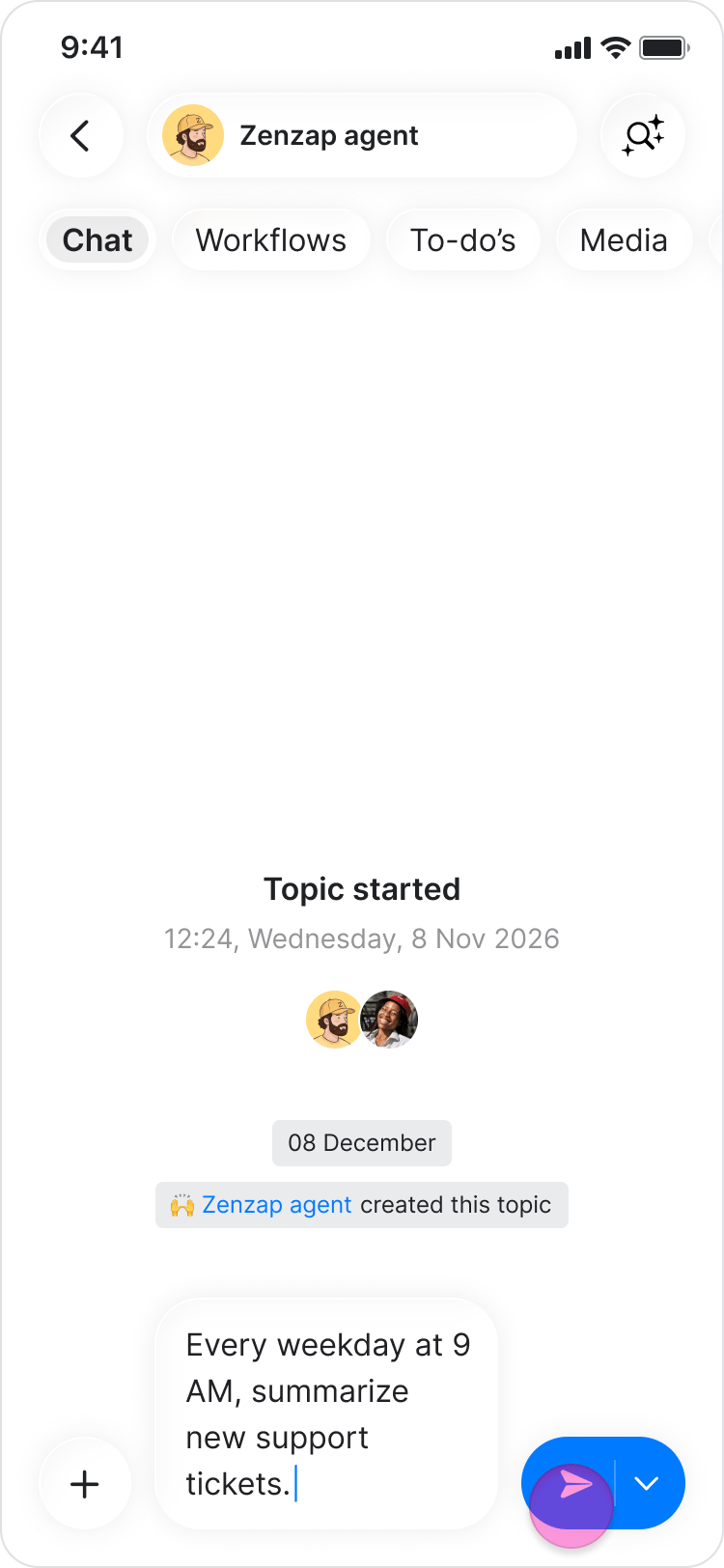
- Write a message describing the task you want the agent to perform and how often it should run. For example: “Every weekday at 9 AM, summarize new support tickets.”
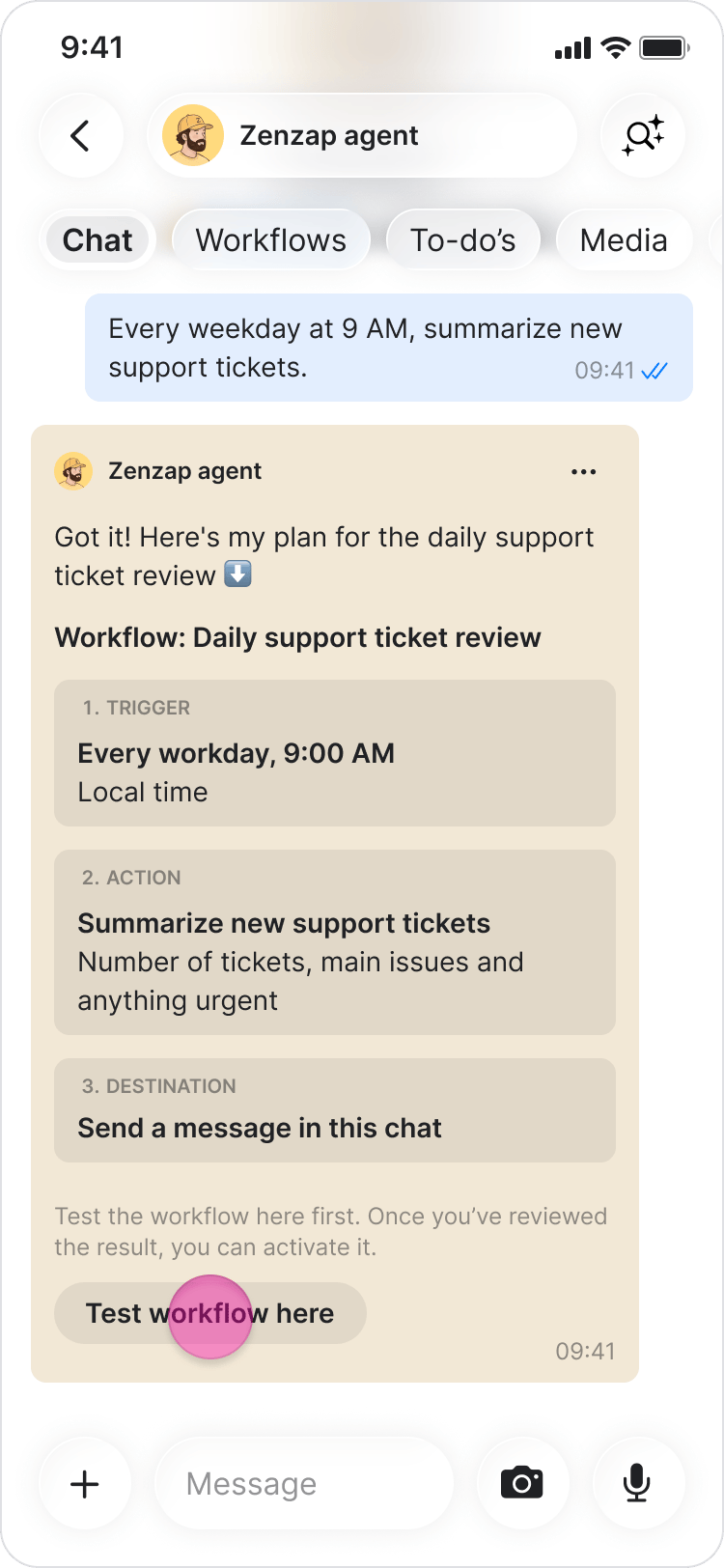
- Your agent confirms the instructions and schedule, then creates the workflow.
- To test the workflow, ask the agent to run a test.
- The agent uses your timezone to schedule workflow runs. It may ask you to confirm your timezone the first time you create a workflow.
- The agent posts the results of each workflow run directly in the chat.
- Workflows that create, update, or delete data in connected apps ask for your approval before making changes. Read-only actions run automatically.
- Write clear, specific instructions so the agent knows exactly what to do on each run.
- Include the schedule in the same message as your instructions so the agent can create the workflow in a single step.
- Use specific time references in your instructions. For example, say “tickets closed yesterday” rather than “recent tickets.”
- Tell the agent to use the chat history or its memory when running a workflow if you want it to consider information from previous conversations.
- Make sure any app the workflow needs is already connected to your agent before creating the workflow.
- Test a workflow after creating it to confirm it behaves as expected.
- Pause a workflow instead of deleting it if you might want to use it again later.
- Ask the agent whether your instructions are clear and whether it needs any additional information.
On Desktop (Windows, macOS, & Web App)
To create a workflow, choose the chat where you want it to run. This can be your direct chat with the agent or any group chat where the agent is a participant.- Open the chat with your agent where you want to create the workflow.
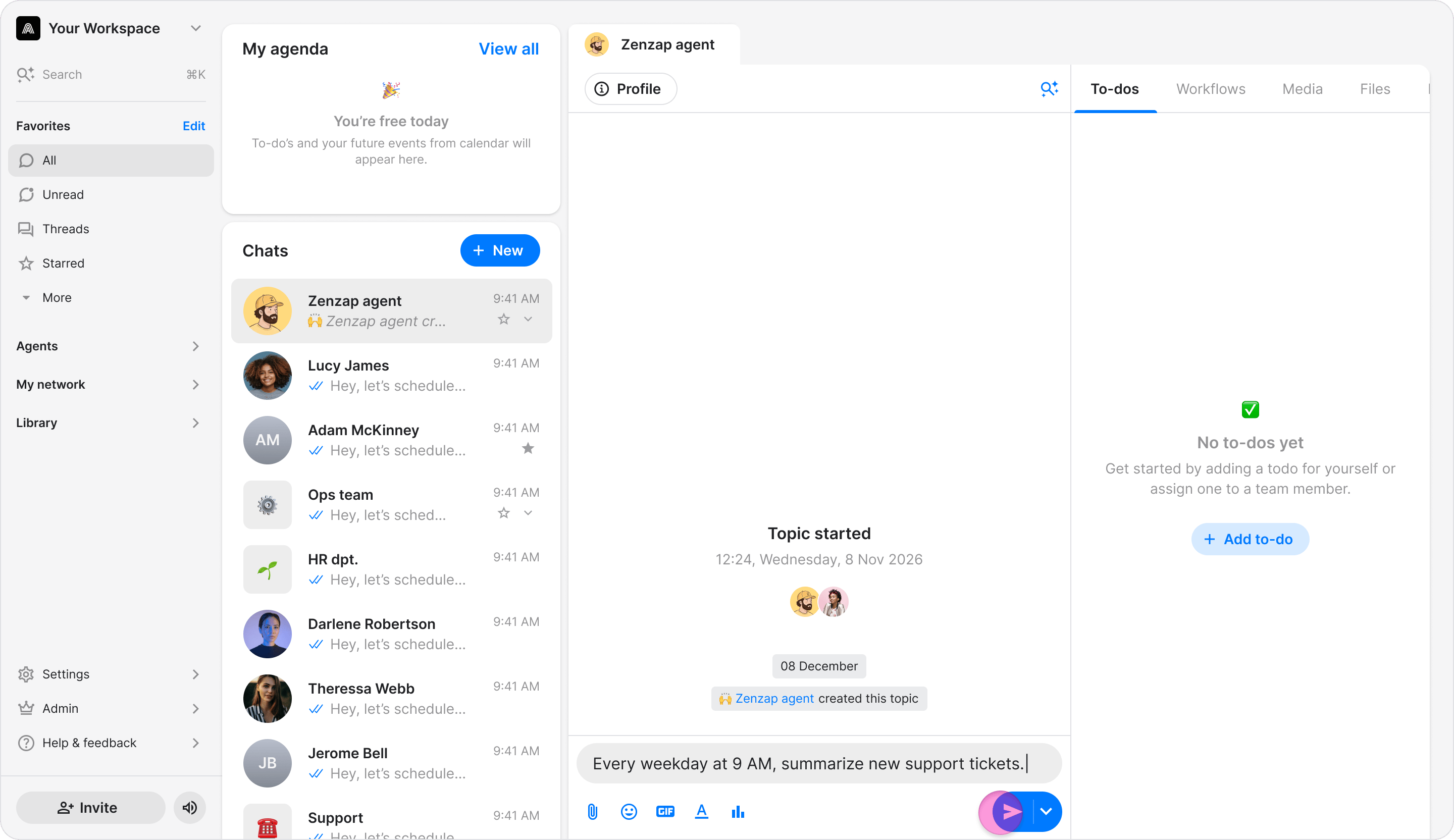
- Write a message describing the task you want the agent to perform and how often it should run. For example: “Every weekday at 9 AM, summarize new support tickets.”
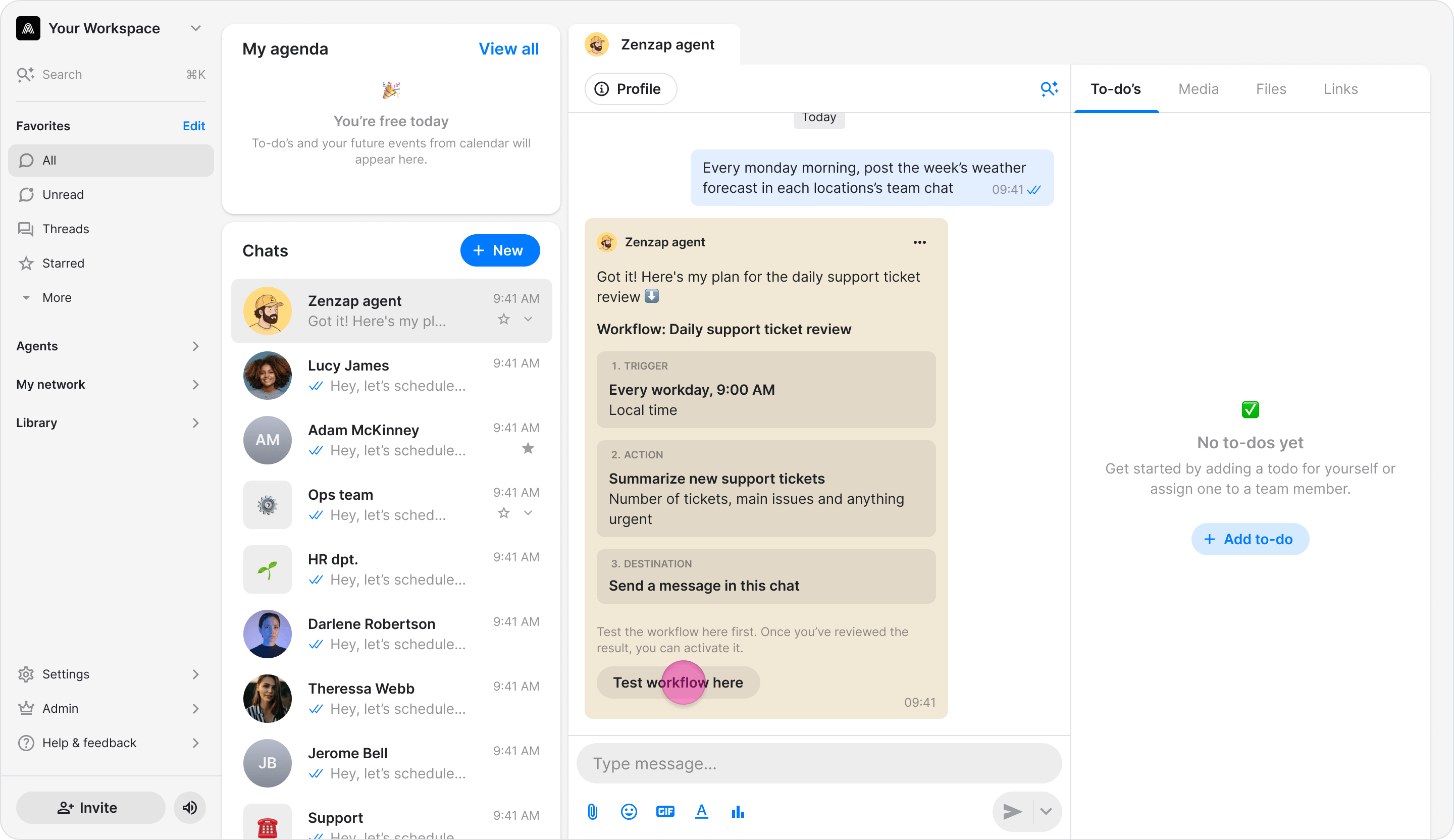
- Your agent confirms the instructions and schedule, then creates the workflow.
- To test the workflow, ask the agent to run a test.
- The agent uses your timezone to schedule workflow runs. It may ask you to confirm your timezone the first time you create a workflow.
- The agent posts the results of each workflow run directly in the chat.
- Workflows that create, update, or delete data in connected apps ask for your approval before making changes. Read-only actions run automatically.
- Write clear, specific instructions so the agent knows exactly what to do on each run.
- Include the schedule in the same message as your instructions so the agent can create the workflow in a single step.
- Use specific time references in your instructions. For example, say “tickets closed yesterday” rather than “recent tickets.”
- Tell the agent to use the chat history or its memory when running a workflow if you want it to consider information from previous conversations.
- Make sure any app the workflow needs is already connected to your agent before creating the workflow.
- Test a workflow after creating it to confirm it behaves as expected.
- Pause a workflow instead of deleting it if you might want to use it again later.
- Ask the agent whether your instructions are clear and whether it needs any additional information.