Learn more about creating to-dos in this article.

On Mobile (iOS & Android)

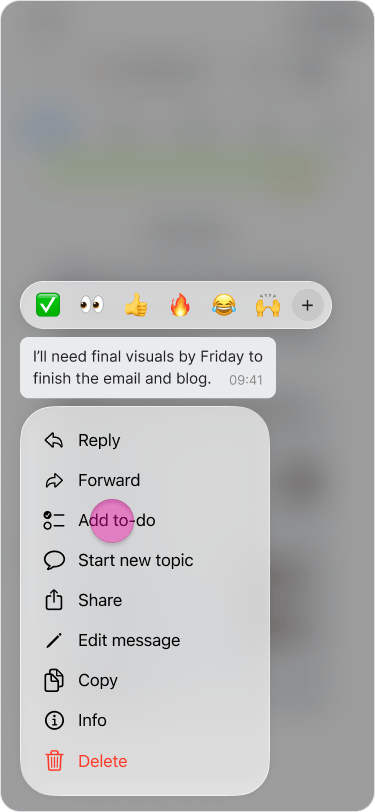
  1. Long-press the message you want to convert to a to-do. Create To-dos from Messages screenshot 1
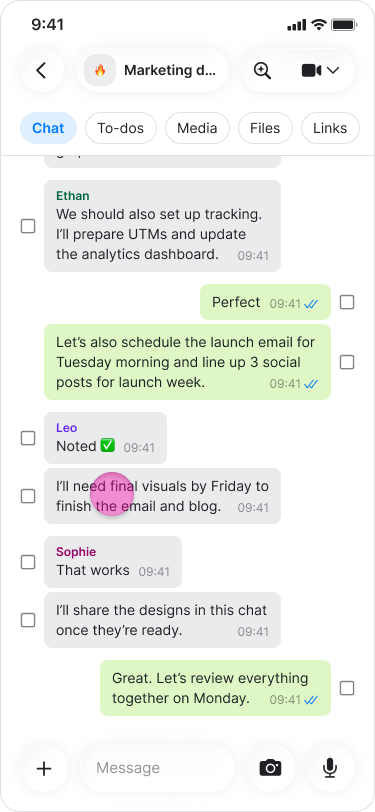
  2. Tap “Add to-do”. Create To-dos from Messages screenshot 2
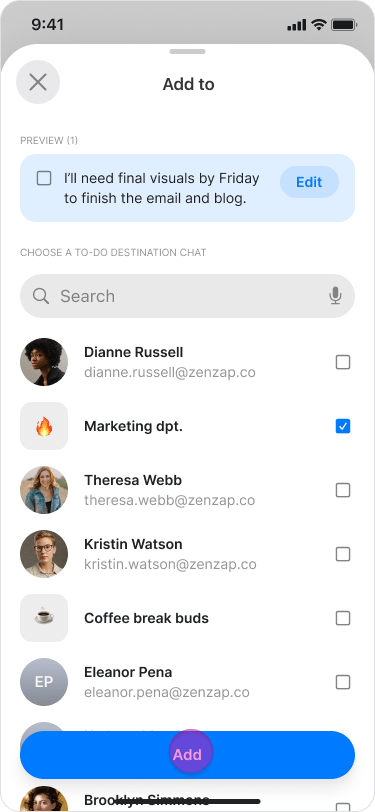
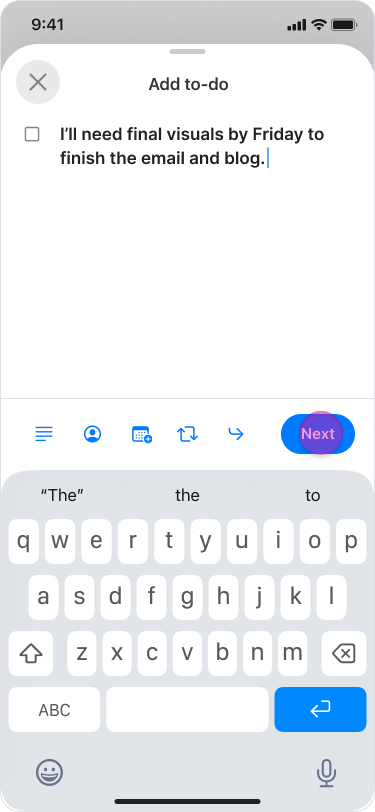
  3. Tap “Edit” if you want to change the text or tap “Next” to continue with the original message. Create To-dos from Messages screenshot 3
  4. Select or search for the chat where you want the to-do to appear. Create To-dos from Messages screenshot 4
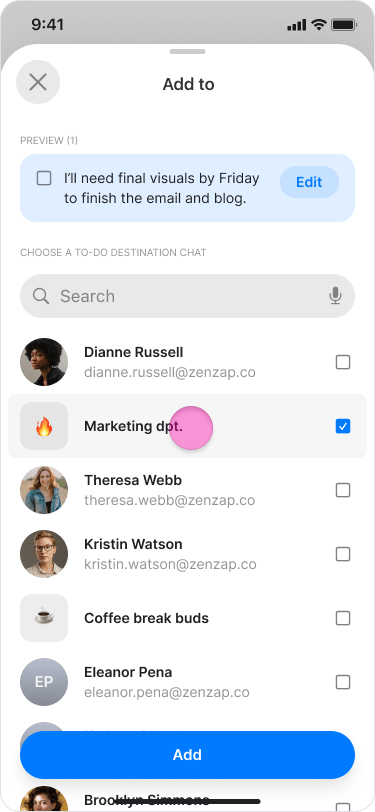
  5. Tap “Add” to create the to-do item. Create To-dos from Messages screenshot 5
Note: These items function as regular to-dos and appear in the “To-dos” tab of your chosen chat.

On Desktop (Windows, macOS, & Web App)

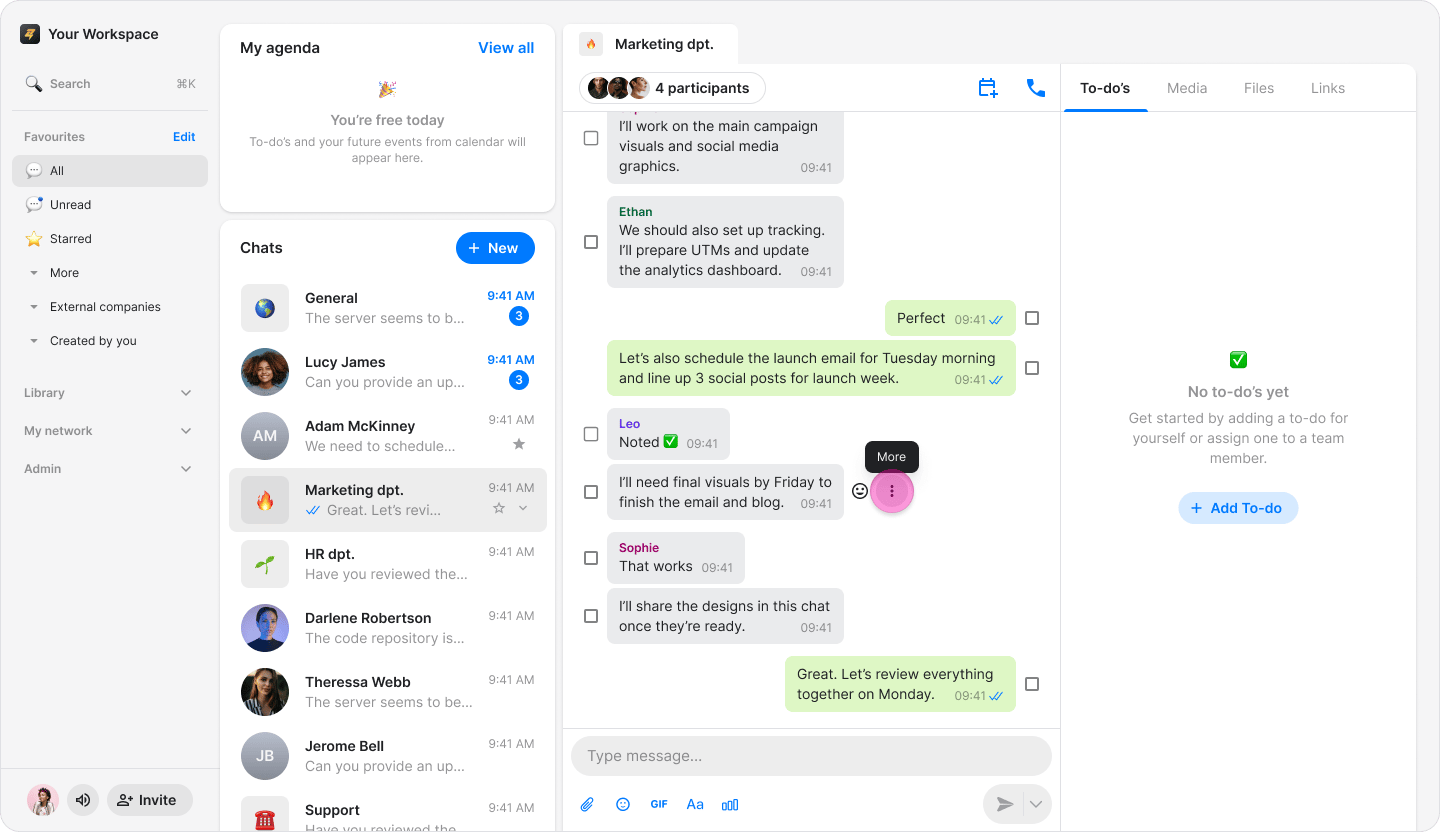
  1. Hover over the message you want to convert.
  2. Click the “Three dots” icon.
Create To-dos from Messages screenshot 6
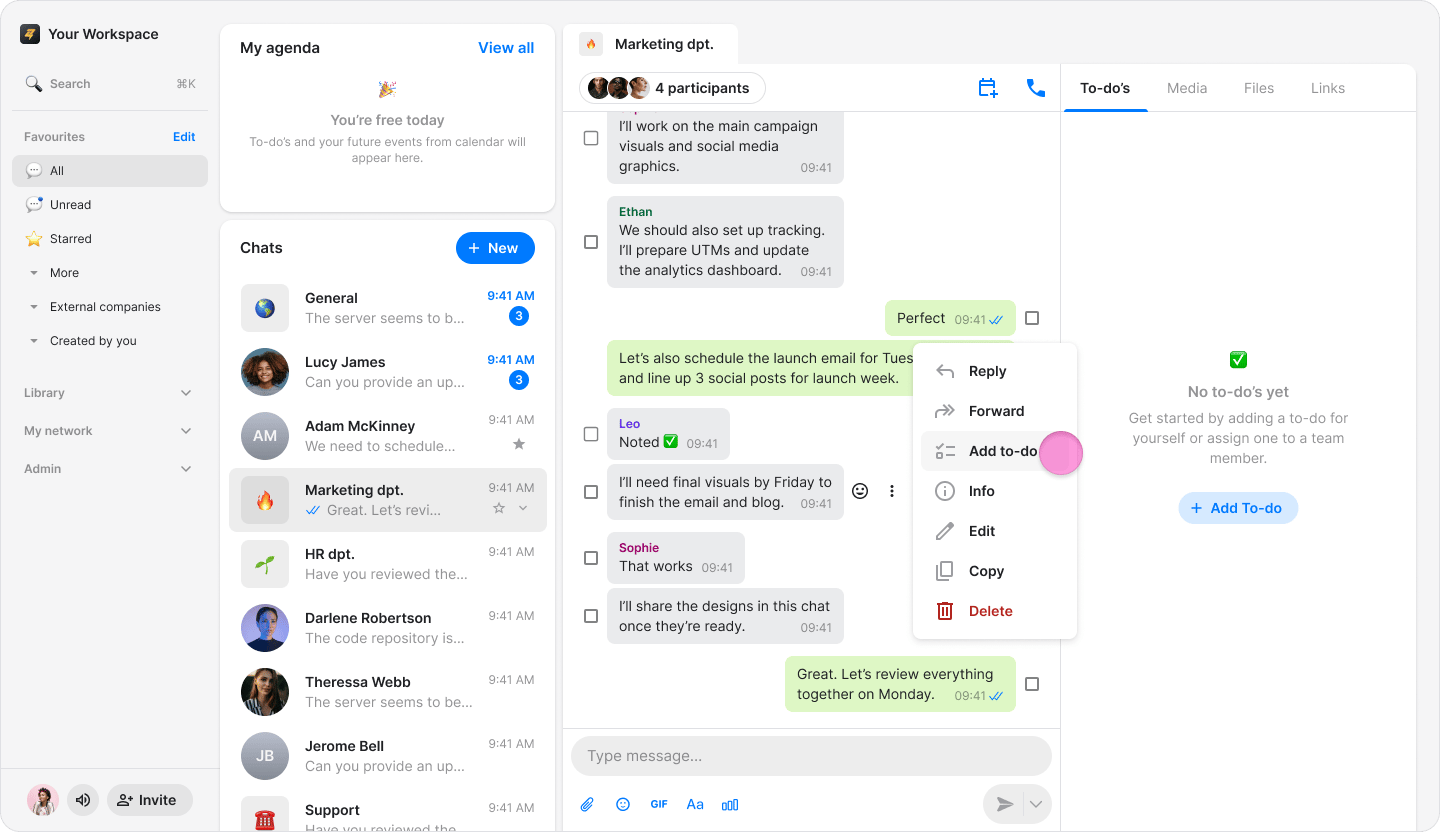
  1. Select “Add to-do” from the menu.
Create To-dos from Messages screenshot 7
  1. Click on the text of the message at the top if you want to edit it.
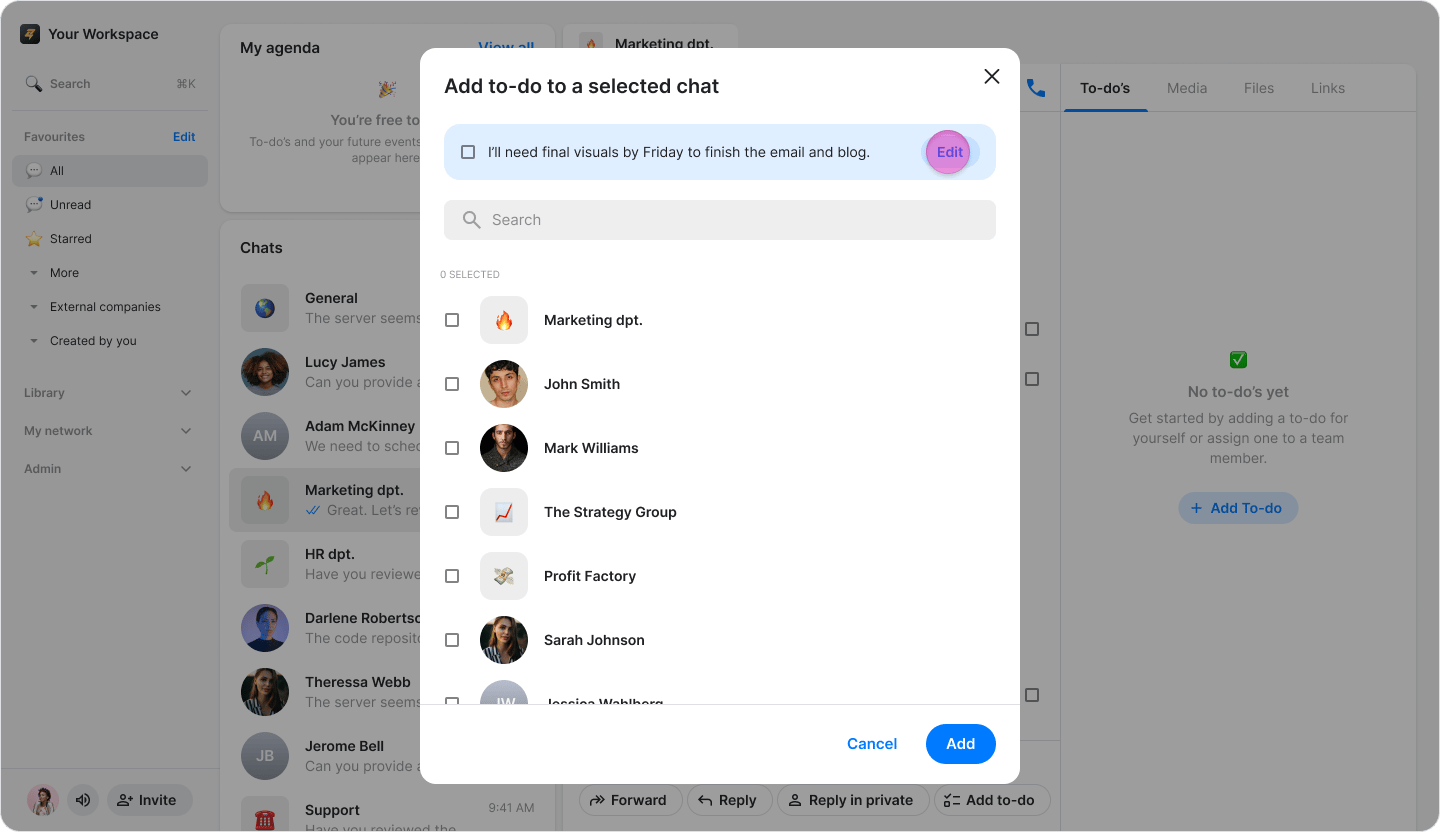
Create To-dos from Messages screenshot 8
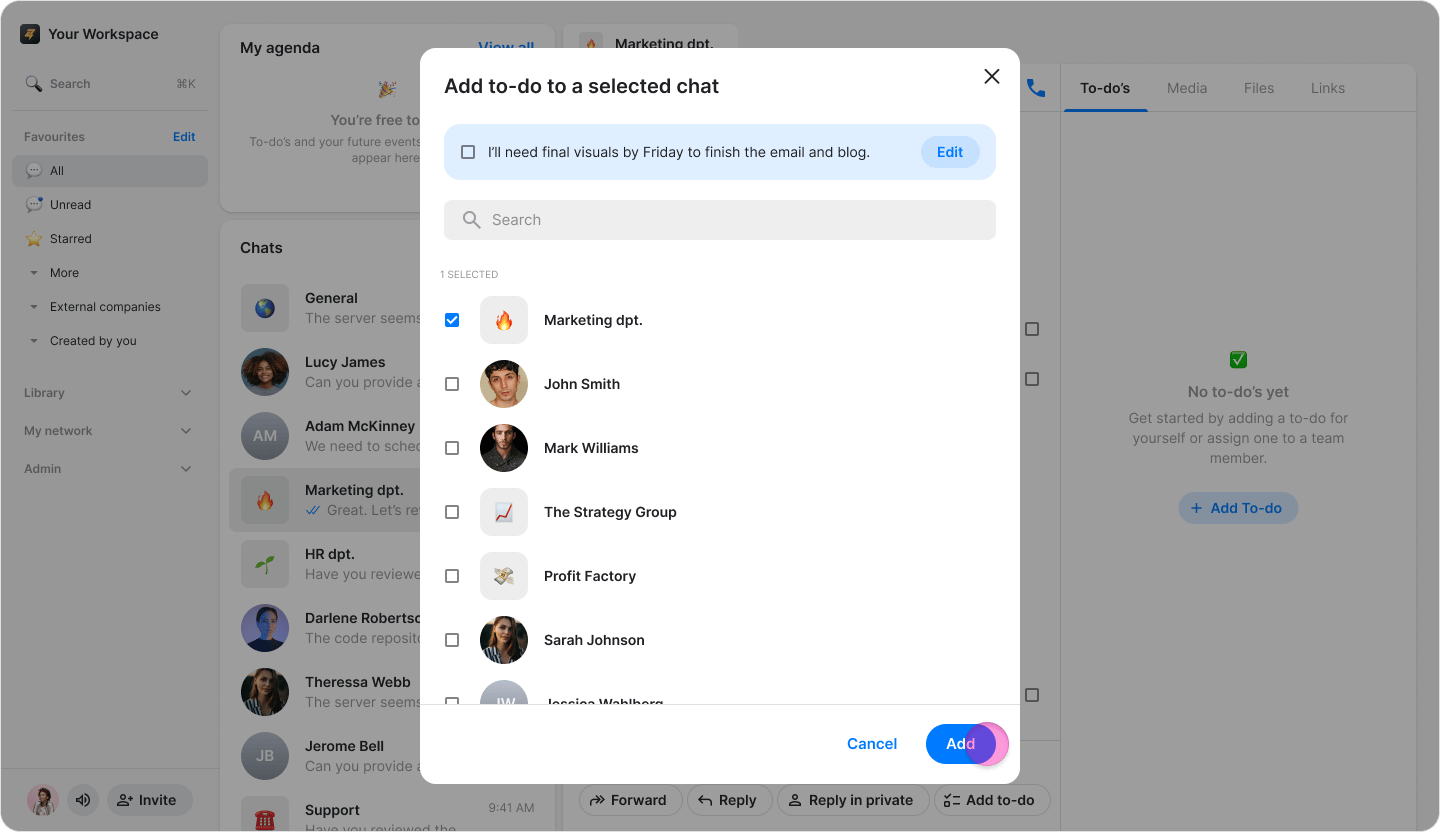
  1. Choose or search for the chat where you want the to-do to appear.
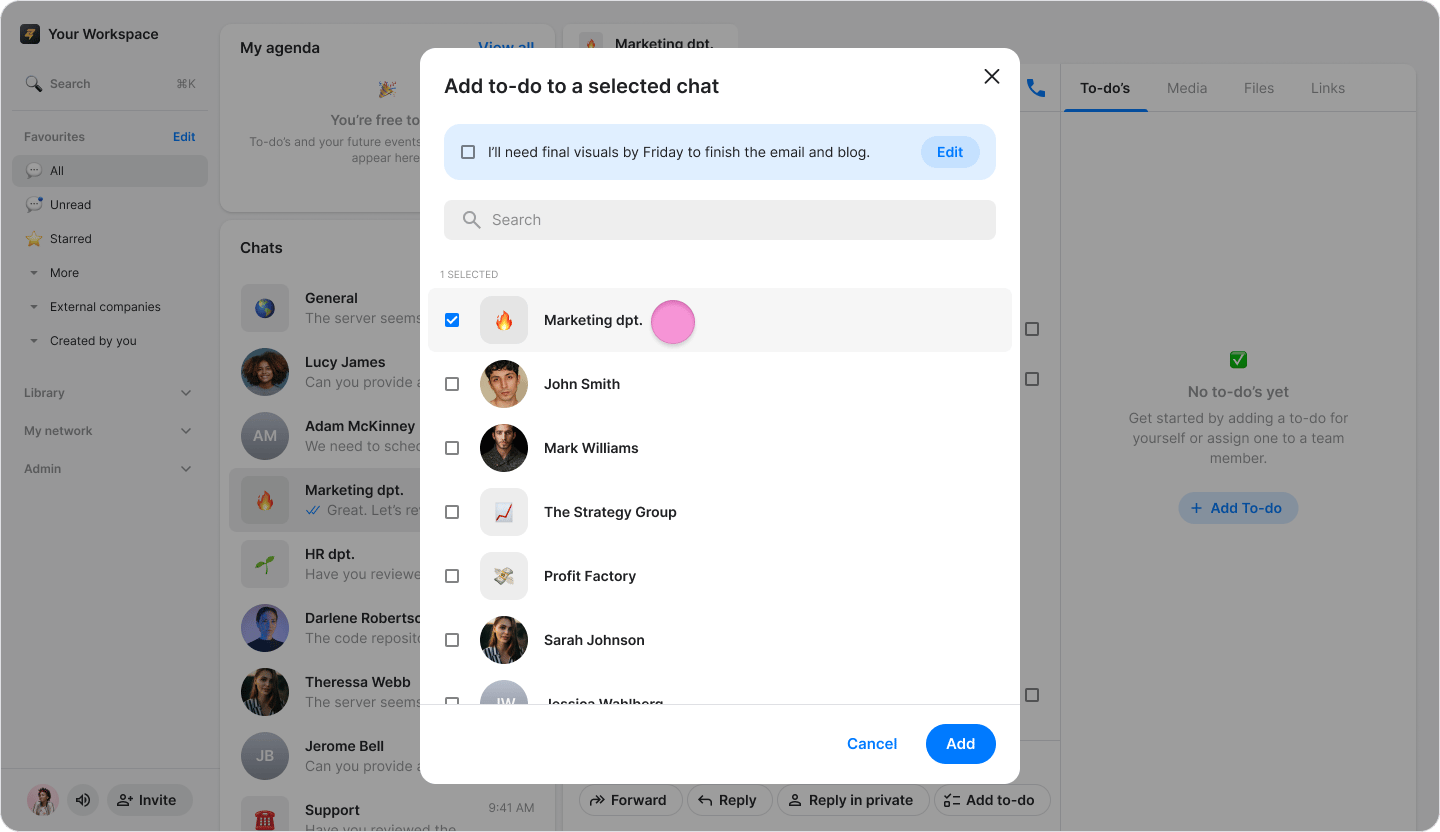
Create To-dos from Messages screenshot 9
  1. Click “Add” to create the to-do item.
Create To-dos from Messages screenshot 10 Note: These items function as regular to-dos and appear in the “To-dos” tab of your chosen chat.