
On Mobile (iOS & Android)
Follow these steps to link your Google or Microsoft calendar using the Zenzap mobile app.- Open any chat.
- Tap the calendar icon in the top-right corner.
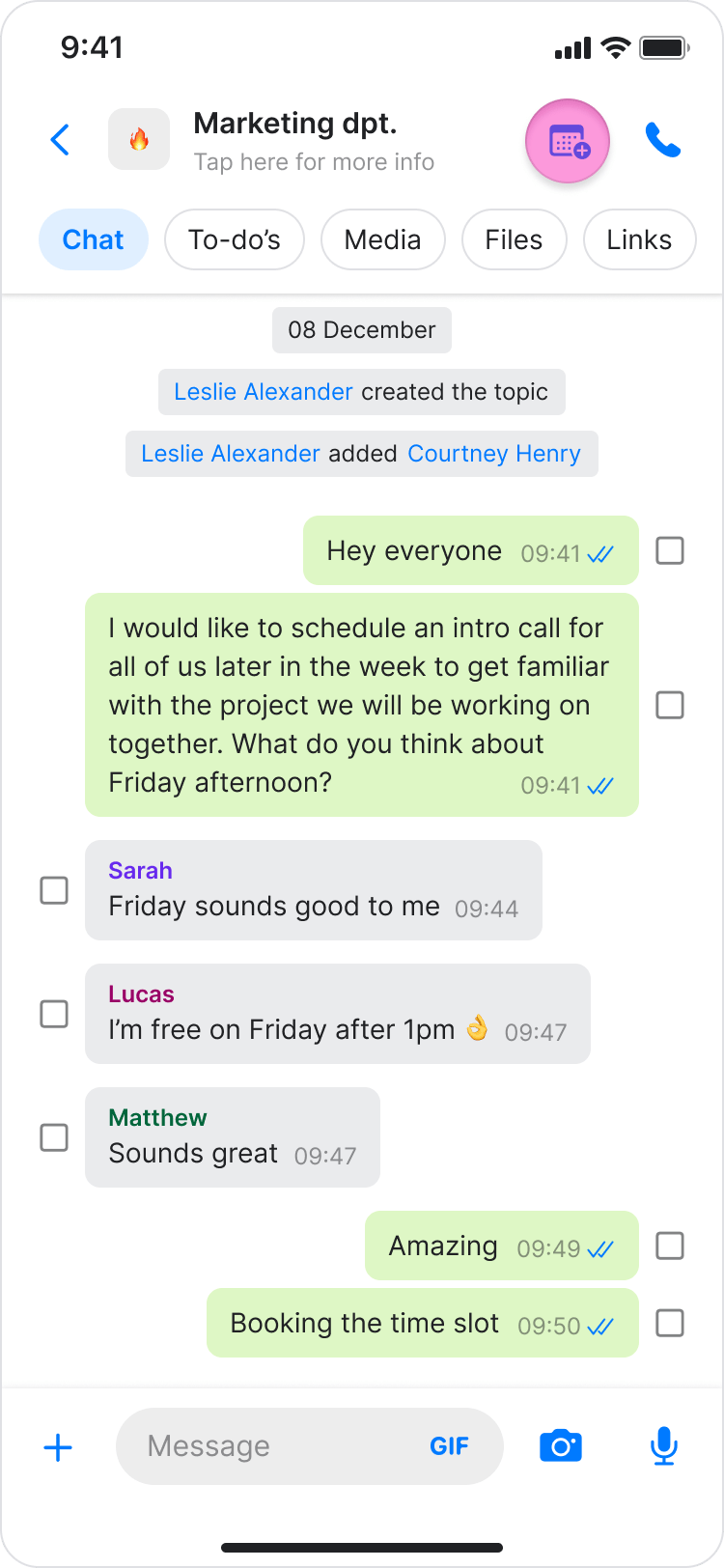
- Choose which calendar you want to connect.
- Sign in to your Google or Microsoft account.
- Review the permissions Zenzap is requesting for your calendar.
- Tap “Continue” to approve the connection.
On Desktop (Windows, macOS, & Web App)
Follow these steps to link your Google or Microsoft calendar using the Zenzap desktop or web app.- Open any chat.
- Click the calendar icon in the top-right corner.
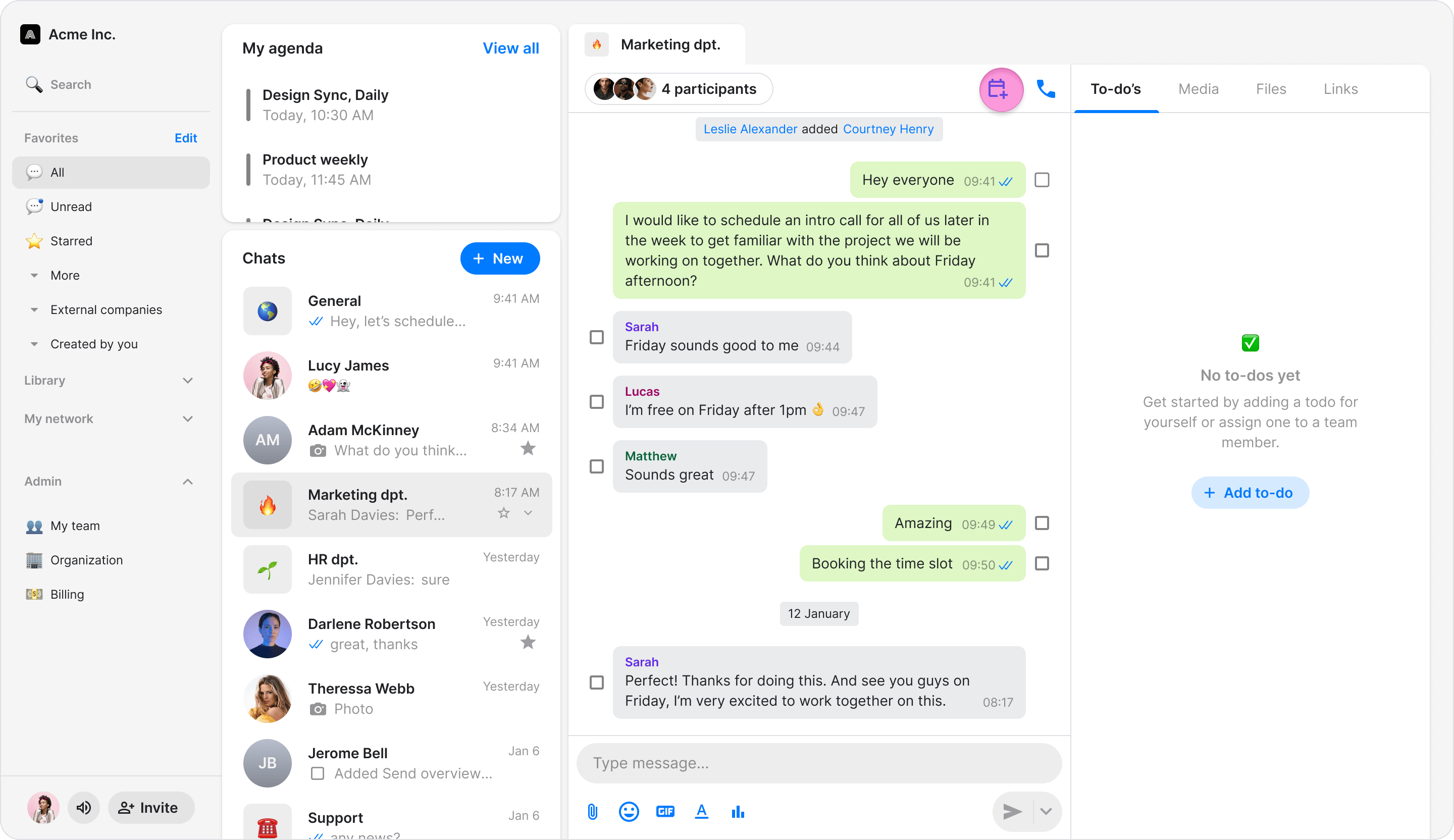
- Choose which calendar you want to connect.
- Sign in to your Google or Microsoft account.
- Review the permissions Zenzap is requesting for your calendar.
- Click “Continue” to approve the connection.