
On Mobile (iOS & Android)
-
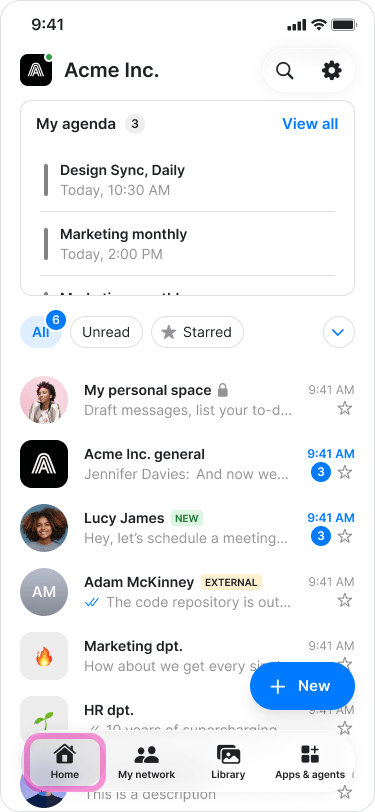
Navigate to the “Home” tab.
-
Tap “+New” in the bottom-right corner.

-
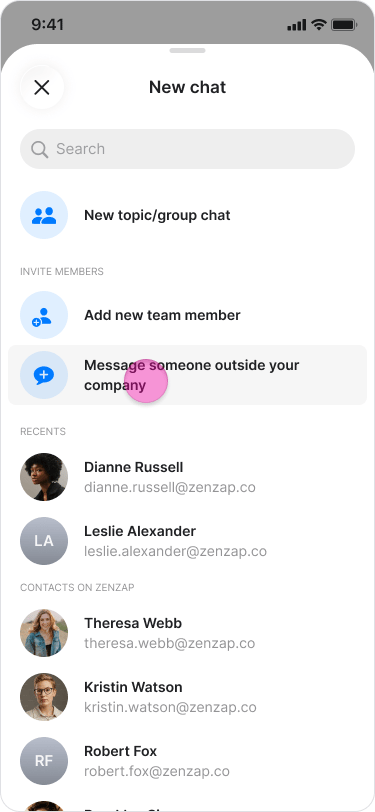
Select “Message someone outside your company”.
-
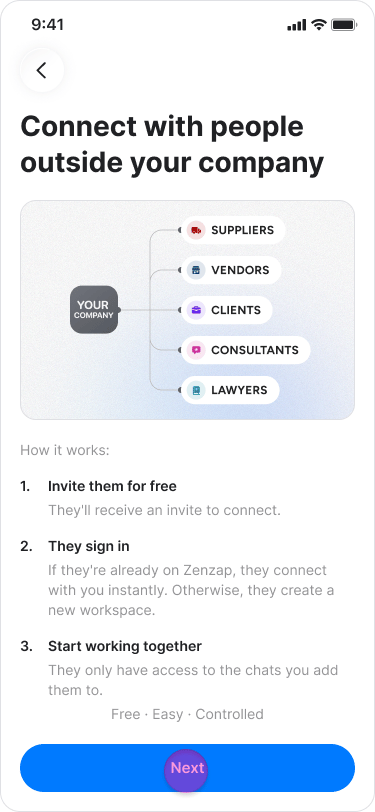
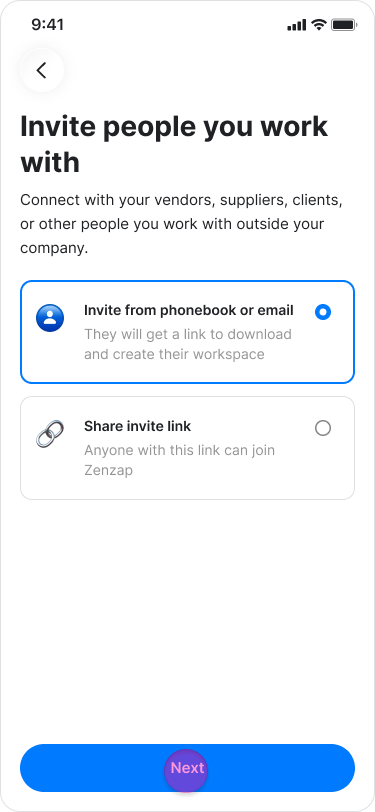
Tap “Next”.
-
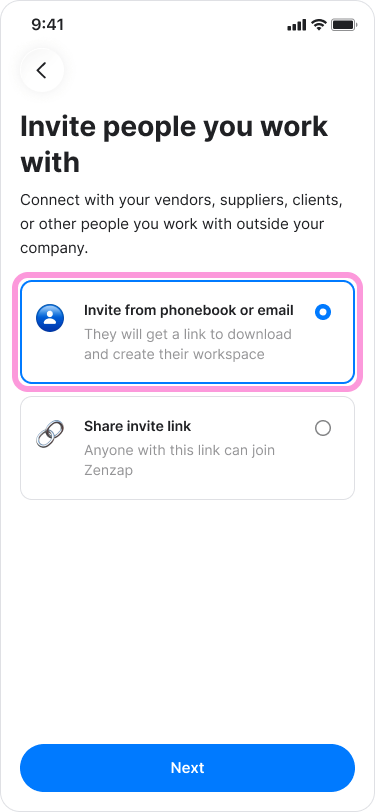
Select “Invite from phonebook or email”.
-
Tap “Next”.
-
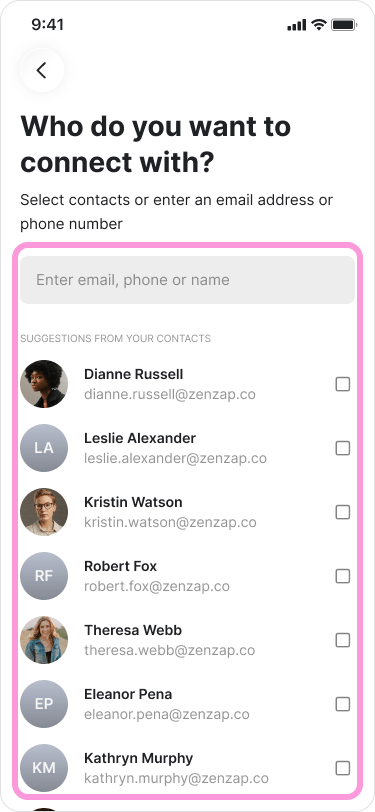
Search for a contact by name or enter their email address.
-
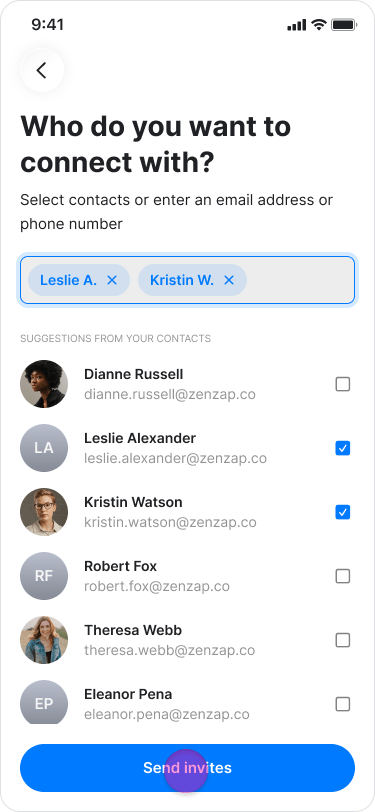
Tap “Send invites”.
-
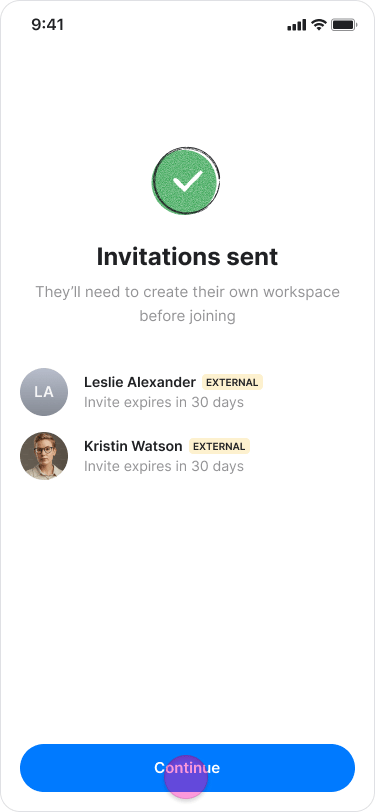
Tap “Continue”.
-
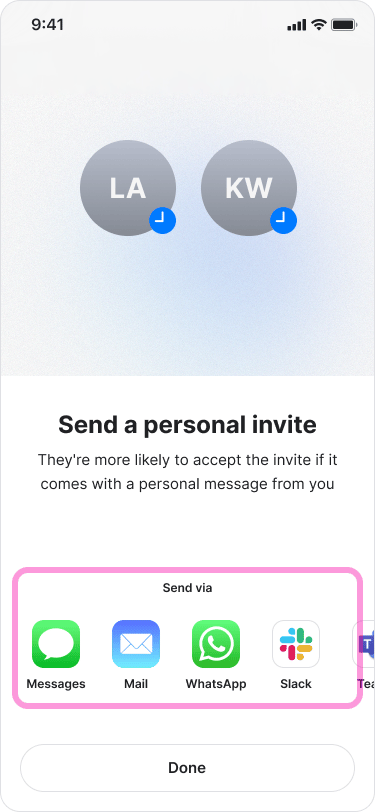
Choose how you want to send the invitation.
-
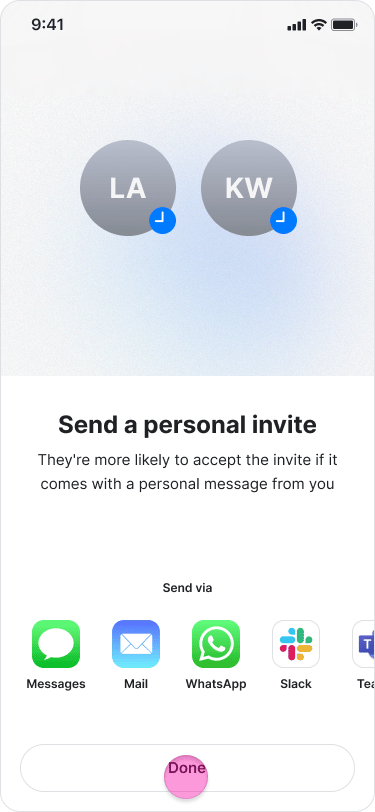
Tap “Done”.
- You can invite multiple people at the same time.
- If you invite someone from your phonebook, they will receive the invitation by SMS. If you invite someone using an email address, they will receive the invitation by email.
- If a chat is labeled “Invited”, the person has not yet created their account.
- The “External” label next to a group chat indicates that at least one participant is an external user.
- To cancel an invitation when you go into the chat with this person, next to “Share”, select the three dots icon and tap “Cancel invitation”.
On Desktop (Windows, macOS, & Web App)
macOS
- Click “Invite” at the bottom left of the screen.
- Enter the email address of the person you want to chat with.
- Click “Select” and choose “External user”.
- Click “Send”.
- Choose whether to copy the invitation link.
- Click “Done”.
- Choose how you want to send the invitation.
- Close the window.
Windows & Web app
- Click “Invite” in the bottom-left corner.
- Select “Connect”.
- Click “Next”.
- Select “Invite by email or phone number”.
- Click “Next”.
- Enter an email address or phone number.
- Click the ”+” icon to add the recipient.
- Click “Send invites”.
- Choose how you want to send the invitation.
- Close the window.
- You can invite multiple people at the same time.
- If you invite someone using a phone number, they will receive the invitation by SMS. If you invite someone using an email address, they will receive the invitation by email.
- If a chat is labeled “Invited”, the person has not yet created their account.
- The “External” label next to a group chat indicates that at least one participant is an external user.
- To cancel an invitation when you go into the chat with this person, next to “Share”, select the three dots icon and tap “Cancel invitation”.