
Default Folders
Zenzap provides several built-in folders to help you organize your conversations automatically. These folders are available on all platforms:- “Chats” - Shows all your conversations
- “Unread” - Displays only unread messages
- “Topics” - Shows all topic/group chats
- “Starred” - Contains conversations you’ve starred
- “DMs” - Shows all direct messages
- “[Your Company Name]” - Displays only chats with members of your company
- “Archive” - Contains archived conversations
- “External” - Shows conversations with external contacts
On Mobile (iOS & Android)
Create a New Folder
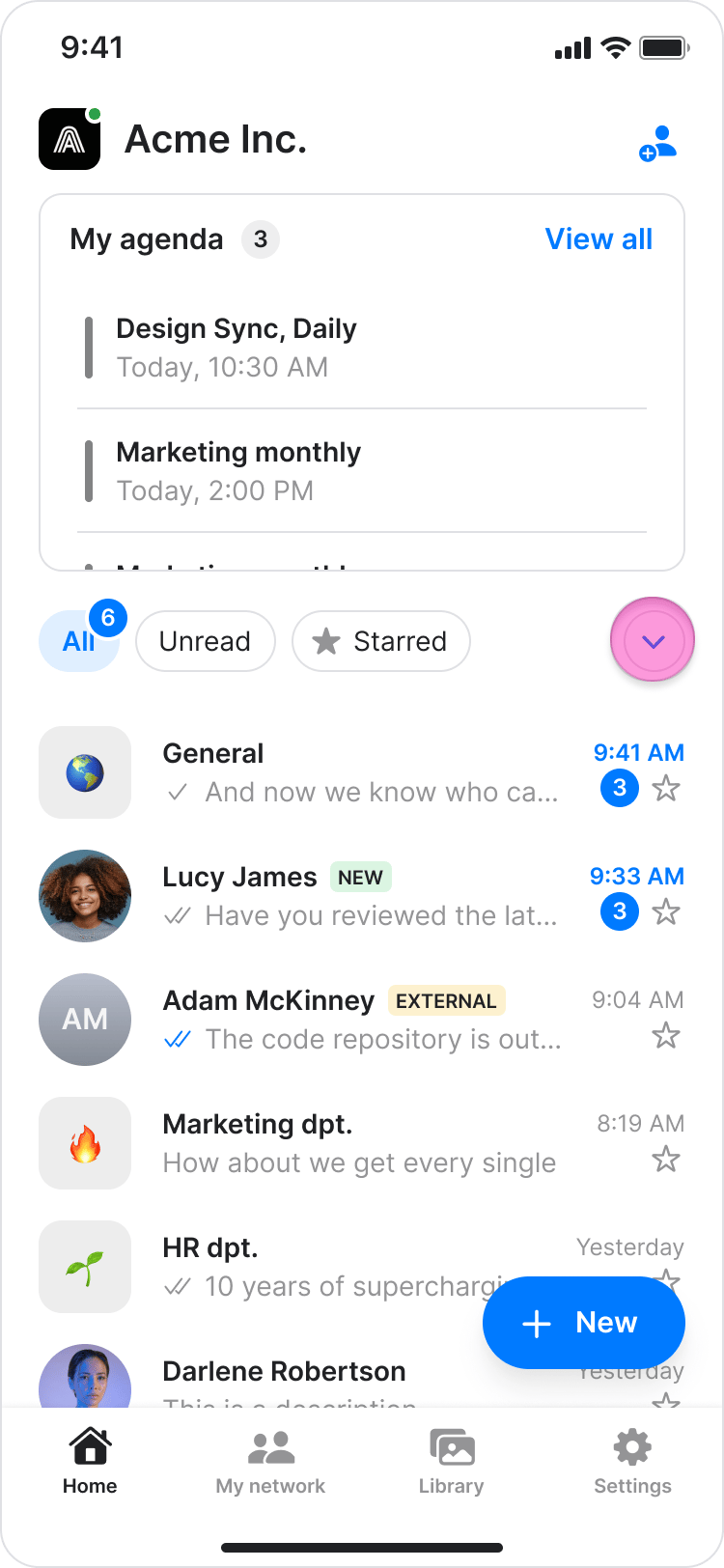
Follow these steps to create a new custom folder on the mobile app.- From the Home screen, tap the dropdown arrow next to your folder tabs to open “Folders & Categories”.
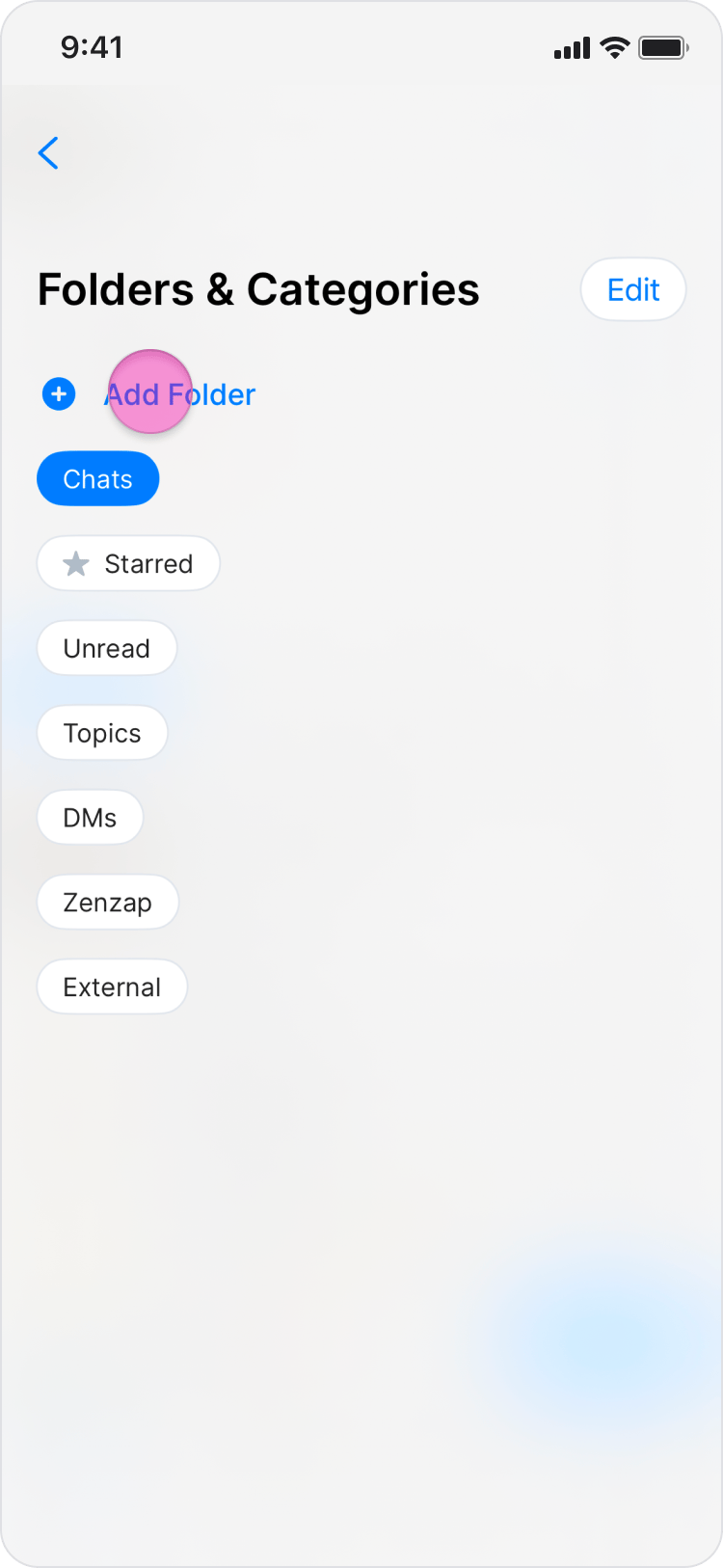
- Tap “Add Folder”.
- Enter a name for your new folder.
- Tap “Save” in the top-right corner.
Edit Folders
Follow these steps to reorder, rename, or hide your folders on the mobile app.- From the Home screen, tap the dropdown arrow next to your folder tabs to open “Folders & Categories”.
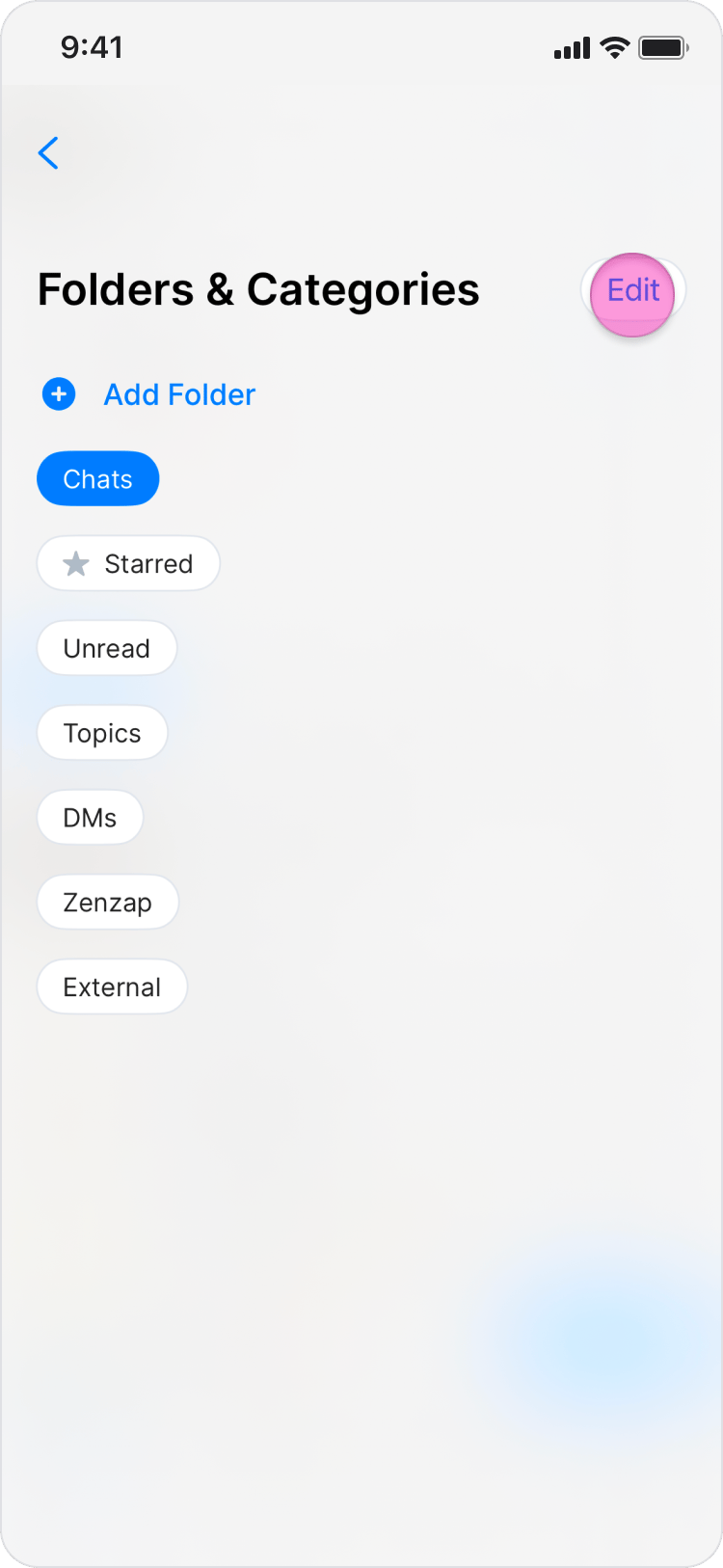
- Tap “Edit” in the top-right corner.
-
From here you can:
- Show or hide folders: Tap the blue circle next to each folder to show or hide it from your home screen tabs.
- Reorder folders: Tap and hold the menu icon (three horizontal lines) and drag the folder to a new position.
- Rename a folder: Tap the pencil icon next to a custom folder to edit its name.
- Delete a folder: Tap the trash icon next to a custom folder to delete it.
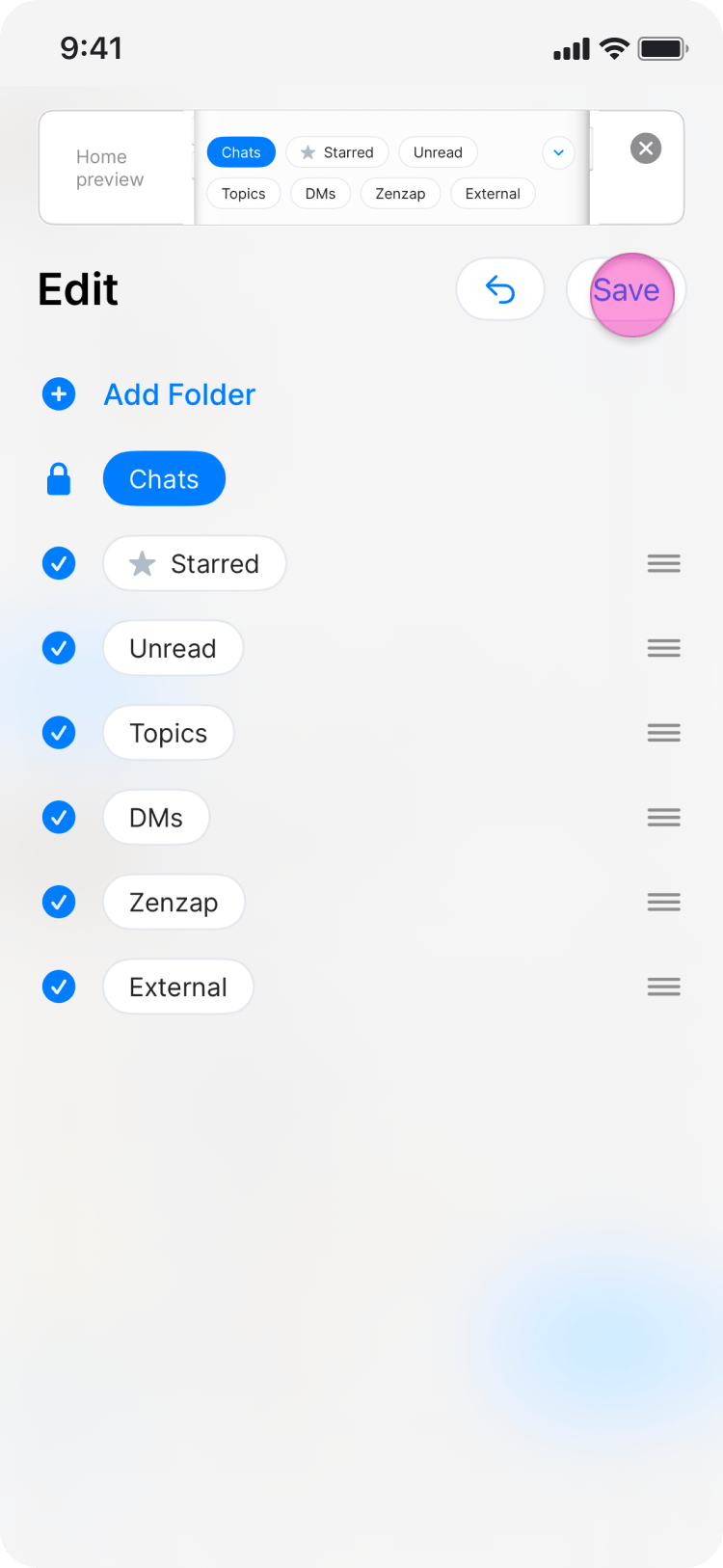
- Tap “Save” in the top-right corner when you’re finished.
On Desktop (Windows, macOS, & Web App)
Create a New Folder
Follow these steps to create a new custom folder on desktop.- In the left sidebar under “Favorites”, click “Add new”.
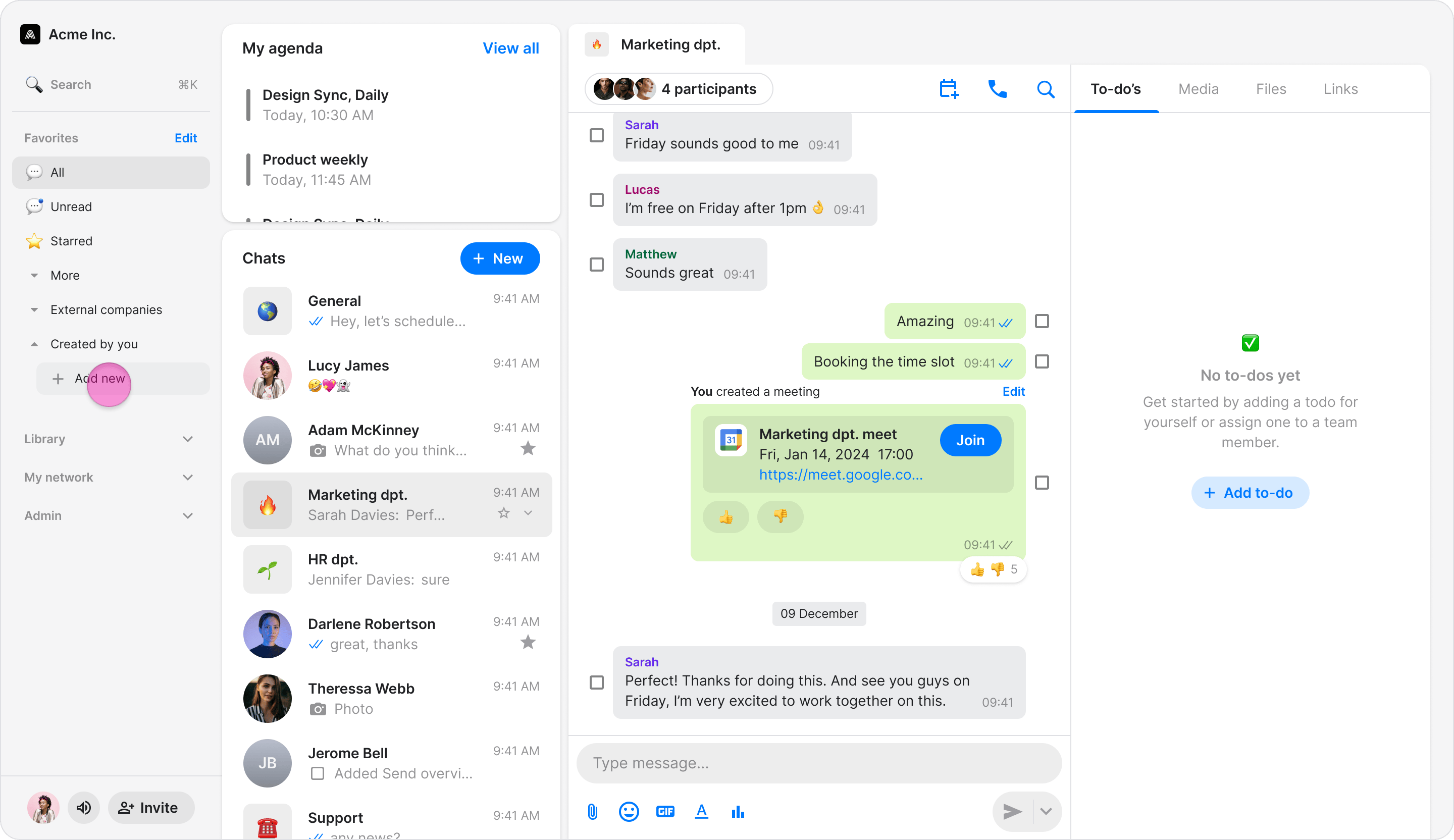
- In the “Add folder” dialog, enter a name for your folder.
- Click “Add folder” to create it.
Edit Folders
Follow these steps to reorder or hide your folders on desktop.- In the left sidebar under “Favorites”, click “Edit”.
-
From here you can:
- Show or hide folders: Check or uncheck the box next to each folder.
- Reorder folders: Click and hold the drag icon (six dots) and drag the folder to a new position.
- Click “Save” when you’re finished, or “Cancel” to discard changes.