
On Mobile (iOS & Android)
Use the Zenzap mobile app to send manual invitations via email or SMS directly to team members.-
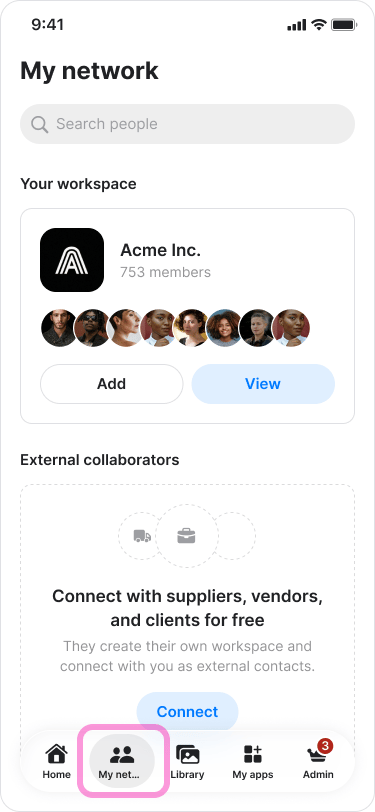
Go to the “My network” tab on the bottom menu.
-
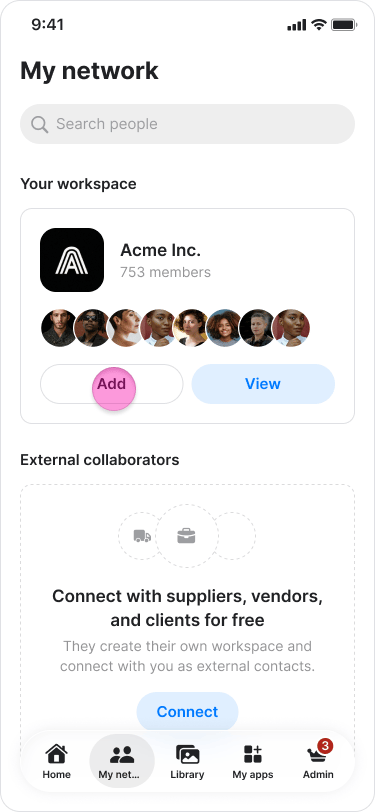
Under your “Workspace’s name” tap “Add”.
-
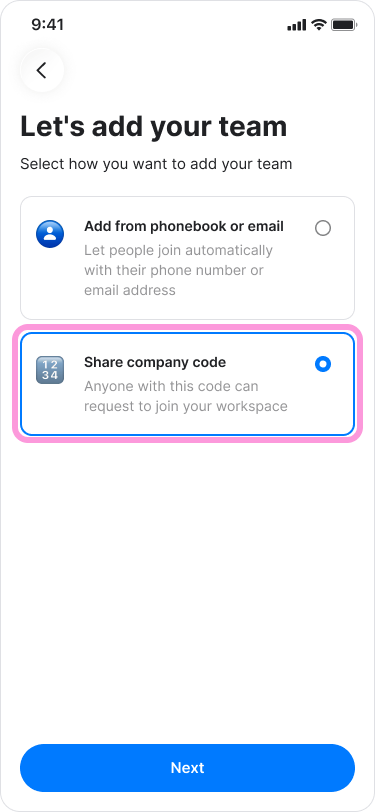
Choose “Share Company code”.
-
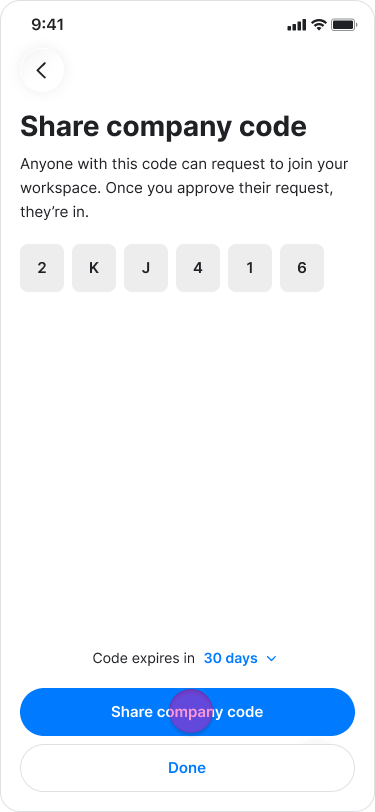
Tap “View company code”.
-
Share it with your team.
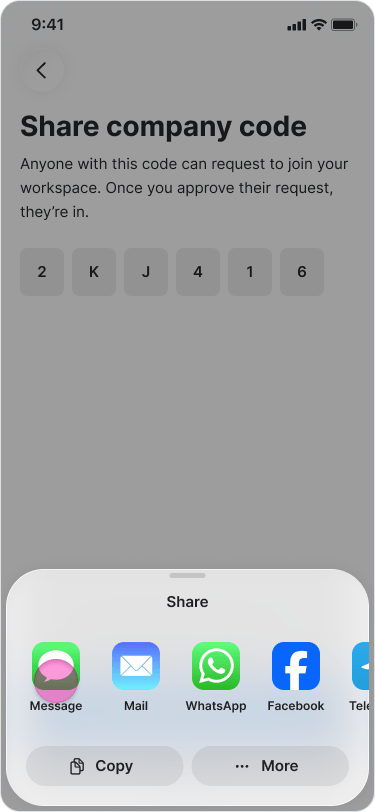
-
Tap “Done” at the top right corner.
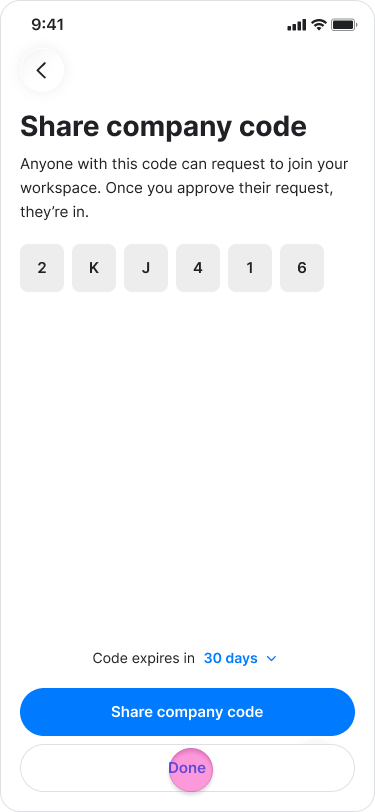
- You can decide if—and for how long—the code remains active before it expires.
- Before sending the code, you must enable this option in your Adminsettings.
On Desktop (Windows, macOS, & Web App)
- Select the “All contacts” tab in the menu at the left side (on Windows & Web app). Select the “My company” tab in the menu at the left side (on macOS).
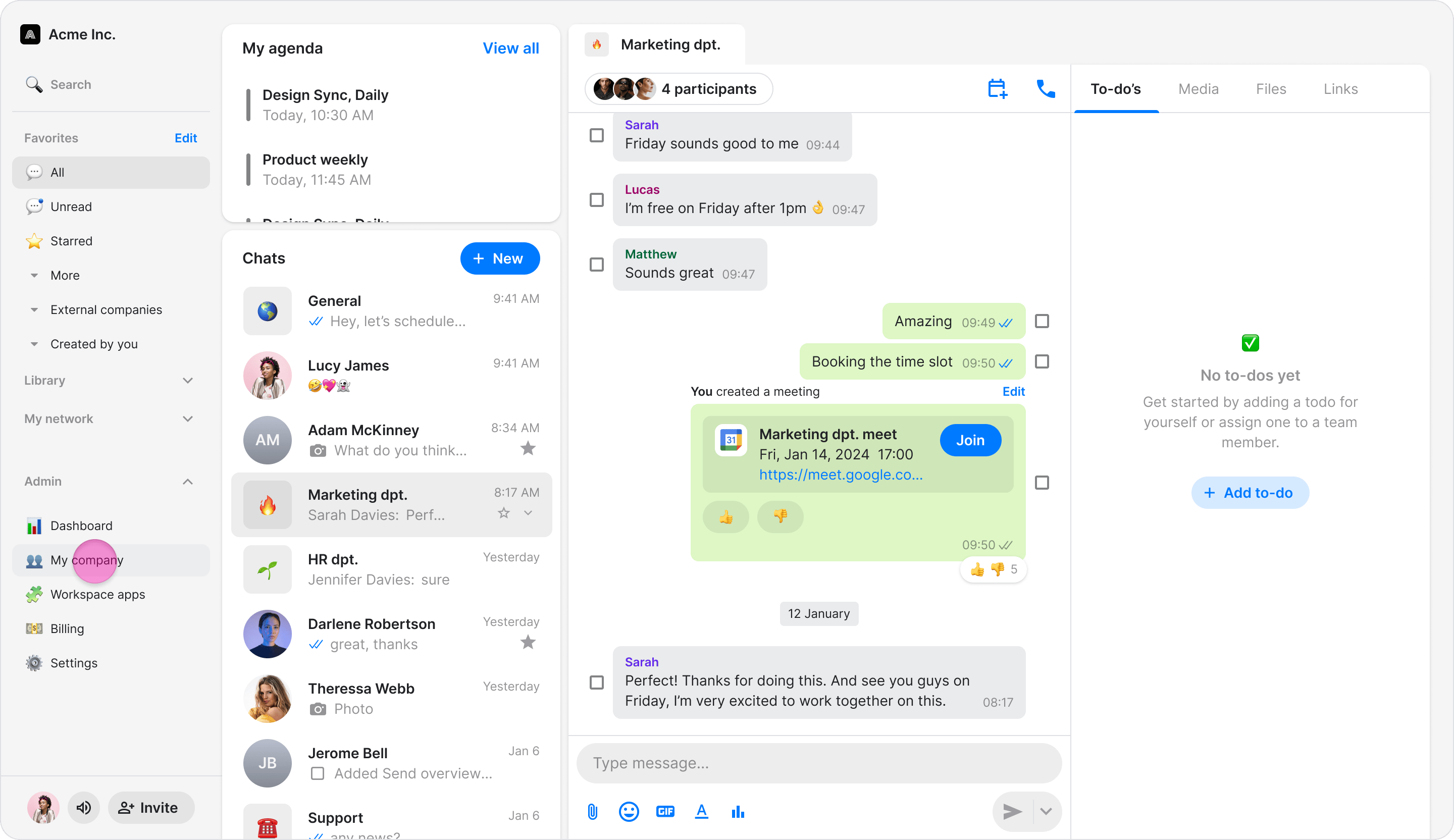
- Click “+ Add member”.
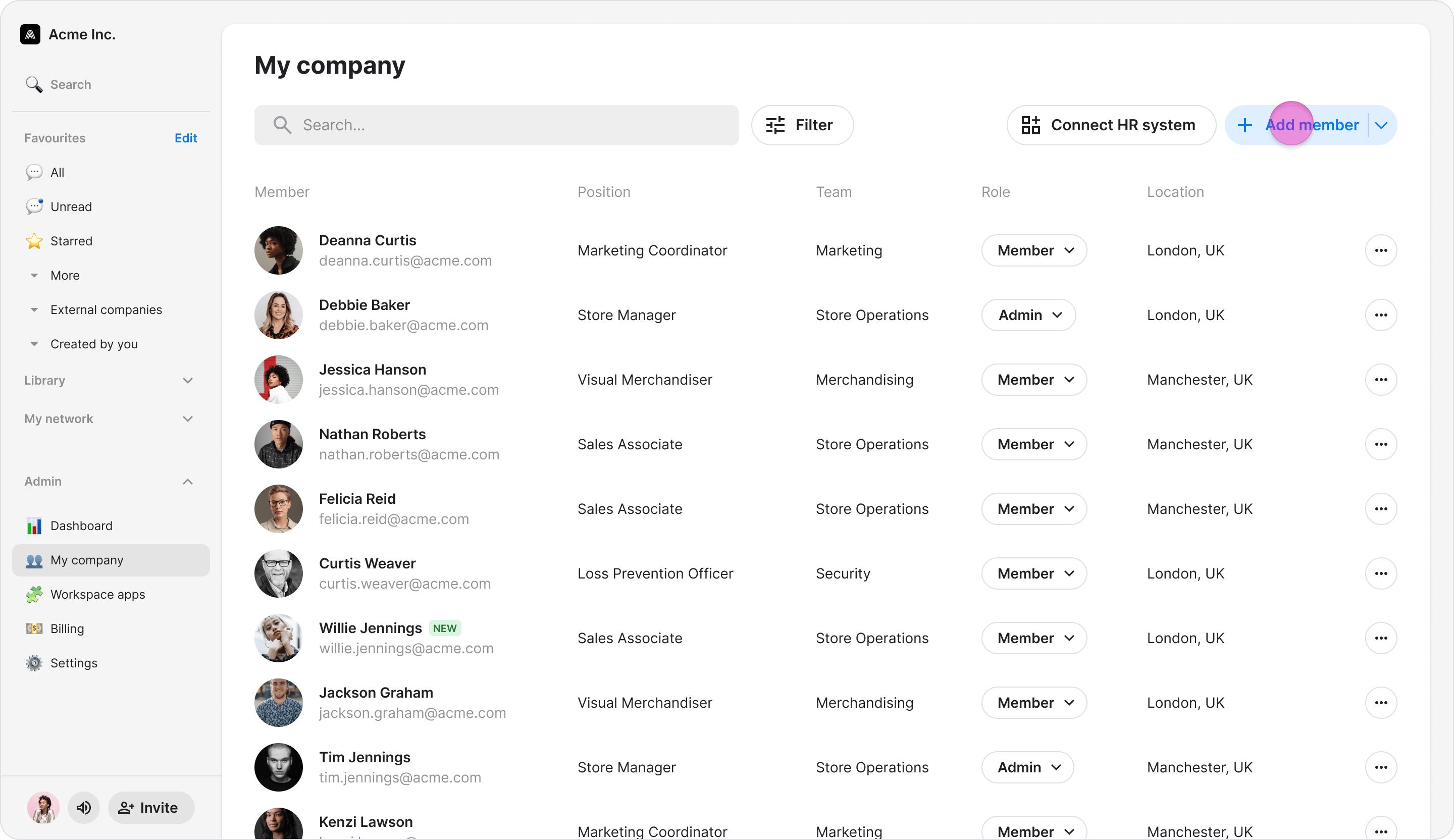
- Choose “Share company code”.
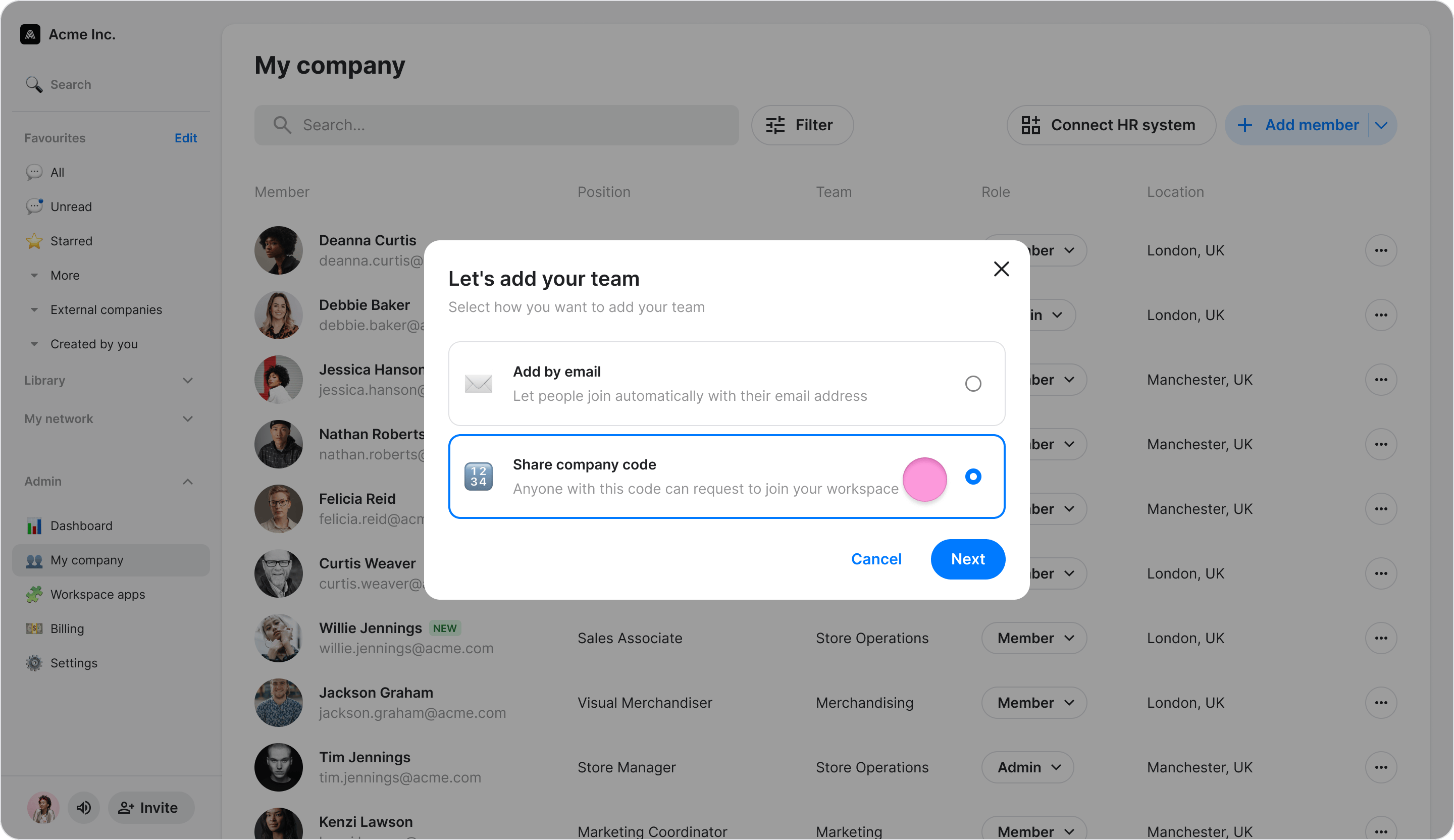
- Click “Next”.
- Click “Next” again (on Windows & Web app) or “View company code” (on macOS).
- Share it with your team.
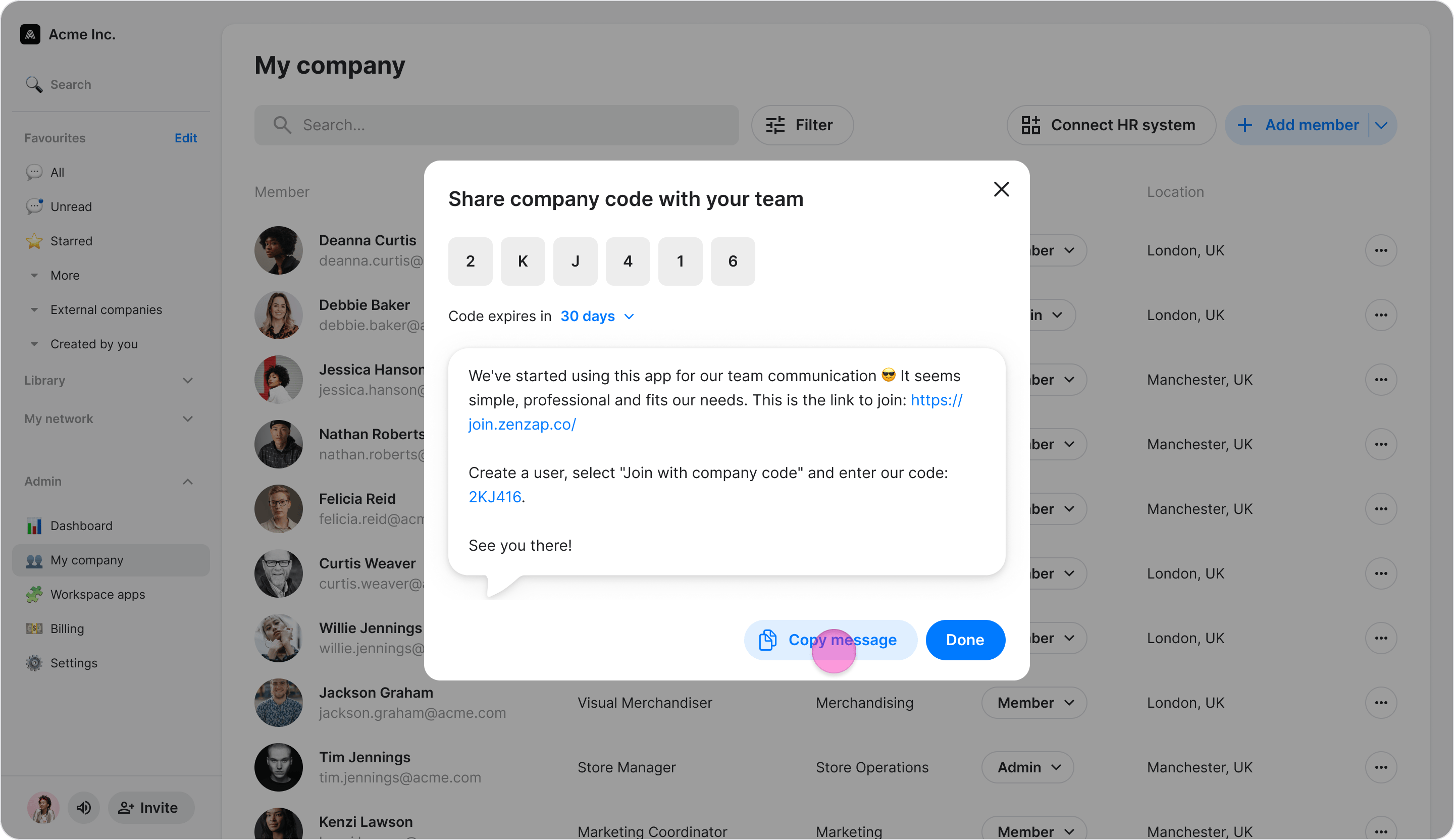
- Click “Done”.
- You can decide if—and for how long—the code remains active before it expires.
- Before sending the code, you must enable this option in your Adminsettings.