On Mobile (iOS & Android)
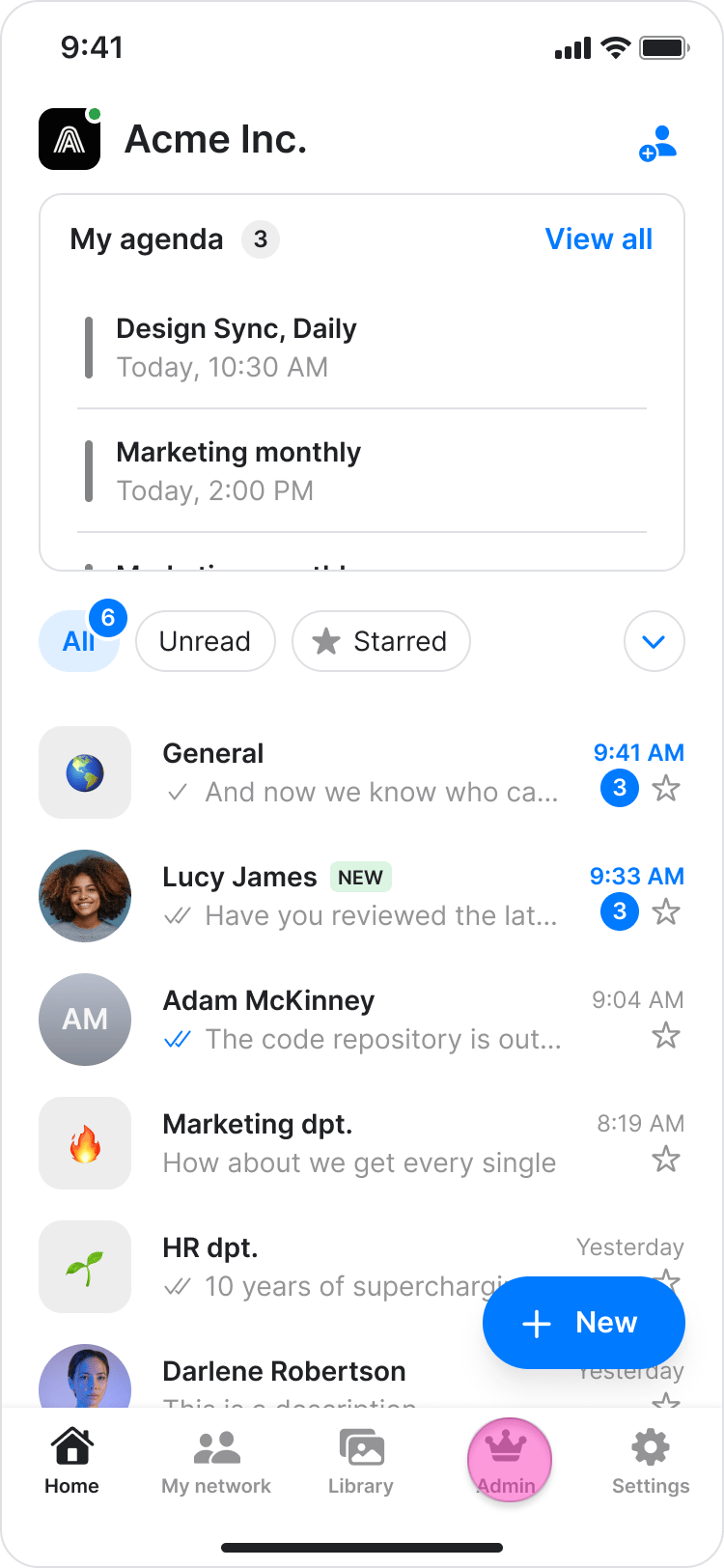
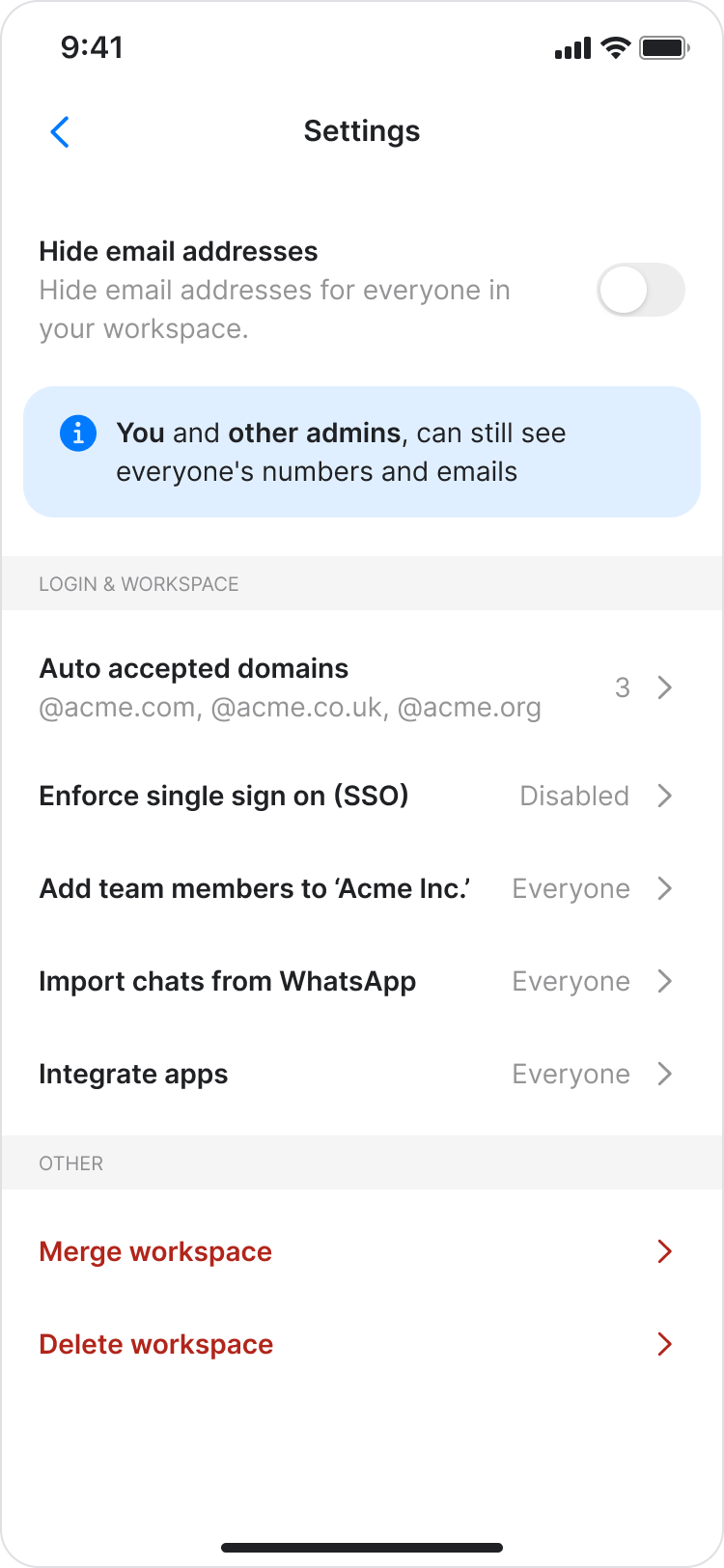
Follow these steps to manage your workspace settings directly from the Zenzap mobile app.- Tap the “Admin” tab at the bottom of your screen.
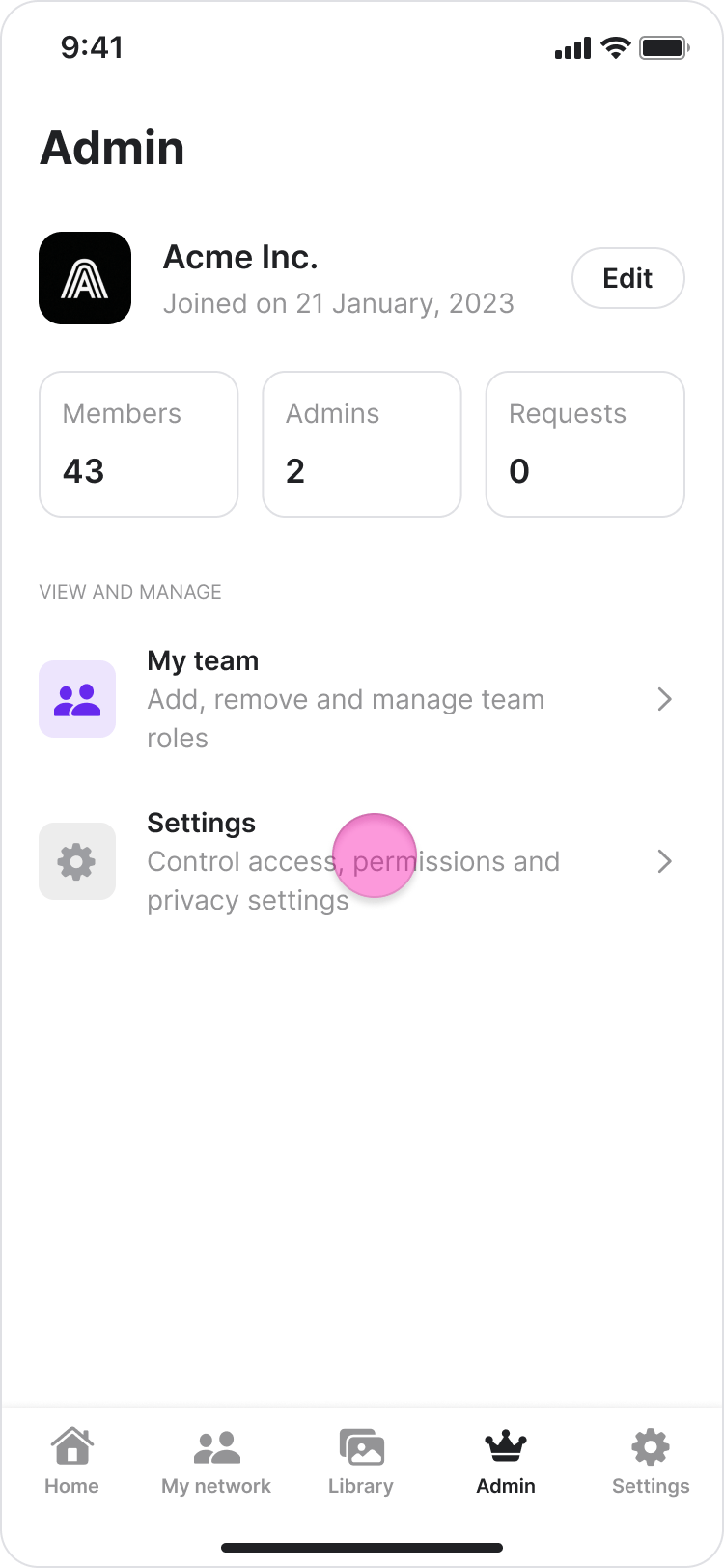
- Tap “Settings”.
-
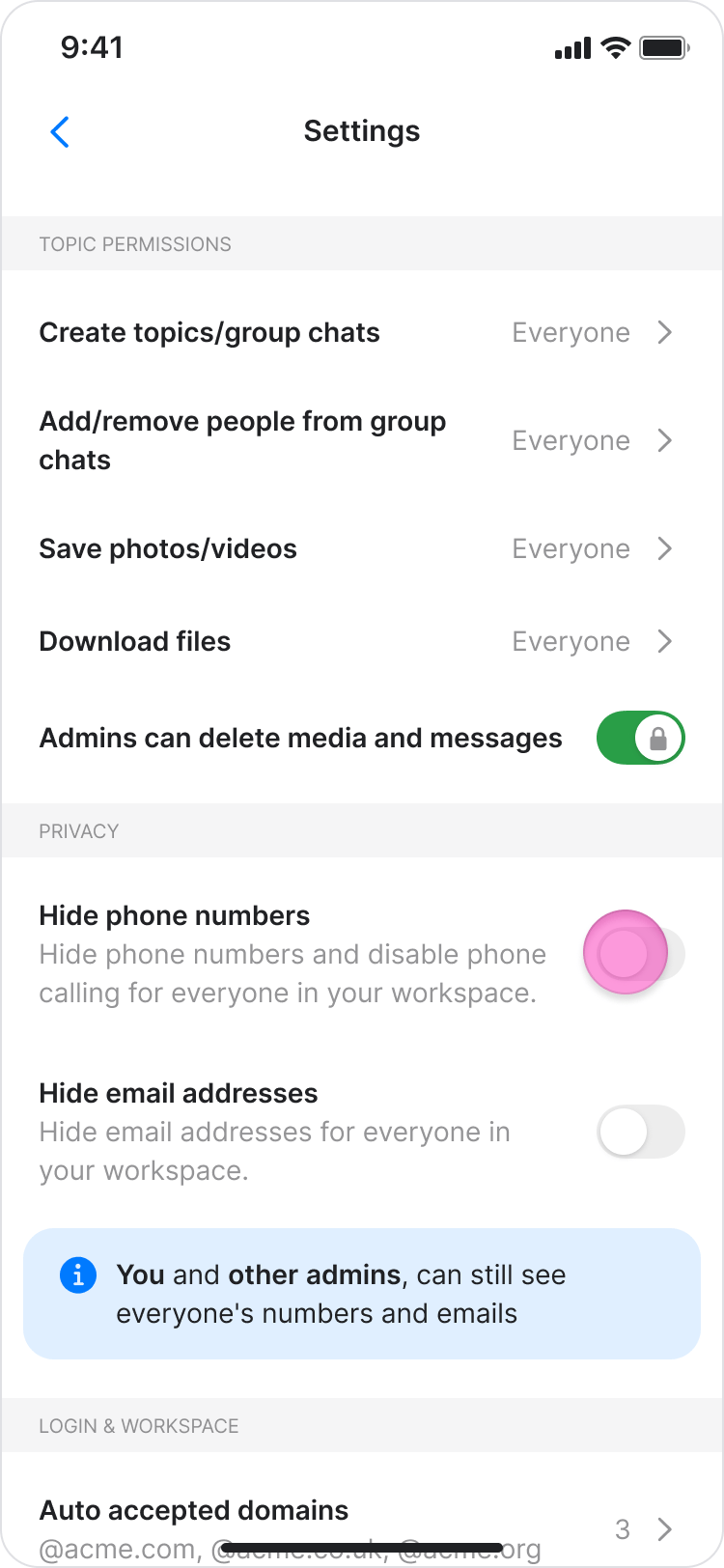
Under the “Topic Permissions” section, set who can:
- Create topics/group chats (“Everyone” or “Admins only”)
- Add/remove people from group chats (“Everyone” or “Admins only”)
- Save photos/videos (“Everyone” or “Admins only”)
-
Under the “Privacy” section, configure workspace visibility:
- Toggle “Hide phone numbers” to hide phone numbers and disable phone calling for everyone in your workspace.
- Toggle “Hide email addresses” to hide email addresses for everyone in your workspace.
-
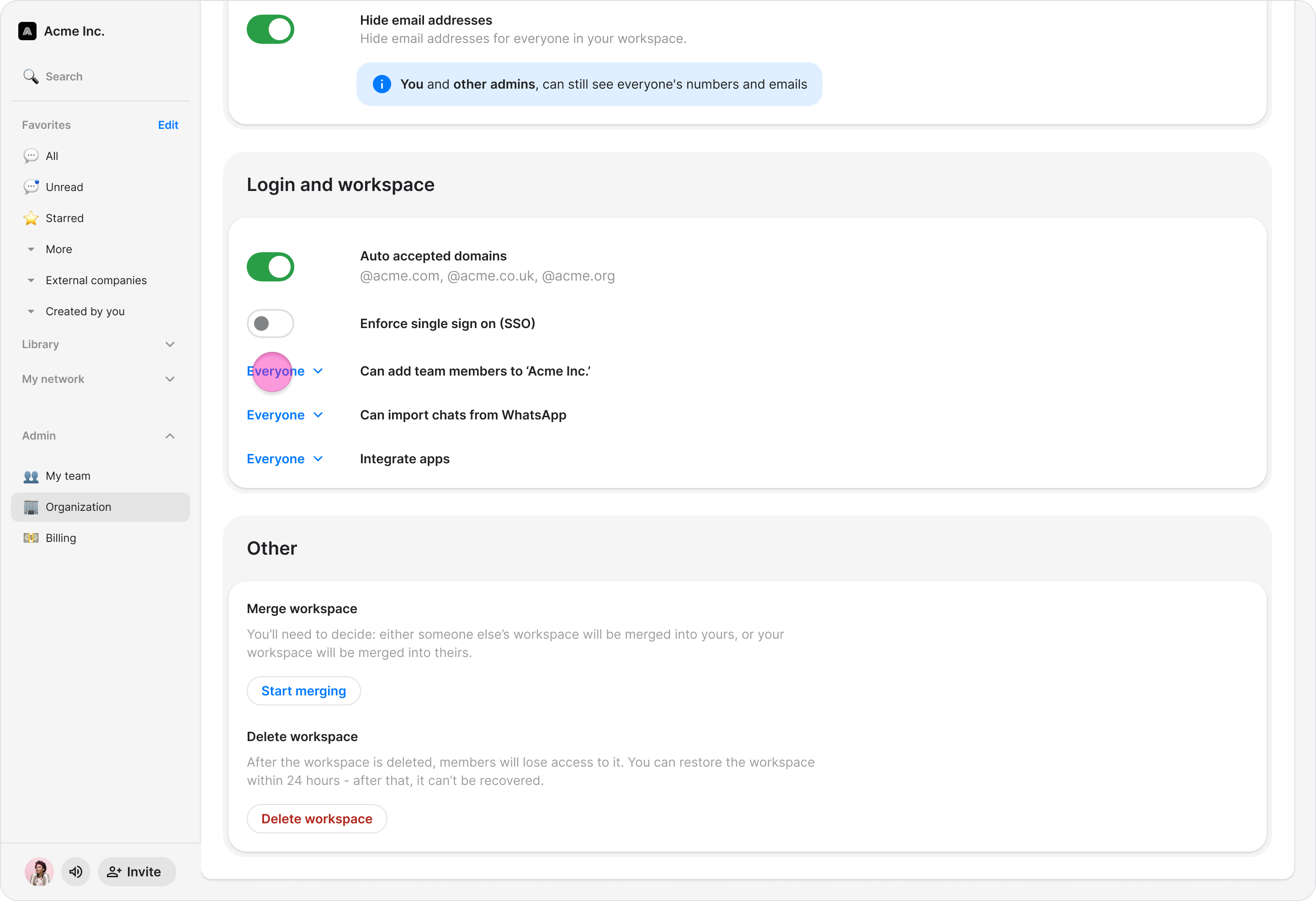
Under the “Login & Workspace settings” section, configure how members join:
- Auto-accepted domains: Team members with an email that shares the same domain as you will automatically be added to your workspace. You can disable this feature here.
- Add team members to Workspace: Set permissions for who can invite/add new members to the workspace (“Everyone” or “Admins only”).
- Import chats from WhatsApp: Set permissions for who can import WhatsApp chats (“Everyone” or “Admins only”).
On Desktop (Windows, macOS, & Web App)
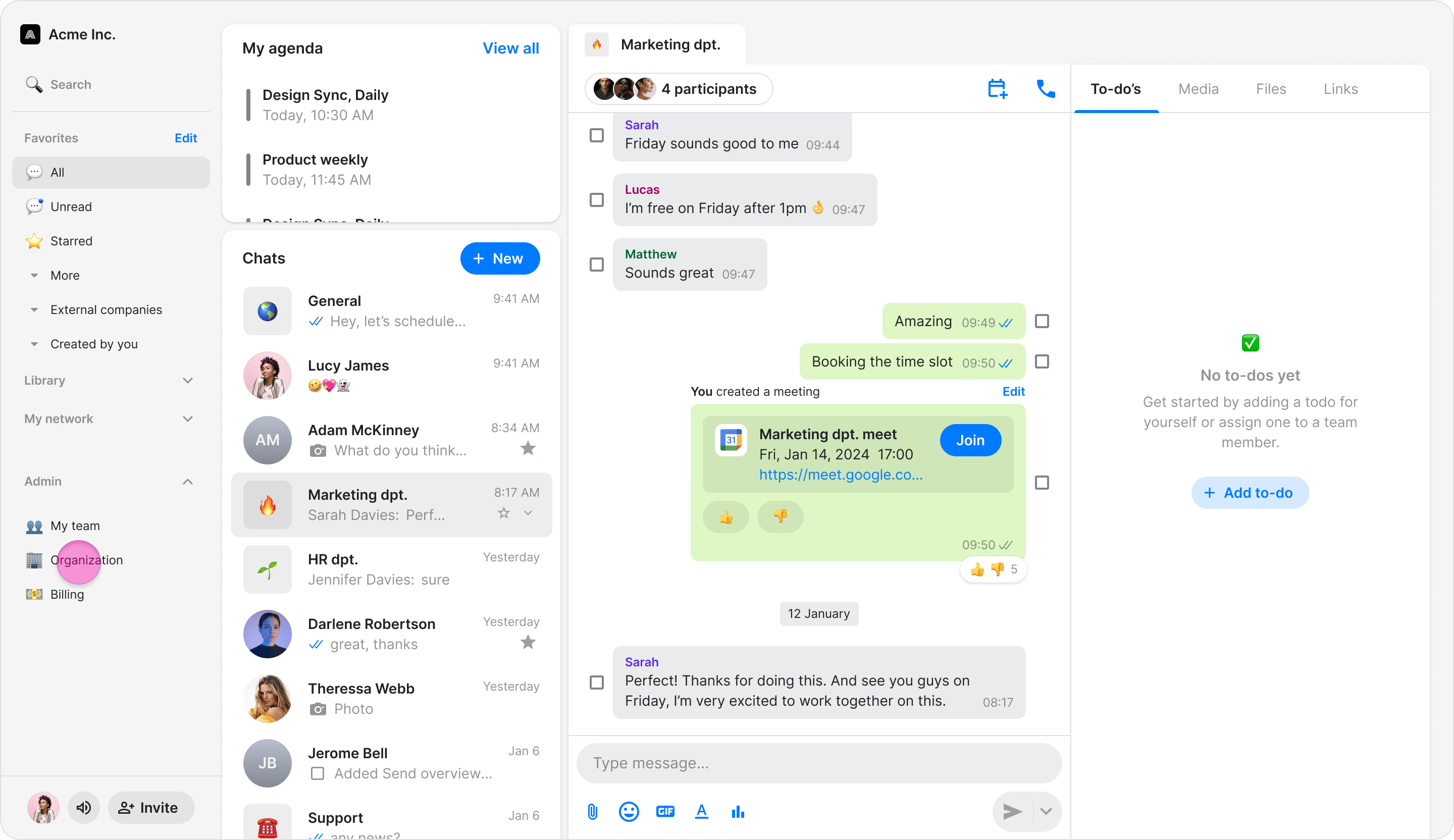
Follow these steps to manage your workspace settings from the Zenzap desktop or web app.- In the sidebar on the left of the screen, click “Organization”.
-
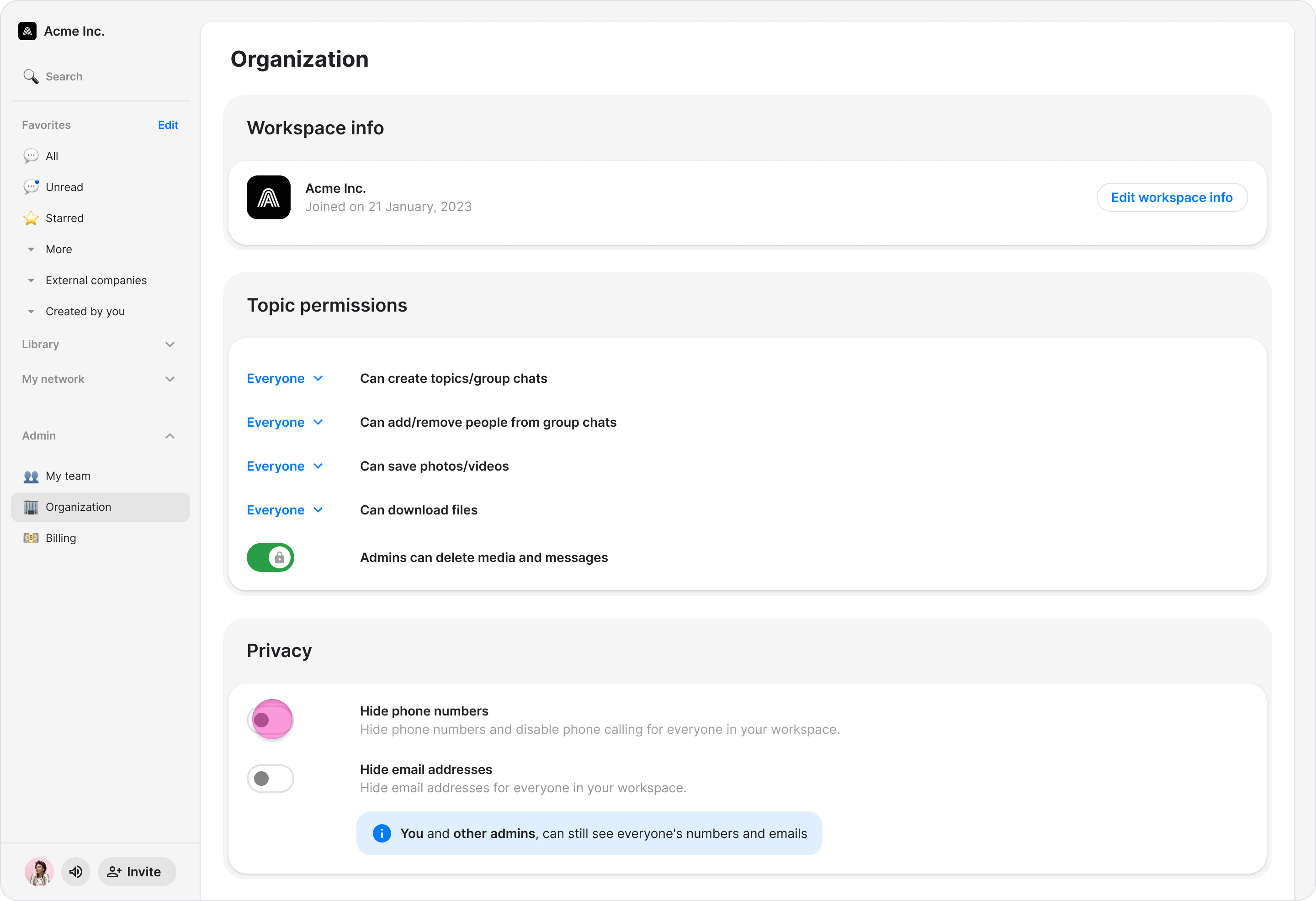
In the “Topic Permissions” section, set who can:
- Create topics/group chats (“Everyone” or “Admins only”)
- Add/remove people from group chats (“Everyone” or “Admins only”)
- Save photos/videos (“Everyone” or “Admins only”)
-
In the “Privacy” section, configure workspace visibility:
- Toggle “Hide phone numbers” to hide phone numbers and disable phone calling for everyone in your workspace.
- Toggle “Hide email addresses” to hide email addresses for everyone in your workspace.
-
In the “Login & Workspace settings” section, configure how members join your workspace:
- Auto-accepted domains: Team members with an email that shares the same domain as you will automatically be added to your workspace. You can disable this feature here.
- Add team members to Workspace: Set permissions for who can invite/add new members to the workspace (“Everyone” or “Admins only”).
- Import chats from WhatsApp: Set permissions for who can import WhatsApp chats (“Everyone” or “Admins only”).