
On Mobile (iOS & Android)
Your agent can remember relevant information from your conversations automatically, or you can add memories manually. You can use memories to help your agent remember things like:- Your time zone or working hours
- Your role or team
- Recurring tasks and preferences
- Formatting or style guidelines
- Key contacts and their responsibilities
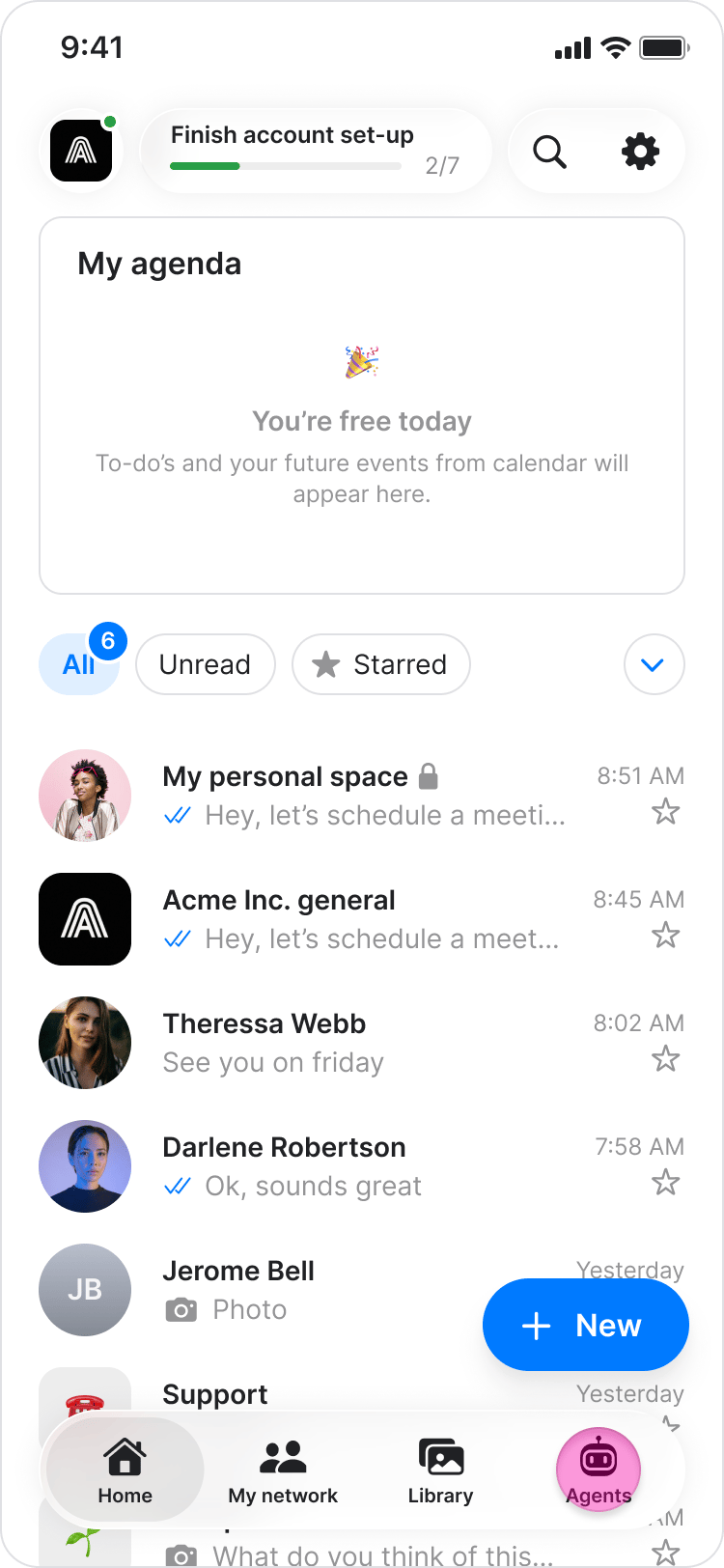
- Go to “Agents”.
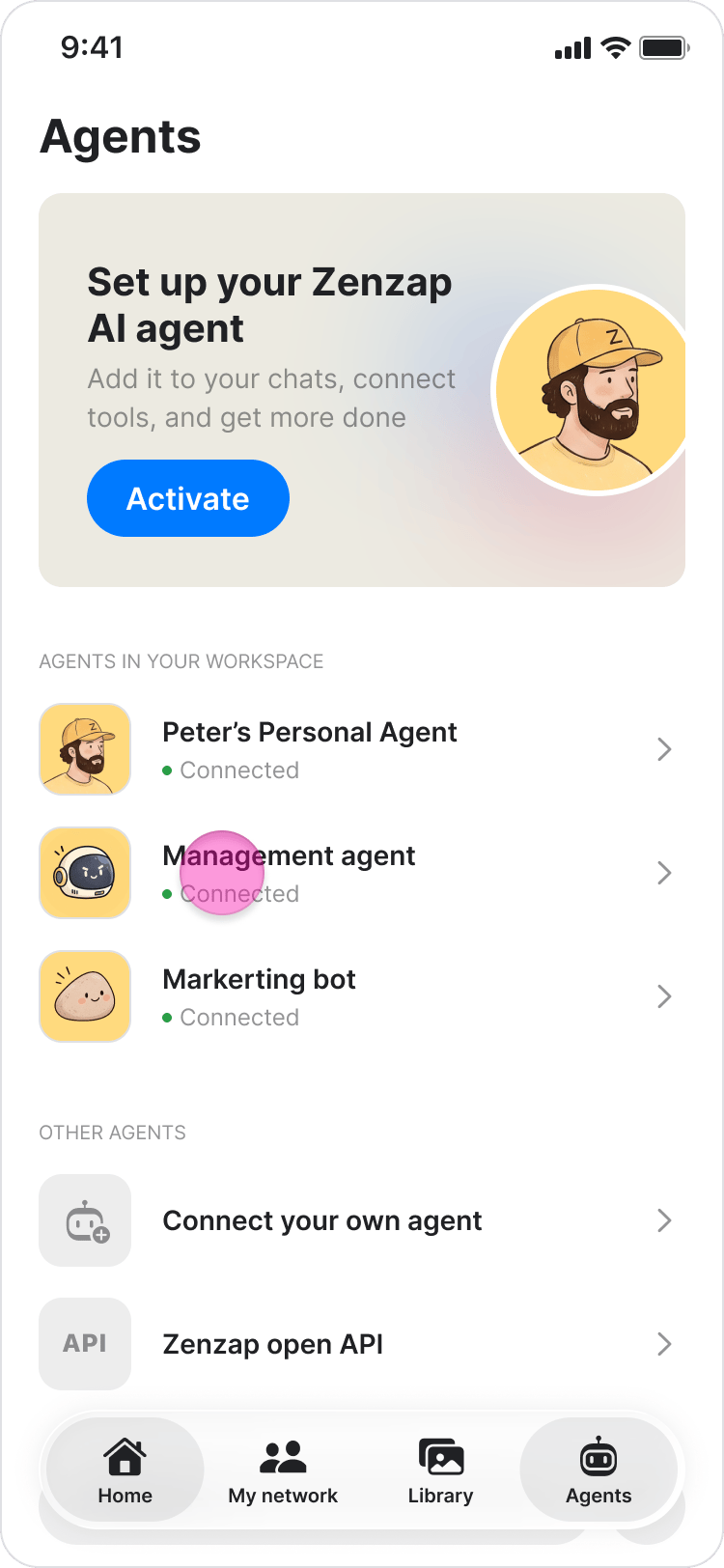
- Select the relevant agent.
- Tap “Memory”.
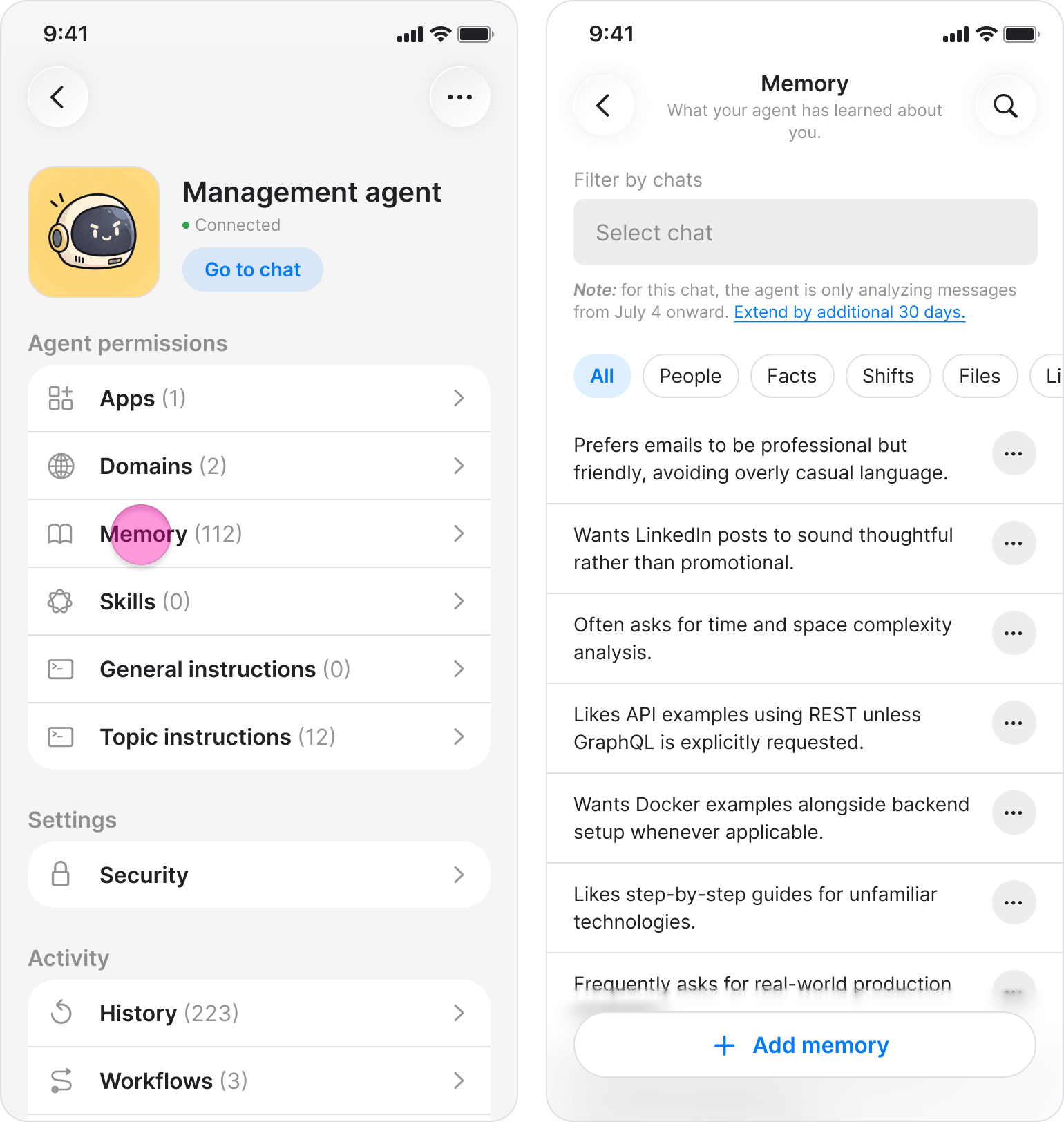
- Memories are associated with the chat where they were created or added, so the memories available in a specific chat may differ from the agent’s full list.
- If your agent has not saved any memories yet, the Memory screen displays “No saved memories yet.”
- If you delete a chat, its associated memories are also deleted.
- Go to “Agents”.
- Select the relevant agent.
- Tap “Memory”.
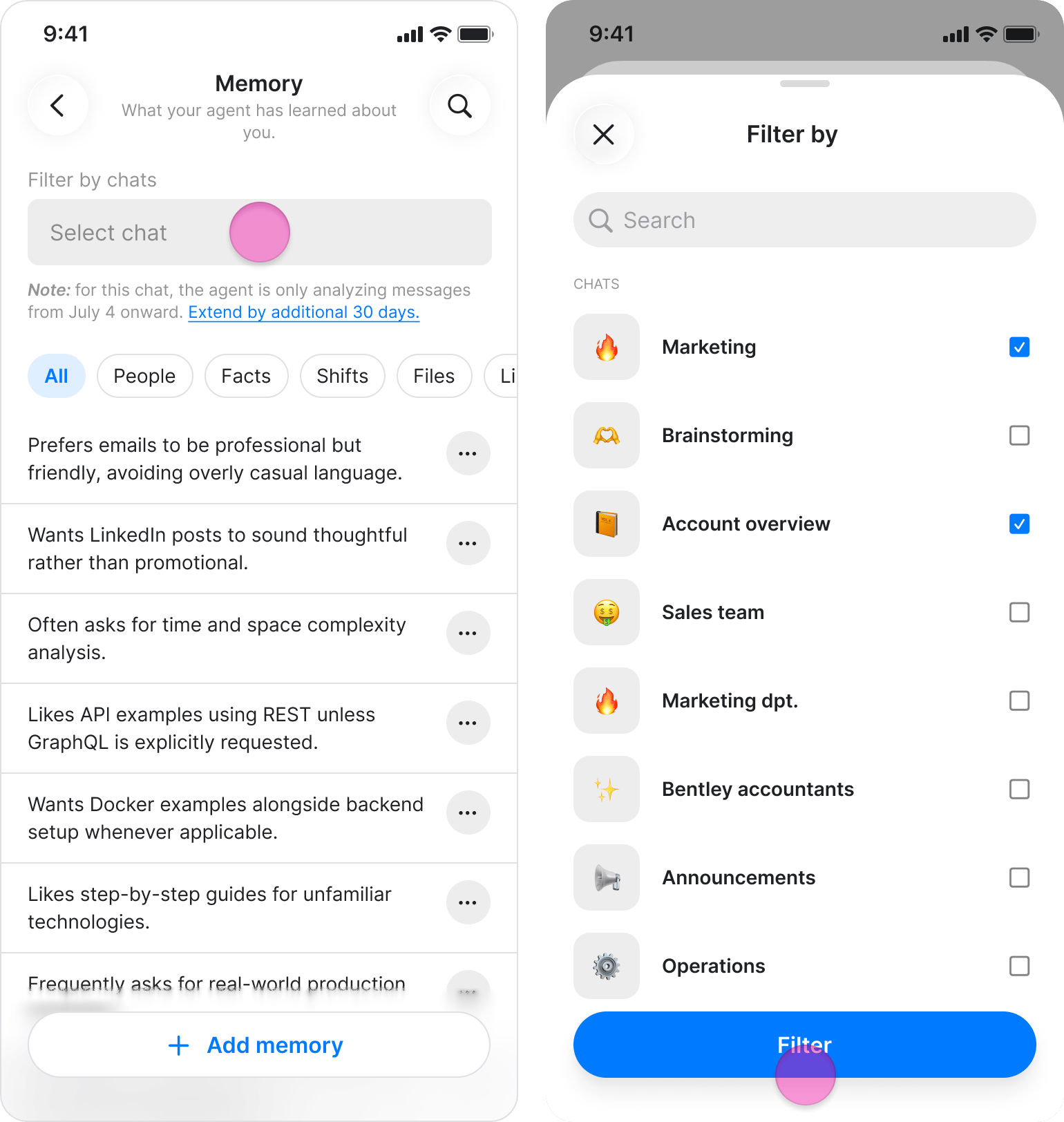
- Under “Filter by chats”, select one or more chats.
- Go to “Agents”.
- Select the relevant agent.
- Tap “Memory”.
- Tap ”+ Add memory”
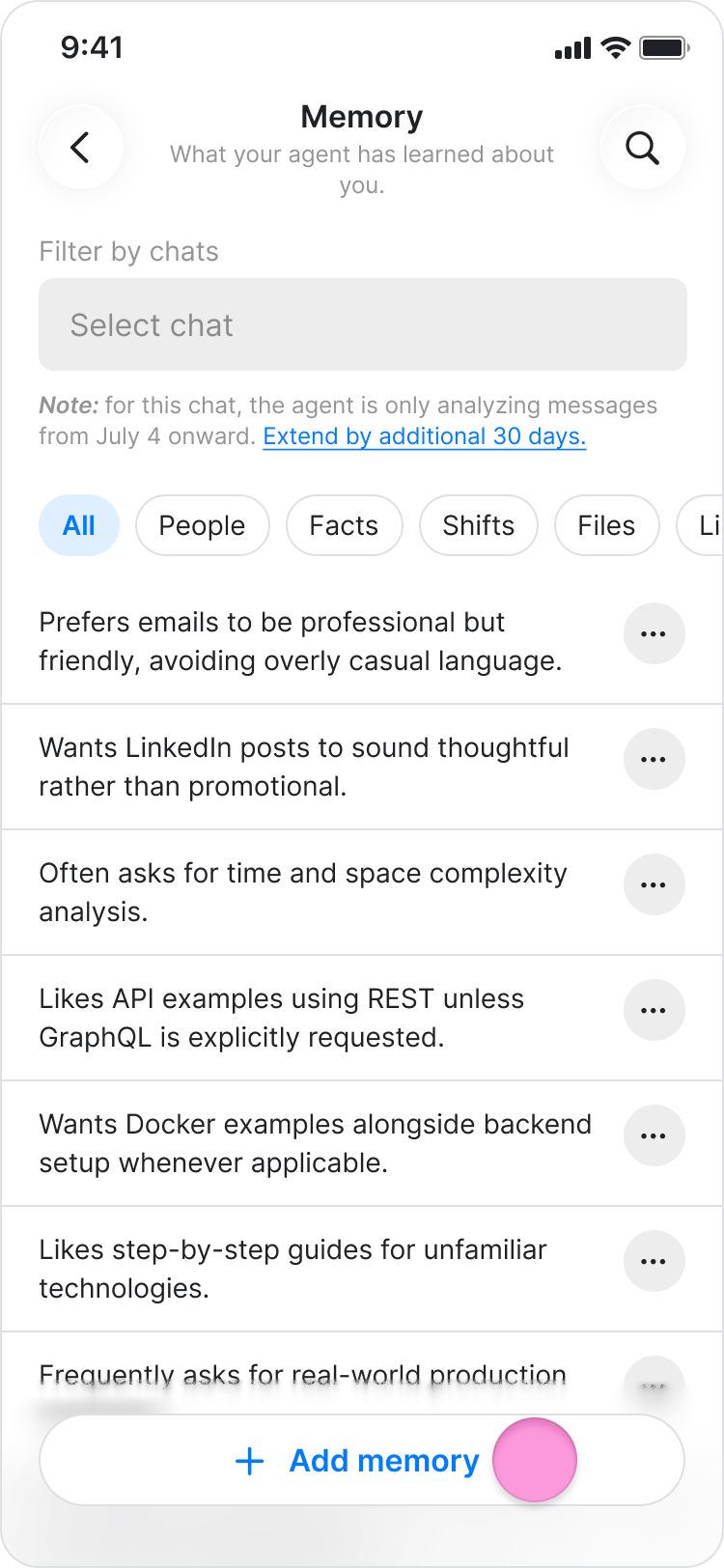
- Enter the information you want the agent to remember.
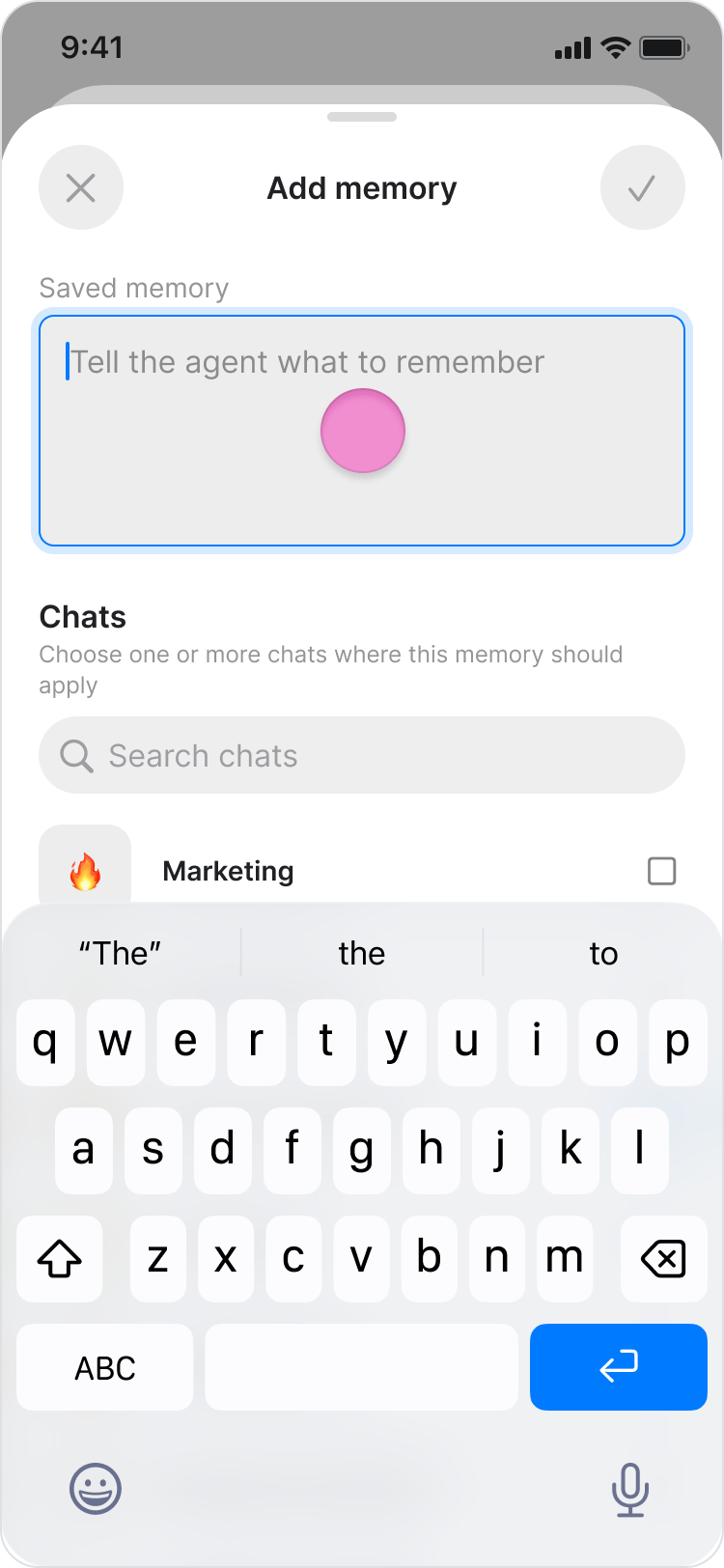
- Select the chat where you want to add the memory.
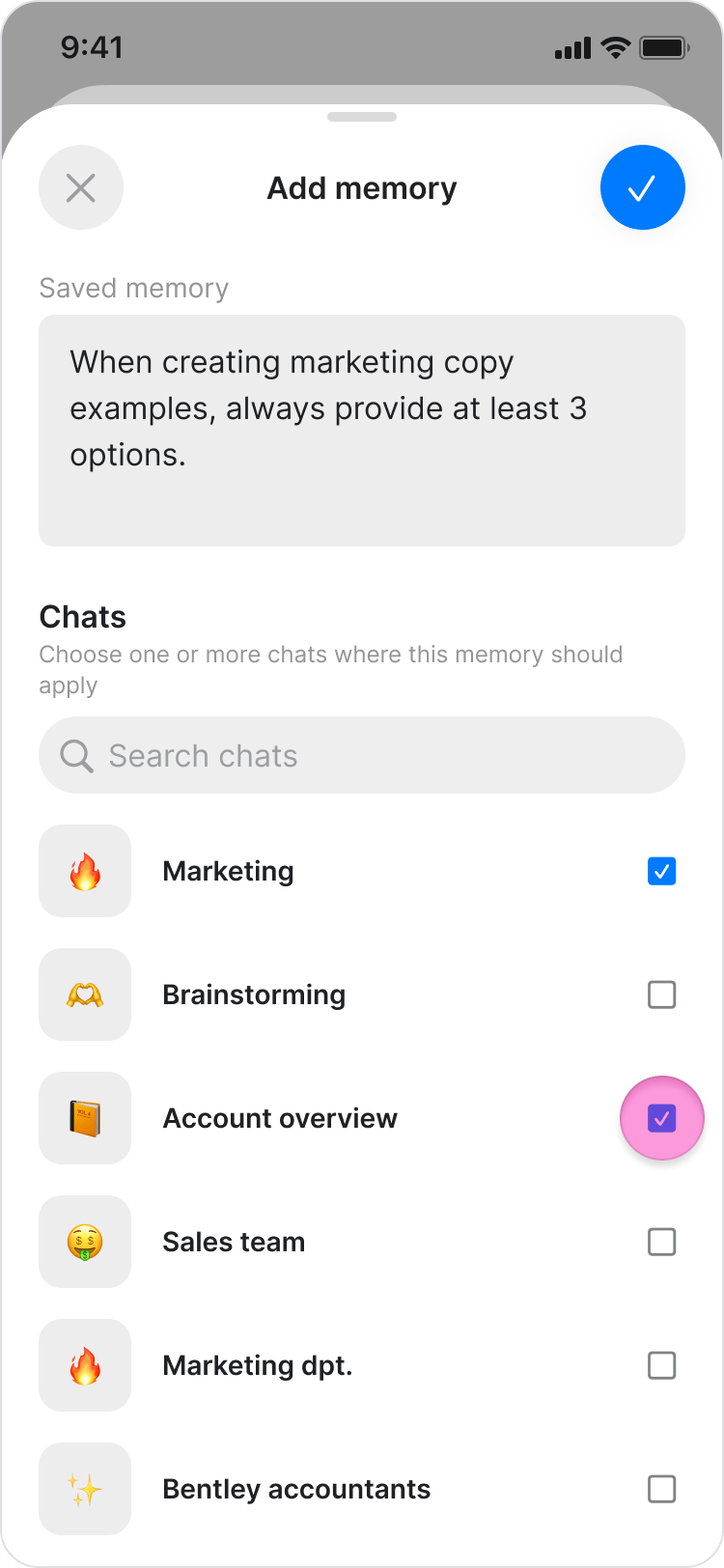
- Tap the Checkmark icon at the top right corner to confirm.
- Go to “Agents”.
- Select the relevant agent.
- Tap “Memory”.
- On the Memory screen, tap the three dots icon next to the memory you want to edit.
- Tap “Edit”
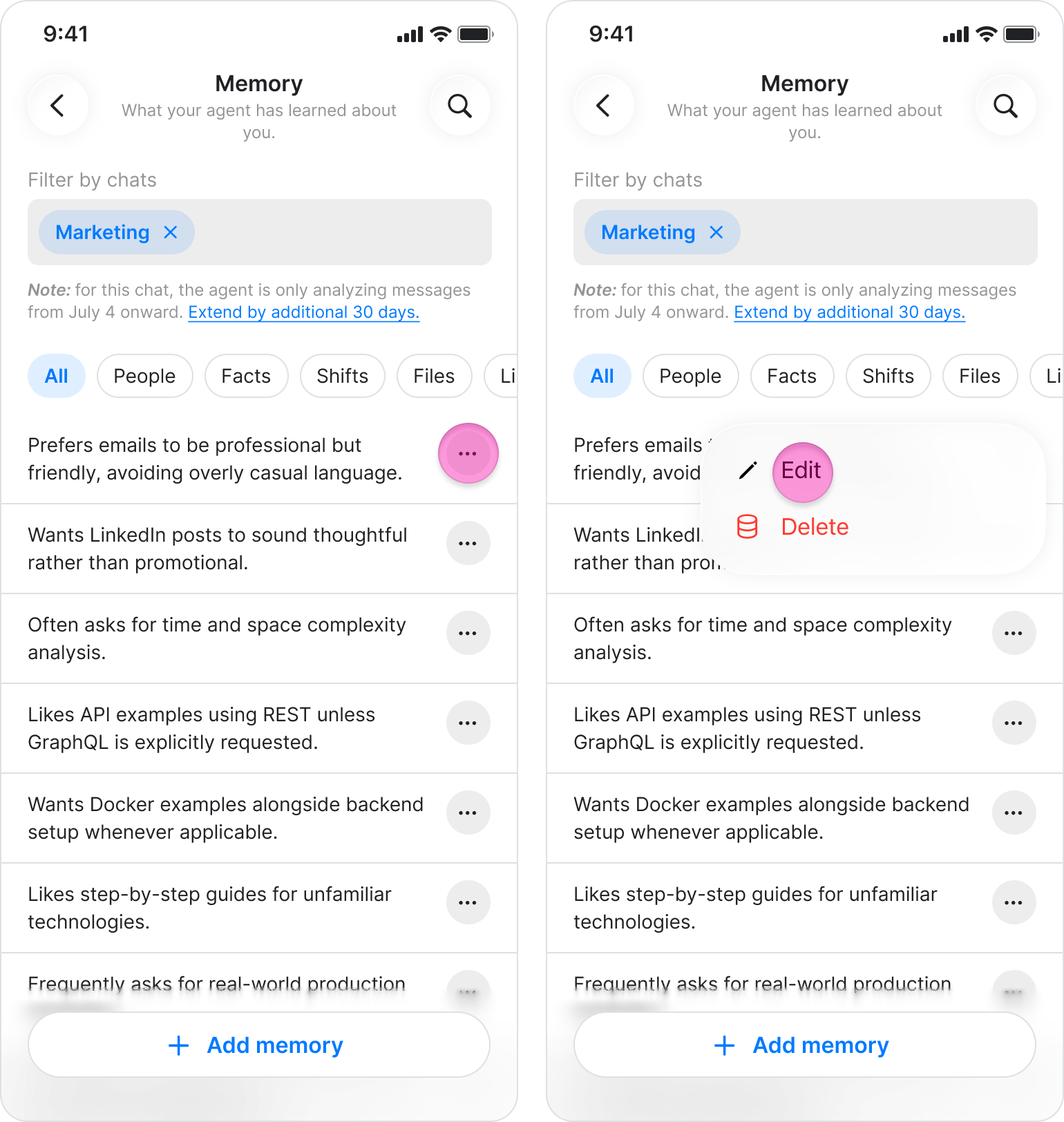
- Edit the memory text.
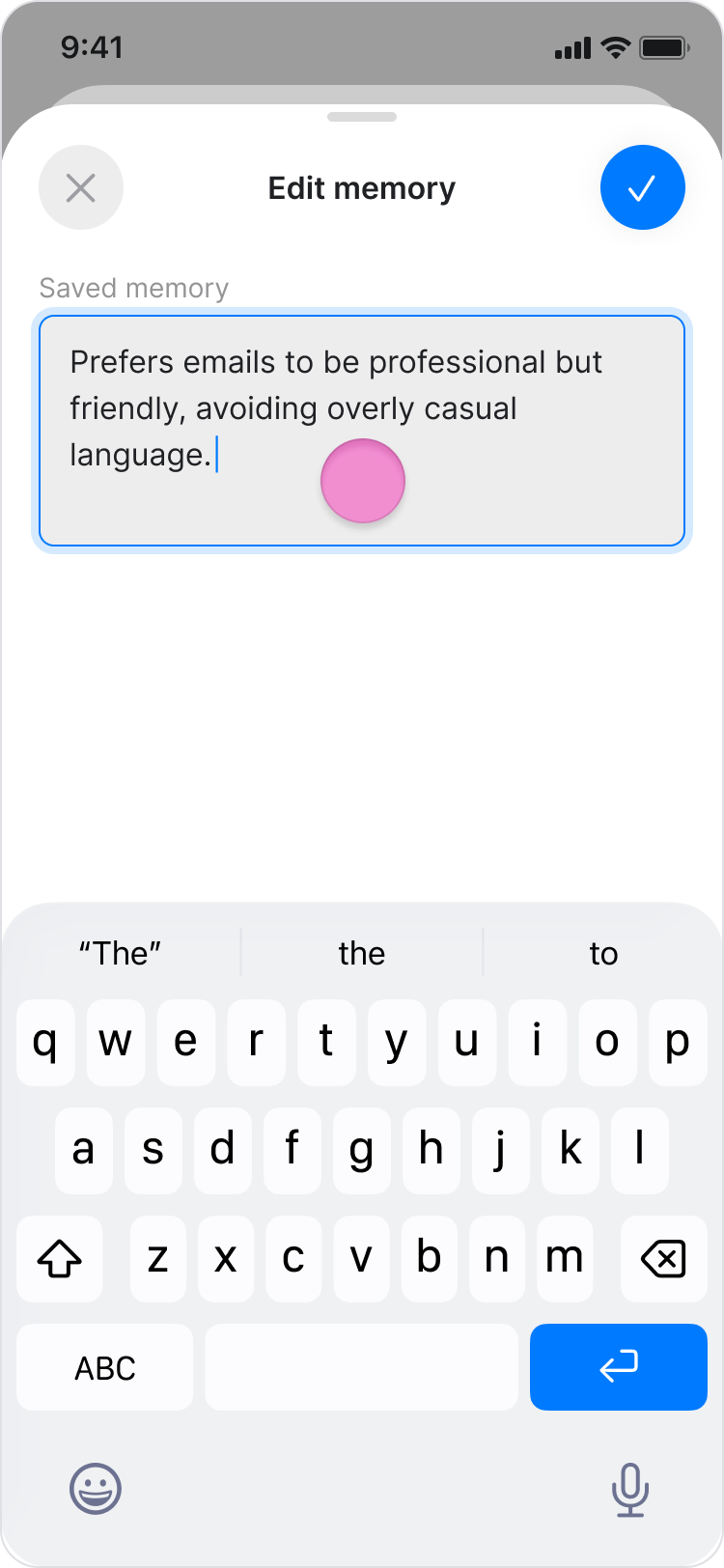
- Tap the Checkmark icon at the top right corner to confirm.
- Go to “Agents”.
- Select the relevant agent.
- Tap “Memory”.
- On the Memory screen, tap the three dots icon next to the memory you want to remove.
- Tap “Delete.”
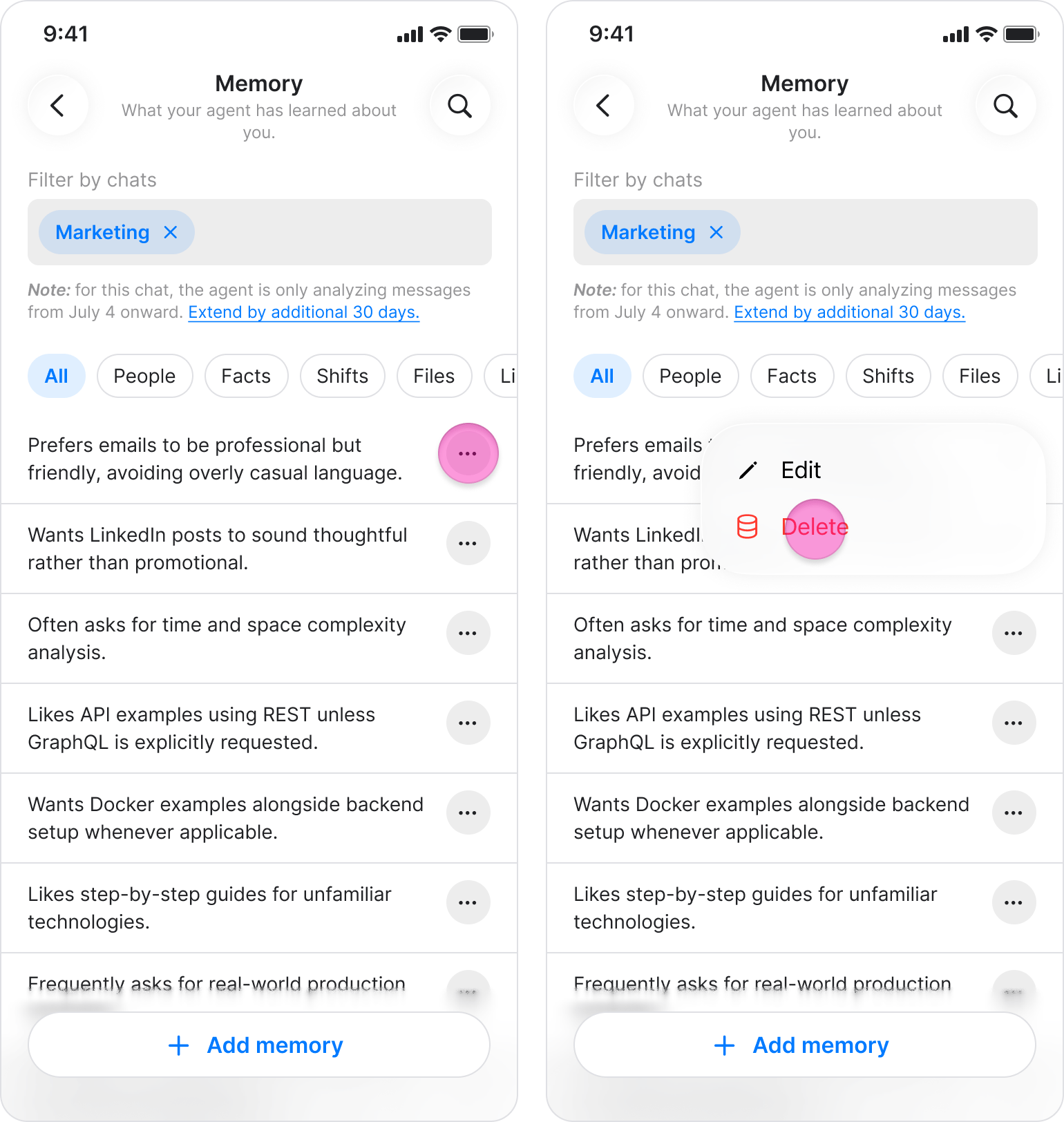
- In the confirmation dialog, confirm the deletion.
On Desktop (Windows, macOS, & Web App)
Your agent can remember relevant information from your conversations automatically, or you can add memories manually. You can use memories to help your agent remember things like:- Your time zone or working hours
- Your role or team
- Recurring tasks and preferences
- Formatting or style guidelines
- Key contacts and their responsibilities
- Go to “Agents”.

- Choose the relevant agent.

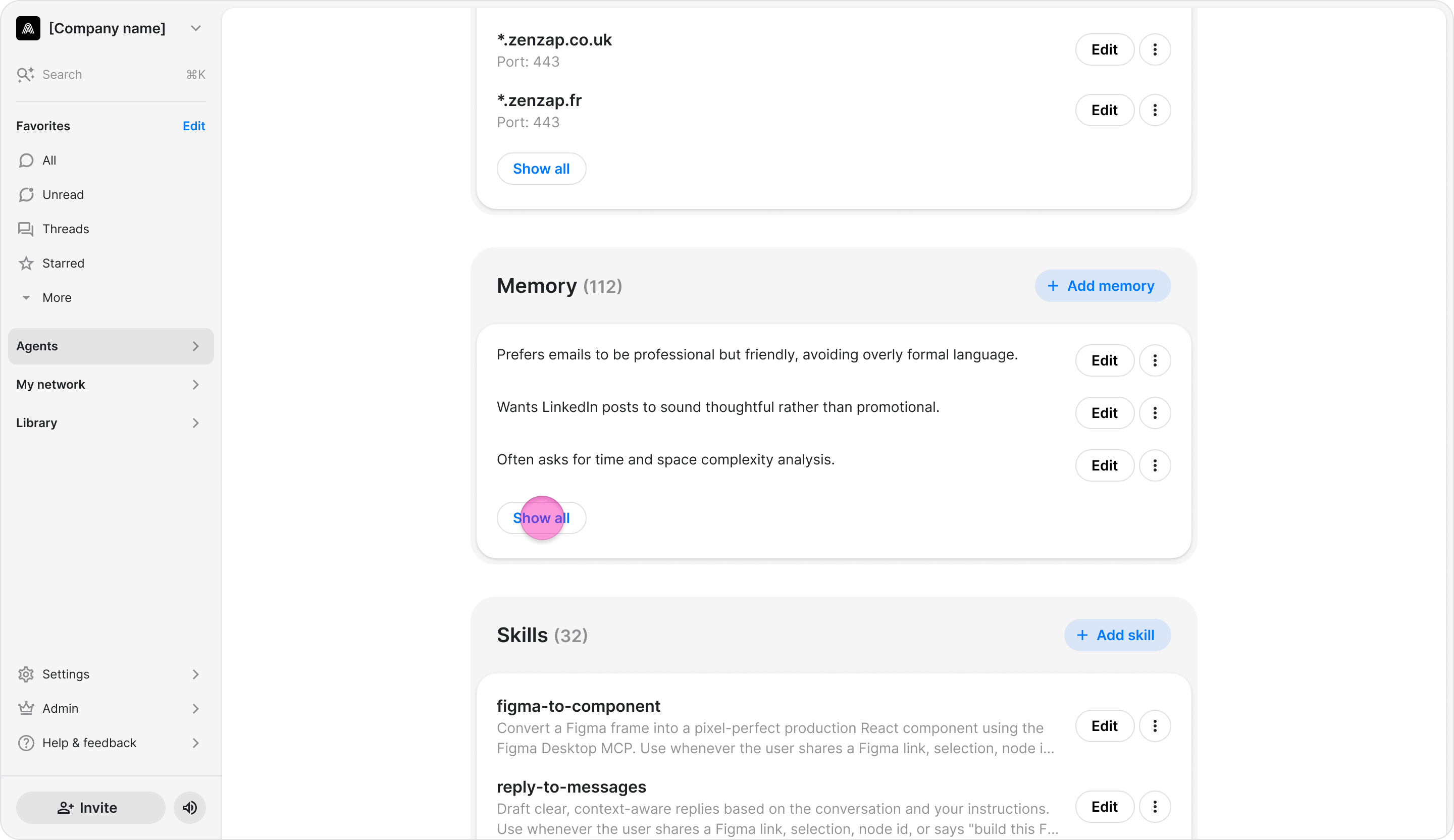
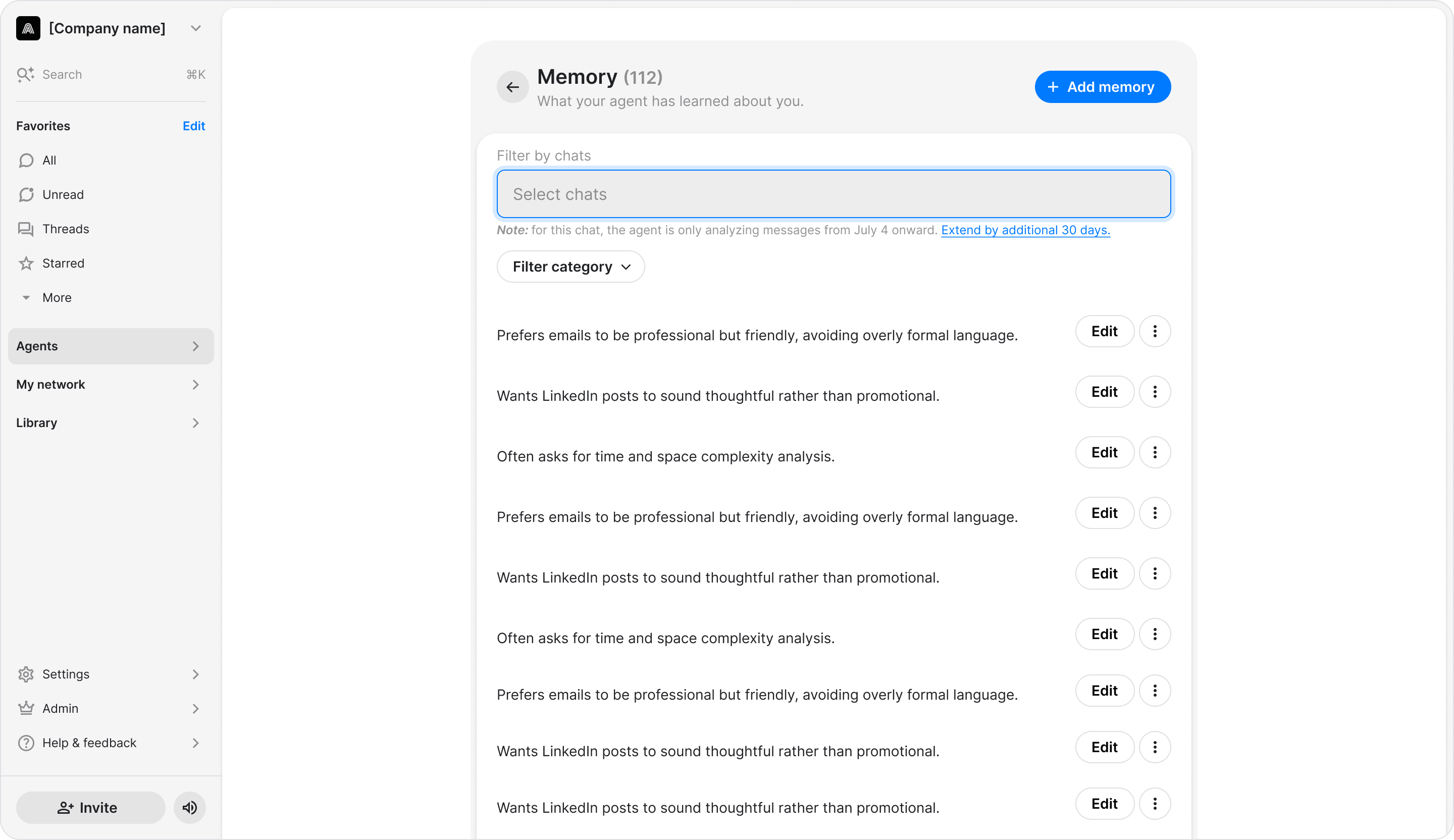
- Under “Memory”, choose “Show all”.
- Memories are associated with the chat where they were created or added, so the memories available in a specific chat may differ from the agent’s full list.
- If your agent has not saved any memories yet, the Memory screen displays “No saved memories yet.”
- If you delete a chat, its associated memories are also deleted.
- Go to “Agents”.
- Choose the relevant agent.
- Under “Memory”, choose “Show all”.
- Under “Filter by chats”, select one or more chats.
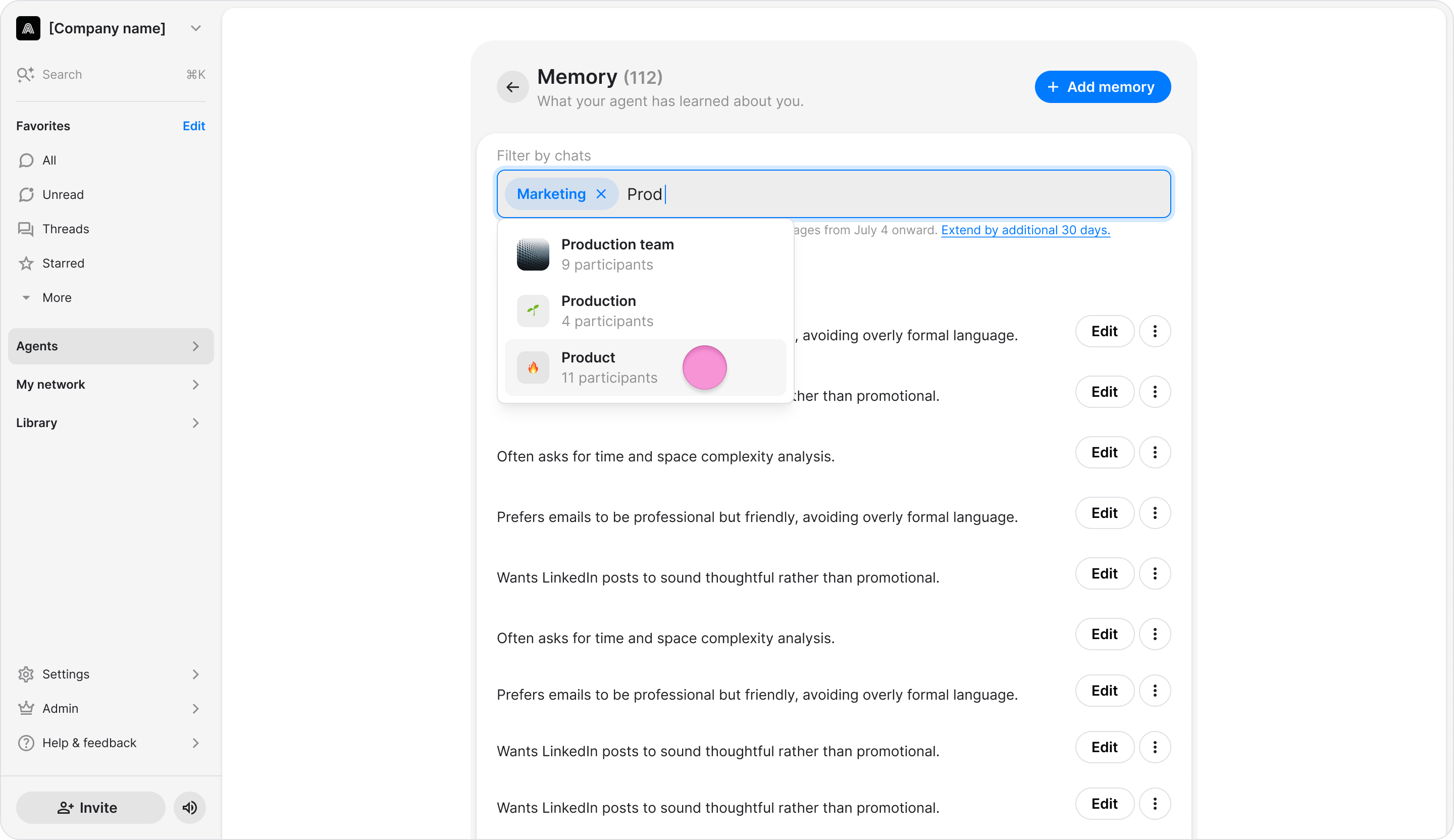
- Go to “Agents”.
- Choose the relevant agent.
- Under “Memory”, choose “Show all”.
- Click ”+ Add memory” at the top right corner.
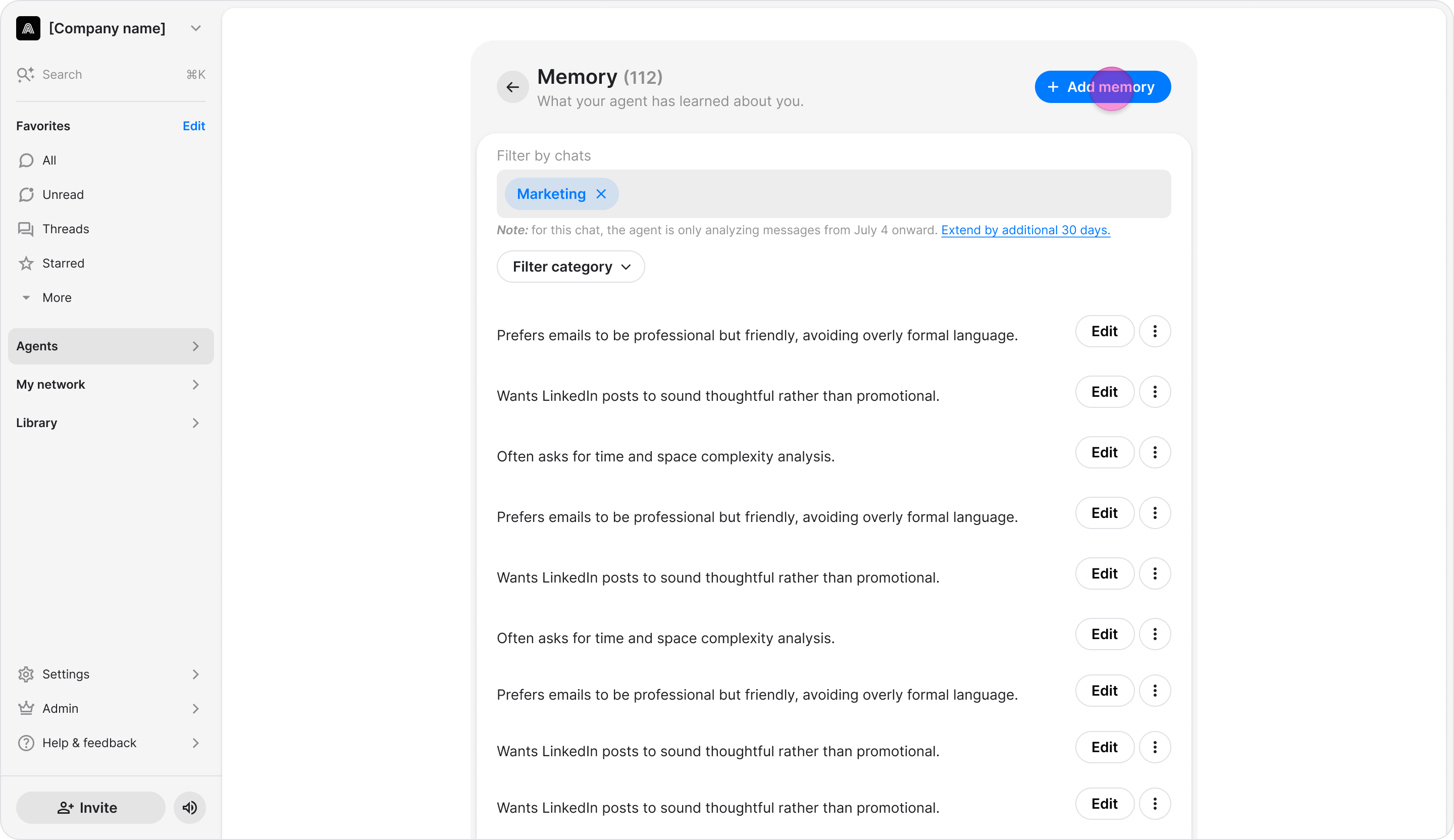
- Enter the information you want the agent to remember.
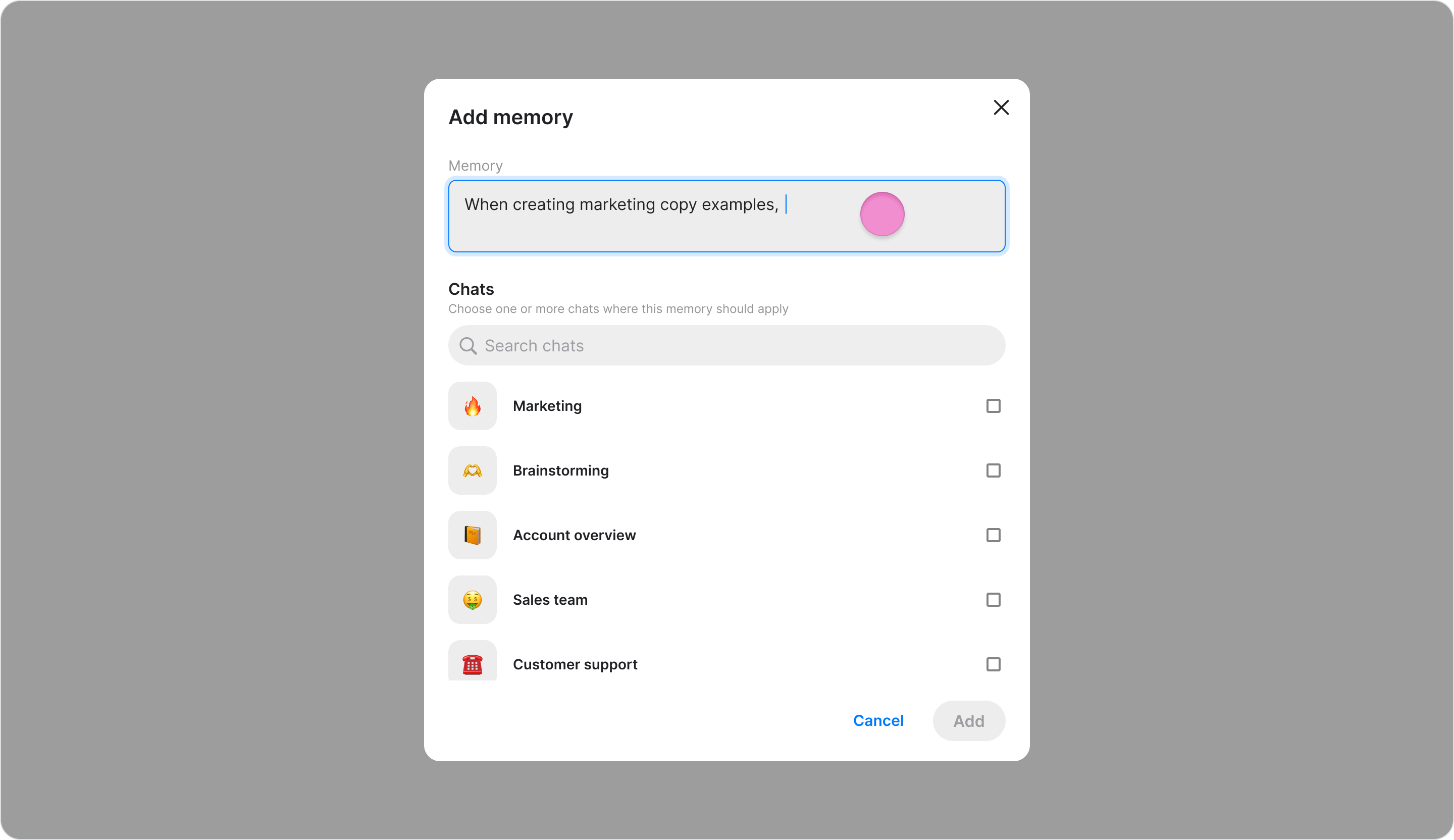
- Select the chat where you want to add the memory.
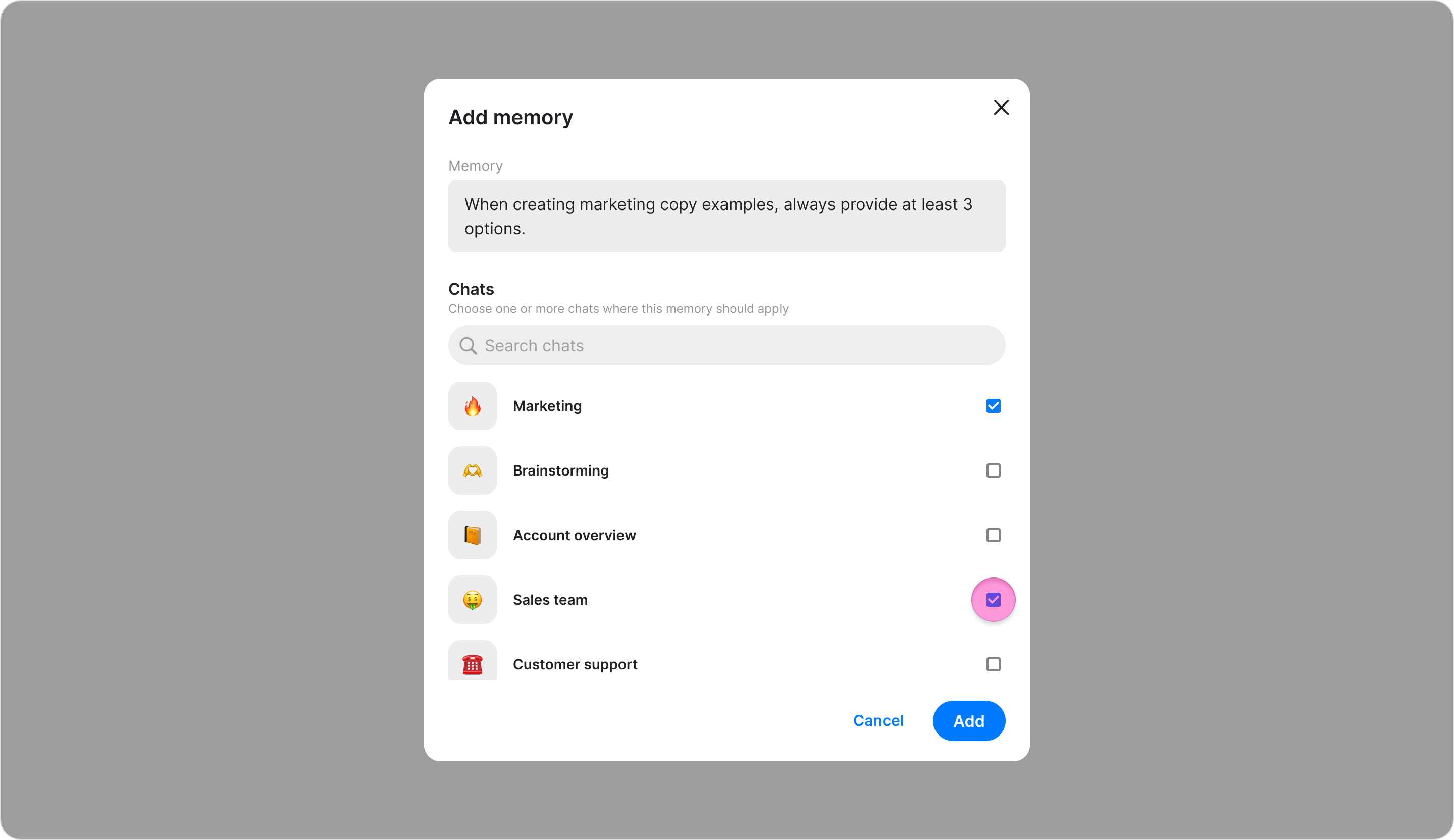
- Click “Add”.
- Go to “Agents”.
- Choose the relevant agent.
- Under “Memory”, choose “Show all”.
- Click “Edit” next to the memory you want to change.
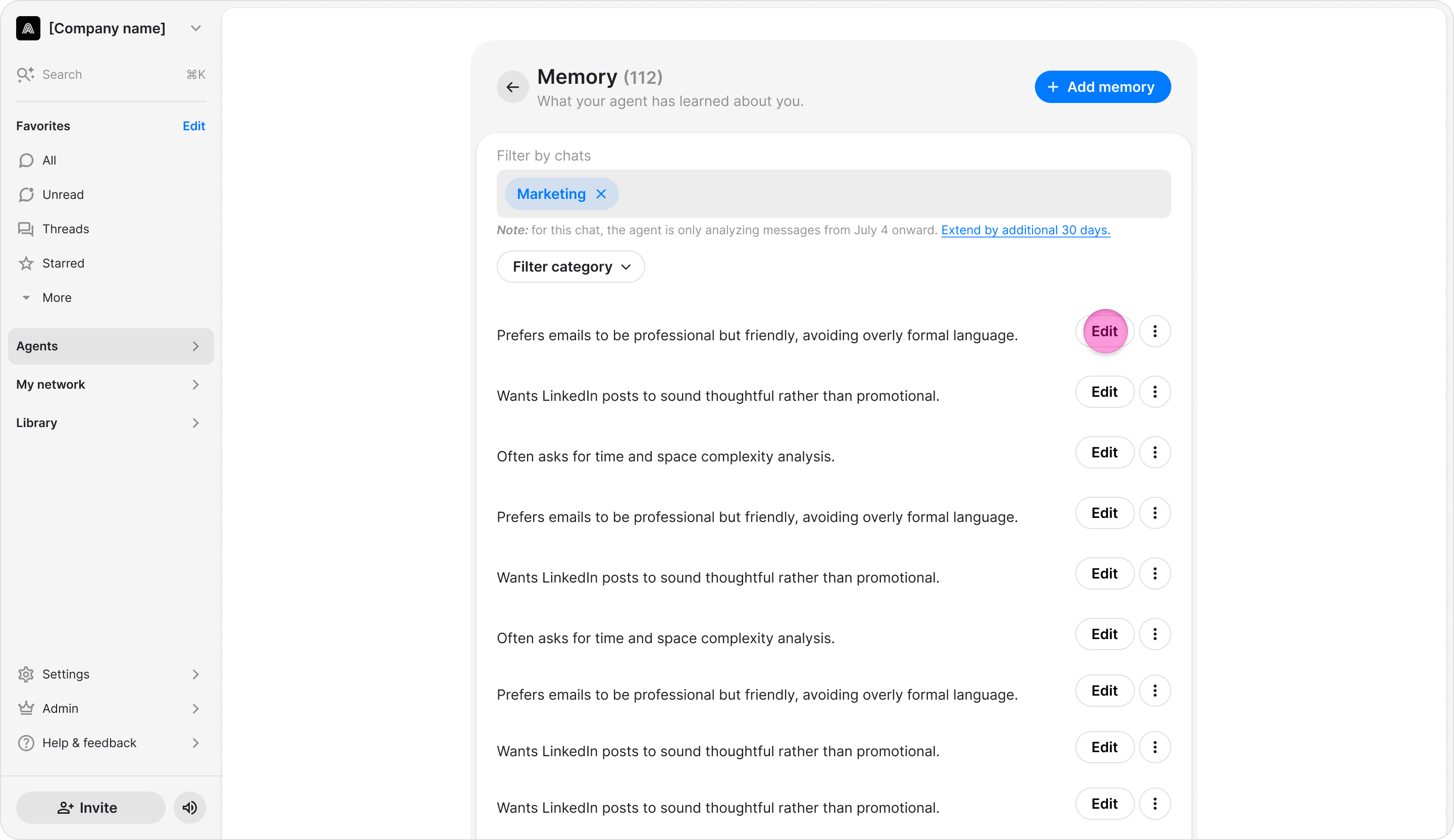
- Edit the memory text.
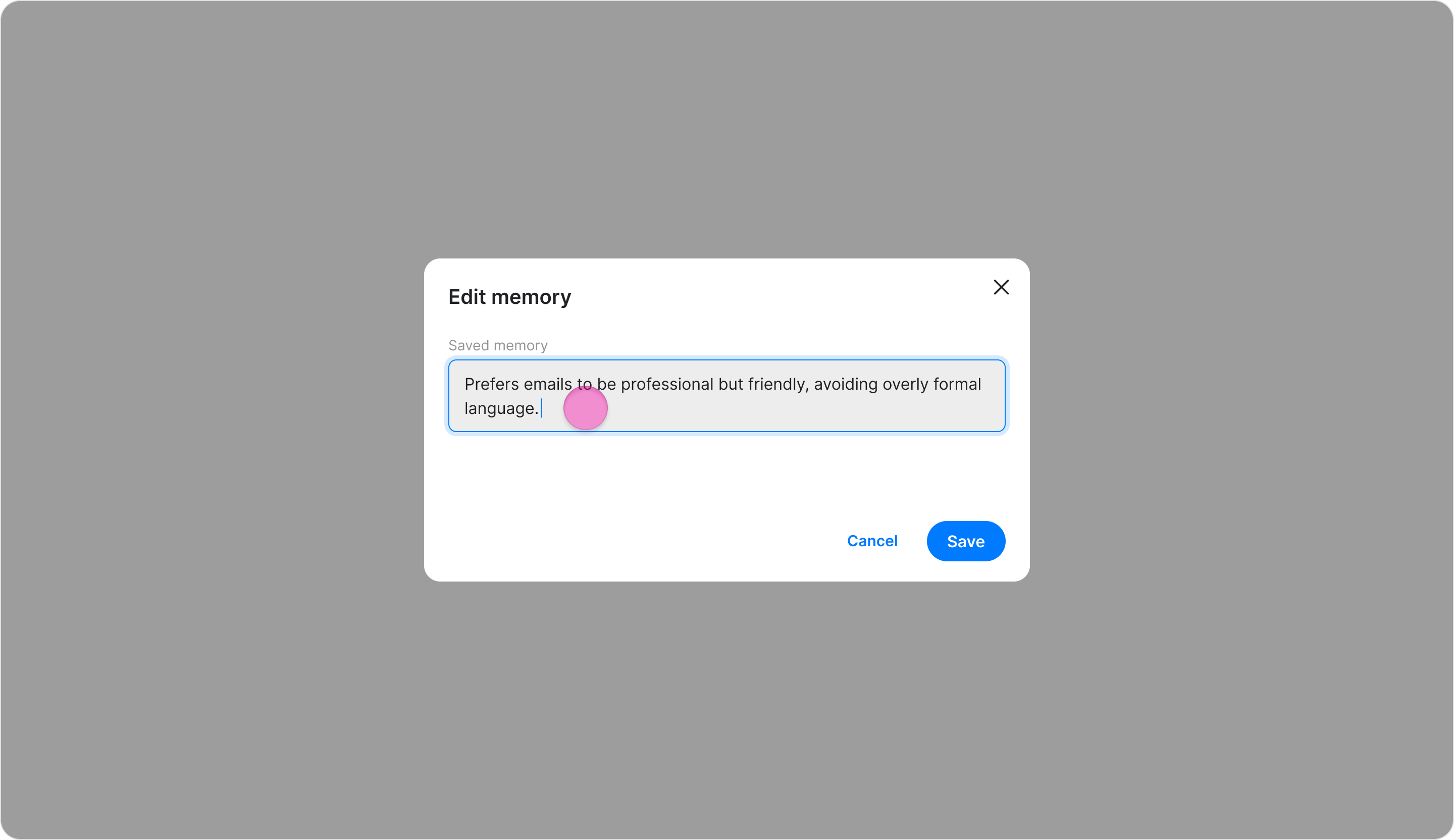
- Click “Save”.
- Go to “Agents”.
- Choose the relevant agent.
- Under “Memory”, choose “Show all”.
- On the Memory screen, click the three dots icon next to the memory you want to remove.
- Click “Delete.”
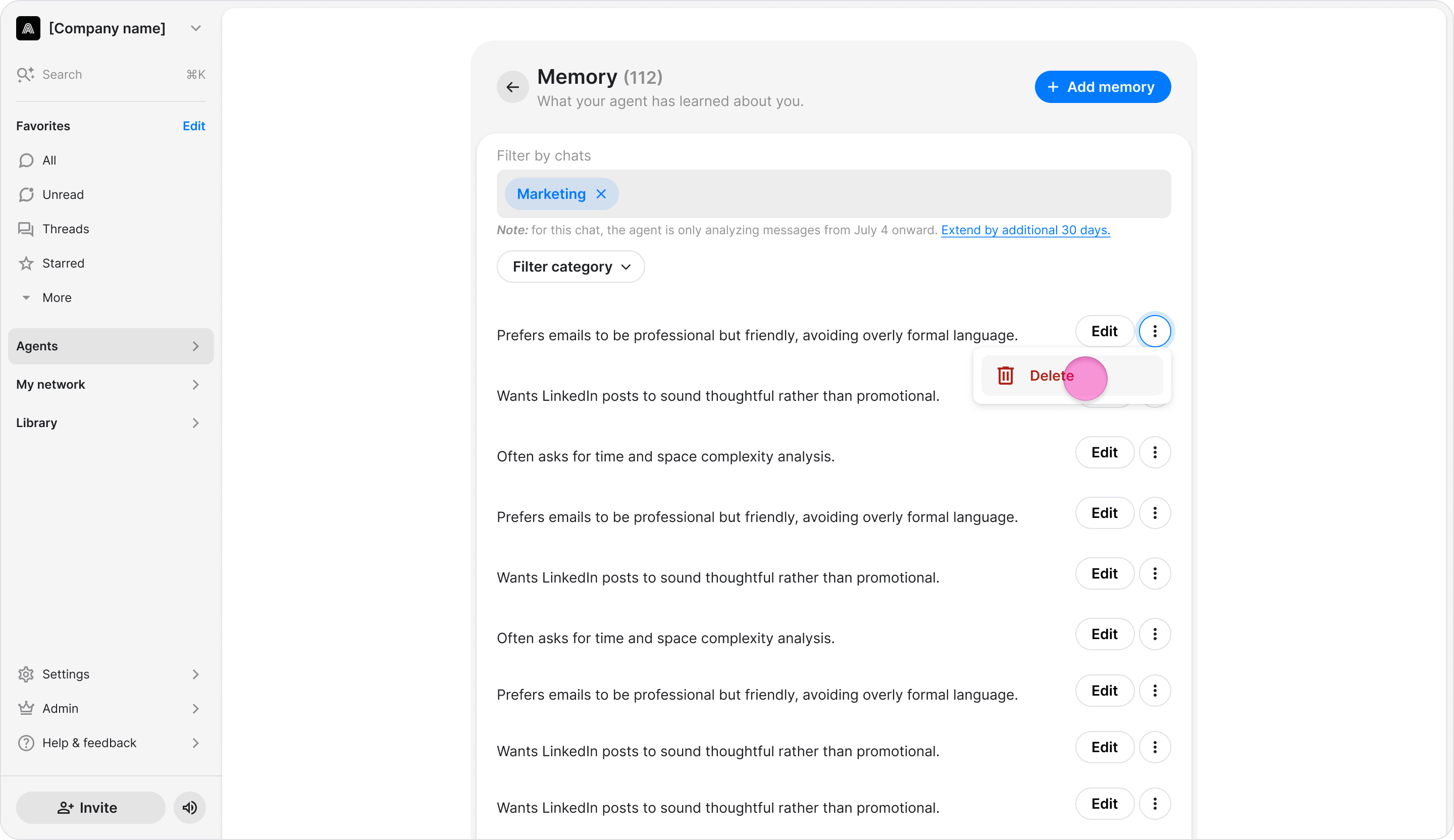
- In the confirmation dialog, confirm the deletion.