
What Workspace AI Search Can Find
Search across your entire workspace instead of just one chat. You can use AI Search to:- Find information without remembering which chat it was shared in.
- Search across messages, voice message transcriptions, and shared files.
- Locate information inside PDF, Word, and Excel documents.
- Find text that appears in images, screenshots, and scanned documents.
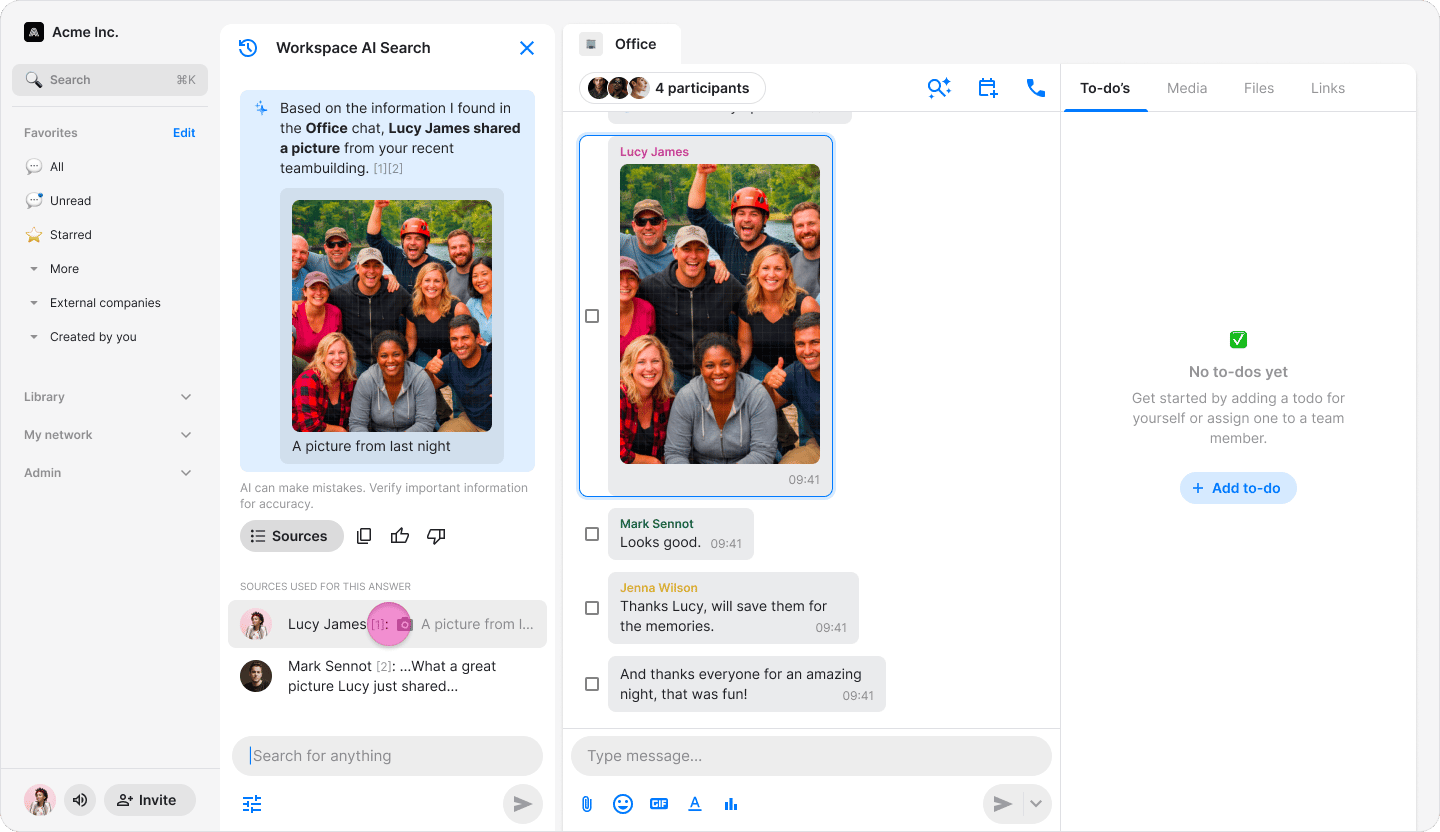
- Search for photos and videos based on what they contain.
- Look up to-dos, polls, contacts, and other shared content across your workspace.
- Ask questions about conversations, projects, or topics discussed by your team.
- Find information shared by a specific person or during a particular time period.
On Mobile (iOS & Android)
- Tap on the search icon at the top right corner of your home tab.
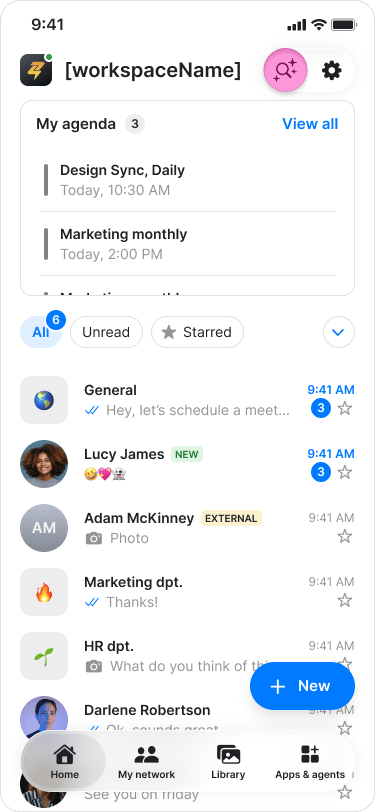
- Tap “AI mode”.
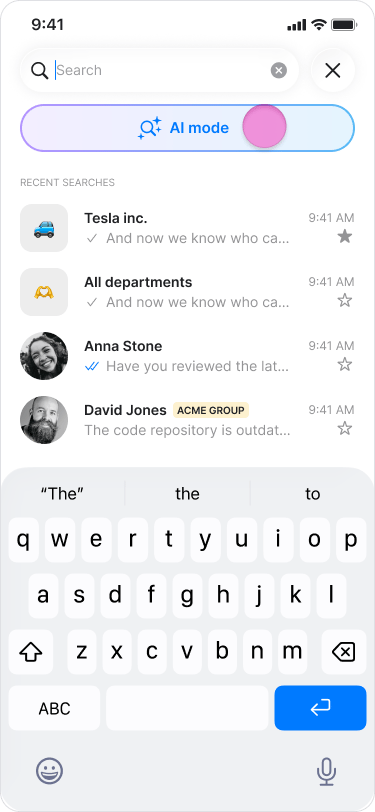
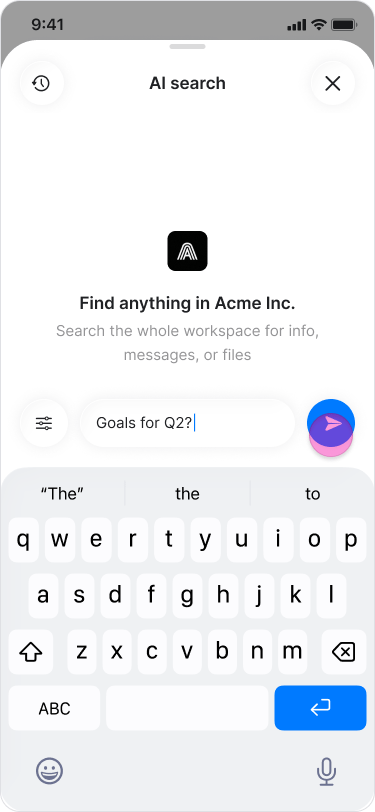
- Enter your question using natural language.
- Tap the “Send” icon to view the AI-generated answer.
- Tap a source to open the original chat or file.
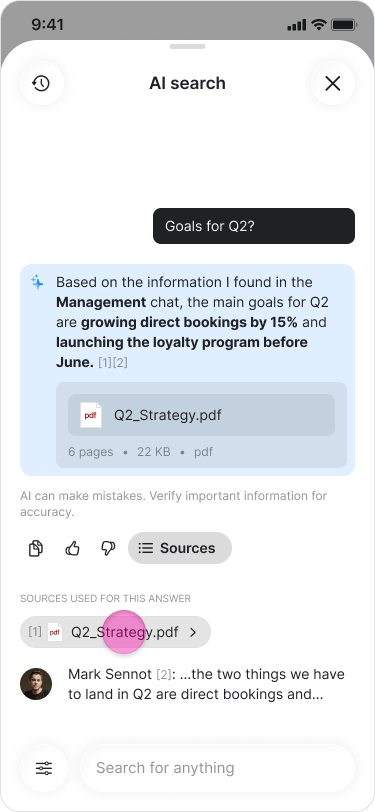
- Tap the “Preferences” button at the bottom to refine your search by applying filters such as a date range or messages from a specific person.
- To view your previous AI searches, tap the menu icon in the top-left corner.
On Desktop (Windows, macOS, & Web App)
- Click on the search icon at the top right corner of your home tab.
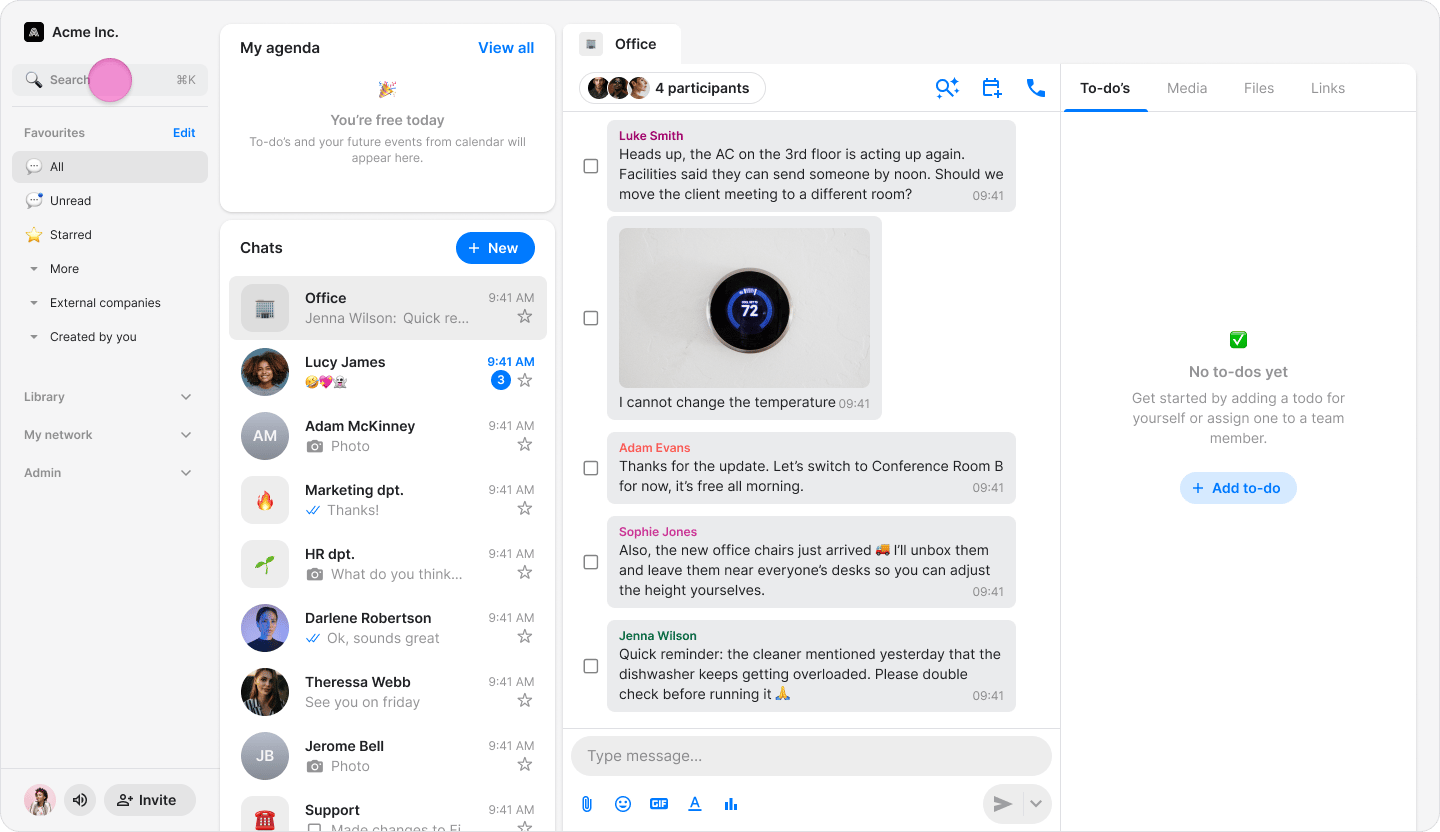
- Click “AI mode”.
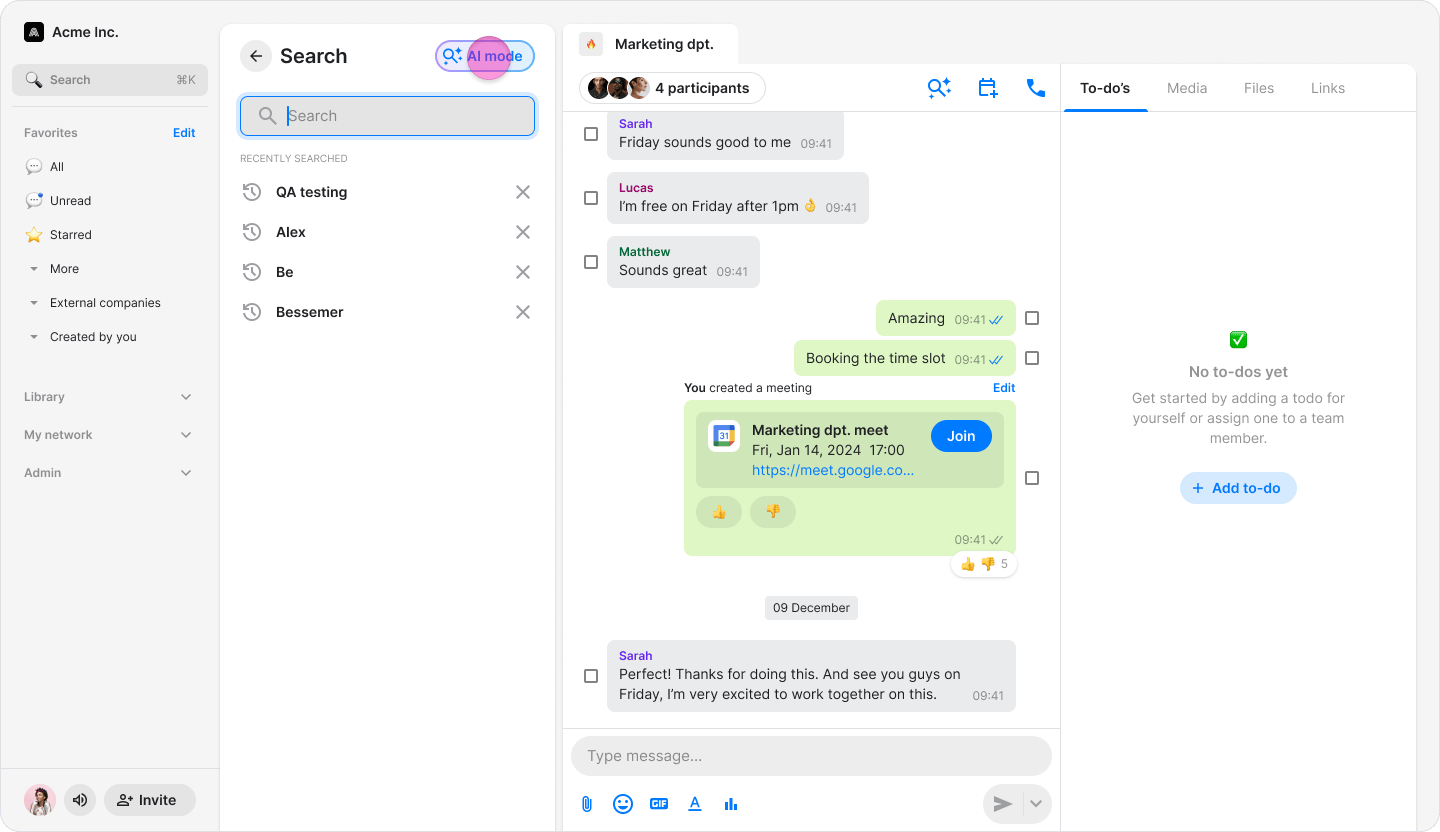
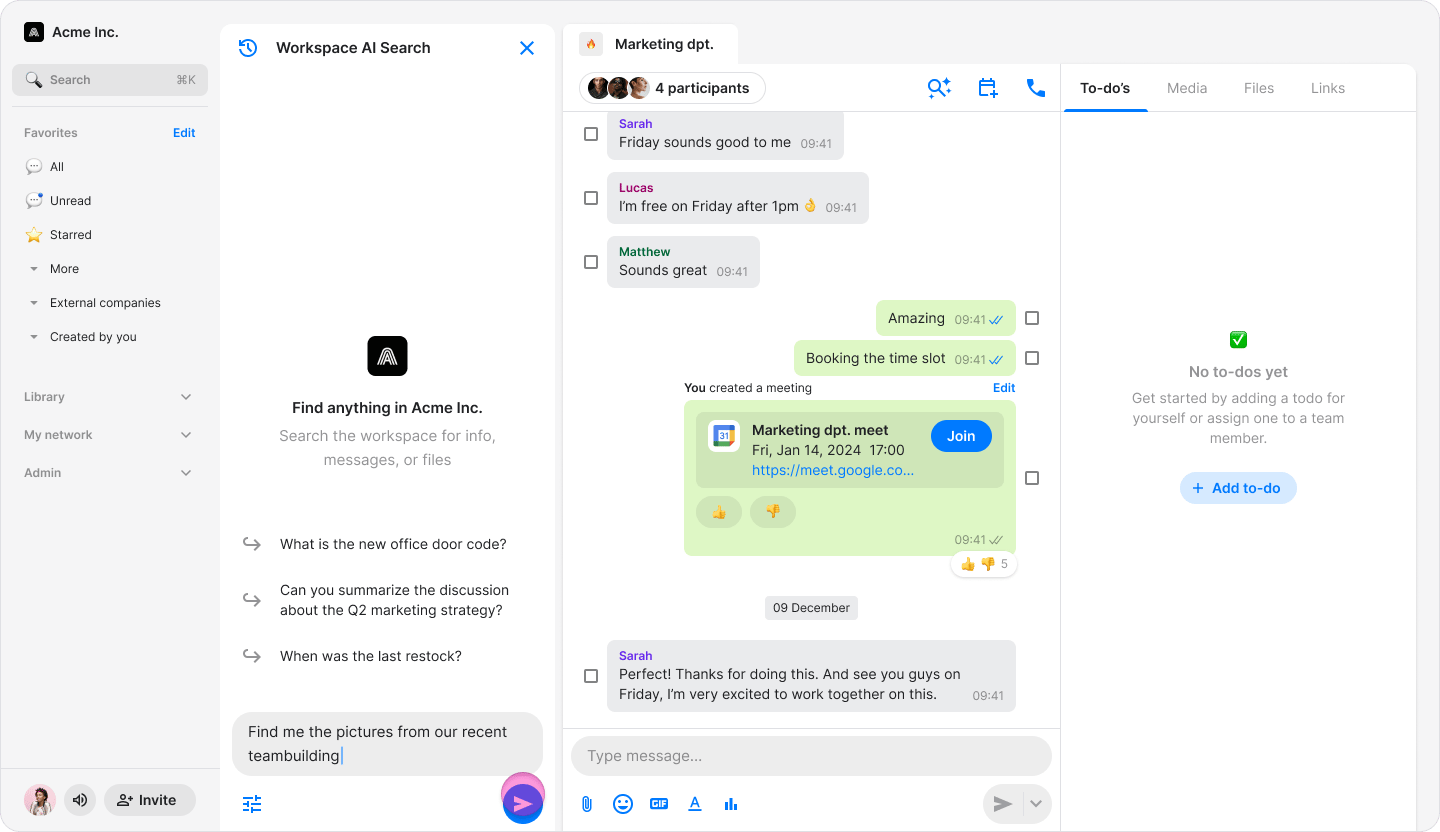
- Enter your question using natural language.
- Click “Search” to view the AI-generated answer.
- Click a source to open the original chat or file.
- Click the “Preferences” button to refine your search by applying filters such as a date range or messages from a specific person.
- To view your previous AI searches, click the menu icon in the top-left corner.