
On Mobile (iOS & Android)
Reply in a Chat
- Swipe right on the message you want to reply.
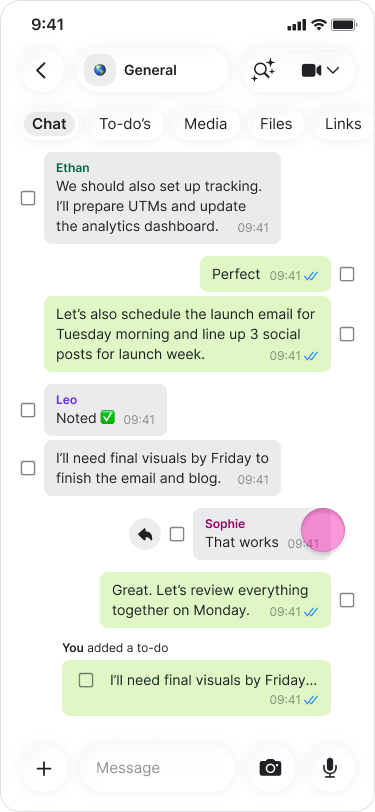
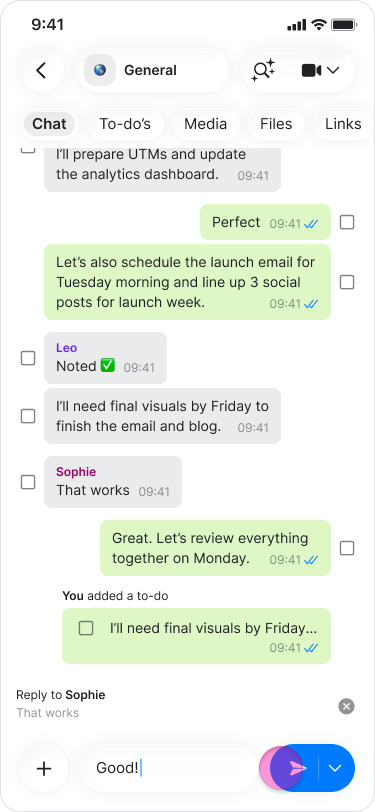
- Type your response in the message field.
- Tap the blue send arrow.
Reply Privately
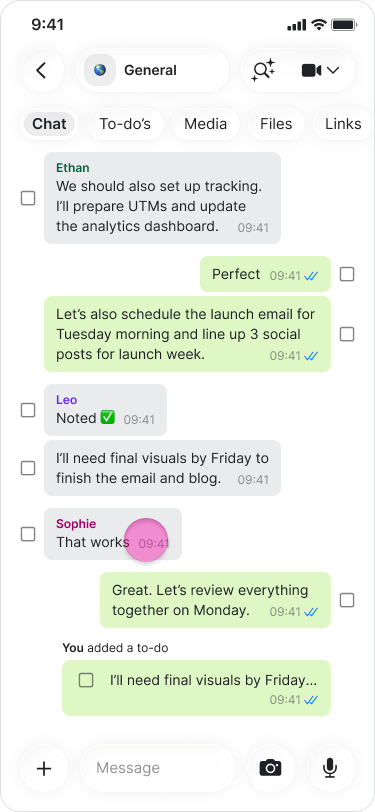
- Long-press on the message.
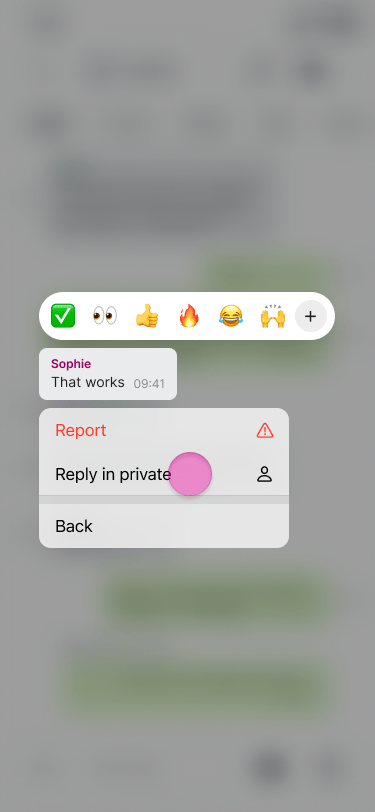
- Tap “more…” (On iOS).
- Select “Reply in private”.
- You will be directed to the chat with the person.
- Type your response in the message field.
- Tap the blue send arrow.
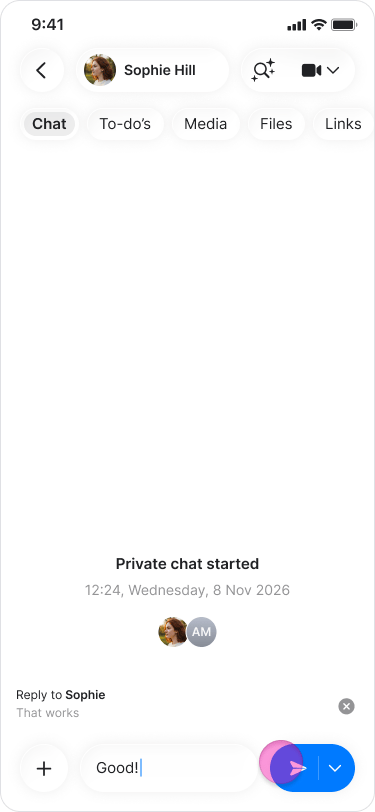
- The original message appears above your response—even in private replies—so the recipient knows which message you are responding to.
- You can reply to any content sent in a chat, including GIFs, photos, documents, and to-dos.
On Desktop (Windows, macOS, & Web App)
Reply in a Chat
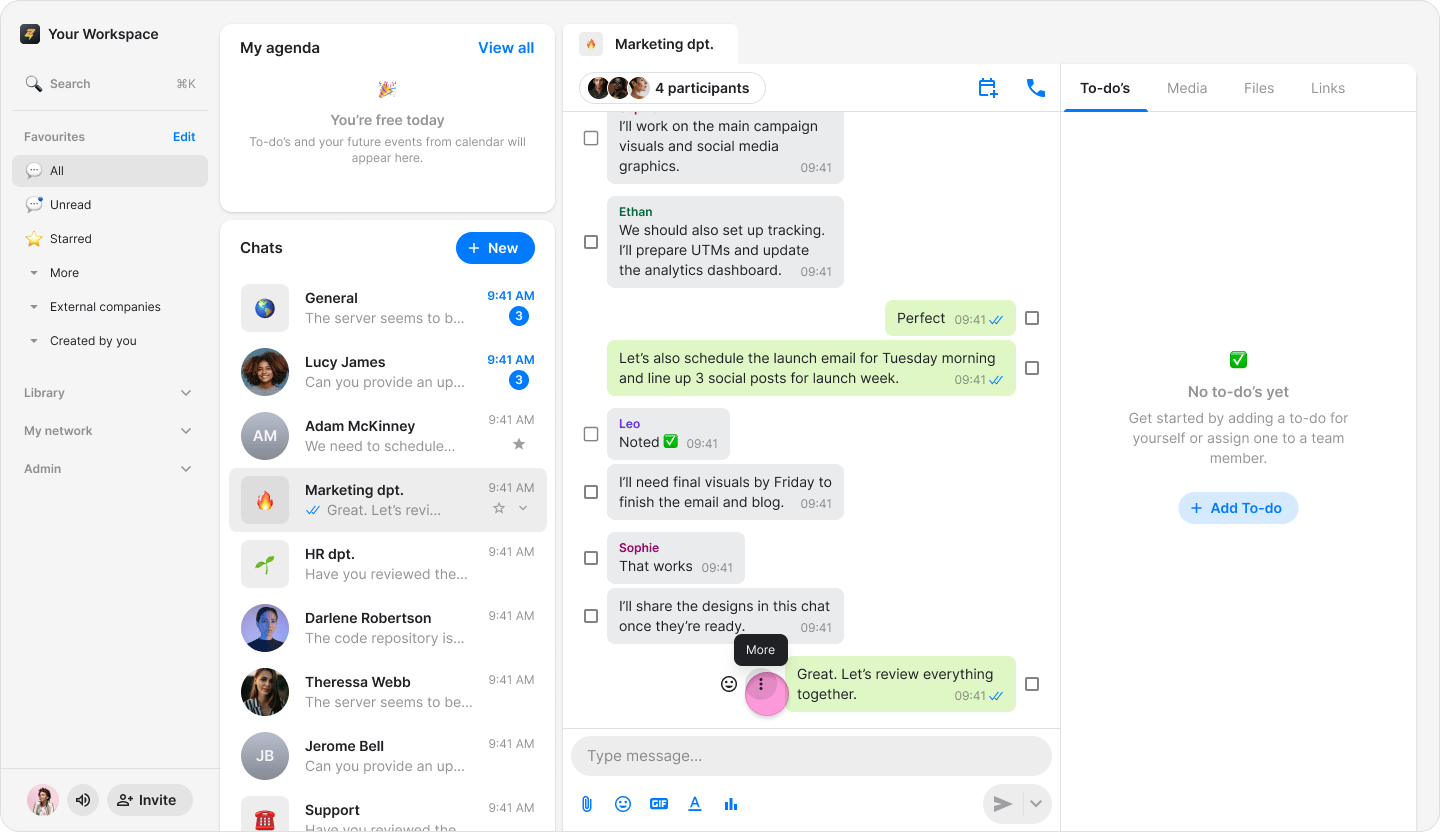
- Hover over the message you want to reply to.
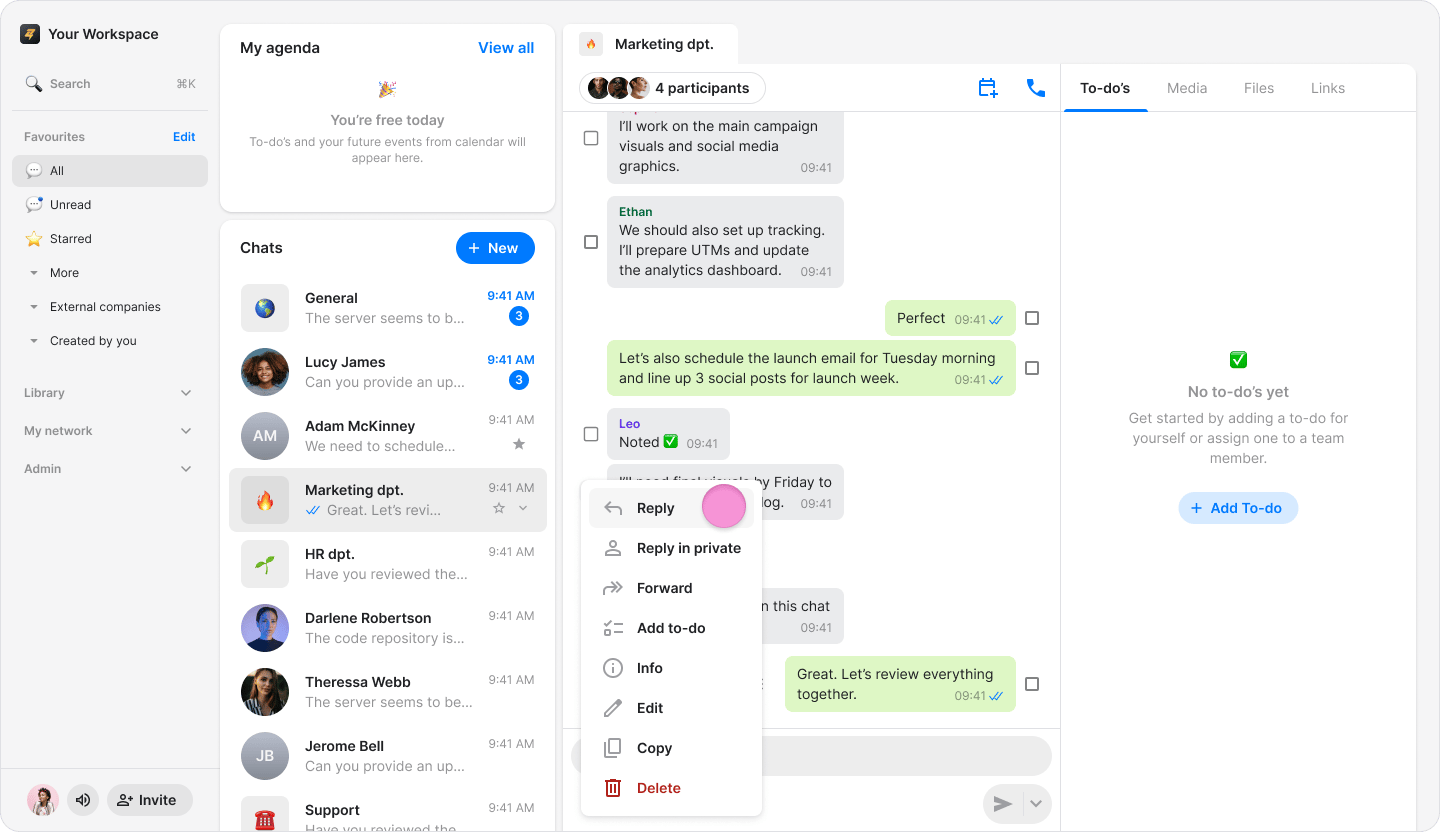
- Click the “Three dots” icon.
- Click “Reply”.
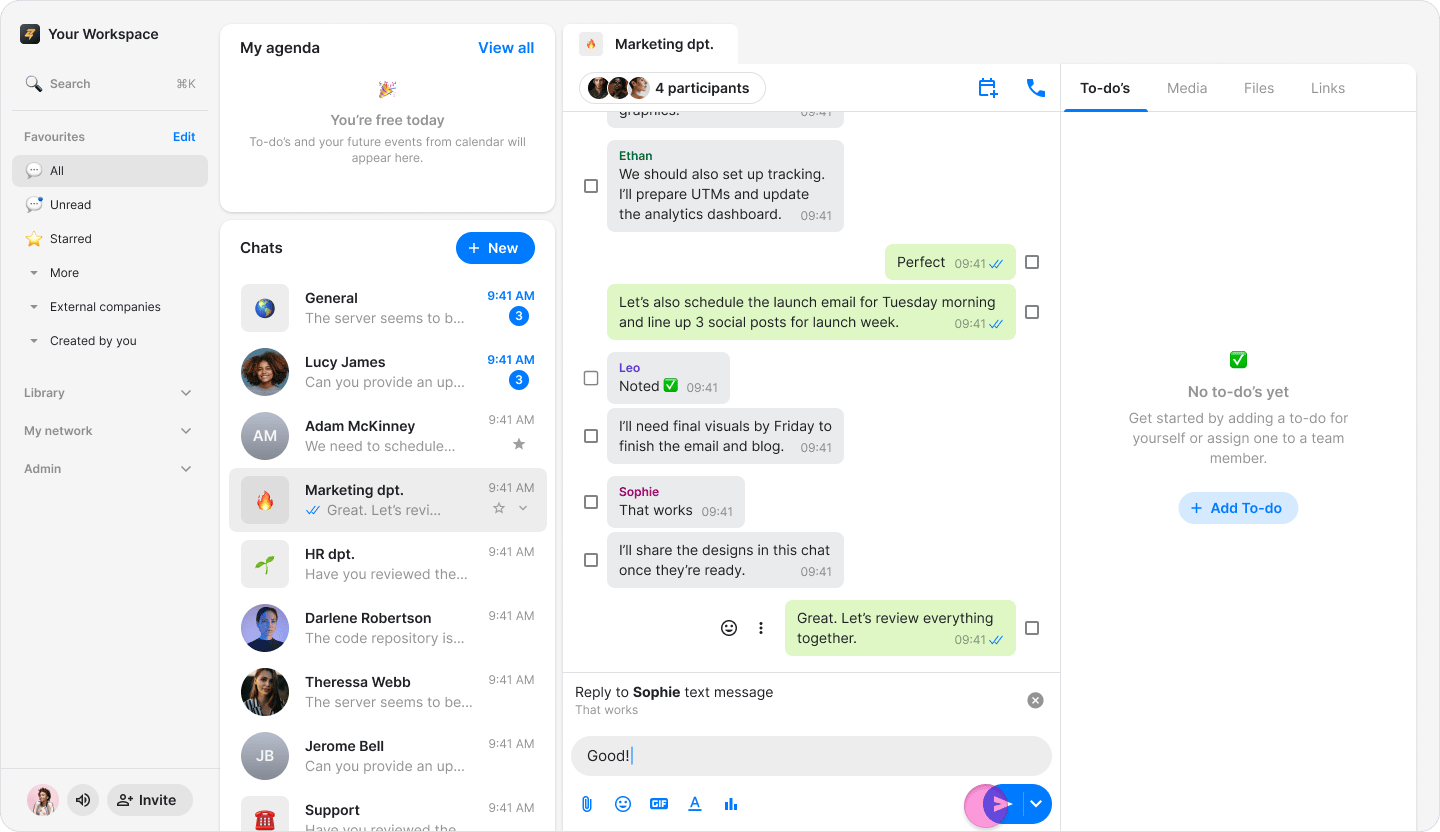
- Type your response in the message field.
- Click the blue send arrow.
Reply Privately
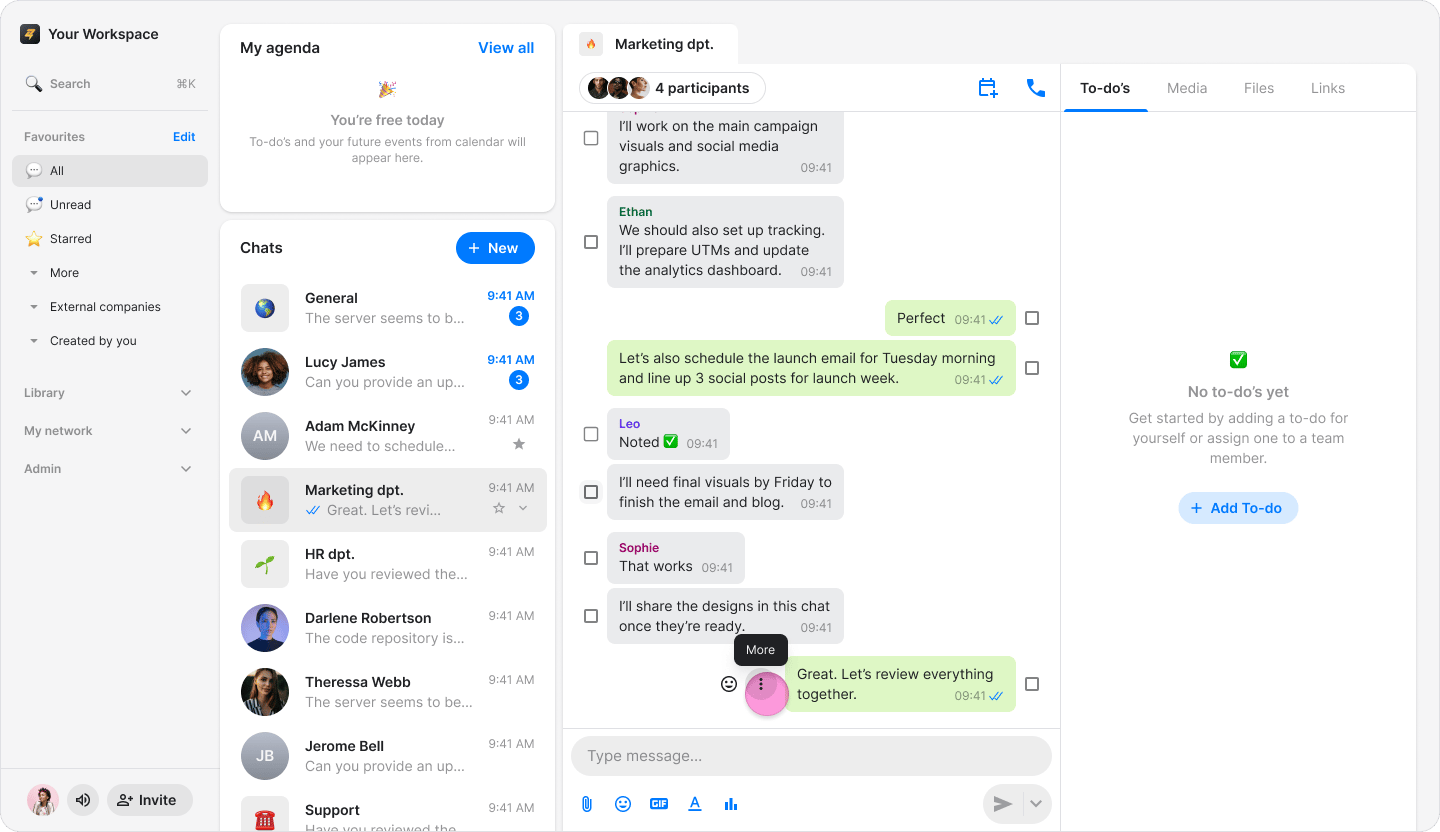
- Hover over the message you want to reply to.
- Click the “Three dots” icon.
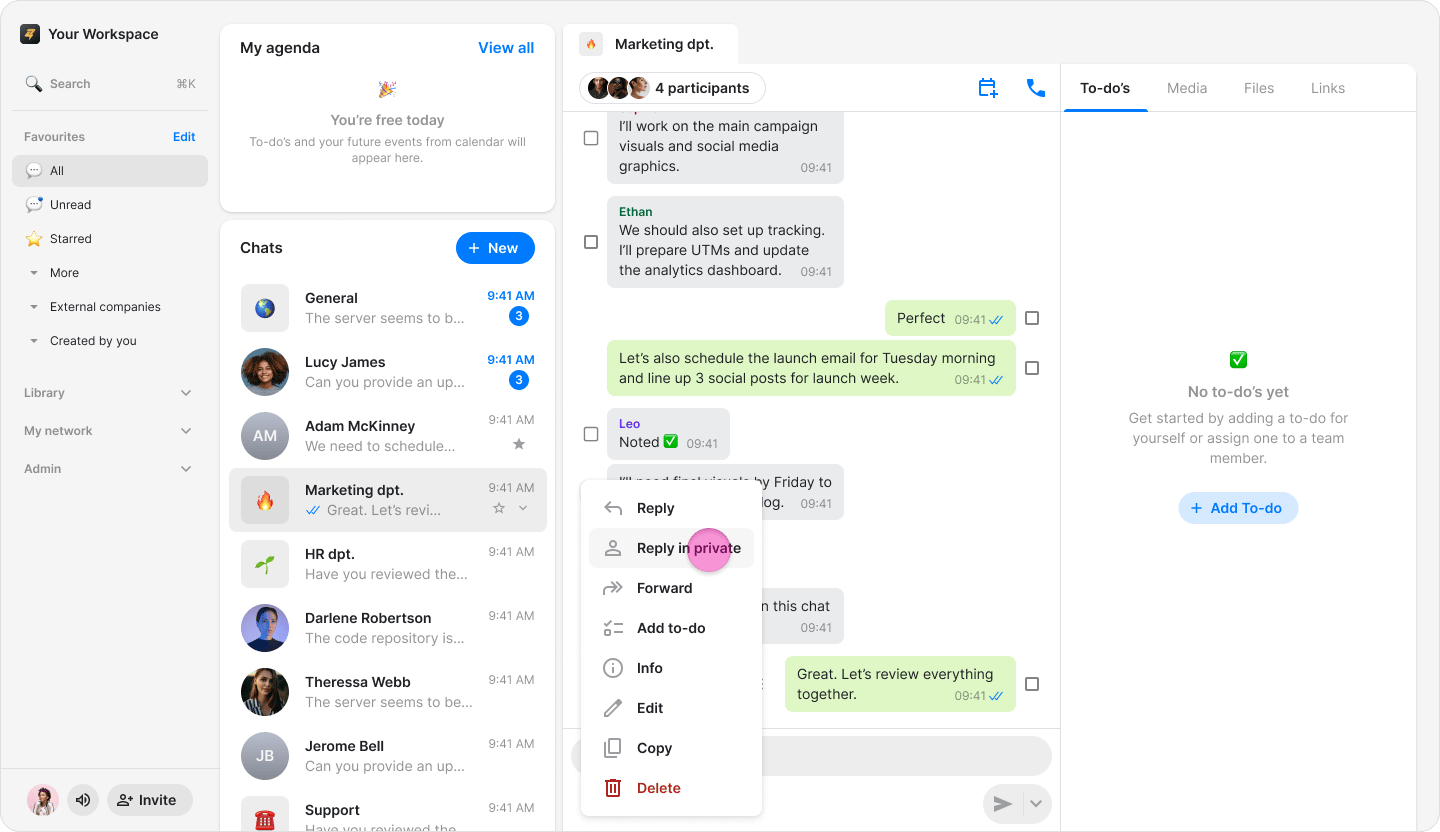
- Click “Reply in private”.
- You will be directed to the chat with the person .
- Type your response in the message field.
- Click the blue send arrow.
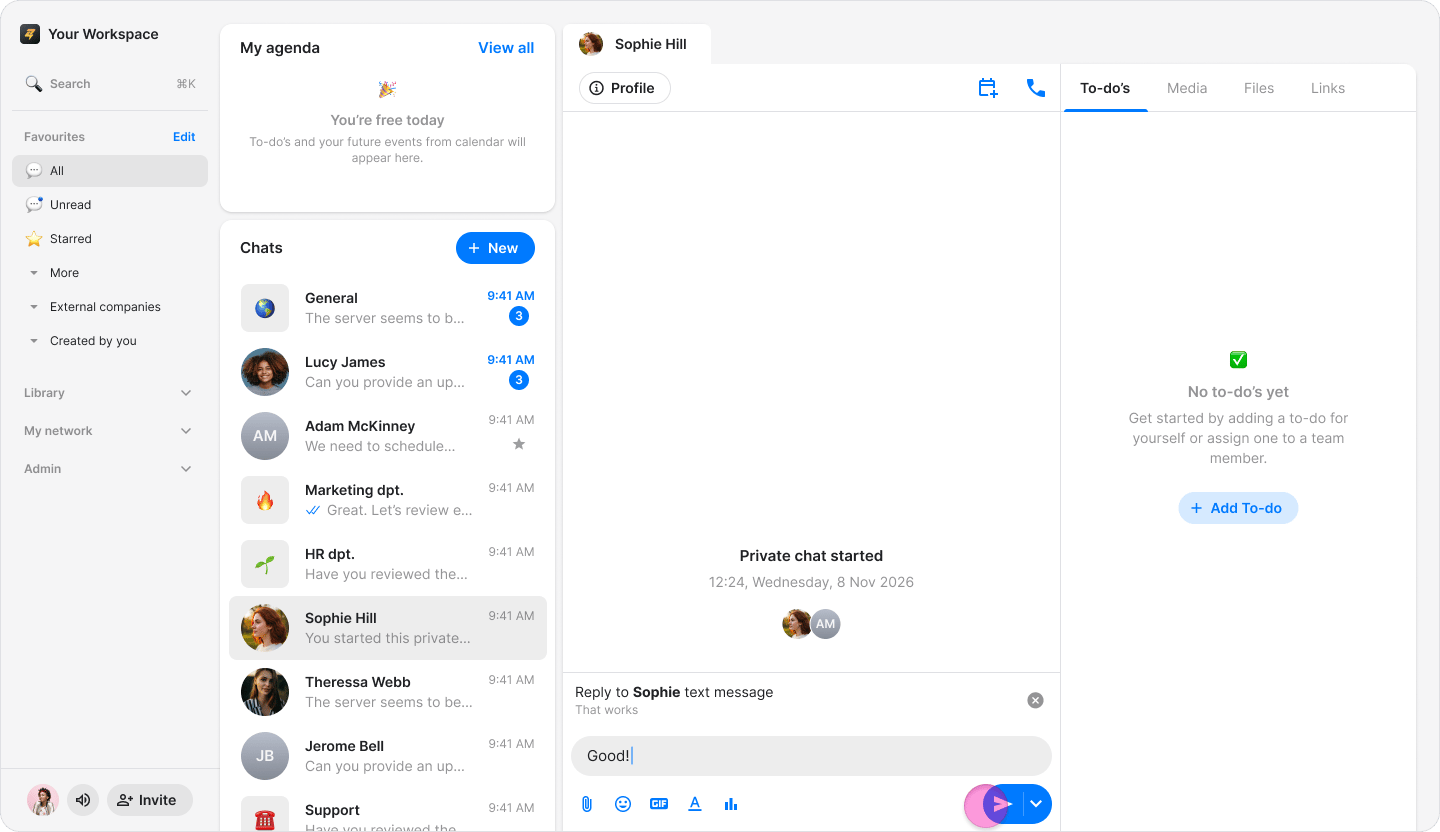
- The original message appears above your response—even in private replies—so the recipient knows which message you are responding to.
- You can reply to any content sent in a chat, including GIFs, photos, documents, and to-dos.