
On Mobile (iOS & Android)
- Go to “Agents.”
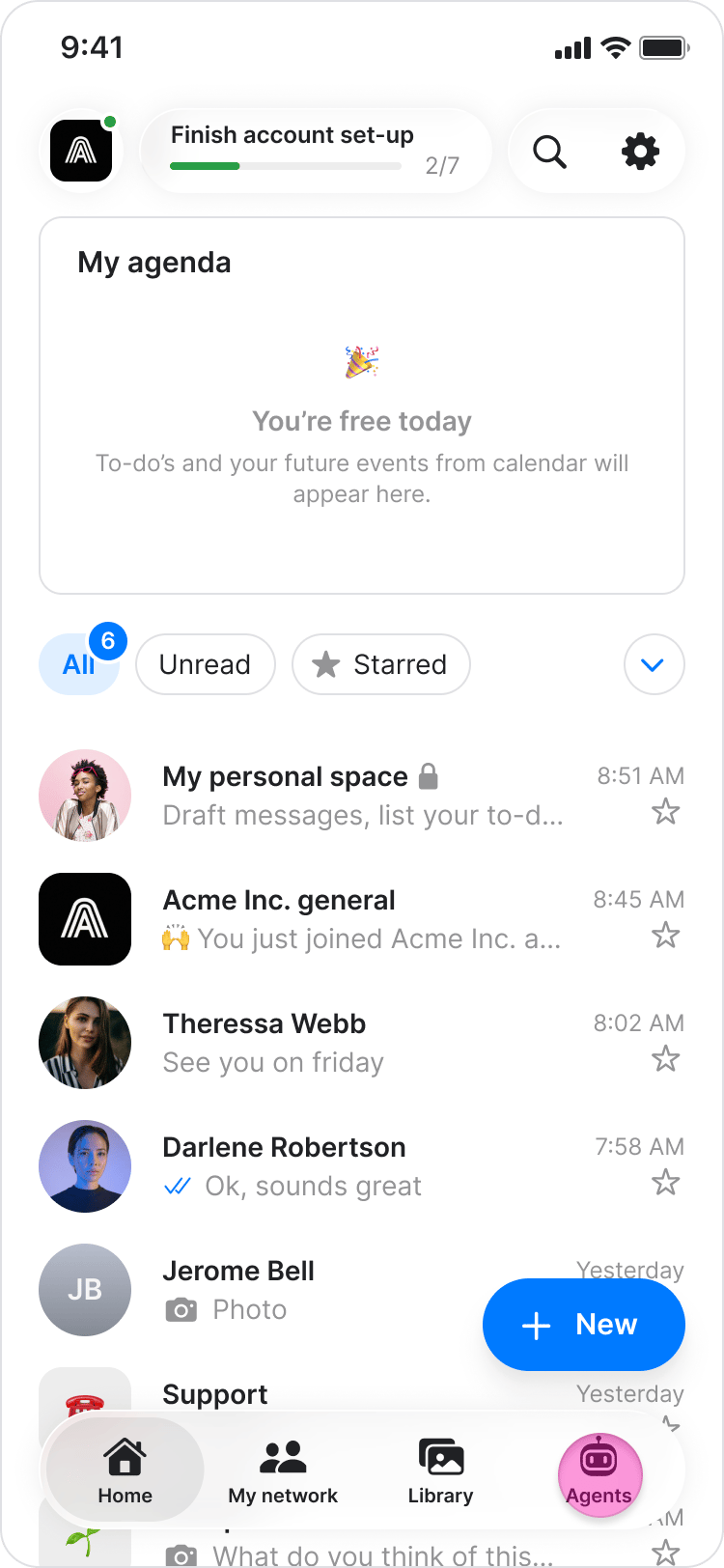
- Choose the relevant agent.
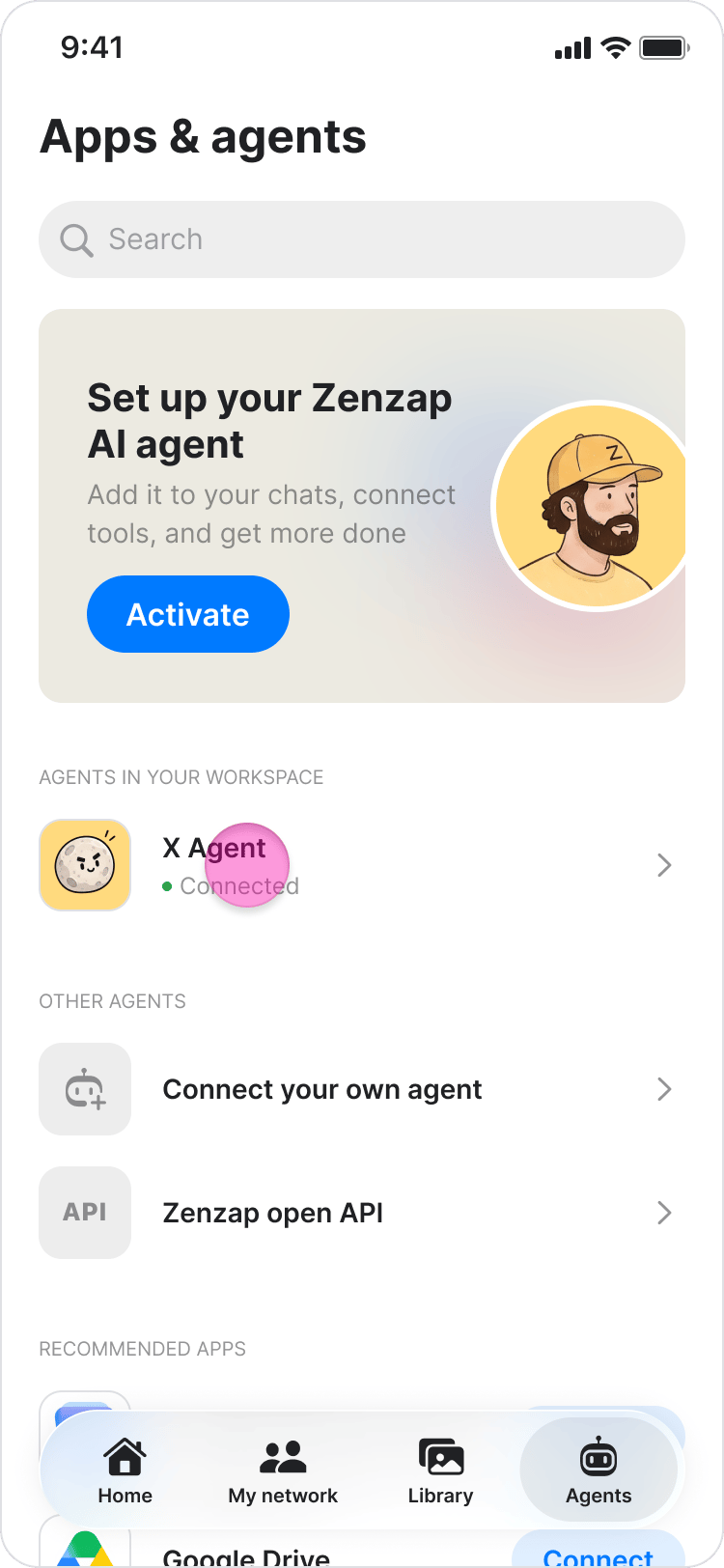
- Tap “Apps.”
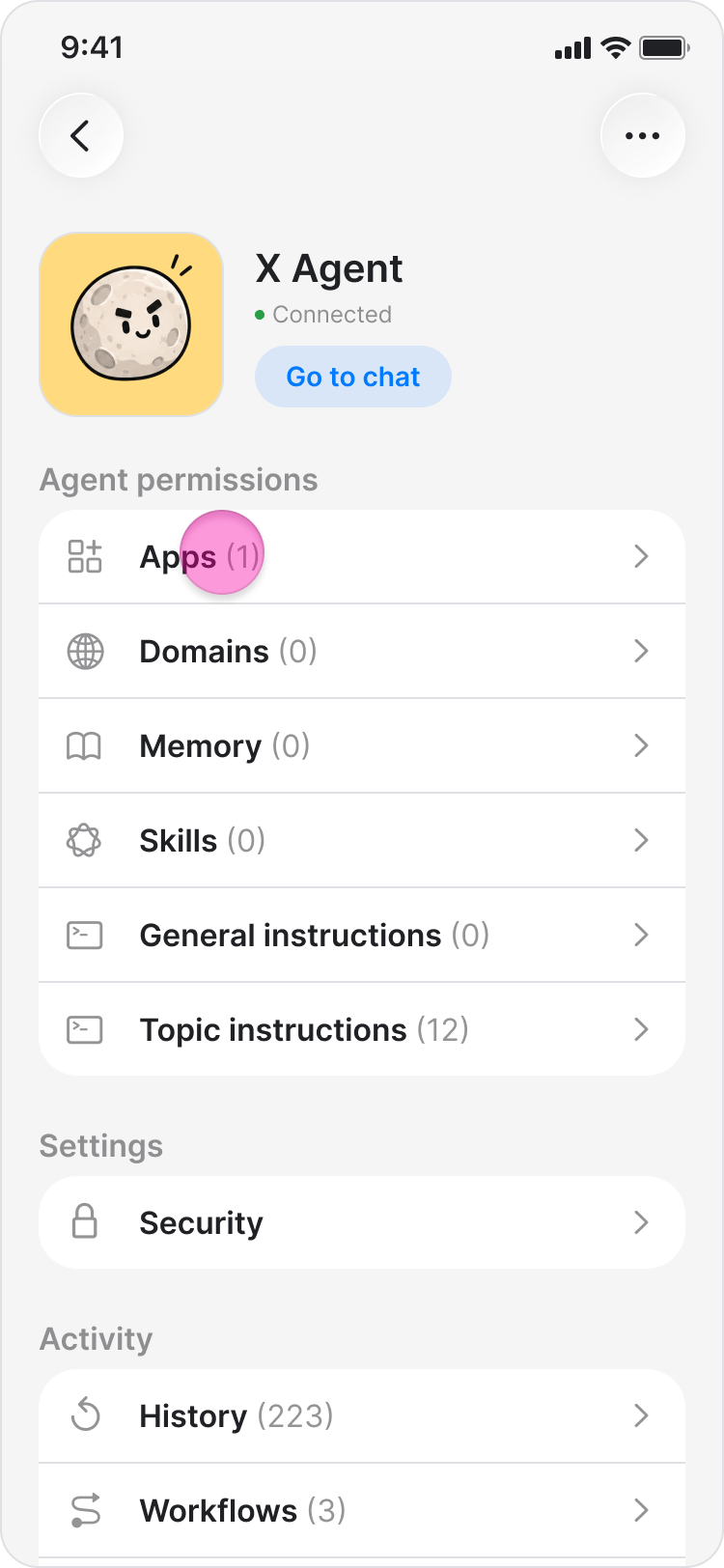
- Find the app you want to connect to. Note: If it’s the first app you are connecting to this agent, you will need first to tap “+Connect first app”.
- Tap “Connect” on the app you want.
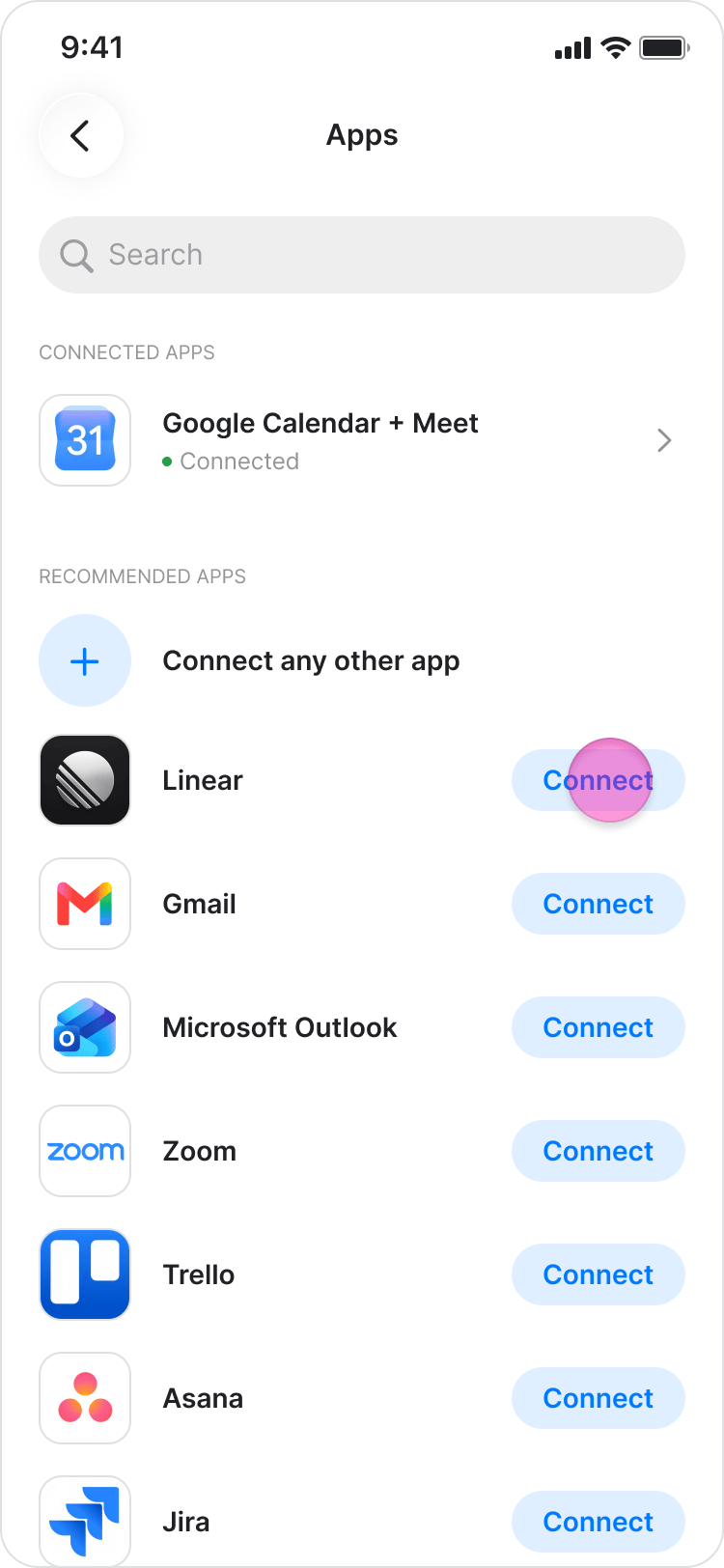
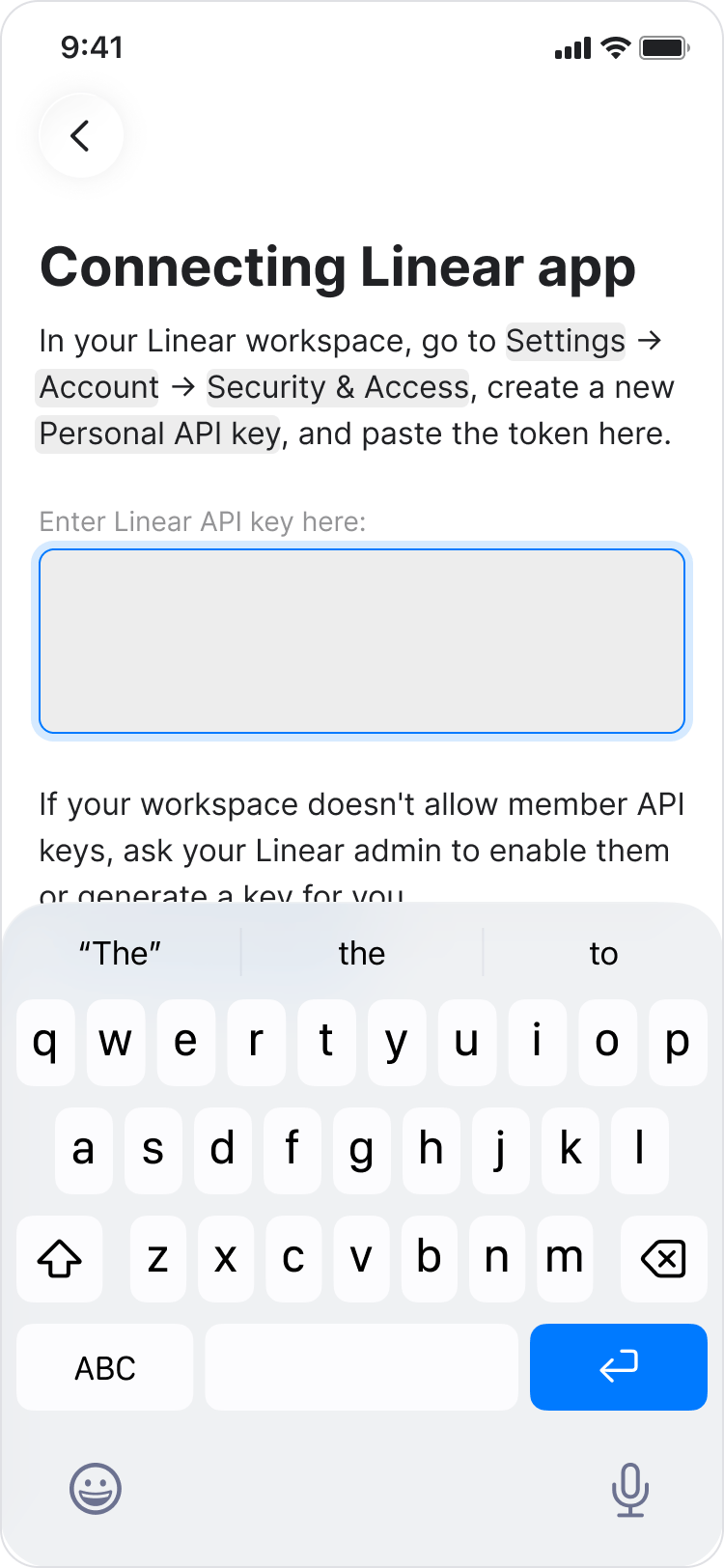
- Enter the credentials required to connect the app. See the Notes section below for more information.
- Once connected, the tool appears under “Apps” of that agent.
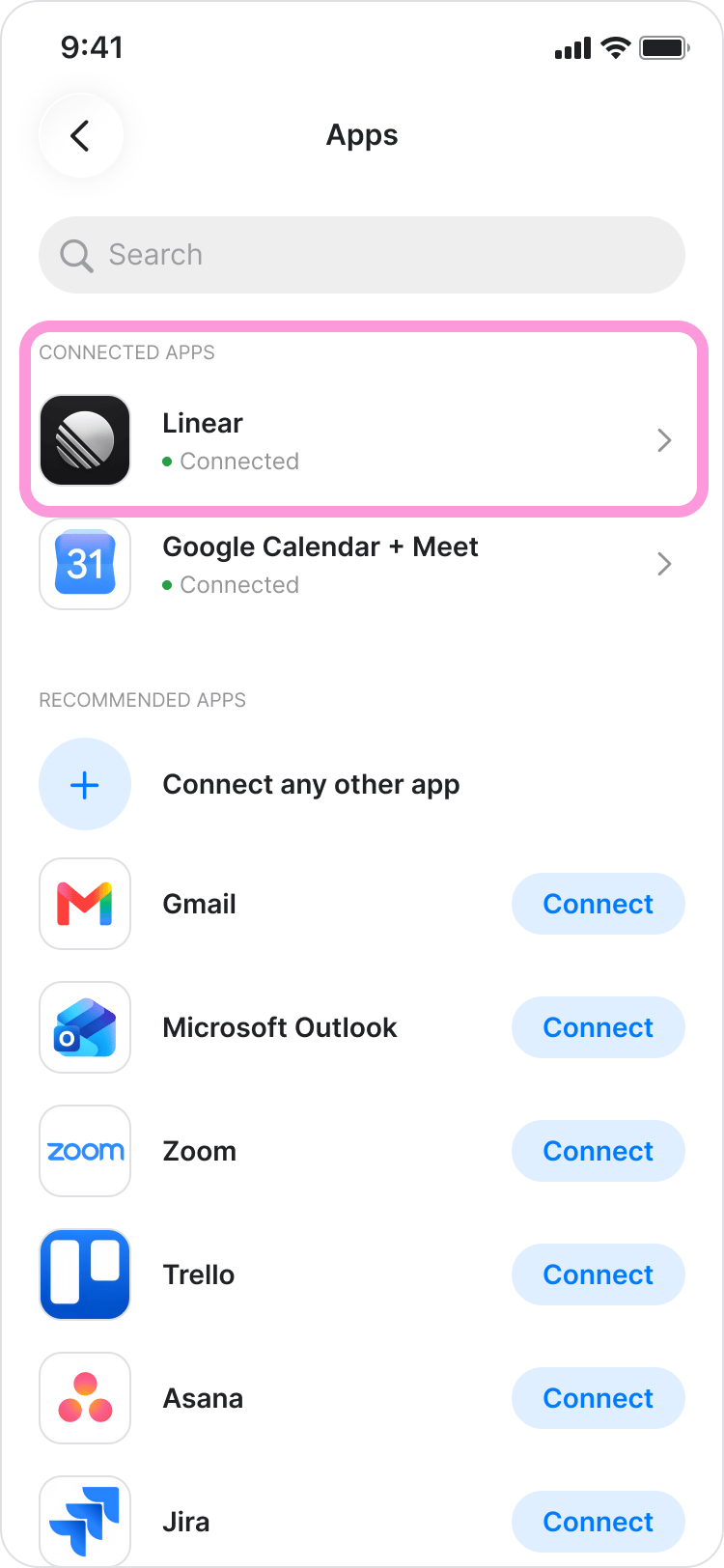
- You can also connect apps that are not included in the list.
- Depending on the app or tool, you may be asked to connect using your account credentials or an API key. To find your API key, open the app or tool you want to connect and look in its account or developer settings for a section such as “API”, “API Keys”, “Developer”, or “Integrations”. Create or copy an API key, then paste it into Zenzap when prompted.
- You can also access an agent’s apps from its profile. In one of your conversations with the agent, tap or click the agent information to open its profile.
On Desktop (Windows, macOS, & Web App)
- Go to “Agents” from the side menu.
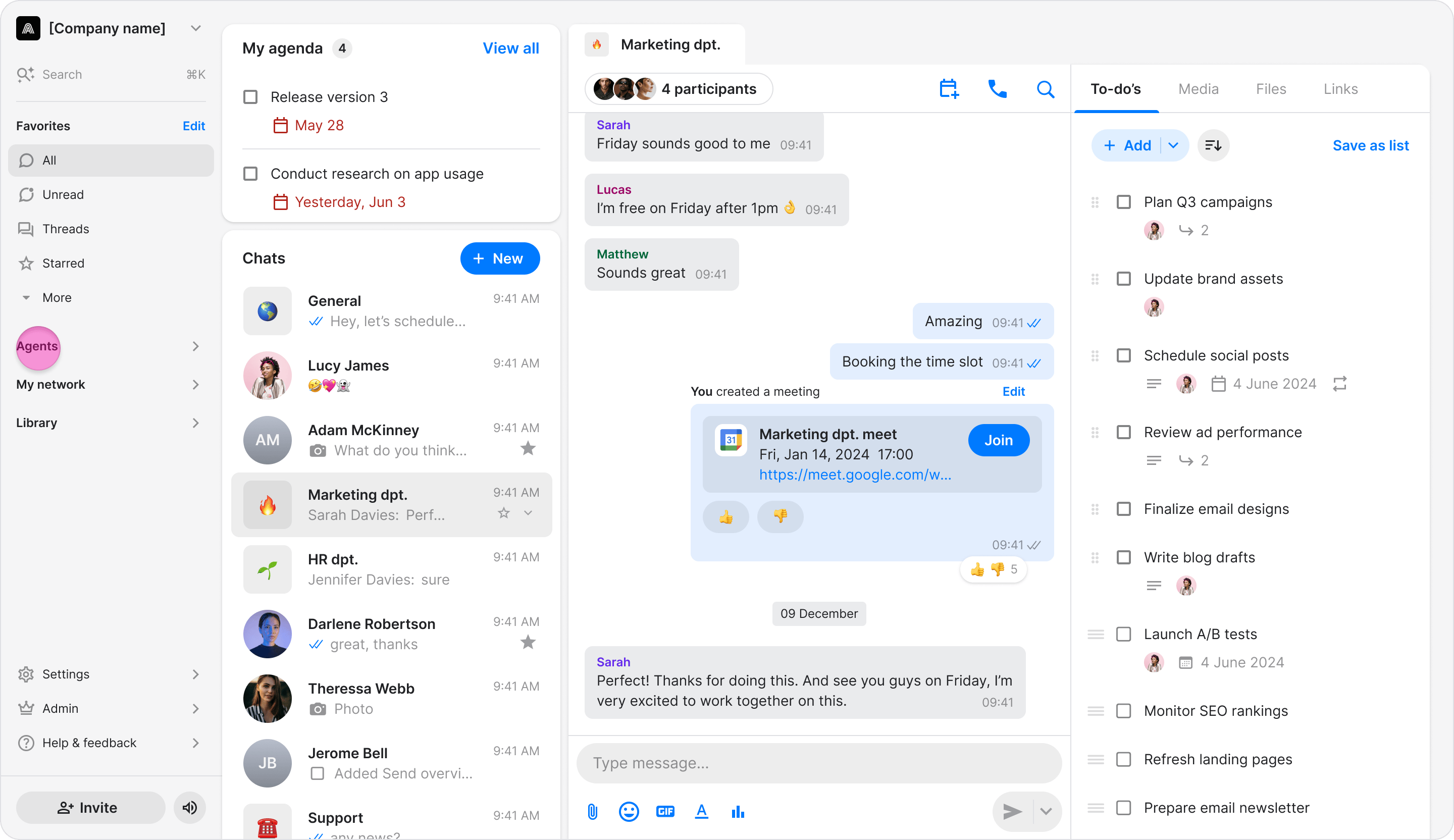
- Click “Manage” on the agent you want, or click the agent to open its settings.
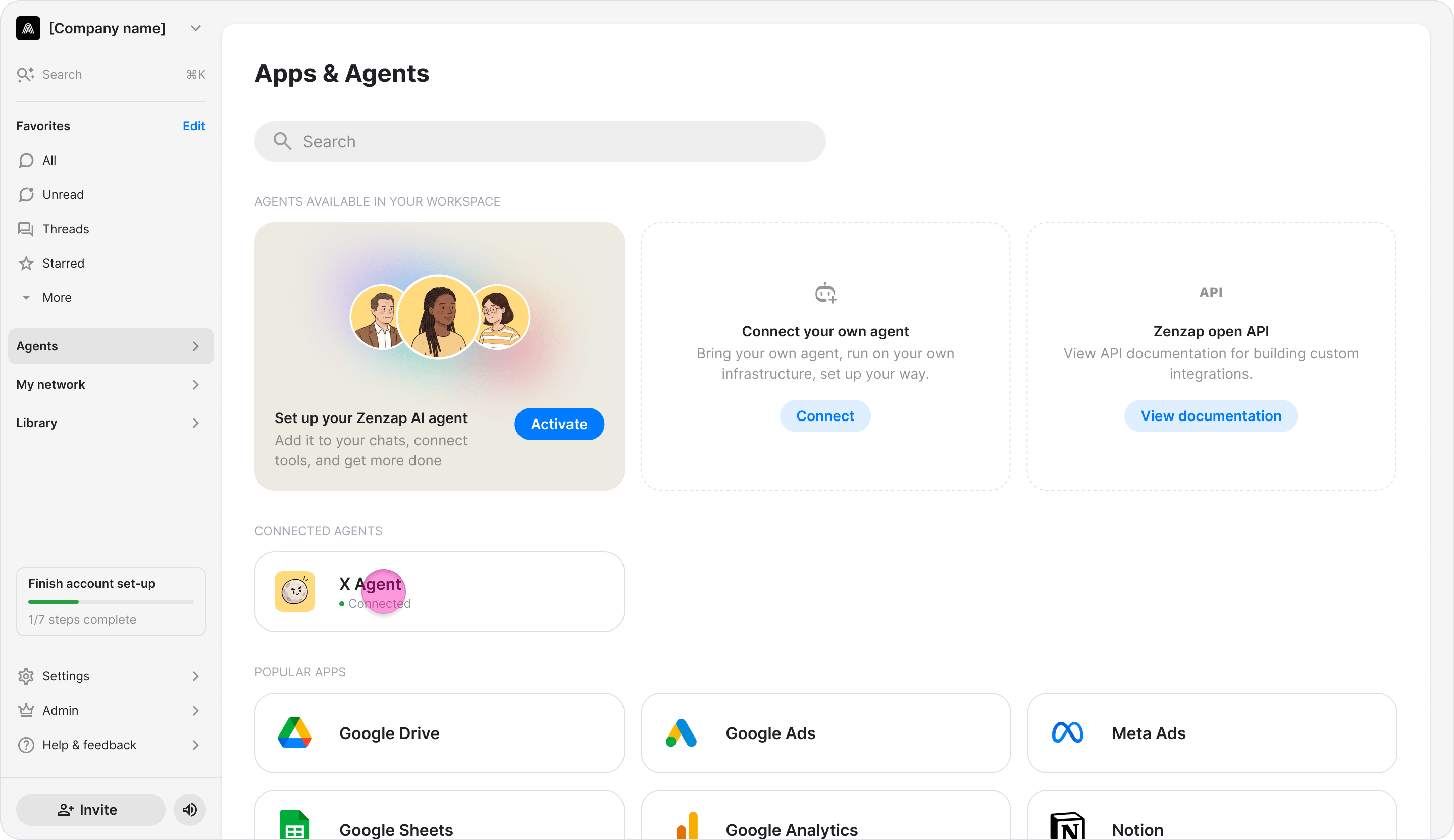
- Under “Connected apps”, click ”+ Add app” or “Connect more apps”. Note: If it’s the first app you are connecting to this agent, you will need first to click “+Connect first app”.
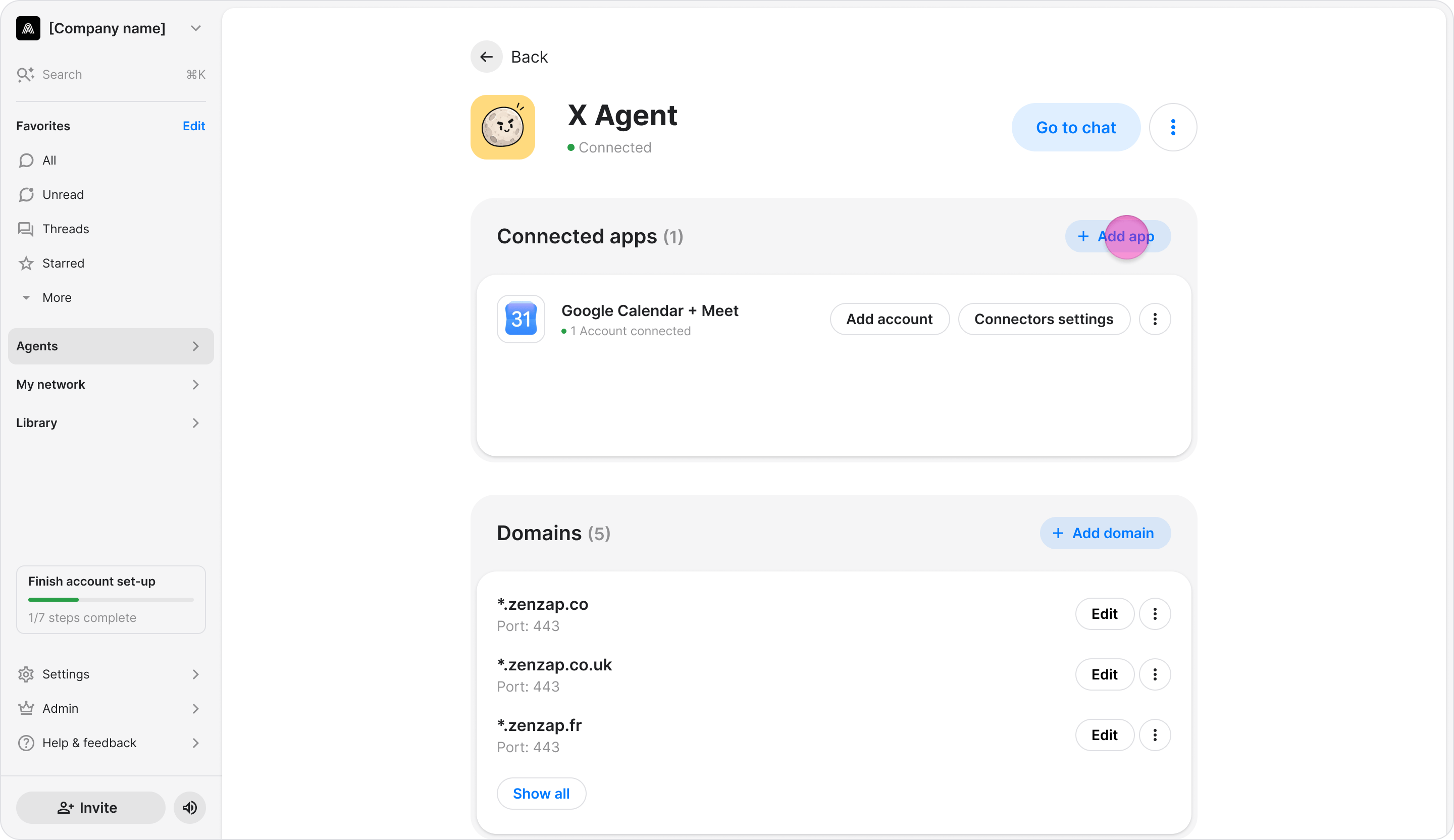
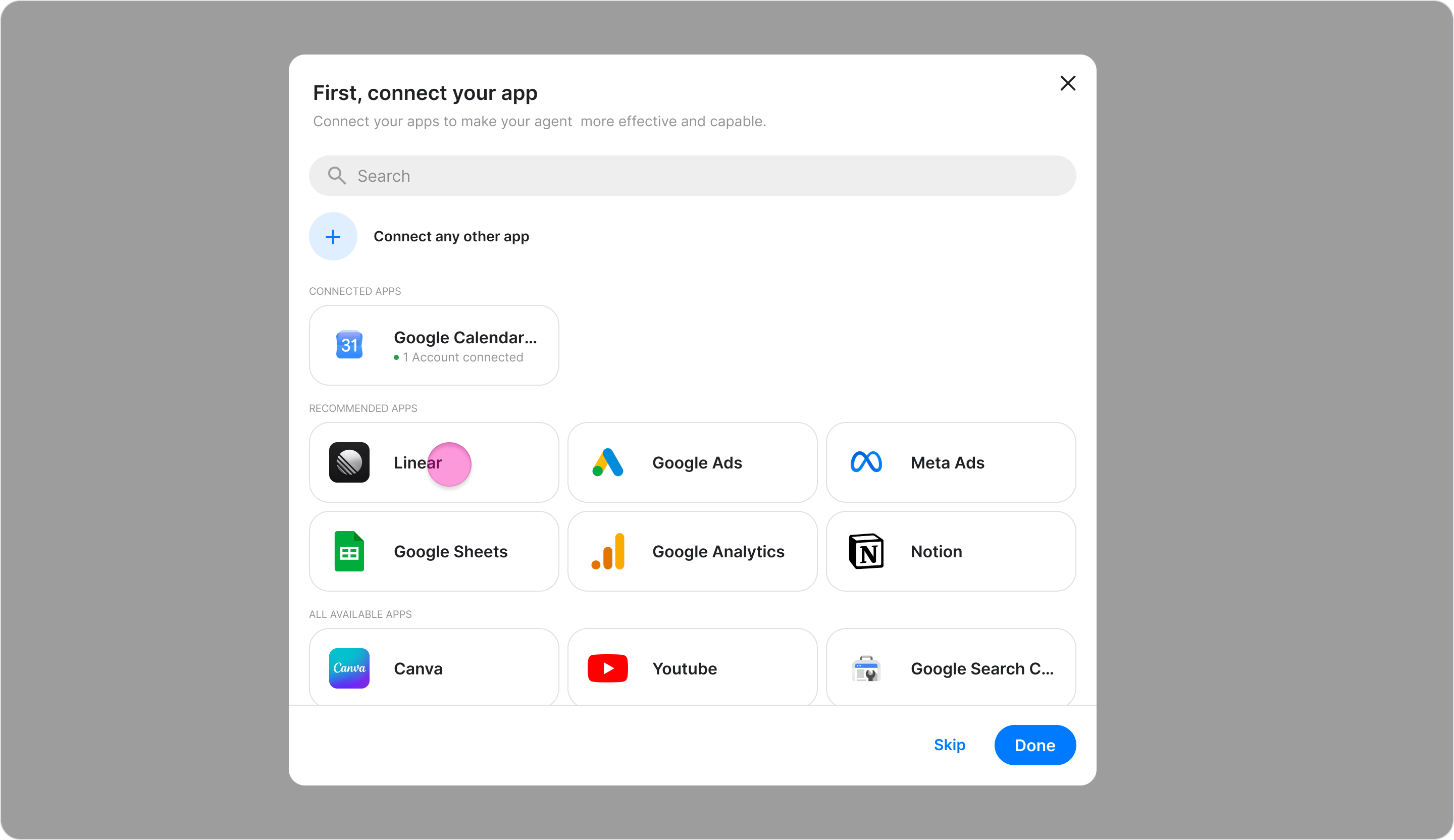
- Search the list for the app you want to connect.
- Select the app, then click “Connect”.
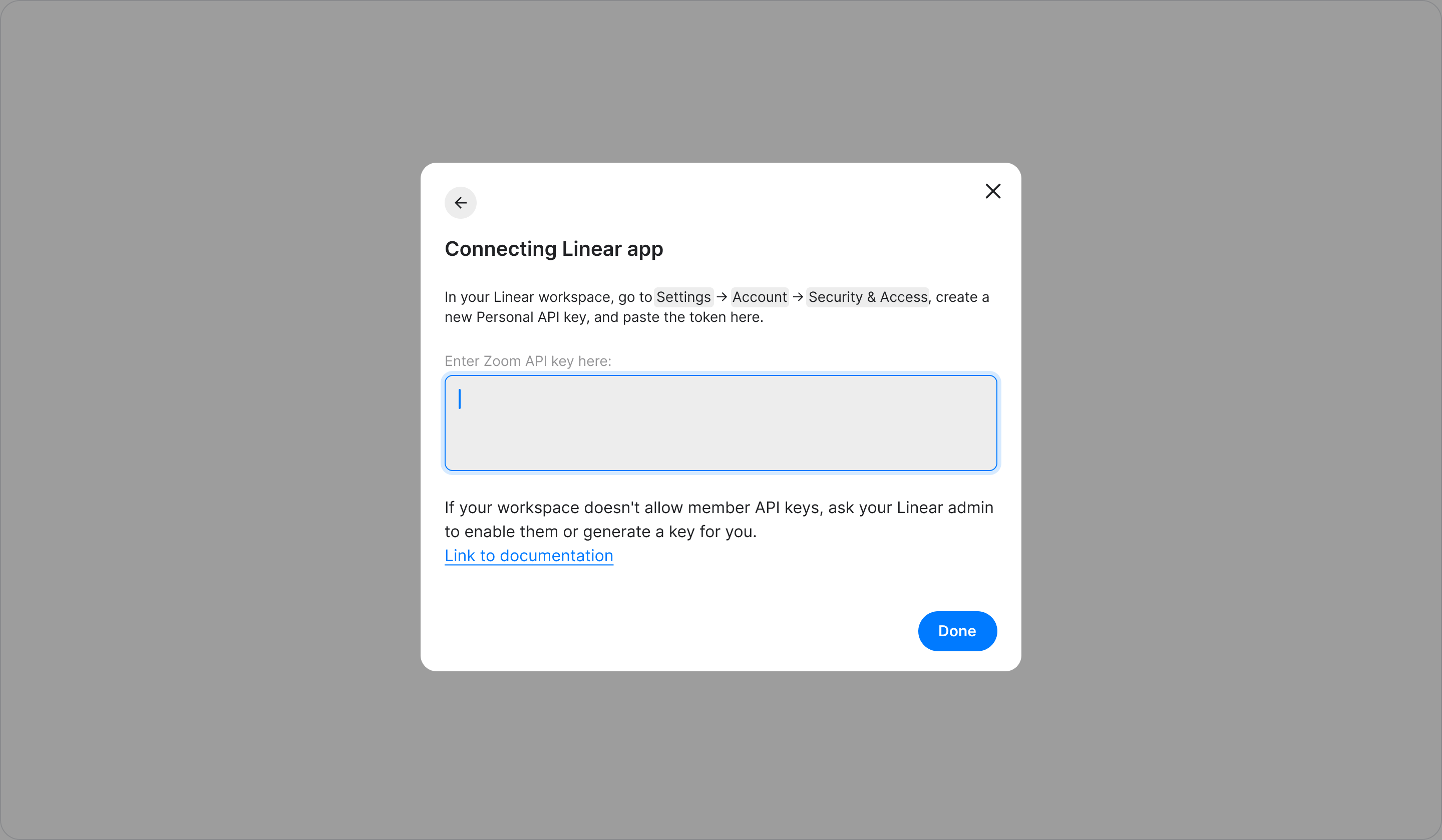
- Enter the credentials required to connect the app. See the Notes section below for more information.
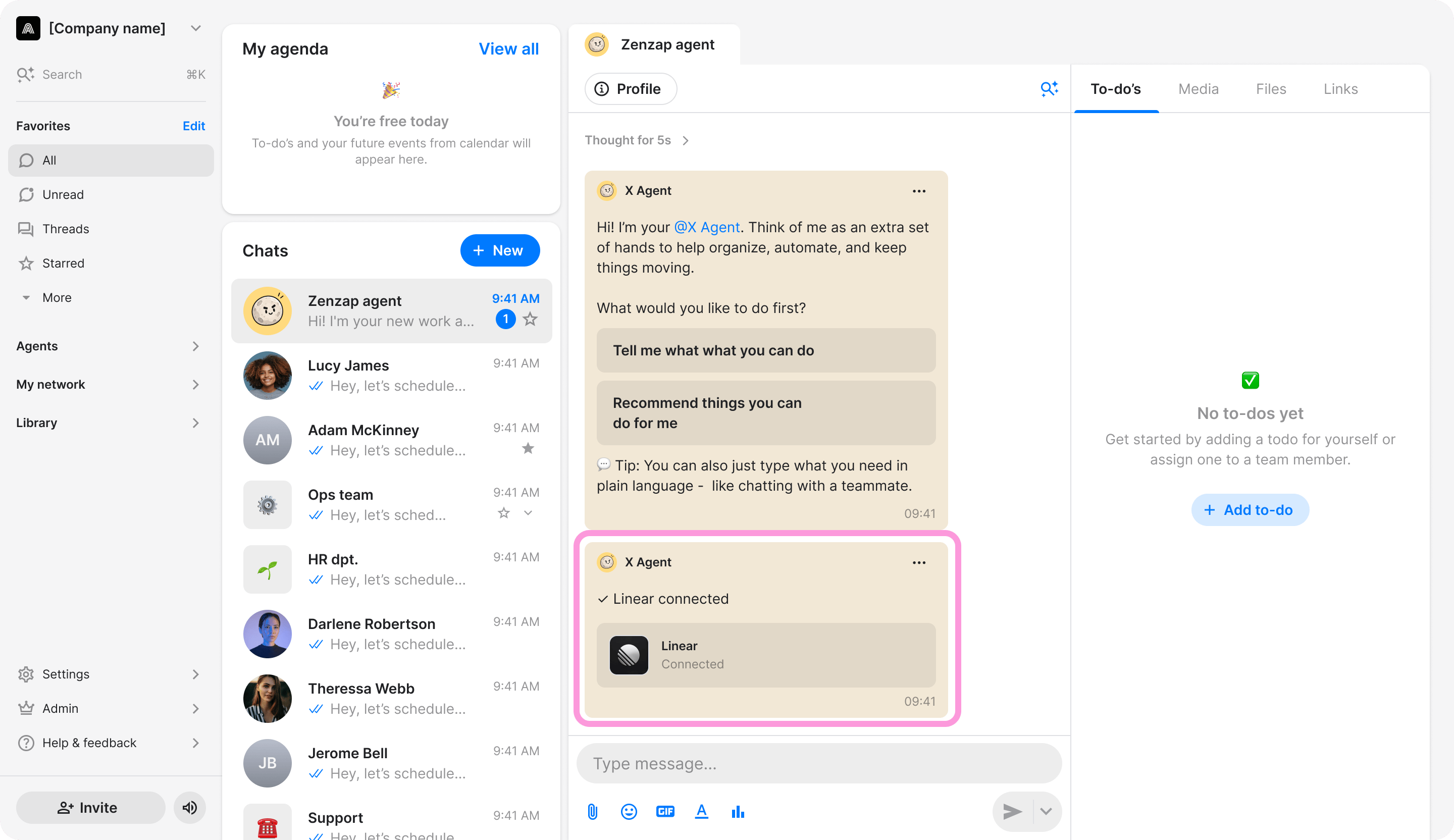
- Once connected, the tool appears under “Connected apps” of that agent.
- You can also connect apps that are not included in the list.
- Depending on the app or tool, you may be asked to connect using your account credentials or an API key. To find your API key, open the app or tool you want to connect and look in its account or developer settings for a section such as “API”, “API Keys”, “Developer”, or “Integrations”. Create or copy an API key, then paste it into Zenzap when prompted.
- You can also access an agent’s apps from its profile. In one of your conversations with the agent, tap or click the agent information to open its profile.