
On Mobile (iOS & Android)
-
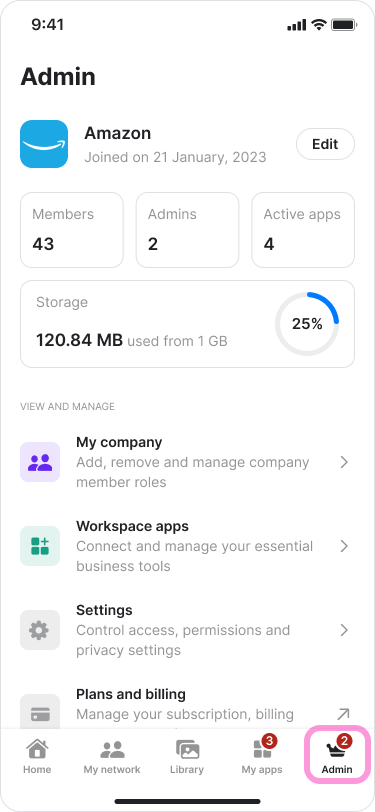
Tap the “Admin” tab in the bottom menu.
-
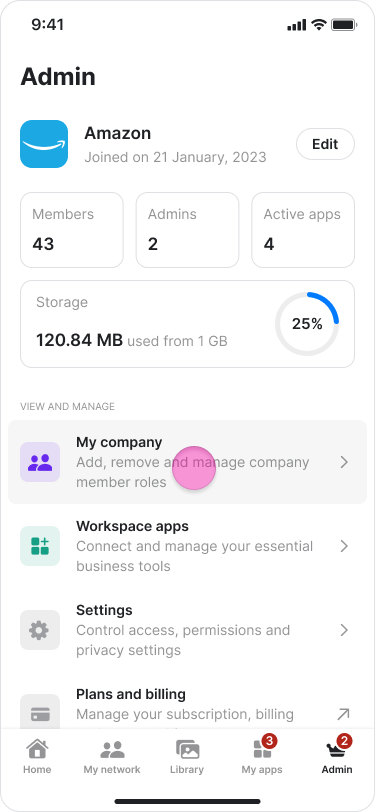
Tap “My company”.
-
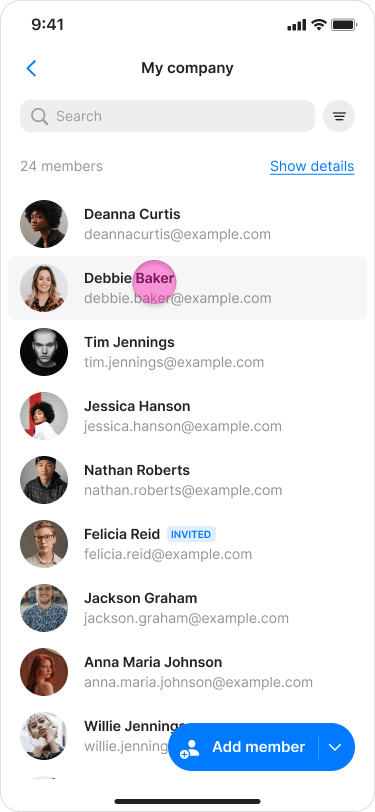
Select the team member whose role you want to change.
You can use the search bar to find them faster.
-
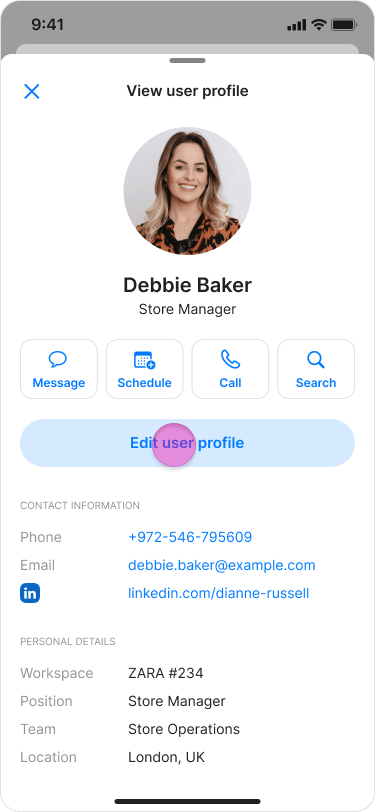
Tap “Edit profile”.
-
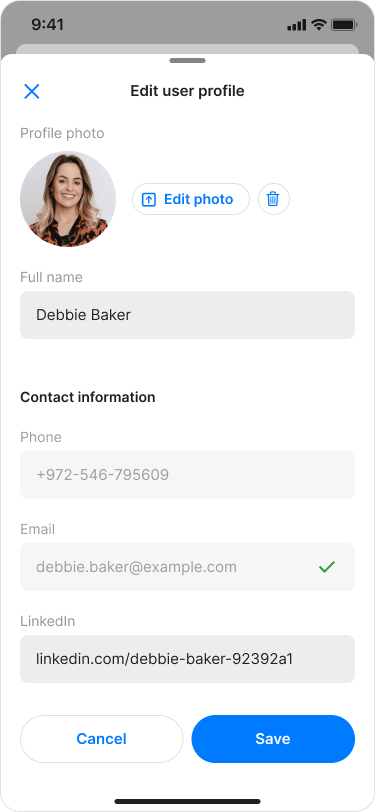
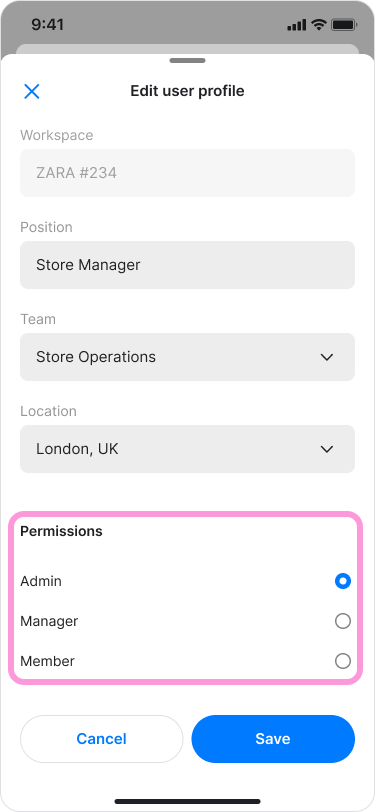
Scroll down to the “Permissions” section.
-
Select one of the following permissions:
- “Admin”.
- “Manager”.
-
“Member”.
-
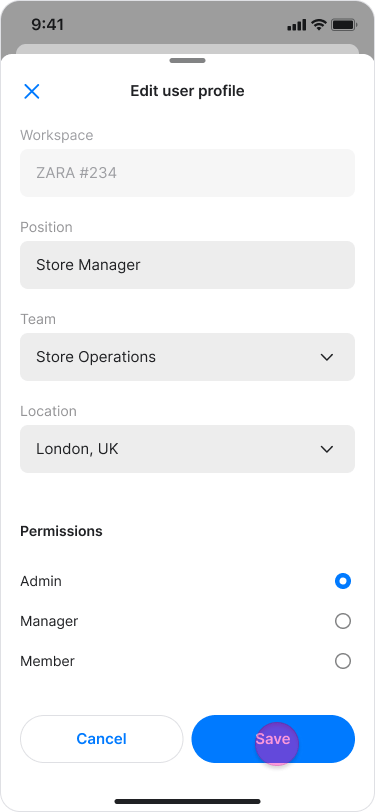
Tap “Save”.
- Permissions affect what a team member can do in your workspace.
- The original creator of the workspace is automatically assigned the “Admin” role. Admins can manage team member permissions and workspace settings by default.
- A manager’s permissions depend on your workspace settings.
On Desktop (Windows, macOS, & Web App)
-
Click “Zenzap admin” in the left sidebar.
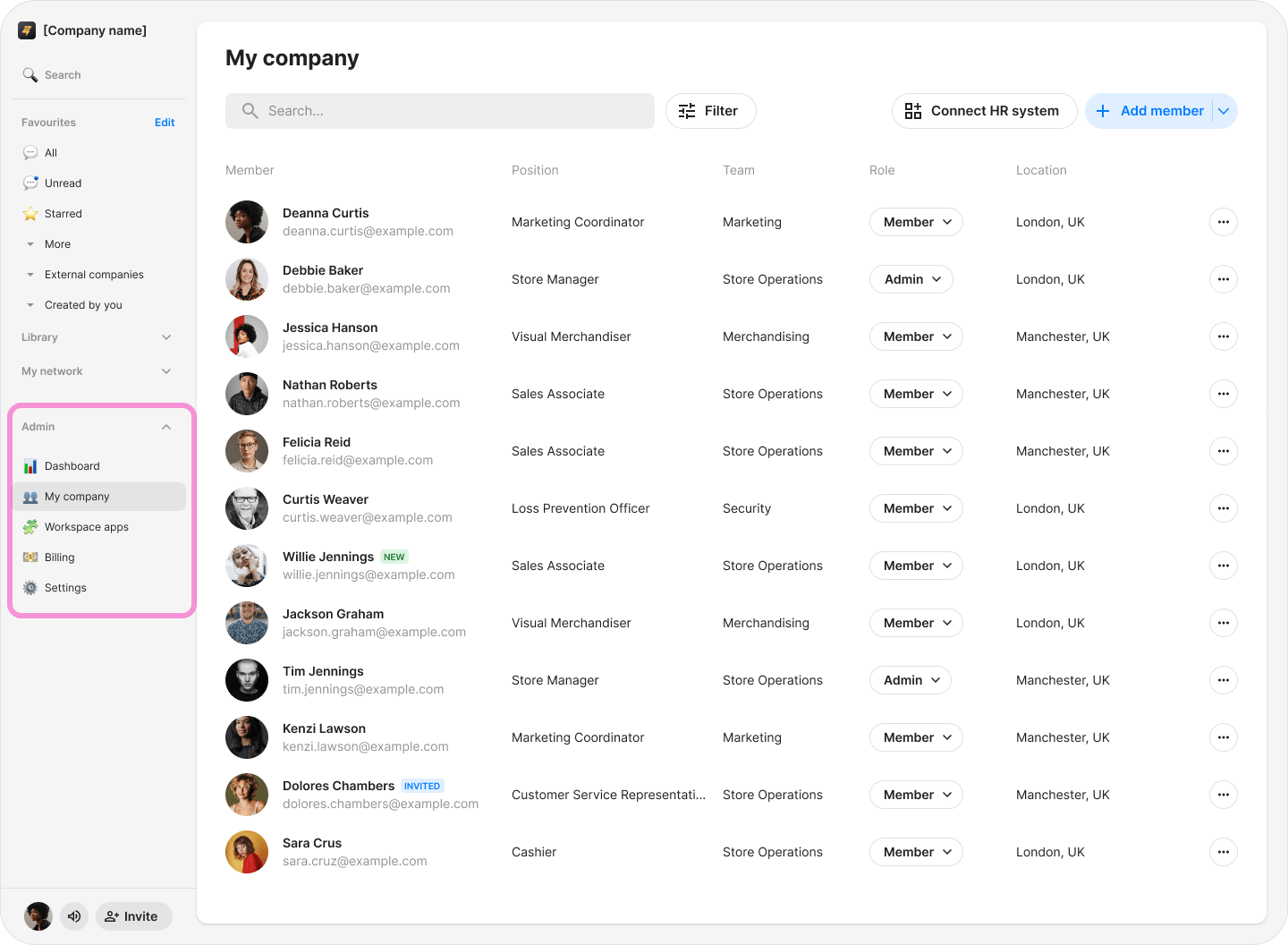
- Find the team member whose role you want to change using the search bar or “Filter”.
-
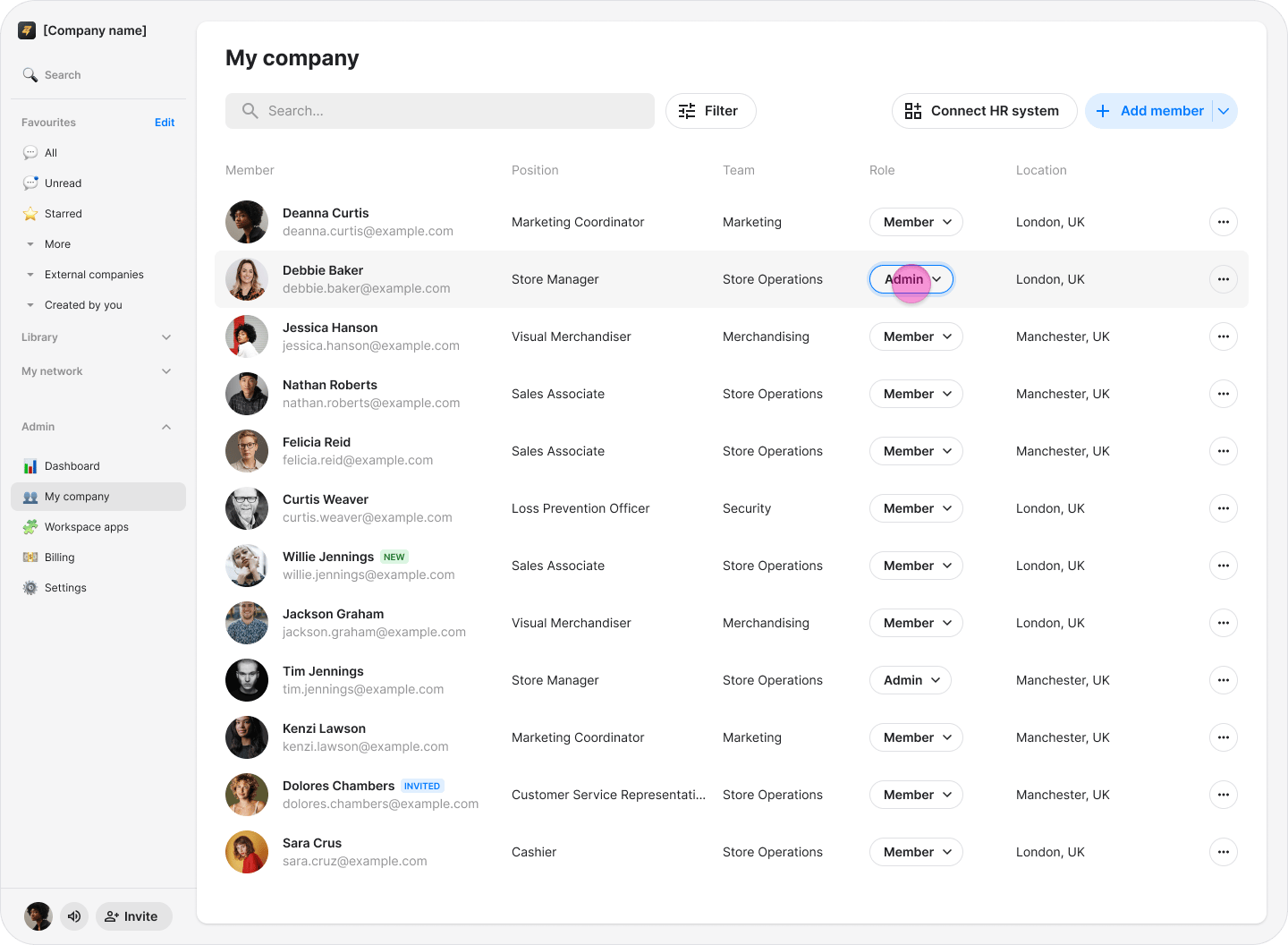
In the “Role” column, click the current role next to the team member’s name.
-
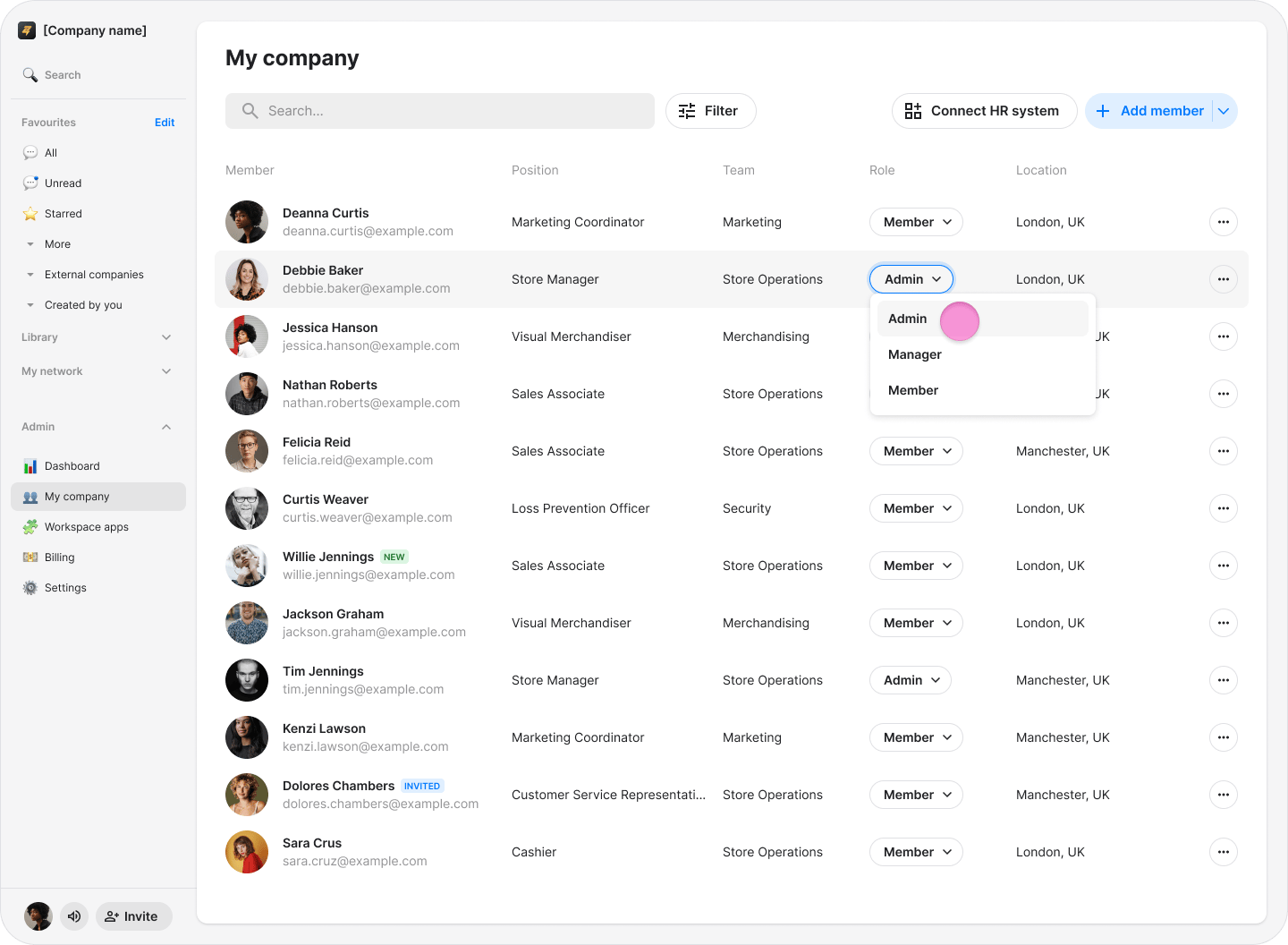
Select one of the following permissions:
- “Admin”.
- “Manager”.
-
“Member”.
-
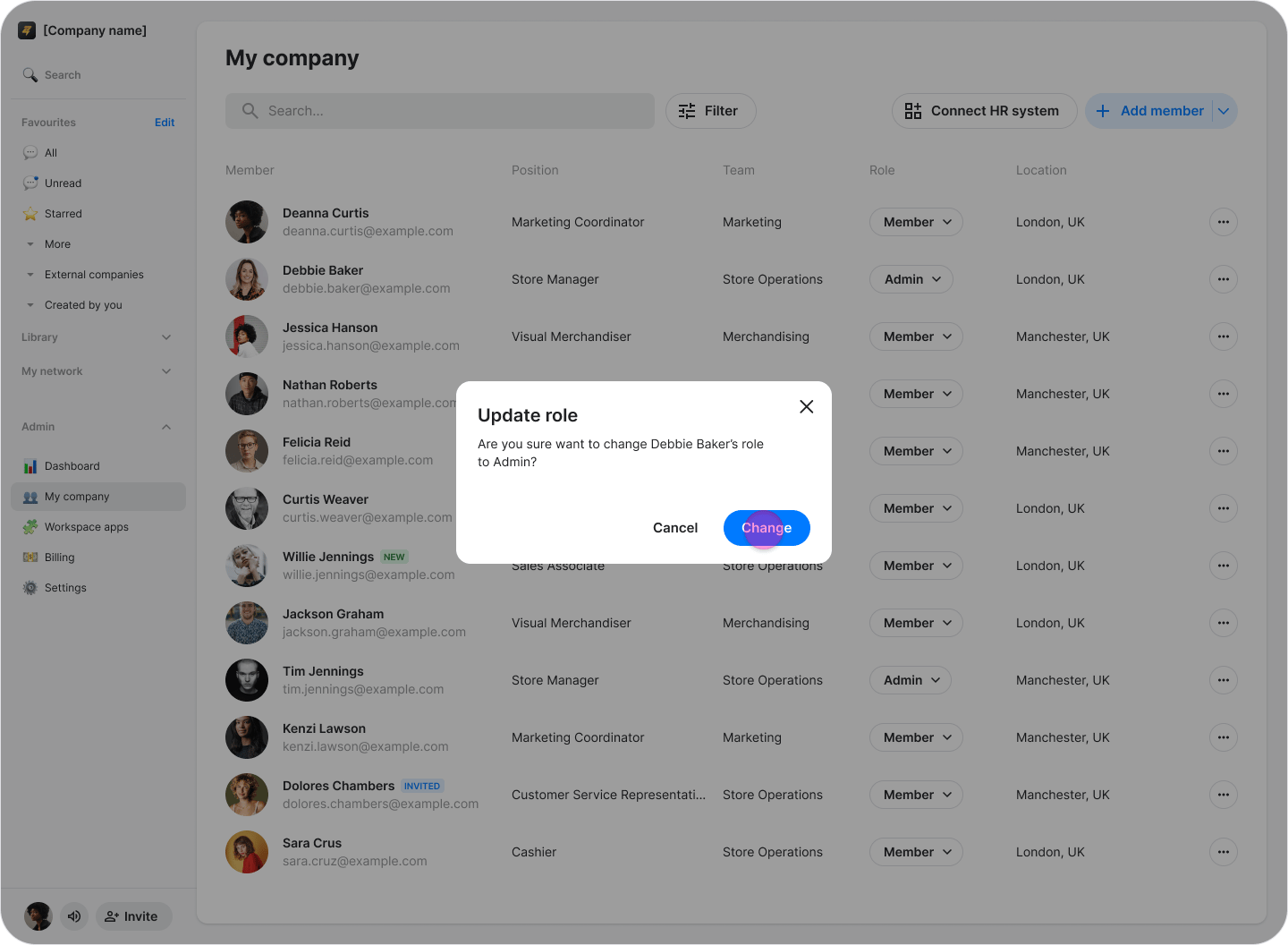
In the “Update role” confirmation window, click “Change”.
- Permissions affect what a team member can do in your workspace.
- The original creator of the workspace is automatically assigned the “Admin” role. Admins can manage team member permissions and workspace settings by default.
- A manager’s permissions depend on your workspace settings.