
On Mobile (iOS & Android)
Follow these steps to pin a message using the Zenzap mobile app.- Open the chat containing the message you want to pin.
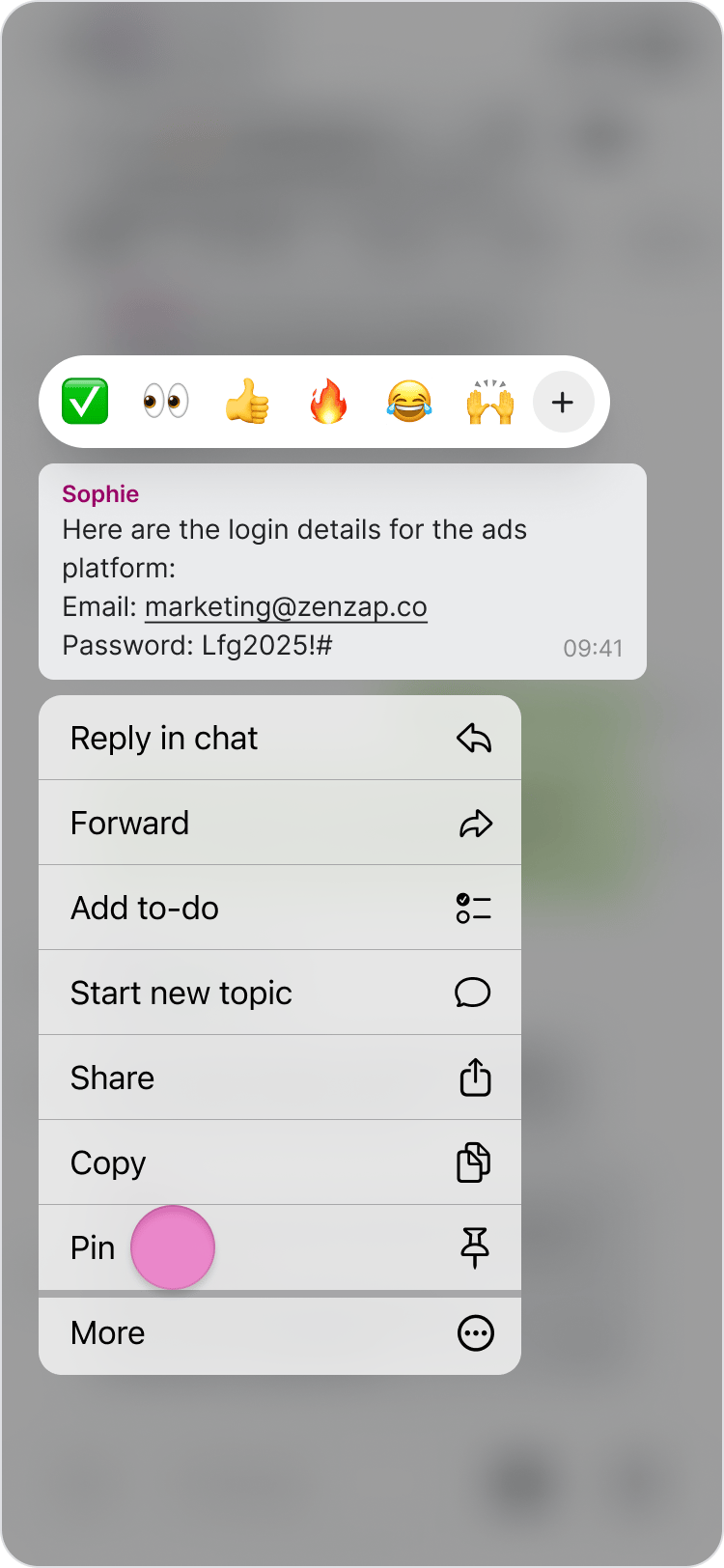
- Long press the message.

- Tap “Pin”.
- You can pin up to three messages in each chat.
- Pinned messages appear at the top of the chat.
- Tap a pinned message to jump directly to its location in the conversation.
On Desktop (Windows, macOS, & Web App)
Follow these steps to pin a message using the Zenzap desktop or web app.- Open the chat containing the message you want to pin.
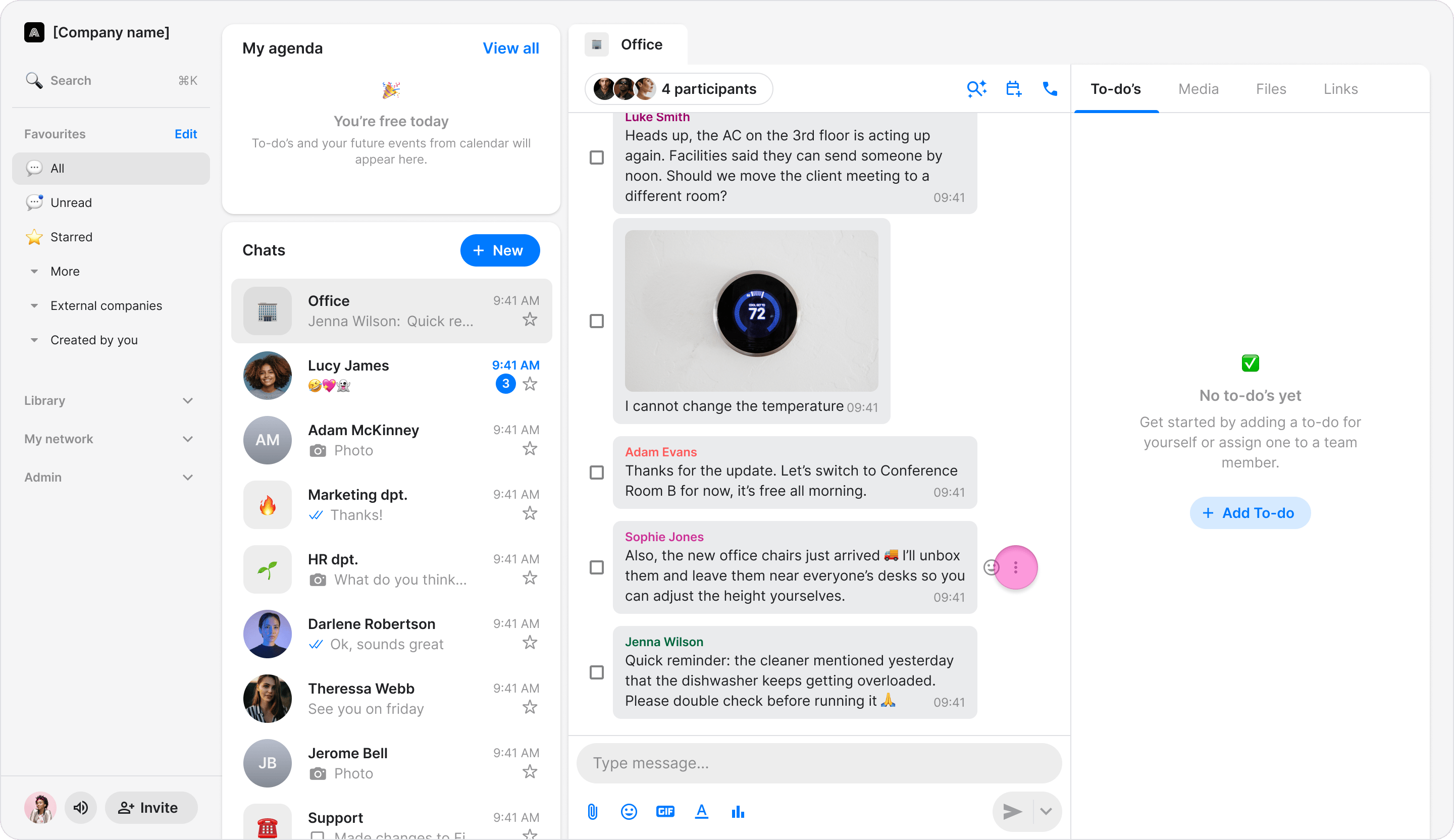
- Hover over the message.
- Click the three dots.
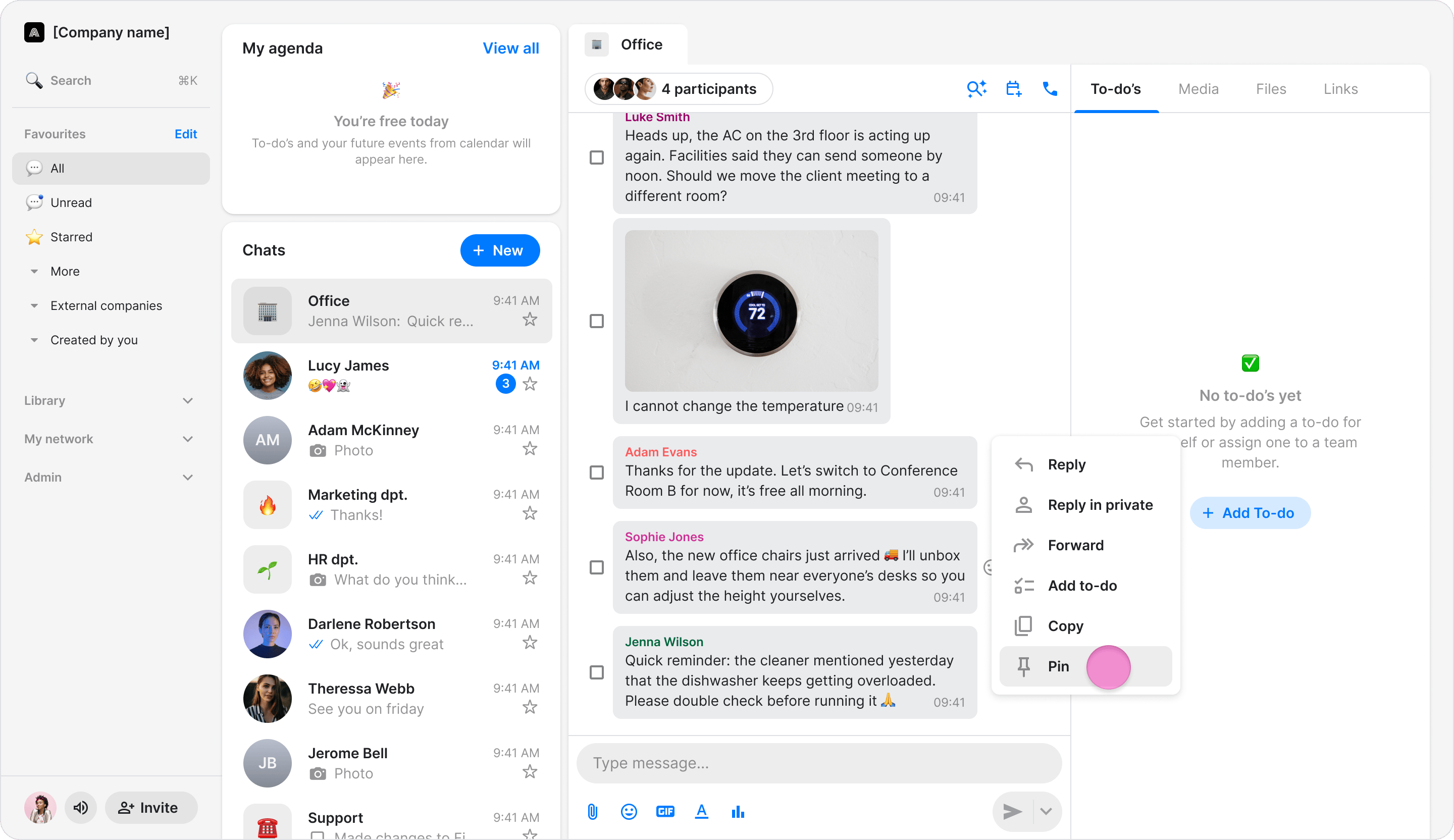
- Click “Pin”.
- You can pin up to three messages in each chat.
- Pinned messages appear at the top of the chat.
- Click a pinned message to jump directly to its location in the conversation.