
On Mobile (iOS)
- Open a chat.
- Tap the ”+” button to the left of the message field.
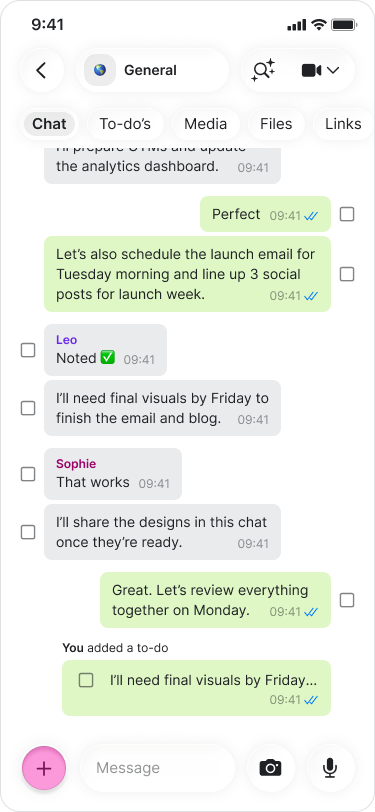
- Tap “Document” from the menu.
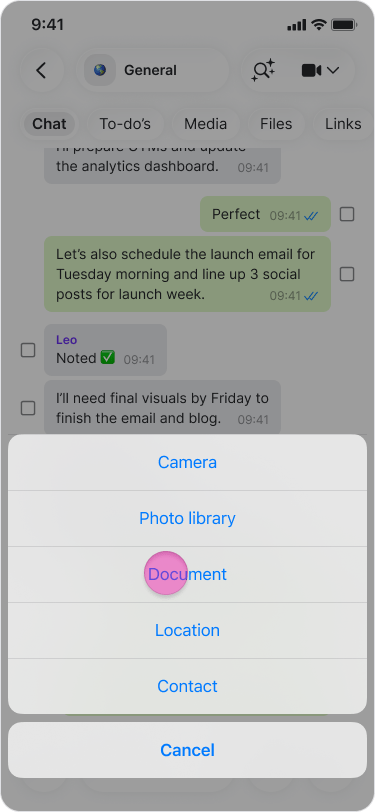
- Select the document you want to share.
- Tap “Open” to send.
On Mobile (Android)
- Open a chat.
- Tap the “Paper clip” icon in the message field.
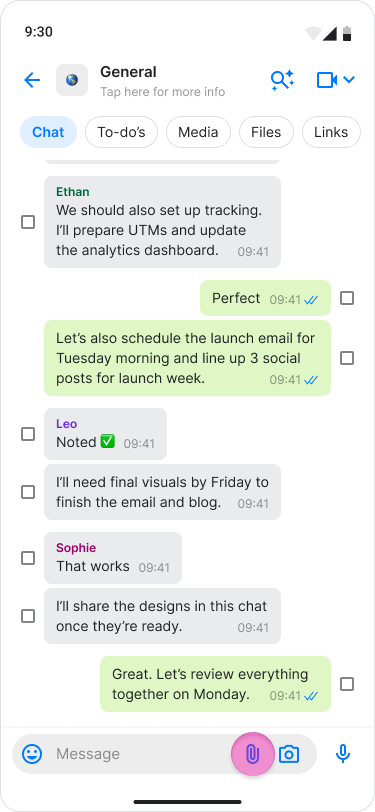
- Tap “Document”.
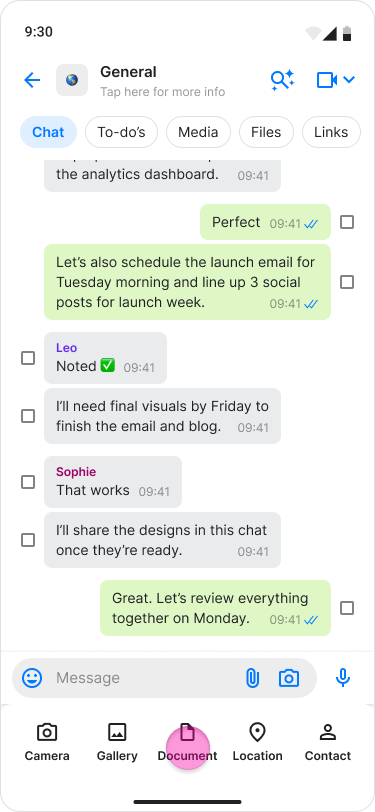
- Select the document you want to share.
- Tap the document to send it.
- You can select and upload multiple documents at once.
- Direct Sharing: You can share documents directly from your email or local folders into the chat.
On Desktop (Windows, macOS, & Web App)
- Click the “Paperclip” icon to the left of the text box.
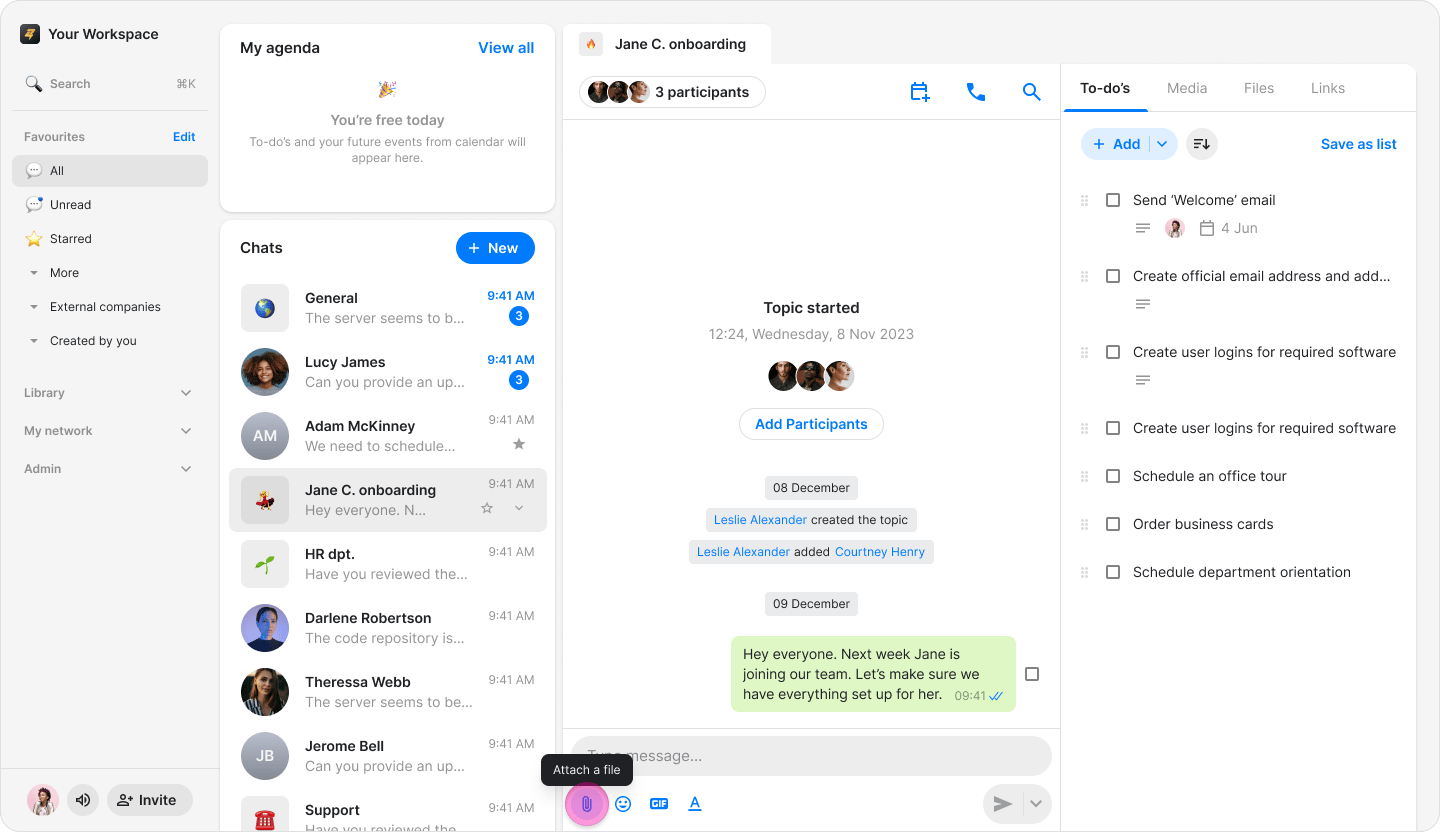
- Select the document from your computer’s files.
- Click “Open” or “Done” to send the file.
- You can select multiple documents from the same folder at once.
- You can drag and drop documents directly into the chat.