
On Mobile (iOS & Android)
- Find the message you want to delete.
-
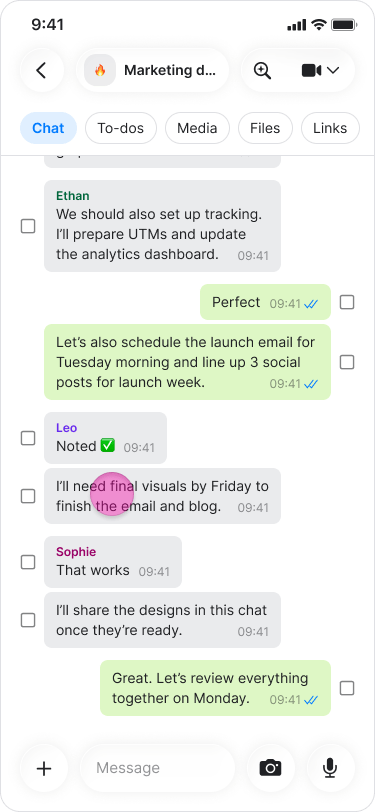
Long-press on the message or select multiple messages by pressing the circle next to them.
-
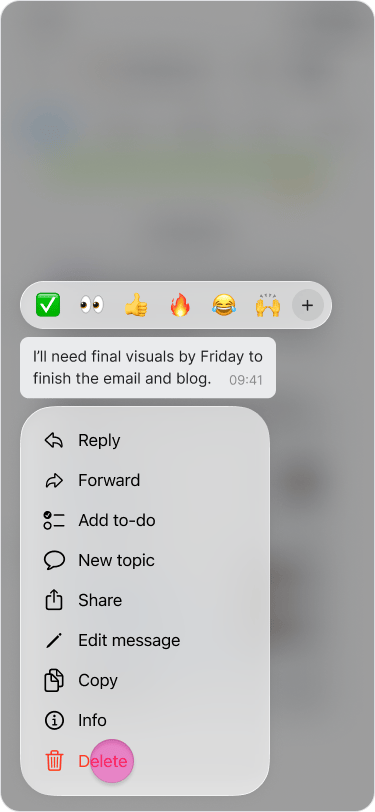
Tap “Delete” at the bottom of the menu.
-
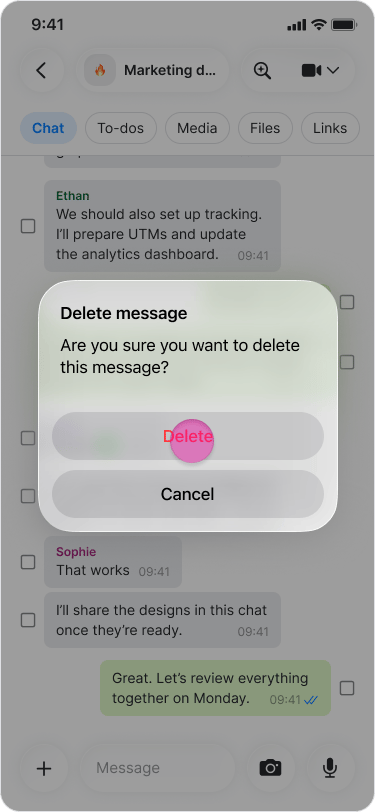
Tap “Delete” on the confirmation message.
- Deleted messages are removed for everyone in the chat.
- If someone has not read the message, they will not see it or know it was deleted.
- You can delete older messages without limitation.
- Deleting a message is permanent.
On Desktop (Windows, macOS, & Web App)
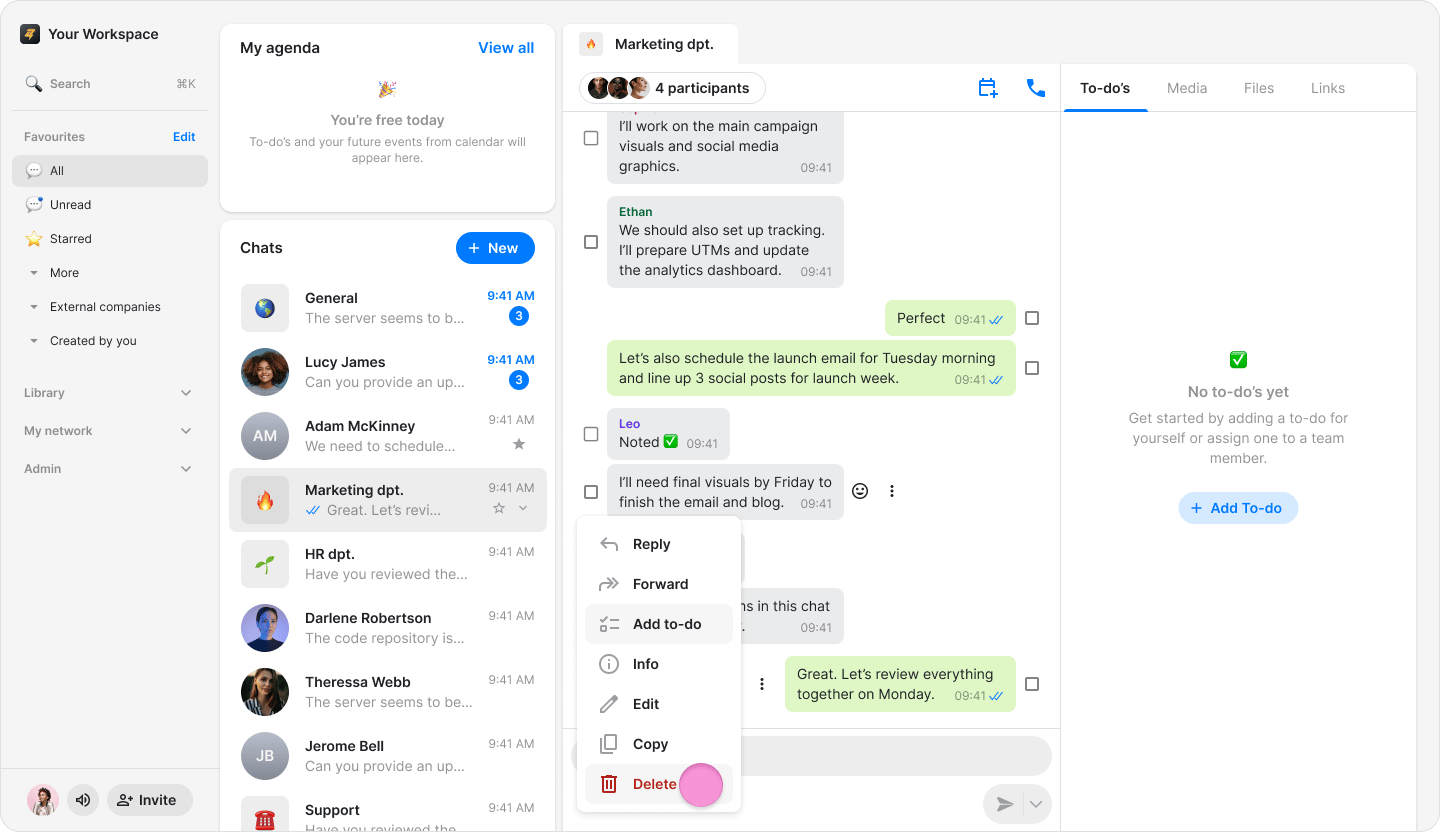
- Hover over the message you want to delete.
- Click the “Three dots” icon.
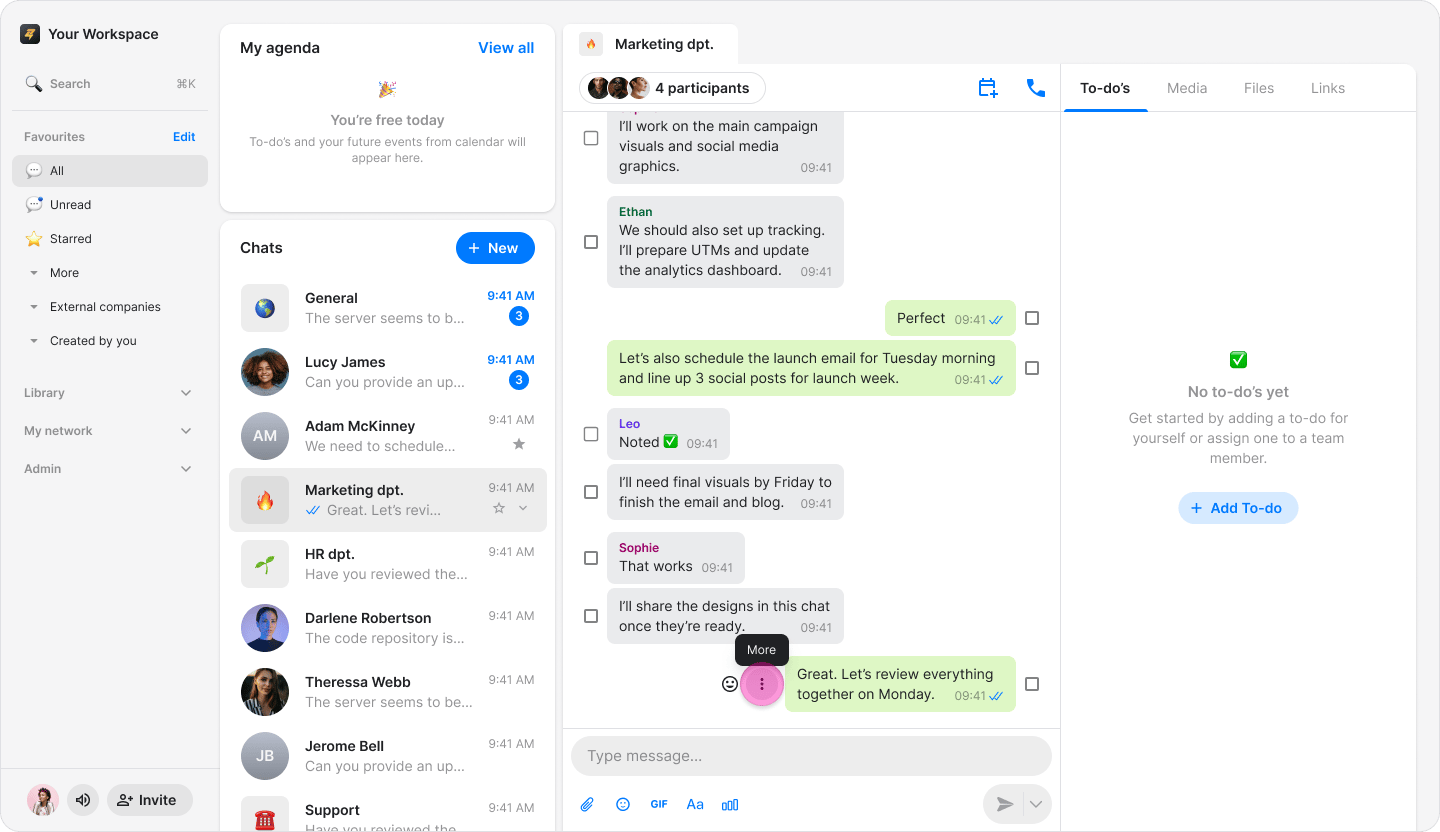
- Click “Delete”.
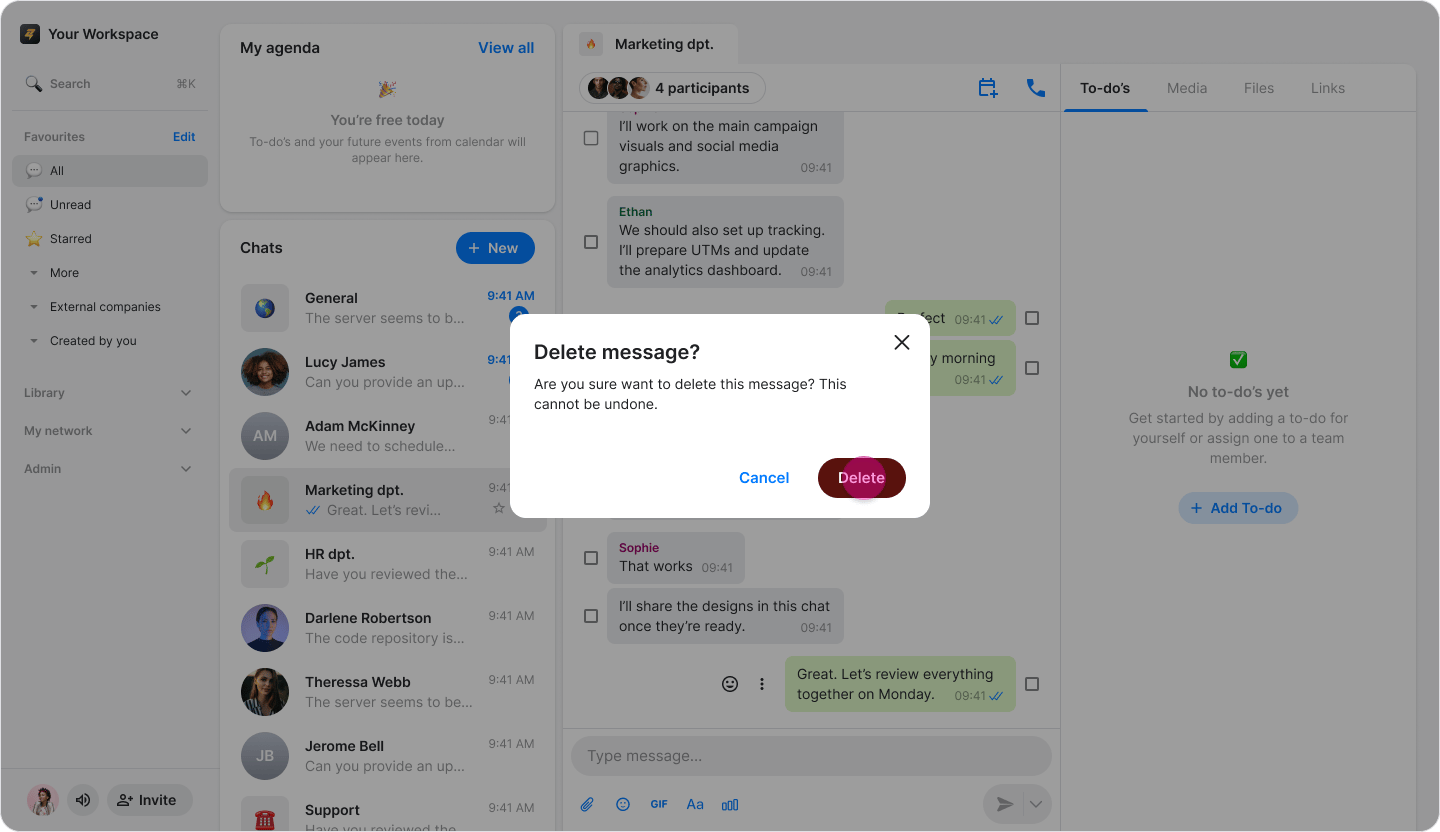
- Click “Delete” to permanently delete the message or “Cancel” to leave it.
- Deleted messages are removed for everyone in the chat.
- If someone has not read the message, they will not see it or know it was deleted.
- You can delete older messages without limitation.
- Deleting a message is permanent.