On Mobile (iOS & Android)
- Open the chat where you want to send a poll.
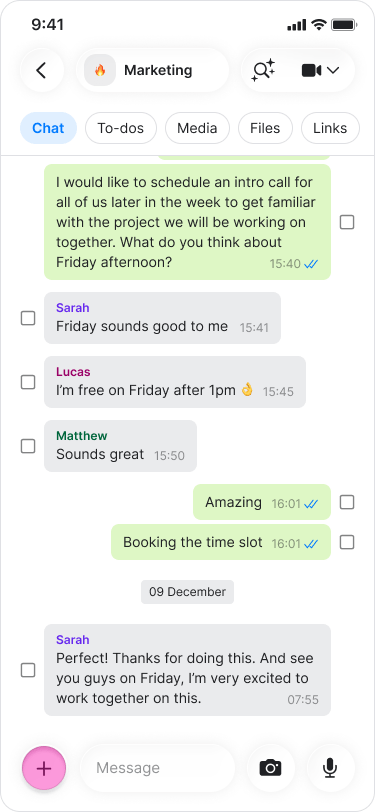
- Tap the ”+” icon next to the message field.
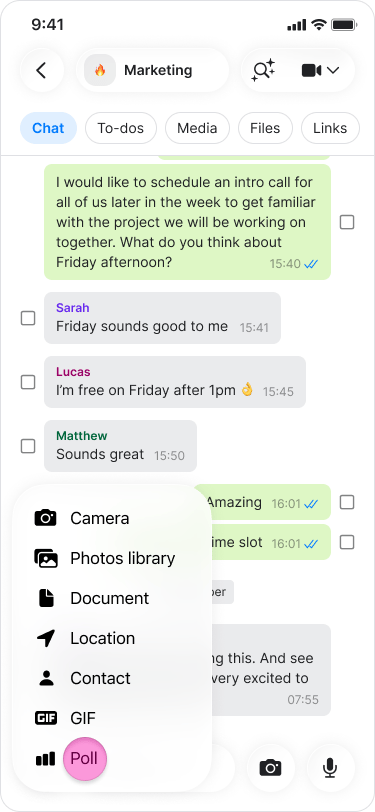
- Tap “Poll”.
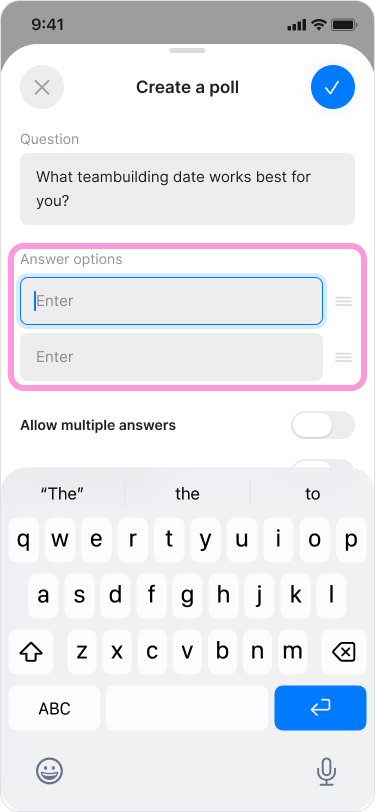
- Type your question under the “Question” label.
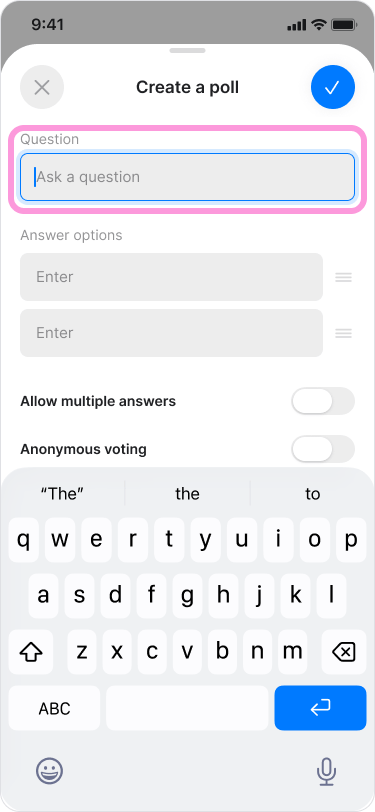
- Type your poll options under the “Answer options” label.
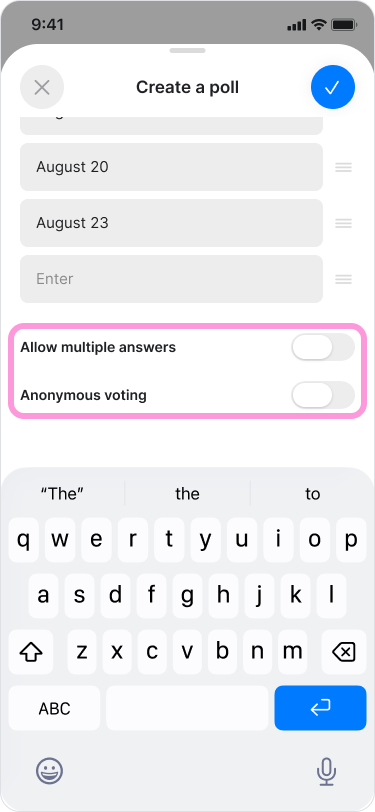
- Choose whether to enable the following settings:
- “Allow multiple answers”
- “Anonymous voting”
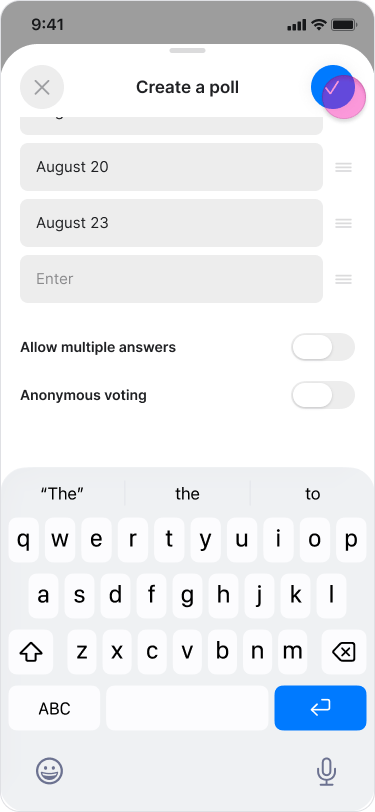
- Tap “Create” to send it to the chat.
- As you type your answers, a new field will automatically appear for adding more options.
- To change the order of options, tap and drag an answer up or down.
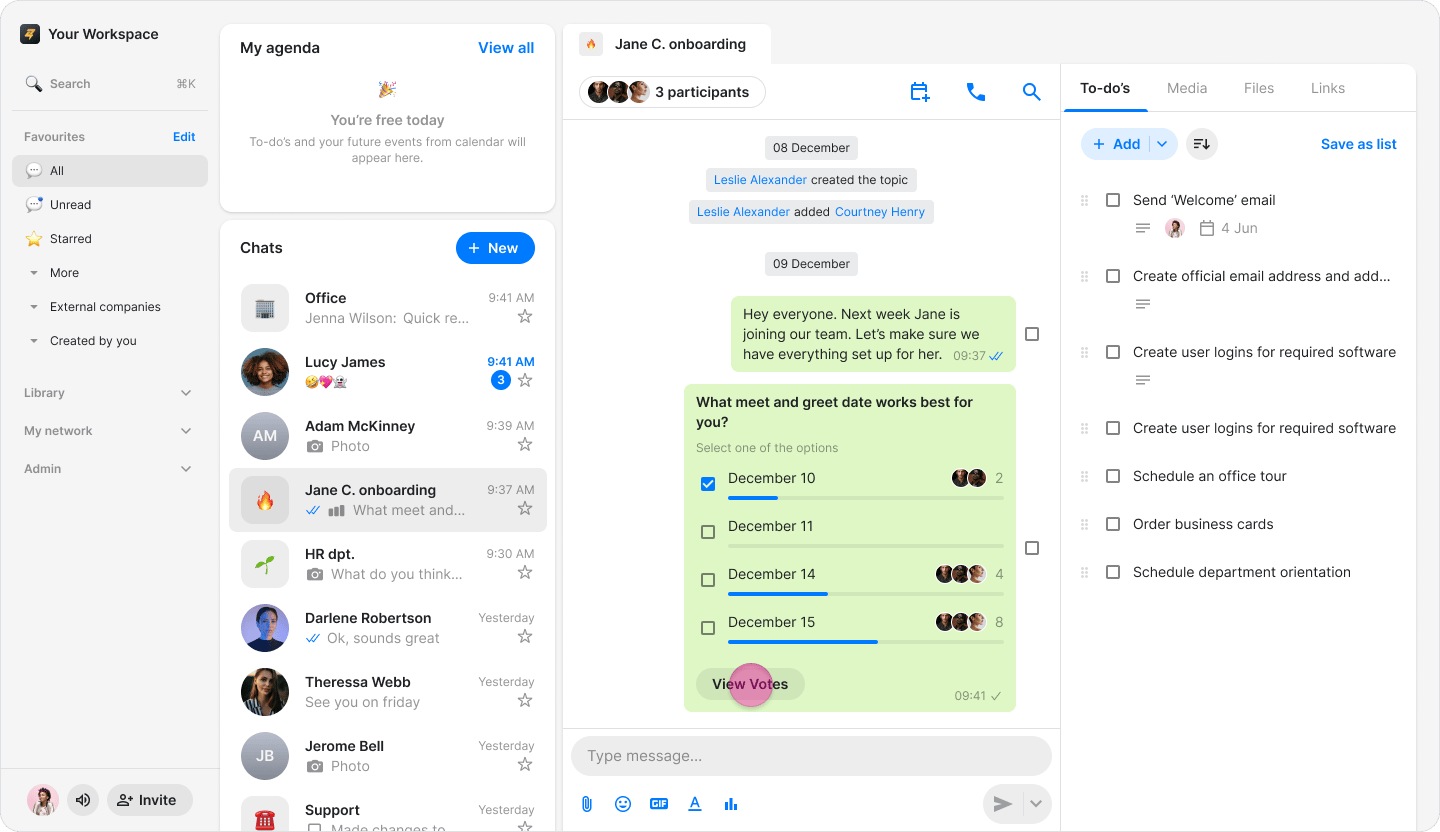
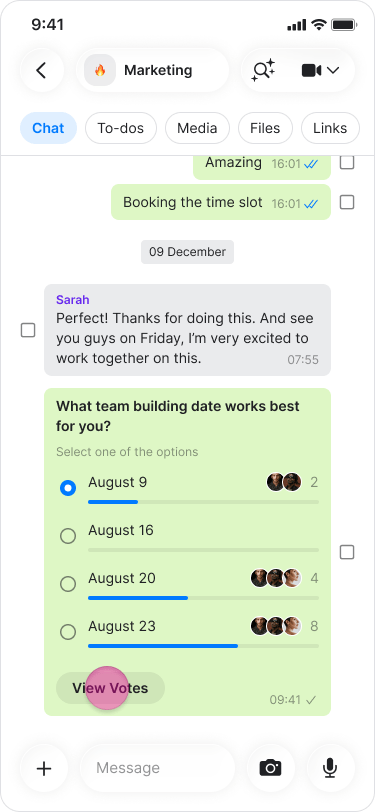
- You can see the number of votes next to each option.
- Unless “Anonymous voting” is enabled, tap “View Votes” to see who voted for each option.
On Desktop (Windows, macOS, & Web App)
- Open the chat where you want to send a poll.
- Click the “Poll” icon below the text message field (On macOS, click the ”+” icon next to the message field and select “Poll” from the menu).
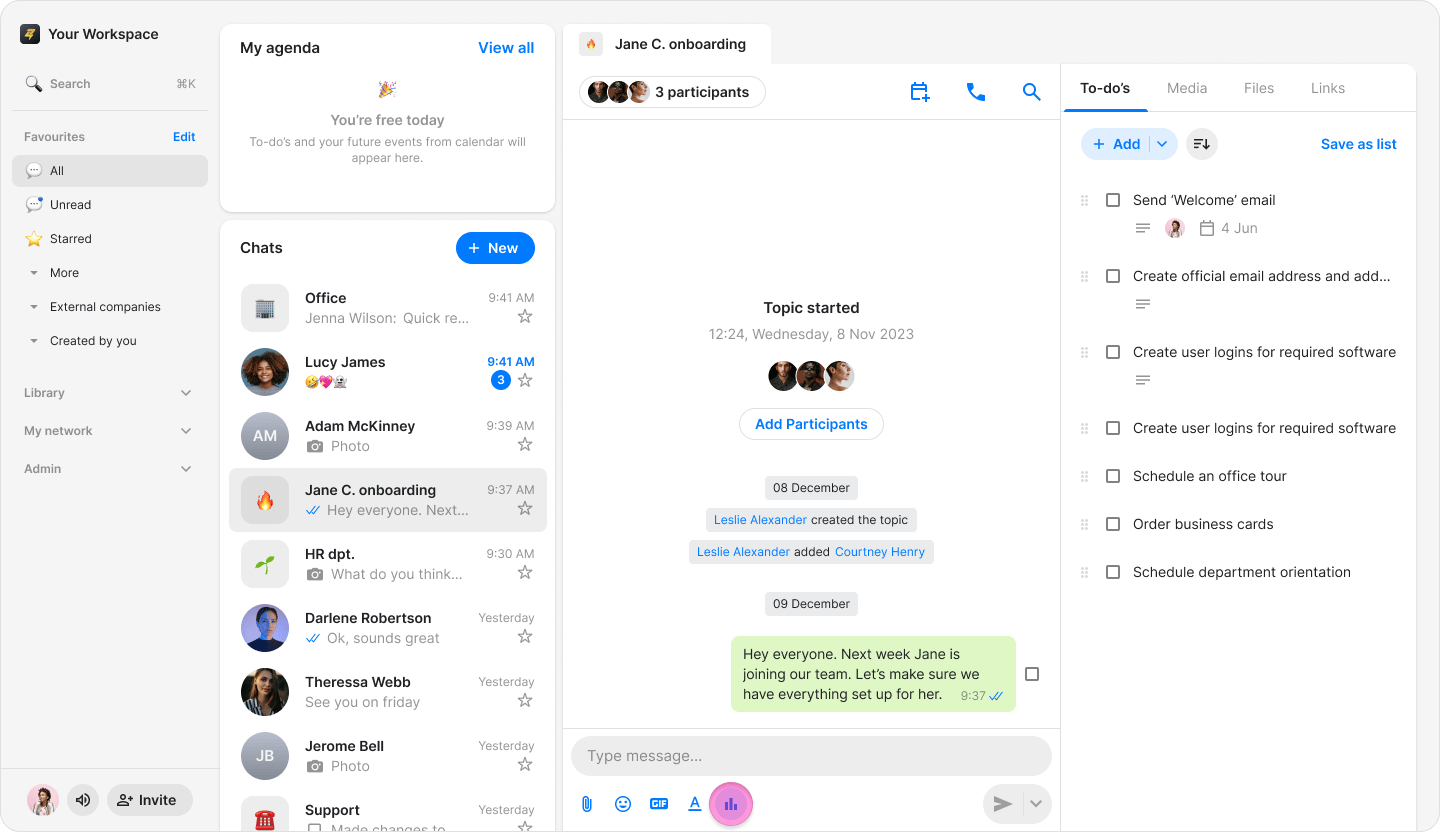
- Enter your question in the “Question” text box.
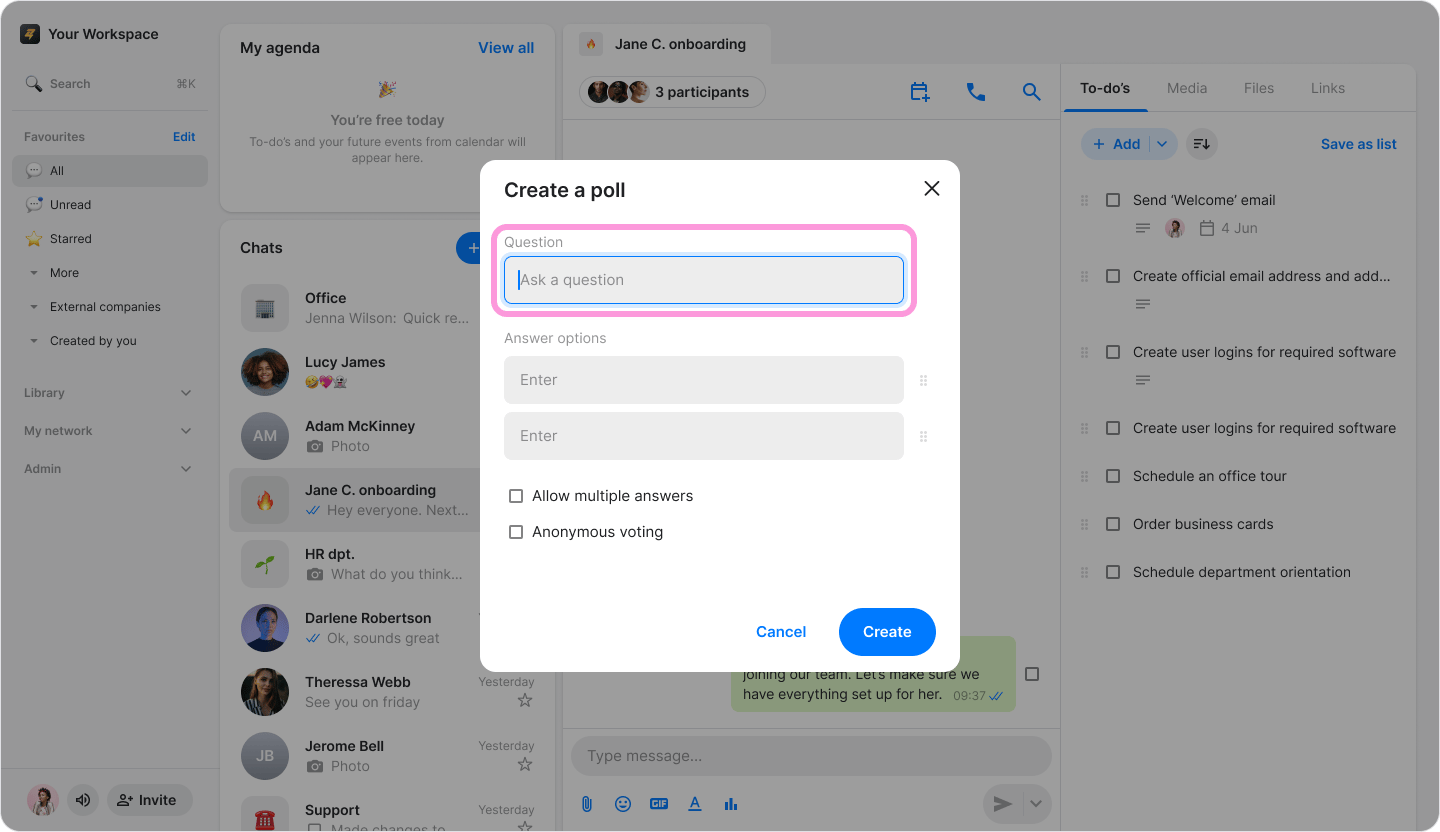
- Enter your poll options under the “Answer options” label.
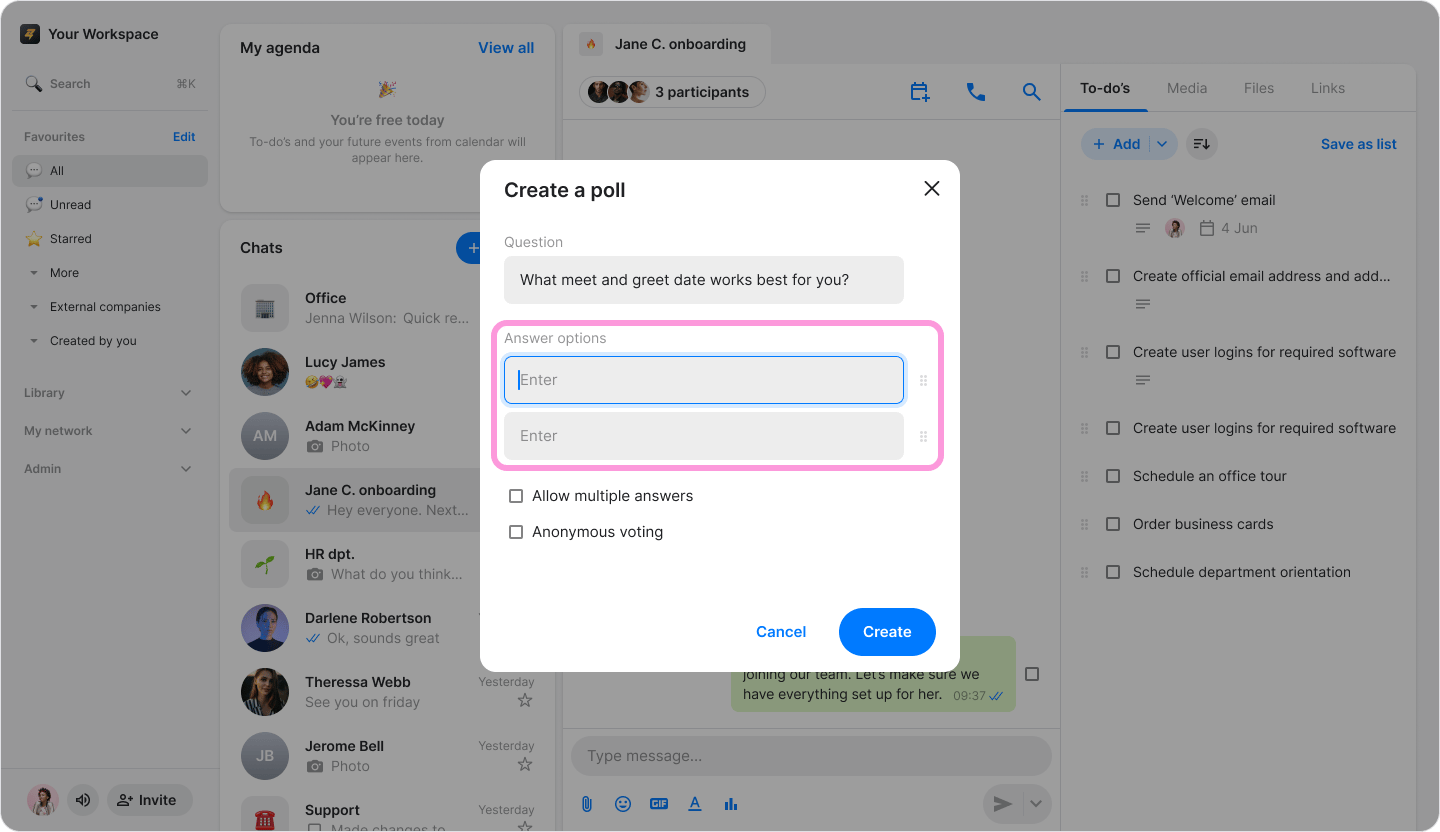
- Choose whether to enable the following settings:
- Allow multiple answers
- Anonymous voting
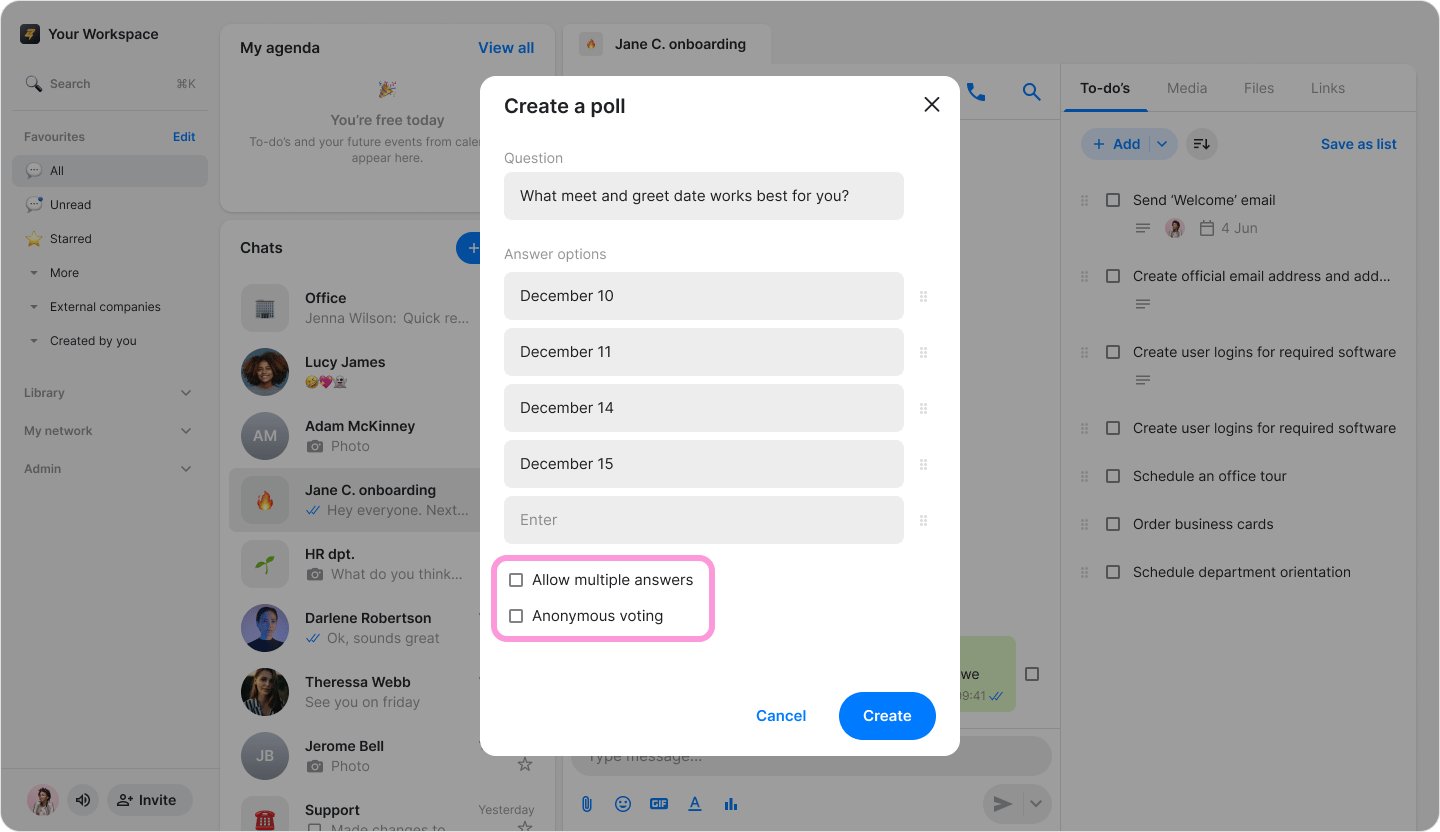
- Click “Create” to share it with the group.
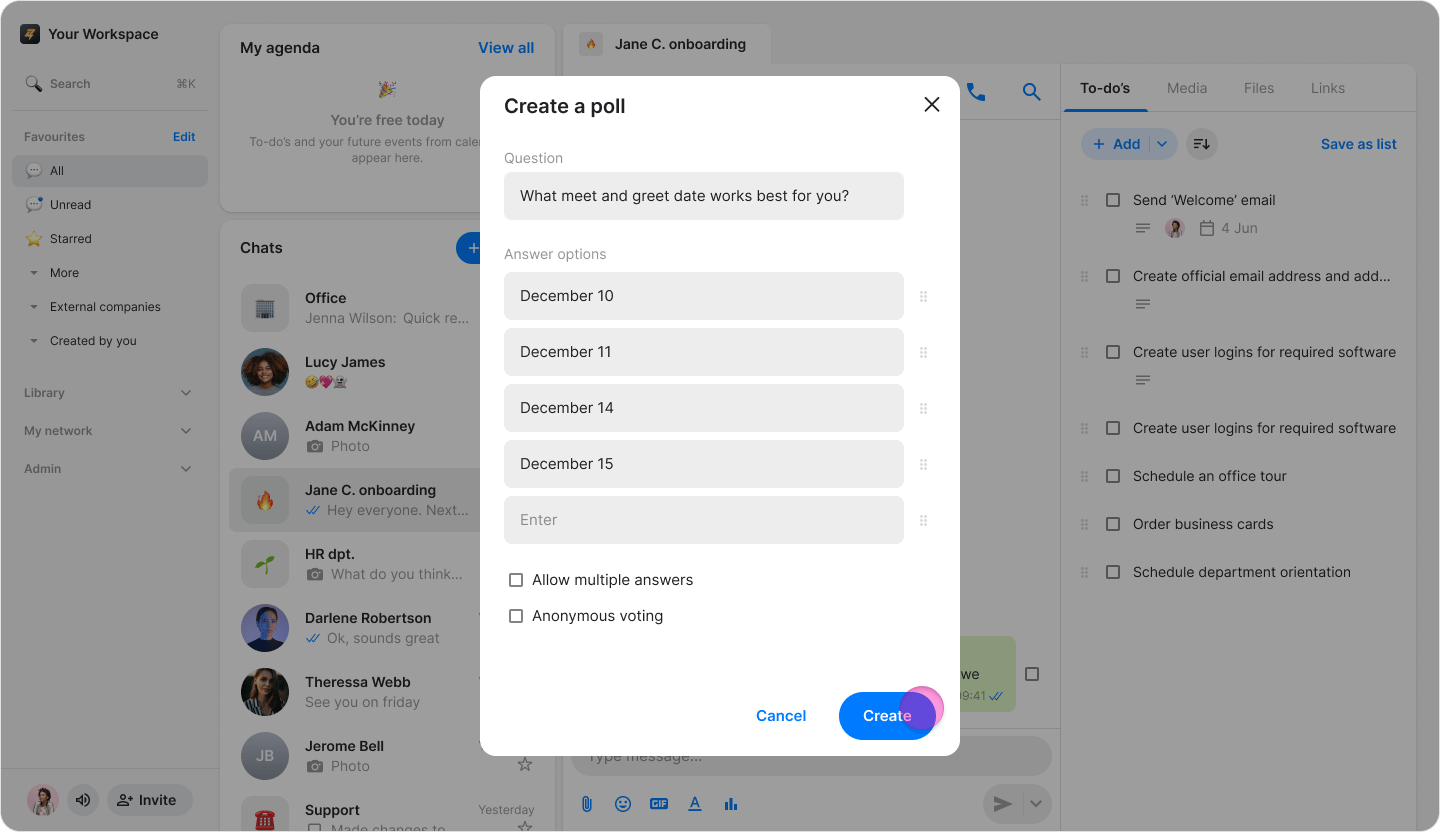
- As you type your answers, a new field will automatically appear for additional options.
- To change the order of options, click and drag the “box” icon to the right of the answer up or down.
- You can see the number of votes next to each option.
- Unless “Anonymous voting” is enabled, tap “View Votes” to see who voted for each option.