
On Mobile (iOS)
Importing a Chat
- Open WhatsApp.
-
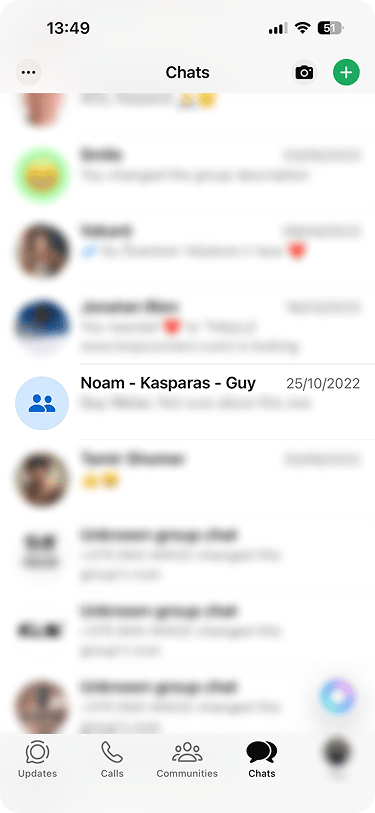
Open a chat you want to export.
-
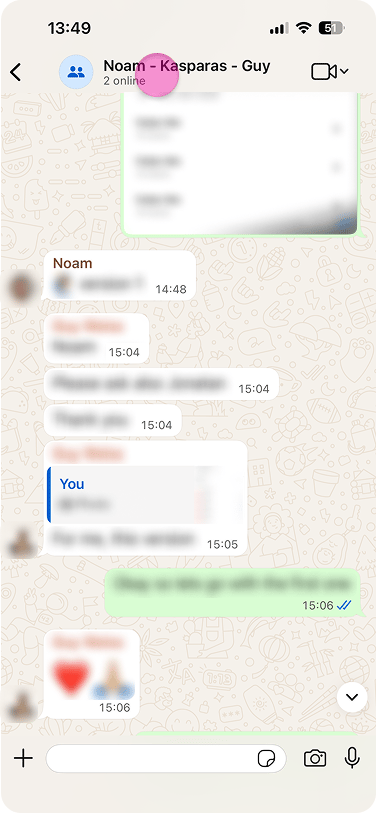
Tap the contact or group name at the top of the chat window.
-
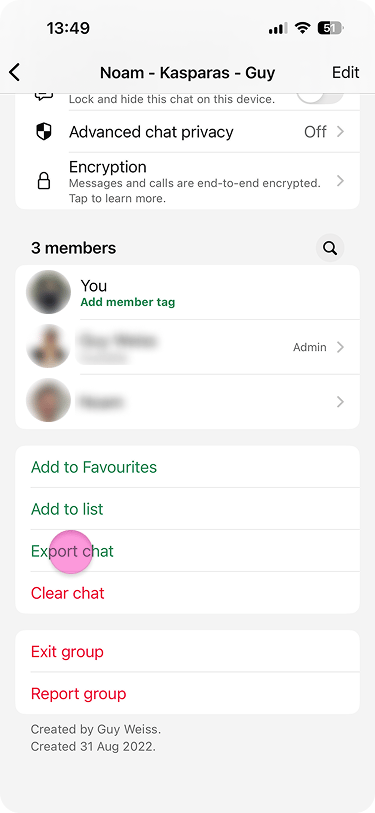
Scroll down and tap “Export Chat”.
-
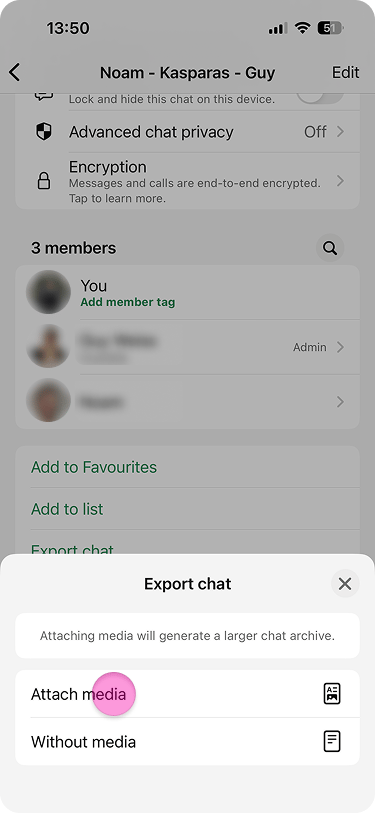
Choose “Attach media”, or “Without media”.
-
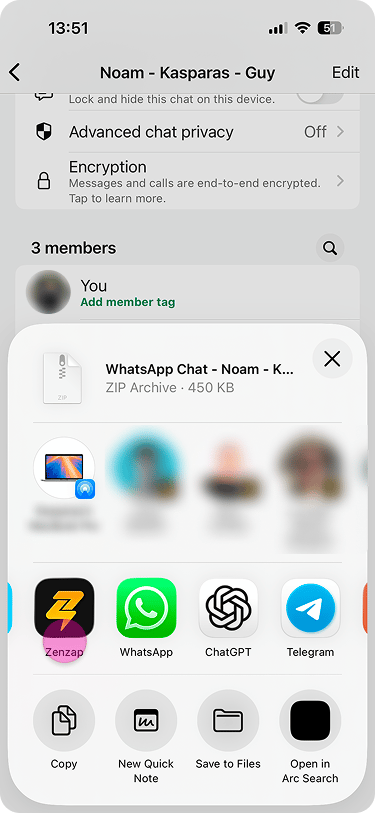
Select the “Zenzap” app.
-
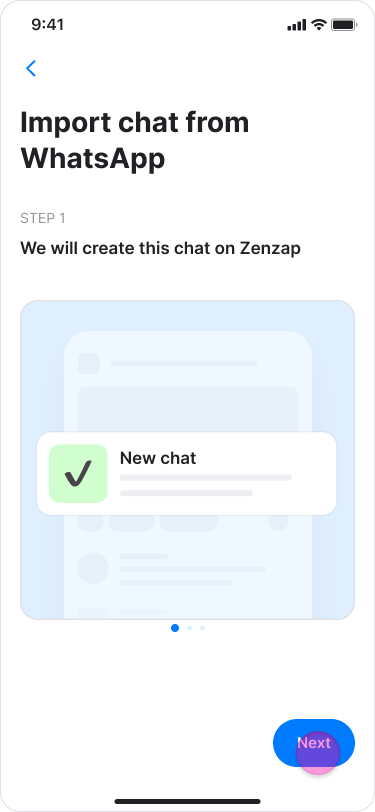
Tap “Next” on the instructions part.
-
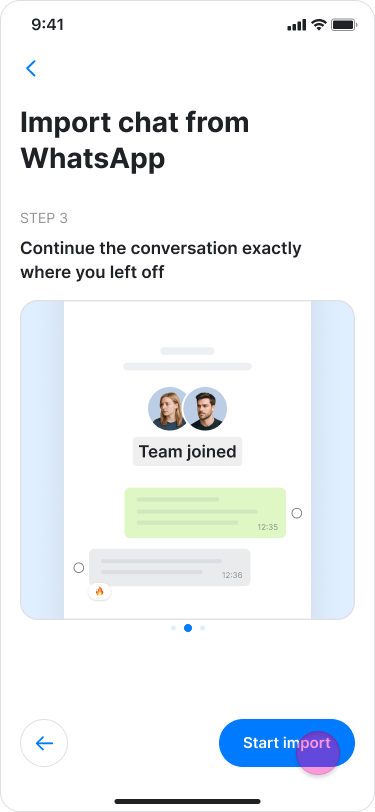
Tap “Start import”.
-
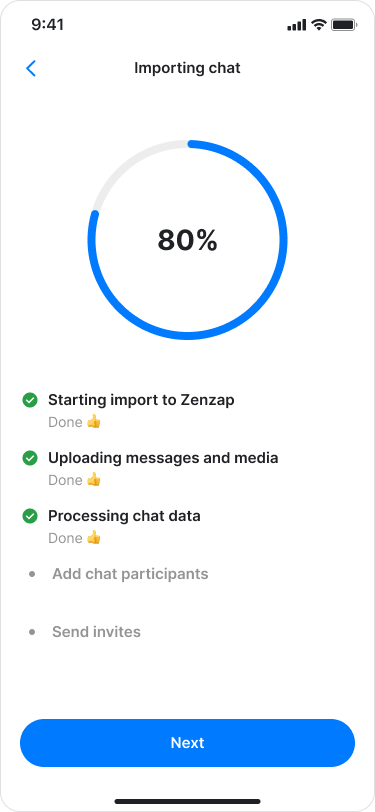
Tap “Next”.
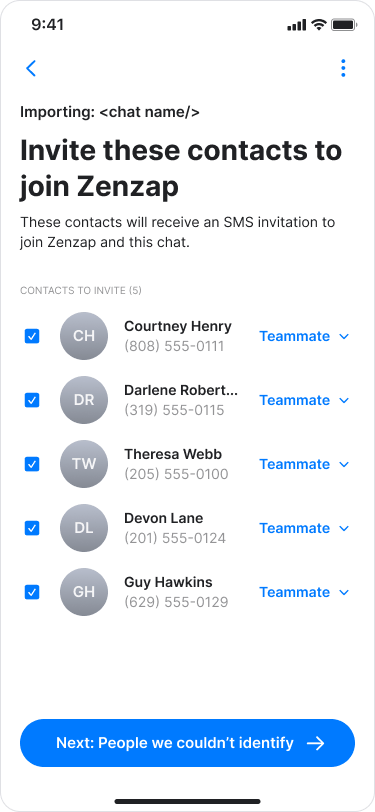
- Select the checkbox next to a participant’s name to invite them.
-
Choose to invite them as a “Teammate” or an “External user”.
-
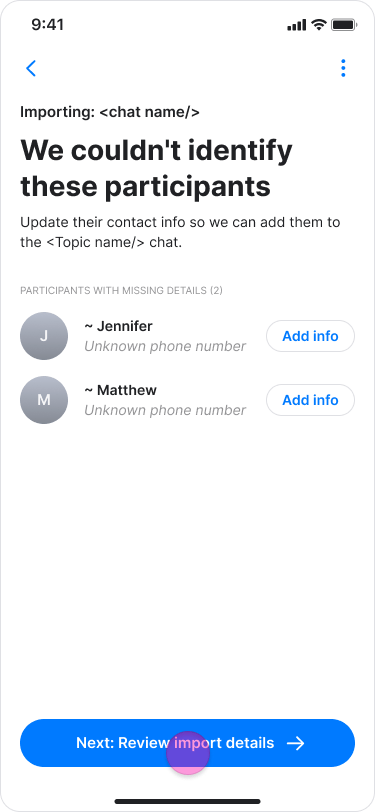
Tap “Next: Review import details”.
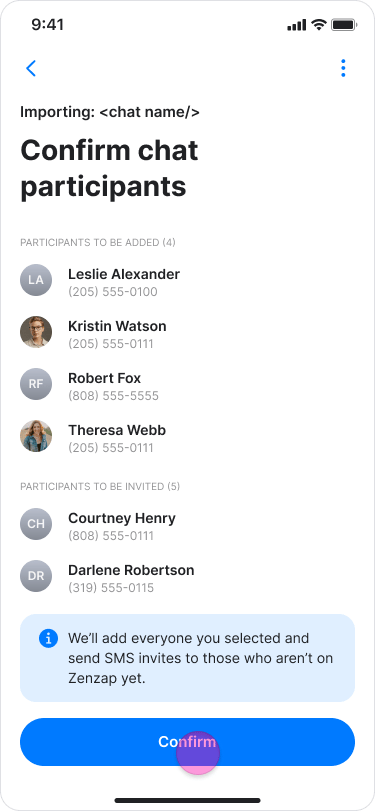
- Tap “Confirm” to send the invitations.
-
If you decide to not invite some of the people, you will see a screen that they won’t get a message.
- Tap “Ok”.
-
Tap “Done”
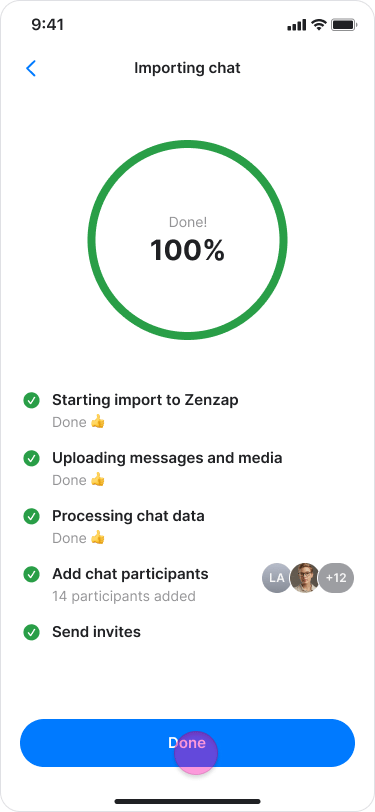
- You can continue using your mobile device while the import completes in the background.
- If you do not finish the process, a message to continue will appear at the top of your home page under “My Agenda”.
- To cancel the process, tap the “Three buttons” icon and select “Discard this import”, then tap “Cancel import” to confirm.
- You can only import one chat at a time.
-
Tap “Add info”.
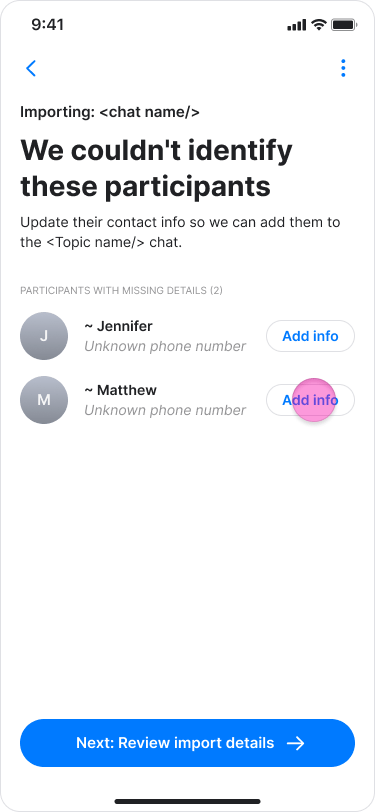
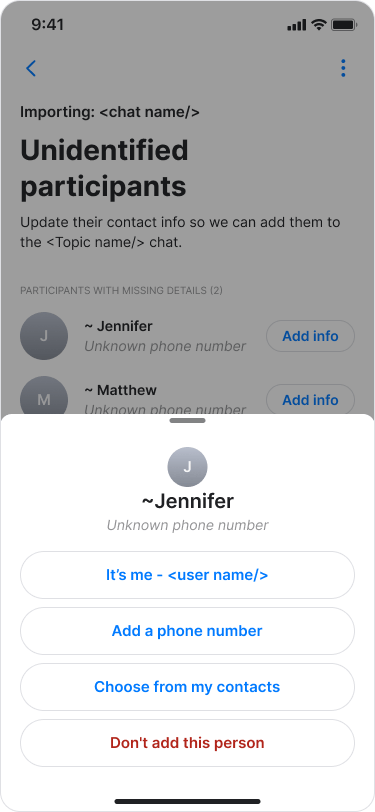
- Select one of the following options:
- “It’s me”: If the participant is you.
- “Choose from my contacts”: If the person is saved in your phone contacts.
- “Add a phone number”: To manually provide contact details and to choose to invite them as a “Teammate” or “External user”.
-
“Don’t add this person”: If you do not want to include this participant.
On Mobile (Android)
Importing a Chat
- Open WhatsApp.
- Open a chat you want to export.
- Tap the three dots in the top right corner.
- Tap “More”.
- Tap “Export Chat”.
- Choose “Include media”, or “Without media”.
- Select the “Zenzap” app.
- A pop up window will open.
- Tap “Next” on the instructions part.
- Tap “Start import”.
- Tap “Next”.
- Check the box near the participants name if you want to invite them.
- Choose if you want to invite them as a “Teammate” to your workspace, or as an “External user”.
- Tap “Next: Review import details”.
- Tap “Confirm” to send the invitations.
- If you decide to not invite some of the people, you will see a screen that says these people won’t get a message.
- Tap “Done”
- You can continue using your mobile device while the import completes in the background.
- If you do not finish the process, a message to continue will appear at the top of your home page under “My Agenda”.
- To cancel the process, tap the “Three buttons” icon and select “Discard this import”, then tap “Cancel import” to confirm.
- You can only import one chat at a time.
- Tap “Add info”.
- Select one of the following options:
- “It’s me”: If the participant is you.
- “Choose from my contacts”: If the person is saved in your phone contacts.
- “Add a phone number”: To manually provide contact details and to choose to invite them as a “Teammate” or “External user”.
- “Don’t add this person”: If you do not want to include this participant.