
On Mobile (iOS & Android)
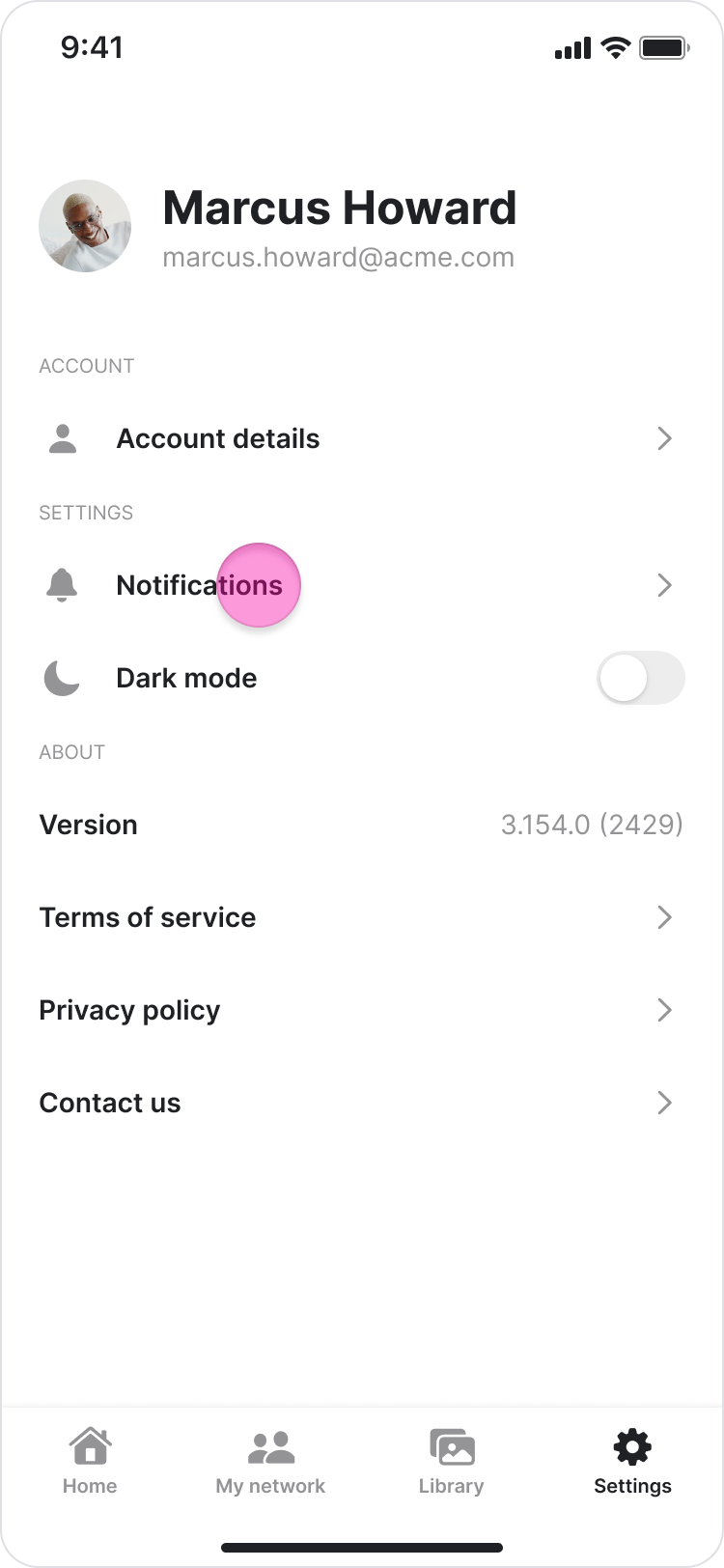
Follow these steps to configure your notification hours on the Zenzap mobile app.- Tap the “Settings” tab at the bottom-right of your screen.
- Tap “Notifications”.
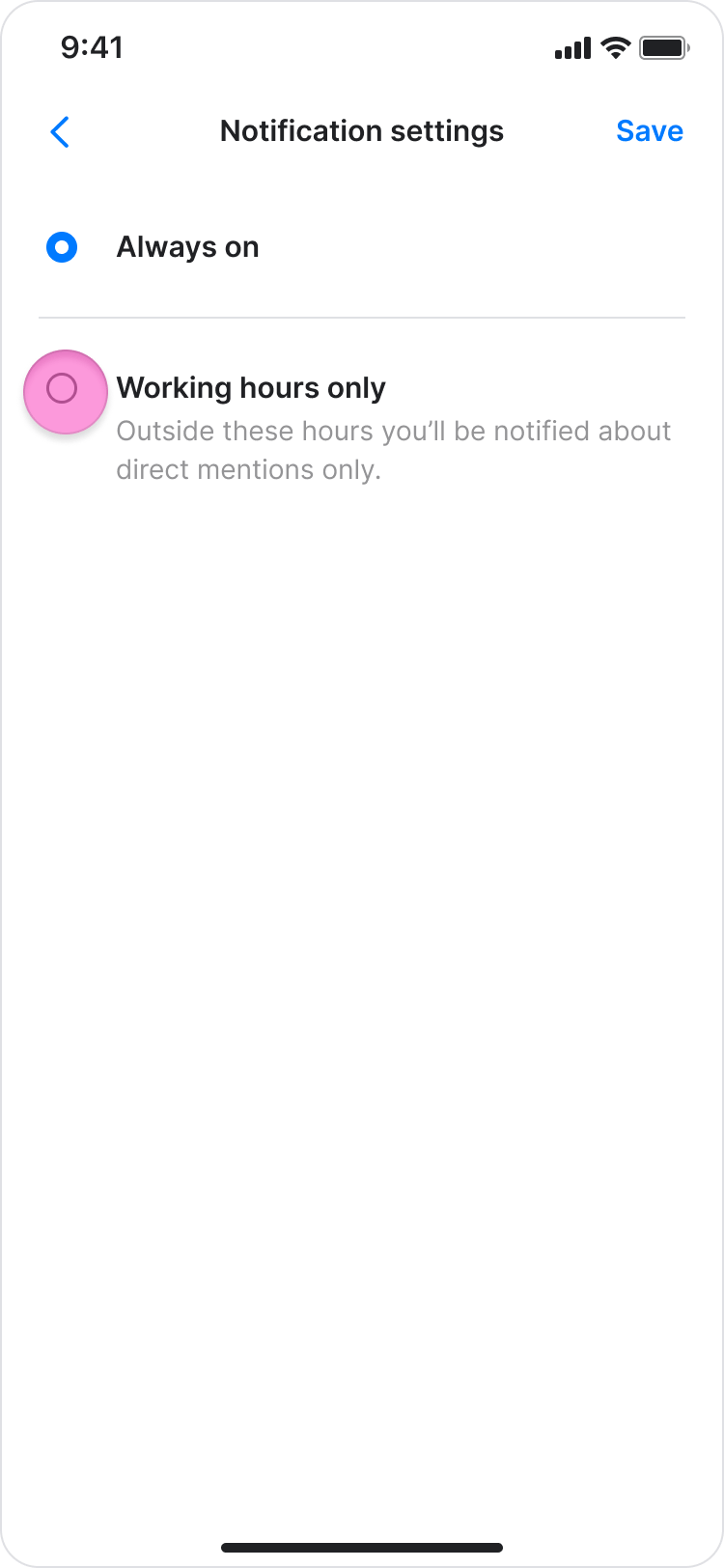
- Select “Working hours only”.
- Tap the buttons for each day you work (e.g., “Monday”, “Tuesday”). Selected days will be highlighted.
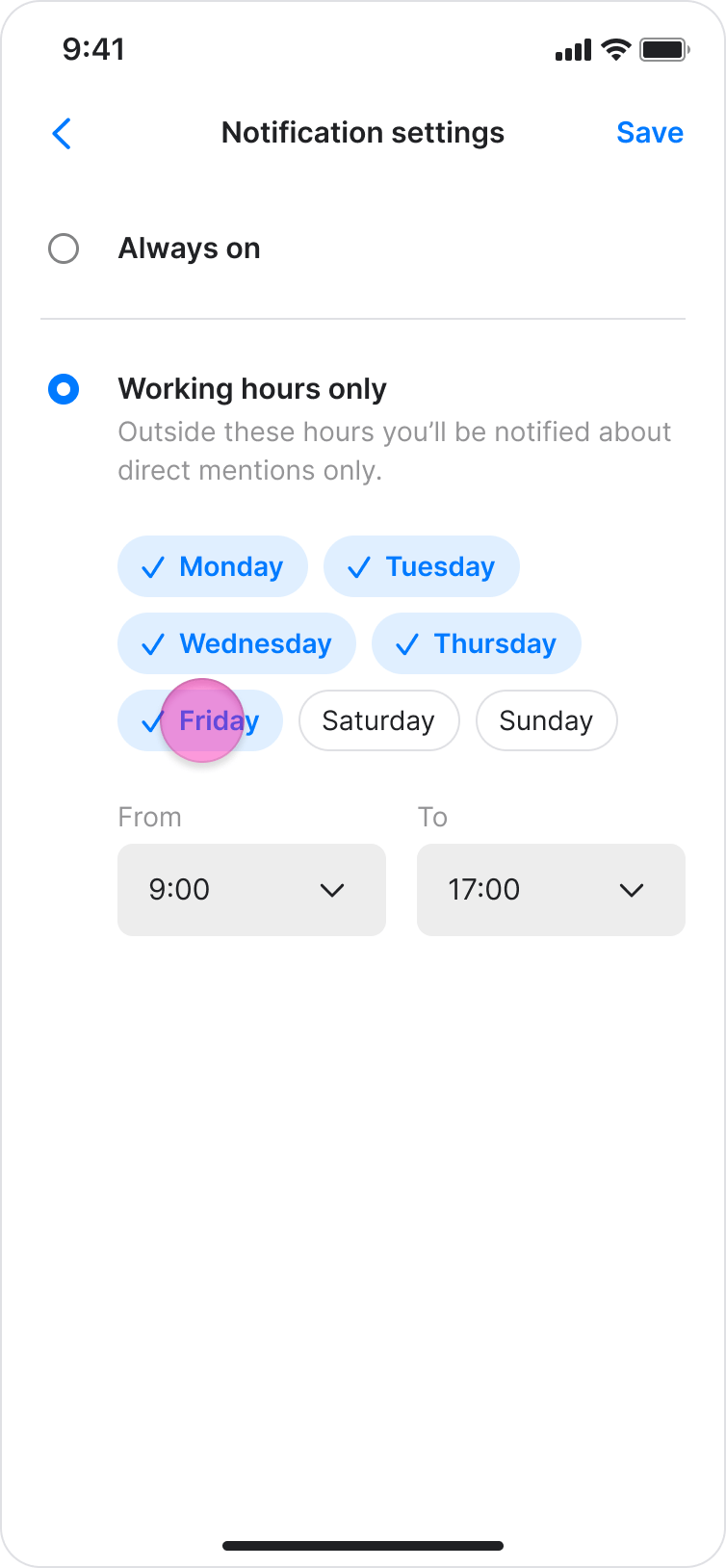
- Under “From”, tap the time to set your start time.
- Under “To”, tap the time to set your end time.
- Tap “Save” in the top-right corner to apply your settings.
- To receive all notifications regardless of the time, select “Always on” instead of “Working hours only.”
- Important notifications for direct @mentions and replies to your messages will still come through.
On Desktop (Windows & Web App)
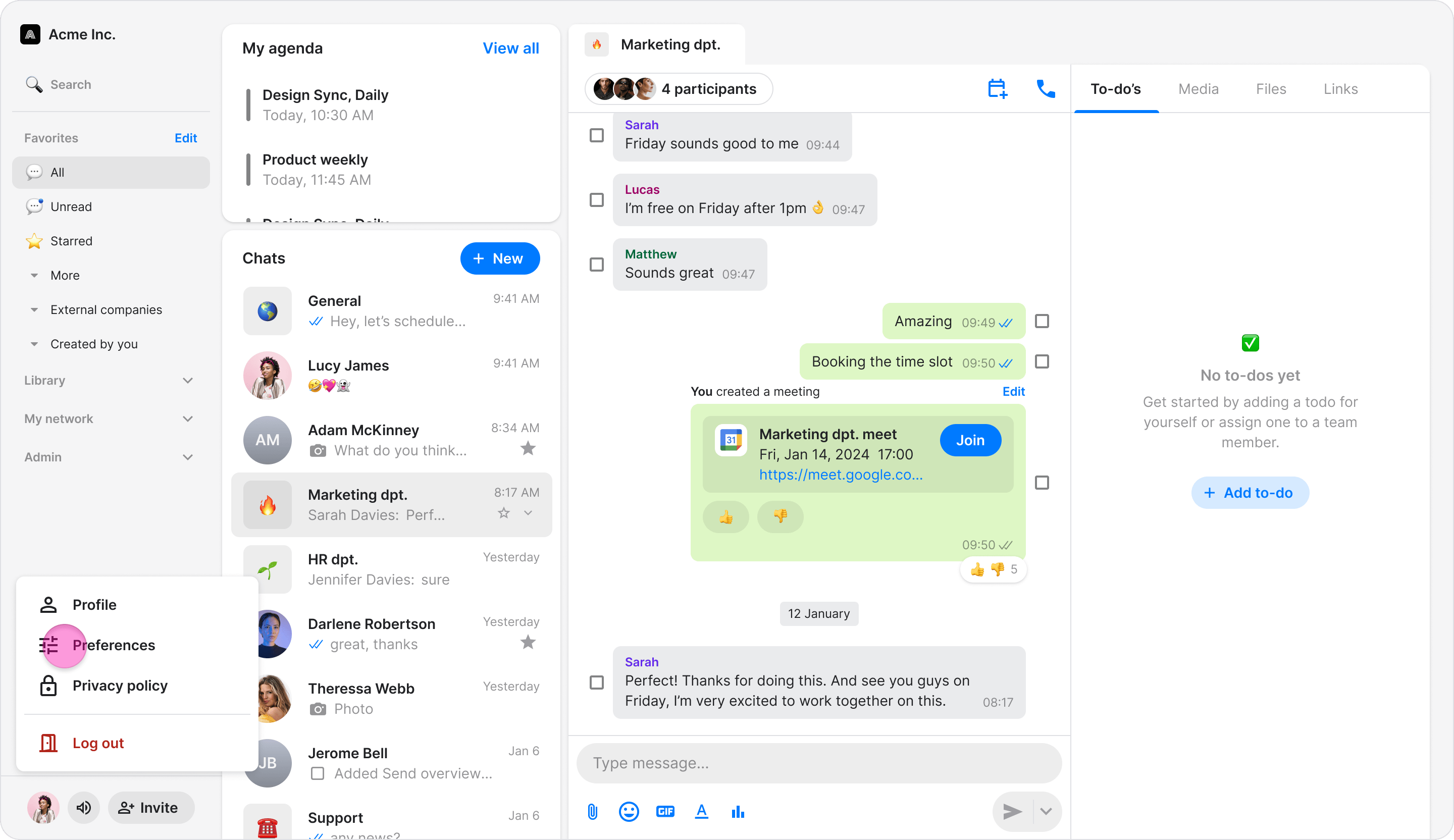
Follow these steps to configure your notification hours on the Zenzap desktop or web app.- Click your profile picture in the bottom-right corner.
- Click “Preferences”.
- Under the “Working hours” section, select “During my working hours”.
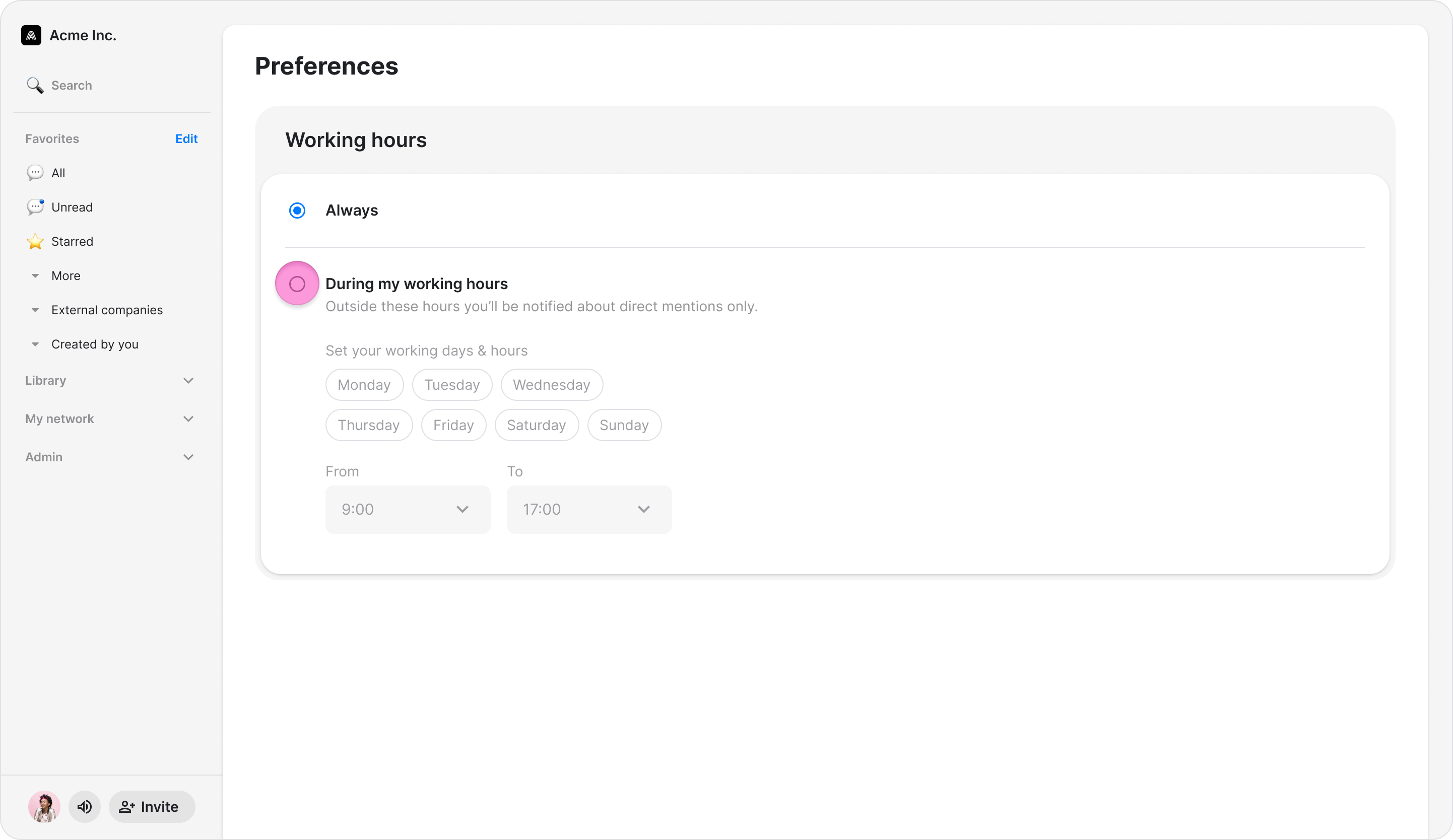
- Click the buttons for each day you work (e.g., “Monday”, “Tuesday”). Selected days will be highlighted.
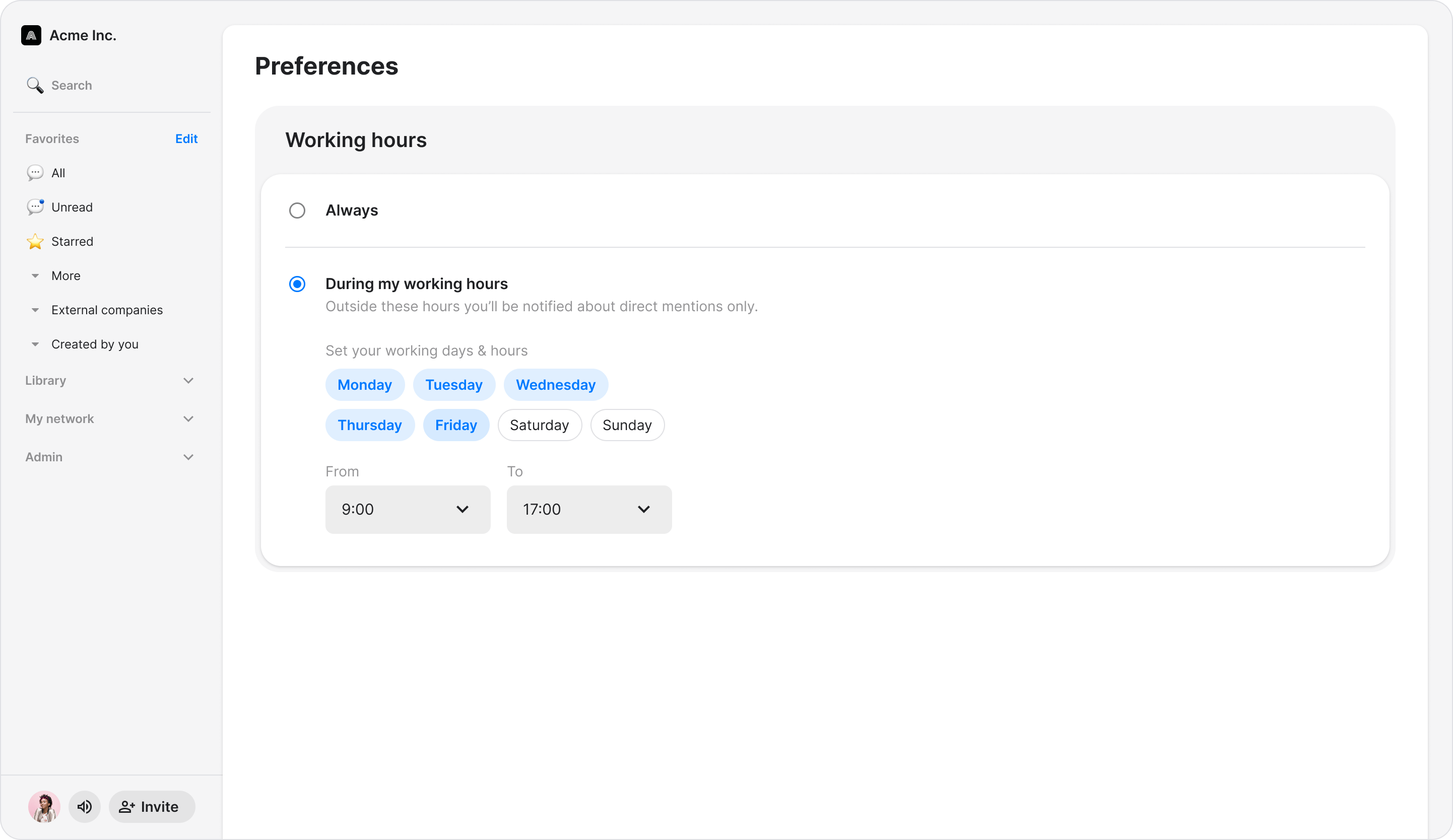
- Under “From”, click the time selector to set your start time.
- Under “To”, click the time selector to set your end time.
- Your settings are saved automatically.
- To receive all notifications regardless of the time, select “Always on” instead of “Working hours only.”
- Important notifications for direct @mentions and replies to your messages will still come through.