
On Mobile (iOS & Android)
-
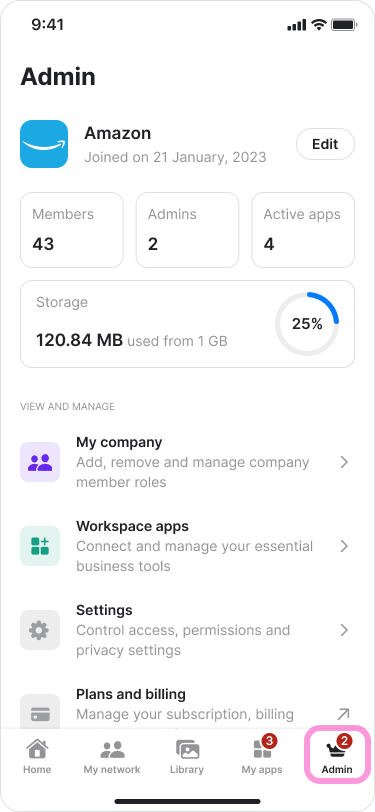
Tap the “Admin” tab in the bottom menu.
-
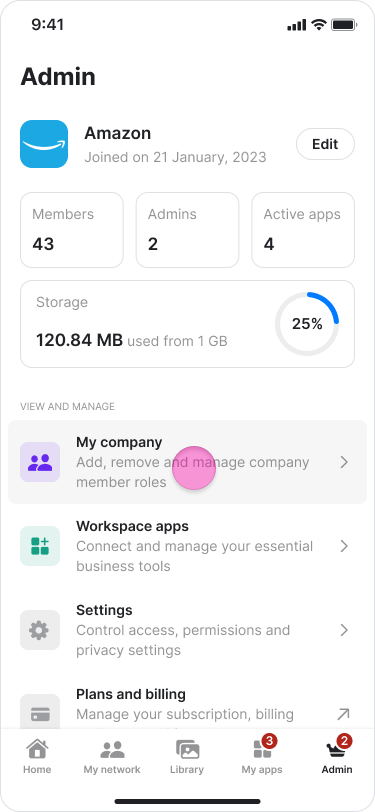
Tap “My Company”.
-
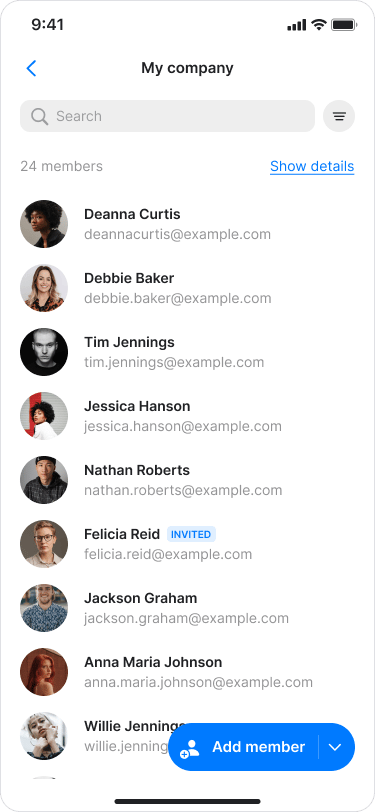
Stay on the “Members” tab.
-
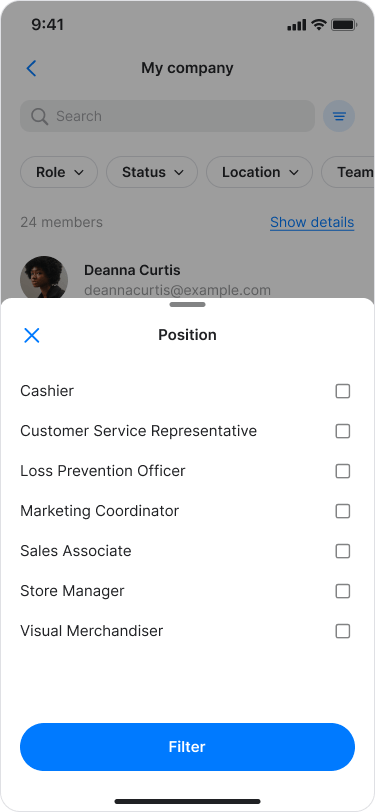
Tap the filter icon on the right side of the search bar.
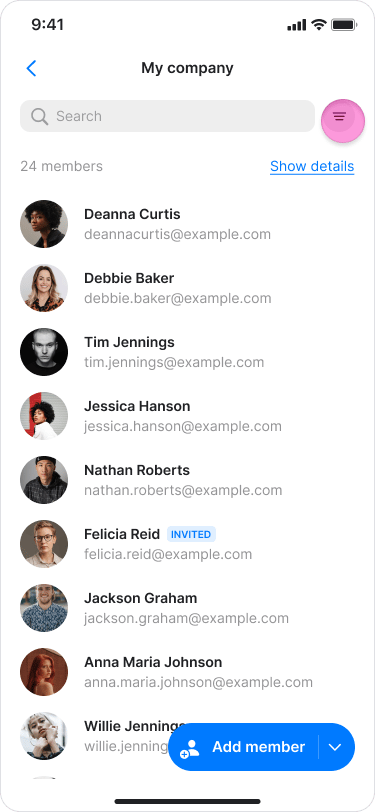
- Select one of the following filters:
-
Role: “Admin”, “Manager”, or “Member”.
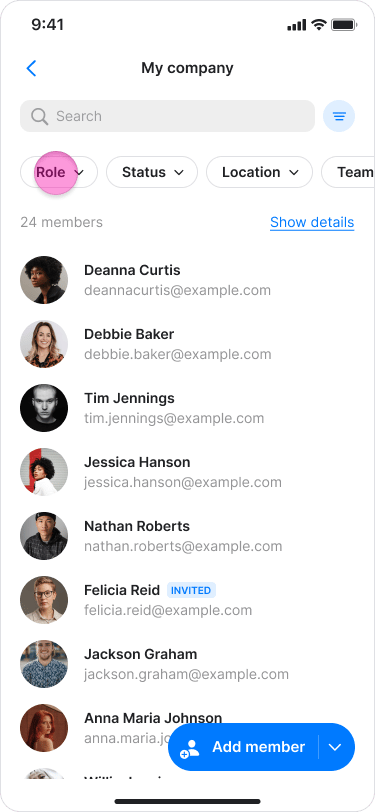
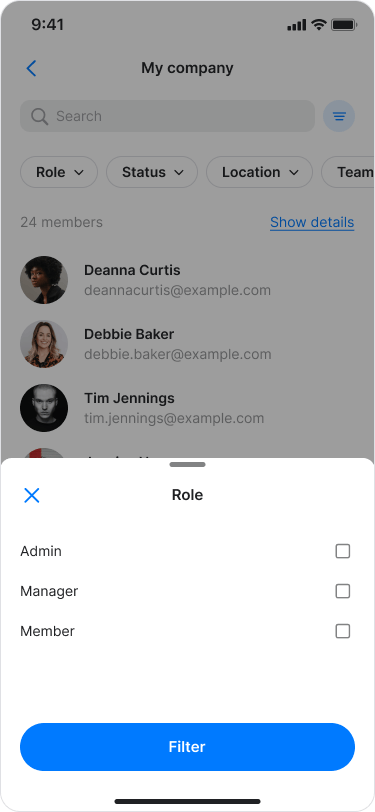
-
Status: “Active”, “Invited”, “Request”, “New”, or “Inactive”.
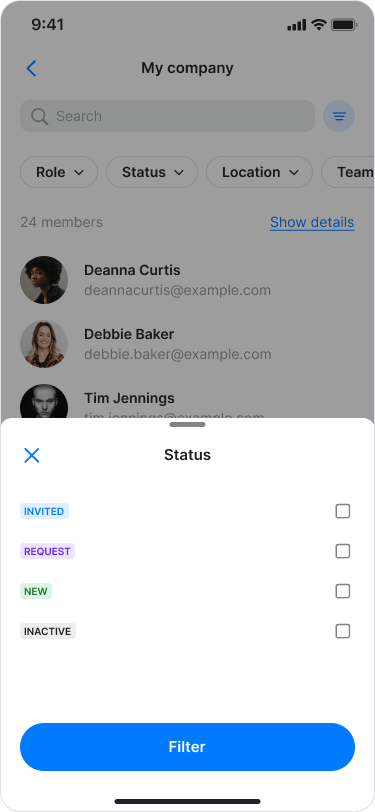
-
Location: View members based on the location set in their profile.
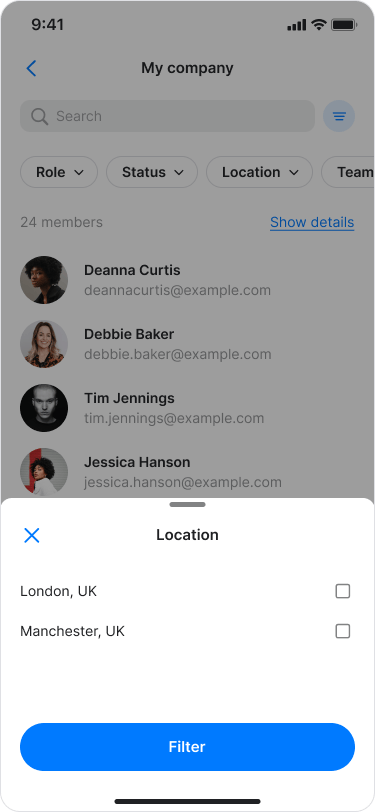
-
Position: View members based on the position set in their profile
On Desktop (Windows, macOS, & Web App)
-
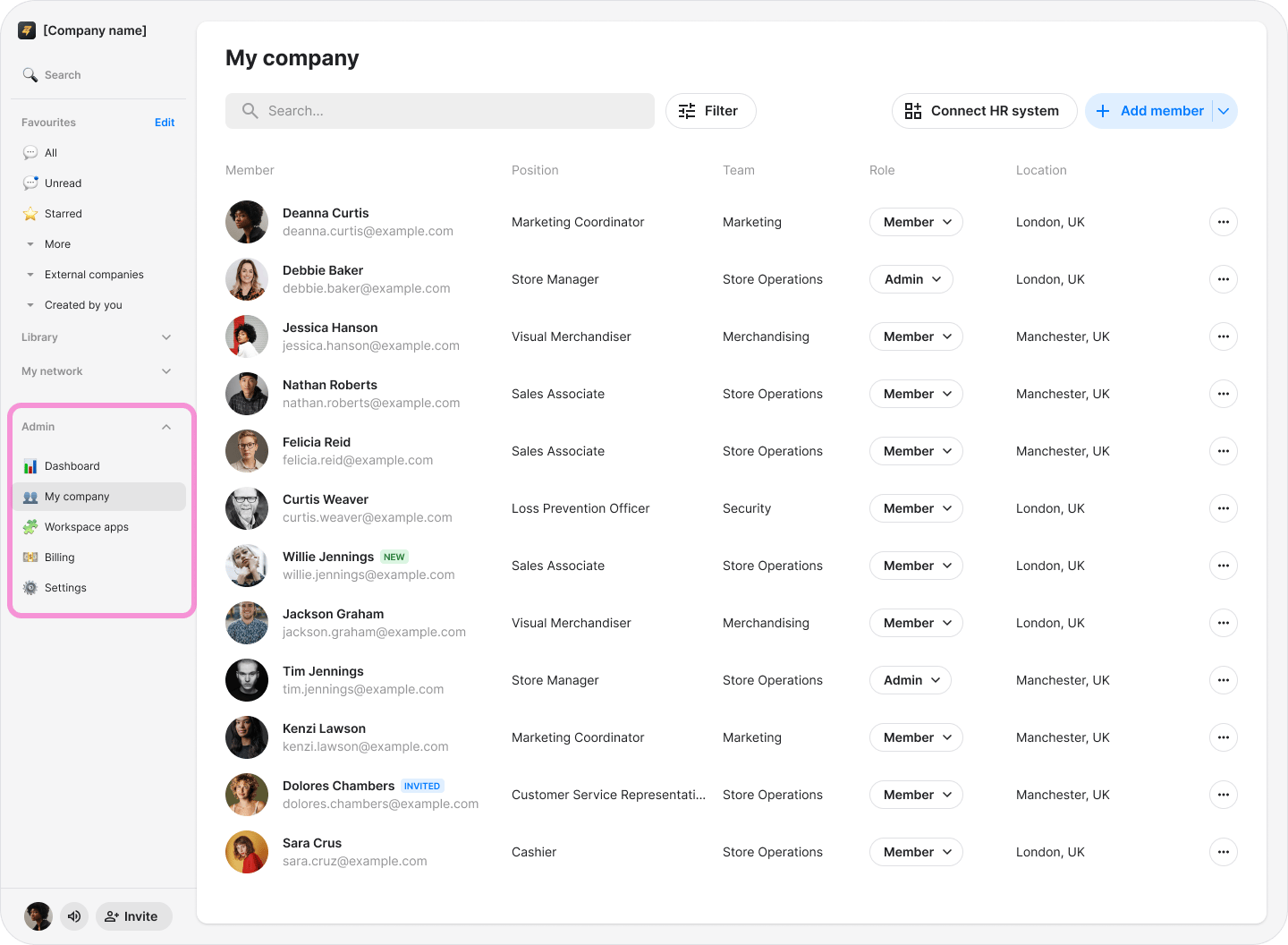
Click “Zenzap admin” in the left sidebar (Windows & Web App), or click “My Company” in the macOS app.
-
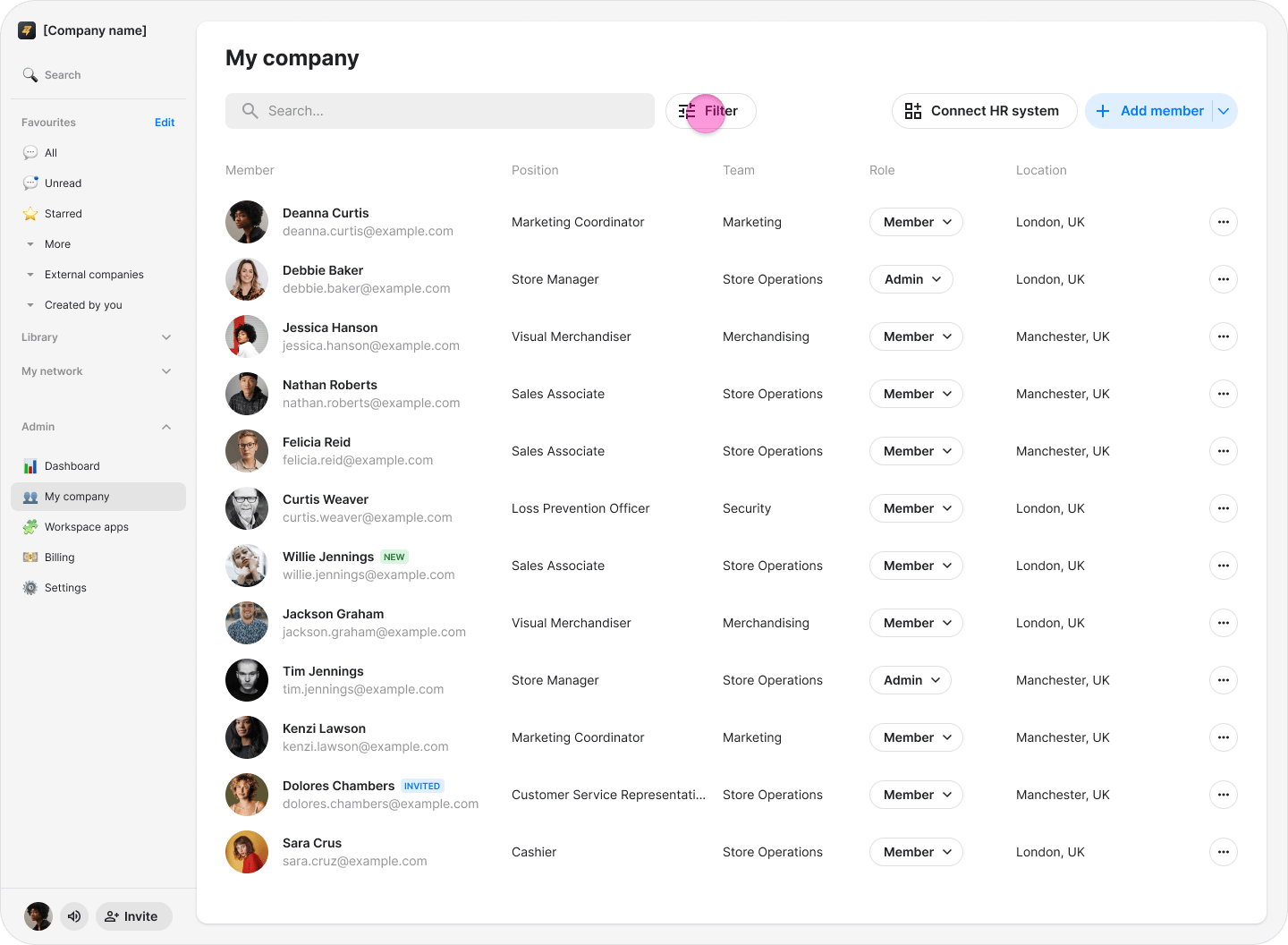
Click the filter icon on the right side of the search bar.
- Select one of the following filters:
-
Role: “Admin”, “Manager”, or “Member”.
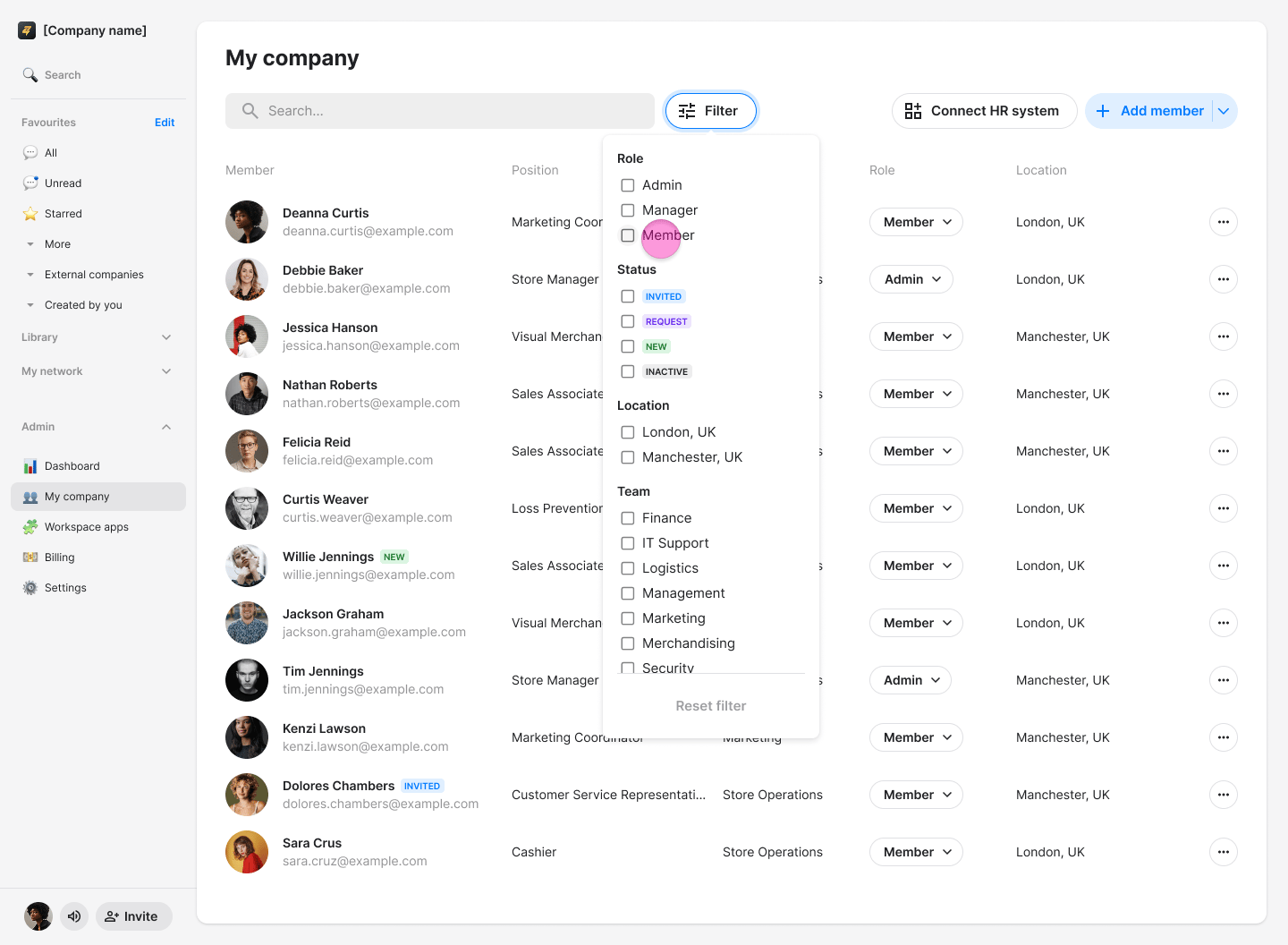
- Status: “Active”, “Invited”, “Request”, “New”, or “Inactive”.
- Location: View members based on the location set in their profile.
- Position: View members based on the position set in their profile.
Status Filter:
- “Active” shows current members of your company.
- “Invited” shows users who have been invited but have not yet joined.
- “Request” shows users requesting to join your company.
- “New” shows recently added members.
- “Inactive” shows former company members who no longer have access to your company.