On Mobile (iOS & Android)
Check Open Invites and Review Requests
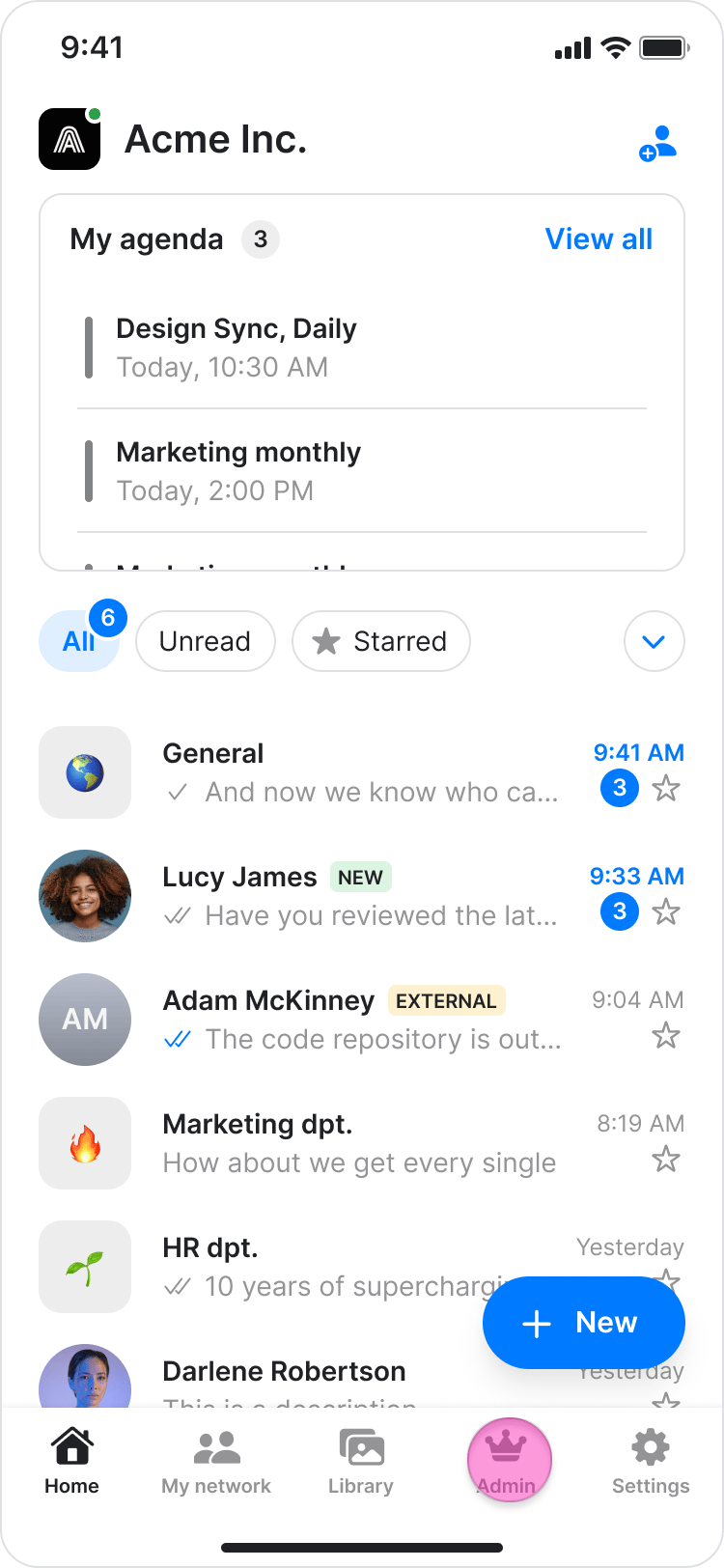
Use these filters to see the status of all current, past, and prospective team members in your workspace.- Tap the “Admin” tab at the bottom of your screen.
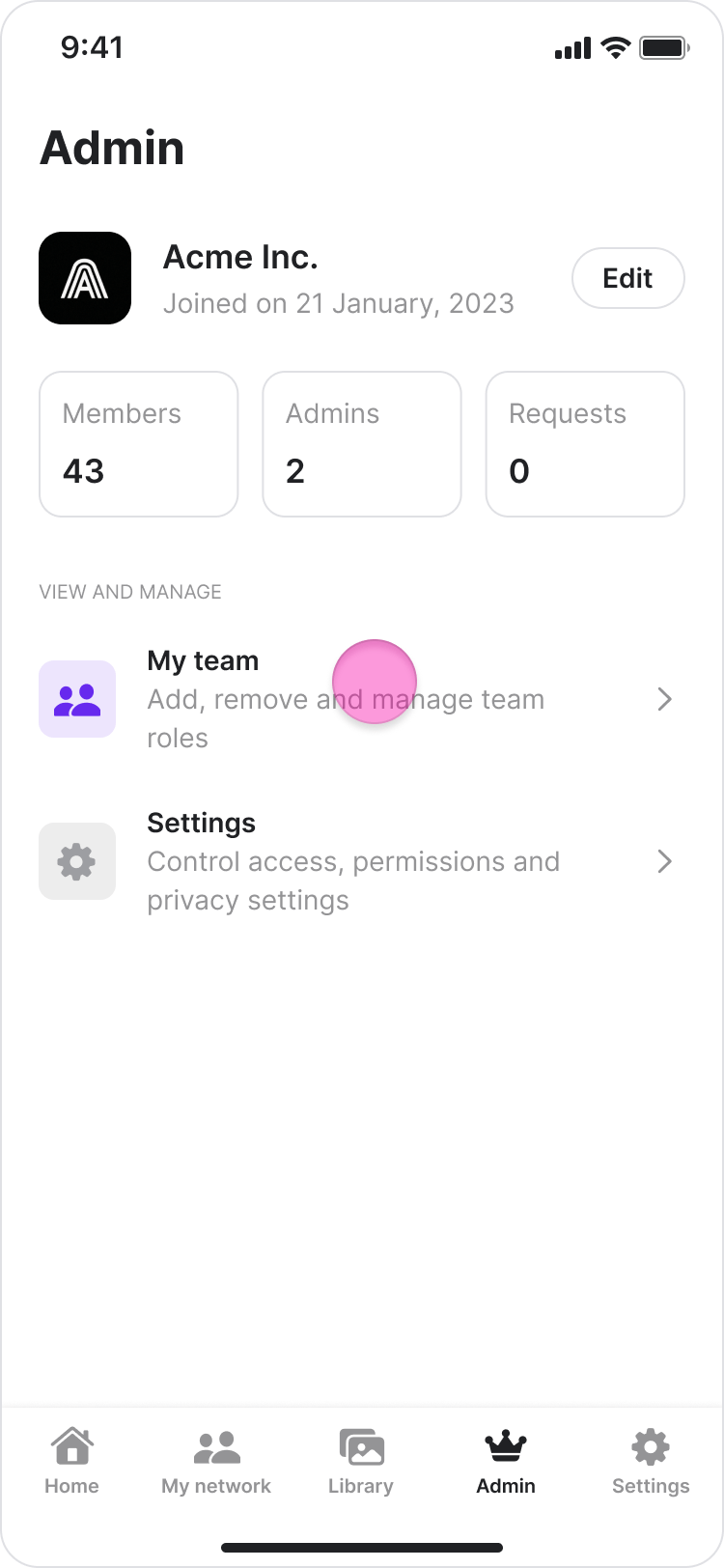
- Tap “My Team”.
-
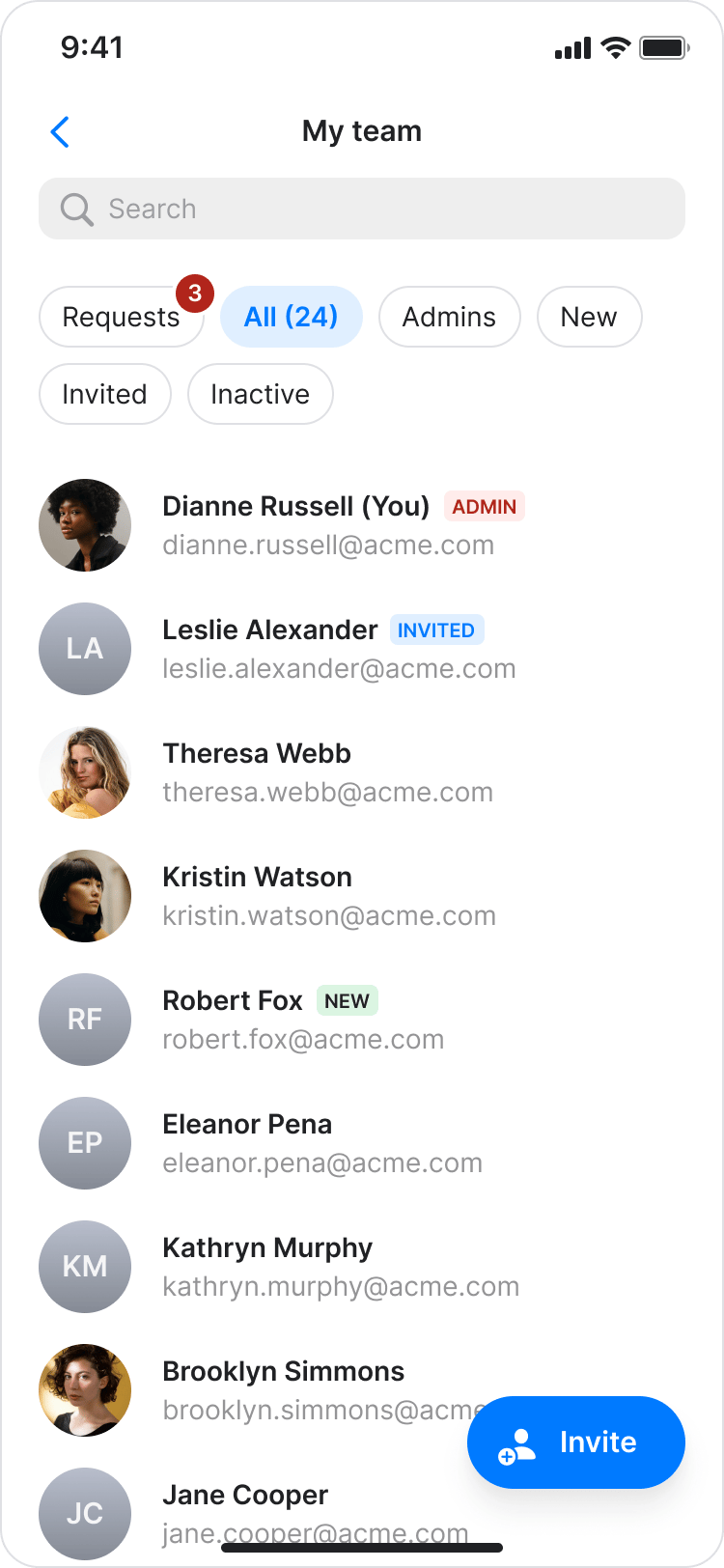
At the top of the screen, tap a tab to filter your team members:
- “All” - View all team members
- “Admins” - View only admins
- “New” - View newly added members
- “Requests” - View pending requests to join your workspace
- “Invited” - View pending invites
- “Inactive” - View past members no longer in your workspace
Make a User an Admin or Demote to Regular User
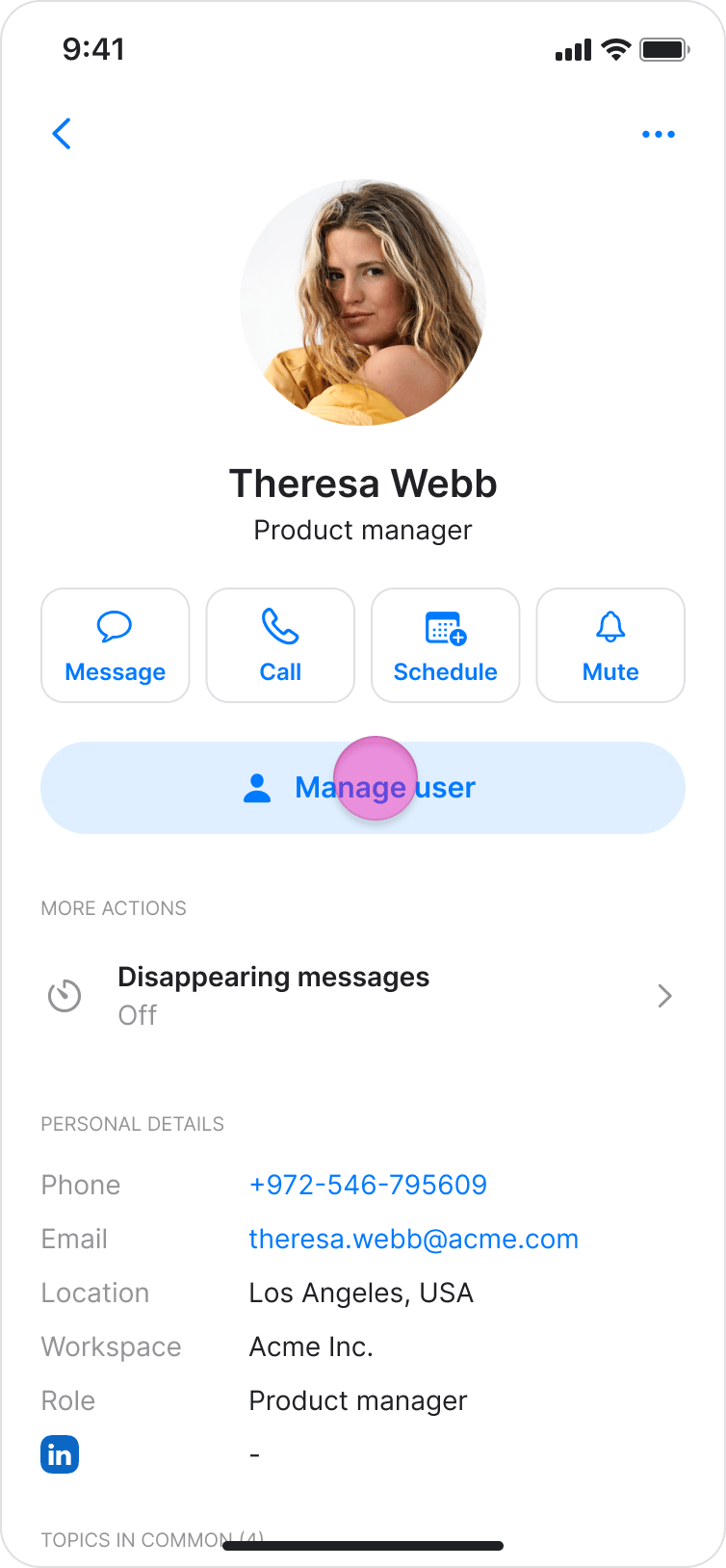
Assign or remove administrative privileges for any team member.- From the “My Team” page, select the user you want to manage.
- Tap the “Manage user” button.
-
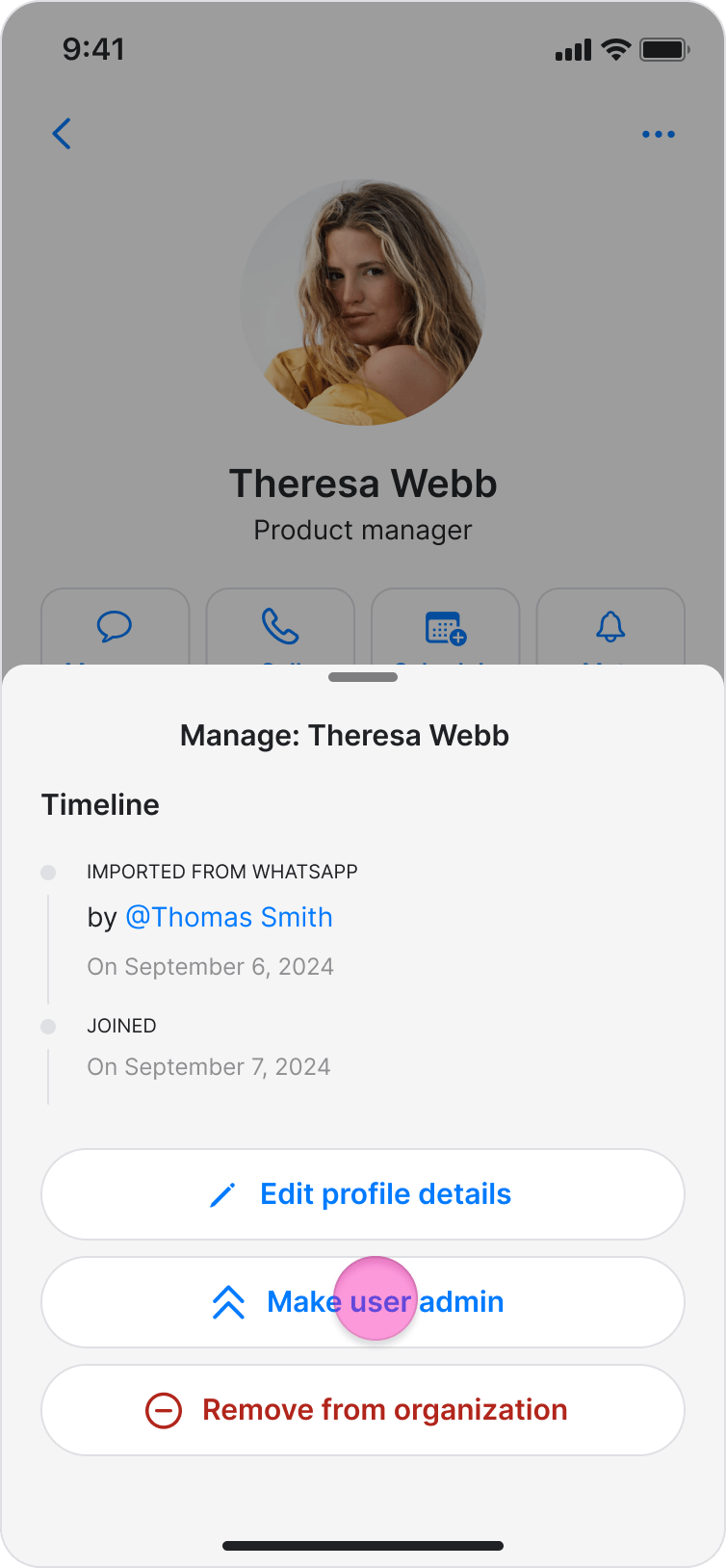
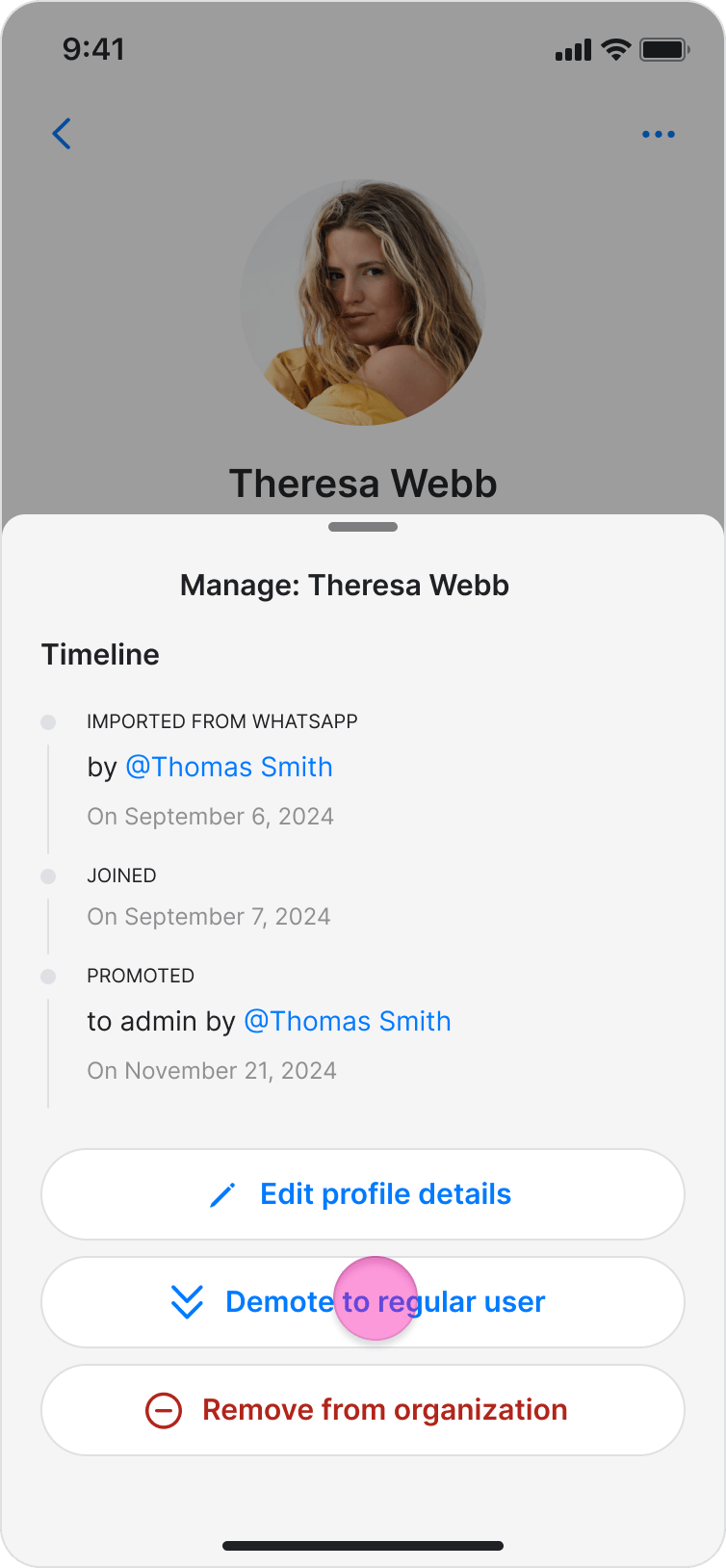
Select one of the following options:
- “Make user admin” - Give the user admin permissions
- “Demote admin to regular user” - Remove admin permissions from the user
Remove a User From the Workspace
Permanently remove a member from your Zenzap workspace.- From the “My Team” page, select the user you want to remove.
- Tap the “Manage user” button.
- Scroll down and select “Remove from organization”.
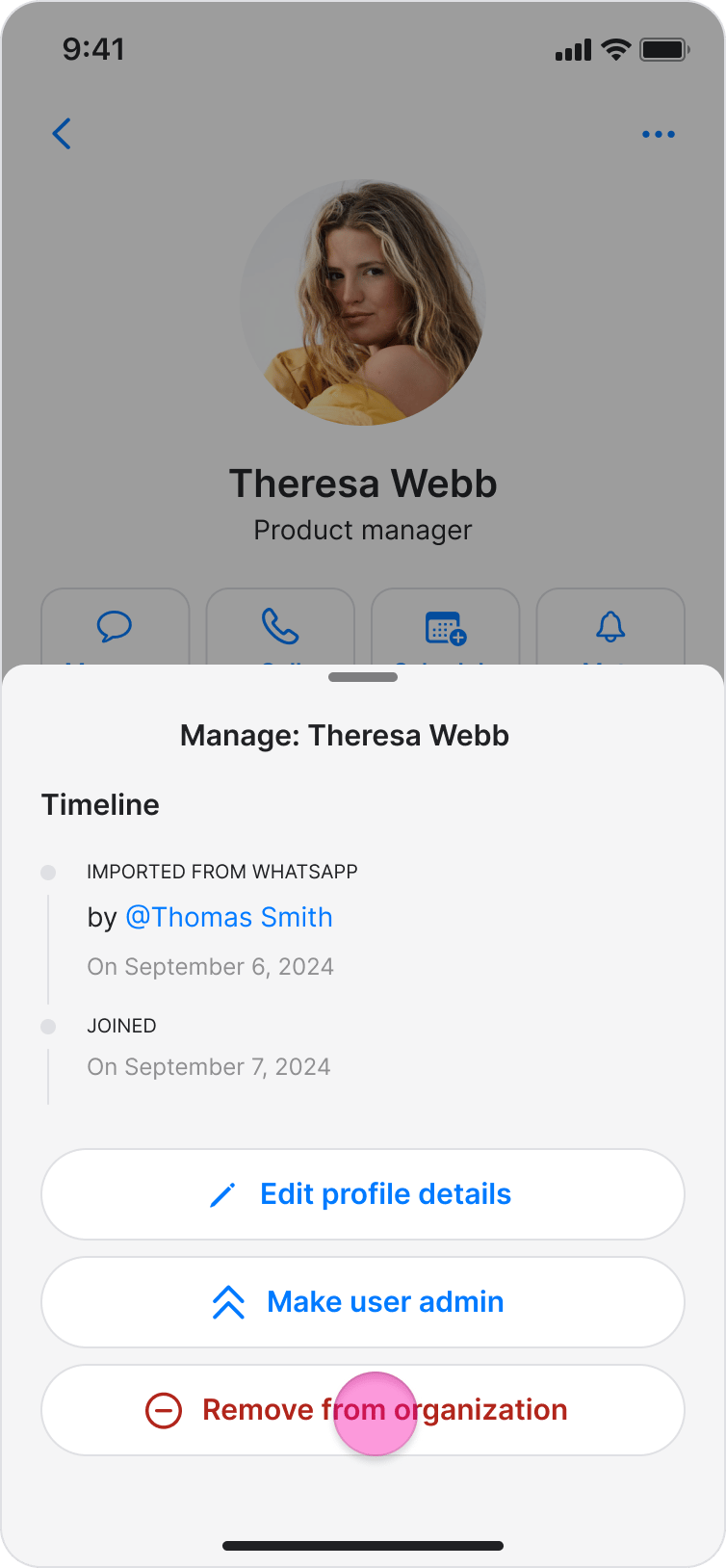
- Confirm the removal.
Re-Invite a User to the Workspace
Send a new invitation to a previously removed member to allow them to rejoin.- From the “My Team” page, tap the “Inactive” tab to view removed users.
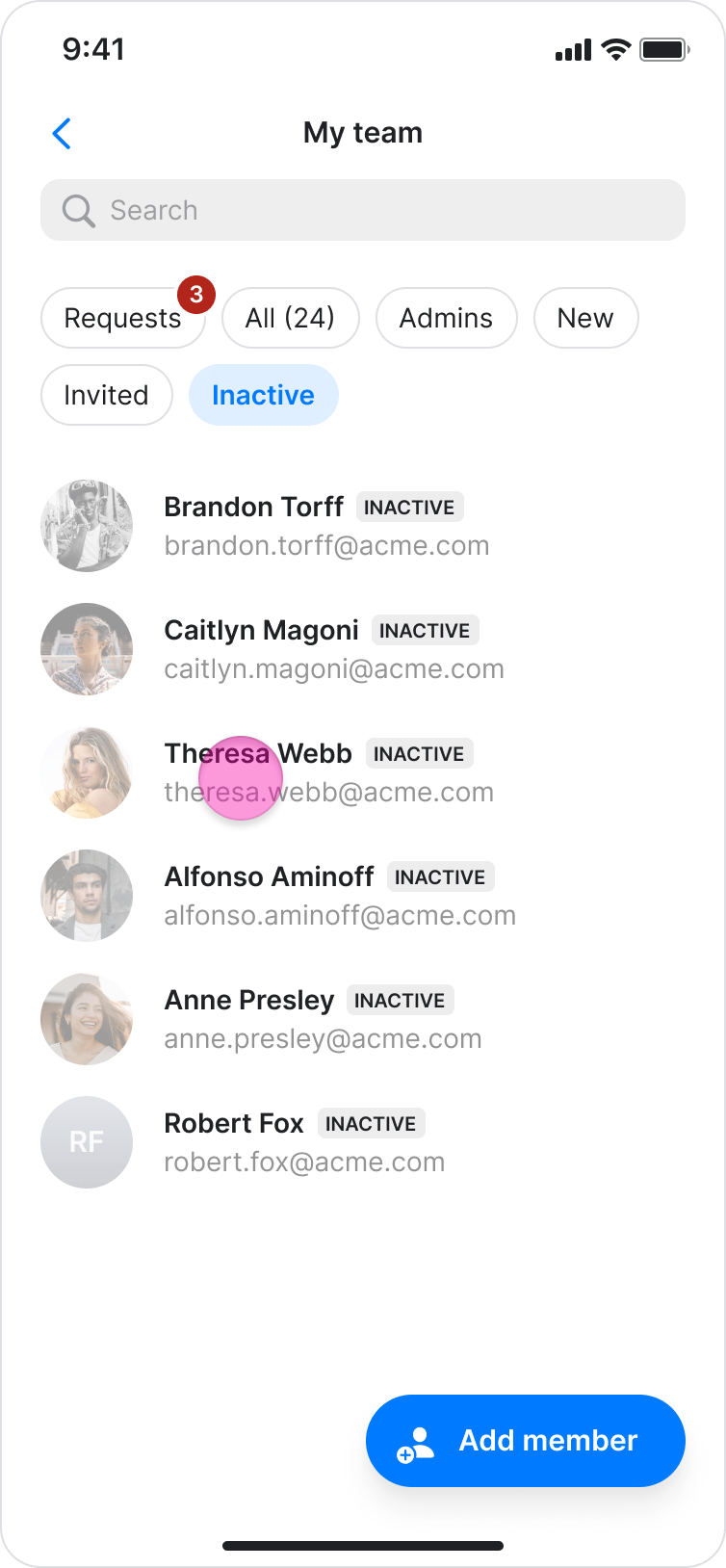
- Select the inactive user you want to re-invite.
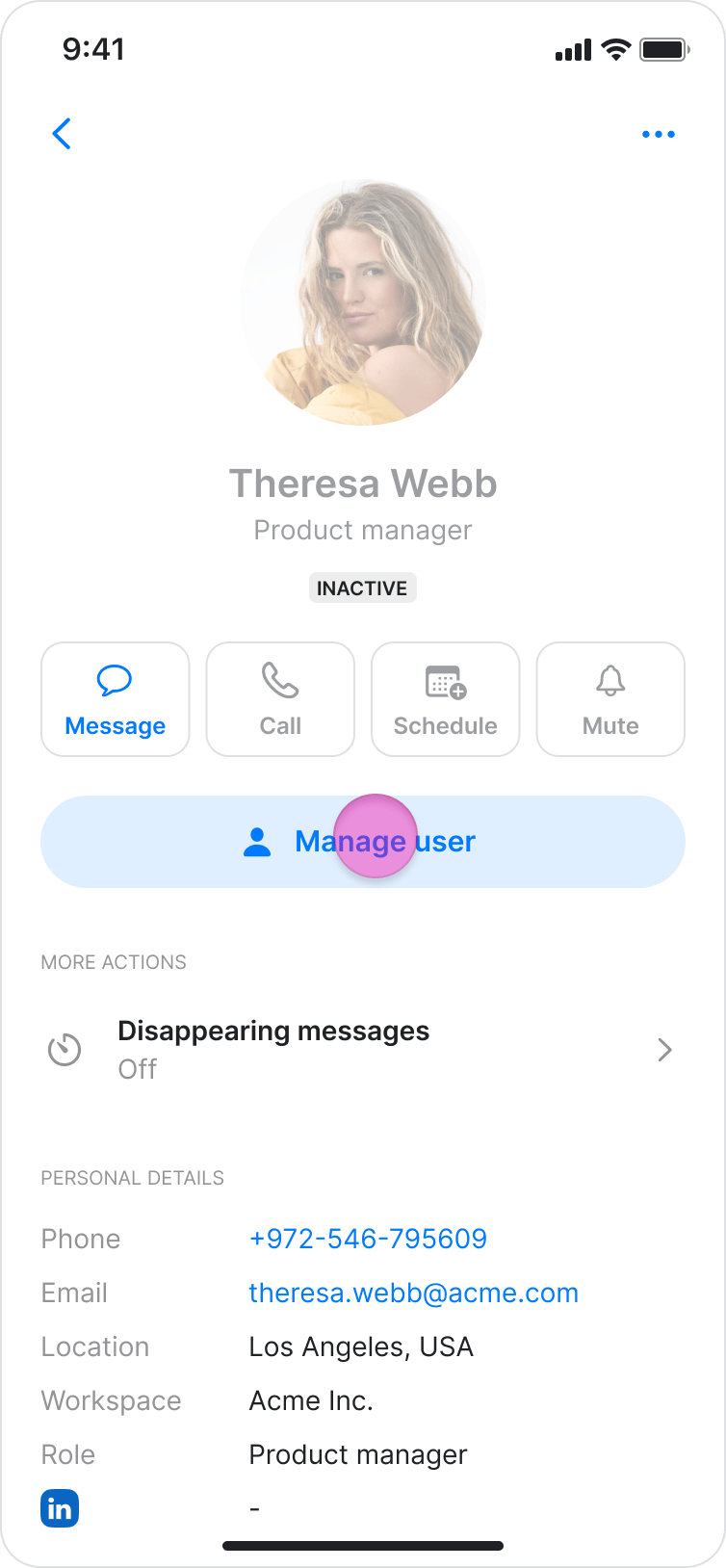
- Tap the “Manage user” button.
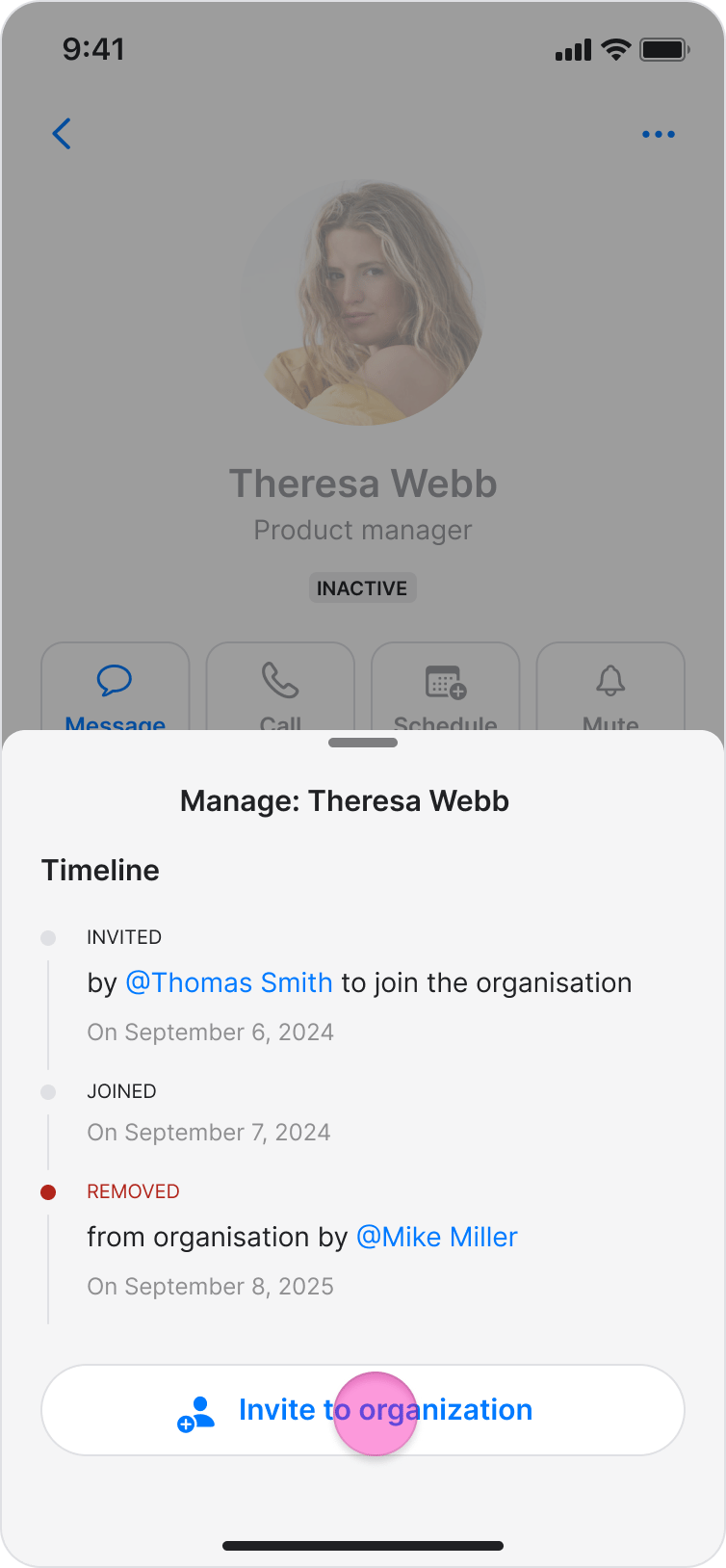
- Select “Invite to organization” to send them an invitation to rejoin.
On Desktop (Windows, macOS, & Web App)
Check Open Invites and Review Requests
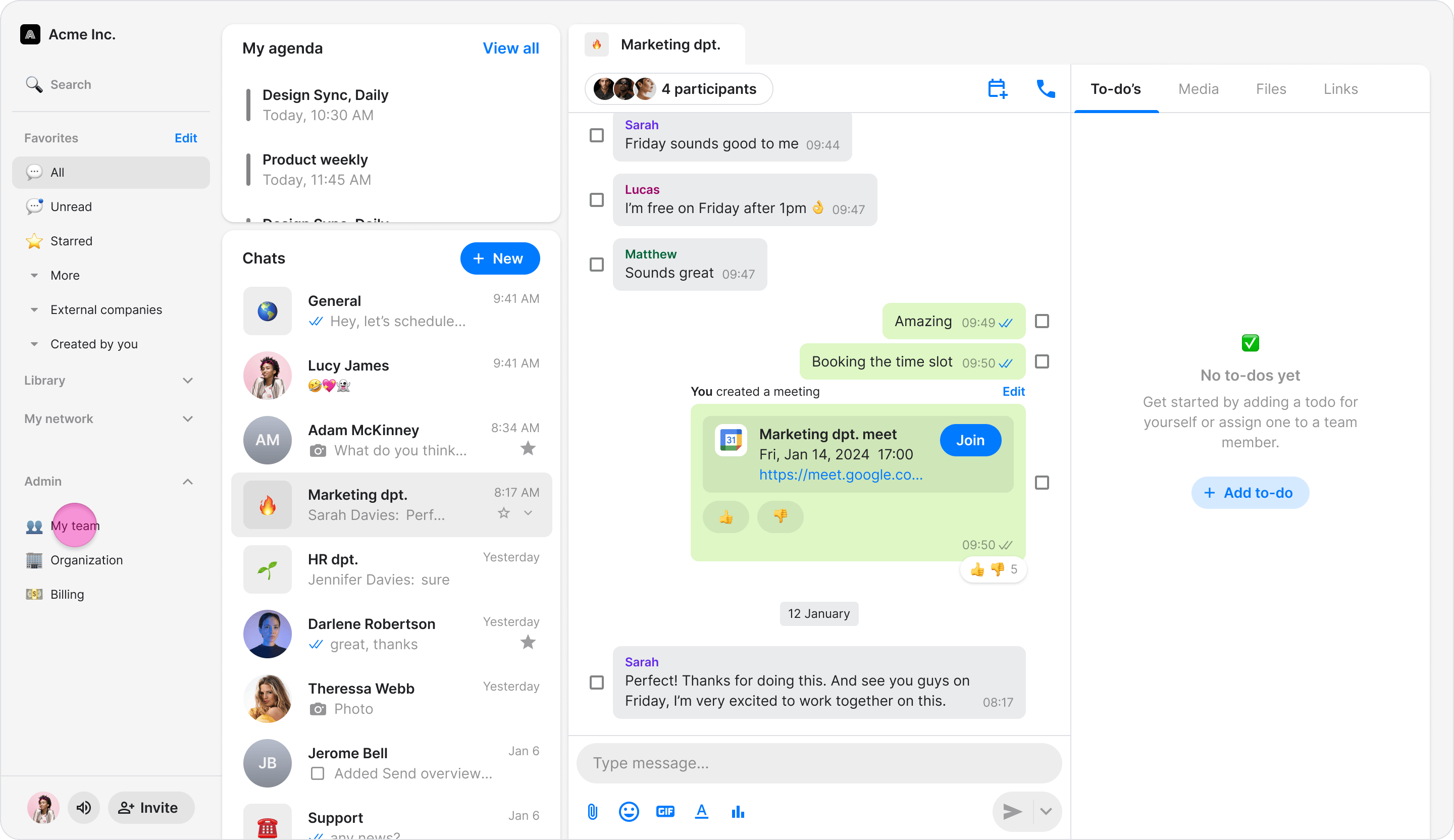
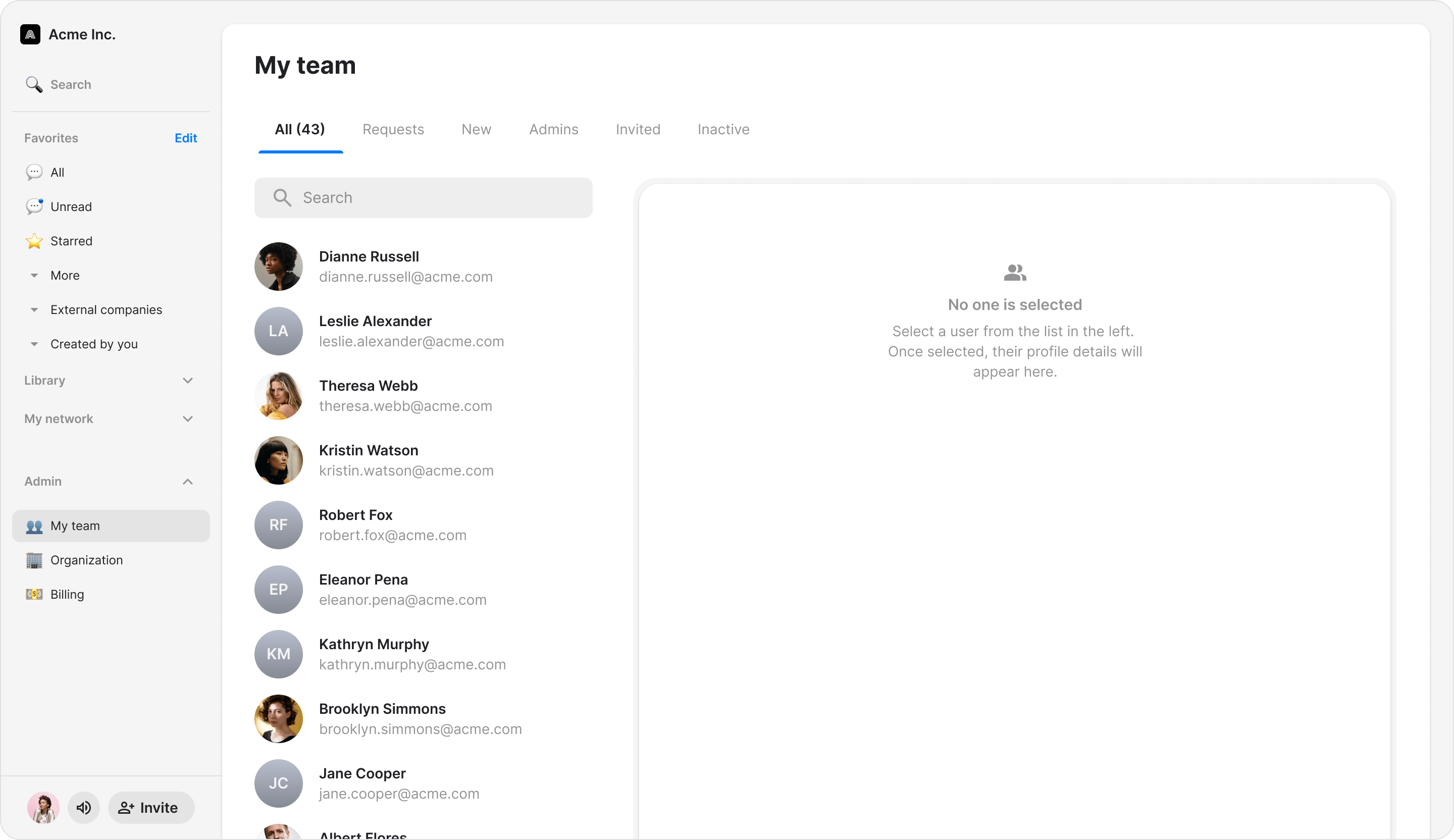
Use these filters to see the status of all current, past, and prospective team members in your workspace.- Click “My team” at the bottom-left of the screen (you might have to scroll down).
-
At the top of the screen, click a tab to filter your team members:
- “All” - View all team members
- “Admins” - View only admins
- “New” - View newly added members
- “Requests” - View pending requests to join your workspace
- “Invited” - View pending invites
- “Inactive” - View past members no longer in your workspace
Make a User an Admin or Demote to Regular User
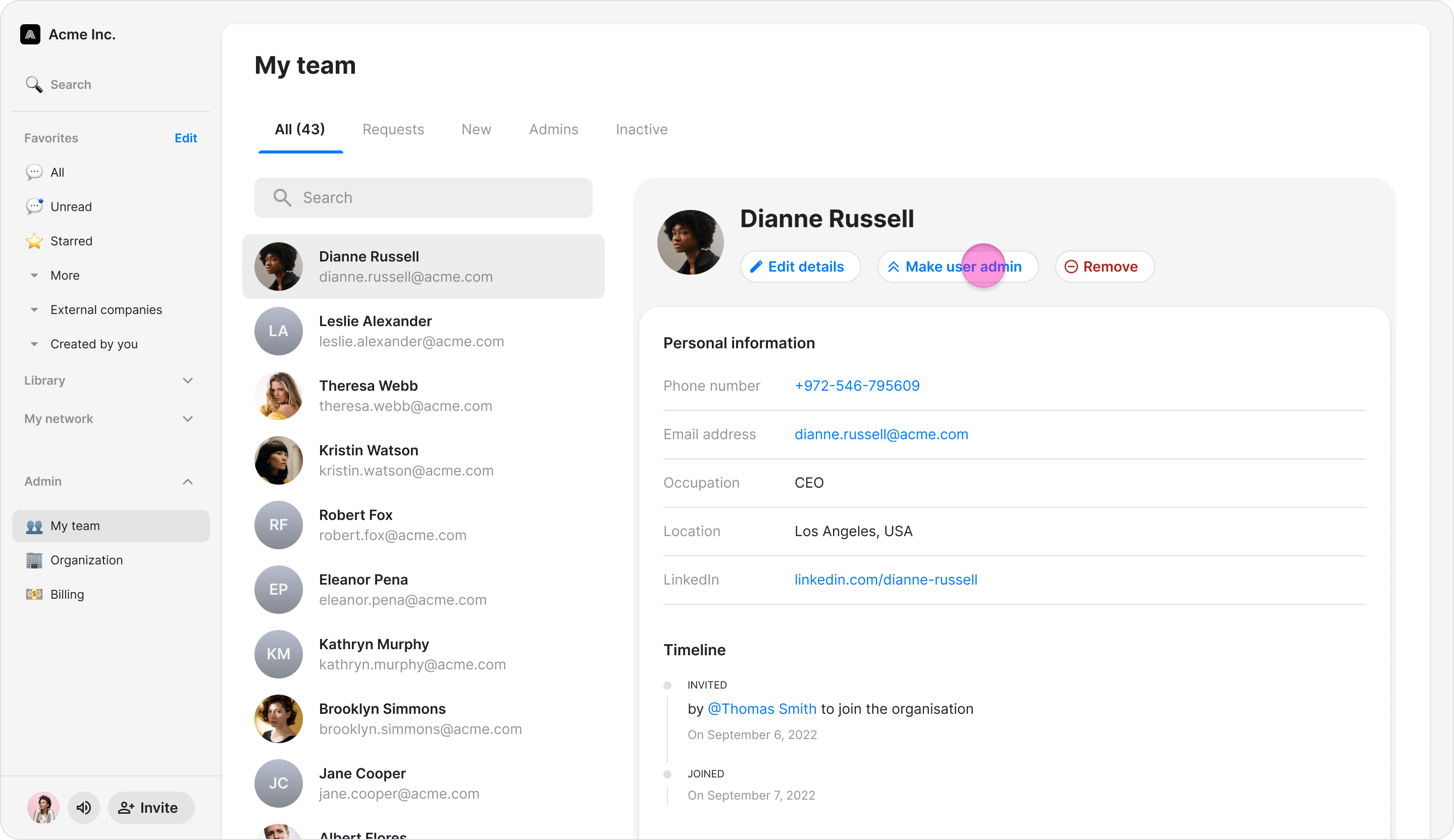
Assign or remove administrative privileges for any team member.- Select the user you want to manage.
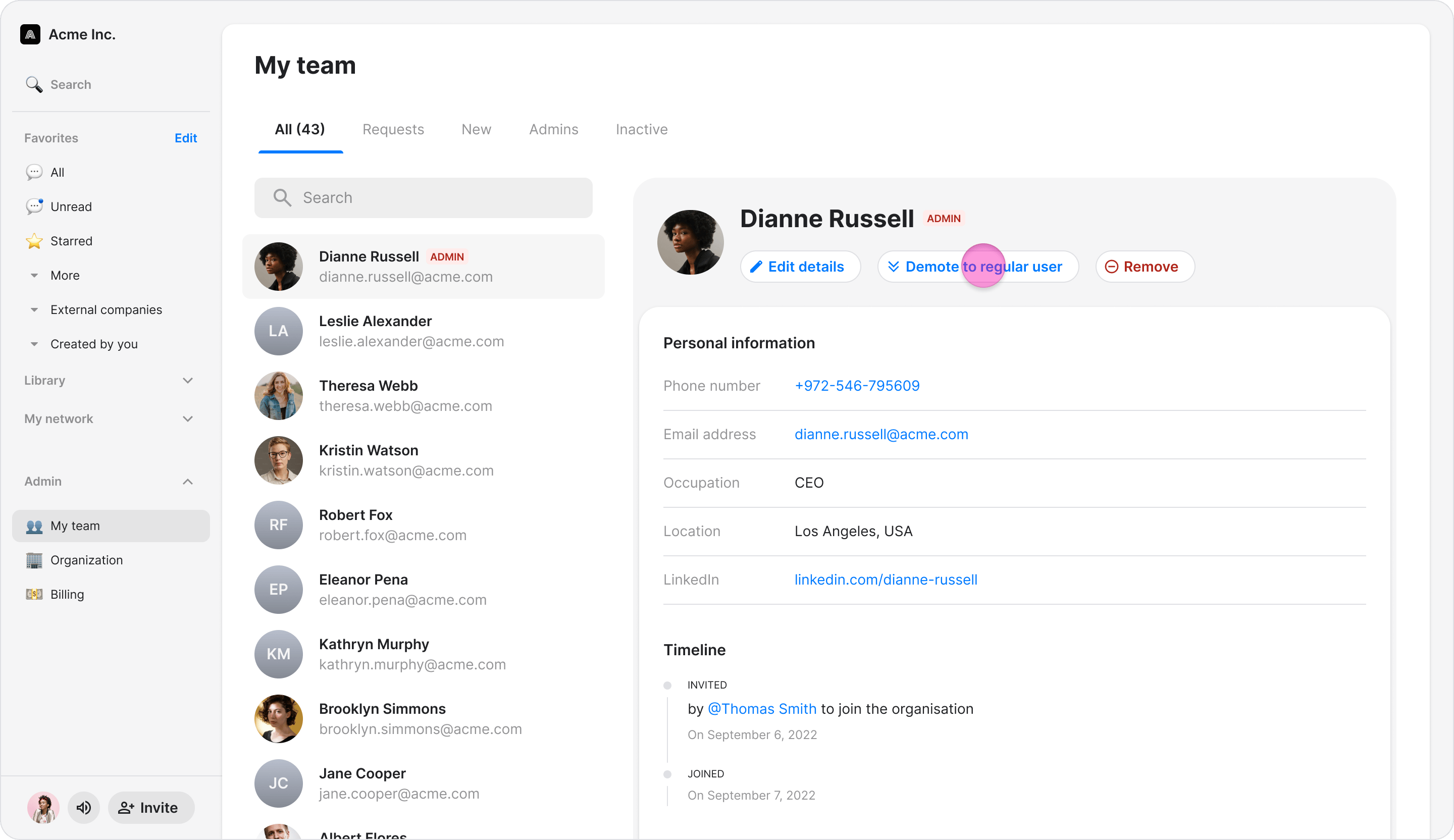
- In the user’s profile, select one of the following options:
- “Make user admin” - Give the user admin permissions
- “Demote admin to regular user” - Remove admin permissions from the user
Remove a User From the Workspace
Permanently remove a member from your Zenzap workspace.- Select the user you want to remove.
- Select “Remove from organization”.
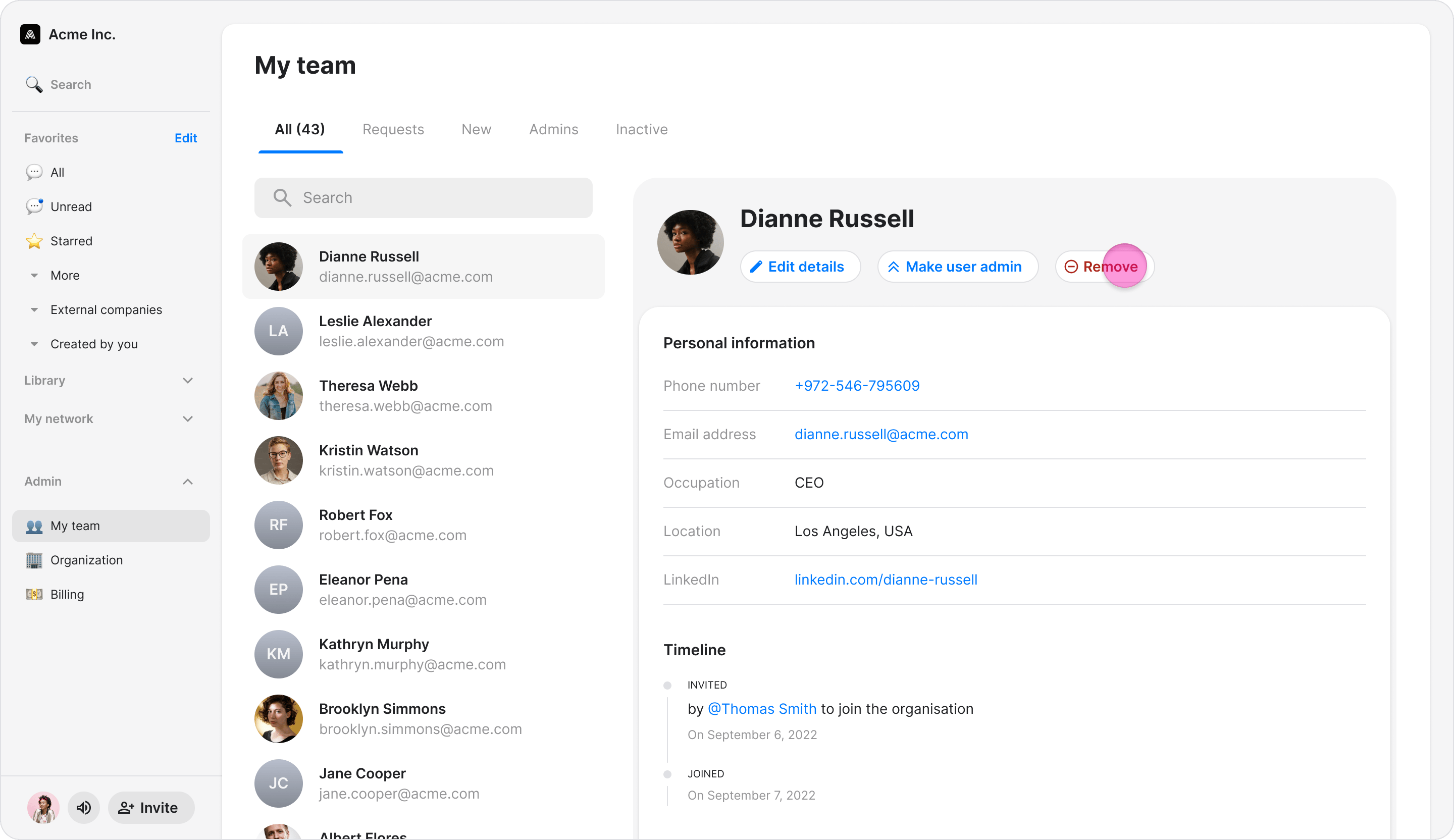
- Confirm the removal.
Re-Invite a User to the Workspace
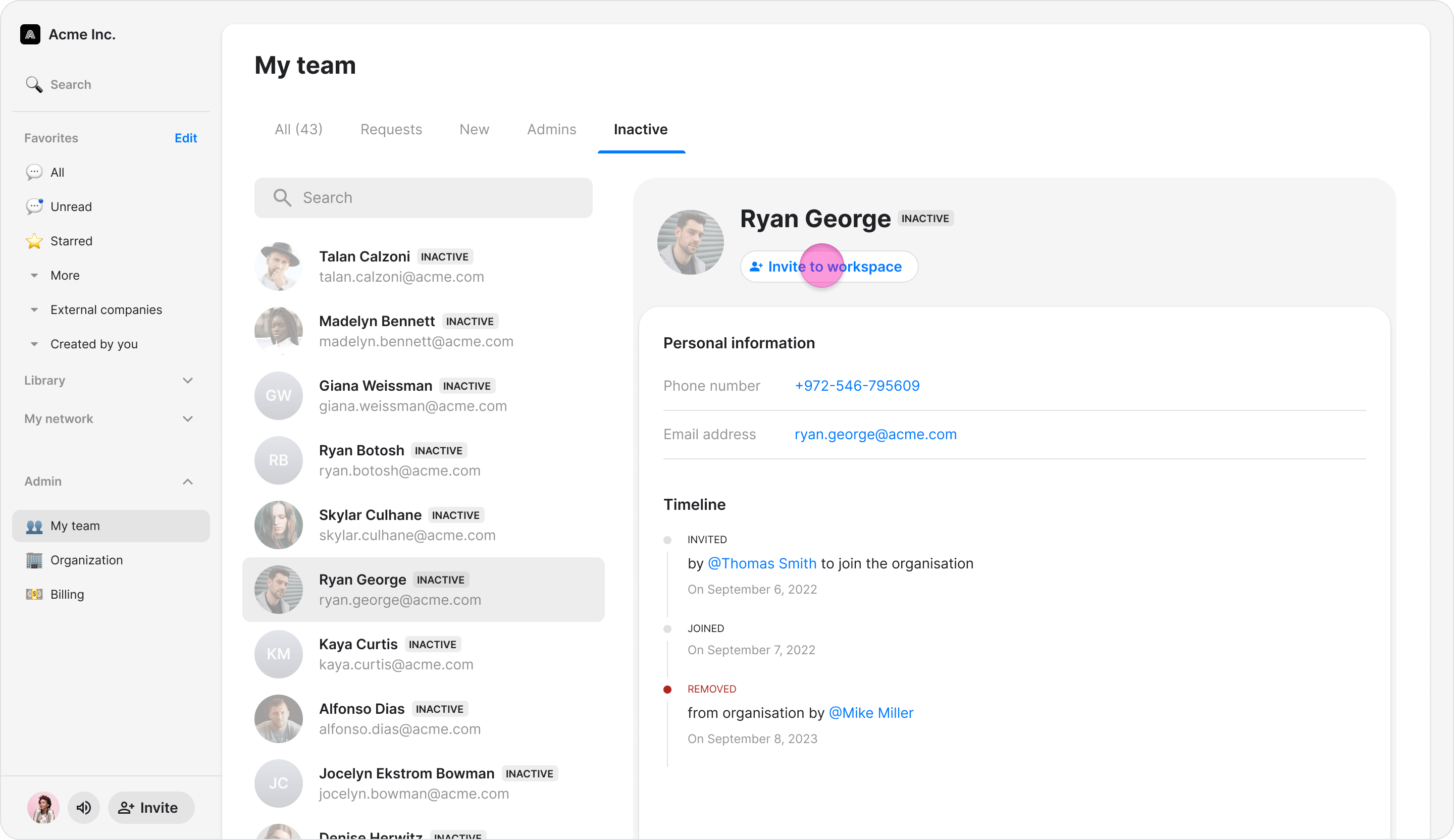
Send a new invitation to a previously removed member to allow them to rejoin.- Click the “Inactive” tab to view removed users.
- Select the inactive user you want to re-invite.
- Select “Invite to company” to send them an invitation to rejoin.