
On Mobile (iOS & Android)
Follow these steps to create and manage to-dos using the Zenzap mobile app.- Navigate to the chat or group where you want to add a to-do.
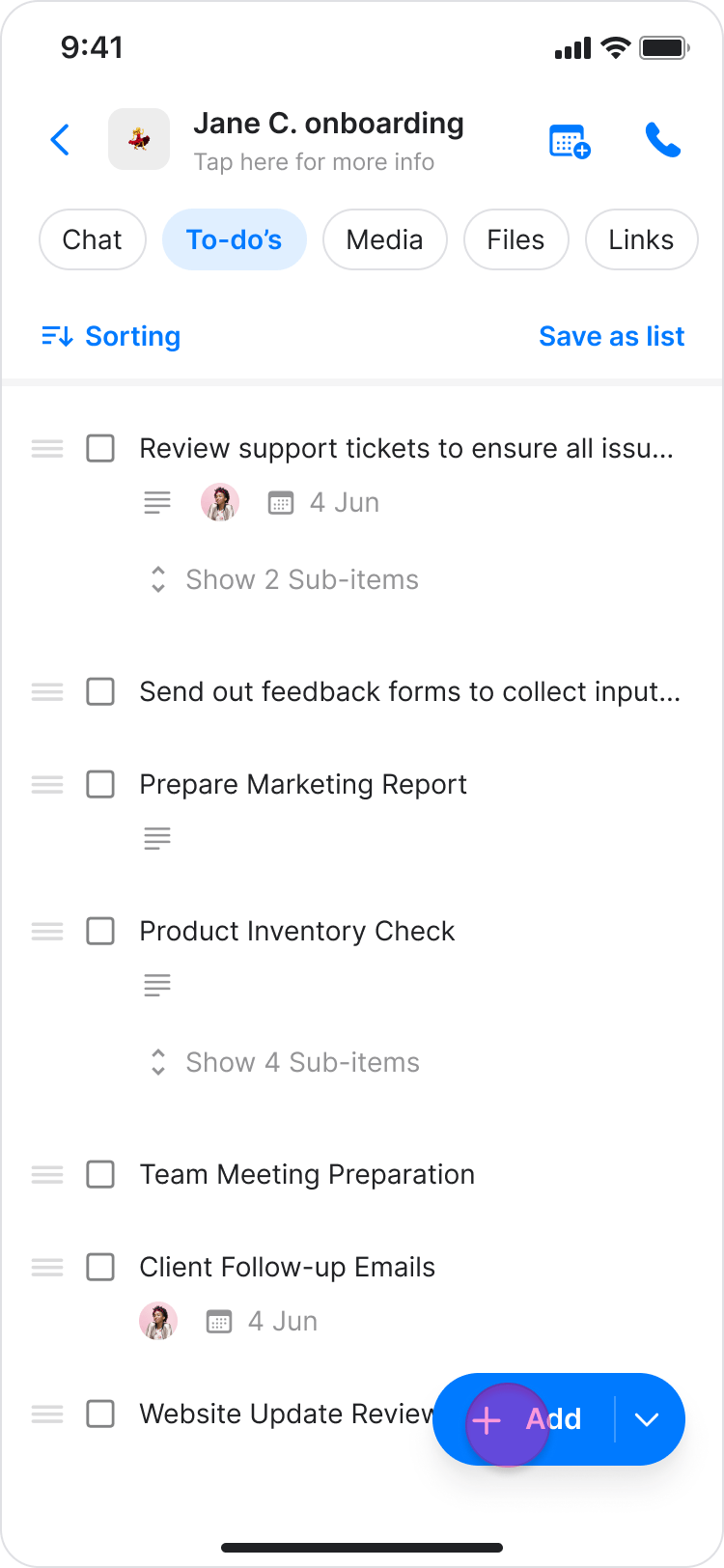
- Tap the “To-dos” tab at the top of the screen.
- Tap the ”+ Add to-do” button at the bottom of the screen.
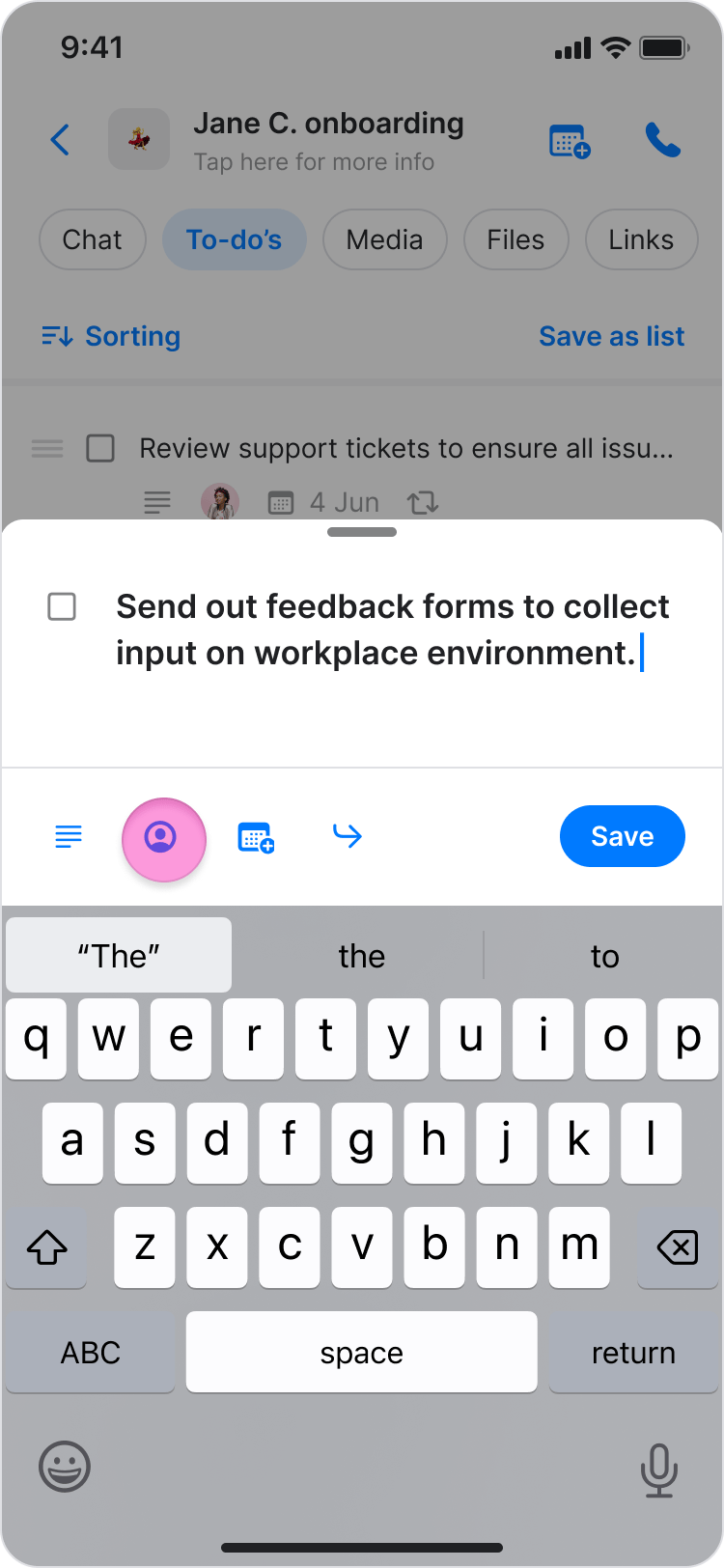
- Enter your to-do item in the text field.
- (Optional) Add a description for your to-do.
- (Optional) To assign the to-do, tap the profile icon and select an assignee from the list.
- (Optional) To set a due date, tap the calendar icon and select a date.
- (Optional) To set a due time, click the right toggle and select a specific time.
- (Optional) To display a to-do in the assignee’s calendar, click the right toggle (available only on the Pro plan and above).
- (Optional) To add sub-items, tap the right arrow and enter your to-do sub-item in the text field. The following steps remain the same as a regular to-do (available only on Pro plan and above).
- Tap “Add” to add the to-do to the list.
On Desktop (Windows, macOS, & Web App)
Follow these steps to create and manage to-dos using the Zenzap desktop app.- Navigate to the chat or group where you want to add a to-do.
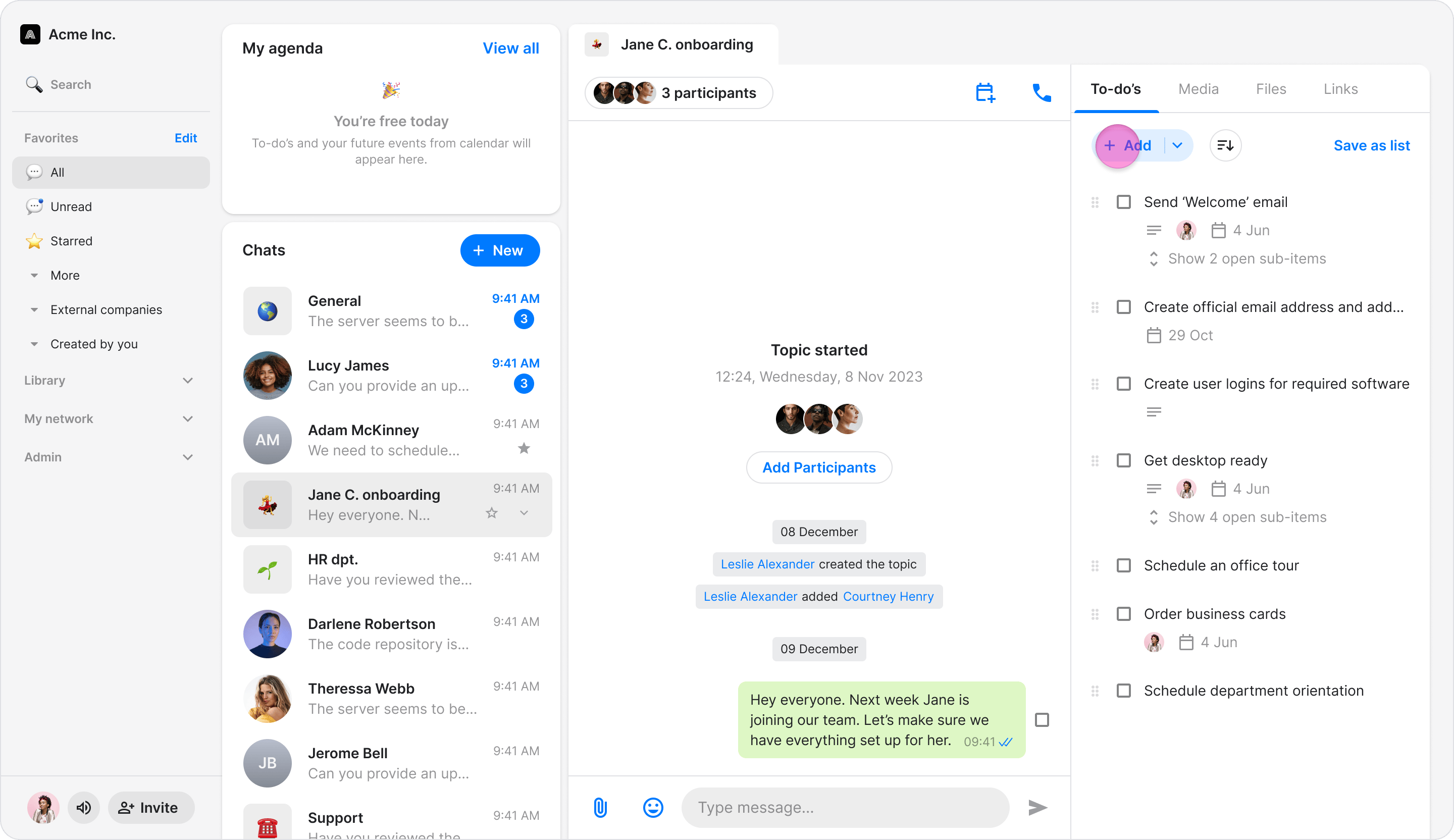
- Tap the ”+ Add” button in the right “To-dos” section.
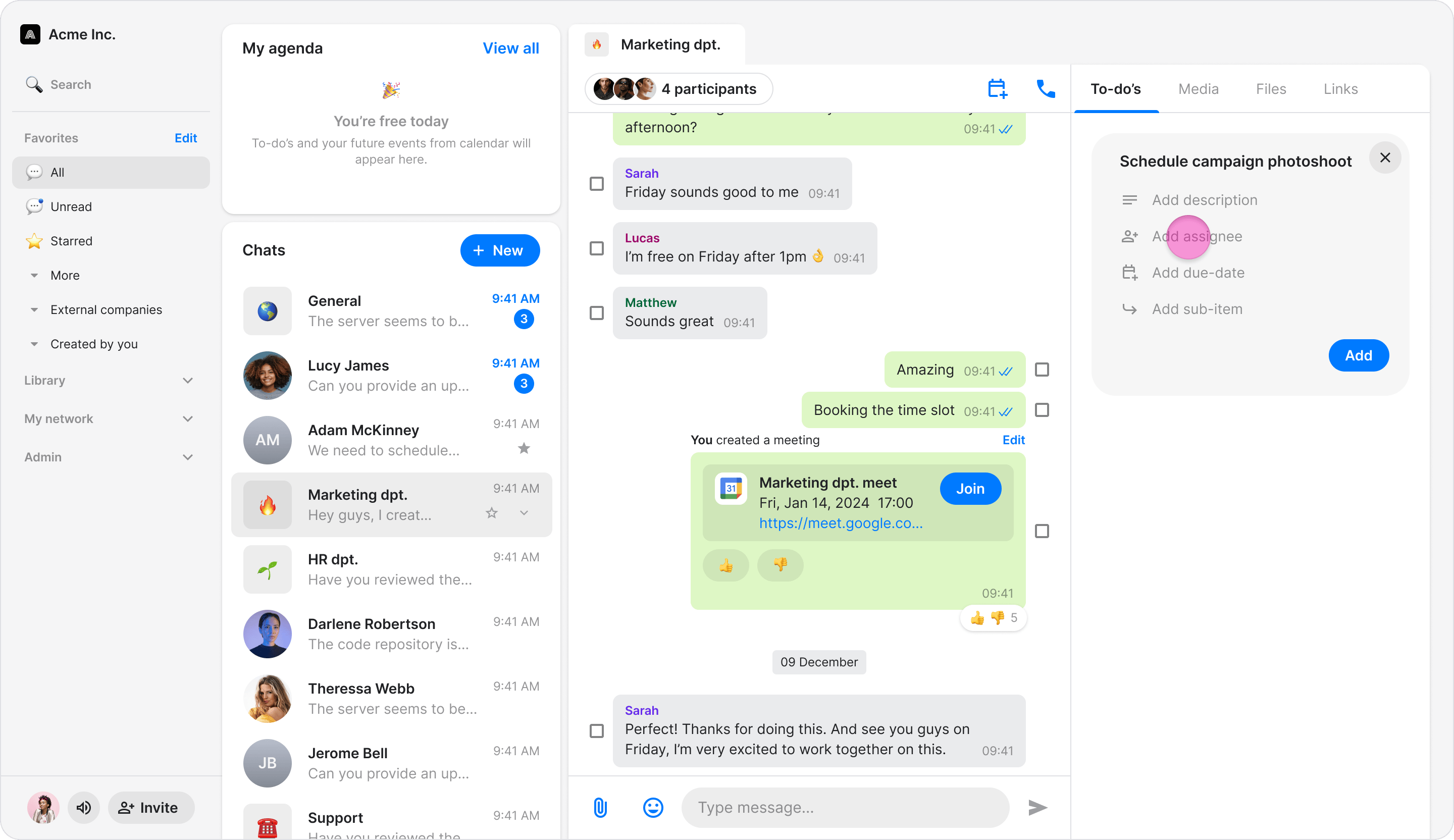
- Enter your to-do item in the text field.
- (Optional) Add a description for your to-do.
- (Optional) To assign the to-do, tap the profile icon and select an assignee from the list.
- (Optional) To set a due date, tap the calendar icon and select a date.
- (Optional) To set a due time, click the right toggle and select a specific time.
- (Optional) To present a to-do in the assignee’s calendar, click the right toggle (available only on Pro plan and above).
- (Optional) To add sub-items, tap the right arrow and enter your to-do sub-item in the text field. The following steps remain the same as a regular to-do (available only on Pro plan and above).
- Tap “Add” to add the to-do to the list.