On Mobile (iOS & Android)
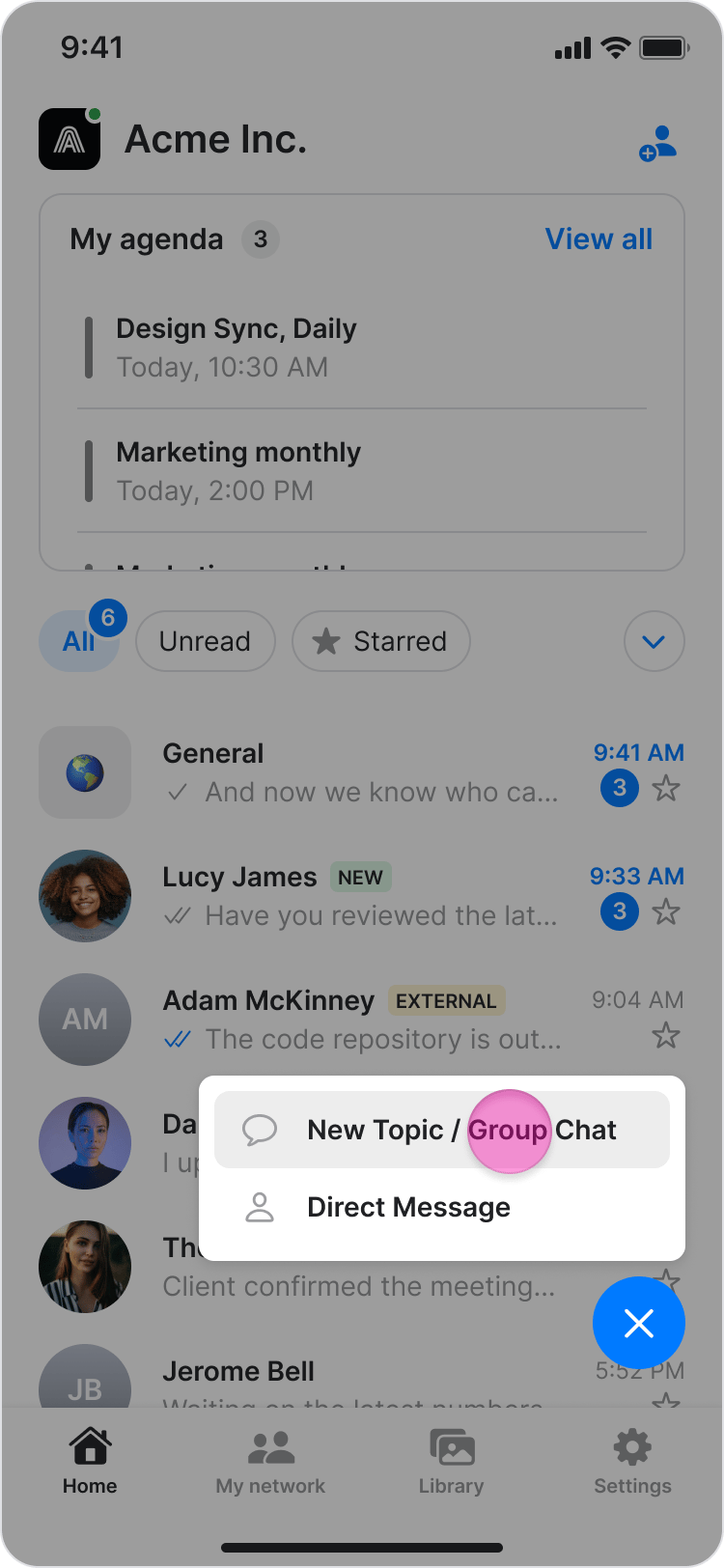
Follow these steps to create a new topic or group chat using the Zenzap mobile app.- From your home screen, tap the ”+ New” button in the bottom-right corner.
- Tap “New Topic/Group Chat”.
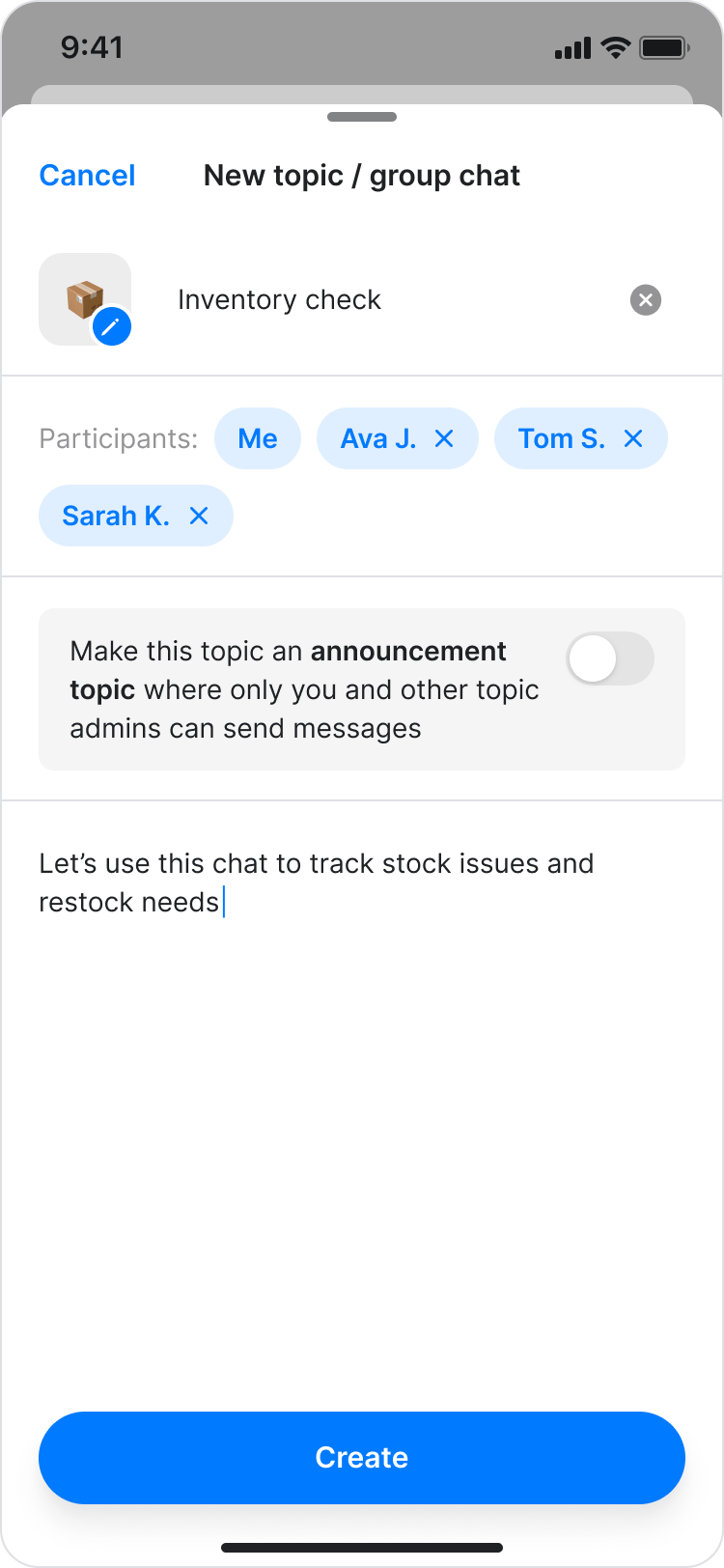
- Enter a name for your topic.
-
Select an icon or photo. You can either:
- Choose a specific emoji.
- Randomize an emoji.
- Upload your own image.
- Add participants to the topic.
- (Optional) Enable the “Make this topic an announcement topic” toggle to allow only admins to send messages in this topic.
- Send your first message to start the conversation.
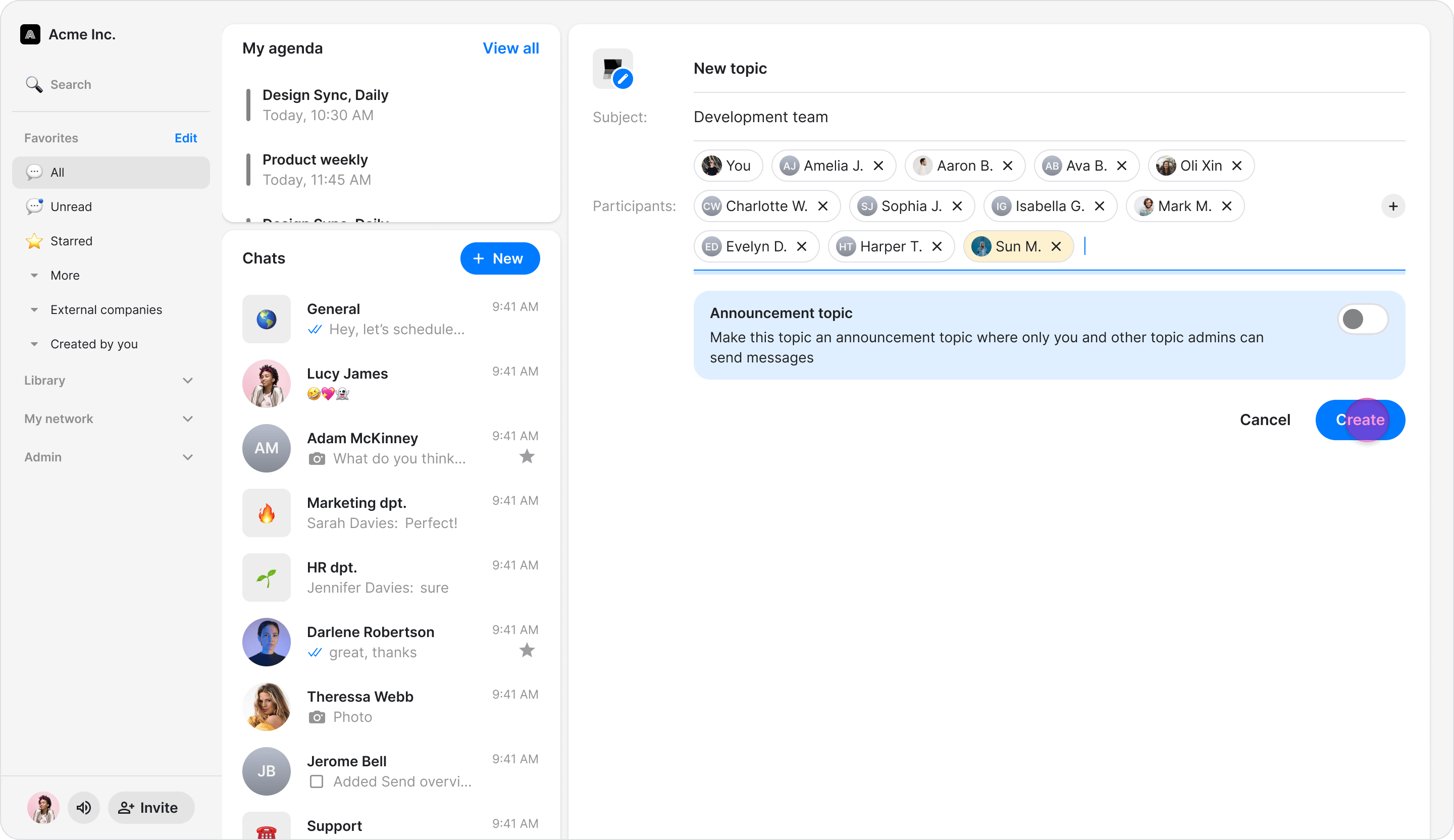
On Desktop (Windows, macOS, & Web App)
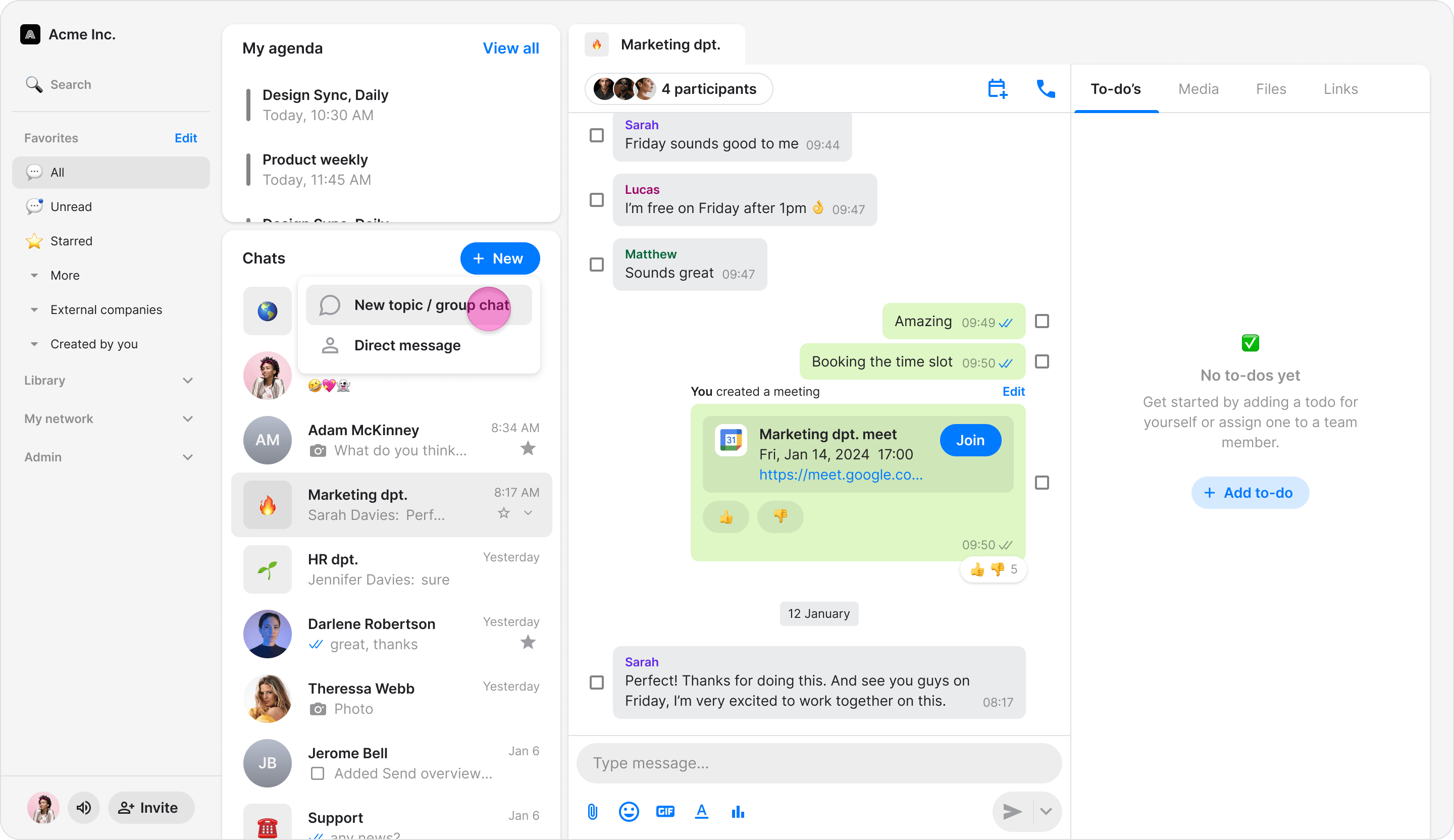
Follow these steps to create a new topic or group chat using the Zenzap desktop or web app.- Click “Chats” in the left menu.
- Click the ”+ New” button.
- Click “New Topic/Group Chat”.
- Enter a name for your topic.
-
Select an icon or photo. You can:
- Choose a specific emoji.
- Randomize an emoji.
- Upload your own image.
- Add participants to the topic.
- (Optional) Enable the “Make this topic an announcement topic” toggle to allow only admins to send messages in this topic.
- Click “Create” and send your first message to start the conversation.