On Mobile (iOS & Android)
- Open the chat you want to add your agent to.
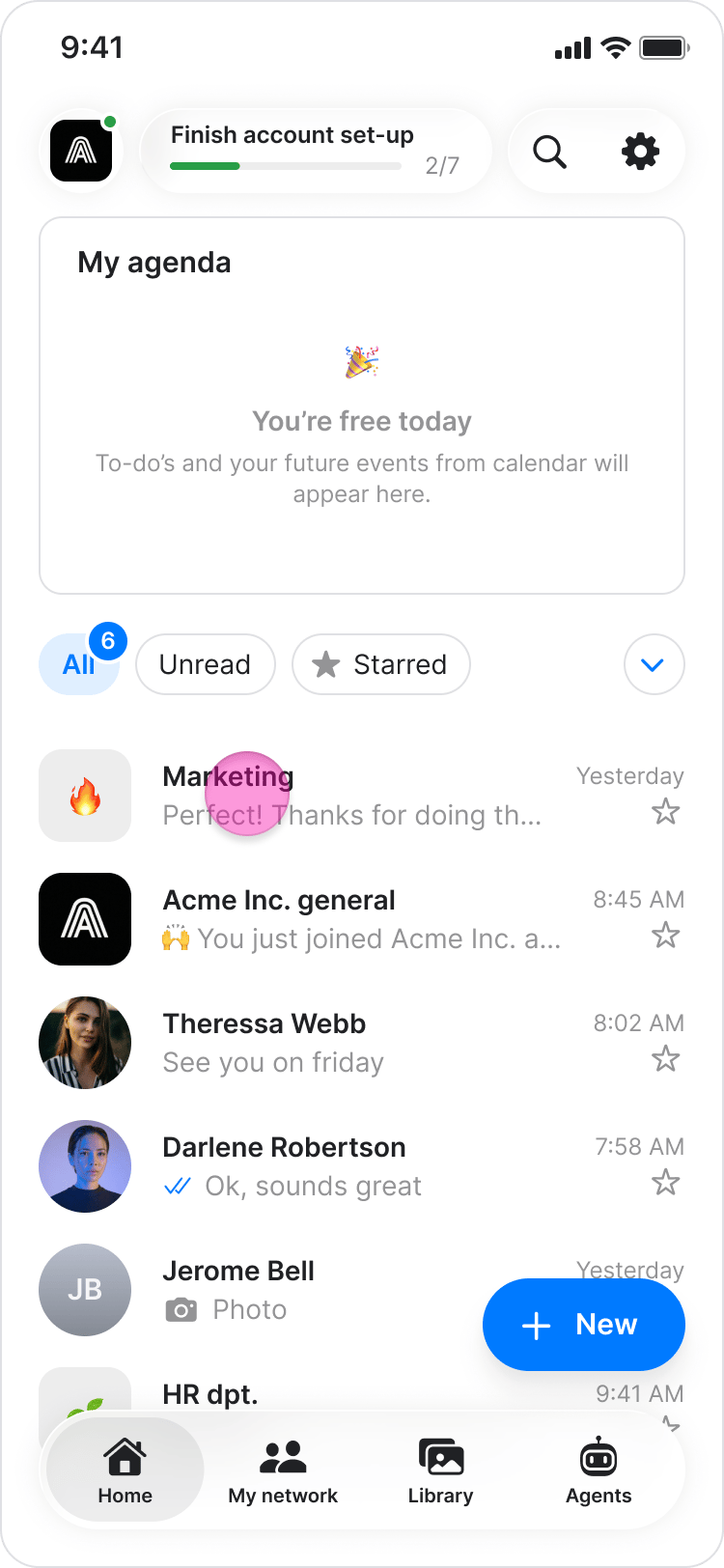
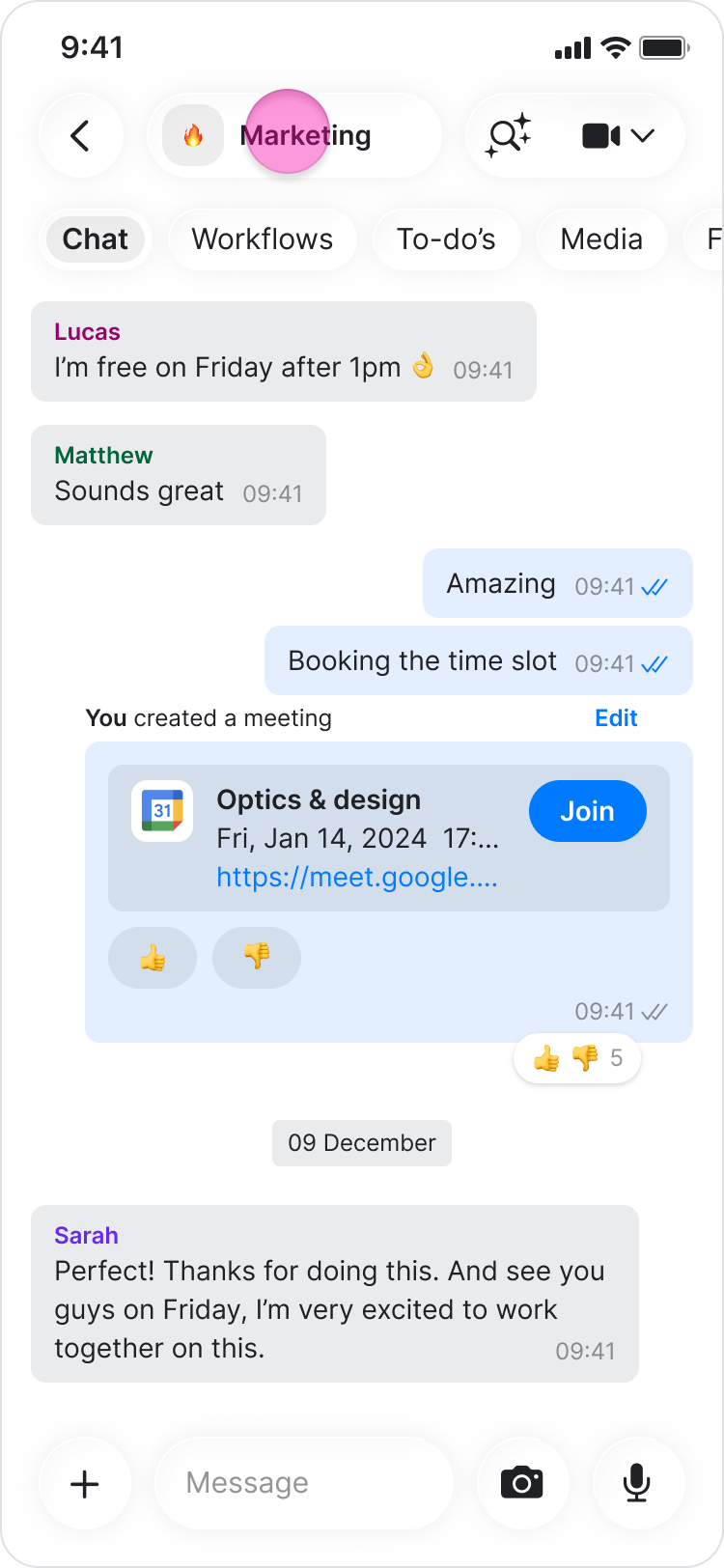
- Tap the chat name at the top.
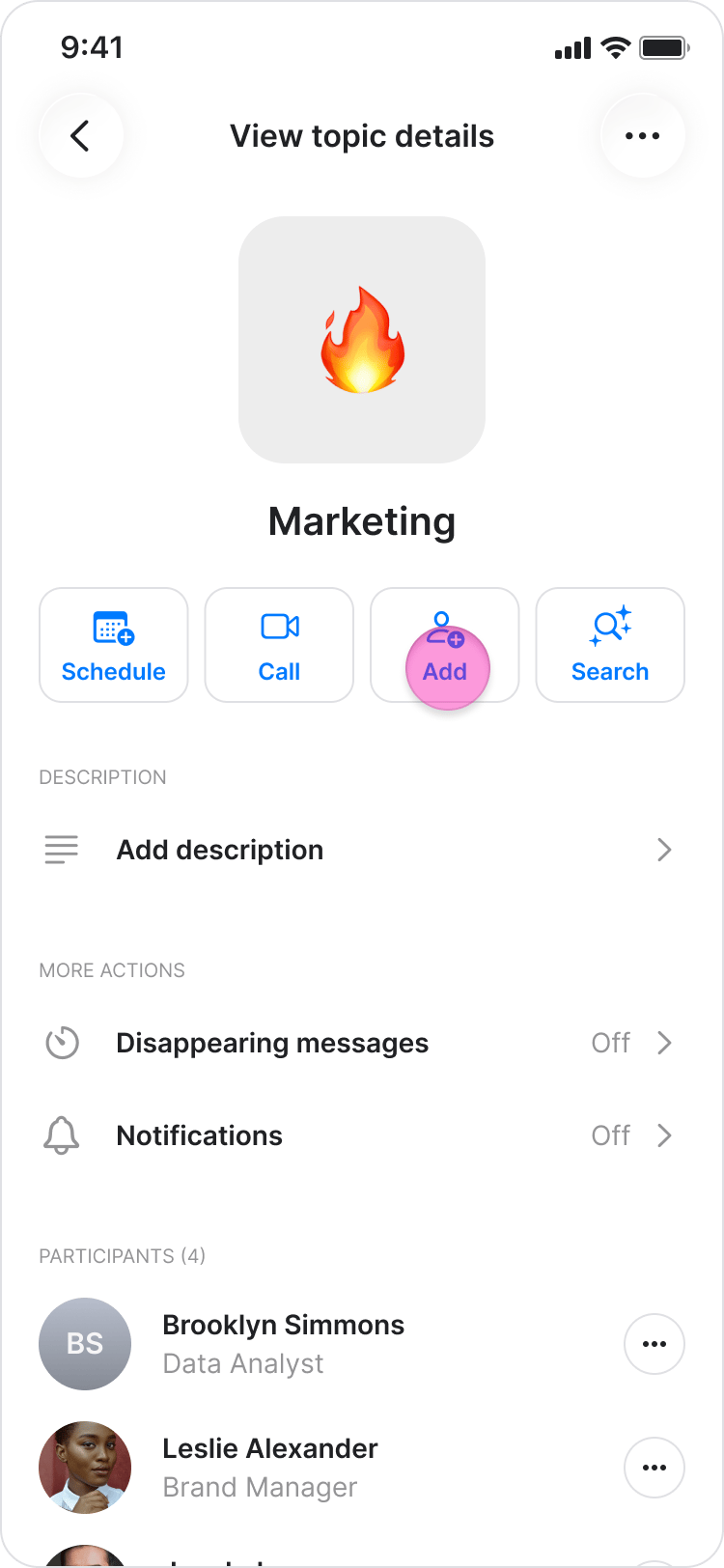
- Tap “Add.”
- Under “Agents,” select the agent you want to add.
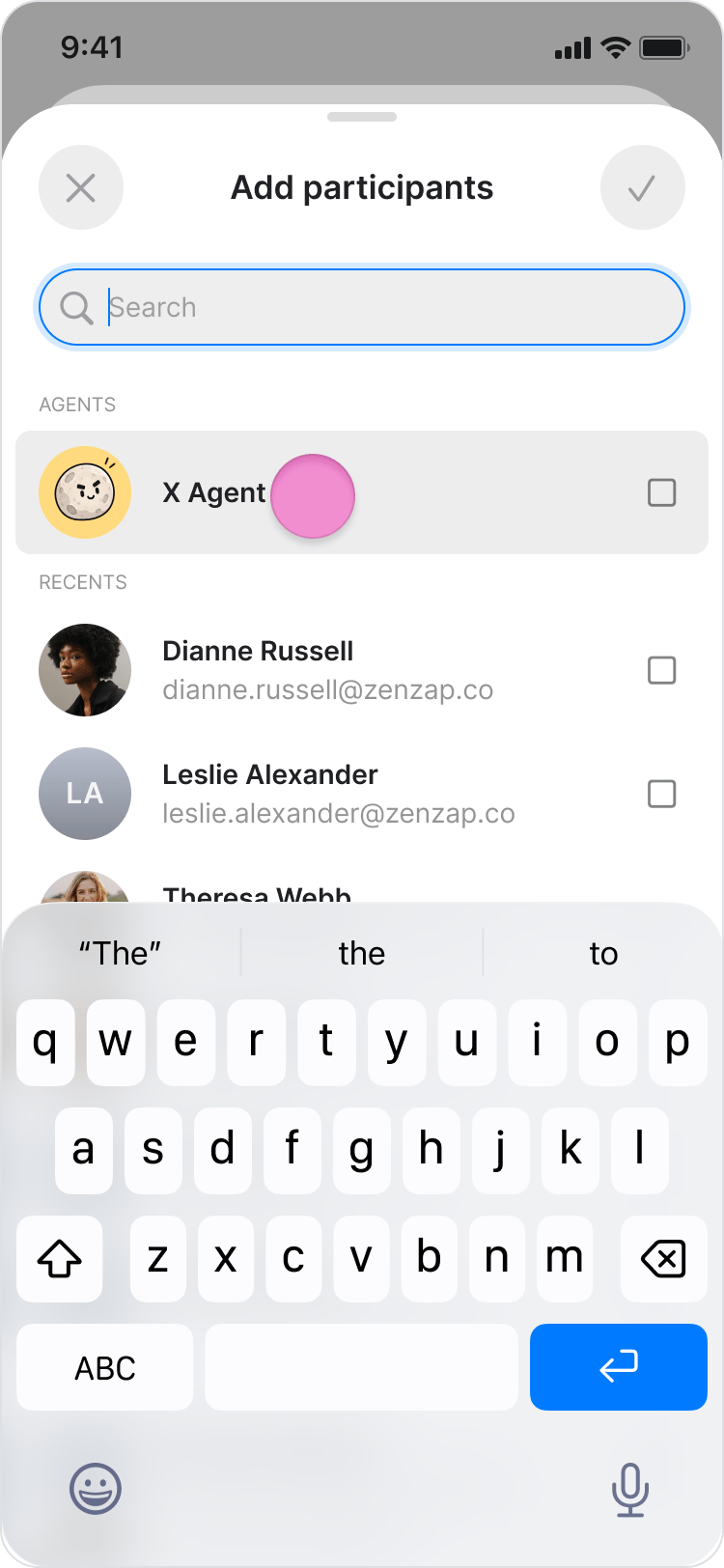
- Tap the “Done” in the top-right corner to confirm.
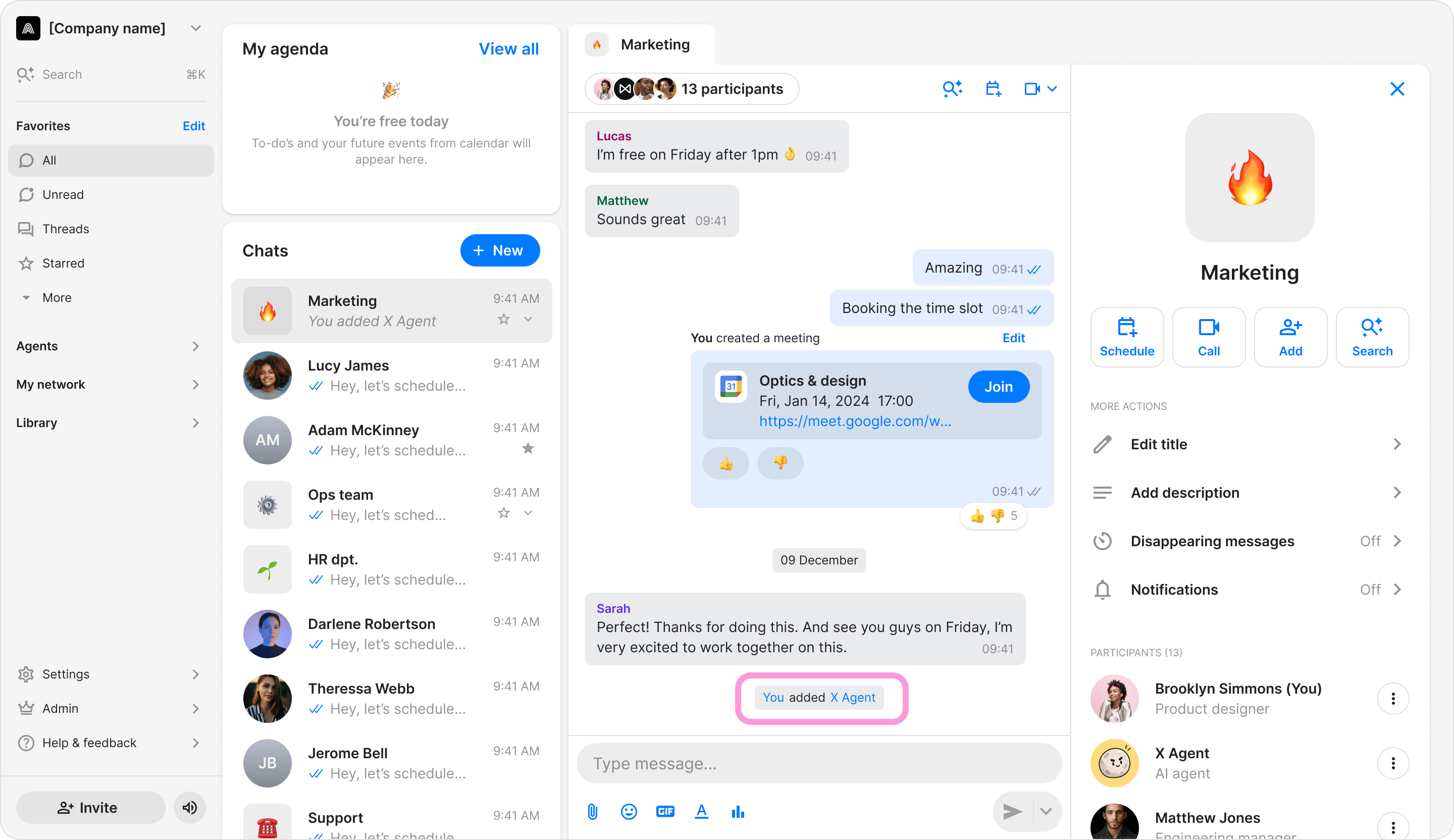
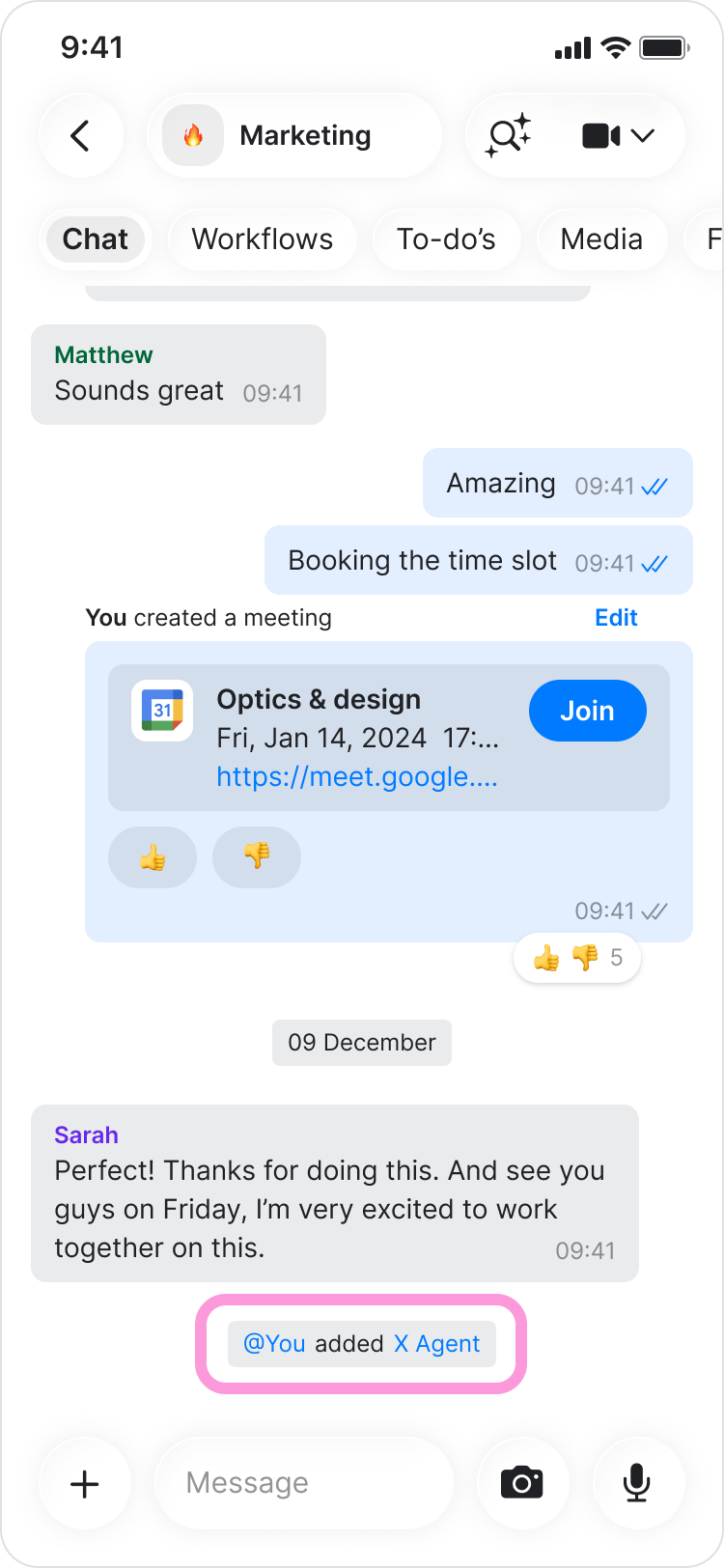
- The agent appears in the chat’s participant list, and a message is sent in the chat confirming that it was added. Note: An agent only stays active in a chat while its owner is also in that chat. If the owner leaves, the agent leaves too.
On Desktop (Windows, macOS, & Web App)
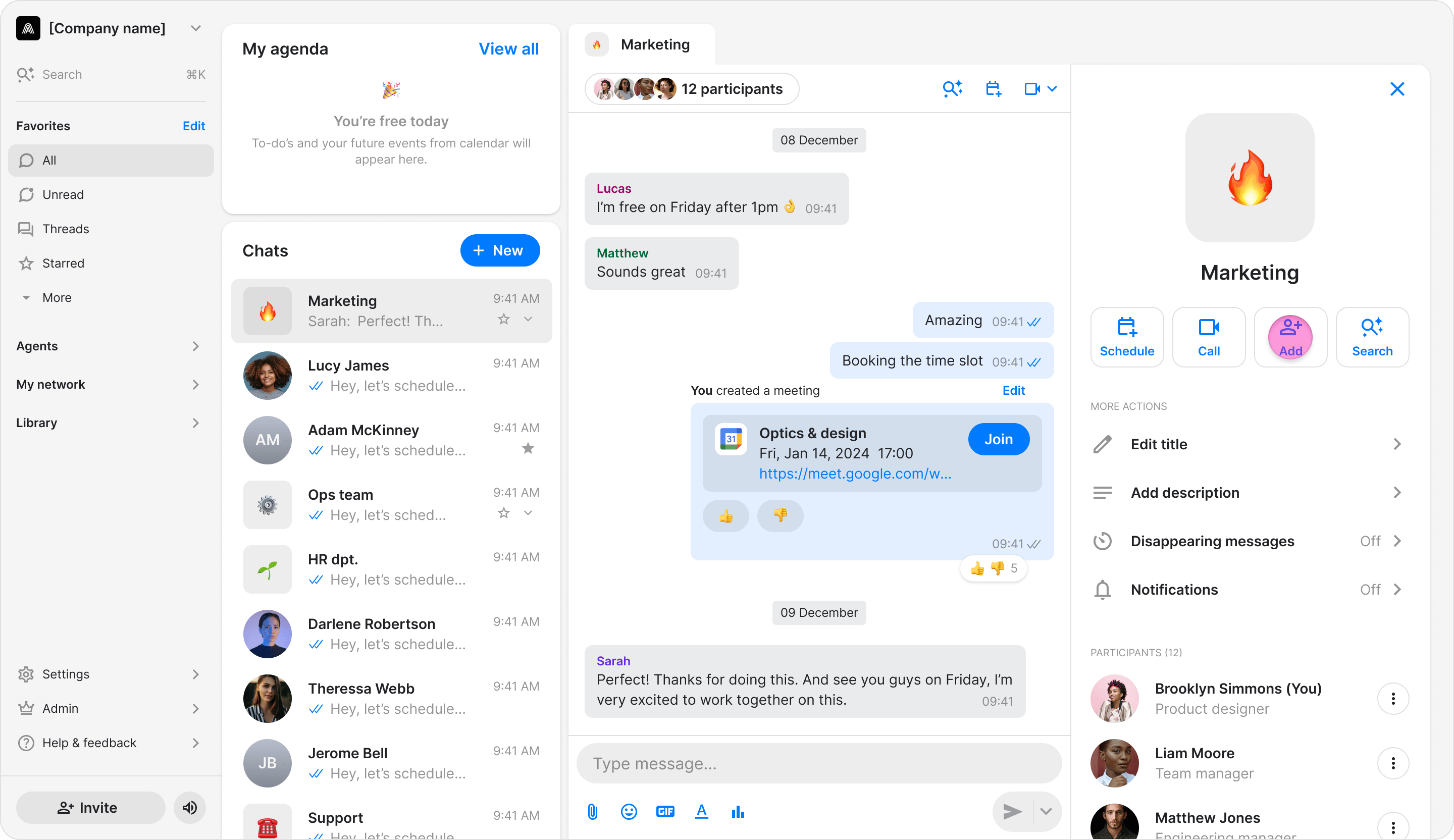
- Open the chat you want to add your agent to.
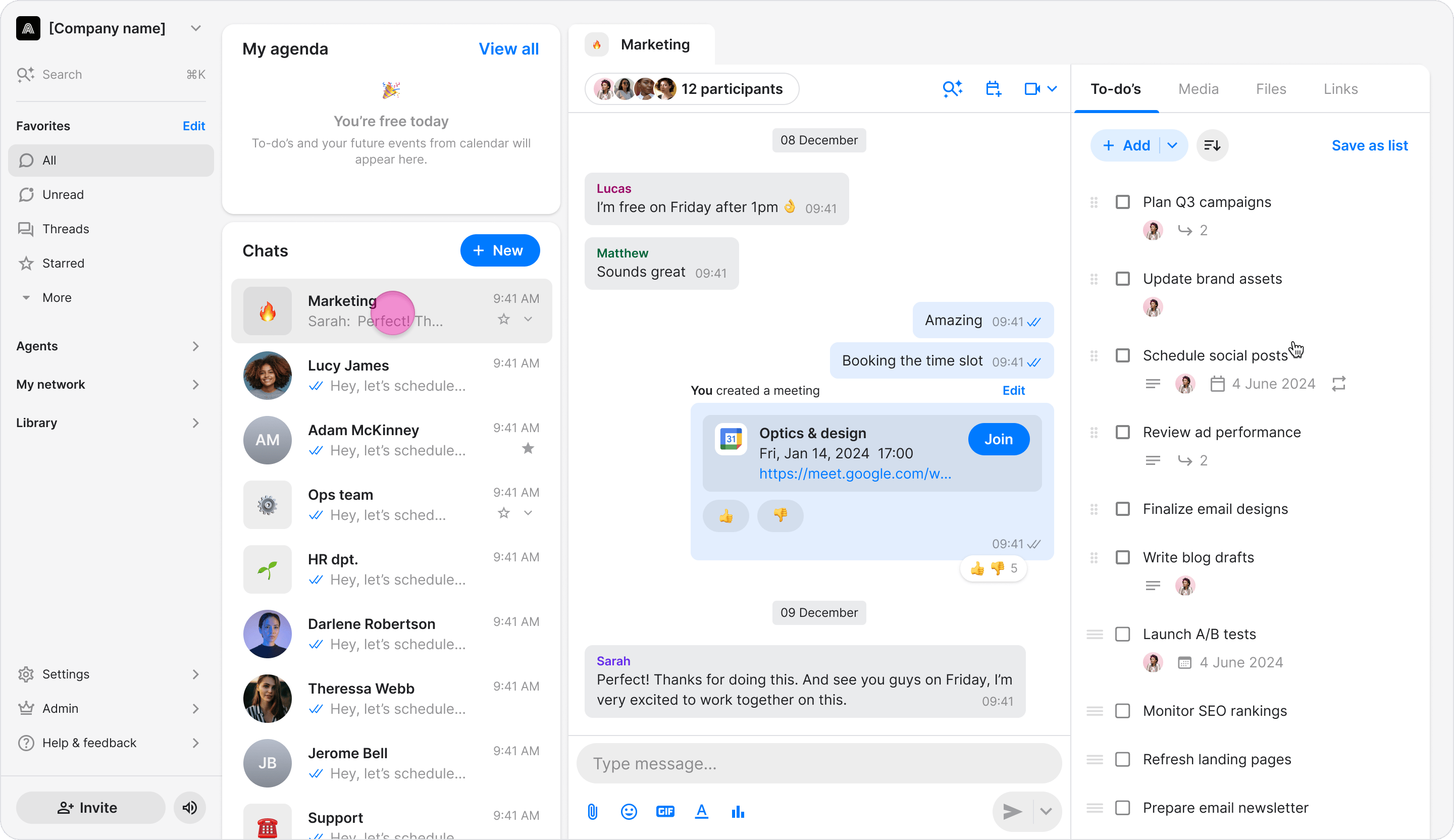
- Click on the participants at the top of the chat.
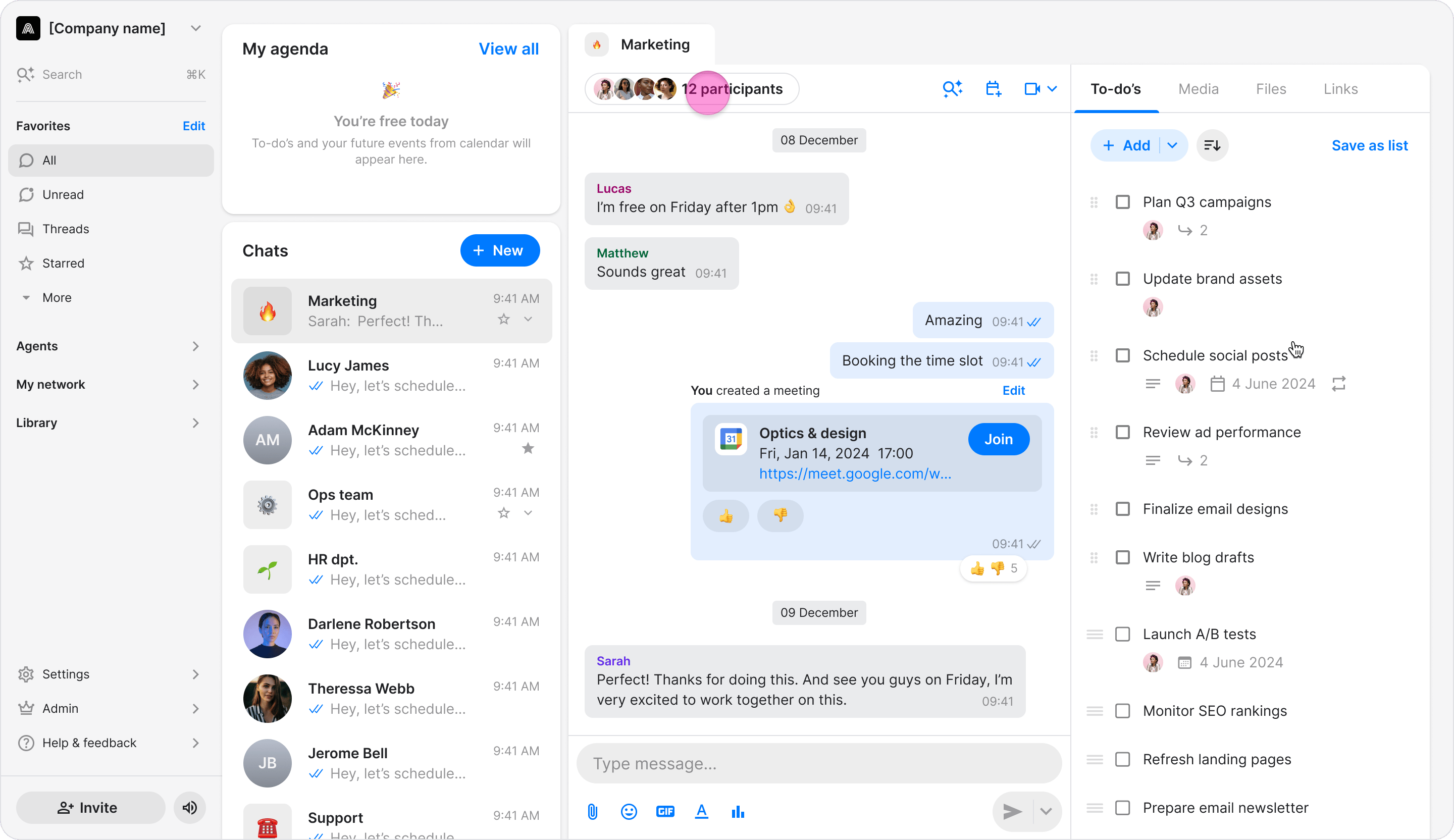
- Click “Add participants” at the bottom-right corner.
- Select the checkbox next to the agent you want to add.
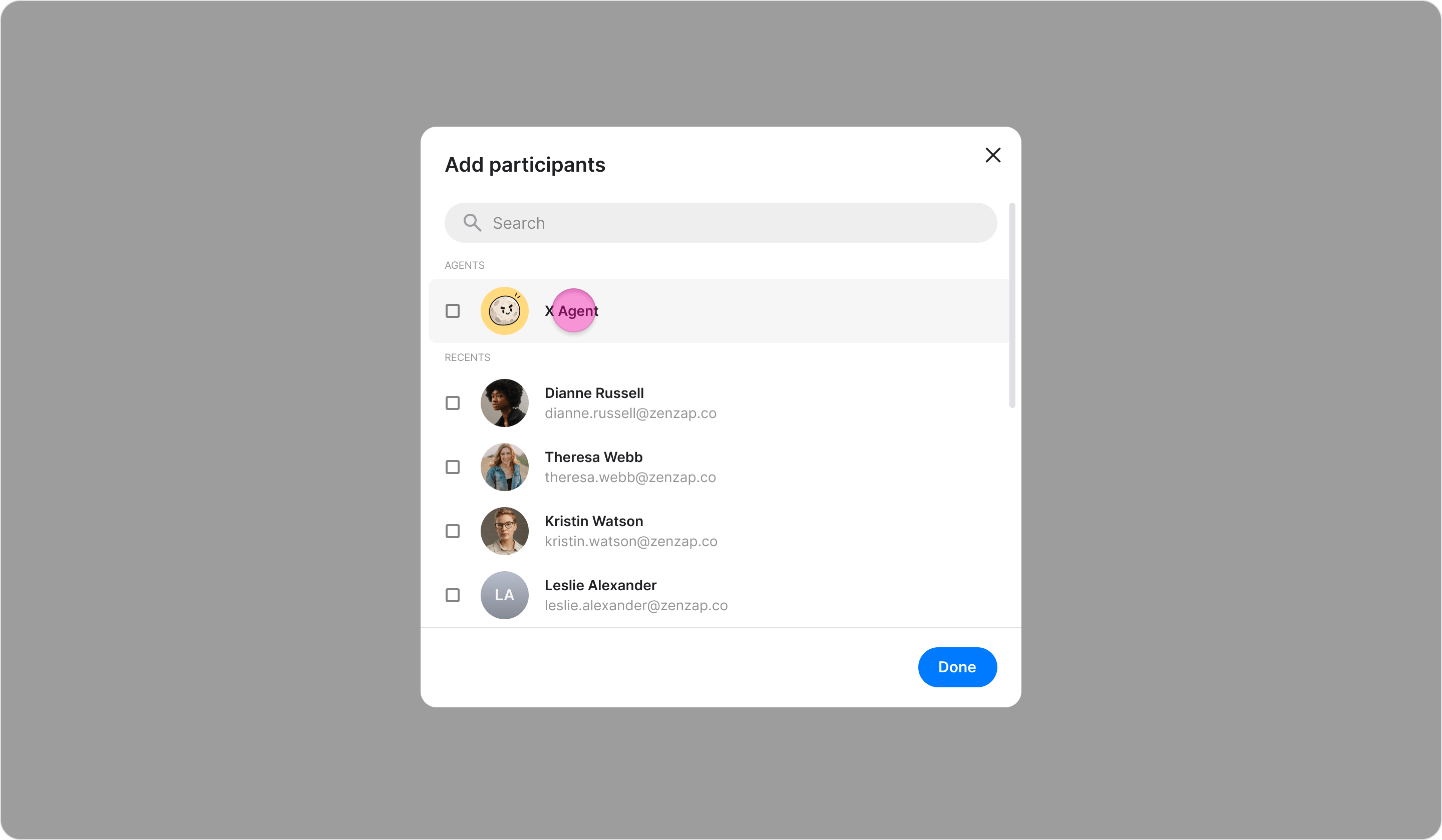
- Click “Done” to confirm.
- The agent appears in the chat’s participant list, and a message is sent in the chat confirming that it was added. Note: An agent only stays active in a chat while its owner is also in that chat. If the owner leaves, the agent leaves too.