
On Mobile (iOS & Android)
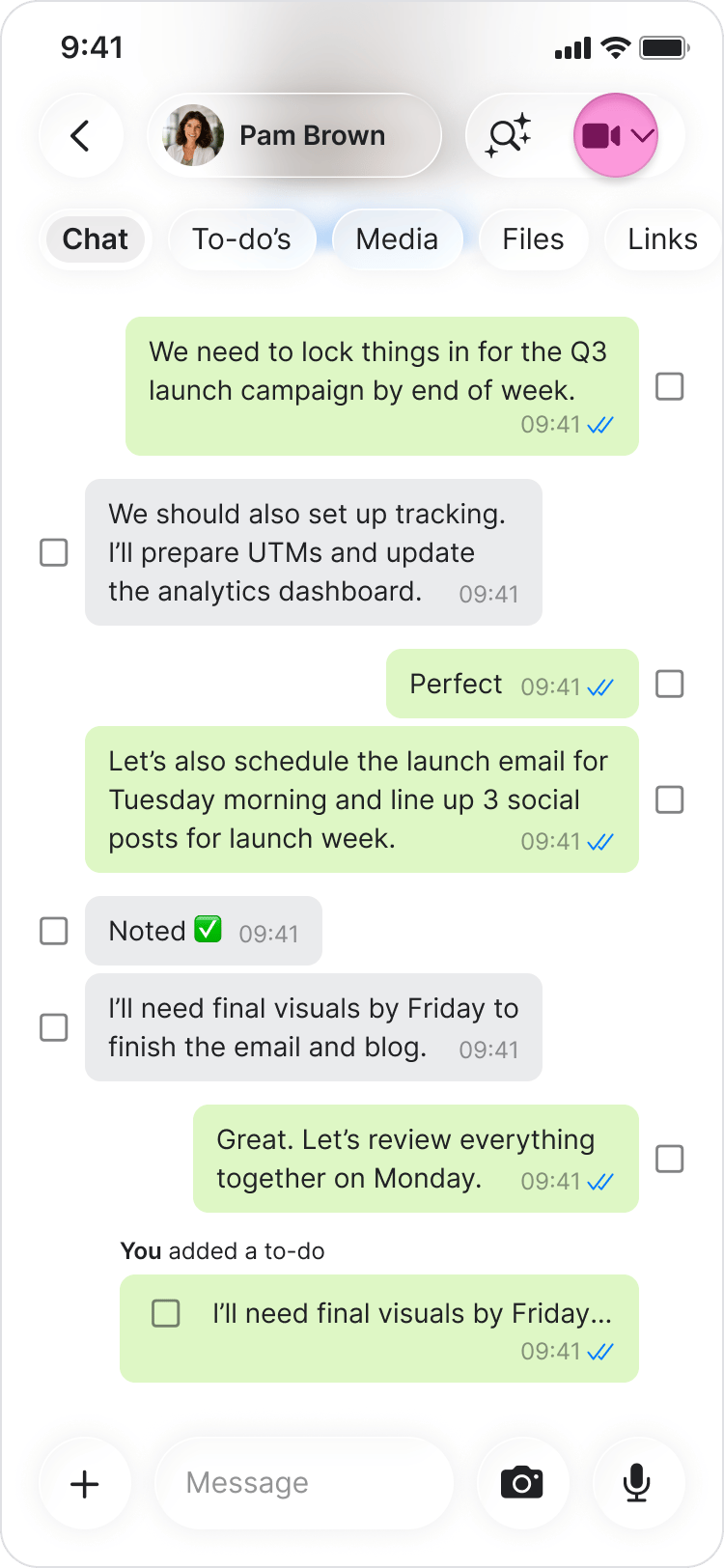
Start a Call- Open the chat with the person or group you want to call.
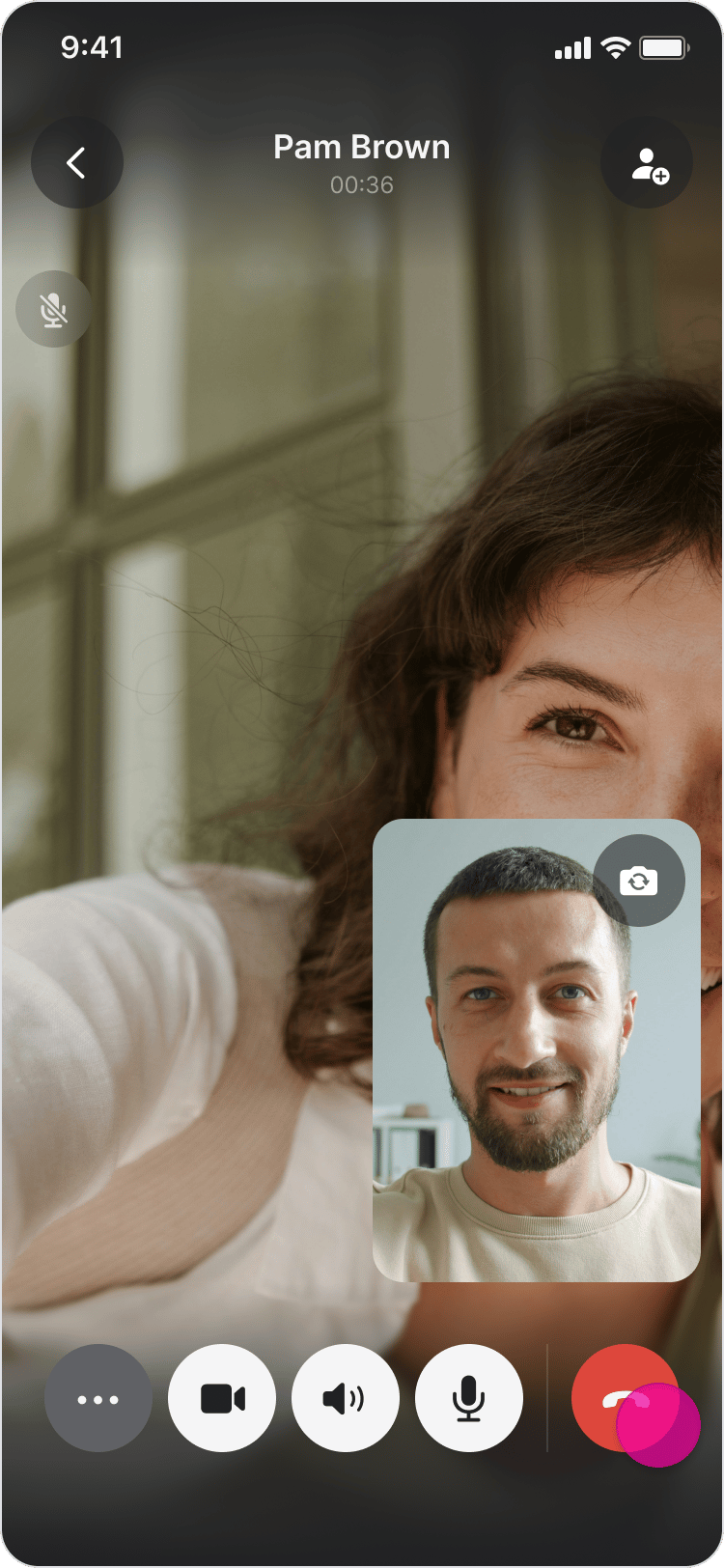
- Tap the video call icon.
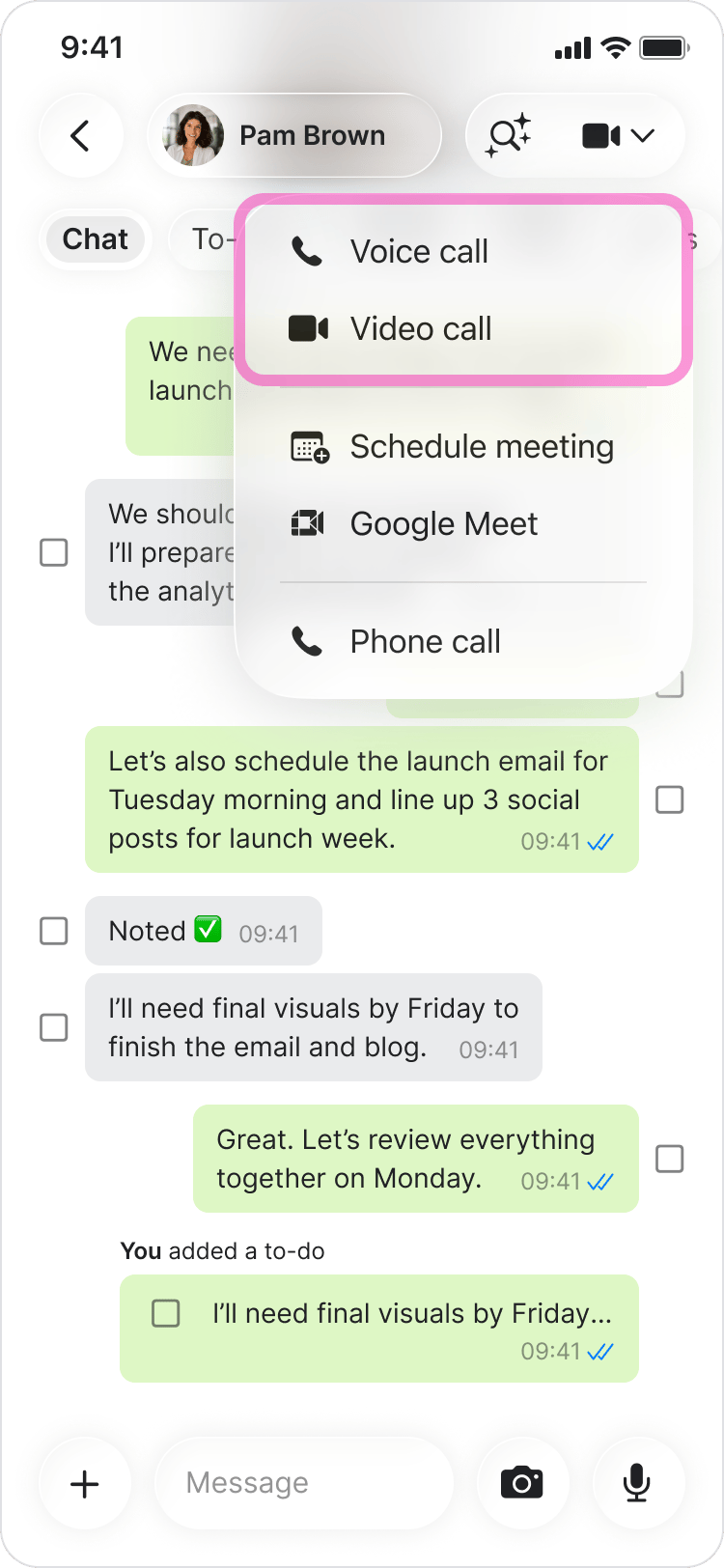
- Select either: “Voice call” or “Video call”
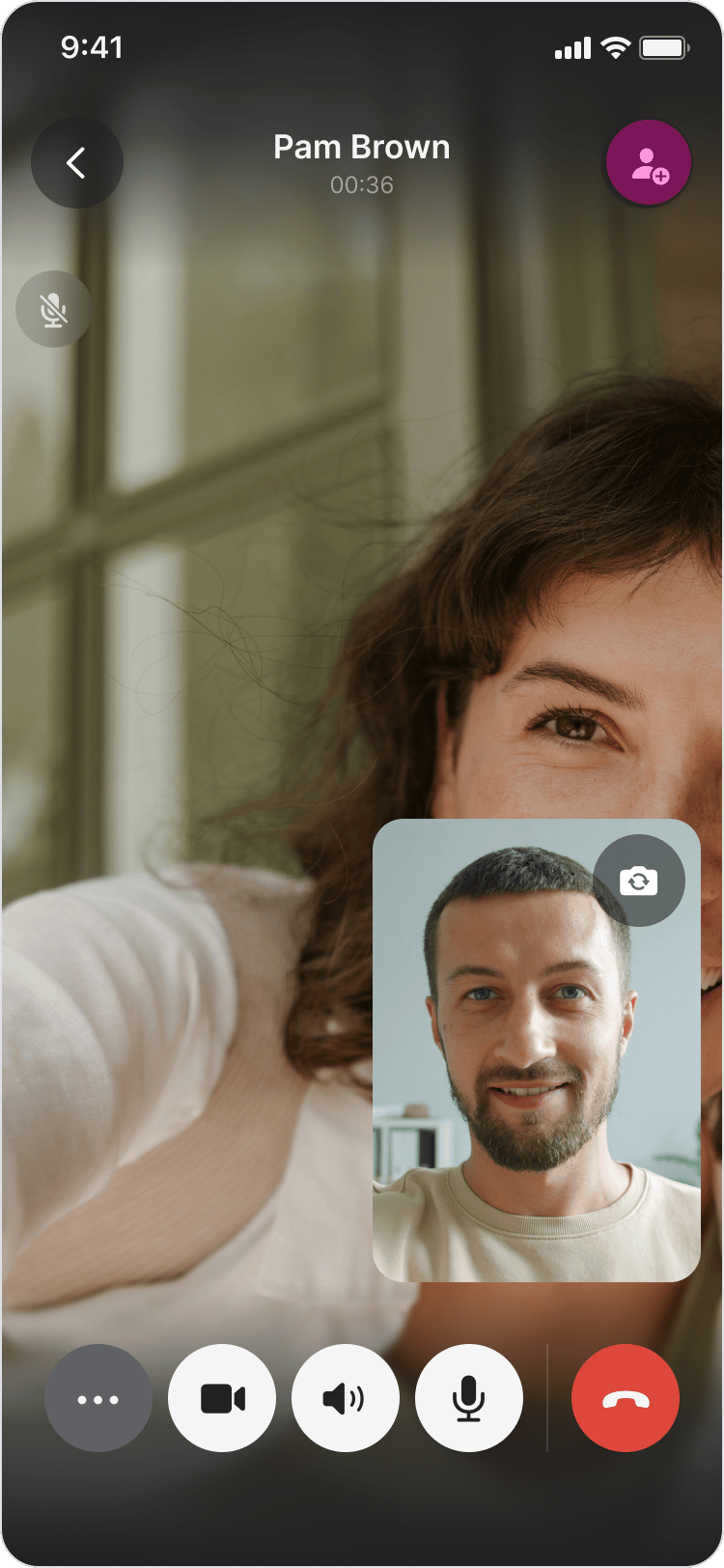
- Invite additional participants.
- Share your screen.
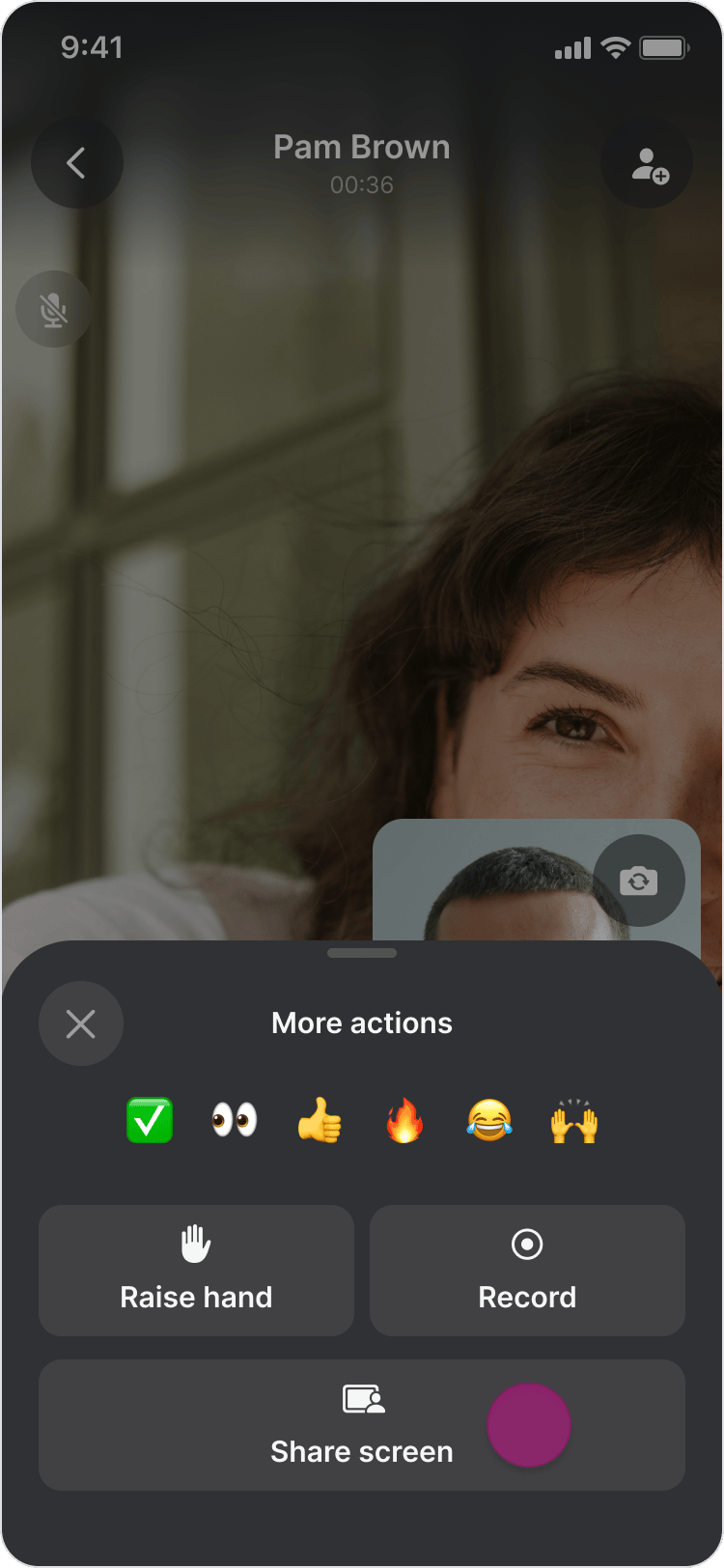
- Send emoji reactions.
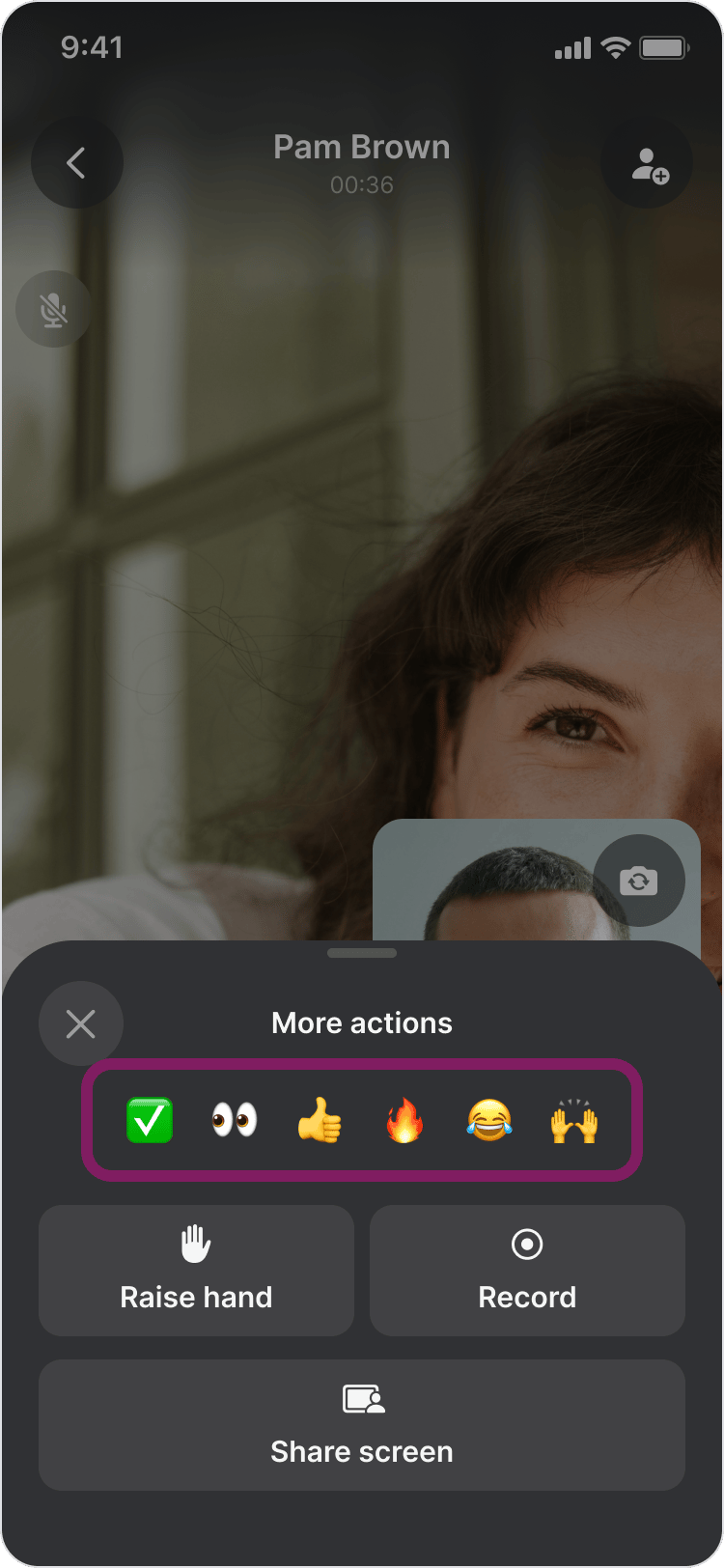
- Tap the red “hang-up” button to leave the call.
On Desktop (Windows, macOS, & Web App)
Start a Call- Open the chat with the person or group you want to call.
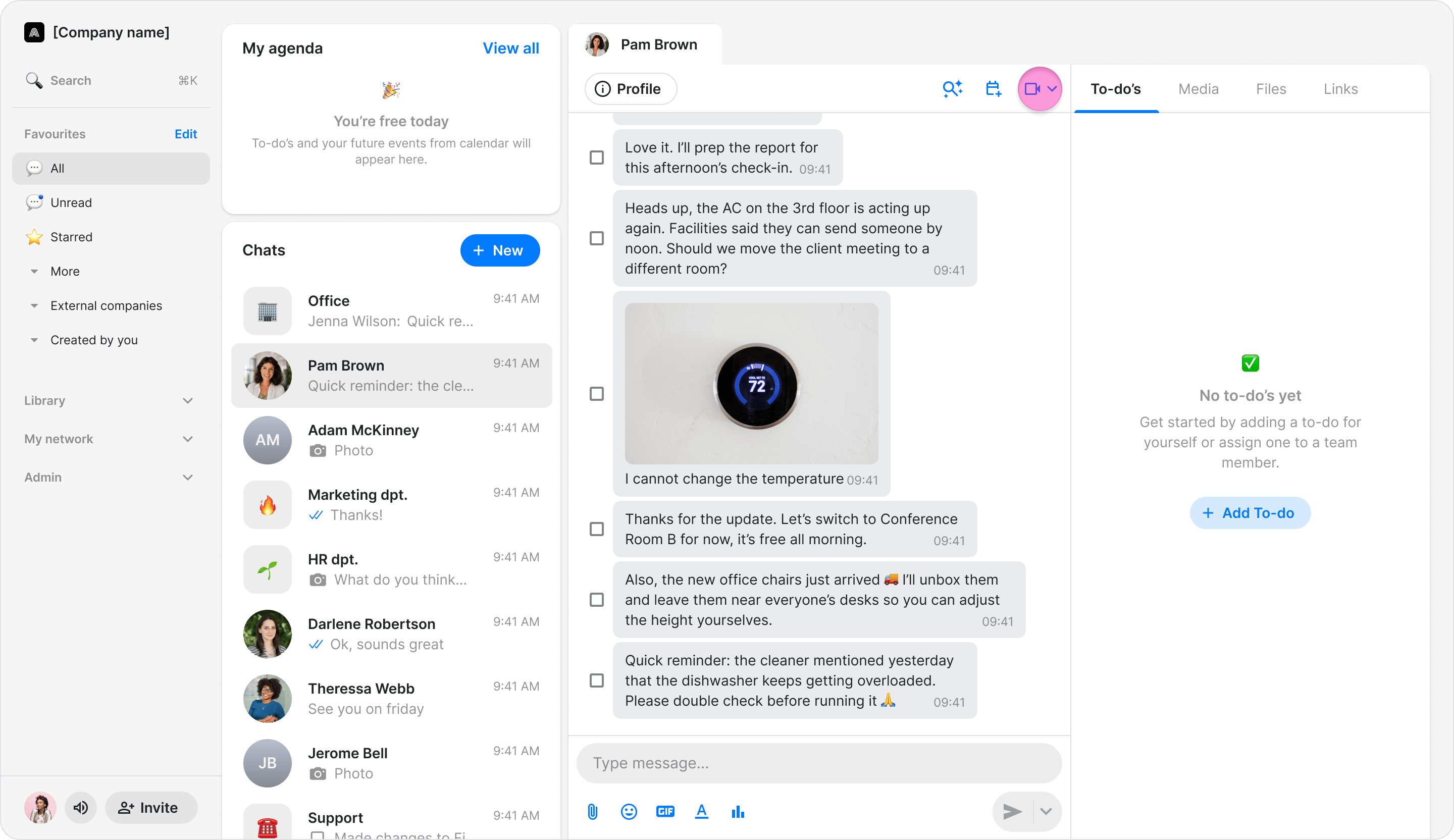
- In the top-right corner of the chat, click the video call icon.
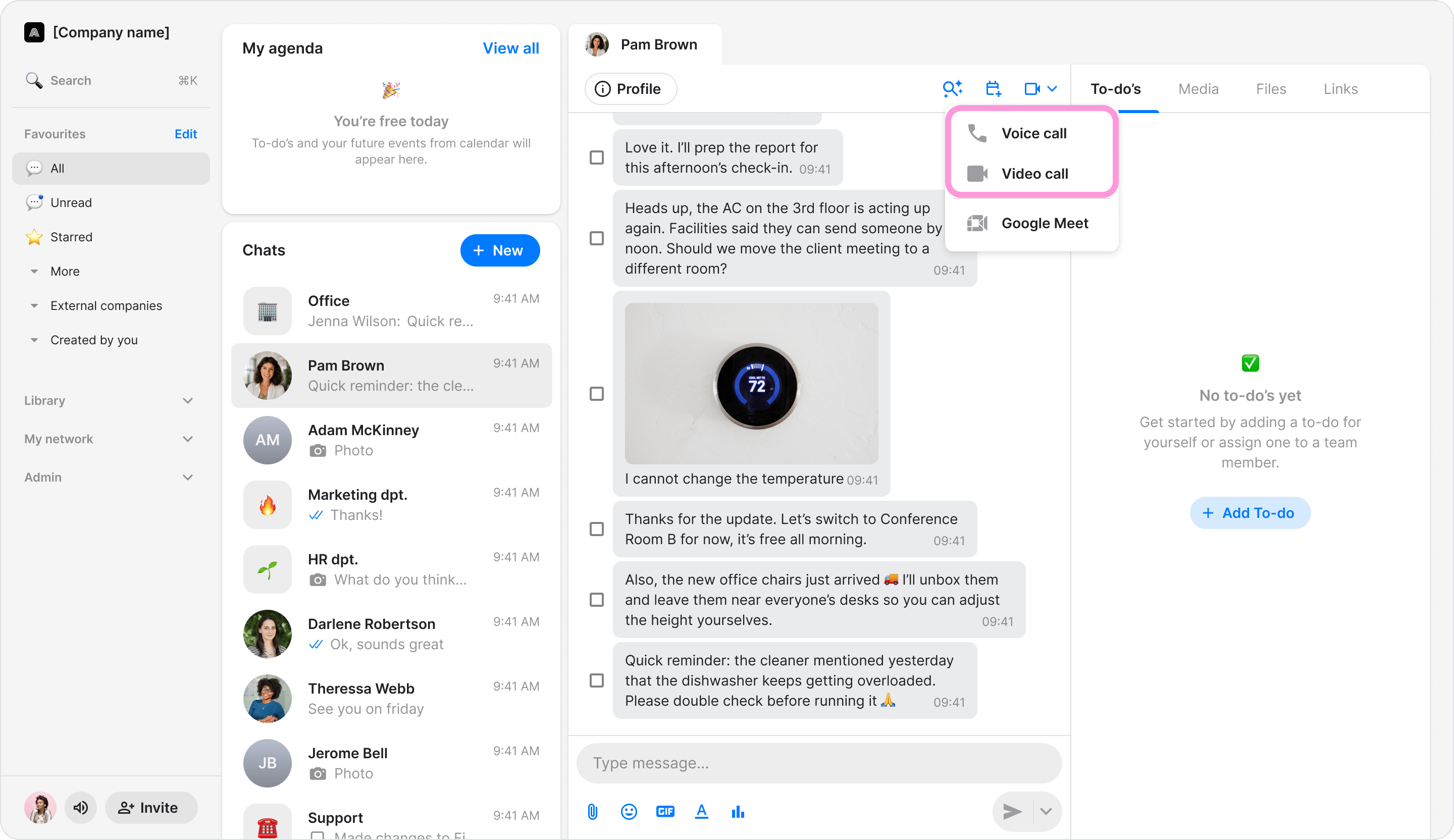
- Select either: “Voice call” or “Video call”
- Wait for the other participant(s) to join the call.
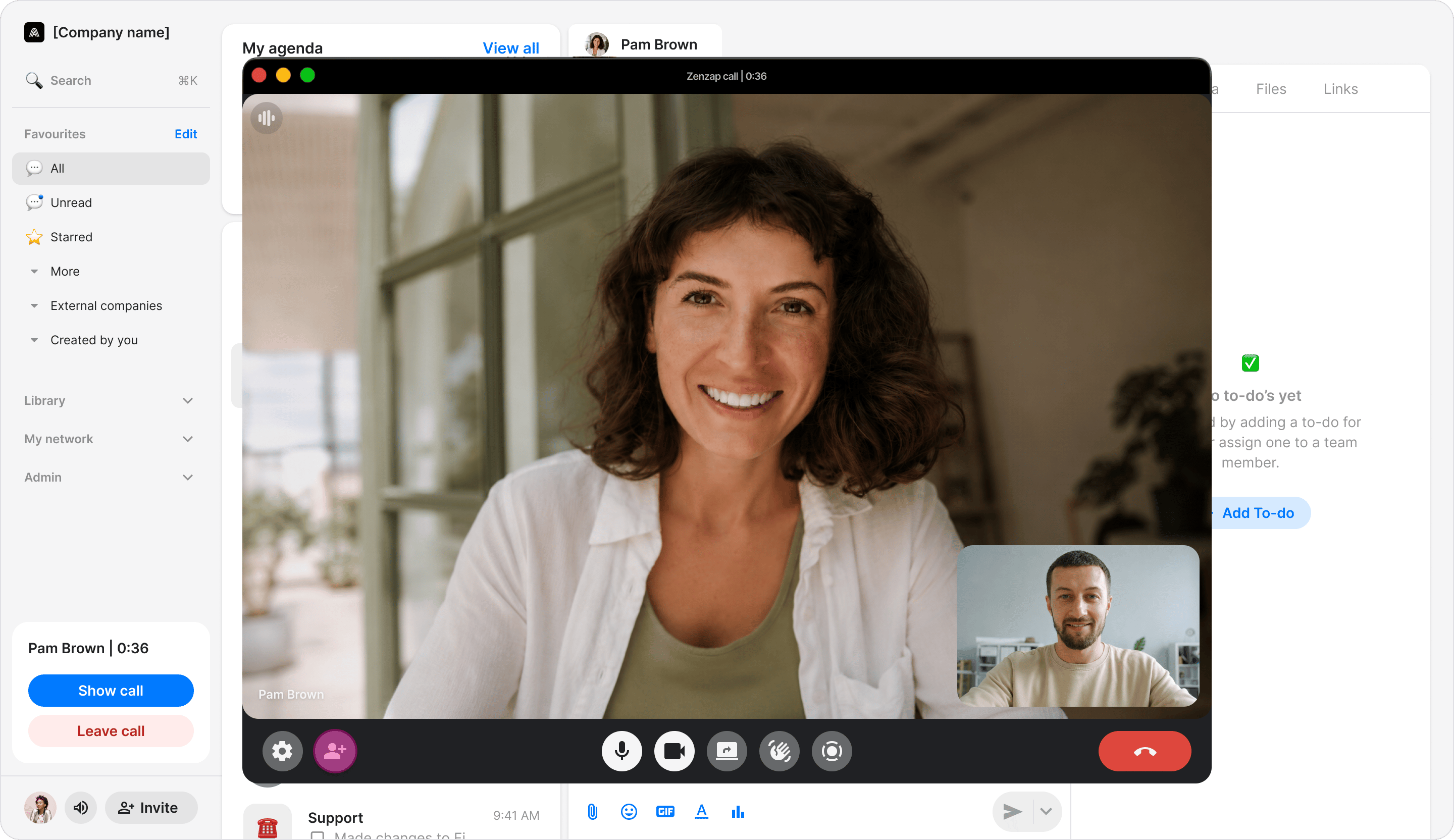
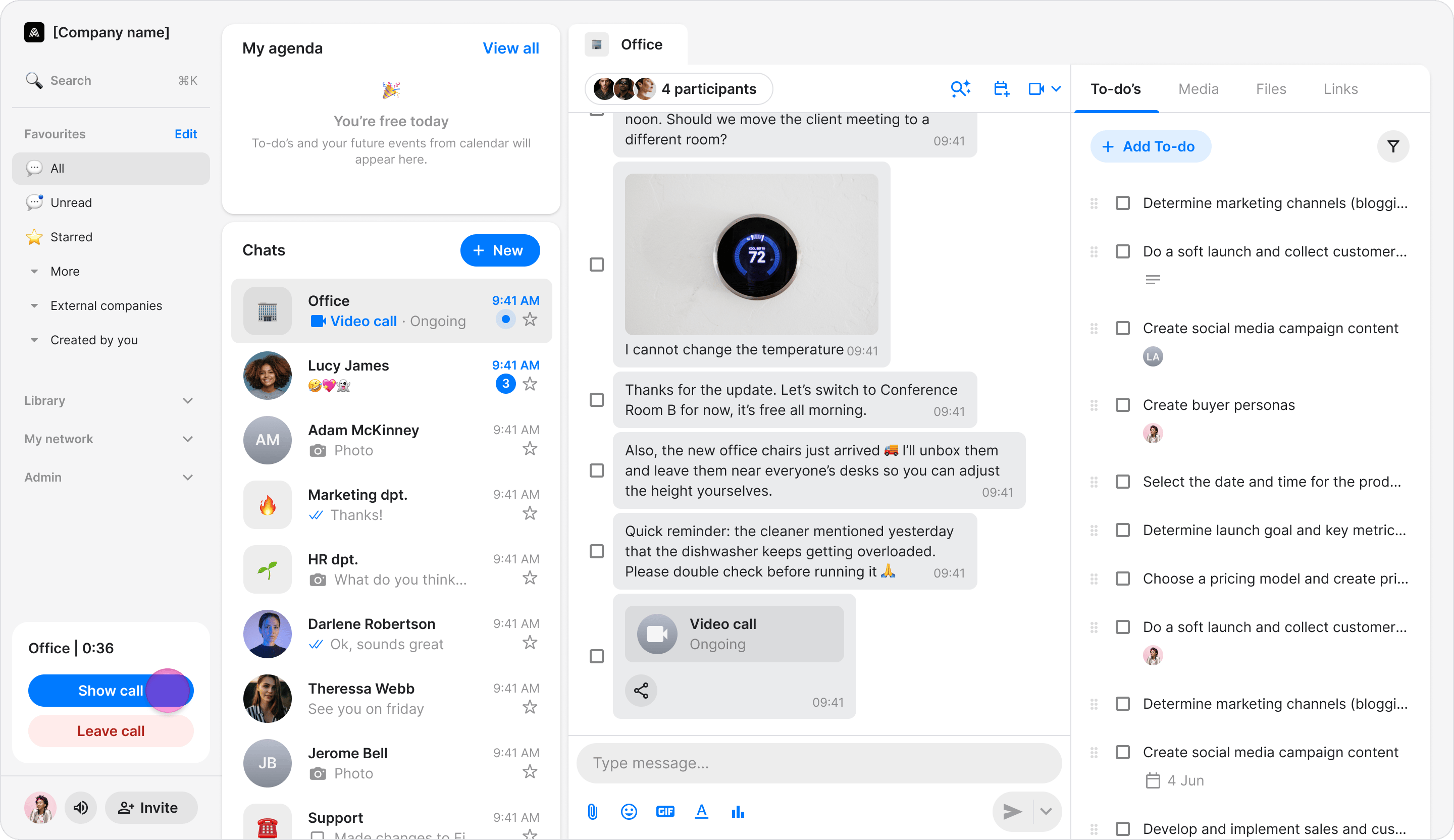
- Click “Show call” from the call widget in the sidebar to return to the active call.
- Click “Leave call” to exit the call.
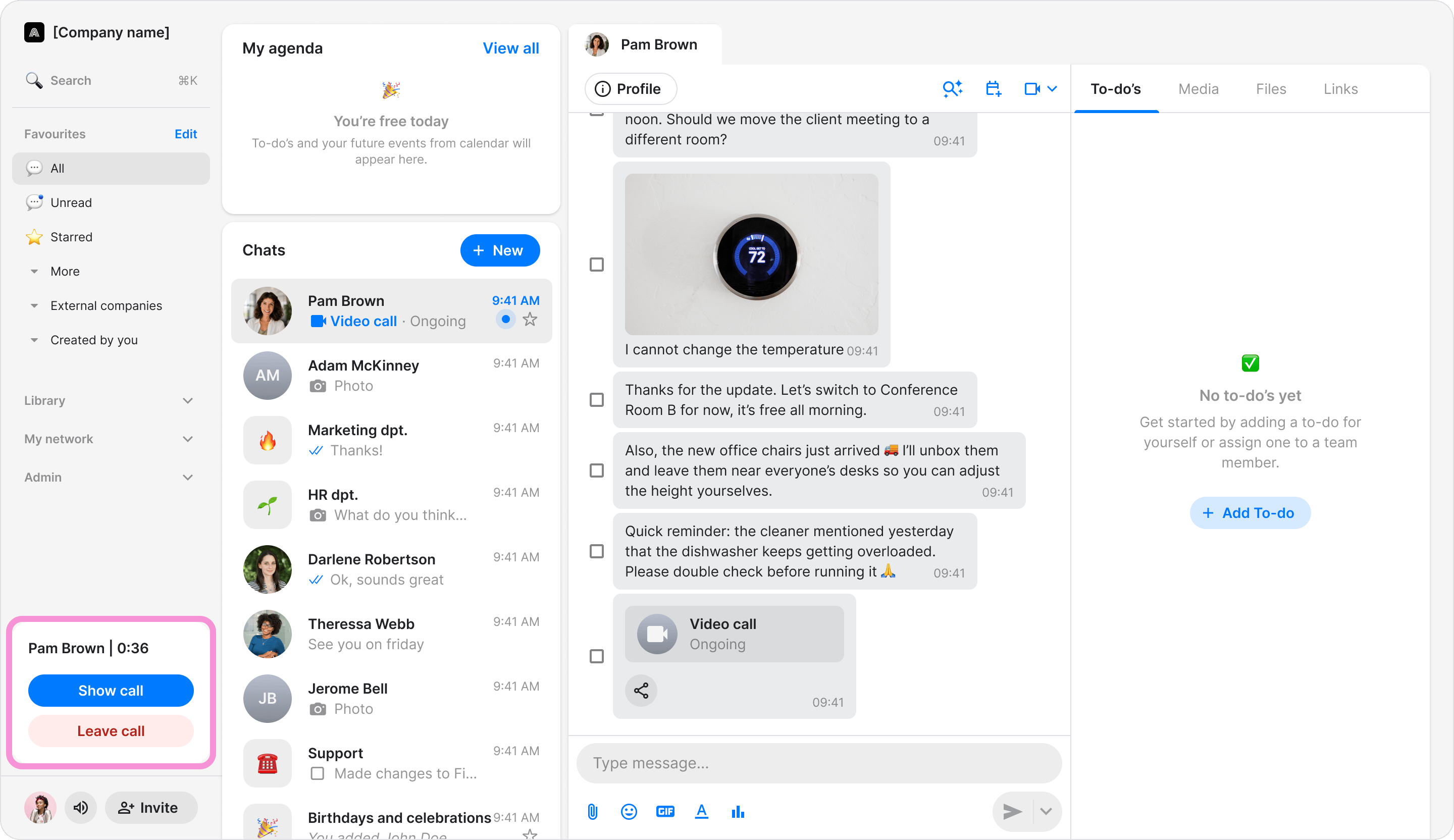
- Click the “Add people” icon to invite additional participants.
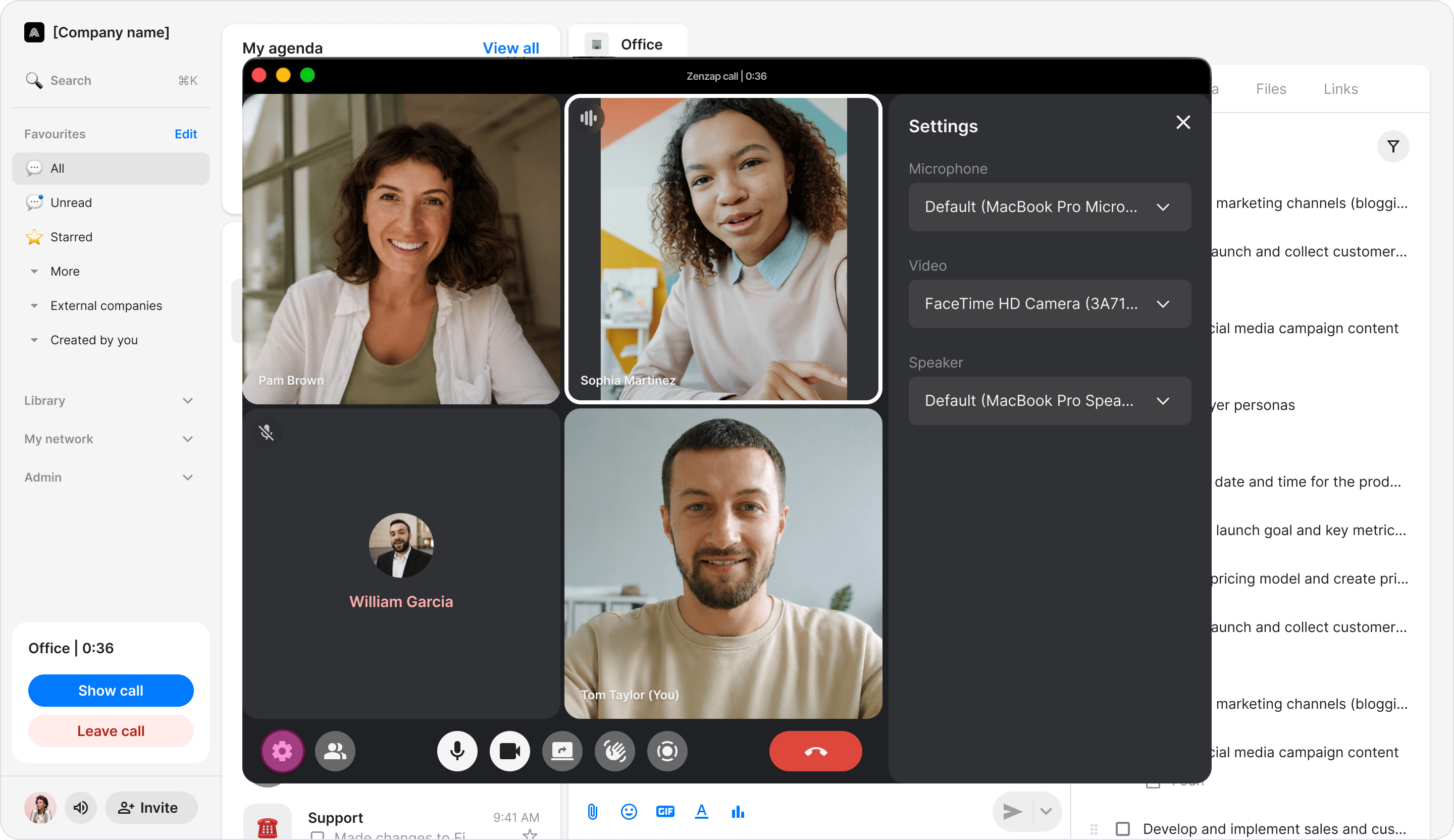
- Click the “Settings” icon to choose your preferred camera, microphone, speaker, and audio output device.
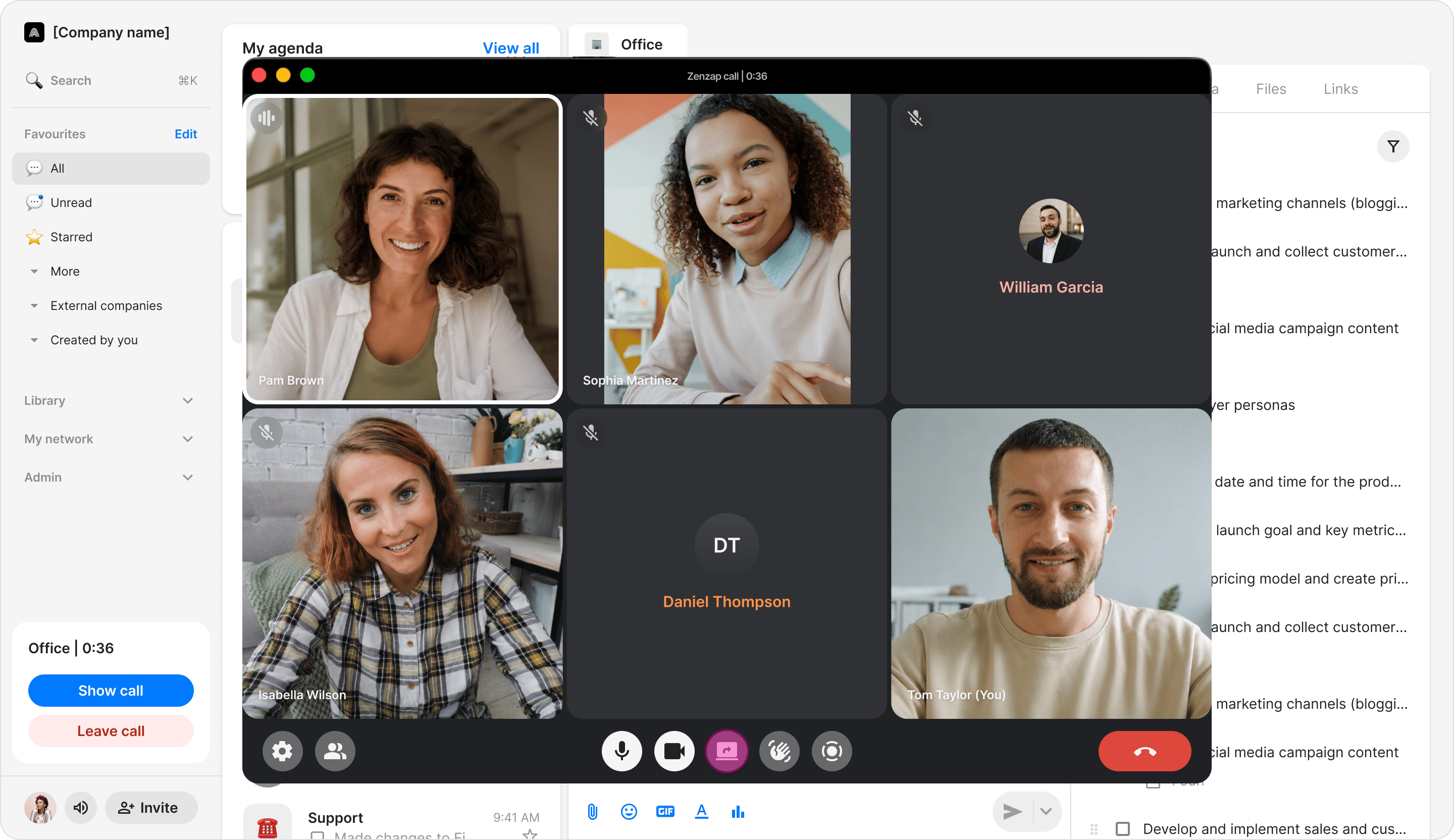
- Share your screen.
- Send emoji reactions.
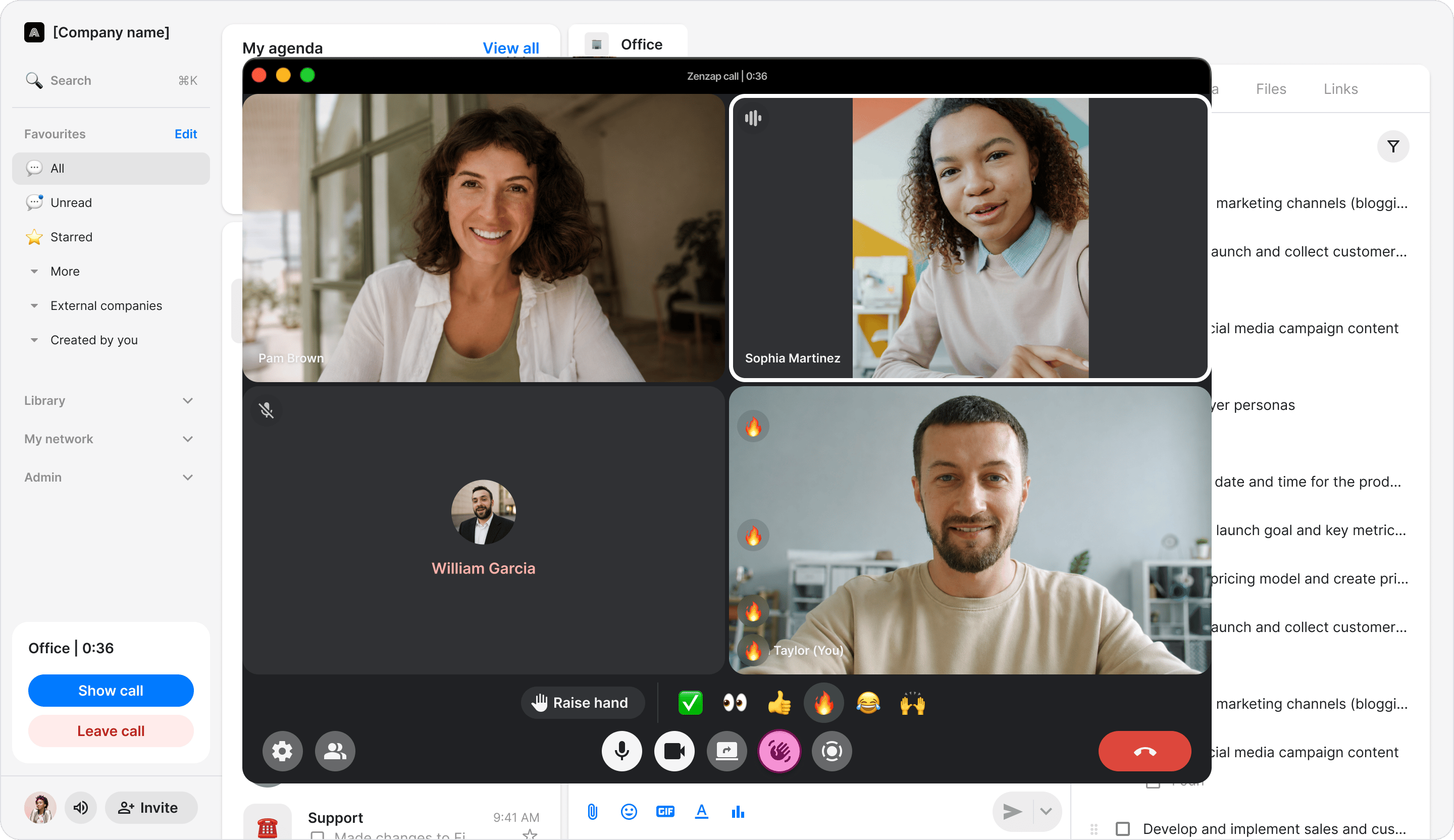
- Minimize the call and continue working in Zenzap. Audio remains active while the video window is hidden.
- Return to the active call at any time by clicking “Show call” in the sidebar.
- Make sure Zenzap has permission to access your microphone and camera before starting a voice or video call.
- You can move an active call between your mobile and desktop device. To switch devices, end the call on your mobile device and then join it from the other device. Joining the call on a new device automatically disconnects it on the previous one.